 Add As A Preferred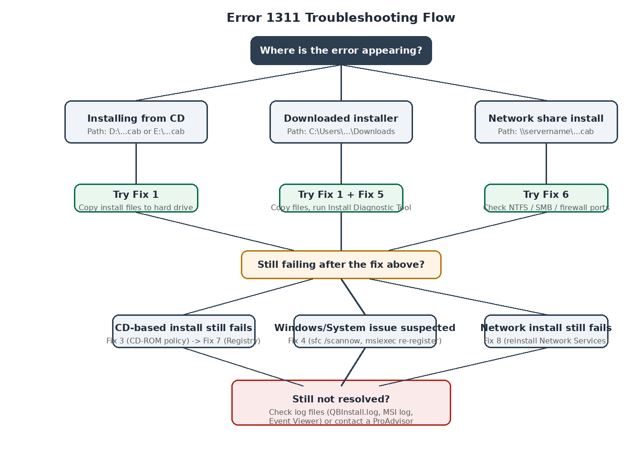
| Error Code | 1311 |
| Category | Windows Installer — source file access error |
| Severity | Medium — blocks install/update or Excel export until resolved |
| Affected Products | QuickBooks Desktop Pro, Premier, Enterprise (all supported versions); Financial Statement Designer/Writer exports |
| Resolution Time | 5–20 minutes for most cases (Fix 1 or Fix 5); up to 45 minutes for network/registry fixes |
| Difficulty | Easy (Fixes 1–2) to Advanced (Fix 7 — registry edit) |
| Safe to Ignore? | No — installation/update or export cannot complete until the underlying file-access issue is fixed |
| Data Loss Risk | Low — this is an installer-level error, not a data file error. Company file (.QBW) data is not directly affected. Still, back up your company file before making system changes like registry edits. |
Data1.cab or a similarly named .CAB file.QuickBooks Error 1311 is an installation error that appears when QuickBooks Desktop cannot read a specific file needed to install or update the software. It also occasionally appears when exporting a report from the Financial Statement Designer to Excel.
No. Error 1311 is a standard Microsoft Windows Installer error — it can appear during the installation of almost any Windows program, not just QuickBooks. The Windows Installer service (msiexec) raises this error whenever it expects to read a file from the install source and can’t reach it. QuickBooks is simply one of the more common programs where users encounter it, because installations are frequently run from CDs or shared network drives.
A .CAB (Cabinet) file is Microsoft’s compressed archive format used to bundle multiple installer files — program binaries, drivers, resources — into a single package so they can be downloaded or copied as one unit.
When QuickBooks Error 1311 occurs (typically while installing/updating QuickBooks Desktop from a CD or downloaded installer, or exporting a report to Excel), users typically see one of these messages:
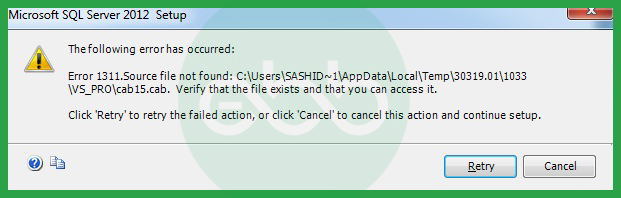
QuickBooks Error 1311 belongs to the Windows Installer source-file family and signals that QuickBooks (or its installer) cannot locate a specific file it expects to read, most commonly appearing when an installation source is incomplete, a CD/DVD is damaged, or a temp folder was cleared mid-install.
Run through this checklist first — it resolves a surprising number of cases on its own and helps you avoid trying fixes that won’t apply to your situation.
| ✓ Back up your company file (.QBW) — a precaution before any system-level changes, even though this error itself doesn’t touch company data. |
| ✓ Restart Windows — clears any locked files or stuck processes left over from a previous failed attempt. |
| ✓ Log in as Administrator — the installer needs elevated rights to read and write to Program Files. |
| ✓ Check free disk space — at least 2.5 GB free is recommended; low space can interrupt extraction and mimic a “source file not found” error. |
| ✓ Verify the installer file size — compare it against the specifications found on your QuickBooks Downloads and Updates page; a mismatch means the download is incomplete or corrupted. |
| ✓ Confirm your Windows version is supported for your QuickBooks version — check Intuit’s compatibility page if unsure. |
| ✓ Temporarily disable antivirus — re-enable it immediately after the install completes (see What NOT to Do below). |
| ✓ Close all background apps — especially cloud-sync tools (OneDrive, Dropbox) that may lock files in the installer’s temp folder mid-extraction. |
Before trying random fixes, identify your situation:
| Your Setup | Path in Error Message Looks Like | Likely Cause | Jump to Fix |
| Installing from CD | D:\…cab or E:\…cab | Damaged/dirty disc | Fix 1 |
| Installing from downloaded file | C:\Users\…\Downloads\…cab | Incomplete/corrupted download | Fix 1 + Fix 5 |
| Installing over a network share | \\servername\…cab | NTFS/SMB permission issue | Fix 6 |
| Export to Excel from FSD | N/A (happens during export, not install) | Microsoft Office compatibility issue | Fix 2 |
A visual version of the diagnostic guide above — follow the path that matches your install source:
QuickBooks Error 1311 rarely has just one trigger — it usually stems from a problem with your installation source or the permissions guarding it.
| Cause | Explanation |
| Damaged installation media | Scratched CD/DVD or corrupted download |
| Incompatible Microsoft Office version | Especially relevant for FSD-to-Excel exports |
| Restricted file/folder permissions | Missing admin rights or NTFS permission issues |
| Antivirus/firewall interference | Security software blocking installer access |
| Outdated Windows components | Missing updates or damaged system files |
| Network share misconfiguration | Incorrect SMB/NTFS permissions on shared installers |
| Hardware malfunction | A failing CD/DVD drive or a failing hard drive can prevent the installer from reading source files correctly, even when the files themselves aren’t corrupted. |
Match your exact symptom to the most likely cause and fix:
| Symptom | Root Cause | Best Fix | Success Probability |
| Error names Data1.cab, install from CD | Scratched/dirty disc | Fix 1 | High |
| Error names a file under \Downloads\ | Incomplete/corrupted download | Fix 1 + Fix 5 | High |
| Error names a \\servername\ path | NTFS/SMB permission gap | Fix 6 | Medium–High |
| Fails only during Excel export from FSD | Microsoft Office version incompatibility | Fix 2 | Medium |
| Fails immediately after antivirus scan runs | Antivirus quarantining installer files | Fix 5, then Fix 6 (allow-list) | Medium |
| Fails only on this one CD-only PC, repeatedly | Windows CD-ROM security policy blocking access | Fix 3, then Fix 7 | Low–Medium |
| Persists after every fix above, on a network share | Corrupted Network Services component | Fix 8 | Low–Medium |
The underlying cause is the same across versions, but where the missing file typically sits — and which fix resolves it fastest — varies:
| Version | Typical Trigger | Fastest Fix |
| QuickBooks 2022 | CD installs, missing Data1.cab in temp extraction folder | Fix 1 |
| QuickBooks 2023 | Downloaded installer interrupted mid-download | Fix 1 + Fix 5 |
| QuickBooks 2024 | Antivirus quarantining extracted installer files | Fix 5, then Fix 4 |
| QuickBooks 2025 | Windows Installer service registration issues | Fix 4 |
| Enterprise (multi-user) | Network share NTFS/SMB permission gaps | Fix 6 |
Note: confirm your exact build number in Help > About QuickBooks before troubleshooting — this narrows down which fix to try first.
Before you start troubleshooting, it helps to confirm you’re actually dealing with Error 1311 and not a related installation issue.
Here are the telltale signs users typically encounter.
For CD, network-share, and Excel-export scenarios, see the Diagnostic Guide and Root Cause Matrix above — those cover the exact path patterns and fixes for each.
One scenario not covered there:
Possible Cause: USB installers are prone to the same corruption issues as CDs, plus two USB-specific problems: the drive was removed before the copy finished, or the USB port/drive itself has a bad connection causing intermittent read failures during extraction — Windows may report this as a missing source file even though the file is technically present but unreadable at that moment.
Best Fix: Copy the entire installer folder from the USB drive to your desktop first (same approach as Fix 1), then run Setup.exe from the local copy. If the copy operation itself fails or shows read errors partway through, try a different USB port (preferably a rear/motherboard port rather than a hub) or a different USB drive — this rules out a failing drive or port as the cause.
QuickBooks Error 1311 can be fixed by copying installation files to your hard drive, checking Microsoft Office compatibility, modifying CD-ROM access, using the command prompt, running the QuickBooks Install Diagnostic Tool, resolving network and firewall permission issues, or — for persistent CD cases — editing the registry or reinstalling Network Services.
For detailed steps, follow the solution guide below:
Sometimes the installation fails because the setup is running directly from the CD or a damaged installer.
Follow these steps:
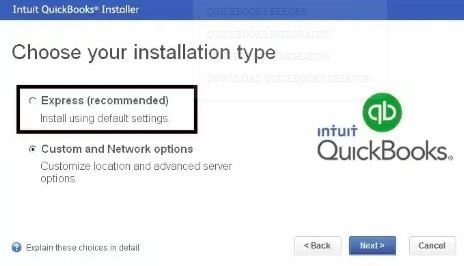
If you’re using a downloaded installer:
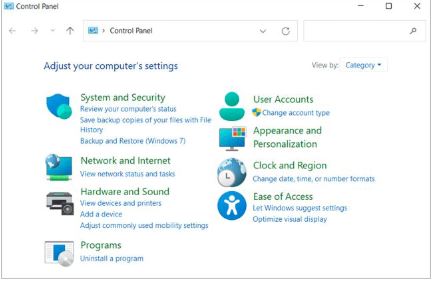
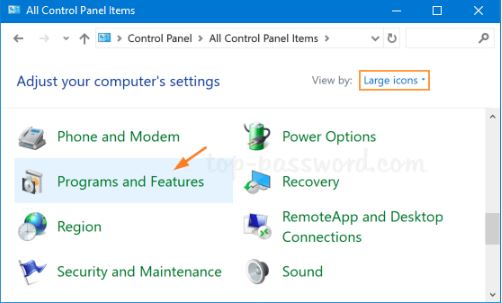
An outdated Microsoft Office installation can sometimes cause QuickBooks installation or export errors.
Follow these steps:
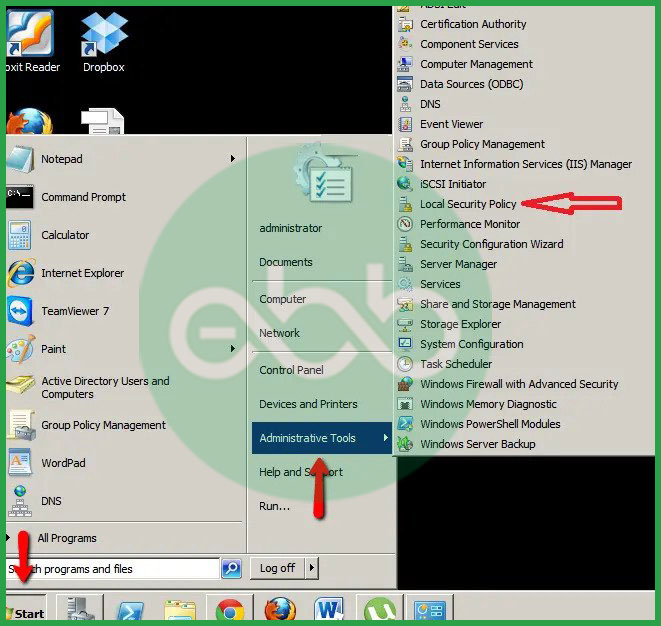
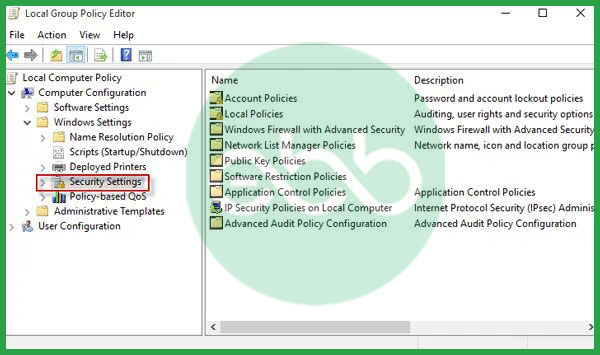
If you’re installing QuickBooks from a CD, Windows security settings may be blocking access.
Follow these steps:
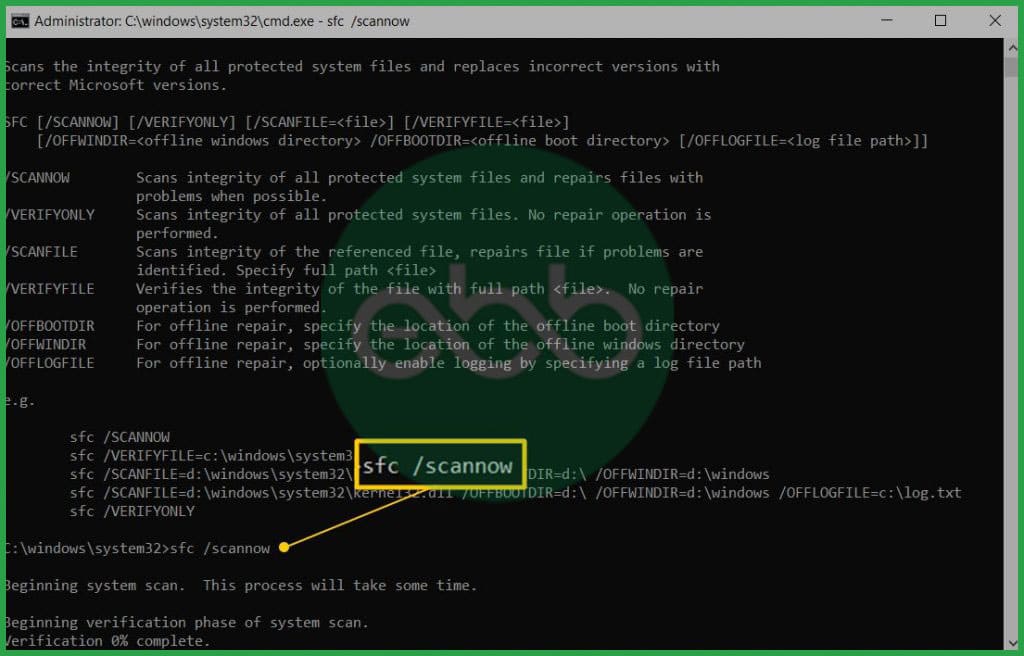
Corrupted Windows files can also trigger QuickBooks Error 1311.
Follow these steps:
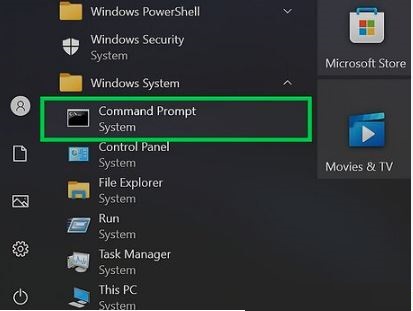
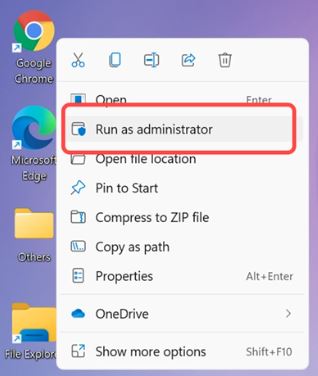
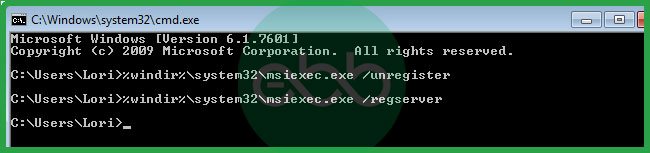
The QuickBooks Install Diagnostic Tool can automatically fix many installation-related problems, including Error 1311.
Follow these steps:
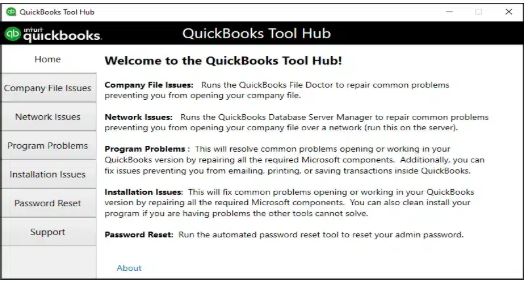
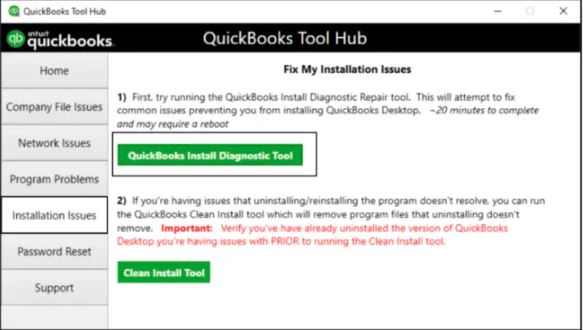
Tip: This is Intuit’s recommended tool for resolving most QuickBooks installation errors.
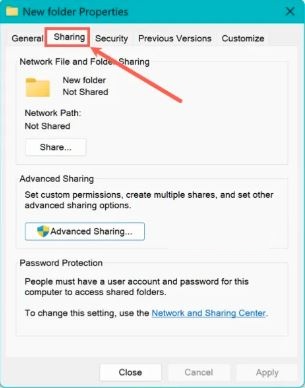
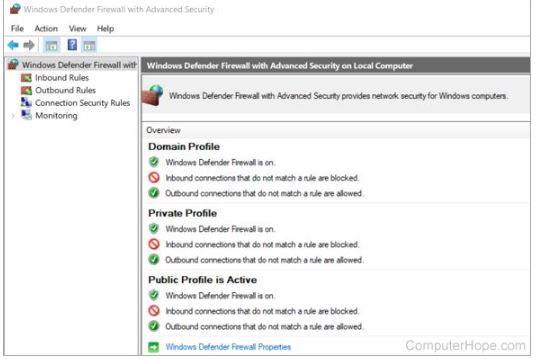
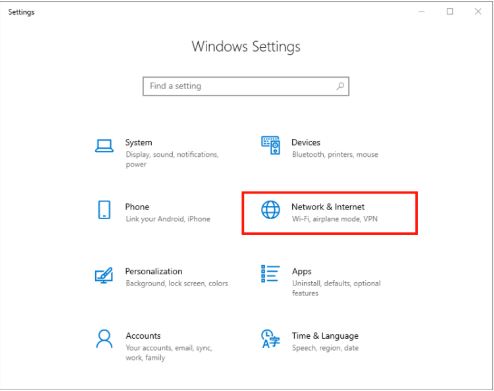
If you’re installing QuickBooks over a network, incorrect permissions or firewall settings may block the installation.
Follow these steps:
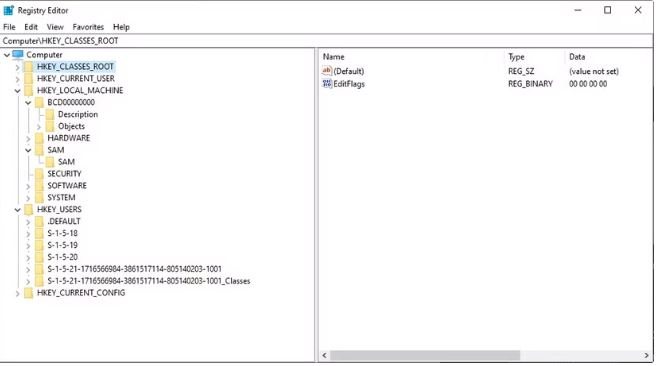
Use this only if Fixes 1–3 haven’t resolved a CD-based install. Editing the registry incorrectly can cause system issues — back up the registry first, or skip this fix and use Fix 5 instead.
Follow these steps:
For network-share installs where Fix 6 alone doesn’t resolve the issue, resetting the Network Services component can help.
Follow these steps:
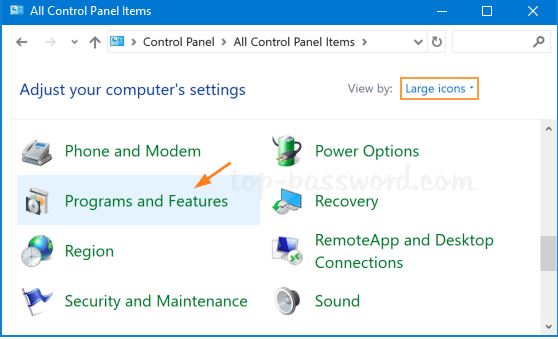
If the install stopped partway through — for example, it reached 50% and then failed — don’t just click Retry. A partial install can leave broken registry entries and orphaned files that cause repeated failures until they’re cleaned up.
Note: if the QuickBooks Install Diagnostic Tool (Fix 5) is available, running it after step 1 above will handle most of steps 2–3 automatically.
Based on the order these fixes typically resolve the issue, from most to least reliable:
| Fix | Estimated Success |
| Fix 1 — Copy installer to hard drive | High |
| Fix 5 — QuickBooks Install Diagnostic Tool | High |
| Fix 6 — Network/firewall permissions | Medium–High |
| Fix 2 — Microsoft Office compatibility | Medium |
| Fix 4 — Repair Windows system files (sfc/msiexec) | Medium |
| Fix 3 — CD-ROM security policy | Low–Medium |
| Fix 8 — Reinstall Network Services | Low–Medium |
| Fix 7 — Registry edit (Advanced) | Low (Advanced) |
| Don’t leave antivirus or firewall software permanently disabled. Turn it off only for the duration of the install, then re-enable it immediately. |
| Don’t edit the registry (Fix 7) unless you’re comfortable doing so. Deleting or changing the wrong key can cause unrelated system problems. Back up the registry first, or use Fix 5 instead. |
| Don’t keep retrying the same install from a visibly damaged CD. If the disc is scratched, copy the files first (Fix 1) rather than repeating failed attempts. |
| Don’t grant “Full Control” network permissions company-wide as a shortcut. Scope permissions to the specific installation folder to avoid unnecessary security exposure. |
For larger deployments, Error 1311 often traces back to infrastructure rather than a single workstation. IT admins should check the following:
Group Policy Objects (GPOs) can restrict removable media access, block .cab/.msi execution, or enforce software restriction policies that prevent the installer from reading extracted files. Check Computer Configuration > Administrative Templates > Windows Components > Windows Installer for any “Disable Windows Installer” or “Prohibit removable media” policies applied to the affected OU.
If the installer is hosted on a DFS namespace, replication delays between DFS targets can mean the CAB file a client resolves to isn’t fully replicated yet. Point the install directly at a single DFS target (not the namespace root) to rule this out.
Some NAS devices reformat or strip NTFS-specific attributes when serving files over SMB, and older NAS firmware may not fully support the SMB version Windows Installer expects. Copy the installer locally rather than running Setup.exe directly from NAS-hosted storage.
Installing over an RDP session can fail if the session doesn’t have redirected local drive access configured, or if the installer tries to access a mapped drive that isn’t available in that session context. Run the installer from a local (non-mapped) path on the RDP host itself.
On VMs, ISO files mounted as virtual CD/DVD drives can behave like a “damaged disc” to the installer if the ISO itself is incomplete or the virtual drive disconnects mid-install. Verify the ISO’s checksum before mounting, and prefer copying the installer to the VM’s local disk over running it directly from a mounted ISO.
On SAN-backed shared installation folders, check that the LUN has consistent read latency — high-latency storage can cause the installer to time out mid-extraction, which surfaces as a “source file not found” error even though the file exists.
If the fixes above don’t resolve the error, the installer’s own logs usually show exactly which file failed and why.
Located in %ProgramData%\Intuit\QuickBooks <version>\ or the installer’s temp folder during setup. Search for “Error 1311” or “Source file not found” — the surrounding lines show the exact CAB file and component ID the installer was trying to extract.
Generate one by running the installer with logging enabled: msiexec /i “QuickBooks.msi” /L*V “C:\QBInstall_verbose.log”. Search the resulting log for “Return Value 3” near an InstallFiles or CopyFile action — that marks the exact point of failure.
Open Event Viewer > Windows Logs > Application, filter by Source: MsiInstaller. Installer failures log an event with the failing product code and a brief error description that can confirm whether this is genuinely error 1311 or a related install error.
Check %Temp%\ for a folder created by the installer during extraction (often named with a random string). If this folder is missing or empty partway through setup, something — antivirus, a cleanup utility, or low disk space — is removing files before the installer can read them.
How to read them: Search each log for the exact filename shown in your error message (e.g., Data1.cab). The lines immediately before that reference usually show the action being attempted (CopyFile, InstallFiles, Extract) and the source path the installer expected — compare that path against where your installer files actually are.
Hopefully, the information above resolves your Error 1311 issue. If you’ve worked through these fixes and the error persists, our Certified QuickBooks ProAdvisors are available for professional support at +1-802-778-9005 or support@ebetterbooks.com.
That strongly suggests a workstation problem. If the error were strictly server-related (like a locked file or a Database Server Manager failure), all users would typically be kicked out or unable to connect. When only one workstation sees the error, look closely at that specific machine’s configuration:
1. Is its Windows Firewall blocking the necessary QuickBooks ports (typically 8019 and others)?
2. Does it have the correct and most recent QuickBooks Database Server Manager client installed (even if it’s not hosting)?
3. Are the folder permissions (NTFS) on that workstation correctly set to allow full read/write access to the network share?
No, the core requirements for network sharing and permissions are the same across all QuickBooks Desktop versions (Pro, Premier, and Enterprise). All versions rely on standard Windows NTFS permissions and Windows Share permissions to ensure the necessary read/write access to the .QBW file and its companion lock files (.ND and .TLG}). The key requirement remains consistent: the user accessing the file—or the user account running the Database Server Manager—must have Full Control permissions on both the sharing tab and the security (NTFS) tab for the containing folder.
For shared installation sources, users should have at least Read & Execute access at both the folder AND file level. IT admins should confirm permissions aren’t being overridden by parent folders, security inheritance rules, or antivirus security policies—common causes of installation failures in Windows environments.
Yes. Windows Defender Firewall should allow QuickBooks services plus standard SMB/CIFS file-sharing ports (137–139, 445). In real offices, installations often fail when the firewall blocks workstation-to-server traffic. Whitelisting QuickBooks executables, Intuit services, and SMB ports ensures stable installation and file access.
Yes, you can fix QuickBooks Error 1311 by copying the installation files from the CD or external source to your hard drive. Once copied, run the setup from the hard drive instead of the external source, which can resolve the issue if the file access was problematic.
To prevent QuickBooks Error 1311 in the future, ensure that your installation media or files are not damaged by using only verified, intact sources. Always download QuickBooks from the official website. Additionally, run installations with administrator rights, keep your system updated, and regularly check for file corruption.
It can happen with any Windows program. Error 1311 is raised by the Windows Installer service itself, not by QuickBooks’ own code — QuickBooks is just a common program where users run into it because installs are frequently done from CDs or shared drives.


