Excerpt:
Fixing the QuickBooks Unrecoverable Error, a severe system exception marked by a 10-digit code, requires a systematic troubleshooting approach to isolate the root cause, which can range from corrupted company data to broken program dependencies or user profile conflicts. The process begins with non-destructive diagnostic steps, such as running the Quick Fix My Program tool and performing controlled startups using the ALT key to bypass damaged user interface components. Advanced recovery methods escalate to checking system logs (Event Viewer and QBWin.log), creating a new Windows Administrator account to resolve permission issues, and ultimately using the Verify and Rebuild Data utilities or the Clean Install Tool to restore file integrity or program stability, ensuring long-term data protection and software functionality.
 Add As A Preferred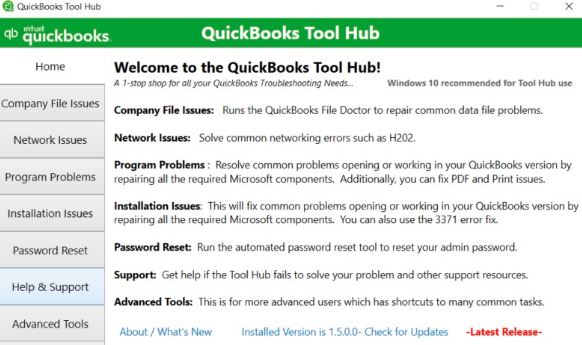
Quick answer: Before you do anything else, check these 3 things — they decide which solution you need.
A QuickBooks Unrecoverable Error is a critical application error that occurs when QuickBooks unexpectedly stops while opening, saving, or accessing a company file. The issue may be caused by damaged company data, corrupted Windows components, user profile conflicts, or incomplete QuickBooks installation files. Start by running Quick Fix My Program, then determine whether the problem is related to your company file or the Windows environment before attempting advanced repairs.
| What You See | What It Actually Is | Where to Look |
| A 10-digit code like “20888 41171” and QuickBooks closes immediately | Unrecoverable Error (this guide) | Continue below |
| “QuickBooks has stopped working” (a Windows dialog, no 10-digit code) | Windows application crash, not QB-specific | Windows Event Viewer → Application log |
| A code like H202, 6000-series, or -6150 | Multi-user / network / hosting error | QuickBooks Database Server Manager settings |
| Error during payroll update only | Payroll-specific error (PS0xx, 15xxx) | Payroll update troubleshooting, not this guide |
Follow this tree step by step. Each answer points you to the next question or straight to a solution.
Step 1 — Can QuickBooks Desktop open at all, without opening a company file?
Step 2 — Can a Sample Company File open normally?
Step 3 — Does the problem affect only one Windows user?
Step 4 — Does the error occur only with one specific company file?
Step 5 — Does Verify Data report damage?
Use this table alongside the decision tree above to quickly identify where the problem lives.
| What Happens | Most Likely Area | First Test |
| QuickBooks itself will not open | Program / Windows | Quick Fix My Program |
| QuickBooks opens but one company file crashes | Company file | Sample company test |
| Sample company opens normally | Original company file / user / folder | Test the original file directly |
| Sample company also crashes | Program / environment | Component Repair Tool |
| Only one Windows user is affected | Windows profile | Test with another administrator account |
| All users are affected | Shared file / program / network | Continue broader diagnosis |
| Verify Data reports errors | Company file | Backup, then Rebuild Data |
| Only multi-user access triggers the error | Network / hosting | Check Database Server Manager |
Match your code below, then jump to the relevant solution.
| Error Code (example) | Common Trigger | Most Likely Cause | Jump To |
| 20888 41171 | Saving transactions | Damaged company file / folder | Solution 6 |
| 00551 46274 | Emailing forms / login | Corrupted user profile settings | Solution 5 |
| 18302 50142 | After a QB/Windows update | Damaged Microsoft components (.NET/C++) | Solution 2 |
| 19740 43064 | Opening company file | Data integrity issue (possible cause) | Solution 9 |
| 00227 55008 | Startup or saving | Windows component corruption (possible cause) | Solution 2 |
| 00000 14775 | Affects one user only | User profile corruption | Solution 5 |
| 13730 84631 | After a QuickBooks update | Damaged QuickBooks components | Solution 10 |
| 19062 00238 | Startup or import | Damaged company file (possible cause) | Solution 9 |
| 00000 41953 | Importing accountant’s changes | Accountant copy merge failure | Accountant Import section |
| 00000 43109 | Importing .QBY file | Import conflict | Accountant Import section |
| 02457 79428 | Printing reports | PDF component conflict (possible cause) | Reconciliation section |
| 04457 54787 | Reconciliation | Adobe Reader issue | Reconciliation section |
| 01565 73431 | Multi-user mode | Hosting configuration issue | Network Deep-Dive |
| 05062 39228 | Startup | Registry corruption (possible cause) | Solution 11 |
| 19070 00208 | Company file access | Folder permission issue | Solution 7 |
| 15106 00000 | Updating QuickBooks | Security software conflict (possible cause) | Solution 10 |
| Occurs only on one workstation | — | Windows profile/permissions issue | Solution 5 |
| Occurs during backup/rebuild only | — | Company file data corruption | Solution 9 |
Note: where a cause could not be reliably confirmed for a specific code, it is labeled a possible cause rather than a confirmed one.
| Code | Trigger | First Test | Recommended Action | Escalate If |
| 20888 41171 | Saving transactions | Open a sample file | Move file to new folder (Solution 7), then Verify/Rebuild | Rebuild fails twice |
| 00551 46274 | Login / emailing | Test another Windows user | Create new admin account (Solution 5) | New profile also fails |
| 18302 50142 | After an update | Check Control Panel for missing frameworks | Run Component Repair Tool (Solution 2) | Repair tool reports failures |
| 19740 43064 | Opening company file | Verify Data | Backup, then Rebuild Data (Solution 9) | Verify still fails after rebuild |
| 00000 41953 | Accountant import | Retry import (Continue Import) | Recreate Accountant’s Copy change file | Repeated merge failures |
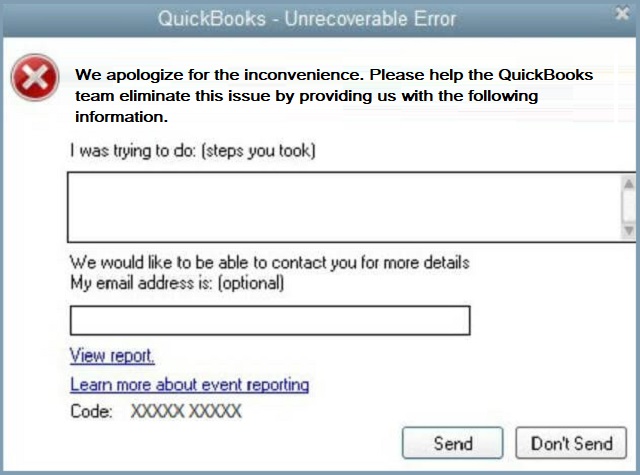
It’s a fatal internal crash where QuickBooks Desktop cannot complete a process and shuts down, showing a 10-digit code in the format “20888 41171” (note the space after the first five digits). It most often appears while opening or closing a company file, or when clicking Save, Print, or Send.
⚠ Troubleshooting should always begin with protecting your data, not repairing it.
This is an illustrative scenario based on a typical case pattern, structured to show the diagnostic process end to end — not a specific customer file.
| Symptoms | Tests | Findings | Action | Result | Lesson |
|---|---|---|---|---|---|
| QuickBooks crashed immediately with “Unrecoverable Error 20888 41171” when opening the company file — but only on one workstation. A coworker on another PC could open the same file without issue. | Quick Fix My Program was run first (about 4 minutes) — the error persisted. A sample company file was then opened, which loaded normally. | Because the sample file opened fine, the company file itself was ruled out as the cause. Because the error was isolated to one workstation, a damaged Windows user profile became the leading suspect. | A new Windows administrator account was created, and QuickBooks was reopened from that account. | QuickBooks opened the original company file without error. No data was lost, since the company file itself had never been damaged. | When an error is isolated to a single workstation, test the Windows profile before assuming the company file is damaged — it saves time and avoids unnecessary data-repair steps. |
Each solution below includes a Difficulty/Risk/Backup/Time summary so you know what you’re getting into before you start.
| Difficulty | Risk | Backup | Best for | Time |
|---|---|---|---|---|
| Easy | Low | No | First crash after launching QuickBooks | 2–5 minutes |
Quick answer: Closes stuck background QuickBooks processes and repairs small program-level damage — non-destructive, try this first.
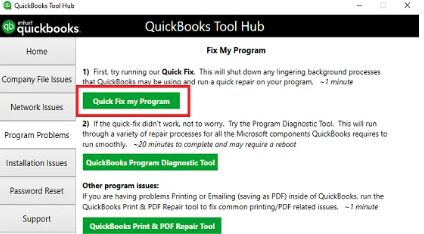
The Quick Fix My Program tool—part of Intuit’s official QuickBooks Tool Hub suite—is designed to close any background QuickBooks processes (like QBW32.exe) that may be stuck, reset temporary cache files, and repair small program-level corruptions that prevent QuickBooks from opening or performing properly.
Use this method first if:
This method is ideal for non-destructive repair, meaning it doesn’t alter your company data or registry configuration.
Note: If you already have the Tool Hub installed, open it and check the version in the Home tab (bottom-right corner). Update if necessary.
After the repair process, restart your PC to apply changes to system memory and release any locked resources used by QuickBooks background services.
If QuickBooks opens without freezing or showing the Unrecoverable Error, it indicates that corrupted session files or blocked processes were successfully repaired.
| Difficulty | Risk | Backup | Best for | Time |
|---|---|---|---|---|
| Moderate | Low | No | Error started right after a Windows/QuickBooks update | 15–30 minutes |
Quick answer: Fixes damaged Microsoft dependencies (.NET Framework, MSXML, Visual C++ Redistributables) that QuickBooks needs to run. Use this if Solution 1 didn’t help, or the error started right after a Windows/QuickBooks update.
Apply this method if:
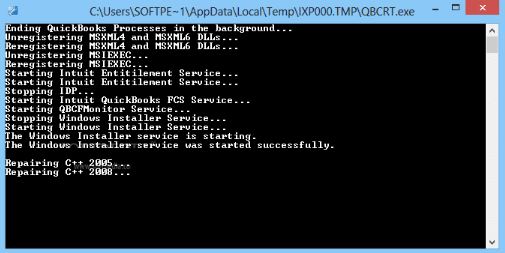
.dll or .exe dependencies related to Microsoft frameworks.The Component Repair Tool is designed to:
Essentially, it bridges the gap between QuickBooks and Windows—restoring the environment that QuickBooks depends on to function reliably.
QBInstallTool_v2.exeDuring the scan, your system may appear unresponsive—do not interrupt it. The tool runs multiple internal repair scripts sequentially.
Once the repair is complete, the tool will prompt you to restart your computer.
This ensures all dependency changes are applied, services are reloaded, and the repaired components are re-registered in Windows.
After rebooting, confirm that all repaired frameworks are functioning correctly:
A. Verify via Control Panel:
B. Verify via QuickBooks Launch Test:
| Difficulty | Risk | Backup | Best for | Time |
|---|---|---|---|---|
| Easy | Low | No | Preventing the next crash after a repair | 2 minutes |
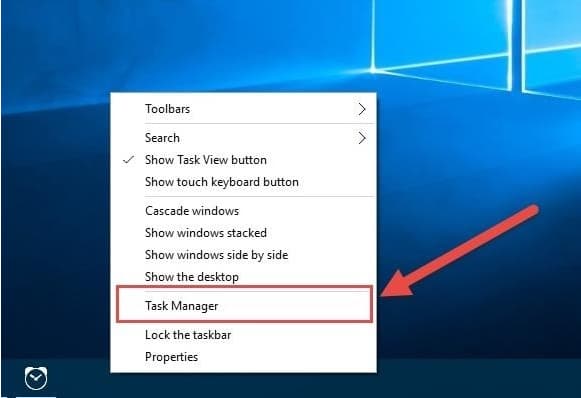
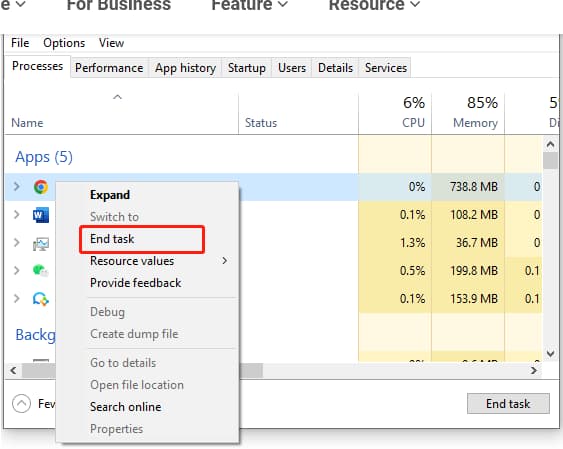
Quick answer: Leftover background processes can trigger the next crash. Always exit fully before reopening.
Steps:
| Difficulty | Risk | Backup | Best for | Time |
|---|---|---|---|---|
| Easy | Low | No | Crash right after opening the file | Under 5 minutes |
Quick answer: Holding ALT while opening the file skips loading your saved desktop layout and last-used transaction windows — both common crash triggers.
| Difficulty | Risk | Backup | Best for | Time |
|---|---|---|---|---|
| Moderate | Low | No | Error affects only one Windows user/PC | 10–20 minutes |
Quick answer: Use this only if the error happens for one Windows user but not others, or only on one PC. It rules out a corrupted user profile/registry.
QuickBooks requires administrative-level access to install updates, read/write company files, and register essential Microsoft dependencies like .NET Framework and MSXML.
When a Windows user profile becomes damaged, lacks permissions, or contains corrupt registry paths, QuickBooks may fail to load its internal processes (e.g., QBW32.exe or QBDBMgrN.exe), resulting in fatal “Unrecoverable Error XXXXX XXXXX” messages.
Each Windows profile maintains its own user registry hive (NTUSER.DAT), environment variables, and file permission settings.
If this profile becomes corrupted or misconfigured:
C:\ProgramData\Intuit or C:\Users\[Name]\AppData).By creating a new administrator account, you effectively generate a clean user environment — restoring permission inheritance, registry integrity, and stable execution privileges for QuickBooks.
Use this approach when you experience any of the following:
Depending on your version of Windows, follow the appropriate steps below:
For Windows 10 and 11:
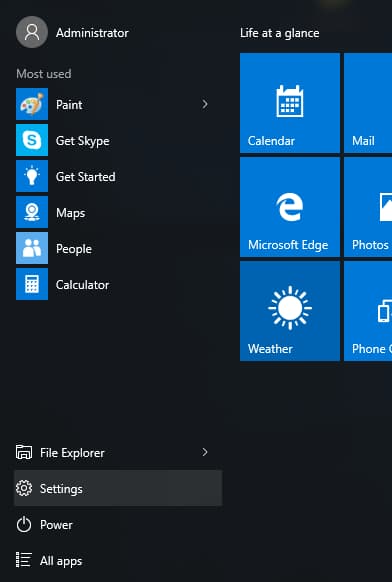
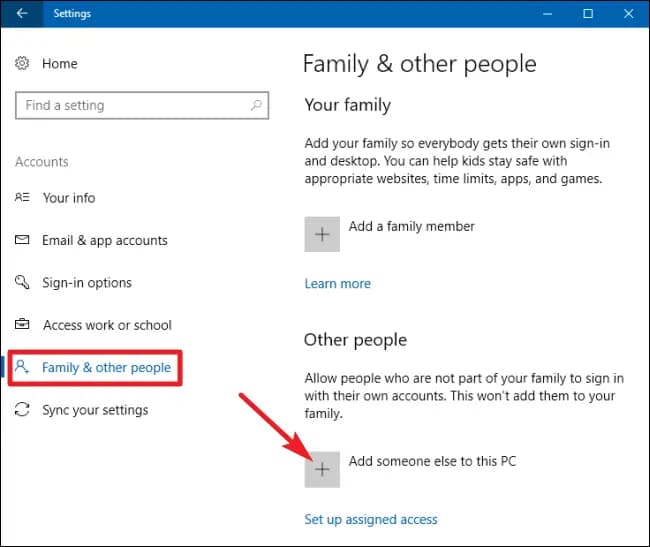
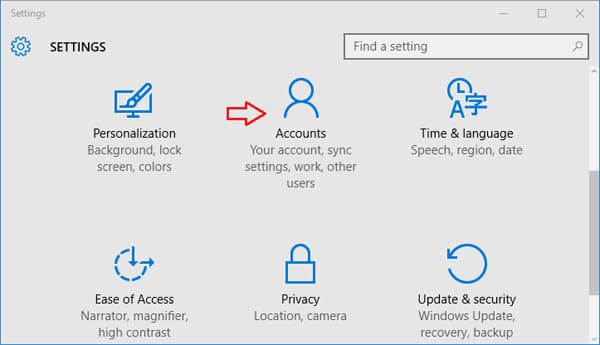
QBAdminTest) and a secure password.For Windows 8/7:
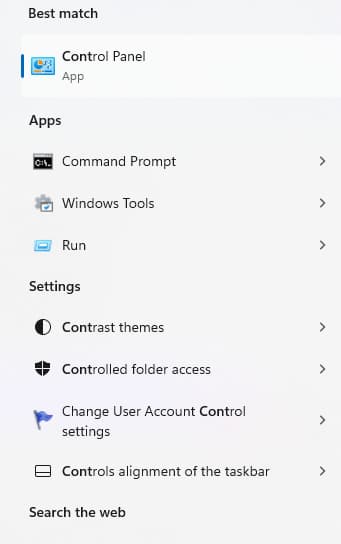
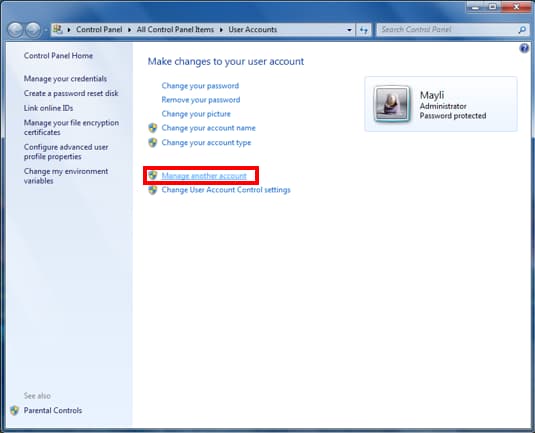
QBAdminTest) and select Administrator.This creates fresh registry keys, user directories, and permission paths essential for QuickBooks to operate properly.
Expected behavior: QuickBooks should open normally, without displaying the Unrecoverable Error.
All company file operations (open, save, backup, or report generation) should complete successfully.
After completing the test, confirm that:
If QuickBooks runs smoothly in the new profile, this confirms that the original Windows account was corrupted or lacked sufficient access rights.
| Difficulty | Risk | Backup | Best for | Time |
|---|---|---|---|---|
| Easy | Low | No | Isolating company file vs. profile issues | 10 minutes |
Quick answer: This isolates whether the problem is your company file/folder or your QuickBooks user profile — do this before deeper repairs.
This diagnostic step is critical because many unrecoverable errors are not software-wide but rather localized to one user or company file configuration.
QuickBooks maintains unique configuration files for each user, including access permissions, custom views, and transaction-level memory states.
If these user profile settings or the linked company file (.QBW) become corrupted, QuickBooks may crash when loading that specific environment — even though the rest of the application works correctly.
By comparing performance using a sample file or a newly created user, you can quickly confirm the scope of corruption:
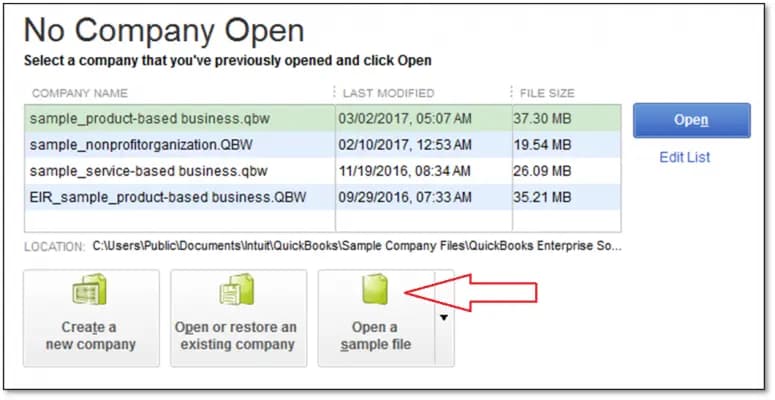
If the issue appears tied to your company file but may involve your user profile, follow these steps to create a new QuickBooks user:
After opening the sample file or creating a new user:
QBW32.exe faults).If no new unrecoverable error codes appear, the issue has been successfully isolated to the user or file level.
| Difficulty | Risk | Backup | Best for | Time |
|---|---|---|---|---|
| Easy | Low | Recommended | Ruling out a damaged folder/path | 5 minutes |
Quick answer: Rules out a damaged folder or permissions on the folder path itself.
Steps:
| Difficulty | Risk | Backup | Best for | Time |
|---|---|---|---|---|
| Easy | Low | Recommended | One-pass automated company-file scan | 10–20 minutes |
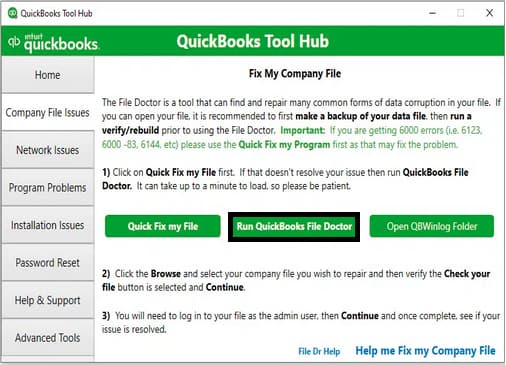
Quick answer: An automated tool from Tool Hub that scans and repairs company-file-level damage in one pass — a good “try this before manual rebuild” step.
Steps:
| Difficulty | Risk | Backup | Best for | Time |
|---|---|---|---|---|
| Moderate | Medium | Required | Verified company-file data issues | Depends on file size — can exceed an hour |
Quick answer: Diagnoses and repairs internal company-file data corruption — the standard fix when the error happens during save, backup, or reconciliation.
This method uses QuickBooks’ built-in diagnostic utilities — Verify Data and Rebuild Data — to identify structural damage, rebuild damaged indexes, and restore data integrity safely.
Apply this method if:
If the Verify process halts or QuickBooks crashes during verification, this indicates severe corruption, and you should move directly to Step 2 with a backup created first.
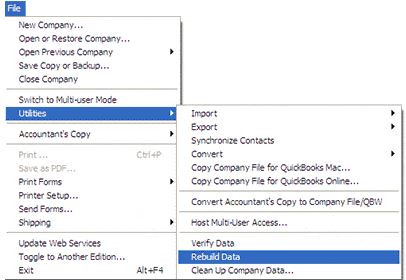
During this stage, QuickBooks:
If QuickBooks still reports corruption, repeat the process once more or proceed to Advanced Data Recovery Options.
For ongoing data stability, perform the following checks after rebuilding:
C:\Users\Public\Documents\Intuit\QuickBooks\Log\) —| Difficulty | Risk | Backup | Best for | Time |
|---|---|---|---|---|
| Easy | Low | No | Confirming you’re on a maintenance release that fixes known bugs | 5–15 minutes |
Quick answer: Many unrecoverable errors are fixed in maintenance releases — always confirm you’re current before deeper repairs.
| Difficulty | Risk | Backup | Best for | Time |
|---|---|---|---|---|
| Advanced | Medium | Required | Last resort — even the sample file won’t open | 45–60 minutes |
Quick answer: Use only after Solutions 1–10 have failed, or if the error prevents even the sample file from opening. This wipes corrupted install residue and starts fresh.
A clean installation ensures that no corrupted components, residual cache files, or faulty configurations interfere with QuickBooks operations. This is one of the most effective solutions when all other repair methods fail, especially for errors linked to broken dependencies or missing program references (e.g., QBW32.exe, Intuit Sync Manager, or QBDBMgrN.exe).
QuickBooks relies on hundreds of registry paths, shared DLLs, and configuration links between Microsoft components like .NET Framework, MSXML, and Visual C++ Redistributables.
When any of these links break due to:
QuickBooks may crash or display Unrecoverable Error XXXXX XXXXX during startup or data access.
A clean reinstall eliminates all damaged traces, reinstalls dependencies, and resets your system to a factory-stable QuickBooks environment.
.QBW, .ND, .TLG) to a safe location, such as an external drive or cloud backup.appwiz.cpl → Press Enter.The Clean Install Tool removes leftover QuickBooks installation folders, registry entries, and cached data that a normal uninstall cannot.
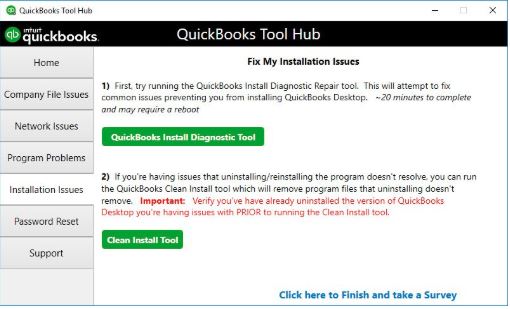
C:\Program Files\Intuit\QuickBooks (Year) → QuickBooks (Year).oldC:\ProgramData\Intuit → Intuit.oldC:\Users\[Username]\AppData\Local\Intuit → Intuit.old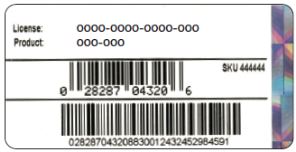
.QBW file.A dedicated path for the common “it broke right after an update” scenario. Not every post-update crash requires reinstalling QuickBooks — work through these in order first:
When the error happens specifically during reconciliation or while opening reconciliation reports, the issue is commonly tied to Adobe Reader conflicts rather than company file damage.
This error appears during the merge process of an Accountant’s Copy. QuickBooks often recovers automatically and shows a report of unapplied changes, which can be entered manually.
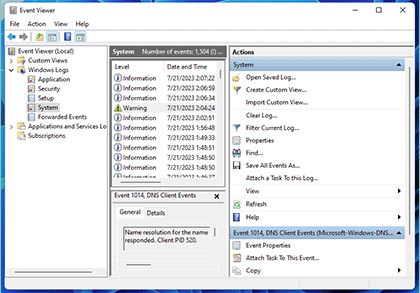
Note: an Event Viewer error referencing QBW32.exe confirms a crash occurred, but it doesn’t automatically prove the company file itself is corrupted — treat it as one data point, not a diagnosis.
Verified location (current QuickBooks Desktop for Windows): C:\Users\[YOUR USER NAME]\AppData\Local\Intuit\QuickBooks\log\XX.X\QBWin.log — where XX.X is your QuickBooks version number (for example, 24.0 for QuickBooks 2024). The fastest way to get there is to type %localappdata%\Intuit\QuickBooks\log\XX.X\QBWin.log into File Explorer’s address bar. You can also open it directly from QuickBooks: press F2 (Product Information) → F3 (Tech Help) → Open File tab → QBWin.log → Open File.
⚠ Rebuild Data modifies your company file. Applying it to the wrong problem can waste time or add risk.
Auto Data Recovery is QuickBooks‘ built-in safety net — it keeps recent copies of your transaction log (.TLG) and company file (.ND) so you can rebuild a working file even if the main one is badly damaged.
| Auto Data Recovery | Regular Backup |
| Emergency recovery mechanism | Planned, scheduled backup |
| Useful when the original file is already damaged | Used for normal, routine restoration |
| May not contain the most recent work (up to a few hours old) | Depends entirely on your backup date |
| Recovery copy must be verified before use | Backup should also be periodically test-restored |
For offices running QuickBooks across several workstations, unrecoverable errors are often network-related rather than file-related.
| Tool / Method | Best Used For |
| Quick Fix My Program | Program-level problems, stuck processes |
| Component/program repair | Installation or Microsoft-component issues |
| Sample Company File | Determining whether the company file is involved |
| Verify Data | Detecting possible data problems (non-destructive) |
| Rebuild Data | Repairing confirmed data issues, after backup |
| File Doctor | One-pass automated company-file scan and repair |
| Clean Install Tool | Replacing a damaged QuickBooks installation entirely |
Keep tool names and menu paths matched to your current QuickBooks Tool Hub version — Intuit periodically renames or relocates menu items.
| Situation | Recommended Path | Why |
| Error just started, affects one user, one PC | Try DIY (Solutions 1–5) | Low risk, usually resolved in under 30 minutes |
| Sample file also fails to open | Go straight to professional help | Points to a broken installation, not a simple fix |
| Verify Data reports errors after 2 rebuild attempts | Professional / data recovery service | Repeated rebuild failures indicate deeper structural damage |
| Error appears only during multi-user access | Try Network Deep-Dive first, then IT/professional | Often a configuration fix, not a data problem |
| No recent backup exists and file won’t open | Professional help immediately | Reduces risk of permanent data loss from further attempts |
These are one-time setup steps — not repeated from the solutions above.
This guide provides a structured path to diagnose and resolve QuickBooks Desktop Unrecoverable Errors with accuracy and stability. Each method strengthens the program environment, protects company data, and restores normal operation.
If the error continues after applying these solutions, contacting a qualified QuickBooks support professional ensures that the remaining fault is analyzed and corrected efficiently.
It skips loading your saved desktop layout and the last-used transaction/report windows — both common sources of the crash — so the file opens in a clean, stable state.
Open a sample file. If it works, your original file or folder is damaged. Separately, try a new Windows administrator account — if the error disappears there, your original Windows profile is damaged or under-permissioned.
Quick Fix My Program only addresses stuck processes and small program-level damage. The Component Repair Tool targets deeper Microsoft dependencies that QuickBooks needs to run at all.
In Event Viewer, look for Error/Critical entries referencing QBW32.exe. In QBWin.log, look for “LVL_ERROR,” “Verify Target Failed,” or codes like “C=###” — these point to data corruption.
Only after Quick Fix My Program and the Component Repair Tool have both failed, or if even a sample company file won’t open.
Verify Data is non-destructive diagnostics; Rebuild Data actually modifies the file. Always verify first, back up, rebuild, then verify again.
Not necessarily. The error shuts QuickBooks down, but your company file usually remains intact. Any work not saved at the exact moment of the crash may be lost — which is why backing up before troubleshooting matters.
Saved transactions generally remain in the company file. Work that had not been saved at the time of the crash may need to be re-entered. Always check your most recent transactions after recovery — an application crash does not automatically mean the entire company file is corrupted.
Simple fixes like the ALT key method take under 5 minutes. Rebuild Data can take over an hour on large company files. A full Clean Install typically takes 45–60 minutes including reinstall and reactivation.


