Excerpt:
QuickBooks Error 6000 occurs when users are unable to access their company files, typically due to issues with .ND or .TLG files, firewall settings, network problems, or corrupted files. This disrupts workflows, causing crashes and slow performance. Solutions include adjusting firewall settings, renaming configuration files, running the QuickBooks File Doctor Tool, and ensuring correct permissions. For persistent issues, consider contacting eBetterBooks Support for immediate assistance.
 Add As A Preferred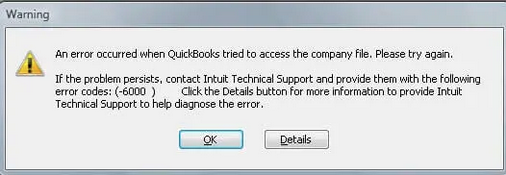
QuickBooks Error 6000 is a parent error code that appears whenever QuickBooks Desktop cannot open, restore, back up, or convert a company file (.QBW). It always shows up paired with a second number — for example -6000, -77 or -6000, -816 — and that second number is what actually tells you the root cause. Fix it by identifying the exact sub-code first, then applying the matching solution: renaming the ND/TLG companion files, running QuickBooks File Doctor, correcting folder permissions, or moving the file off a cloud-synced drive.
Fix QuickBooks Error 6000 by renaming ND and TLG files, running QuickBooks File Doctor, moving the company file to a local drive, and setting correct folder permissions to restore company file access.
QuickBooks Error 6000 is the parent code for an entire series of company file access failures. Error 6000 appears when users cannot open, restore, or back up a company file due to damaged companion files, network configuration problems, incorrect permissions, or corrupted installations.
QuickBooks always displays Error 6000 alongside a second number – such as -77, -80, -83, -301, or -816 – and that second number identifies the exact cause.
Common Error 6000 messages: “Error -6000 occurred when opening a company file. We are sorry for the inconvenience” or “An error occurred when QuickBooks tried to access the company file. Please try again. Error codes: (-6000, -77).”
This article provides a diagnostic framework, risk assessment, and complete solution guide. The second error code in every -6000 message is the single most important clue. Read that code first and match it to the root cause table below before attempting any fix.
Error 6000 is the header code for the entire 6000 series handling company file access failures. The 6000 series represents file access problems rather than accounting data errors inside the file. QuickBooks generates a 6000 code any time the program cannot complete a file operation – opening, restoring, backing up, or converting.
The second number attached to -6000 identifies the specific failure type. Code -77 means the company file is in an incorrect location or requires admin access. Code -80 points to file damage or a host configuration problem.
Code -83 means the user or service lacks permission to access the folder. Code -301 indicates a damaged or missing company file. Code -816 signals a transaction log file mismatch. Each requires a different first fix.
QuickBooks organizes errors by series: C= series (internal processing), H series (multi-user hosting), 6000 series (file access). Related errors include H101, H303, H505 (hosting conflicts) and -6189, -816 (transaction log mismatch). Identifying the second code before choosing a solution saves significant repair time.
QuickBooks errors create additional failures when the root cause goes unresolved. One underlying file access problem generates multiple error codes across the system.
| Cause of Error 6000 | Possible Triggered Errors |
| Damaged ND and TLG files | -6189, -816 (transaction log lock on network) |
| Incorrect folder permissions | -6000, -83 (access denied on shared folder) |
| File stored on cloud or external drive | -6000, -301 (file path invalid or unreachable) |
| Hosting on multiple computers | –6000/-80, H101, H303, H505 |
| Extra space in the file name | -6000/-82, -6000/-106 |
| Windows Firewall or antivirus blocking QuickBooks processes | -6176/0 |
| Outdated QuickBooks release with a known file-handling bug | Multiple sub-codes, inconsistently |
Read the second error code first. Match your specific code to the table below to find the correct solution path. Using the wrong fix for the wrong sub-code wastes time and risks file damage.
| Sub-Code | What It Means | Fastest Fix Path |
|---|---|---|
| -6000, -77 | Company file is in the wrong location, or the user lacks admin rights | Move file to the default Company Files folder; run QuickBooks as admin |
| -6000, -80 | File damage, or hosting is enabled on more than one computer | Rename ND/TLG files; disable hosting on all but the server |
| -6000, -82 / -6000, -106 | There’s a stray space between the file name and the .QBW extension | Rename the file and remove the space |
| -6000, -83 | The folder or network share is blocking read/write access | Grant Full Control to QBDataServiceUser and Everyone |
| -6000, -301 | The company file is missing, moved, or unreachable at the saved path | Verify the path; restore from the latest .QBB backup |
| -6000, -816 / -6189, -816 | Transaction log (TLG) doesn’t match the company file — usually a locked or leftover session | Rename the TLG file; make sure no other session is open |
| -6190, -83 / -6210, 0 / -6010, -100 / -6138, -105 | A workstation other than the server is hosting the file, creating a conflict | Turn off “Host Multi-User Access” on every workstation except the server |
| -6176, 0 | Windows Firewall or antivirus is blocking the connection between computers | Add QuickBooks executables (qbw32.exe, qbdbmgrn.exe) to firewall/antivirus exceptions |
Understanding QuickBooks companion files prevents data loss during repairs.
Renaming it does not delete any financial data. QuickBooks recreates it automatically the next time the company file is opened or a Database Server Manager scan runs.
A mismatch between these two files creates a lock that blocks access. Renaming the TLG file removes the lock without deleting any data – QuickBooks writes a fresh TLG from the company file content.
The Everyone group also needs Full Control for network sharing. Without these permissions, QuickBooks cannot write lock files or update the TLG during sessions.
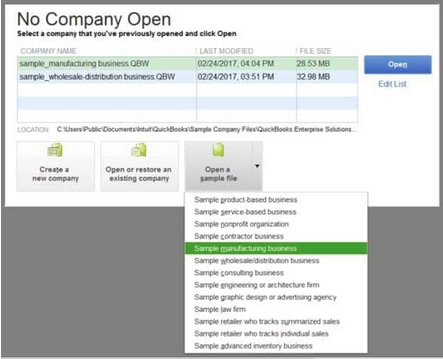
If the sample file opens, the QuickBooks program is healthy and the problem is isolated to the specific company file. If the sample file also fails, the QuickBooks installation itself is damaged.
Solutions are organized by skill level, risk level, and success probability. Start with Level 1 solutions and move to higher tiers only if lower-tier solutions fail.
These solutions require no technical expertise. The risk of data loss is minimal. Anyone can perform these steps safely.
| Solution 1.1: Open a Sample File to Identify the Problem Source | |||
| Skill Level | Risk Level | Success Probability | Approximate Time Required |
| Beginner | Low | High (as diagnostic) | 5-10 minutes |
| Risk Explanation | Opening a sample file cannot damage any data. This step identifies whether the problem is in the program or the specific company file. No files are modified. | Solution Explanation | QuickBooks sample files open from the same program environment as real company files. A sample file that opens successfully confirms the QuickBooks program is working and the problem lives in the specific company file. A sample file that also fails confirms the QuickBooks installation itself needs repair. |
Steps to Implement Solution 1.1
| Solution 1.2: Update QuickBooks to Latest Release | |||
| Skill Level | Risk Level | Success Probability | Approximate Time Required |
| Beginner | Low | Moderate | 15-20 minutes |
| Risk Explanation | Updates do not modify company file data. Always maintain a backup before updating. The computer may restart during installation. | Solution Explanation | Outdated QuickBooks versions contain file access bugs that Intuit has since fixed in update patches. Installing the latest release replaces old file-handling routines with corrected versions. Updated software reads ND and TLG files correctly and resolves permission handling problems that cause Error 6000. |
Steps to Implement Solution 1.2
| Solution 1.3: Copy Company File to a Local Drive and Reopen | |||
| Skill Level | Risk Level | Success Probability | Approximate Time Required |
| Beginner | Low | Moderate to High | 10-15 minutes |
| Risk Explanation | Copying does not modify the original file. Company data stays intact. This test identifies whether storage location causes the error. | Solution Explanation | Company files stored on cloud-sync folders, external USB drives, or deep folder paths trigger Error 6000 because these locations disconnect during access or exceed path length limits. QuickBooks requires constant uninterrupted access to local storage. Copying the file to a simple local path tests this immediately. |
Steps to Implement Solution 1.3
These solutions modify companion files and network settings. Basic computer knowledge is helpful. Always create a backup before attempting Level 2 solutions.
| Solution 2.1: Rename ND and TLG Files | |||
| Skill Level | Risk Level | Success Probability | Approximate Time Required |
| Intermediate | Low to Moderate | High | 15-20 minutes |
| Risk Explanation | Renaming ND and TLG files does not delete transaction data. QuickBooks recreates both files automatically. Original files remain with .OLD extension as backup. | Solution Explanation | Damaged ND and TLG files are the most common direct cause of Error 6000 across all sub-codes. The ND file provides the network path to the file. The TLG file provides the transaction sync check. Renaming both removes the damaged data and lets QuickBooks build clean replacements. |
Steps to Implement Solution 2.1
| Solution 2.2: Run QuickBooks File Doctor | |||
| Skill Level | Risk Level | Success Probability | Approximate Time Required |
| Intermediate | Low | High | 30-45 minutes |
| Risk Explanation | File Doctor repairs file and network configuration automatically. The tool does not modify financial data. Scan takes longer on large company files. | Solution Explanation | QuickBooks File Doctor scans both the company file structure and network access settings simultaneously. The tool identifies damaged ND files, permission problems, and hosting conflicts that cause Error 6000. File Doctor then repairs these issues automatically in a single scan. |
Steps to Implement Solution 2.2
| Solution 2.3: Set Correct Folder Permissions | |||
| Skill Level | Risk Level | Success Probability | Approximate Time Required |
| Intermediate | Moderate | High | 20-30 minutes |
| Risk Explanation | Permission changes affect file access for all users on this computer. Incorrect permissions may block access unexpectedly. Follow these steps exactly. Back up the company file before starting. | Solution Explanation | Error 6000, -83 appears specifically when the company file folder blocks QuickBooks from writing. The QBDataServiceUser account – the Windows account QuickBooks uses to manage file access in the background – needs Full Control on the folder. The Everyone group needs the same to allow shared network access. |
Steps to Implement Solution 2.3
| Skill Level | Risk Level | Success Probability | Approximate Time Required |
|---|---|---|---|
| Beginner | Low | High | 5 minutes |
| Risk Explanation | Renaming a file to remove a space does not delete or alter company data. Only the file name changes, so this step carries virtually no risk of data loss. | Solution Explanation | QuickBooks fails to read file paths correctly when a space sits before the .QBW extension, making the path invalid. Removing the space restores a clean path and resolves -6000, -82/-106. |
Steps Implement Solution 2.4:
| Skill Level | Risk Level | Success Probability | Approximate Time Required |
|---|---|---|---|
| Intermediate | Low | High | 15 minutes |
| Risk Explanation | Renaming the TLG file does not remove transaction data, since actual accounting records live inside the company file. The original TLG file stays saved as backup with “.OLD”. | Solution Explanation | Error -816 appears when the TLG file no longer matches the company file’s transaction record or is locked by another session. Renaming removes the mismatch and rebuilds a fresh TLG. |
Steps Implement Solution 2.5:
| Skill Level | Risk Level | Success Probability | Approximate Time Required |
|---|---|---|---|
| Intermediate | Low | Moderate to High | 20 minutes |
| Risk Explanation | Adding QuickBooks executables to firewall exceptions only changes network permission rules for those specific programs. It does not affect company data or overall system security in any way. | Solution Explanation | Error -6176 occurs when Windows Firewall silently blocks background communication between workstations and the hosting server. Adding QuickBooks executables as exceptions restores this path and resolves the error. |
Steps Implement Solution 2.6:
These solutions require technical knowledge and modify program files or system settings. Data backup is mandatory before attempting Level 3 solutions.
| Solution 3.1: Run QuickBooks Install Diagnostic Tool | |||
| Skill Level | Risk Level | Success Probability | Approximate Time Required |
| Advanced | Moderate | High | 20-30 minutes |
| Risk Explanation | The Install Diagnostic Tool repairs Windows components and QuickBooks program files. Company data is not affected. The process requires no user input during scanning. | Solution Explanation | The QuickBooks Install Diagnostic Tool repairs damaged Microsoft components that QuickBooks depends on, including .NET Framework, MSXML, and Visual C++ files. When these Windows components are damaged, QuickBooks cannot open company files. This tool addresses the cause identified when the sample file test in Solution 1.1 also fails. |
Steps to Implement Solution 3.1
| Solution 3.2: Restore Backup and Rebuild Company File | |||
| Skill Level | Risk Level | Success Probability | Approximate Time Required |
| Advanced | High | High | 30-60 minutes |
| Risk Explanation | Restoring overwrites the current company file with the backup version. Any transactions entered after the backup date will be lost. Only restore when other solutions fail and the current file cannot open. | Solution Explanation | Error 6000, -301 appears when the company file itself is damaged beyond what File Doctor can repair. Restoring from backup creates a new working QBW file from the most recent QBB backup copy. This resolves the error by replacing the damaged file with a clean version. |
Steps to Implement Solution 3.2
Some situations require professional assistance. Stop attempting solutions if:
Preventing Error 6000 requires consistent file, network, and system maintenance.
If QuickBooks Error 6000 continues after completing the tiered solutions above, do not attempt further repairs without a professional assessment. Each failed repair attempt on a damaged file increases the complexity of recovery. At this stage, a structured professional diagnosis is the safest path forward.
Get expert assistance to analyze your specific sub-code, repair companion files, and restore company file access. Acting early protects both your records and your business continuity. Professional support resolves file damage and network configuration issues that go beyond the scope of standard troubleshooting.
Often, yes. Multi-user hosting conflicts, firewall blocks, and cloud-sync interruptions are all network-related causes, but file corruption and permission issues can trigger it even on a single standalone computer.
No. Both files are automatically rebuilt by QuickBooks from the company file itself. Renaming them only removes a stale lock or corrupted network path — no accounting data is touched.
Yes, if you already know your specific sub-code. File Doctor is mainly useful when you’re not sure which fix applies, since it scans for several causes at once.
Recurring errors usually mean the file is still stored somewhere unstable (a sync folder or external drive) or that hosting is enabled on more than one machine. Fixing the location/hosting setup, not just the symptom, stops the repeat failures.
That points to a damaged QuickBooks installation rather than a company file problem — run the Install Diagnostic Tool or do a clean reinstall.
It resolves cases caused by known bugs in older releases, but it won’t fix an already-damaged ND/TLG file, wrong folder permissions, or a bad storage location — those need the specific fix above.


