Excerpt:
Struggling with QuickBooks Error 1603 during installation or updates? This 2026 guide by a Certified ProAdvisor explains what causes the error, how to fix it using the QuickBooks Install Diagnostic Tool and .NET Framework repairs, and what to avoid to protect your data. Step-by-step solutions for Windows 10 & 11.
 Add As A Preferred
![How to Fix QuickBooks Update Error 1603? [Install or Update HTML Error]](https://ebetterbooks.com/wp-content/uploads/2026/04/QuickBooks-installation-failed-due-to-internal-error-1603.png)
![How to Fix QuickBooks Update Error 1603? [Install or Update HTML Error]](https://ebetterbooks.com/wp-content/uploads/2026/07/Check-Your-System-Compatibility.png)
![How to Fix QuickBooks Update Error 1603? [Install or Update HTML Error]](https://ebetterbooks.com/wp-content/uploads/2026/07/Run-as-Administrator.jpg)
If Quickbooks Desktop stops mid-installation and rolls back with the message “Error 1603: The update installer has encounter an internal error”, the problem is almost never Quickbooks itself. Error 1603 is a generic windows installer failure code, which means window tired to install a componenet, hit a wall, and gave u without telling you which component it was.
That is why the same error code shows up in completely different situations- a fresh install of Quickbooks Desktop Pro on a new Window 11 machine, a payroll patch on a five year old workstation, or an upgrade from Quickbooks 2022 to 2025. In nearly every case, the real cause is a damaged Microsoft component sitting underneath Quickbooks: the .NET Framework, MSXML, a Visual C++ Redistributable, or the Window Installer service itself.
The fixes below are ordered from fastest to most invasive. Start at method 1 and stop as soon as the install completes. Most readers will not need to go past method 3. If you reach method 8, you will stop guessing entirely and read the installer log to see exactly which component is failing.
NOTE: Back up your company file. None of these steps touch your accounting data, but system level changes should never be made without a current backup.
Most users fix QuickBooks Error 1603 with these steps, in this order:
Full step-by-step instructions for each are below.
QuickBooks Error 1603 is a common installation or update error that occurs when QuickBooks Desktop (or related components like payroll updates) fails to install or apply patches successfully. It typically appears during a fresh installation, software update, or when applying QuickBooks patches, signaling an underlying issue with the Windows Installer or required Microsoft components.
Error Message Variants (as they appear to users)
When QuickBooks Error 1603 occurs (during install or update of QuickBooks Desktop), users typically see one of these messages:
This error often stems from corrupted or missing Microsoft components such as the .NET Framework, MSXML, Visual C++ Redistributables, or conflicts with Windows Installer services, antivirus software, insufficient permissions, outdated Windows updates, or damaged registry entries.
For small business owners, accountants, and bookkeepers, QuickBooks Error 1603 can be highly disruptive. It prevents you from installing or updating QuickBooks Desktop, which may halt access to critical accounting tools, payroll processing, invoicing, reporting, and financial data management. In a multi-user environment or during tax season, even short downtime can lead to delayed reconciliations, missed deadlines, and operational inefficiencies.
A real-world example: one of our clients recently hit this exact error while upgrading from QuickBooks Desktop 2022 to 2025 on a freshly reimaged Windows 11 24H2 machine. The installer rolled back twice with “Error 1603: The update installer has encountered an internal error” before we traced it to a missing .NET Framework 3.5 component — a scenario covered in Method 2 below.
In this comprehensive 2026 guide, we’ll cover the primary causes of QuickBooks Error 1603, provide step-by-step troubleshooting solutions (starting with the quickest and most effective methods recommended by Intuit), and include preventive tips to avoid recurrence. Whether you’re using QuickBooks Pro, Premier, Enterprise, or handling payroll features, these proven fixes will help you resolve the issue safely and get back to business quickly.
Note: Always back up your company file before making system-level changes. If you’re not comfortable performing advanced troubleshooting, consider reaching out to a QuickBooks ProAdvisor or IT professional.
QuickBooks Error 1603 is an installation-related error that typically appears during a fresh installation of QuickBooks Desktop, when applying major updates, payroll updates, or software patches. It indicates that the Windows Installer encountered a serious problem and could not complete the process.
Users usually notice the following signs when Error 1603 occurs:
This error is most common on Windows 10 and Windows 11 systems and can affect QuickBooks Pro, Premier, Enterprise, and related components.
Here are the most frequently reported error messages associated with QuickBooks Error 1603:
You can confirm it is specifically Error 1603 by checking the exact error code displayed in the pop-up window or in the Windows Event Viewer (under Application logs) after the failure.
If you are seeing any of these messages while trying to install or update QuickBooks Desktop in 2026, this guide’s troubleshooting steps will help you resolve the issue efficiently. Early identification of this error is important because continuing repeated failed attempts can further corrupt system components and prolong downtime for your business.
Before troubleshooting QuickBooks Error 1603, it is essential to verify that your system meets the minimum and recommended requirements for your version of QuickBooks Desktop. Running the software on unsupported or underpowered hardware is one of the leading causes of installation failures, including Error 1603.
| Component | Minimum Requirement | Recommended | Notes |
| Operating System | Windows 10 (64-bit) or Windows 11 (64-bit) | Windows 11 (64-bit) | Must be natively installed. 32-bit OS, Windows S Mode, Linux, and emulators are not supported. |
| Processor | 2.4 GHz | 3.0 GHz or higher | Intel or AMD processors only. ARM processors not supported. |
| RAM (Workstation) | 8 GB | 16 GB or more | Higher RAM significantly improves performance with large company files. |
| Disk Space | 2.5 GB (installation) + space for data files | 5 GB+ free space + SSD | Additional space needed for company files, backups, and updates. |
| Display | 1280 × 1024 resolution | 1920 × 1080 or higher | Supports high-DPI monitors. |
| Internet | High-speed connection required | Broadband | Needed for updates, license validation, and payroll features. |
| .NET Framework | Microsoft .NET Framework 4.8 or higher | Latest version | Often the root cause of Error 1603 if missing or corrupted. |
| Other Software | Microsoft Visual C++ Redistributables, MSXML | Latest versions | Installed automatically during setup. |
Recommendation: Upgrade to Windows 11 before installing or updating QuickBooks Desktop in 2026. This single step resolves a large percentage of Error 1603 cases.
If your system does not meet these requirements, upgrade your hardware/software first, then attempt reinstallation. Meeting these specifications significantly reduces the chances of encountering QuickBooks Error 1603 and ensures stable performance for your accounting tasks.
QuickBooks Error 1603 is primarily an installation or update error caused by problems with the Windows Installer engine or required Microsoft components. It prevents the successful completion of QuickBooks Desktop setup, major updates, or payroll patches. Understanding the root causes helps in quick diagnosis and resolution.
Here are the most common causes of QuickBooks Error 1603:
Identifying the exact cause early (by noting when the error occurs — fresh install, update, or payroll patch) allows for faster troubleshooting. Most cases in 2026 stem from Microsoft component issues or permission/security conflicts.
Before applying any fixes for QuickBooks Error 1603, follow this pre-troubleshooting checklist. Completing these steps can resolve the error in many cases and prevents further complications or data loss.
Note Your System Information Record your:
Recommended Order: Complete steps 1 through 4 first, then attempt reinstallation. If the error persists, proceed with the full troubleshooting solutions in the next section.
Taking these preparatory steps significantly increases the success rate of fixing QuickBooks Error 1603 and protects your business data.
With the causes in mind, we’ll now go step by step through proven methods to fix QuickBooks Update Error 1603. Start with Method 1 and work your way down until the issue is resolved. Most users fix this error with the first 2–3 methods.
Tip: Always run the installer as Administrator. Restart your computer after each method and attempt the QuickBooks installation or update again.
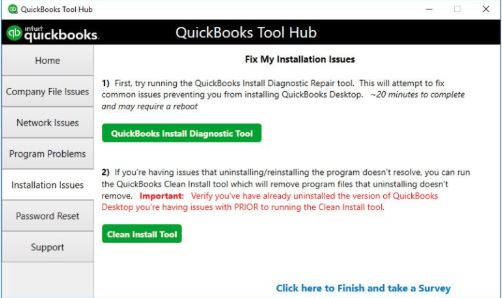
The QuickBooks Install Diagnostic Tool (part of QuickBooks Tool Hub) automatically repairs common Microsoft components like .NET Framework, MSXML, and Windows Installer issues that cause Error 1603. This is Intuit’s recommended first step and resolves the error for many users in 10–20 minutes.
Time Estimate: 15–25 minutes
Step 1: Download and Install QuickBooks Tool Hub
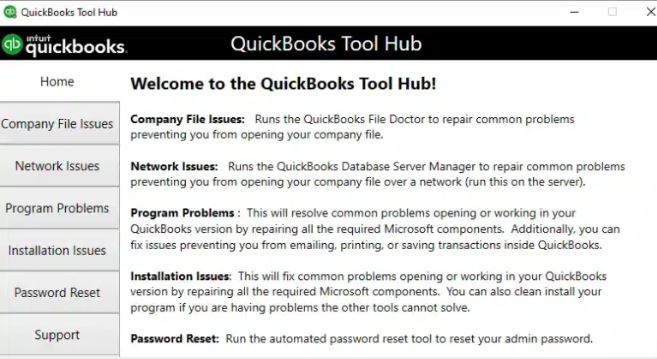
Step 2: Run the QuickBooks Install Diagnostic Tool
Step 3: Test Installation
Warning: Do not interrupt the tool while it is running. If the error persists after this method, proceed to Method 2.
Since .NET Framework corruption is one of the leading causes of Error 1603, repairing or re-enabling it often fixes the issue.
Time Estimate: 10–15 minutes
Step 1: Repair via Windows Features (Recommended)
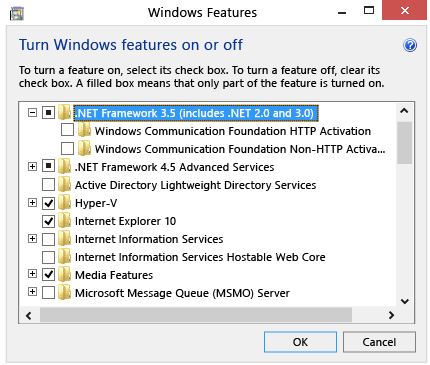
Step 2: Repair via Control Panel (Programs and Features)
Step 3: Additional .NET Repair (if needed)
Tip: After repairing .NET, clear the Temp folder again (as mentioned in the Pre-Troubleshooting Checklist) before retrying the QuickBooks installation.
Warning: Do not disable .NET Framework — QuickBooks requires it.
Outdated Windows files and missing components frequently trigger Error 1603, especially on Windows 10/11 systems.
Time Estimate: 15–25 minutes
Step 1: Update Windows
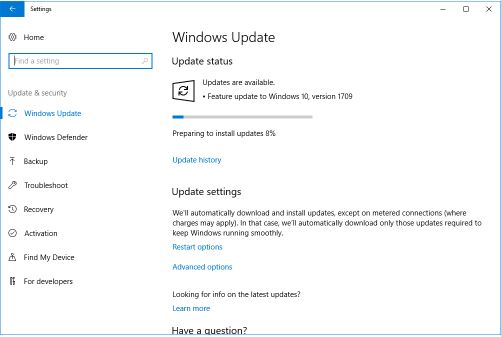
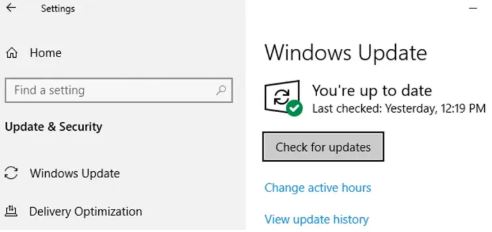
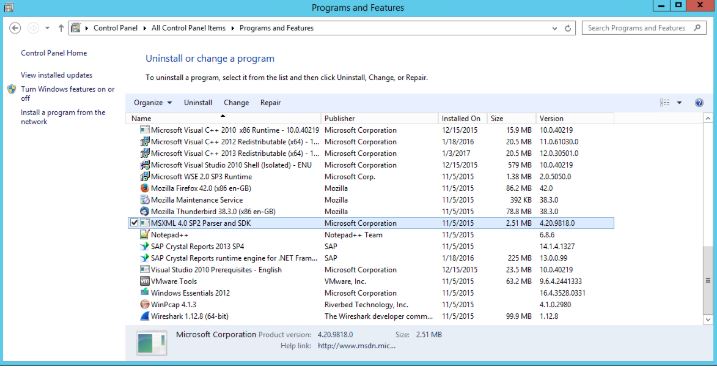
Step 2: Repair Visual C++ Redistributables
Step 3: Repair MSXML Components
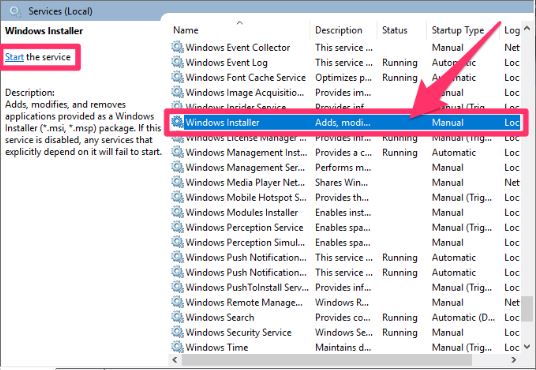
Step 4: Check and Restart the Windows Installer Service
Step 5: Test
Retry the QuickBooks installation as Administrator.
Third-party software conflicts can block the installer. A Clean Boot helps isolate the issue.
Time Estimate: 10–15 minutes
Steps are as folows:
This removes all remnants of previous installations and does a fresh setup.
Time Estimate: 10–15 minutes
Steps are as follows:
For stubborn permission or policy issues:
Time Estimate: 10–15 minutes
Error 1603 is a generic Windows Installer code — it signals that installation failed, but does not specify why. When Methods 1–7 don’t resolve the issue, the MSI log reveals the exact component or action that broke.
Time Estimate: 20–35 minutes
Step 1: Generate the Installation Log
msiexec /i setup.msi /L*V C:\qb1603log.txt
C:\qb1603log.txt.Step 2: Analyze the Log File
C:\qb1603log.txt in Notepad."return value 3".Step 3: Interpret Common Failures
Step 4: Apply to QuickBooks POS & Payroll
%TEMP% as QBPOS_Install.log.return value 3) to identify the failing component.Step 5: Test
Technician Note: This method isolates the root cause when generic fixes fail. Reading the MSI log is the most reliable way to move from “guesswork” to precise troubleshooting.
After successfully installing QuickBooks, update the software immediately and restore your latest backup. If you continue facing issues, provide the exact error message and Windows version to support for faster help.
Avoid these common mistakes that can worsen the problem, cause data loss, or create new issues:
Following these proactive habits will significantly reduce the chances of encountering Error 1603 in the future:
By following these best practices, small business owners, accountants, and bookkeepers can minimize installation issues and ensure smooth, uninterrupted access to QuickBooks.
When to Seek Professional Help + Related Errors
While most cases of QuickBooks Error 1603 can be resolved using the methods in this guide, there are situations where professional assistance is recommended to avoid further system complications or data risks.
Seek expert support if:
Tip: Have your exact error message, Windows version (winver), QuickBooks version, and steps already tried ready when contacting support.
Error 1603 often appears alongside or is related to other Microsoft Installer (MSI) issues:
These errors usually point to the same root causes: corrupted Microsoft components, permissions, or Windows Installer problems. The troubleshooting steps in this guide (especially repairing .NET Framework, Visual C++, and running the Install Diagnostic Tool) often resolve these related errors as well.
QuickBooks Error 1603 is a frustrating but highly fixable installation issue that mainly stems from problems with Microsoft components, permissions, or system conflicts. By following the structured troubleshooting methods in this 2026 guide — from running the Install Diagnostic Tool to repairing .NET Framework and performing a clean install most small business owners, accountants, and bookkeepers can resolve the error and get back to work quickly.
Prevention is key: keeping Windows and Microsoft components updated, clearing Temp folders regularly, and using the QuickBooks Tool Hub can save you significant time and stress in the future.
If local installation continues to be problematic or you want to eliminate installation and update headaches entirely, consider moving to QuickBooks Desktop hosted in the cloud. Cloud hosting provides seamless access, automatic updates, strong security, and dedicated support helping your business run smoothly without worrying about system compatibility or Error 1603.
We hope this comprehensive guide helped you fix the issue. If you have any questions or need further clarification on any step, feel free to reach out in the comments or contact QuickBooks Support.
Yes, it can. QuickBooks Desktop is built to run on both 32-bit (x86) and 64-bit (x64) architectures. To function correctly on a 64-bit operating system, QuickBooks requires both the x86 and x64 versions of the Microsoft Visual C++ Redistributables. If either version is missing or corrupted, the installation scripts may fail to register the necessary runtime libraries, causing the generic Error 1603 during the setup process.
Temporarily disabling antivirus or firewall software is often required to resolve Error 1603 because these security programs can aggressively block or quarantine the installation’s essential temporary files (.tmp or .msi). Intuit-approved troubleshooting often includes this step. However, it should only be done temporarily, and the software must be re-enabled immediately after the installation is complete to prevent security risks. A safer alternative is to configure the antivirus to allow exceptions or exclusions for the QuickBooks installation folder and executable files.
Both modes isolate the installation environment, but they differ in scope:
➜Safe Mode starts Windows with only the absolute minimum core drivers and services. It eliminates nearly all third-party interference.
➜Selective Startup (using msconfig) allows the user to manually disable non-Microsoft third-party services while leaving critical Windows services running.
If Safe Mode fails, Selective Startup is used to isolate conflicts caused by specific, persistent third-party services that may still run in Safe Mode or are more deeply integrated into the system, offering a more controlled isolation environment.
QuickBooks Desktop often uses older versions of the .NET Framework (which includes versions 2.0 and 3.0) for specific legacy features, add-ons, or component interactions, even while the core application utilizes the newest framework (like 4.8). If the older .NET Framework 3.5 is not enabled in Windows Features, the installation process for the older components will fail, triggering the Error 1603. Therefore, both the older (3.5) and newer (4.8) frameworks must be active and undamaged.
The QuickBooks Install Diagnostic Tool (part of the Tool Hub) is designed to automatically detect and repair damaged Microsoft components essential for QuickBooks, including .NET Framework, MSXML, and C++ Redistributables. It does not typically uninstall the entire component. Instead, it re-registers, repairs, or attempts to fix corrupted files within these frameworks, restoring the necessary integrity required for a successful QuickBooks installation and preventing Error 1603.
No. Error 1603 only occurs during the installation or update process of QuickBooks Desktop and does not impact company files (.QBW), backups (.QBB), or the QuickBooks Database Server Manager.
Intuit confirms that installation-related errors do not modify or delete your business data. Only QuickBooks program files are affected, not your accounting information.
QuickBooks Error 1603 is an installation or update error that occurs when the Windows Installer fails to complete the setup process for QuickBooks Desktop or its components. It usually appears during fresh installations, major updates, or payroll updates and displays messages like “Error 1603: The update installer has encountered an internal error.”
Yes, it is generally safe for most users to follow the troubleshooting steps in this guide, especially Methods 1–3. Always create a full backup of your company file before starting. If you are not comfortable with advanced steps (such as editing Group Policy or Registry), or if the error persists after trying the first few methods, contact QuickBooks Support or a certified ProAdvisor.
The most common causes include corrupted Microsoft .NET Framework, damaged MSXML or Visual C++ components, Windows Installer issues, insufficient administrator permissions, antivirus interference, full Temp folders, and outdated Windows operating system.
Windows 11 users often face this error due to incomplete Windows Updates, missing or corrupted .NET Framework 4.8+, or security software conflicts. Ensuring Windows 11 is fully updated and running the QuickBooks Install Diagnostic Tool usually resolves it quickly.
It can occur in both situations — during a fresh installation of QuickBooks Desktop and while applying updates or payroll patches. The troubleshooting steps remain largely the same.
If the error message specifically mentions “Microsoft .NET Framework” or the installation rolls back after .NET installation attempts, it is very likely a .NET issue. Repairing or re-enabling .NET Framework through Windows Features usually fixes it.
Move to the next methods: Repair .NET Framework, update Windows + Visual C++ components, perform a Clean Boot, and if needed, do a Clean Install of QuickBooks. Most users resolve the error within these steps.
Yes, it is highly recommended to temporarily disable third-party antivirus and Windows Defender real-time protection during installation. Many Error 1603 cases are caused by security software blocking installer files.
Related installation errors include Error 1601, 1642, 1402, 1935, 1904, and 1722. These usually share the same root causes and respond well to the same fixes (especially .NET repair and Windows component updates).
No. Reinstalling QuickBooks Desktop does not delete your company files. However, always back up your company file first as a precaution. After reinstallation, you can open your existing company file normally.
Keep Windows and Microsoft components (.NET, Visual C++) updated, run the QuickBooks Install Diagnostic Tool before major updates, clear Temp folders regularly, always run installers as Administrator, and maintain at least 10 GB free disk space.
Yes. Newer versions like QuickBooks 2026 are better optimized for Windows 11 and include improved installer technology, which helps reduce installation-related errors when your system meets the requirements.
When quickbooks msi returned 1603 error appears on your screen, it indicates that the Windows Installer service (MSI) executed a rollback sequence after failing to install a mandatory prerequisite library. Follow these detailed troubleshooting steps to resolve the installer lockout:
Verify and Restart Windows Installer Service:
1. Press Windows + R, type services.msc, and press Enter.
2. Locate Windows Installer in the services list and right-click to select Properties.
3. Ensure the Startup type is set to Manual.
4. If the service status reads stopped, click Start, select Apply, and click OK.
Repair System File and XML Integrity:
1. Open an elevated Command Prompt by right-clicking cmd.exe and selecting Run as administrator.
2. Execute sfc /scannow to scan and repair corrupted Windows system files.
3. Execute DISM /Online /Cleanup-Image /RestoreHealth to repair the underlying Windows component store.
Clear Temporary Operating System Files:
1. Press Windows + R, type %temp%, and press Enter.
2. Delete all contents inside the folder to prevent obsolete installation caching from interfering with the MSI engine.
Repair Visual C++ Redistributable Packages:
1. Navigate to Control Panel > Programs and Features.
2. Locate all Microsoft Visual C++ Redistributable entries (2015–2022 versions), right-click each, and select Repair.


