Excerpt:
If you're facing the "QBCFMonitorService not running" error in QuickBooks, this article offers essential troubleshooting steps to resolve the issue. The problem, often caused by firewall blocks, outdated software, or corrupt files, disrupts QuickBooks' ability to access company files, especially in multi-user setups. Solutions like restarting services, updating QuickBooks, and checking for malware will help restore functionality, ensuring smooth QuickBooks operations without file access errors.
 Add As A Preferred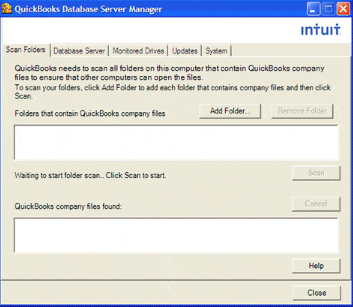
Is your QBCFMonitorService not running on this computer? The Company File Monitoring Service must fulfill several specified functions for QuickBooks to operate without a hitch. Use the procedures listed below; as a result to fix the errors as soon as possible.
The QBCFmonitorservice not running or crashing on this computer is one of such issue that is encountered by the user. The corrupt software converts the QuickBooks files to an invalid format, which is the primary reason the error appears. You will have all the facts by the blog’s conclusion, and our top troubleshooting suggestions will assist you in resolving the problem.
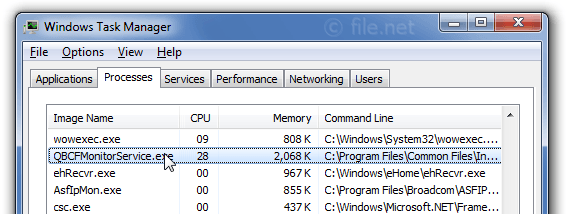
The QBCFMonitorService stands for QuickBooks Company File Monitoring Service, is a crucial component of Intuit QuickBooks for Window. It’s located in the “C:Program Files (x86)Common FilesIntuitQuickBooks” folder. It operates as a Windows service that monitors QuickBooks company files.
The error message “QBCFMonitorService Not Running On This Computer” appears when a user tries to run QuickBooks Database Server Manager to set up multi-user mode.
The QBCFMonitorService.exe file in the QuickBooks installation directory runs the QBCFmonitorservice QuickBooks Desktop program file. This procedure enables workstation computers to connect with the company file on the server and aids QuickBooks in operating in multi-user mode.
When this function cannot run on your system, QuickBooks encounters connection issues when attempting to access the company file and displays the error message “QBCFMonitorservice not running on this computer.” The sources of the mistake and some easy ways to fix it are covered next in this article.
QBCFMonitorService may stop running due to blocked ports, outdated or misconfigured Database Server Manager, or a damaged QuickBooks installation. Firewalls and antivirus programs often restrict the service from communicating with the server, while registry issues, permission errors, or missing startup settings can prevent it from launching at boot. If hosting is incorrectly set up or background software causes conflicts, users may face company file access errors or disrupted multi-user connectivity.
To fix the issue, allow QuickBooks through the firewall, ensure the service starts automatically, and verify hosting and installation settings. Before troubleshooting, review the following key causes that commonly trigger this issue:
The causes are mentioned below:
Before beginning to troubleshoot the QBCF monitor service not running issue, it’s important to keep a few things in mind to safeguard your data and ensure a smoother troubleshooting process:
Always create a backup of your company’s financial information before attempting any fixes. This step is essential to prevent any permanent data loss or corruption during the troubleshooting process.
Ensure that you have the installation CDs for both Microsoft Windows and QuickBooks readily available. This includes having your license numbers accessible, as they may be needed for reinstallation or repairs.
Numerous fixes are available for the issue of qbcfmonitorservice not operating on this computer. Each one of them should be read in turn.
IMPORTANT: Once you’ve reinstalled QuickBooks Database Manager, it’s essential to check that the server computer and the workstations can communicate. You can do this by sending a simple ping command to the server computer.
Please read our article on QuickBooks Error 6094, -0 for comprehensive information on installing Windows Firewall and assigning suitable ports to QuickBooks.
Adjusting firewall settings ensures that QuickBooks can communicate with the server without being blocked, which is important for the QBCFMonitorService to function properly.
Manually restarting the service can resolve temporary glitches that prevent it from running, which allows QuickBooks to reconnect to the company file.
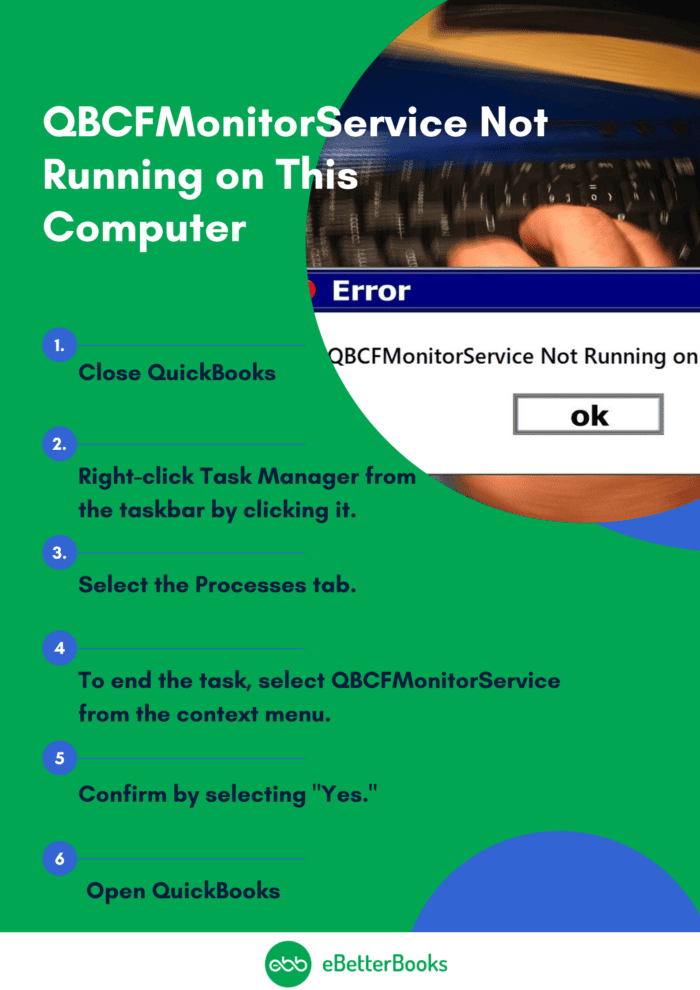
Step 1. Close QuickBooks
Step 2. Open Task Manager
Step 3. Locate QBCFMonitorService
Step 4. End the Task
Step 5. Confirm Action
Step 6. Reopen QuickBooks
Note: Before performing the steps, make sure to back up your QuickBooks Desktop company file to secure your data while in the process.
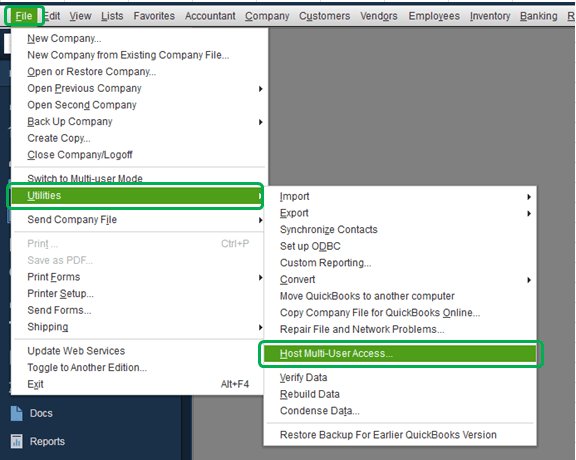
When the company file is not configured appropriately on the QuickBooks Server, the hosting may get disabled, due to which retrieving the File saved on the server may be problematic.
To check the hosting configuration and adjust it, follow the steps below:
In contrast, the main cause for this inability to access the company file is an outdated QuickBooks Database Server Manager. To fix the problem, follow the steps below and refresh and update the database server management.
If you still need to install the most recent updates and patches, open QuickBooks now.
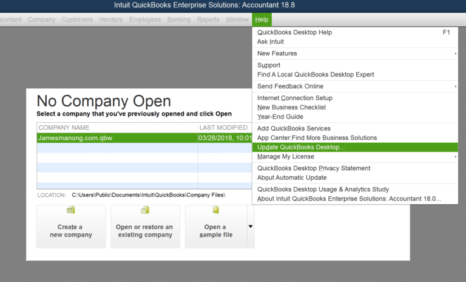
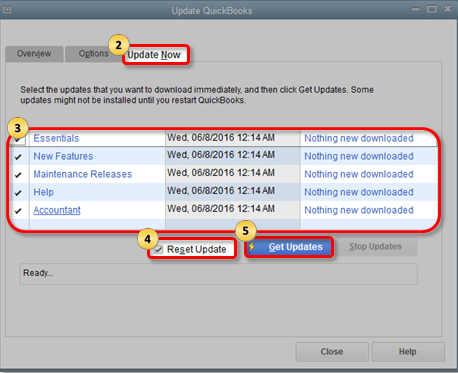
If this one didn’t work to resolve the QuickBooks 2022 server not running issue, move on to the next one.
Step 1: Install and scan your system with a trustworthy antivirus or anti-malware program. Popular security programs like Avast and Norton can be used for free or as a trial.
The QBCFMonitorService.exe files can also be scanned using free online services.
Follow the instructions below to scan the .exe file:
This will take care of viruses and malware. All of your files would have been encrypted if your PC had ransomware. Please contact our technical team in this situation.
Step 2: Re-download the QBCFMonitorService.exe file and replace the one stored in the QuickBooks folder
C:\Program Files (x86)\Intuit\QuickBooks <year>).Make sure to restart your computer and re-launch QuickBooks after replacing the file and you must have an additional backup of the QuickBooks company file.
The system must be configured so that QuickBooks Database Server Manager launches automatically. If you don’t set QuickBooks Database Server Manager to run automatically, it will stop functioning whenever you restart Windows. We will reconfigure the database server manager service using the following procedures to see if this fixes the issue.
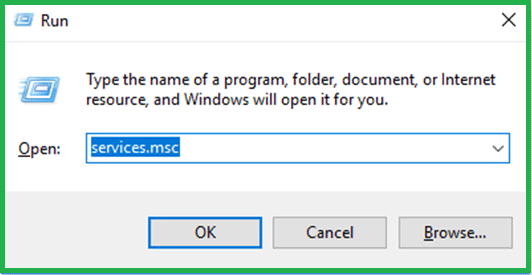
After reinstalling QuickBooks Database Server Manager, check if they are connected by sending a ping command from the workstation to the server computer.
The actions entail:
Fixing damaged or corrupted registry entries can resolve underlying issues that prevent services from starting correctly, thus helping restore normal functionality.
Opening the document in a new folder can help bypass issues related to file path or permissions that may prevent QuickBooks from accessing necessary files which allows smoother operation of services.
You can solve this problem with the help of available tools. Some of the tools are mentioned below:
Are you still encountering the “QBCFMonitorService is not running” error?
Conclusion!
Thanks to the information in this section, You can better understand how to fix the “QBCFMonitorService is not running on this computer” error.
Hopefully, the above-given information is useful for you. But if you still facing any kind of issues with your software and need professional assistance, regarding accounting, bookkeeping & accounting software-related issues then feel free to get in touch with us at +1-802-778-9005, or you can mail to us at: support@ebetterbooks.com
Still have questions? Explore our detailed FAQs.


