Excerpt:
Reinstalling QuickBooks Desktop using the Clean Install Tool is the definitive, expert-level solution for persistent installation and corruption errors that a standard uninstall cannot resolve. This necessity arises when a simple reinstallation fails to eliminate residual, corrupted files and configuration folders. The procedure demands meticulous preparation, including mandatory data backup and prior retrieval of the software's Product and License numbers. The core function involves forcefully clearing the system of old installation files—either by running the Tool Hub utility to rename folders or by manually executing commands. Specific, high-friction technical steps include terminating background processes like Qbw32.exe in Windows Task Manager to resolve "Access Denied" errors, or deleting specific PLIST files on macOS to clear damaged registration and preferences. Successfully executing these steps ensures a pristine environment for the new installation, thereby resolving deep-seated conflicts and restoring software functionality.
 Add As A Preferred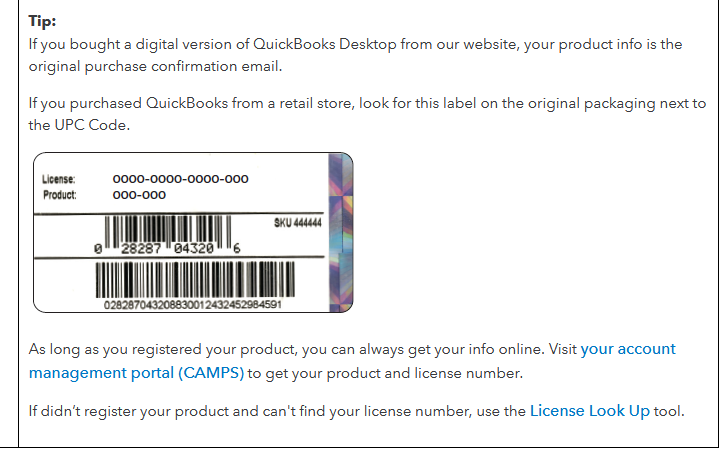
Highlights (Key Facts & Solutions)
C:\ProgramData\Intuit\QuickBooks (year)) by adding .old to prevent the new installation from using corrupted files.Qbw32.exeQBDBMgrN.exeQBDBMgr.exeQBCFMonitorService.execom.intuit.QuickBooks20XX) from both the User Library and System Library to clear damaged registration and preferences.Overview
The QuickBooks Clean Install Tool is specially designed to remove unwanted files and folders that are not in use. It cleanses up your system and ensures a hassle-free and seamless reinstallation of the software.
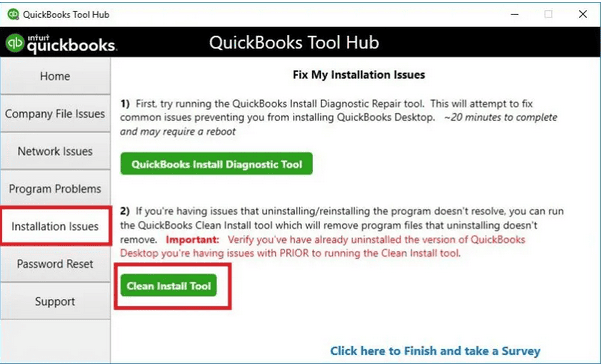
If you repeatedly encounter company file issues that prevent your software from functioning properly, you can reinstall QuickBooks Desktop using the QuickBooks clean install tool.
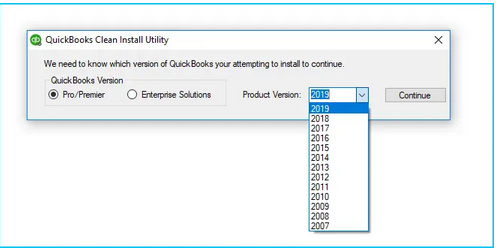
The entire clean installation is performed by uninstalling the application, renaming the downloaded installation folders, and reinstalling it in your system.
This tool helps delete the previous installation folders and makes space for fresh files. This clean install utility can also repair damaged installation folders, corrupted programs, and data files.
If you’re also wondering when this clean install tool becomes necessary, below we’ve mentioned some of the most common instances.
Let’s have a look:
The errors related to company file corruption or installation can easily be fixed using this clean installation utility.
Below are some other hand-picked errors that QB Clean Install Tool resolves:
When using this tool in QuickBooks, there are a few cautionary steps you need to perform to avoid any file or data loss. This tool completely cleans up files from your system, and therefore, it is necessary to create a backup before making use of it.
Below, we’ve listed what you must keep handy when using the clean installation tool:
Keep the Product and License number Handy:
Once the QuickBooks software gets uninstalled or reinstalled in your system, you are prompted to enter the Product and license number to log back into the software. So, it is important to keep it handy. It should be on the original package. But if you bought it online, it will be available on the purchase confirmation email.

For this, press the F2 key or the CTRL+1 tabs to open the Product information window, where you will find the product registration information.
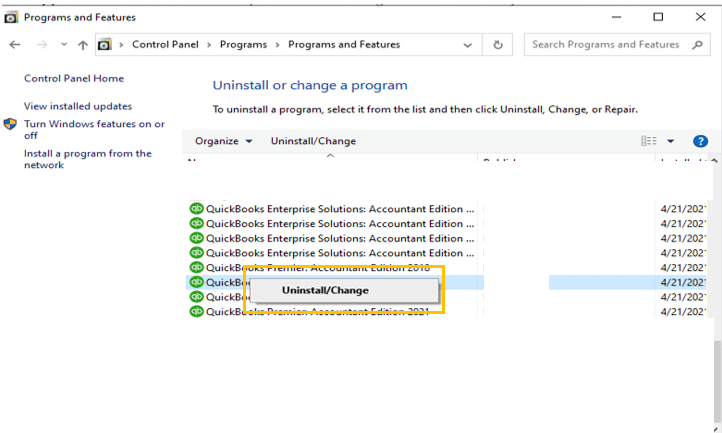
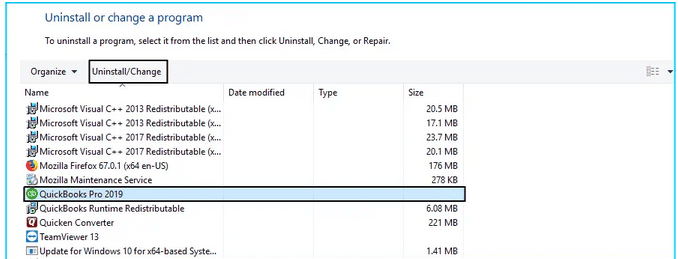
For a successful re-installation of the QuickBooks Desktop, there are four ways presented that can be followed by the user.
Let’s perform each one:
Note: If you don’t get this option on your display, sign out and sign back into Windows as an administrator.
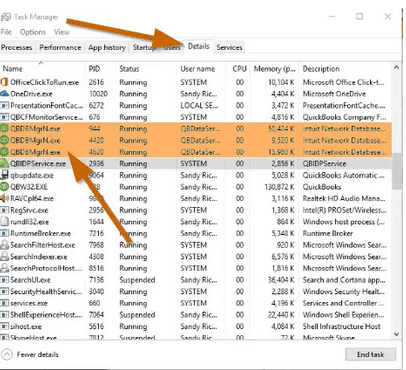
While trying to rename the folder, if you get an access error message “The access denied while renaming the folder“, then do the following:
To repair the company file damage, you can also perform a clean installation if you’re running QuickBooks on a Mac.
Below are the steps to reinstall QuickBooks for Mac using the clean install tool:
Keep your QuickBooks Desktop downloaded file (or installation CD) and license numbers in check before uninstalling QuickBooks Desktop.
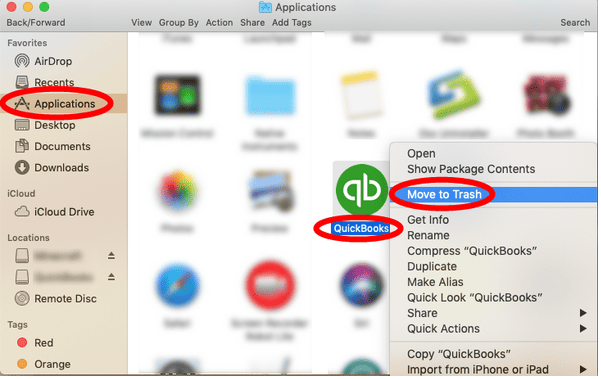
Note: You need to remove both PLIST* files from the User and System folder. Once you remove them, all preferences will revert to their default settings, which can cause your QuickBooks to be unregistered.
*Preference files store registration and any preferences set within QuickBooks and show .plist as the file extension.
User PLIST
System PLIST
When you’ve upgraded from a previous version of QuickBooks Desktop for Mac, you are required to update your company file to work in the newer version.
Here’s how:
Wrapping it Up!
QuickBooks Desktop is a multifaceted application that usually creates many unnecessary files and overburdens the cache memory on your system. This is the time when you need to reinstall QuickBooks Desktop using the QuickBooks Clean Install Tool, which helps you repair corrupt program files or folders within the software.
Experiencing issues while running this tool, or don’t know how it works? Just speak up with our certified experts at +1-802-778-9005 and get the most relevant solutions to all your QB-related issues.
The essential difference is the removal of deep-seated, corrupted remnants. A regular uninstall removes the main application, but leaves behind installation folders, conflicting registry keys, and program data. The Clean Install Tool, accessed via the QuickBooks Tool Hub, is a specialized utility that automatically renames or removes these residual files. This ensures the subsequent reinstallation is truly a “fresh start” free from the components that caused the initial errors.
If the Clean Install Tool does not work, you must manually rename the folders to prevent the new installation from accessing the old, corrupted files. You should add .old to the end of the folder name.
The common default QuickBooks folder locations are:
This access error means specific QuickBooks services are still running in the background, locking the folders. You must use the Windows Task Manager to manually end these processes.
The steps are:
Qbw32.exe (The main application)QBDBMgrN.exe (QuickBooks Database Manager)QBDBMgr.exeQBCFMonitorService.exe (QuickBooks Company File Monitor)Ending these background processes releases the lock, allowing you to successfully rename the installation folder.
Deleting the PLIST (Preference List) files is the essential step for Mac users to ensure a clean installation. These files contain corrupted user-specific application preferences and, most importantly, the software registration details. A simple drag to the trash only removes the main application. Removing the PLIST files from both the User Library (accessed by holding the Option key while clicking the Go menu) and the System Library resets all preferences to their original default settings, which is required for a successful reinstallation and registration.
.QBW) is stored on a local drive, will the clean install delete my data?No, the clean install process will not delete your company data file.
.QBW) containing your financial data.If a complete clean install fails to resolve the error, the problem is often related to underlying Windows operating system components or missing Microsoft libraries, rather than QuickBooks itself.
The immediate next step should be to run the QuickBooks Install Diagnostic Tool:
If the Diagnostic Tool also fails, the issue is likely due to damage in the Windows operating system itself and may require professional IT assistance to fix (Intuit, Dancing Numbers).
The fastest way to retrieve your Product and License number is directly within the running QuickBooks application using a keyboard shortcut.
This action immediately opens the Product Information window, where the License and Product numbers are prominently displayed at the top. You should copy this information before proceeding with the uninstallation.


