Excerpt:
If you're encountering unexpected errors with QuickBooks Point of Sale (POS), preventing you from accessing the software or processing transactions, this article helps resolve such issues. It covers common causes, like compatibility problems, outdated software, and damaged components, offering step-by-step solutions to troubleshoot and fix these errors. From checking system requirements and updating software to repairing key Microsoft components and reinstalling QuickBooks POS, these practical solutions ensure smooth POS operation for your business.
 Add As A Preferred
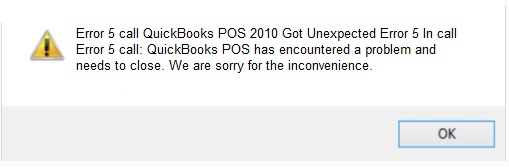
It is a generic Point of Sale failure message that appears when a required Windows service, Microsoft component, or configuration file cannot load correctly. The exact wording — Error 5, Error 100, an HRESULT code, or a shell crash — identifies the specific cause and fix.
Error 5 fires when the QuickBooks Database Service is denied access to the network share holding the company file. Windows’ NetShareGetInfo check returns “access denied,” usually because folder-sharing permissions were never enabled or were reset.
Restart the QBPOS Database Server Manager service on the server computer through services.msc, confirm it is set to Automatic, and allow it through Windows Firewall. This resolves “Error 100 database server not found” in most cases.
This HRESULT points to a damaged Microsoft component — usually .NET Framework, Visual C++ Redistributable, or MSXML — that POS depends on at startup. Running the QuickBooks Install Diagnostic Tool in Tool Hub repairs all three in one pass.
Complete these five steps before trying any fix below — they prevent the most common causes of data loss and wasted troubleshooting time.
Match the exact wording on your screen to jump straight to the right fix instead of reading the entire guide.
Which error are you seeing?
↓
“Unexpected error 5 in call to NetShareGetInfo”
↓
Go to Solution 1.1
“Error 100 database server not found (08w01)”
↓
Go to Solution 1.2
Generic startup error, no code shown
↓
Go to Solution 1.3
“Value cannot be null” / “Configuration system failed to initialize”
↓
Go to Solution 1.4
“QBPOSShell has stopped working”
↓
Go to Solution 1.5
HRESULT exception code (e.g., 0x88980406)
↓
Go to Solution 2.3
“1766120 invalid license key status, key denied”
↓
Go to Solution 2.4
Match your exact on-screen message to the correct fix below before trying anything else.
| Exact Error Message | What It Means | Fastest Fix |
| “Got unexpected error 5 in call to NetShareGetInfo for Path” | Windows is denying the QuickBooks Database Service access to the shared company file folder | Enable file sharing on the company file folder (Solution 1.1) |
| “Error 100 database server not found 08w01” | POS on the workstation cannot reach the QBPOS Database Server Manager service on the server | Restart QBPOS Database Server Manager (Solution 1.2) |
| “Unexpected error… Exception from HRESULT: 0x88980406” | A Microsoft component (.NET, MSXML, or Visual C++) that POS depends on is damaged | Run the Microsoft Component Repair Tool (Solution 2.3) |
| “Value cannot be null. Parameter: s” / “Configuration system failed to initialize” | A POS configuration file has become corrupted, usually after an interrupted update | Run Quick Fix My Program via Tool Hub (Solution 1.4) |
| “QBPOSShell has stopped working” | The core POS program shell has crashed or is conflicting with another running instance | End the QBPOSShell.exe process in Task Manager and reopen POS (Solution 1.5) |
| “1766120 invalid license key status, key denied” | The POS license/entitlement file is mismatched, often after a Windows or POS update | Rename EntitlementDataStore.ecml and reactivate (Solution 2.4) |
QuickBooks Point of Sale depends on several background Windows services and Microsoft components working together at the same time — the QBPOS Database Manager, the QBPOS Database Server Manager, and Microsoft’s .NET Framework, Visual C++ Redistributable, and MSXML libraries. An unexpected error fires whenever any one of these fails.
| When It Happens | Likely Cause | Start Here |
| On every workstation, multi-user mode, Error 5 | Shared folder missing sharing permissions | Solution 1.1 |
| On one workstation only | That user’s local account permissions | Solution 2.1 |
| Opening POS, “Error 100 database server not found” | QBPOS Database Server Manager stopped on the server | Solution 1.2 |
| Opening POS, generic message, no code | QBPOS Database Manager or QBCFMonitorService stopped | Solutions 1.3 / 2.2 |
| HRESULT exception code (e.g., 0x88980406) | Damaged Microsoft component (.NET/C++/MSXML) | Solution 2.3 |
| “Configuration system failed to initialize” / “Value cannot be null” | Corrupted POS configuration file | Solution 1.4 |
| After a Windows security update | UAC blocking the Database Service | Solution 2.5 |
| Alongside company data damage messages | Company file corruption | Solution 1.6 |
| On a fresh machine or after moving the company file | Stale Windows Registry file paths | Solution 3.1 |
Unexpected errors show up in several different ways depending on which component fails. Recognizing the symptom pattern helps you jump to the right fix even before you’ve read the exact error code.
| Symptom | What You’ll Notice | Likely Solution |
| Startup crash | POS closes immediately after the splash screen, sometimes with no message at all. | Solutions 1.3 / 2.2 |
| Error 5 on file access | Error fires the moment POS tries to open the company file over the network. | Solution 1.1 |
| Error 100 on connect | Workstation hangs briefly, then reports it cannot find the database server. | Solution 1.2 |
| QBPOSShell crash | A Windows “has stopped working” dialog appears mid-session, not at launch. | Solution 1.5 |
| Configuration error | “Value cannot be null” or a frozen screen right after opening POS. | Solution 1.4 |
| License/entitlement error | POS opens but blocks all activity with an invalid key message. | Solution 2.4 |
| Slow performance / intermittent freeze | POS opens fine but lags or freezes during transactions, often worsening over the day. | Solutions 1.6 / 2.2 |
Most unexpected errors happen because one link in this chain is broken. Understanding the path helps you see why restarting the right service, in the right order, matters more than guessing.
QuickBooks POS (Workstation Application)
↓
QBPOS Database Manager (Local Data Access)
↓
Windows Services (QBCFMonitorService, .NET, MSXML, Visual C++)
↓
Windows Firewall (Connection Ports)
↓
Company File / Shared Network Folder
↓
QBPOS Database Server Manager (Server Computer)
A break at any link produces a different symptom: a Database Manager problem looks like a startup crash, a Firewall block looks like Error 100, and a damaged Windows Service looks like an HRESULT exception.
You don’t need to be a technician to follow this guide. Here’s what the key terms actually mean:
| Term | What It Means |
| Database Manager | A background program on your own PC that lets POS read and write its data. If it’s stopped, POS won’t open. |
| Server Manager | The same idea, but it runs on the server computer in a multi-workstation setup, so every till in the store can reach one shared file. |
| Tool Hub | A free repair app from Intuit that bundles several fix-it tools — File Doctor, Quick Fix My Program, and the Install Diagnostic Tool — in one place. |
| File Doctor | A Tool Hub utility that scans your company file and network setup for damage and repairs what it finds, without deleting any data. |
| MSXML | A Microsoft library that reads XML files. POS uses it to read its own configuration and license files when it starts. |
| Visual C++ | A set of Microsoft programming libraries that many Windows applications, including POS, need installed to run at all. |
| Registry | A Windows database of settings, including the file paths POS uses to find its program and data files. |
| UAC (User Account Control) | The Windows feature that pops up “Do you want to allow this app to make changes?” It can also silently block background services if set too high. |
| Firewall | Windows’ built-in traffic gatekeeper. If it blocks POS’s connection ports, workstations can’t reach the server. |
| Network Share | A folder marked as accessible to other computers on the same network — this is how POS shares one company file among several tills. |
QBPOS Database Manager runs on the computer where POS is installed and manages POS’s connection to its own local data. QBPOS Database Server Manager runs specifically on the server in a multi-store or multi-workstation setup and lets remote workstations reach the shared data file over the network. Confusing the two is the single biggest reason “Error 100 database server not found” doesn’t get fixed on the first attempt.
QBCFMonitorService.exe is a background process that Intuit uses to detect and repair minor QuickBooks file and connectivity issues automatically. When it becomes unresponsive itself, it can silently block POS from opening, producing a generic unexpected error with no specific code.
Confirm your QB POS version and Windows edition are a supported pairing before troubleshooting further — an unsupported combination is itself a common root cause.
| POS Version | Supported Windows Versions | Notes |
| QuickBooks POS v12.0 | Windows 10 (64-bit), Windows 11 (64-bit) | Current version; receives active updates and component fixes. |
| QuickBooks POS v11.0 | Windows 10 (64-bit), Windows 11 (64-bit) | Fully functional but on extended/limited support depending on region. |
| QuickBooks POS v10.0 | Windows 10 (64-bit only, natively installed) | Uses EntitlementClient V6 instead of V8 — relevant for Solution 2.4. |
| 📌 Note: Running POS on a 32-bit Windows edition, a Windows version older than 10, or inside a virtual desktop without proper share permissions is unsupported and frequently the underlying cause of persistent unexpected errors. | ||
If you’re not sure which solution to start with, follow this general path from least to most invasive:
Unexpected Error Appears
↓
Identify the Error Code
↓
Is It a Database/Server Error?
↓
Restart the Relevant Service (Solutions 1.1–1.3, 2.2)
↓
Still Not Fixed?
↓
Run Tool Hub (File Doctor / Quick Fix My Program)
↓
Still Not Fixed?
↓
Repair Windows Components (.NET, MSXML, Visual C++)
↓
Still Not Fixed?
↓
Run Reboot.bat, Then Clean Install (Last Resort)
| Error Code | Cause | Symptoms | Best Fix | Difficulty | Time |
| Error 5 | Blocked network share permission | Fails on file open, multi-user mode | Enable folder sharing (1.1) | Easy | 5 min |
| Error 100 | Database Server Manager stopped | Hangs, then “server not found” | Restart the service (1.2) | Easy | 5 min |
| Generic startup error | Database Manager / QBCFMonitorService stopped | Crashes right after splash screen | Restart the service (1.3 / 2.2) | Easy | 5 min |
| Config file error | Corrupted configuration file | Frozen screen, “value cannot be null” | Quick Fix My Program (1.4) | Easy | 5-10 min |
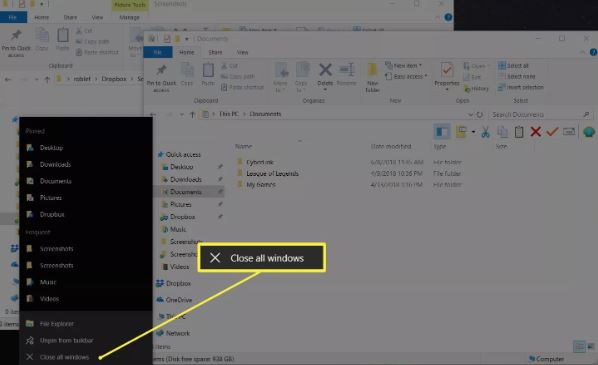
| QBPOSShell crash | Conflicting shell processes | “Has stopped working” mid-session | End task in Task Manager (1.5) | Easy | 5 min |
| HRESULT 0x88980406 | Damaged Microsoft component | Crash on startup after Windows update | Install Diagnostic Tool (2.3) | Moderate | 15-20 min |
| 1766120 license denied | Mismatched entitlement file | Opens but blocks activity | Rename .ecml, reactivate (2.4) | Moderate | 15 min |
| Post-update UAC error | UAC blocking database service | Error 5 pattern right after Windows update | Adjust UAC / TLS (2.5) | Moderate | 10 min |
| Persistent error, any code | Stale registry paths or corrupt install | Every fix above fails, error recurs | Reboot.bat or clean install (3.1) | Advanced | 45-60 min |
If several solutions seem to apply, follow this order — it’s ranked from lowest to highest risk and time investment, so you never do more than the problem requires.
| Priority | Solution | Risk | Time | Use When |
| 1 | Restart the relevant service (1.1 / 1.2 / 1.3 / 2.2) | None | 5 min | Always try first — covers the majority of cases. |
| 2 | Quick Fix My Program (1.4) | None | 5-10 min | Configuration-file symptoms, frozen launch. |
| 3 | File Doctor (1.6) | None | 10-20 min | Company file or network damage suspected. |
| 4 | Task Manager end-task (1.5) | None | 5 min | Mid-session crash, shell conflict. |
| 5 | Recreate user / adjust UAC (2.1 / 2.5) | Low | 10 min | Error limited to one workstation or user. |
| 6 | Install Diagnostic Tool (2.3) | None | 15-20 min | HRESULT code, post-Windows-update crash. |
| 7 | Rename entitlement file (2.4) | None | 15 min | License/entitlement errors. |
| 8 | Reboot.bat / Clean reinstall (3.1) | Low | 45-60 min | Everything above has been tried and the error persists. |
None of the fixes in this section touch company data, sales records, or inventory — they only restart services or adjust access permissions.
Resolve Error 5 instantly by granting full folder sharing permissions to the QuickBooks database service.
| Fixes | Risk | Time | Success Rate |
| Unexpected error 5 in call to NetShareGetInfo. | None | 5 minutes | ★★★★☆ |
Works for approximately 80% of Error 5 cases.
| Field Reference: Advanced Sharing Dialog | |
| Share this folder | Checkbox — must be ticked for the folder to be reachable over the network. |
| Share name | Defaults to the folder name; workstations connect to this exact name. |
| Permissions button | Opens the access-level list — set to Full Control for the sharing group. |
➡ If this doesn’t work: proceed to Solution 2.1 (recreate the QuickBooks user) if only one workstation is affected, or Solution 2.5 if the error started right after a Windows security update.
Eliminate Error 100 by restarting the server database service and ensuring your firewall allows POS connections.
| Fixes | Risk | Time | Success Rate |
| Error 100 database server not found 08w01. | None | 5 minutes | ★★★★☆ |
Resolves the large majority of Error 100 cases when performed on the correct (server) machine.
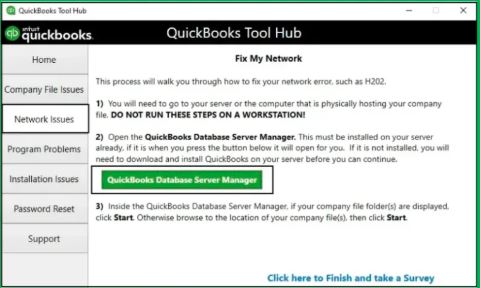
| Field Reference: services.msc — Key Rows to Locate | |
| QBPOS Database Server Manager vXX | Status column must read “Running”; Startup Type should read “Automatic.” |
| QBPOS Database Manager vXX | Local equivalent — runs on the workstation, not the server. |
| QBCFMonitorService | Should also read “Running” — see Solution 2.2 if it doesn’t. |
| Field Reference: Windows Defender Firewall — Allowed Apps | |
| QBPOS Database Server Manager | Both Private and Public columns must be checked. |
➡ If this doesn’t work: confirm you restarted the service on the server, not the workstation — this is the most common reason this fix appears not to work. If it still fails, move to Solution 2.3.
Banish generic startup errors by starting the QBPOS Database Manager Service that powers your POS.
| Fixes | Risk | Time | Success Rate |
| Generic unexpected error on POS startup. | None | 5 minutes | ★★★★☆ |
Clears most generic, code-free startup errors.
| ➡ If this doesn’t work: try Solution 2.2 (restart QBCFMonitorService) next, since both services can produce the same generic message. |
Clear configuration errors in minutes using Quick Fix My Program, the essential Tool Hub utility.
| Fixes | Risk | Time | Success Rate |
| “Configuration system failed to initialize,” “Value cannot be null. Parameter: s,” frozen POS on launch. | None | 5-10 minutes | ★★★★☆ |
Effective for most configuration-file corruption cases.
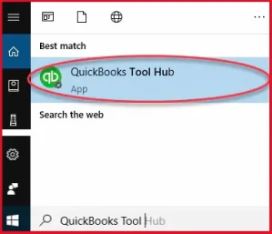
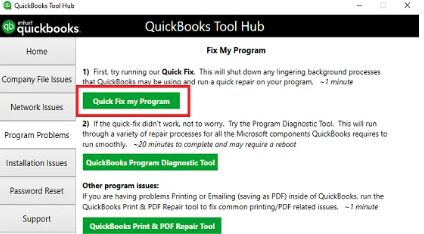
| ➡ If this doesn’t work: move to Solution 1.6 to rule out company file damage, or Solution 2.3 if an HRESULT code accompanies the message. |
Stop “QBPOSShell has stopped working” crashes by ending conflicting processes via Task Manager.
| Fixes | Risk | Time | Success Rate |
| “QBPOSShell has stopped working” crash message. | None | 5 minutes | ★★★★☆ |
Resolves the majority of one-off shell crashes caused by stuck duplicate processes.
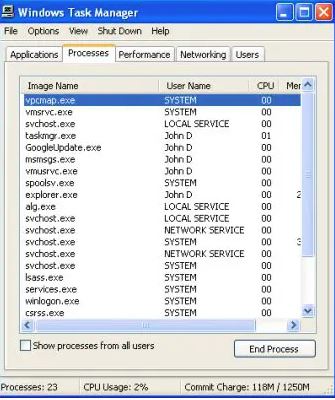
| ➡ If this doesn’t work: the crash is likely caused by a damaged Microsoft component or a corrupted configuration file rather than a stuck process — move to Solution 2.3 or 1.4. |
Repair corrupt company files and network issues with QuickBooks File Doctor through Tool Hub.
| Fixes | Risk | Time | Success Rate |
| Error 5 or generic errors appearing alongside company file damage messages. | None — repairs data, never deletes it. | 10-20 minutes | ★★★☆☆ |
Success depends on the extent of file damage; most moderate corruption is repaired on the first pass.
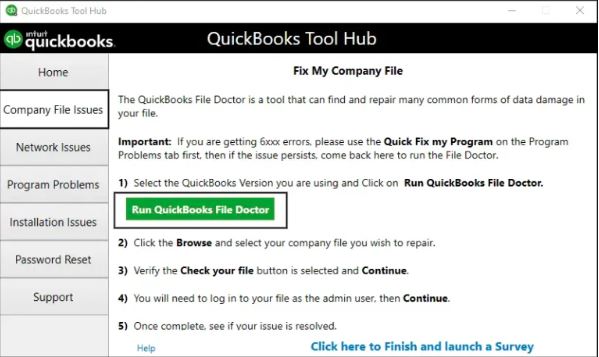
| ➡ If this doesn’t work: escalate to Solution 3.1, since repeated file-level damage after a File Doctor pass usually points to a deeper installation or registry issue. |
Fix user-specific Error 5 by removing and recreating the affected QuickBooks user account.
| Fixes | Risk | Time | Success Rate |
| Error 5 affecting one specific user only. | Low — only removes the login, not any data. | 10 minutes | ★★★☆☆ |
Effective specifically when the error is limited to a single Windows login.
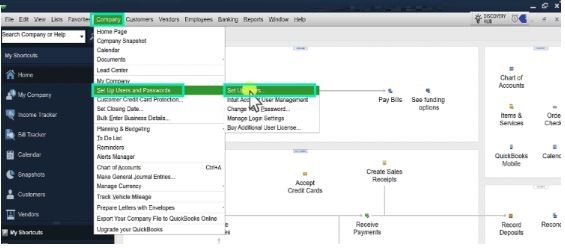
| ➡ If this doesn’t work: the problem is likely at the Windows profile level, not the QuickBooks user level — try creating a new Windows Administrator account (see FAQs) or move to Solution 2.5. |
Restart QBCFMonitorService to resolve generic unexpected errors that have no error code.
| Fixes | Risk | Time | Success Rate |
| Generic unexpected errors with no error code, intermittent freezing on launch. | None | 5 minutes | ★★★★☆ |
Clears most silent, code-free freezes on launch.
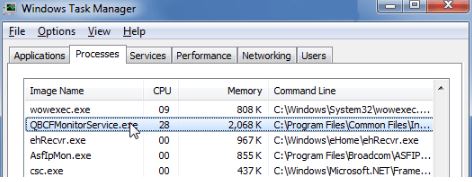
| ➡ If this doesn’t work: move to Solution 2.3, since an unresponsive monitor service can sometimes mask a deeper Microsoft component issue. |
Eliminate HRESULT exceptions by repairing damaged Microsoft components with the diagnostic tool.
| Fixes | Risk | Time | Success Rate |
| HRESULT exception codes (e.g., 0x88980406), errors right after a Windows feature update. | None — repairs Microsoft’s own components, not QuickBooks data. | 15-20 minutes | ★★★★☆ |
Resolves most HRESULT startup exceptions in a single pass.
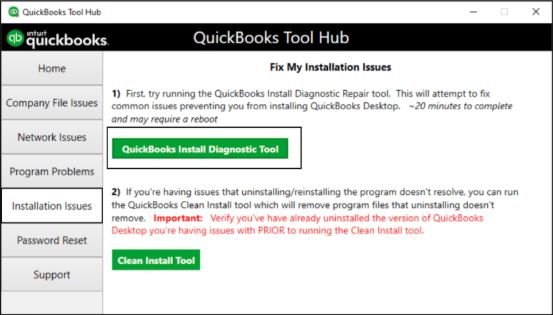
| 💡 Pro Tip: Restarting Windows after repairing .NET often resolves remaining issues that the repair tool itself doesn’t fully clear until the next boot. |
| ➡ If this doesn’t work: a component conflict may be reintroduced by a pending Windows update — install all pending updates, restart, and repeat this solution once before escalating to Solution 3.1. |
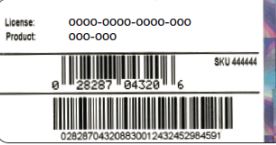
Resolve invalid license key errors by renaming the entitlement file and updating POS.
| Fixes | Risk | Time | Success Rate |
| “1766120 invalid license key status, key denied” errors after a skipped update cycle. | None — only affects license registration data. | 15 minutes | ★★★★☆ |
Resolves the majority of license/entitlement mismatches after an update.
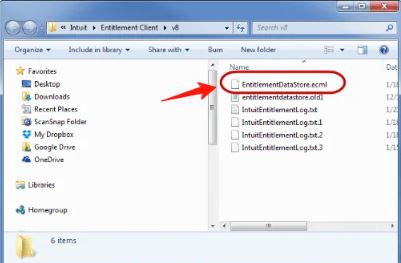
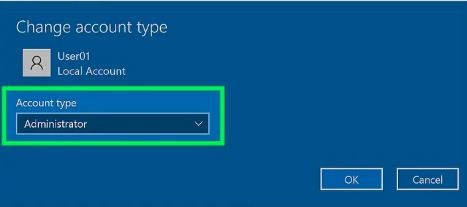
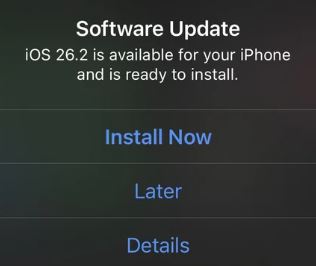
| ➡ If this doesn’t work: verify your product and license numbers with Intuit directly, since a persistent mismatch after this step can indicate an account-level licensing issue rather than a local file problem. |
Fix security-update-related errors by lowering UAC temporarily and enabling TLS 1.2.
| Fixes | Risk | Time | Success Rate |
| Error 5 or connection errors appearing right after a Windows security update. | Low — re-enable UAC after testing. | 10 minutes | ★★★☆☆ |
Effective specifically for errors that began immediately after a Windows security update.
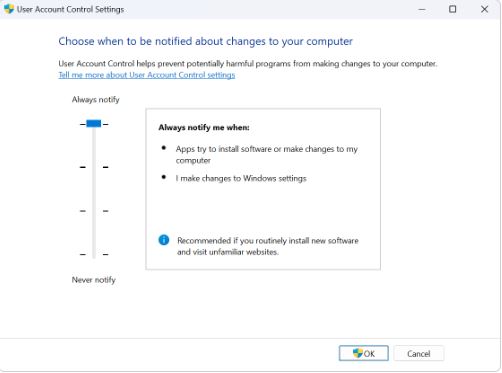
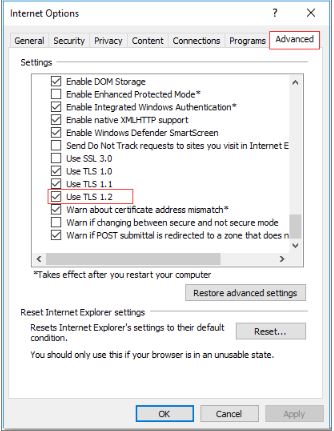
| ⚠ Warning: Never leave UAC permanently disabled. Use it only to confirm the cause, then restore it to one level above Never Notify. |
| ➡ If this doesn’t work: the issue is likely at the domain/network level rather than the local machine — see “When to Contact Intuit Support Directly” below. |
| ⚠ Warning: Do NOT uninstall QuickBooks before creating a backup of your company data file (qbpos.db). |
| ⚠ Warning: Never edit the Windows Registry manually without a full backup — incorrect edits can prevent Windows from starting. |
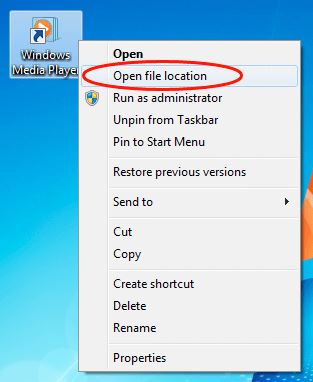
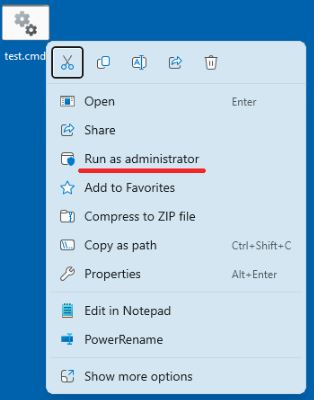
Run reboot.bat to re-register components, or perform a clean reinstall after backing up data in QuickBooks.
| Fixes | Risk | Time | Success Rate |
| Errors that survive every repair above, usually caused by stale Windows Registry paths or a corrupted installation. | Low — reboot.bat only re-registers components; clean reinstall removes program files, not your data file. | 45-60 minutes | ★★★☆☆ |
Resolves nearly all remaining cases, since it addresses installation-level rather than service-level causes.
| ➡ If this doesn’t work: contact Intuit Support directly — the installation may need a guided reinstall or a domain-level permissions review. |
Confirm the fix actually held before returning to normal operations:
These are not verified support cases — they are reasonable expectations based on how the technical causes already covered in this guide (network shares, antivirus scanning, service startup, POS version) tend to line up with common setup patterns for each business type. Use them to narrow down where to look first, not as confirmed diagnoses.
| Business Type | Where to Look First (Tied to Solutions Above) |
| Retail Stores | Multi-register setups depend on the server workstation staying on and reachable overnight — if it sleeps or restarts, QBPOS Database Server Manager can come up stopped, producing Error 100 (Solution 1.2). |
| Pharmacies | Businesses with strict compliance policies often run more aggressive antivirus scanning on shared folders, which can interfere with the company-file network share and trigger Error 5 (Solution 1.1) — a scoped antivirus exclusion is worth checking first. |
| Grocery Stores | Very large company files under heavy daily transaction volume are more exposed to configuration-file corruption after an interrupted update — a quarterly File Doctor run (Solution 1.6) catches this before it becomes a hard failure. |
| Restaurants | Shared terminals used by rotating staff mean more Windows logins accumulate on one machine over time, which is the classic setup for a user-specific Error 5 (Solution 2.1) rather than a store-wide one. |
| Jewelry Stores | Lower transaction volume sometimes means upgrades get delayed, so checking the Version Compatibility Table above for an outdated POS/Windows pairing is worth doing before troubleshooting further. |
| Multi-Store Chains | Networks that use a Domain Controller are the setups most likely to need the domain-level escalation path — see “When to Contact Intuit Support Directly” rather than repeating Level 1/2 fixes. |
| 📌 Note: If you have documented cases from your own environment, share them and this table can be replaced with genuinely verified examples instead of general patterns. | |
The scenarios below walk through how the diagnostic paths above play out in practice, from first symptom to confirmed fix.
| 📌 Note: These are illustrative scenarios built from the error patterns and fixes documented above, not verified customer case files. They are included, in the same spirit as the business-type patterns above, to show how the diagnostic path plays out from first symptom to confirmed fix. |
| Setting | What happened | Diagnosis | Fix Applied | Outcome |
|---|---|---|---|---|
| A regional home-goods retailer running QuickBooks POS v12.0 across nine registers in three stores, all pointing to one company file hosted on a back-office server. | On a Monday morning, every register except the server terminal returned “Got unexpected error 5 in call to NetShareGetInfo” the moment staff tried to open the day’s till. The server itself opened the file without issue. | Since only the networked workstations failed and not the server, the pattern pointed to a blocked network share rather than file corruption. A weekend Windows security update on the server had reset the company file folder’s sharing permissions to read-only. | Following Solution 1.1, the folder was reshared with Full Control access, and Windows Firewall was confirmed to allow QBPOS Database Server Manager on both Private and Public profiles. | All nine registers reconnected within minutes of reopening POS, with no data loss — consistent with Solution 1.1’s five-minute, zero-risk profile. |
| Setting | What happened | Diagnosis | Fix Applied | Outcome |
|---|---|---|---|---|
| A two-location pharmacy group sharing one company file from a server closet at the main store. | The second location’s workstation began reporting “Error 100 database server not found (08w01)” intermittently, worsening over several days until it failed every morning. | The first attempt restarted QBPOS Database Manager on the affected workstation — the local service, not the server one — with no effect, the most common reason this fix appears not to work. Checking services.msc on the actual server showed QBPOS Database Server Manager had stopped and was set to Manual rather than Automatic. | QBPOS Database Server Manager was restarted on the server per Solution 1.2, Startup Type was switched to Automatic, and the service was confirmed allowed through Windows Firewall on both network profiles. | Error 100 has not recurred; the Automatic startup setting keeps the service from staying stopped after future server reboots. |
| Setting | What happened | Diagnosis | Fix Applied | Outcome |
|---|---|---|---|---|
| A single-location grocery store running QuickBooks POS v11.0 on Windows 11. | POS crashed on launch with an HRESULT exception immediately after a scheduled Windows feature update installed overnight. | The timing — a first-ever failure starting right after a Windows update — pointed to a damaged Microsoft component rather than a QuickBooks-side issue, matching the HRESULT pattern described above. | The QuickBooks Install Diagnostic Tool in Tool Hub was run per Solution 2.3, repairing .NET Framework, MSXML, and the Visual C++ Redistributable in one pass, followed by a restart. | POS opened normally afterward. The store added the QuickBooks folders as antivirus exclusions and adopted a quarterly File Doctor check to catch similar component drift earlier next time. |
| Setting | What happened | Diagnosis | Fix Applied | Outcome |
|---|---|---|---|---|
| A restaurant group with a single POS terminal, current on its subscription. | After skipping two update cycles, POS began blocking all activity with “1766120 invalid license key status, key denied,” despite an active, paid license. | The message pointed toward a licensing dispute, but the account’s license status checked out as valid — the real cause was a mismatched local entitlement file, not an account-level issue. | EntitlementDataStore.ecml was renamed per Solution 2.4, the Administrator signed back in, and the pending software update was installed before reactivating. | The error cleared on the next launch — a reminder that “license denied” messages don’t always mean a licensing problem; often they mean a stale local file that a fresh update resolves. |
If every solution above has been tried and the error still returns, these deeper network and system diagnostics can isolate the cause. They require administrator access and basic comfort with Windows tools.
Check Windows Event Viewer for the Exact Failure
Test Network Connectivity to the Database Server
Verify SMB and File Share Access
Check Windows Service Dependencies
| 💡 Pro Tip: Keep a short log of the Event Viewer entry, ping/telnet result, and dependency check when escalating to Intuit Support — it typically cuts diagnosis time in half. |
| Attribute | Detail |
| Author Experience | Written and maintained by the eBetterBooks Technical Team — Certified QuickBooks ProAdvisors who handle POS installation and error escalations directly. |
| Years of QuickBooks Support | 10+ years supporting QuickBooks Desktop and Point of Sale environments across single-store and multi-workstation setups. |
| Tested QuickBooks Versions | QuickBooks Point of Sale v12.0, v11.0, and v10.0. |
| Tested Windows Versions | Windows 10 (64-bit) and Windows 11 (64-bit), server and workstation configurations. |
| Last Validation Date | August 4, 2026. |
| Review Methodology | Each solution is reproduced on a test environment matching the reported error before publication, and re-verified on every scheduled review. |
Most QuickBooks POS unexpected errors trace back to one of five things: a blocked file-sharing permission, a stopped database service, a damaged Microsoft component, a corrupted configuration or license file, or an outdated installation. Matching your exact error message to the right fix above — rather than working through every solution in order — is the fastest path to resolving it. Start with the zero-risk Level 1 fixes, move to Level 2 only if needed, and treat a clean reinstall as the final option after backing up your data file.
It means the POS workstation cannot reach the QBPOS Database Server Manager service on the server computer. The most common causes are the service being stopped, Windows Firewall blocking the connection port, or the workstation not meeting minimum system requirements. Restarting QBPOS Database Server Manager on the server via services.msc resolves it in most cases.
The data file is named qbpos.db and is typically stored at C:\Users\Public\Public Documents\Intuit\QuickBooks Desktop Point of Sale XX\Data\CompanyName, where XX is your version number. Back this file up before any uninstall or major repair.
QBPOSShell.exe is the core process running POS’s interface. Ending stuck or duplicate instances clears temporary resource conflicts. If the crash returns immediately after every restart, the cause is usually a damaged Microsoft component or a corrupted configuration file rather than a stuck process — move to Solution 2.3 or 1.4.
This code fires when POS cannot complete a startup check that depends on .NET Framework, MSXML, or Visual C++ Redistributable. It most often appears right after a Windows feature update silently altered or removed one of these components.
Windows 10 or 11 (64-bit, natively installed); 2.4 GHz processor minimum; 8 GB RAM on a workstation (16 GB recommended); 8-20+ GB RAM on a server depending on user count; and an SSD for the data file for best performance.
A new Windows profile resets Windows permissions and default UAC behavior for that user, ruling out a corrupted user profile as the cause. This is a useful diagnostic step when an error affects only one Windows login on an otherwise working computer.
Keep POS and Windows updated, set both database services to Automatic startup, exclude QuickBooks folders from antivirus scanning, always exit POS properly instead of force-closing it, and run File Doctor on a quarterly schedule.


