Excerpt:
This article details the necessary troubleshooting for the QuickBooks TLS 1.2 Internet Security Levels error, which prevents secure communication for vital connected services like payroll and online banking. The fix requires a multi-step approach validated by Intuit: updating QuickBooks Desktop to a supported version and using the specialized QuickBooks TLS 1.2 Tool found within the QuickBooks Tool Hub to automatically configure system settings. If automatic fixes fail, users must manually ensure that the Use TLS 1.2 option is checked in the Windows Internet Options Advanced tab, as the application relies on Internet Explorer 11's components for connectivity. For users operating on server environments, administrative action is often critical, specifically disabling the Internet Explorer Enhanced Security Configuration (IE ESC). Furthermore, for clients considering moving platforms, the guide correctly advises on file preparation, including checking for file limits, which are now set at 4,000,000 links between transactions, and emphasizes the need to deactivate payroll before migration to preserve data integrity.
 Add As A Preferred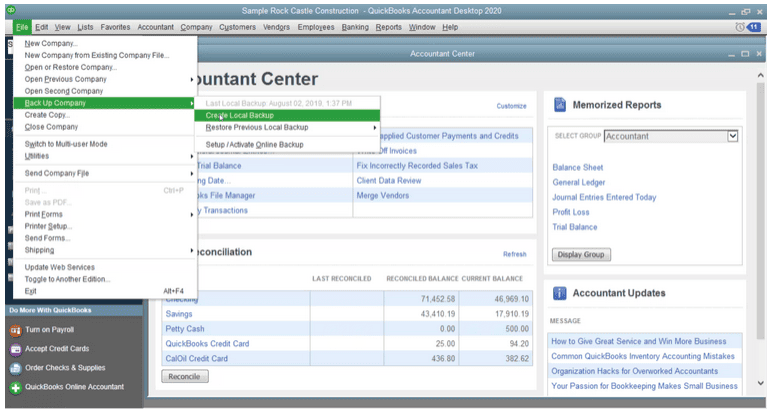
Highlights (Key Facts & Solutions)
Overview
QuickBooks TLS 1.2 is an advanced internet security technology. Security is the priority for any business, and it is undeniable that a weak code can expose private and sensitive data and result in irreversible losses for the company. Data security is the priority as no company’s important information may be compromised. TLS 1.2 enters the scene at this point.
The QuickBooks TLS 1.2 update is part of QuickBooks’ regular security standard updates. We will discuss TLS 1.2 for QuickBooks Desktop for Windows in this article. Below mention is a guide that will let you understand about TLS 1.2 for QuickBooks.
QuickBooks TLS errors occur due to changes in the functionalities of QuickBooks Online Internet Explorer. The error is caused in a manner that hinders the functioning of QuickBooks online, and Internet Explorer no longer supports TLS. Thus leading to difficulties in accessing QuickBooks online.
Moreover, if a user tries to use another browser like Google Chrome, they won’t be able to access the complete data. Switching browsers requires you to transfer the data from QuickBooks Online to QuickBooks Desktop, which can only be accomplished using Internet Explorer.
QuickBooks TLS error occurs when you are using QuickBooks, and there are inconsistencies with updates on security changes of the Transport Security layer. The causes of QuickBooks TLS error have been highlighted below:
Users can fix QuickBooks TLS 1.2 Internet Security Level Error by the below-mentioned troubleshooting steps. Two approaches can be opted by users to fix QuickBooks TLS Error. Each approach is based on the Windows and Internet Explorer versions used by the individuals.
The first troubleshooting step is resetting internet settings to fix the QuickBooks TLS Error.
Users can follow the below-mentioned steps to reset the internet settings to default options:
The processes differ for Windows Server 2008 and 2003.
Mentioned below are the steps involved in troubleshooting QuickBooks TLS Error for Windows Server 2008:
Mentioned below are the steps for Windows Server 2003:
Users willing to access QuickBooks online can do so just by QuickBooks Desktop file to QuickBooks online. QuickBooks Online did not support Internet Explorer TLS TLS 1.0 and TLS 1.1 a year ago. If users are willing to opt for QuickBooks online, considerations concerning the web settings of TLS 1.2 are required.
This will allow users to gain access to QuickBooks online through Internet Explorer.
To move QuickBooks Desktop file to QuickBooks online, users are required to follow the below-mentioned steps:
It is crucial to note that users have 60 days from creating a QuickBooks Online account to move their data from QuickBooks Desktop to QuickBooks Online.
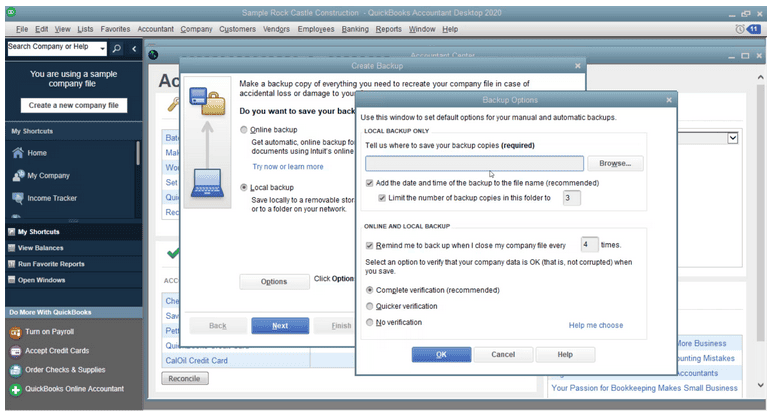
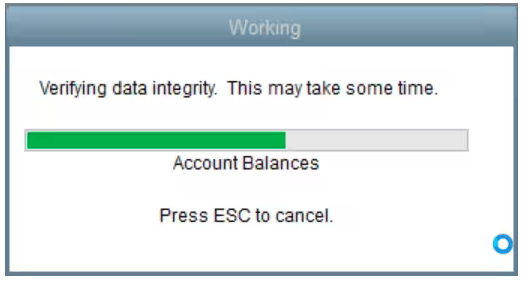
To Backup your data before migration from QuickBooks Desktop to QuickBooks Online, you need to perform the following steps:
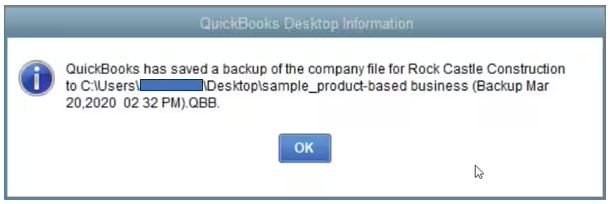
Backups can be considered both manually and automatically based on user demands.
It is necessary to ensure that QuickBooks is updated to its latest version before considering migration.
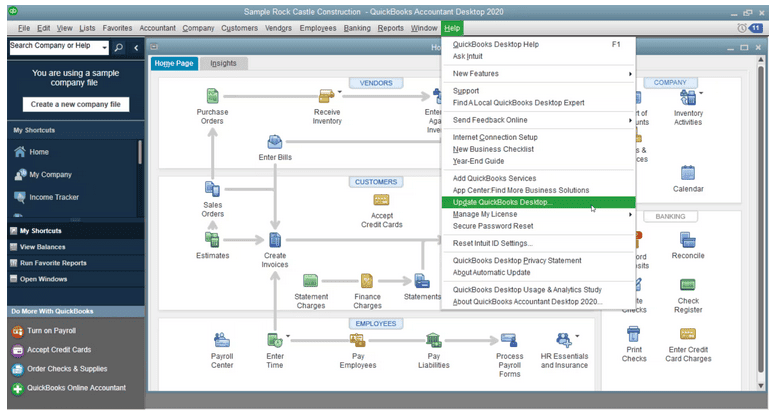
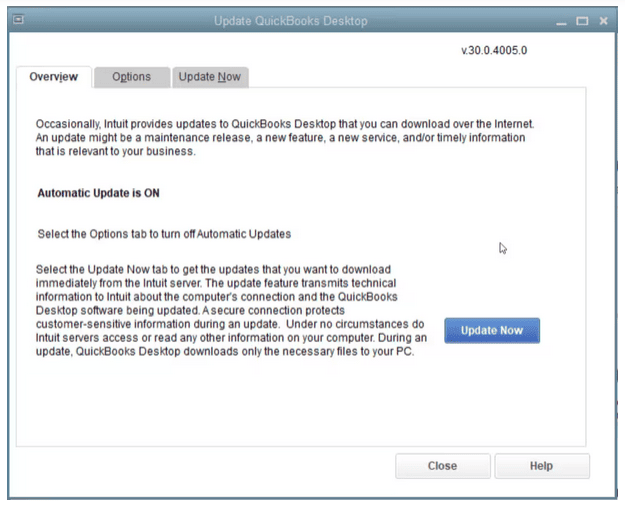
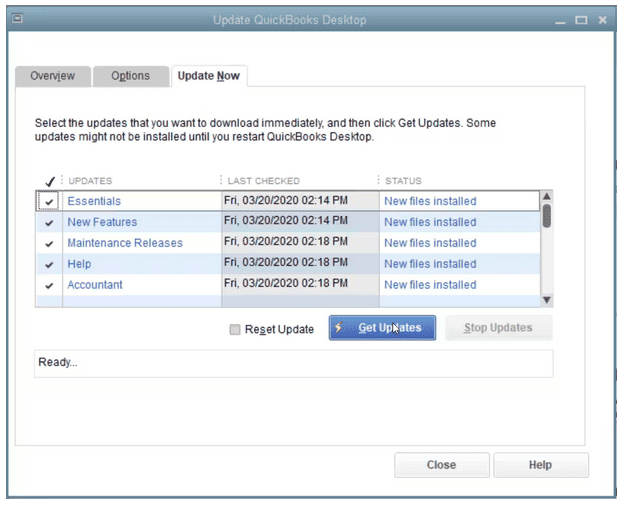
Users can follow the below-mentioned steps to download and install the latest updates for QuickBooks Desktop:
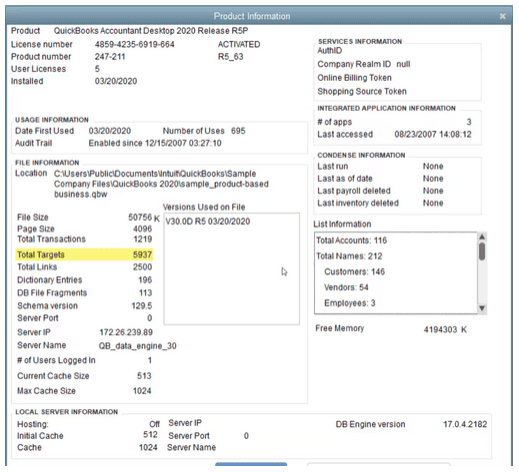
You are required to check your Total Targets. You must press Ctrl+1 in QuickBooks Desktop to access the Product Information window. You can check for the number of Total Targets, which is displayed in the File Information section. The image below is a visual representation of the kind of pop-up you will see:
- Note: If users see a Target number of over 700,000 for Canada and over 500,000 for the UK and South Africa (ZA), their account is only eligible for a list and balance conversion.
Follow the below-mentioned steps to accomplish this step:
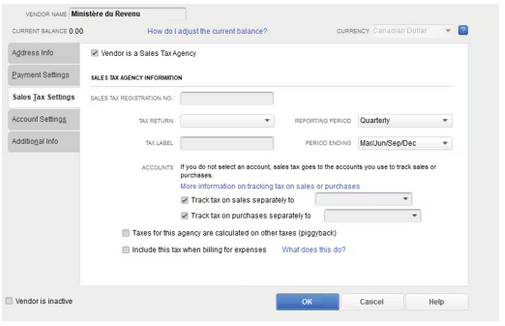
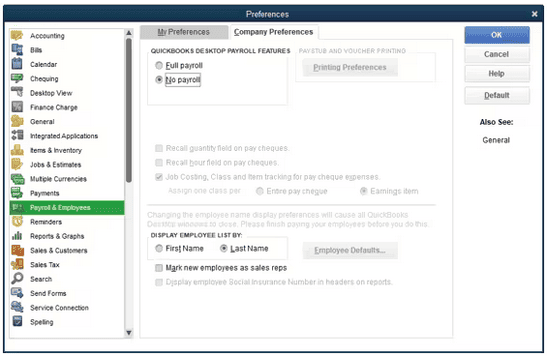
Note: Turning off-payroll in the QuickBooks Desktop file is necessary to avoid criticalities post-migration to QuickBooks online.
To turn off payroll, you are required to follow the below-mentioned steps:
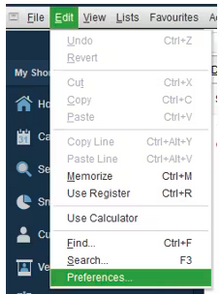
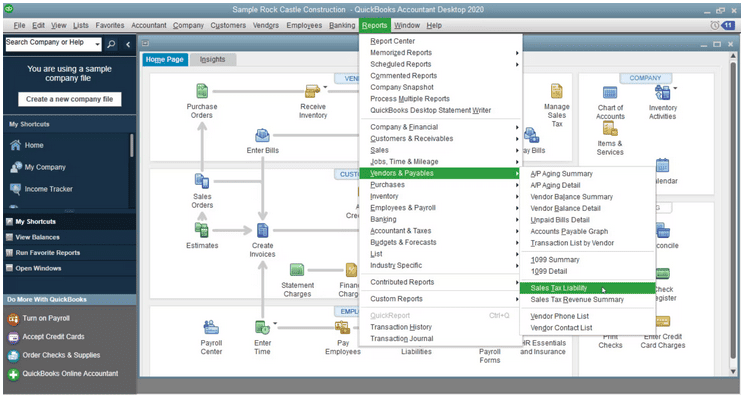
You are required to save or print a copy of the concerned Sales Tax Liability Report. This is required for post-migration purposes, where it will help with entering adjustment techniques.
You are required to follow the below-mentioned steps to save your Sales Tax Liability Report:
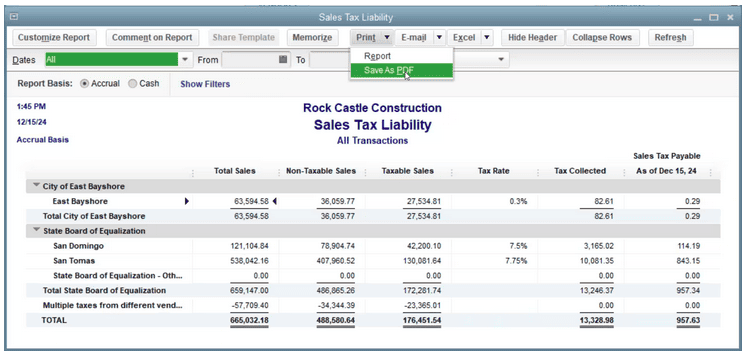
Note: This process must be considered only if an organization has more than 700,000 targets. However, if optional, this step can be skipped.
You must repeat these steps for each report you want to export.
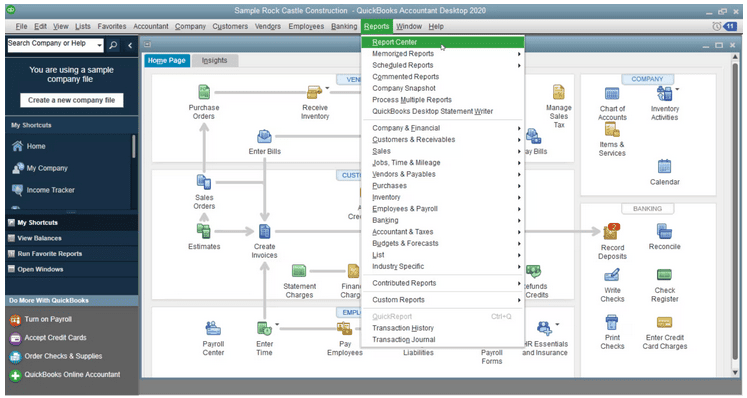
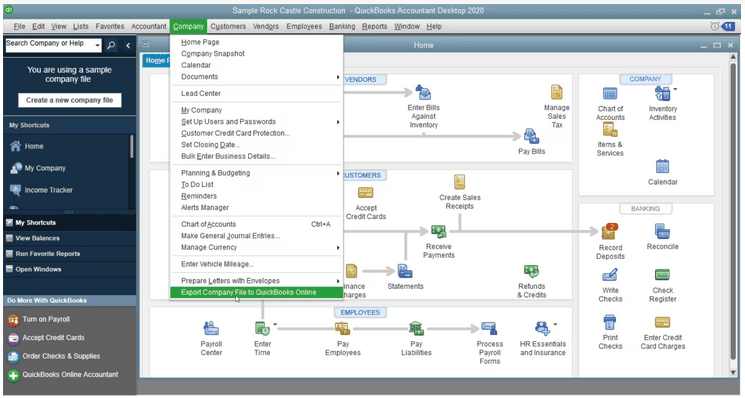
After completing the above processes, you can migrate the data from QuickBooks Desktop to QuickBooks Online.
For QuickBooks Desktop Pro or Premiere, follow the below-mentioned steps:
For QuickBooks Desktop Enterprise, follow the below steps to import the backed-up data:
In case you track inventory in QuickBooks Desktop, you can perform the following measures:
You will get to see the QuickBooks online dashboard. A visual representation of the dashboard has been provided below:
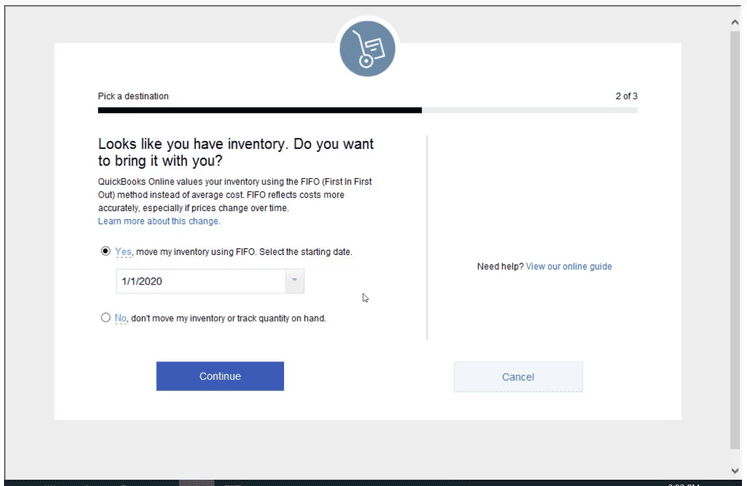
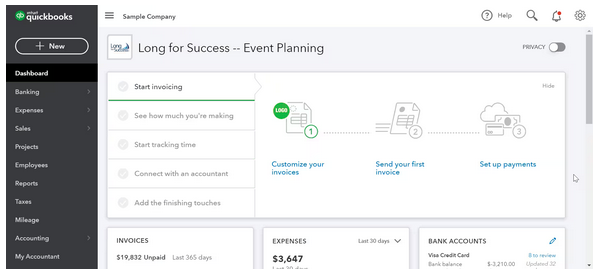
Users must move necessary lists based on priority from QuickBooks desktop to QuickBooks Online.
Mentioned below is a checklist of the lists that are required to be moved to complete the migration process:
Users can enable inventory tracking on QuickBooks online by following the below-mentioned steps:
Users can verify if TLS 1.2 is enabled for their QuickBooks desktop by following the below-mentioned approaches. Verifying if TLS is enabled can help eradicate QuickBooks TLS Error. However, the steps to verify QuickBooks TLS vary based on the version of Windows you are currently using.
Users can avail QuickBooks services on Windows 10 with the help of built-in Internet Explorer 11. Windows 10 comes with TLS 1.2, which is by default enabled.
However, if users want to verify, they can do so by following the below-mentioned procedure:
Users can follow the above processes for Windows 7/8/8.1 to enable TLS 1.2 on their desktops. However, it is enabled by default if users have updated their Internet Explorer to version 11. In the case of older versions of Internet Explorer, users must enable it manually by following the processes mentioned above.

While you are updating QuickBooks TLS 1.2, you may face some errors. Users actively using QuickBooks are aware that the error persists, and these can be fixed with some troubleshooting steps. The above measures will help in fixing QuickBooks TLS errors. In case of any assistance, contact us at +1-802-778-9005 or drop a mail at: support@ebetterbooks.com.
TLS (Transport Layer Security) is an advanced internet security protocol that ensures data privacy and integrity between your QuickBooks Desktop application and Intuit’s remote services. It is the successor to the insecure SSL and early TLS protocols (1.0 and 1.1).
Intuit mandated the use of TLS 1.2 for all connected services starting in 2017 and 2018 to align with industry security standards and ensure Payment Card Industry Data Security Standard, or PCI DSS, compliance. This higher security level protects sensitive customer and financial data.
The QuickBooks services affected if TLS 1.2 is not enabled include:
No, simply enabling TLS 1.2 in Internet Explorer (IE) is generally insufficient if your QuickBooks Desktop application is outdated. The fix requires both your operating system environment and the QuickBooks software itself to be compatible.
An outdated version of QuickBooks may lack the core internal programming or security patches required to correctly initiate a TLS 1.2 handshake.
The recommended steps, verified by Intuit, are to:
If the basic Internet Explorer reset did not resolve the error, the issue likely resides at a higher administrative or system level, particularly on Windows Server installations.
The next validated steps focus on ensuring the operating system is not blocking the connection:
The requirement to check Total Targets (which can be viewed by pressing the F2 key, or Ctrl+1, in QuickBooks Desktop) is a mandatory file size and complexity limit check enforced by Intuit before using their migration tool.
“Targets” represent the total number of links between transactions and list items in your company file. The current migration limits are set very high but are still in place:
If your file exceeds this limit, the migration tool may fail or only offer a “list and balance conversion,” meaning only your Chart of Accounts and lists move over, and transactional history will be lost. To reduce targets, you must first use the Condense Data utility in QuickBooks Desktop.
Even if you primarily use Google Chrome, Firefox, or Microsoft Edge, QuickBooks Desktop relies on the underlying components of Internet Explorer 11 for all its connected services.
QuickBooks does not use your default web browser for its internal communications (payroll, bank feeds, updates). Instead, it uses the WinHTTP API and other libraries that pull their security settings directly from the Internet Options in the Windows Control Panel, which are traditionally managed by Internet Explorer.
Therefore, you must verify that the Use TLS 1.2 checkbox is checked within the Internet Options Advanced tab, even if you never physically open the Internet Explorer browser.
Turning off the payroll feature is critical to maintain data integrity because QuickBooks Desktop (QBDT) and QuickBooks Online (QBO) run on entirely separate payroll platforms.
If the payroll feature remains active during the export:
To ensure a clean transition, Intuit recommends deactivating payroll in QBDT, migrating the non-payroll data, and then setting up the payroll service anew within QBO.
Yes, TLS 1.3 is the latest and most secure version of the protocol, offering faster handshakes and stronger cryptographic security by removing outdated algorithms present in TLS 1.2.
However, users should only focus on enabling TLS 1.2 for QuickBooks Desktop, not TLS 1.3, unless specifically instructed by Intuit.
The reason is compatibility:
For the purpose of resolving the common connection error, TLS 1.2 remains the sole focus.


