 Add As A Preferred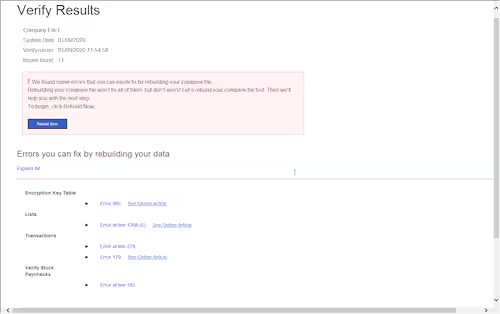

To resolve QuickBooks payroll access denied errors due to file corruption, use Verify and Rebuild Data or QuickBooks File Doctor; for service errors, run QuickBooks as an administrator, update, and check internet/firewall settings, ensuring the payroll subscription is active and user permissions are correct.
The ‘Access Denied’ error in QuickBooks Desktop Pro/Premier Payroll occurs due to file corruption, service errors, which result from improper shutdowns, large file sizes, or data integration issues. Other causes include outdated software, network problems, or incorrect payroll service keys, which hinder communication with Intuit’s servers.
This error in QuickBooks Desktop Pro/Premier payroll leads to data loss or damage, business disruption, tax penalties, and increased costs.
Fixing the “Access Denied” error in QuickBooks Desktop Pro/Premier Payroll is crucial for smooth payroll operations. It ensures accurate employee wages, tax calculations, and direct deposits while maintaining compliance with regulations.
Addressing these issues prevents filing delays and protects sensitive data, ultimately improving system performance and reducing future errors.
Before resolving payroll access denied errors in QuickBooks Desktop Pro or Premier due to file corruption or service errors, certain prerequisites must be met to maximize the chances of a successful fix.
| Prerequisite | Why It’s Needed | How To Do It |
|---|---|---|
| Admin/External Accountant Role | Required for payroll setup/access | Log in as Admin/External Accountant |
| Verify User Permissions | Ensures correct access levels | Company > Users > Set Up Users and Roles > select user > Edit > assign appropriate roles/permissions |
| Run as Windows Admin | Grants necessary OS-level permissions | Close QuickBooks, right-click the QuickBooks icon, select “Run as administrator“. |
| Single-User Mode | Required for some repairs/setup | Open QuickBooks > File > Switch to Single-User Mode |
| Backup Company File | Prevents data loss | Open QuickBooks > File > Back Up Company > Create Local Backup > follow prompts to save backup. |
| Check Payroll Subscription | Ensures payroll features are available | Employees > Payroll Center > Check Subscription StatusFor activation: Employees > Payroll > Enter Payroll Service Key |
| Clear Browser Cache | Resolves web-related payroll errors | Open default browser > Settings > Clear browsing data/cache. |
| Network and Connectivity Issues | Ensures QuickBooks communicates over the network | Check internet connection; ensure firewall/antivirus allows QuickBooks. File > Utilities > Internet Connection Setup. |
Use the following solutions to repair damaged company files and reestablish a secure connection to Intuit’s payroll services. These steps resolve the “Access Denied” error and restore full access to payroll features in QuickBooks Pro or Premier, preventing future disruptions.
Resolving the file corruption helps users detect and repair damage within their QuickBooks company file that may be causing payroll access issues.
It is essential fix this error for safeguarding the payroll data, preventing further damage, and minimizing downtime in the payroll processing workflow.
Use the built-in QuickBooks utilities to detect and fix minor file corruption. The Verify tool checks for data issues, and the Rebuild tool automatically repairs them after creating a backup.
Note: Rebuild the data and run Verify Data again to confirm the issue is resolved.
QuickBooks Tool Hub quickly scans and repairs common company file issues that block payroll access. It’s ideal for minor file errors and is easy to run through the Tool Hub.
File Doctor performs a deeper scan to detect and fix complex file corruption and network issues. It requires admin credentials and may take up to 10–15 minutes to complete.
Note: After the scan finishes, check whether the issue is resolved, regardless of the scan’s reported outcome.
In case repair tools fail, restoring a recent backup is a reliable way to regain access. This ensures data integrity and requires re-entering recent transactions.
Fixing the service issues caused by outdated software, network restrictions, or incorrect payroll service configurations help users connect to Intuit’s servers without any issue. These steps are essential for restoring access, maintaining compliance, and avoiding interruptions in payroll processing.
Running QuickBooks with administrative privileges ensures the software has the necessary permissions to access payroll services and make system-level changes.
Updating QuickBooks installs the latest patches, payroll tax table updates, and bug fixes that are critical for smooth payroll operations and server connectivity.
Re-entering the payroll service key helps to resolve registration or validation issues that block access to payroll features. It resets the service configuration without affecting the data.
Ensuring QuickBooks is allowed through the firewall and that the internet connection is stable helps restore secure communication with Intuit’s payroll servers, resolving service-related access errors.
Note: Add QuickBooks as an exception in antivirus software.
Understanding the causes of the “Payroll Access Denied” error is crucial for troubleshooting. Common issues like file corruption, outdated software, incorrect service keys, and connectivity problems block payroll access and lead to delayed tax filings and compliance issues.
To resolve payroll access issues in QuickBooks Desktop Pro/Premier caused by file corruption, use the Verify and Rebuild Data utilities or the Quick Fix My File and QuickBooks File Doctor tools from the QuickBooks Tool Hub. For service errors, run QuickBooks as an administrator, update to the latest version, and verify internet and firewall settings. In case the issue persists, refresh the payroll service key. Ensure all prerequisites, such as user permissions, admin rights, and an active payroll subscription, are in place before troubleshooting.
To fix this, first, go to File > Utilities > Verify Data, then Rebuild Data. In case the issue persists, use the QuickBooks Tool Hub to run Quick Fix My File and then QuickBooks File Doctor to diagnose and repair file damage.
Run QuickBooks as an administrator by right-clicking the icon and selecting ‘Run as administrator.’ Update QuickBooks Desktop via the Help menu, and refresh the payroll service key under the Employees menu. Ensure QuickBooks is allowed through your firewall and check your internet connection.
The error is caused by file corruption or service errors. File corruption occurs from damaged files, improper shutdowns, or large file sizes. Service errors typically result from outdated software, network issues, or an incorrect payroll service key.


