Excerpt:
QuickBooks Unexpected Error 5 occurs when the QuickBooks Database Service cannot access the company file due to issues like file corruption, network problems, or user permission issues. This article provides various troubleshooting methods such as turning off User Account Control, recreating user files, using the QuickBooks File Doctor Tool, and reinstalling the software to resolve the error. It also shares preventive measures like keeping software updated and verifying user permissions to avoid future issues.
 Add As A Preferred
Get to know the possible reasons and troubleshooting of unexpected error 5 in QuickBooks desktop.
The QuickBooks Unexpected Error 5 pops up when the QB Database Service User can’t access the company file from its file location. Here, the user is blocked from accessing the file. It affects the work efficiency of a user. With this article, we will learn in-depth about QuickBooks Unexpected Error 5, and get to know its causes.
QuickBooks is a widely known accounting software across the globe. It has helped millions of users in generating accurate financial statements. Apart from that, QB users get accounts receivables and payables in one click. It offers a lot of features, but it also has some shortcomings. For example, Unexpected Error 5 in QuickBooks.
Call Us Now For Quick Solutions
User Navigation [show]
QuickBooks Error 5 usually occurs when the QuickBooks Database Service Manager cannot access the file location due to file corruption, network problems, or incorrect user permissions. The users may encounter a message stating that only one company file can be opened, which typically means the other users need to log out and switch to Single User Mode as Admin. They also see this warning message on the screen:
“Got unexpected error 5 in call to NetShareGetInfo for Path.”
or
“Unexpected error 5 in call to NetShareGetInfo for path \\FBSERVER\Quickbooks\Company Files\XXXXXXX.qbw.“
More Specifically:
“Encountered QuickBooks Unexpected Error 5 in call to NetShareGetInfo for path\\server\file.QBW”
Usually, they occur because there are some invalid entries in the Windows registry. Also, the system does not have the configuration as per the requirement.
Multiple reasons can lead a user to the unexpected error 5 issue when QuickBooks desktop crashes or closes unexpectedly:
As there are many reasons why QuickBooks Unexpected Error 5 occurs, we have listed many methods to fix the issue. Try them in any order that deems fit to you.
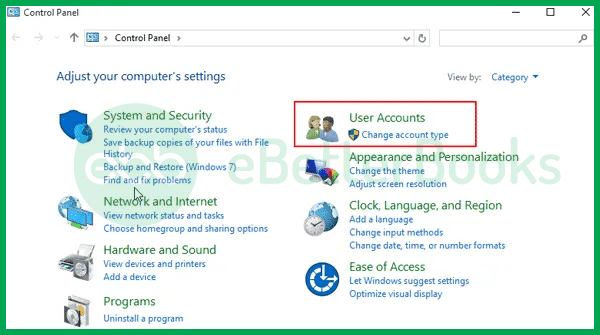
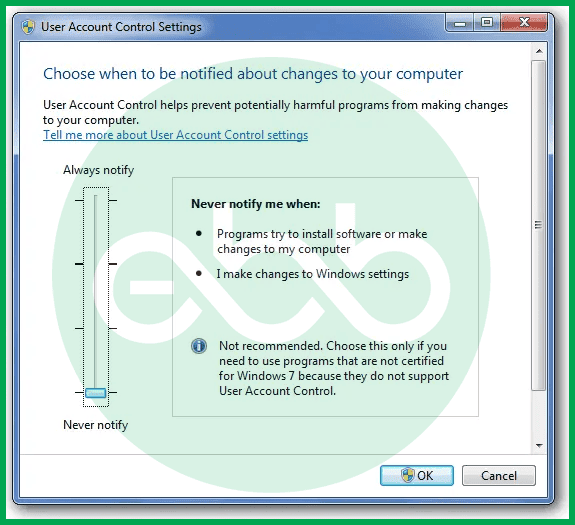
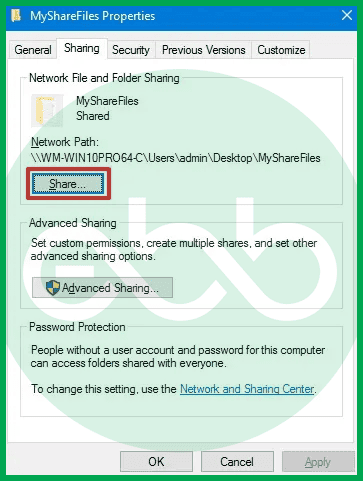
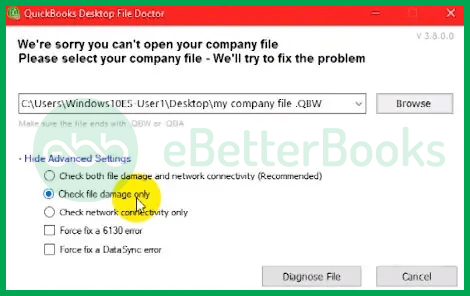
The file doctor tool is an effective measure against unexpected error 5 and similar QuickBooks Errors. Here are the steps for using this tool:

To install the Reimage Repair Tool, follow these below steps:
To update QuickBooks Point of Sale, follow these steps:
To avoid QuickBooks Unexpected Error 5, follow these best practices:
Monitor System Health: Infrequently, run system repair tools, such as the Reimage Repair Tool, to look for and correct system file issues.
All methods that we mentioned in the article for fixing QuickBooks Unexpected Error 5 are easy to implement. We also made you aware of the causes that might lead to this error. It will also protect the users from committing mistakes that may have led to the bug. In addition to understanding the causes, implementing quickbooks error resolution strategies can significantly enhance your overall experience with the software. By adopting these strategies, you can efficiently troubleshoot and maintain the integrity of your financial records. This proactive approach not only minimizes disruption but also ensures that you leverage the full potential of QuickBooks for your business needs.
Sometimes, you many not get effective results, even after repeatedly trying these methods. We advise you to get expert help in fixing the bugs. Our error support team is ready to help you out, regardless of the complexity of the error. Reach out to Error Support Phone Number +1-802-778-9005 for immediate resolution.
Anti-virus and firewall software can misinterpret the QuickBooks Database Service Manager’s attempts to access the company file over a network as a security threat. This interference can block the necessary communication ports (like 8019 and the specific ports for your QuickBooks version, e.g., 56728, 55378-55382) used by the Database Service to reach the .QBW company file, resulting in an “Access Denied” or “Unexpected Error 5” message. You typically need to create exceptions in your firewall/security software for the QuickBooks program files and these ports on both the server and the workstations.
Yes, the size of your company file can indirectly contribute to issues that result in Unexpected Error 5, especially if the underlying cause is data corruption or network strain. Intuit recommends that the QuickBooks File Doctor tool, often used to resolve this error, may not be able to effectively repair company files that exceed 2GB (for QuickBooks Pro/Premier) or 450MB to 2GB (depending on the source/version). If your file is extremely large, it increases the likelihood of performance degradation and potential corruption, making it more susceptible to errors.
The QuickBooksDBXX service (where XX is a two-digit number representing your QuickBooks version, e.g., QBDB30 for 2020) is the actual QuickBooks Database Service Manager running on your server computer. This service is responsible for providing all users with access to the company file in a multi-user environment. Error 5 occurs when a user’s access is restricted, often because this service is not running, is improperly configured, or is being blocked by a firewall/permissions from communicating with the company file or the user’s workstation. Ensuring the service’s startup type is set to Automatic and the status is Running is a key preventive measure.
Not necessarily. While file corruption is one of the listed causes for Error 5, the most common underlying cause is a permissions issue or network block preventing the database service from reaching the file. Running the QuickBooks File Doctor tool (which is designed to fix both network and data corruption issues) is the first step to diagnose and repair the file.
Always ensure you have a recent backup of your company file before attempting any major troubleshooting steps like rebuilding or reinstalling.
You can verify this by checking the Security tab of the QuickBooks company file folder and ensuring all QuickBooks users have Full Control permissions. Intuit requires these permissions for QuickBooks Database Server Manager to access and manage files in multi-user mode.


