Excerpt:
Experiencing the "QuickBooks keeps aborting in multi-user mode" error can disrupt your business operations, often caused by issues like corrupted files, improper hosting, or network interruptions. This guide provides step-by-step solutions to address the root causes, such as renaming damaged files, adjusting firewall settings, granting necessary permissions, and repairing company files, ensuring smoother multi-user functionality and preventing system crashes. For continued support, reach out to our customer service team.
 Add As A Preferred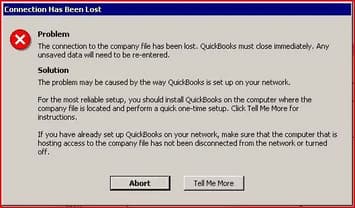
QuickBooks Abort Error in Multi-User Mode occurs when multiple users try to access a shared company file, but the connection between the workstations and the host system becomes unstable. This error often results from a damaged QBWUSER.INI file, misconfigured hosting settings, network interruptions, or insufficient permissions, causing QuickBooks Desktop to terminate unexpectedly during active operations.
When a user fails to maintain a stable multi-user connection, the following error prompt starts popping up on the desktop screen:
“The connection to the company files has been lost. QuickBooks must close immediately. Any unsaved data will need to be re-entered”.
“ABORT – Problem – The connection to the company file has been lost.”
This article defines the error through its structural attributes, identifies the operational indicators, analyzes the root causes, and explains the system dependencies that affect multi-user stability. It also presents corrective measures, permission requirements, network configurations, and data-validation procedures necessary to restore reliable, secure, and efficient multi-user functionality.
QuickBooks Abort Error in Multi-User Mode is identified through indicators that show the connection between a workstation and the company-file host. These indicators confirm that the shared file cannot maintain a stable access channel and help determine that the system is experiencing an abort error.
The following are the indicators that you are facing the QuickBooks aborting in multi-user mode error:
QuickBooks Abort Error in Multi-User Mode results from disruptions that affect the stability of the connection between the workstations and the company-file host. These disruptions interfere with file-access synchronization and trigger abrupt termination events during shared-file operations.
Cause: QuickBooks Abort Error or QB Aborting in Multi-User Mode due to Improper Hosting Settings
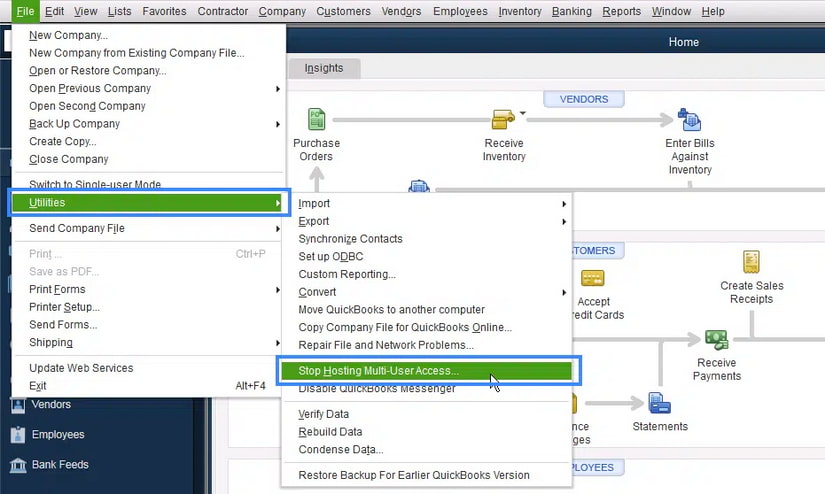
Solution: Turn Off Hosting Access for Multi-User Mode. Disabling hosting access ensures smoother multi-user functionality.
Cause: QuickBooks Abort Error or QB Aborting in Multi-User Mode caused by a Damaged QBWUSER.INI file
Solution: Renaming the damaged QBWUSER.INI file addresses the problem and allows QuickBooks to create a new, functional INI file, preventing multi-user mode interruptions.
Cause: QuickBooks Abort Error or QB Aborting in Multi-User Mode due to Firewall Restriction
Solution: Configure Firewall Restricting Access To The Network. Configuration of firewall settings resolves issues where QuickBooks is restricted from accessing the network in multi-user mode, ensuring seamless operation.
Cause: QuickBooks Abort Error or QB Aborting in Multi-User Mode arising from Installation issues with the QB software
Solution: Use the QuickBooks File Doctor tool To Fix Any Installation Defects. The QuickBooks File Doctor tool identifies and repairs installation defects, ensuring proper functionality.
Cause: QuickBooks Abort Error or QB Aborting in Multi-User Mode due to Additional Permissions requirements
Solution: Grant Additional Permission To The Company Files. Granting additional permissions addresses issues where some users lack necessary access permissions for company files in multi-user mode, facilitating collaborative work.
Cause: QuickBooks Abort Error or QB Aborting in Multi-User Mode caused by QuickBooks Company File data corruption
Solution: Verify\Repair QB Company File Data. Verifying and repairing the company file data maintains data integrity.
Implement the solutions given above to resolve the error; if you still need help, contact +1-802-778-9005, or you can mail us at: support@ebetterbooks.com
Before fixing the QuickBooks Abort Error in Multi-User Mode, ensure the system environment is properly configured. Verify file permissions, QBWUSER.INI integrity, firewall settings, consistent QuickBooks versions, and correct host configuration to provide a stable foundation for effective error resolution.
This section outlines detailed solutions to resolve the QuickBooks Abort Error in Multi-User Mode. Each solution addresses a specific cause, such as configuration errors, corrupted files, network restrictions, or insufficient permissions.
The following are multiple solutions to deal with the QB Abort Error in Multi-User Mode:
In this situation, you need to check the QuickBooks Hosting Status on your Server. Here’s how:
Step 1: Open QuickBooks on the server computer.
Step 2: Navigate to the File menu and select the Utilities option.
Step 3: Click on the option Stop hosting to multi-user access.
Step 4: Afterward, tickmark the checkbox stating “Open file in multi-user mode” to access the company file.
Finally, try to run QuickBooks and verify whether the issue still stands its ground or not.
Corruption of the QBWUSER.INI file may cause the QB abort error. Rename this file to prevent the same.
Step 1: Locate the folder storing the ‘QBWUSER.INI’ file.
Step 2: Next, navigate to the path:
\Users\[User Name]\AppData\Local\Intuit\QuickBooks2026
Note: If you fail to find the respective file, try using the search option. Ensure that the show hidden files and folders option is turned on.
Step 3: Once the file is found, right-click on the file and select Rename.
Step 4: Add “.old” at the end of the filename, then press the Enter key to save.
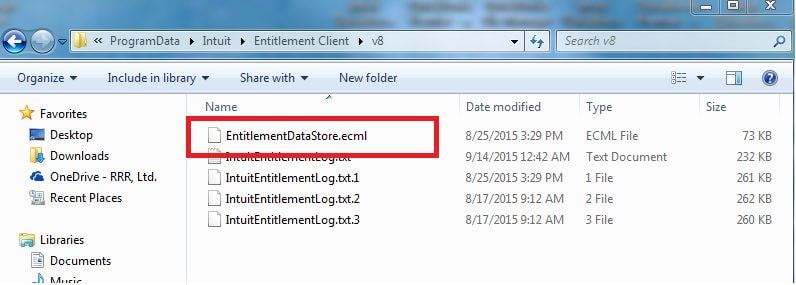
Step 5: Then rename the ‘Entitlement data store‘ and ‘.ecml’ files.
Step 6: When all the file names are changed, open a sample company file to complete the process.
Configuring the Windows Firewall Settings manually can help eliminate the QB abort error.
The steps to do so are as follows:
Step 1: Launch the Windows Start menu.
Step 2: Type Windows Firewall into the search box and then open the same.
Step 3: Click on the Advanced Settings option.
Step 4: Right-click on the Inbound Rules and then select the New Rule option.
Step 5: Choose Port and then press Next.
Step 6: Ensure that TCP is selected.
Step 7: Under the Specific local ports field, type the Specific ports required for your QB year version, such as,
Step 8: Once you enter the port number, click Next.
Step 9: Select Allow the Connection and click Next.
Step 10: Create a new rule and give it a name [e.g., “QBPorts(year)] and click Finish.
Note: To create Outbound rules, follow the same steps.
You will notice the same error message if installation issues are present with your program. Download the QB tool hub and run the QB install diagnostic tool to fix this.
Here’s how:
Step 1: Download the QuickBooks Tool Hub
Note: If you have installed the Tool Hub earlier, you can find out which version you have. For this, hit the Home tab in the Tool Hub, and the software version will appear on the bottom.
Step 2: Run the QuickBooks Install Diagnostic Tool
Granting administrative permissions to access the QuickBooks Installation folder will prevent QuickBooks keeps aborting in multi-user mode error.
Step 1: Open Windows File Explorer and navigate to the following path:
“C:/Program Files/Common Files”.
Step 2: To change the security settings for the common files folder, hit right-click on it and then select the Properties option.
Step 3: Now, navigate to the Security tab and choose the Edit option.
Step 4: Click on Users under “Groups or Usernames.”
Step 5: Modify and enable the write, read, read, and execute rights under the Users tab.
Step 6: Click on Apply and press the OK button to save changes.
Follow the below-given instructions to run the verify and rebuild utility option:
Step 1: Launch QuickBooks Desktop and then click the File menu option.
Step 2: Select the Utilities option and then choose Verify data.
Note: If the error message does not get displayed after verifying the data, you don’t need to run the Rebuild tool. But if the error message “Your data has lost integrity” displays on your screen, you will need to repair the damaged data file.
Step 3: Choose the Utilities tab in the File menu and select the Rebuild data option.
Step 4: Once done, press the OK tab on the backup company file popup window.
Step 5: Now, select the location on the system to store the company file backup, and click OK. The Data Rebuild process will start when the backup file is saved on the desktop successfully.
Step 6: After the data rebuilding process is completed, choose the Backup option from the File menu to restore the company file backup.
Sometimes, technical issues in QuickBooks can occur because antivirus or firewall programs, including Windows Defender, may interfere with QuickBooks processes. To ensure they don’t disrupt QuickBooks, it’s recommended that you temporarily disable both your antivirus and Windows Defender programs.
Step 1: Disabling Antivirus Program
Follow these steps to temporarily disable your antivirus program:
Step 2: Disabling Windows Defender
If you have Windows Defender enabled, you can disable it by following these steps:
Note: create a backup copy of your company file to prevent data loss due to unexpected circumstances.
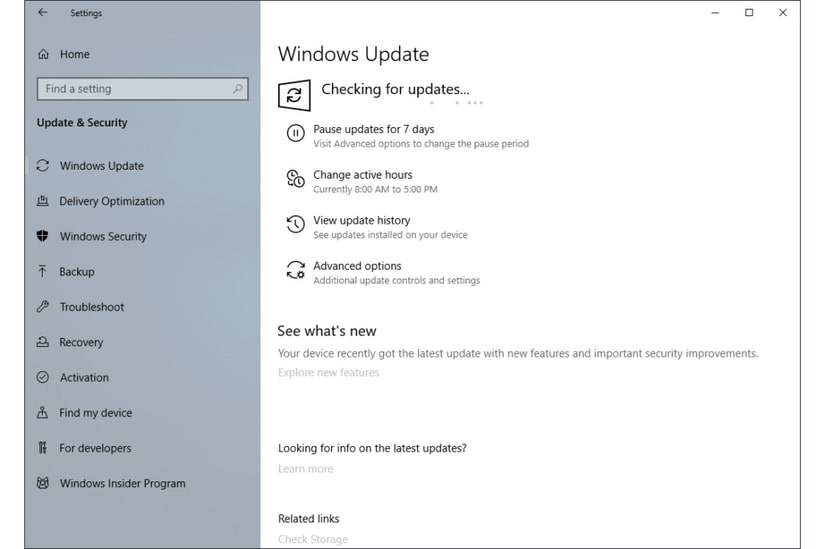
QuickBooks Abort Error in Multi-User Mode occurs due to file access disruptions, corrupted configurations, network instability, or insufficient permissions, which interrupt simultaneous operations on a shared company file. The step-by-step corrective measures, including adjusting hosting settings, regenerating the QBWUSER.INI file, managing firewalls and permissions, verifying data, and applying system updates, restore reliable multi-user functionality. These solutions create a stable, secure, and efficient environment for collaborative QuickBooks operations while minimizing the risk of recurring abort errors.
Contact +1-802-778-9005, or you can mail us at: support@ebetterbooks.com if you still need expert assistance.
Yes it is, if the latest update is available for your software then go for it as it will surely help you to fix the QB Abort error. The new features eliminate all the technical errors and glitches you’re experiencing due to having an outdated and older version of the application.
There are different ways to prevent QuickBooks Abort Error which includes:
➜Always keep your QuickBooks software up-to-date.
➜Make sure only the administrator is hosting the company file.
➜Check the Windows power saving mode settings.
➜The hard drive must be free from any kind of damage or corruption, otherwise, it ➜prevents you from accessing the company file in the shared network.
➜Verify you have full access to the company file or folder.
The QuickBooks Database Server Manager (QBDBSM) is the core component that manages access to the company file for all users in multi-user mode.
➜File Access Control: The QBDBSM is installed on the Host/Server machine and controls the lock files (.nd and .lck) that allow simultaneous user access.
➜Preventing Abort: By properly regulating access, the QBDBSM prevents file access conflicts and data-locking issues that often lead to the “Abort” error message when two users try to access the same critical data simultaneously or if a connection is suddenly dropped.
The Abort error is often triggered during high-demand operations because these tasks place significant load on the network and the company file.
➜Timeout Issues: Large reports or backups require extended periods of continuous, uninterrupted access to the company file. If the network connection between a workstation and the server momentarily drops, or if the server takes too long to respond (a “timeout”), QuickBooks may interpret this as a fatal connection loss and trigger the Abort error to prevent data loss.
➜Memory/Resource Limits: These tasks also consume high amounts of RAM on the workstation and the server. Hitting a system resource limit can cause the program to shut down unexpectedly.
Yes, the QuickBooks File Doctor is the primary diagnostic and repair tool recommended by Intuit for multi-user connection issues and data file damage—both of which are common triggers for the Abort error.
➜Repair Focus: The File Doctor runs two main checks:
➜Network Diagnosis: It checks the firewall, server settings, and network ports (specifically ports 8019 and 55363-55382) to ensure multi-user connectivity is working correctly.
➜Company File Repair: It scans and repairs internal damage, which is crucial since corruption can also cause the Abort error.
QuickBooks requires full “read/write/create/delete” permissions for the folder containing the company file. If Windows sharing settings, NTFS permissions, or admin rights are restricted, users may experience disrupted access in multi-user environments. Intuit’s support guidelines note that proper folder-level permissions help maintain stable connectivity and prevent access interruptions.
Yes, the complexity of the file path is a frequently overlooked environmental factor.
➜Path Limitations: Extremely long file paths, especially those with numerous subfolders or unconventional characters (like &, @, %), can exceed the character limits imposed by Windows or network protocols.
➜Server Access: This path complexity can interfere with the way the QBDBSM registers and grants access to the file, making the connection less stable and more prone to disconnection/Abort errors. Intuit recommends keeping the company file path as short and simple as possible, typically on the root of the drive (e.g., C:\QBData\).


