Excerpt:
The "Connection Has Been Lost" error in QuickBooks disrupts access to your company file, causing potential data loss. This issue can arise due to file corruption, incorrect permissions, or interference from third-party processes, including antivirus or firewall settings. Solutions include checking your storage device connection, disabling power-saving modes, running QuickBooks File Doctor, adjusting firewall settings, and ensuring proper hosting configurations. These steps aim to restore seamless access to your QuickBooks data.
 Add As A Preferred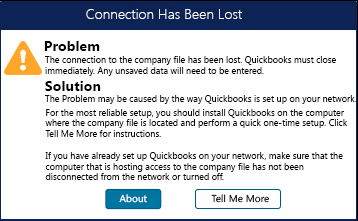
Fix QuickBooks “Connection Has Been Lost” error by renaming ND and TLG files, disabling computer power saving mode, restarting Database Server Manager service, and verifying multi-user hosting settings to restore network access to your company file.
QuickBooks “Connection Has Been Lost” error appears when the network connection between a workstation and the server hosting the company file breaks during active use. This error blocks all network users from accessing the company file until the connection restores.
QuickBooks displays error “Connection Has Been Lost” when the Database Server Manager service stops responding, when network cables disconnect, when the computer enters sleep mode, or when the server shuts down unexpectedly.
Common “Connection Has Been Lost” messages: “The connection to the company file has been lost. QuickBooks must close immediately” or “Connection has been lost with the company data file. All unsaved data will be lost.”
This article provides a diagnostic framework, risk assessment, and complete solution guide. Network connection failures require immediate attention because they disconnect all users simultaneously and may cause unsaved work to be lost. Repeated connection drops indicate deeper network infrastructure problems beyond QuickBooks.
“Connection Has Been Lost” does not belong to a numbered error series. This is a network state message rather than a processing error code. QuickBooks displays this message when the active network connection between Desktop and the server breaks during a session. The message indicates network communication failure, not company file corruption.
QuickBooks generates connection lost messages for physical network problems: disconnected cables, failed switches, server shutdowns, or WiFi dropouts.
The message also appears for system power events: computers entering sleep mode, monitors turning off, or servers hibernating. Database service failures produce the same message when the QBCFMonitorService stops running on the server.
QuickBooks organizes errors by type: numbered codes (6000 series for file access, H series for hosting), named errors (like “File in Use”), and state messages (like “Connection Lost”). Connection Lost is a state message describing current network status. Related messages include “Unable to connect to server” and “Company file not responding.”
QuickBooks network failures create additional problems when the connection issue goes unresolved. One network break generates multiple symptoms across all connected computers.
| Cause of Connection Lost | Possible Triggered Errors |
| Computer sleep mode | H505 (hosting computer changed) |
| Database Server Manager stopped | Error 6175 (Database service not responding) |
| Damaged ND file | Error -6189, -816 (TLG file mismatch) |
| Server shutdown | H101, H303 (multi-user hosting conflict) |
Check whether all users lost connection simultaneously or only specific workstations. Network-wide failures point to server issues. Individual workstation failures point to local network or power problems.
| Possible Causes and QuickFix for Connection Lost | ||
| Error Event | Likely Cause | Recommended Fix (When to Perform) |
| Connection lost on all workstations simultaneously | Server entered sleep mode or Database service stopped | Immediately after connection drops, check server is awake and restart QBCFMonitorService from Windows Services |
| Connection lost on one workstation only | WiFi dropout or network cable loose | When single user loses connection, check physical network connections and switch to wired connection if using WiFi |
| Connection lost after period of inactivity | Power saving turning off network adapter | Before opening company file again, disable power saving for network adapter in Device Manager |
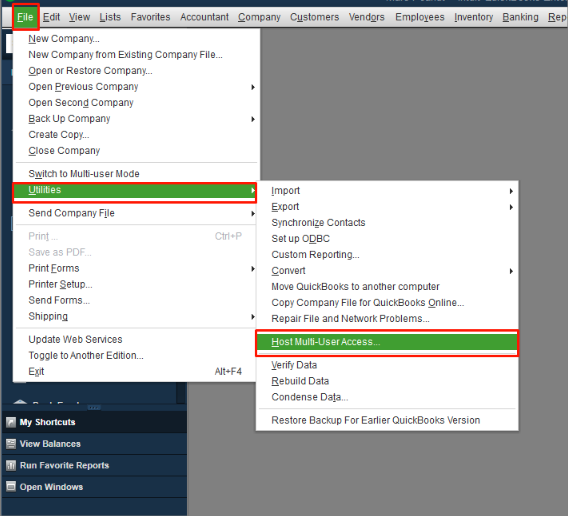
| Connection lost after server restart | Hosting not re-enabled on server | Right after server restarts and before workstations connect, open QuickBooks on server and enable Host Multi-User Access |
Understanding network connection requirements prevents data loss.
Solutions organized by skill level, risk level, and success probability. Start with Level 1 and move higher only if lower solutions fail.
These solutions require no technical expertise. Risk of data loss is minimal.
| Solution 1.1: Verify Server is Awake and Restart Database Service | |||
| Skill Level | Risk Level | Success Probability | Approximate Time Required |
| Beginner | Low | High | 10-15 minutes |
| Risk Explanation | Restarting the service disconnects current users temporarily. No data is modified. Service restart clears connection state only. | Solution Explanation | The QBCFMonitorService maintains all network connections. This service stopping is the most common cause of Connection Lost errors. Restarting the service restores all workstation connections immediately. |
Steps to Implement Solution 1.1
| Solution 1.2: Disable Power Saving on Network Adapter | |||
| Skill Level | Risk Level | Success Probability | Approximate Time Required |
| Beginner | Low | High | 10-15 minutes |
| Risk Explanation | Disabling power saving increases electricity use slightly. No system damage can occur. Settings can be re-enabled if needed. | Solution Explanation | Windows turns off network adapters during inactivity to save power. This breaks QuickBooks connections even though the computer appears on. Disabling power management keeps the network adapter active continuously. |
Steps to Implement Solution 1.2
| Solution 1.3: Rename ND and TLG Files | |||
| Skill Level | Risk Level | Success Probability | Approximate Time Required |
| Beginner | Low to Moderate | High | 15-20 minutes |
| Risk Explanation | Renaming does not delete transaction data. QuickBooks recreates both files automatically. Original files remain with .OLD extension. | Solution Explanation | Damaged ND files store incorrect server addresses. Damaged TLG files create connection lock conflicts. Renaming both forces QuickBooks to create fresh files with current correct network data. |
Steps to Implement Solution 1.3
These modify network settings and hosting configuration. Create backup before Level 2 solutions.
| Solution 2.1: Verify Hosting Settings on All Computers | |||
| Skill Level | Risk Level | Success Probability | Approximate Time Required |
| Intermediate | Moderate | High | 15-20 minutes |
| Risk Explanation | Incorrect hosting blocks all network access. Follow steps exactly on every computer to avoid lockout. | Solution Explanation | Only the server should host the company file. Workstation hosting creates connection conflicts. Connection Lost appears when two computers compete for hosting roles. Proper hosting configuration prevents conflicts. |
Steps to Implement Solution 2.1
| Solution 2.2: Run Database Server Manager Scan | |||
| Skill Level | Risk Level | Success Probability | Approximate Time Required |
| Intermediate | Moderate | High | 20-30 minutes |
| Risk Explanation | Scanning creates new ND files and updates network configuration. Company data is not modified. | Solution Explanation | Database Server Manager publishes company file location to the network. Scanning recreates the ND file with the current server address. This resolves Connection Lost caused by outdated network paths. |
Steps to Implement Solution 2.2
| Solution 2.3: Check Network Cable and Switch WiFi to Wired | |||
| Skill Level | Risk Level | Success Probability | Approximate Time Required |
| Intermediate | Low | Moderate to High | 10-20 minutes |
| Risk Explanation | Changing connection type requires network cable. Temporary internet disruption may occur during the switch. No data is lost. | Solution Explanation | WiFi connections drop during signal interference. Wired Ethernet provides stable uninterrupted connections. QuickBooks multi-user mode requires reliable network connections that WiFi cannot guarantee. |
Steps to Implement Solution 2.3
These require technical knowledge and affect system settings. Backup mandatory before Level 3.
| Solution 3.1: Configure Firewall Exceptions for QuickBooks | |||
| Skill Level | Risk Level | Success Probability | Approximate Time Required |
| Advanced | Moderate to High | High | 30-45 minutes |
| Risk Explanation | Firewall changes affect network security. Only add QuickBooks programs. Professional help recommended for unfamiliar users. | Solution Explanation | Firewalls block QuickBooks network communication causing connection drops. Database Server Manager requires specific ports open. Configuring exceptions allows continuous QuickBooks traffic. |
Steps to Implement Solution 3.1
| Solution 3.2: Disable Antivirus Temporarily and Add Exclusions | |||
| Skill Level | Risk Level | Success Probability | Approximate Time Required |
| Advanced | Moderate | Moderate to High | 15-20 minutes |
| Risk Explanation | Disabling antivirus reduces protection temporarily. Re-enable immediately after testing. Add permanent exclusions for QuickBooks folders. | Solution Explanation | Antivirus blocks Database Server Manager treating it as a threat. This stops the service and breaks connections. Adding exclusions allows the service to run normally. |
Steps to Implement Solution 3.2
Professional assistance needed if:
If Connection Has Been Lost continues after completing solutions, professional network assessment is required. Connection stability depends on both QuickBooks configuration and network infrastructure quality. Expert assistance can diagnose hardware failures and network problems beyond software troubleshooting.


