Excerpt:
QuickBooks Error 6000 80 prevents users from accessing their company files, typically caused by data corruption, permissions issues, or improper file transfers. This guide offers effective solutions to resolve the error, such as using QuickBooks File Doctor, copying files to the local drive, manually updating the software, and utilizing the QuickBooks Data File Diagnostic Tool. These methods help restore file integrity and fix connection issues, ensuring smooth access to QuickBooks company files.
 Add As A Preferred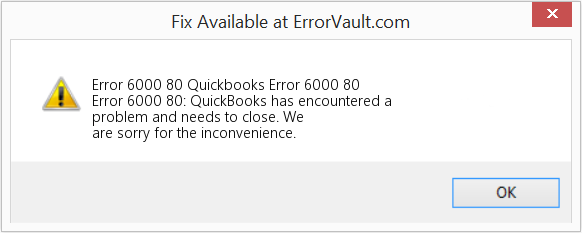
QuickBooks Error 6000, 80 (also written as Error -6000, -80, QB Error 6000 80, or QuickBooks Company File Error 6000 80) stops you from opening, restoring, or backing up a company file, and it doesn’t tell you why. This guide covers every environment it shows up in: a solo bookkeeper on one laptop, a five-person office sharing a file over the network, and a full Windows Server multi-user setup. You don’t need any Windows or QuickBooks background to follow it: every solution below is a guided walkthrough, not a technical checklist, with exactly what to click, what your screen should look like, and what to do next built in. Work through it in order and you’ll either fix the error yourself or know exactly what to hand off to an IT professional or a QuickBooks-certified ProAdvisor.
| Error type | Company file access / connectivity error (-6000, -80, QBW File Error) |
| Difficulty | 🟢 Beginner to 🟡 Intermediate for most cases |
| Estimated fix time | 10–45 minutes for most cases |
| Data risk | 🟢 Low — confirm with Verify Data before assuming the worst |
| Suitable for | All skill levels — every solution is a guided, click-by-click walkthrough |
| Recommended first action | Rename the .ND and .TLG files |
| Recommended tool | QuickBooks Tool Hub (File Doctor + Database Server Manager) |
| Last reviewed | July 2026 |
C:\) and try opening it there. If it opens locally, you’re dealing with a network or hosting issue, not file damage..ND and .TLG files, running QuickBooks Tool Hub’s Quick Fix My Program and File Doctor, then reconfiguring Database Server Manager on the host computer.Causes
Each of these is covered as a full guided walkthrough in Step-by-Step Solutions below.
QuickBooks doesn’t always phrase this error the same way twice, and different releases word the dialog box slightly differently. You might see it written or displayed as any of the following, all pointing to the same underlying issue covered in this guide:
If your dialog box shows a different code entirely (6000, -77; 6000, -83; H202; H505), jump to How Error 6000, 80 Compares to Other Company File Errors since the fix is slightly different.
QuickBooks Error 6000, 80 means QuickBooks failed to connect to your company file, whether that file lives on your own computer or on a server across the network. It’s part of the 6000 series, the family of error codes tied to company file access rather than installation or licensing problems, and it’s one of the most common entries in that series because so many different underlying problems can trigger it.
The -80 sub-code specifically points to a failed connection between QuickBooks and the .QBW company file. When it fires, QuickBooks typically displays a message along the lines of an error occurring when QuickBooks tried to access the company file, and the program needing to close.
Where it occurs: opening a company file, restoring a backup, switching to multi-user mode, or converting a file from an older QuickBooks version.
Business impact: every task inside QuickBooks stops until the file opens again, including invoicing, payroll, bill pay, and reporting. For businesses running payroll on a fixed schedule, this error hitting on the wrong day is the real cost, not the fix itself.
Rarely, and less often than it feels like in the moment. Error 6000, 80 is fundamentally a connection failure, meaning QuickBooks couldn’t reach or open the file, not evidence that the file itself is damaged.
💡 Pro Tip: Treat “the file won’t open” and “my data is damaged” as two separate questions. This guide is designed to answer the first one quickly and only escalate to the second when there’s actual evidence for it.
Error 6000, 80 is tied to the shared company-file engine used across QuickBooks Desktop, so it isn’t limited to one product line or one year:
| Version / Product | Can Get This Error? | Current Support Status (mid-2026) |
|---|---|---|
| QuickBooks Desktop Pro / Pro Plus | Yes | Supported for existing subscribers; new subscriptions stopped Sept 30, 2024 |
| QuickBooks Desktop Premier / Premier Plus | Yes | Same lifecycle as Pro Plus above |
| QuickBooks Desktop 2021 | Yes | Unsupported since May 31, 2024 |
| QuickBooks Desktop 2022 | Yes | Unsupported since May 31, 2025 |
| QuickBooks Desktop 2023 | Yes | Unsupported since May 31, 2026 |
| QuickBooks Desktop 2024 | Yes | Supported through September 30, 2027 |
| QuickBooks Desktop Enterprise (all tiers) | Yes | Ongoing; the only edition still sold to new customers |
| QuickBooks Accountant Desktop | Yes | Same general lifecycle as Premier |
| Windows Server installations (multi-user hosting) | Yes, especially in multi-user setups | Depends on installed QuickBooks year |
| QuickBooks Desktop for Mac | No | Different file architecture and its own error-code system |
| QuickBooks Online | No | No local company file or hosting involved |
If you’re on an unsupported release, most fixes in this guide still work, but you won’t receive new security patches, and Intuit support will likely recommend upgrading before troubleshooting further. For complex multi-user hosting or large-scale data issues, reaching out to specialized expert assistance for Enterprise editions can help resolve system-level errors efficiently.
| Windows Version | QuickBooks Desktop Compatibility |
|---|---|
| Windows 10 | No longer supported by Microsoft or QuickBooks Desktop as of October 14, 2025. Still runs in practice, but receives no security patches from either company. |
| Windows 11 | Fully supported; Intuit’s current recommendation for workstations |
| Windows Server 2019 | Supported for hosting multi-user company files |
| Windows Server 2022 | Supported for hosting multi-user company files; Intuit’s current recommendation for server environments |
🔵 IT Admin Note: If your host or a workstation is still on Windows 10, that alone isn’t the cause of Error 6000, 80, but it does mean you’re troubleshooting on an OS that no longer gets security fixes. If you’re already planning a Windows 11 migration, doing it before you spend hours chasing this error can save you from troubleshooting the same category of issue twice.
A little context makes the rest of this guide easier to follow, especially if you’re not the one who normally manages the network.
Your company file isn’t a single file. It’s a small set of files that sit together in the same folder and work as a unit:
[Company File Folder]
  ├─ CompanyFile.QBW       ← your actual accounting data
  ├─ CompanyFile.qbw.ND    ← Network Data file: tells QuickBooks
  │                           how to find and share the .QBW
  │                           file over the network
  └─ CompanyFile.qbw.TLG   ← Transaction Log: records recent
                              changes, used for recovery
Why the .ND file exists. Multi-user hosting needs a way to tell every workstation where the authoritative copy of the file lives and how to reach it. The .ND file is that address book. It’s created and maintained by Database Server Manager and regenerates automatically the moment QuickBooks can’t find a valid one.
Why the .TLG file exists. QuickBooks needs a record of what changed and when, separate from the company file itself, so that Auto Data Recovery has something to reconstruct from if the main file is damaged. The .TLG file is that running log. It regenerates automatically too, but unlike the .ND file, deleting or renaming it does have a real (if usually small) cost: you lose the specific recent-transaction recovery data it held until that point.
What happens if they’re deleted. In both cases, QuickBooks recreates a fresh version automatically the next time you open the company file directly (not from the recent files list). Neither file holds your actual accounting data, so recreating them doesn’t touch your transactions. This is exactly why renaming them is the safe, high-success first fix covered later in this guide.
        Host / Server Computer
   (runs QuickBooks Database Server
    Manager, physically stores the
         company file folder)
                  │
                  │ shares access over the network
                  ▼
   ┌─────────────┬─────────────┬─────────────┐
   │ Workstation │ Workstation │ Workstation │
   │      1      │      2      │      3      │
   │ (connects,  │ (connects,  │ (connects,  │
   │ does not    │ does not    │ does not    │
   │   host)     │   host)     │   host)     │
   └─────────────┴─────────────┴─────────────┘
Database Server Manager runs on the host and is responsible for maintaining the .ND file and making the company folder reachable to every workstation. Error 6000, 80 in a multi-user setup almost always means something in this chain is broken: the host isn’t really hosting, the .ND file is stale, a firewall is blocking the connection, or the shared folder’s permissions don’t let the workstation through. A more detailed view of the full communication path, including exactly where a firewall or permissions block sits, is covered later in The Complete Multi-User Communication Path.
Yes, and it’s one of the safest fixes in this entire guide, with one hard rule: never touch the .QBW file itself.
.ND and .TLG files hold no accounting data. QuickBooks recreates both automatically..old to the end of the filename (rather than deleting it outright) gives you an easy way to undo the change if something unexpected happens, at essentially no extra effort..QBW file as part of this process. That file is your actual data. The fix only ever touches its two small support files.CompanyFile.qbw, CompanyFile.qbw.nd, and CompanyFile.qbw.tlg all belong together.Full guided instructions are in Single-User Solutions below.
The full explanation of each follows below.
Most company file corruption doesn’t happen because of anything a user did wrong. It happens because QuickBooks was in the middle of writing to the file when something interrupted that write.
Common triggers: an improper shutdown or power loss while QuickBooks is open, forcibly ending the qbw32.exe process mid-save through Task Manager, a disk-level interruption during a write, or an abrupt network drop mid-transaction in multi-user mode.
What “corruption” actually means here. A QuickBooks company file is a structured database, not a simple document. Transactions link to each other internally (an invoice links to a customer record, a payment links to an invoice, and so on). An interrupted write can leave one of those internal links pointing to the wrong place, or to nothing at all. That’s what Verify Data checks for, and it’s usually a narrow, fixable problem rather than a file-wide failure. Severity varies widely: some corruption is cosmetic and never surfaces, some prevents the file from opening at all. The only way to know which you’re dealing with is to run Verify Data rather than guessing from symptoms alone.
The .ND file is small and purely functional: it tells QuickBooks the network path to the company file and some connection settings. It doesn’t store any accounting data.
What corrupts it: two computers both trying to host the same file at once, each writing conflicting information to it; the file being copied or moved through a process that doesn’t preserve it correctly (some backup or sync tools skip files with unusual extensions); or ordinary disk errors, the same as any other file.
Why it’s such a low-risk fix. Because the .ND file contains no accounting data, and QuickBooks builds a fresh one automatically the moment it can’t find a valid one, there’s essentially no downside to renaming it. This is different from damage inside the .QBW file itself, which is why this fix sits at the very top of the list.
The .TLG (Transaction Log) file is QuickBooks’ running journal of every change made to the company file since it was last fully saved or backed up. It exists specifically to support recovery, most directly through Auto Data Recovery, which uses it to reconstruct recent transactions if the main file is damaged.
What corrupts it: the same interruption scenarios that damage the .QBW file, antivirus software quarantining it mid-write since it changes constantly during a session, or the host running out of disk space, since the log grows throughout the day.
The tradeoff worth knowing. A damaged .TLG file is one of the few places where “just rename it and let QuickBooks rebuild it” has a real (if usually small) cost: you lose the specific recent-transaction recovery information Auto Data Recovery would have used. That’s still normally the right move when it’s actively blocking you from opening the file, since an unusable file protects nothing, but it’s worth understanding why this file matters more than the .ND file does.
Multi-user hosting only works if exactly one computer holds the host role. QuickBooks doesn’t gracefully handle two computers both believing they’re the host, or a situation where no computer is.
The two broken states: multiple hosts, where more than one computer shows “Stop Hosting Multi-User Access” in File → Utilities (hosting active on both, so workstations get confused about which one to actually connect to); and no real host, where every computer, including the one that’s supposed to be the server, shows “Host Multi-User Access” (meaning hosting is off everywhere, and nobody is serving the file).
How this usually happens. Rarely intentionally. A common path is an old backup server or a former employee’s workstation that had hosting enabled years ago and was never turned off, quietly sitting on the network competing with the real server. Another is a new IT hire enabling hosting on a new server without confirming it was disabled on the old one first.
Firewalls are one of the most common causes of this error specifically because there are several different firewalls that could be involved, and it’s easy to fix one and miss another.
Real-time scanning and firewall blocking are different mechanisms, even when the same product does both.
.QBW, .ND, or .TLG file at the exact moment QuickBooks needs to write to it.The fix is consistent regardless of brand: add the QuickBooks installation folder, the company file folder, and the core QuickBooks processes to that product’s exclusion list. The exact menu differs across Microsoft Defender, Bitdefender, McAfee, Sophos, CrowdStrike, SentinelOne, and others, but the concept is the same everywhere.
Windows manages access to a shared folder through two independent layers, and QuickBooks needs both to allow access, not just one. Share permissions control who can connect to the folder at all over the network. NTFS (security) permissions control what an authenticated user can actually do with the files once connected. Windows applies whichever of the two is more restrictive.
Common mistakes: setting share permissions correctly but forgetting the Security tab entirely, since it isn’t as visible in the sharing wizard; using specific named users instead of a group, then having that fail silently when someone’s Windows account changes; or inherited permissions from a parent folder that don’t match what the company file folder specifically needs. In an office using Active Directory, permissions are often granted to domain accounts; if a workstation isn’t properly joined to the domain, or is using a local account instead, permission checks can fail even though everything looks correctly configured.
Network instability between a workstation and the host doesn’t have to be dramatic to cause this error; the connection to a hosted file is sensitive to even brief interruptions. Common sources include Wi-Fi signal drops (a wired connection is meaningfully more reliable for this specific use case), a network switch or router rebooting during business hours, and general ISP-level outages if the setup involves any cloud or internet-dependent component. The fix here is rarely inside QuickBooks itself; it’s about the stability of the underlying network.
Windows updates can change more than what’s visible to the user. Feature updates in particular have been known to reset firewall exception lists back to defaults, restart background services (including the QuickBooksDBXX service) in a way that leaves them stopped rather than restarted, or adjust SMB protocol settings. None of this is QuickBooks-specific; it’s a side effect of how Windows applies changes broadly across the system, which is exactly why “did anything change recently” is one of the first diagnostic questions worth asking yourself.
Everything about multi-user hosting depends on the host computer being awake, running, and correctly configured, continuously, during business hours. What goes wrong: sleep or hibernate settings putting the host to sleep mid-day, the Database Server Manager service crashing or being manually stopped without anyone noticing, or the server being renamed, given a new IP address, or migrated without a corresponding re-scan in Database Server Manager. Because these issues live entirely on the host side, they tend to affect every workstation at once, which is a useful diagnostic clue in itself.
QuickBooks expects the company file to stay at a consistent, accessible path with normal read/write attributes. What breaks this: moving or renaming the file (or its parent folder) without updating QuickBooks’ record of where it lives, restoring the file from certain backup tools or external media that mark it read-only, or a mapped network drive letter pointing somewhere different than it did before.
Easy to overlook because it doesn’t announce itself the way a firewall block does. A drive (SSD or HDD) that’s beginning to fail can produce the same symptoms as file-level corruption: slow access, intermittent failures to open the file, or the error appearing and clearing unpredictably. If Verify Data and Rebuild Data keep finding new problems after each attempt rather than resolving cleanly, check Windows’ own drive health tools, or the manufacturer’s diagnostic utility, before assuming the issue is QuickBooks-specific.
A specific, often-missed cause. Controlled Folder Access is a Microsoft Defender feature, separate from regular antivirus scanning and separate from the firewall, designed to block unrecognized applications from modifying files in protected folders as a defense against ransomware. If it’s enabled and QuickBooks hasn’t been explicitly added to its allowed-apps list, it can block QuickBooks from writing to the company file folder entirely, producing an access error that looks identical to a permissions or firewall problem. Check it specifically under Windows Security → Virus & threat protection → Manage ransomware protection → Allow an app through Controlled Folder Access, since it’s a separate setting from everything else on this list.
A less common cause, but a real one. Windows historically imposed a 260-character limit on full file paths, and while modern Windows and QuickBooks handle longer paths better than older versions did, a company file buried in a deeply nested folder with a long, descriptive name can still bump into this limit, especially over a network path (which adds the server and share name to the total length). Special characters in the file name can cause similar issues.
| Cause | Likelihood | Difficulty to Fix | Recommended Fix |
|---|---|---|---|
| Damaged .ND / .TLG files | Very common | Easy | Rename .ND/.TLG, let QuickBooks recreate them |
| Hosting misconfigured | Common | Easy–Medium | Verify hosting settings on every computer |
| Outdated QuickBooks release | Common | Easy | Update QuickBooks Desktop |
| Firewall blocking connection | Common | Medium | Add exceptions via Tool Hub / Connection Diagnostic Tool |
| Restrictive folder/network permissions | Common | Medium | Fix share + NTFS permissions |
| File moved without re-scanning | Occasional | Easy | Re-scan folder in Database Server Manager |
| Antivirus interference | Occasional | Medium | Add QuickBooks folders/processes to exclusions |
| Minor file corruption | Occasional | Medium | Verify Data, then Rebuild Data |
| Network/server instability | Occasional | Medium | Network diagnostics, check host uptime |
| Controlled Folder Access blocking | Less common | Easy | Allow QuickBooks through Controlled Folder Access |
| Failing storage hardware | Less common | Hard | Run drive diagnostics; replace hardware if failing |
| Severe file corruption | Uncommon | Hard | Auto Data Recovery, restore backup, or professional recovery |
A faster way to triage before reading the full decision tree and solutions below:
| If This Happens | Most Likely Cause | Try This First | Difficulty | Risk |
|---|---|---|---|---|
| Opens locally, fails only from other workstations | Network or hosting issue | Verify hosting settings | Easy | Very Low |
| Fails even locally, on the computer storing the file | File-level issue | Run Verify Data | Easy | Very Low |
| Only one workstation is affected | Local QuickBooks install issue | Tool Hub → Quick Fix My Program | Easy | Very Low |
| Every workstation is affected at once | Server / hosting issue | Reconfigure Database Server Manager | Medium | Low |
| Restoring a backup fails | Backup file issue or destination permissions | Verify the backup file, try a different save location | Medium | Low |
| Started right after a Windows update | Firewall or service reset by the update | Re-run Connection Diagnostic Tool | Medium | Low |
| Started right after moving/migrating the file | Stale .ND file or wrong registered path | Re-scan the folder in Database Server Manager | Easy | Very Low |
.QBW file itself to a USB drive or a different folder before you touch anything.A version note worth checking while you’re here: Intuit stopped selling new subscriptions of QuickBooks Desktop Pro Plus, Premier Plus, and Mac Plus to new U.S. customers after September 30, 2024 (existing subscribers can still renew). Each release also runs on roughly a three-year support window; see the version table earlier in this guide for exact dates.
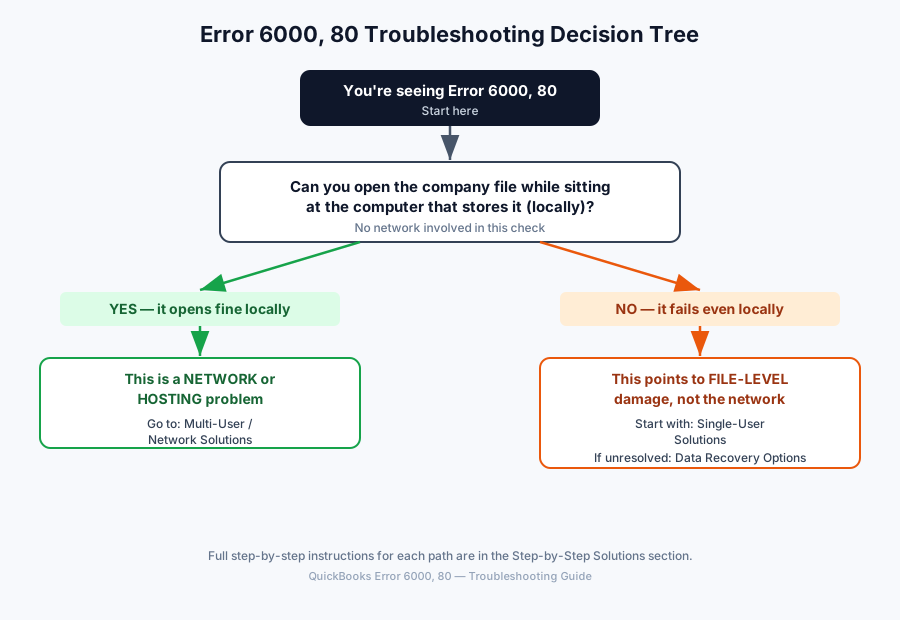
START: You're seeing Error 6000, 80
│
├─ Can you open the company file while sitting at the
│  computer that actually stores it (locally, no network involved)?
│
├── YES — it opens fine locally
│   └─▶ This is a NETWORK or HOSTING problem.
│       Skip to: Multi-User / Network Solutions
│
└── NO — it fails even locally
    └─▶ This points to FILE-LEVEL damage or a QuickBooks
        program issue, not the network.
        Start with: Single-User Solutions
        If those don't clear it: Data Recovery Options
(Text version above for accessibility and screen readers; the graphic and the text describe the same tree.)
All of these are free and made by Intuit.
| Tool | Purpose |
|---|---|
| QuickBooks Tool Hub | The central hub that houses all the tools below in one place |
| File Doctor | Diagnoses and repairs company file and network connection issues |
| Quick Fix My Program | Closes background processes and re-registers QuickBooks components |
| Database Server Manager | Configures and manages multi-user hosting on the server |
| QuickBooks Connection Diagnostic Tool | Detects and fixes network/firewall connectivity issues |
| Verify Data | Scans the company file for data integrity problems (diagnostic only) |
| Rebuild Data | Repairs the data integrity problems Verify Data finds |
| Auto Data Recovery (ADR) | Recovers recent data from automatically maintained backup copies |
Verify Data vs. Rebuild Data
| Verify Data | Rebuild Data | |
|---|---|---|
| What it does | Detects data integrity errors | Repairs the errors Verify finds |
| Changes your file? | No — read only | Yes — writes to the file |
| Safety | No risk | Low-to-medium risk; QuickBooks backs up first |
| Run it | Anytime you want to check | Only after Verify reports a problem |
File Doctor vs. Verify vs. Rebuild vs. ADR
| Tool | What It Actually Fixes |
|---|---|
| File Doctor | Broad company file and network connection issues; good general-purpose first pass |
| Verify Data | Confirms whether data damage exists; doesn’t fix anything itself |
| Rebuild Data | Repairs the specific data integrity issues Verify Data identifies |
| Auto Data Recovery | Recovers recent transactions when the file itself is too damaged for Rebuild to fully fix |
If you’re not sure where to start between these four, start with File Doctor; it’s the broadest tool and will point you toward Verify/Rebuild or a network cause depending on what it finds.
Every solution below follows the same format, so once you’ve done one, the rest feel familiar:
| Icon | Meaning |
|---|---|
| 🟢 🟡 🔴 | Difficulty or risk level (green = easiest/safest, red = most advanced) |
| 📸 | A screenshot belongs here, with exactly what to capture and highlight noted |
| ✔ | What you should see if the step worked |
| ⚠️ | A warning worth reading before you continue |
| 💡 | A pro tip |
| ❌ | Common mistake, or “no, still not fixed” in a decision box |
| ✅ | “Yes, that fixed it” in a decision box |
| ➡️ | Where to go next |
The overall order, fastest and safest first:
Restart Computer → Update QuickBooks → Rename .ND/.TLG → Tool Hub (File Doctor)
   → Verify Data → Rebuild Data → Auto Data Recovery → Restore Backup
   → Professional Recovery
🟢 Difficulty: Beginner — no technical experience required.
🟢 Data Risk: Safe — nothing about your data is touched.
⏱️ Typical time: About 2 minutes.
★★☆☆☆ Works best for: Occasional, one-off glitches. If the error has already happened more than once or twice, it’s fine to skip ahead.
Why this works: Just like any program, QuickBooks or Windows itself can get stuck in a bad state after running for a while. Restarting clears that out completely, and it costs you almost nothing to try first.
Before you begin: ☐ Save any work open in other programs (restarting closes everything on the computer, not just QuickBooks).
Steps:
Step 1. Close QuickBooks completely. Click the X in the top-right corner of the window, or go to File → Exit.
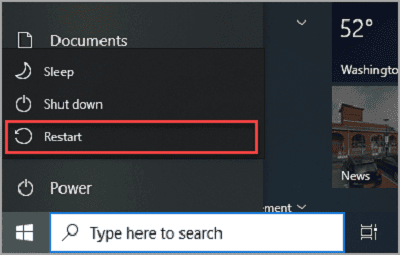
Step 2. Click the Start button (the Windows logo, bottom-left corner), then the Power icon, then Restart.
Step 3. Once your computer finishes restarting, open QuickBooks again and try your company file. ✔ You should see: QuickBooks opening normally, the same as any other day.
Expected Result: The company file opens with no error message.
❌ Common mistakes
Did it work? ✅ Yes → You’re done. ❌ No → ➡️ Continue to Solution 2 – Update QuickBooks Desktop.
🟢 Difficulty: Beginner — a few menu clicks, no file editing.
🟢 Data Risk: Safe — updating QuickBooks doesn’t touch your company file.
⏱️ Typical time: 10–20 minutes, depending on your internet speed.
★★★☆☆ Works best for: Anyone who hasn’t updated recently, or whose error started right after a Windows update.
Why this works: Intuit regularly fixes bugs in new QuickBooks releases, including some that cause exactly this error.
Steps:
Step 1. Open QuickBooks (you don’t need to open your company file first).
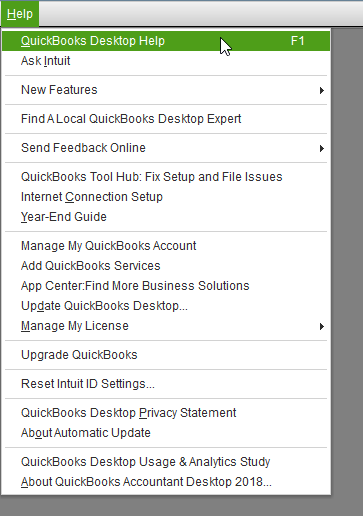
Step 2. Click Help in the top menu bar.
Step 3. Click Update QuickBooks Desktop, then the Update Now tab.
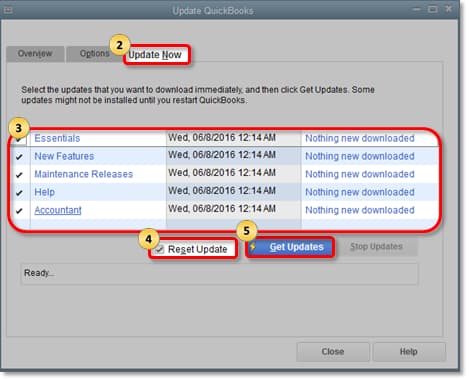
Step 4. Check the box next to every item listed, then click Get Updates.
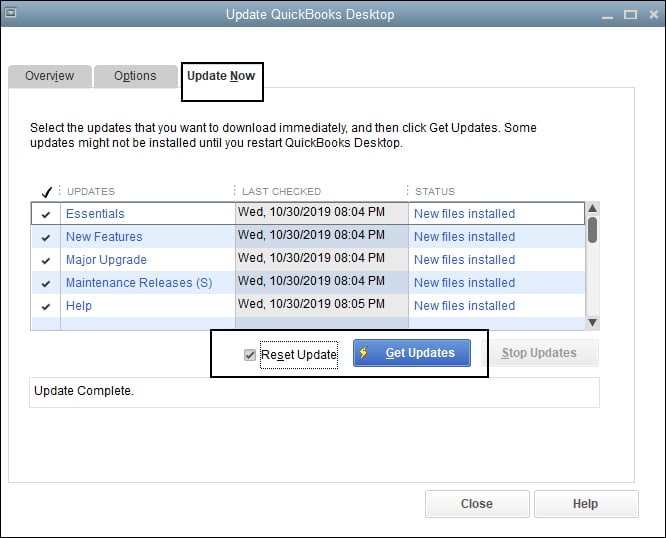
Step 5. When it’s done, close and reopen QuickBooks. If it asks permission to install, click Yes.
Note: If updating your current application doesn’t resolve the version mismatch or if your installation files are corrupted, you can get a clean setup package directly from the QuickBooks Desktop Download portal to reinstall the software safely.
Expected Result: QuickBooks reopens on the newer version, and your company file opens without the error.
❌ Common mistakes
Did it work? ✅ Yes → You’re done. ❌ No → ➡️ Continue to Solution 3 – Rename the .ND and .TLG Files.
🟡 Difficulty: Intermediate — involves Windows File Explorer and file extensions.
🟢 Data Risk: Safe — these two files hold no accounting data.
⏱️ Typical time: 5–10 minutes.
★★★★★ Works best for: Very common cases, especially when the error started suddenly with no obvious cause. This is the single highest-success fix in this guide.
Why this works: QuickBooks keeps two small helper files alongside your real company file. One tells QuickBooks how to find your file over the network; the other keeps a log of recent changes. Neither one contains your actual accounting data, think of them as sticky notes QuickBooks leaves for itself. Sometimes those notes get outdated or damaged, even though your real company data is completely fine. Renaming them forces QuickBooks to write fresh ones automatically. Your accounting data is never modified by this step.
Before you begin: ☐ Close QuickBooks on every computer that uses this file. ☐ Make sure nobody else is currently using the company file. ☐ If your company file lives on a server, do these steps on the server computer itself.
Steps:
Step 1. Open File Explorer. Press Windows + E, or click the yellow folder icon on your taskbar.
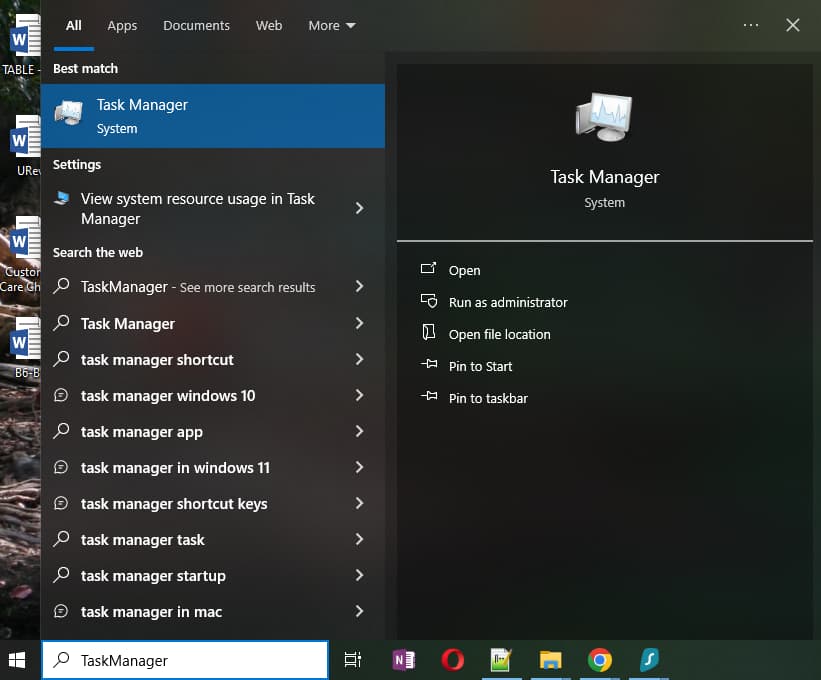
Step 2. Navigate to the folder where your company file is stored. Most users find it at C:\Users\Public\Documents\Intuit\QuickBooks\Company Files or in a Documents\QuickBooks folder. Can’t find it? Open QuickBooks, press F2, and look next to File Information for the exact location.
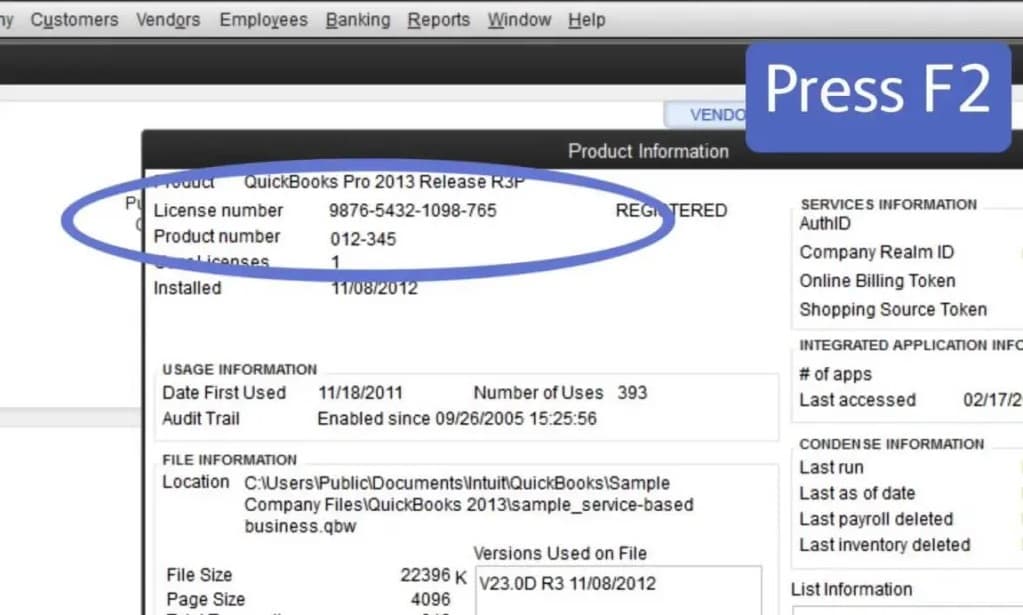
Step 3. In that folder, find your company file. It ends in .QBW (for example, ABC Company.QBW).
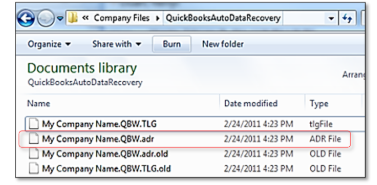
Step 4. In the same folder, look for two more files with the same name: one ending in .ND and one ending in .TLG.
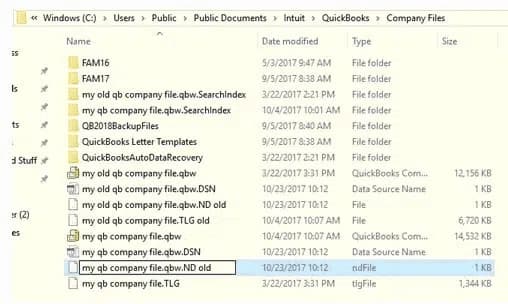
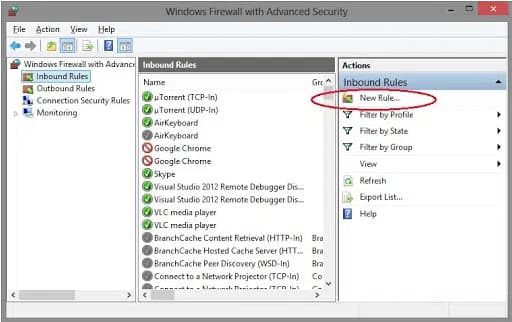
Step 5. Right-click the .ND file, choose Rename, and add .old to the very end. Press Enter. Repeat for the .TLG file.
Before / After:
Before:   ABC Company.QBW.ND
After:    ABC Company.QBW.ND.old

QuickBooks will automatically create a fresh:
          ABC Company.QBW.ND
Step 6. Open QuickBooks again, and open your company file by browsing to it directly, not from a “recent files” list.
Expected Result: The file opens normally. QuickBooks quietly creates brand-new .ND and .TLG files in the background; you don’t need to do anything for that part.
❌ Common mistakes
Did it work? ✅ Yes → You’re done. ❌ No → Don’t rename the files again. ➡️ Continue to Solution 4 – Run QuickBooks Tool Hub.
🟡 Difficulty: Intermediate — a program install (if you don’t already have it) plus a guided scan.
🟢 Data Risk: Safe, using the “Check your file” option covered below.
⏱️ Typical time: Small file: 10–15 minutes · Medium file: 15–25 minutes · Large file: 25–40 minutes.
★★★★★ Works best for: Most cases that survive the first three solutions. This is Intuit’s own broad repair tool.
Why this works — what is QuickBooks Tool Hub? A free program from Intuit (the company behind QuickBooks) that bundles several repair tools into one place. Think of it as a toolbox built specifically for QuickBooks problems: you open it once and it walks you through the rest.
Before you begin: ☐ Close QuickBooks completely before opening Tool Hub. ☐ Have your QuickBooks admin password ready (not your Windows password, the password you normally use to open QuickBooks itself).
Steps:
Step 1. If you don’t already have Tool Hub installed, download it from Intuit’s official site (search “QuickBooks Tool Hub download,” or, inside QuickBooks 2020 or later, go to Help → QuickBooks Tool Hub). Install it like any normal Windows program.

Step 2. Open Tool Hub from the icon it creates on your desktop.
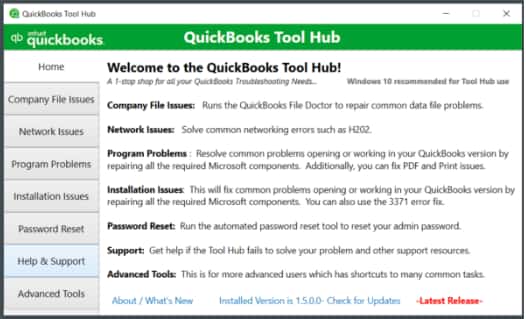
Step 3. Click Program Problems on the left, then click Quick Fix My Program. Wait for it to finish; this usually takes under a minute.
Step 4. Click Company File Issues on the left, then click Run QuickBooks File Doctor. It can take up to a minute to open.
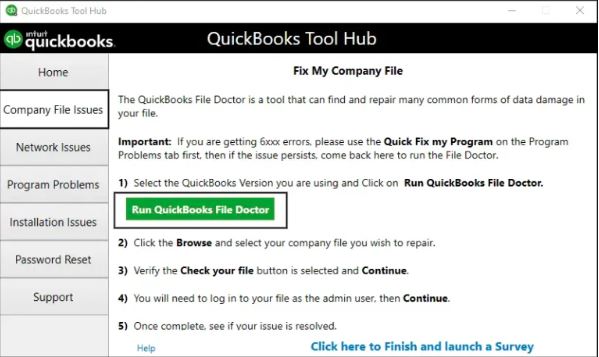
Step 5. From the dropdown, select your company file. If you don’t see it listed, click Browse and find it yourself.
Step 6. Choose Check your file (the middle option), then click Continue.
Step 7. Enter your QuickBooks admin password, then click Next. Don’t know your admin password? This is the same password you use to open the company file in QuickBooks day-to-day, not your Windows login. If nobody at your business remembers it, that’s a separate issue worth resolving with Intuit support before continuing.
Step 8. Wait for the scan to finish. ✔ You should see: a progress bar. Your screen may say “Not Responding” for stretches at a time on larger files; this is normal, just let it keep running.
Expected Result: Tool Hub reports what it found. Sometimes it says the scan was “unsuccessful,” but your file may actually be fixed anyway, so try opening your company file before assuming it didn’t work.
❌ Common mistakes
Did it work? ✅ Yes → You’re done. ❌ No → ➡️ Continue to Solution 5 – Run Verify Data.
🔵 Checkpoint — halfway through the single-user solutions. Have you fixed the problem? ✅ Yes → stop troubleshooting, you’re done. ❌ No → the remaining solutions below (Verify Data, Rebuild Data, Restore Backup) get progressively more involved, since they’re specifically about confirming and repairing real file damage rather than quick connection fixes. Keep going in order.
🟢 Difficulty: Beginner — a menu click and a wait.
🟢 Data Risk: Safe — this only looks at your file, it never changes anything.
⏱️ Typical time: Small file: 5 minutes · Medium file: 5–10 minutes · Large file: 15–30 minutes.
★★★★★ Works best for: Finding out, for certain, whether file damage is really your problem. Treat it as a diagnostic, not a fix.
Why this works — what is Verify Data? A built-in QuickBooks feature that checks your company file for problems, similar to how Windows can check a hard drive for errors. It only looks; it never changes anything.
Steps:
Step 1. Open QuickBooks and your company file, if it will open at all.
Step 2. Click File in the top menu.
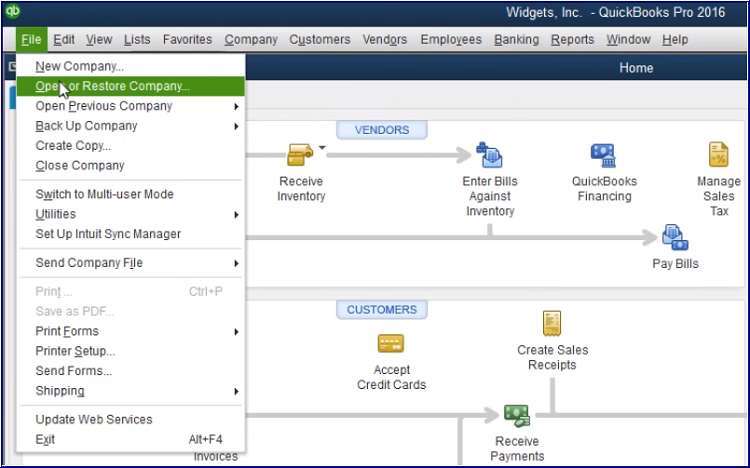
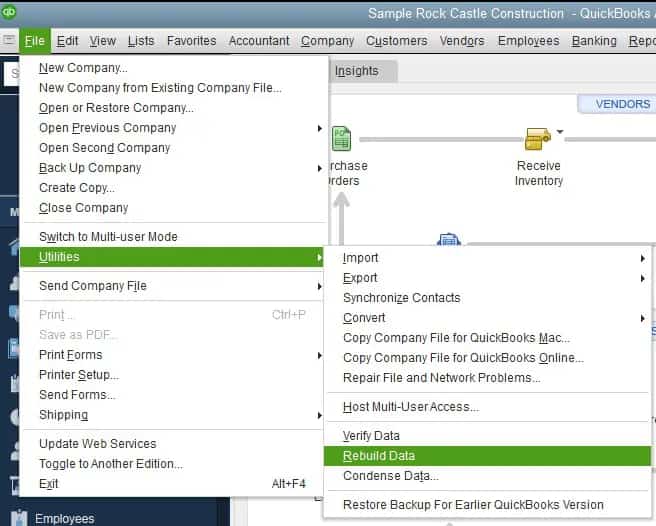
Step 3. Hover over Utilities, then click Verify Data.
Step 4. Wait for the scan to finish. Do not close QuickBooks while it’s running.
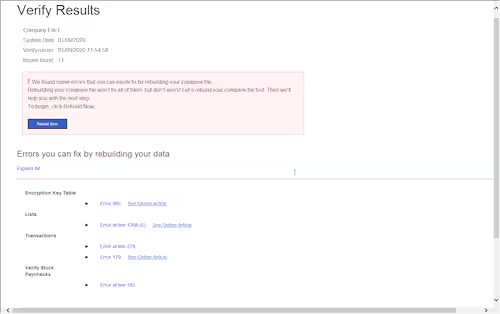
Step 5. Read the message QuickBooks shows you.
Expected Result: One of two outcomes. “QuickBooks detected no problems with your data” means your file is fine, and the error is a network or settings issue, not damage. Any other message means it found something specific, and the next solution will fix it.
Did it work? ✅ “No problems” message? Good news, your data is fine. If the file still won’t open and you’re on a shared/networked setup, skip ahead to Multi-User / Network Solutions. If you’re on a single computer, this is a good point to contact support, since the file itself checks out. ❌ It found a problem? ➡️ Continue to Solution 6 – Run Rebuild Data.
🟡 Difficulty: Intermediate — a menu click, but it’s important to let it run uninterrupted.
🟡 Data Risk: Low risk — QuickBooks makes a backup first, but this step does write to your file.
⏱️ Typical time: Small file: 15 minutes · Medium file: 15–30 minutes · Large file: 30–45 minutes (longer if run more than once). ★★★☆☆ Works best for: Confirmed data issues Verify Data just found. Not intended as a first guess.
Why this works — what is Rebuild Data? QuickBooks’ own repair tool. If Verify Data found a problem, Rebuild Data attempts to fix it automatically.
Before you begin: ☐ Let QuickBooks make the backup it offers to create; don’t skip it. ☐ If you use QuickBooks Assisted Payroll, call Intuit support before doing this step, rebuilding can affect payroll data in ways that are harder to undo.
Steps:
Step 1. Click File in the top menu, hover over Utilities, and click Rebuild Data.
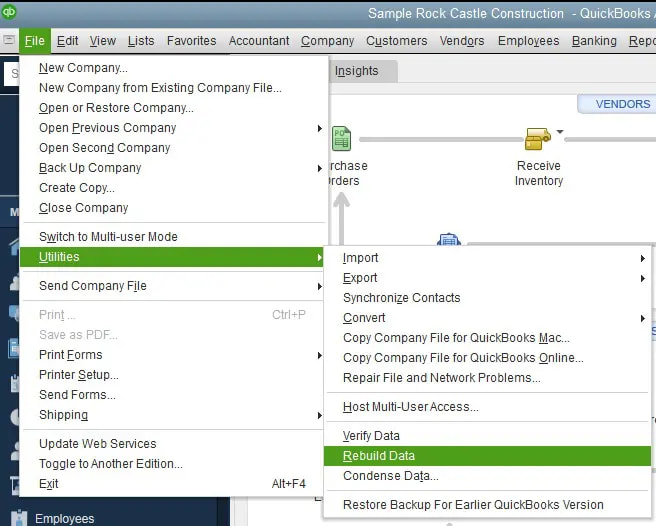
Step 2. When QuickBooks asks to make a backup, click OK and choose where to save it (anywhere is fine, just remember where).
Step 3. Wait for the rebuild to finish. ✔ You should see: the screen may look stuck; keep waiting as long as your mouse cursor still moves on screen. That means it’s working, not crashed.
Step 4. Click OK when you see “Rebuild has completed.”
Step 5. Run Verify Data again (File → Utilities → Verify Data) to confirm the fix actually held. It’s normal to need Rebuild two or three times in a row, as long as the messages keep changing rather than repeating exactly.
Expected Result: Verify Data comes back clean afterward. If the first rebuild attempt takes more than about two hours, stop and contact support rather than letting it run indefinitely, that’s no longer normal.
❌ Common mistakes
Did it work? ✅ Yes → You’re done. ❌ No, or Verify Data still finds problems → ➡️ Continue to Solution 7 – Restore From a Recent Backup, or see Data Recovery Options further down for a gentler alternative that may lose less recent work.
🟡 Difficulty: Intermediate — a guided restore wizard.
🔴 Data Risk: High risk — you will lose everything entered after the backup date. This is the only fix on this list with guaranteed data loss. ⏱️ Typical time: 10–20 minutes.
★★★★☆ Works best for: File damage that Rebuild Data couldn’t fix, when a recent, trustworthy backup exists.
Why this works: This is the point where we accept that the current file can’t be repaired in place, and go back to your most recent good copy instead. It’s the most reliable fix on this list, but also the costliest.
Before you begin: ☐ Know where your backup file is; it ends in .QBB. ☐ If you’re not sure you have one, or aren’t sure how recent it is, check Auto Data Recovery first instead (in Data Recovery Options below), it can sometimes recover more recent data than your last backup.
Steps:
Step 1. Open QuickBooks, without opening the damaged company file.
Step 2. Click File, then Open or Restore Company.
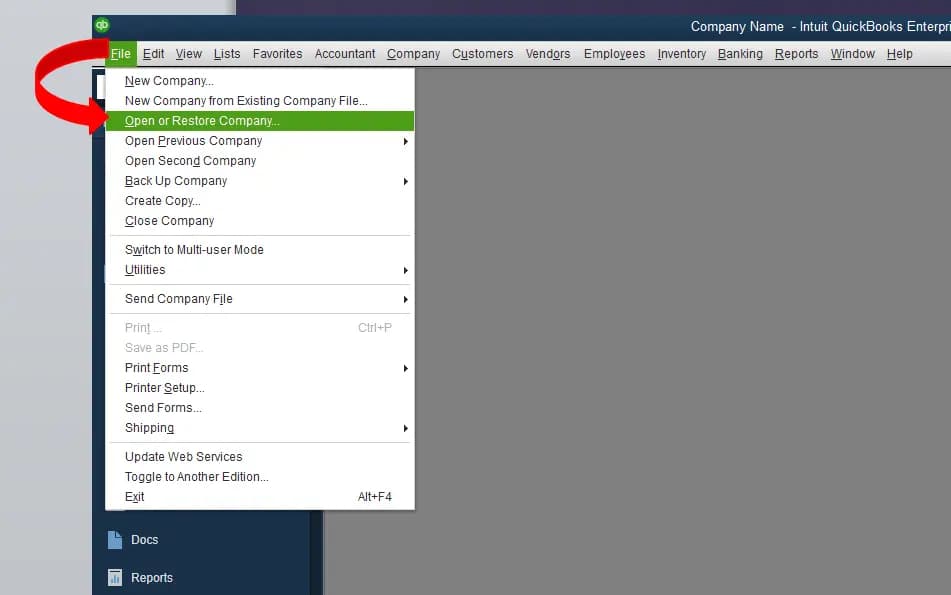
Step 3. Choose Restore a Backup Copy, then Local Backup, then Next.
Step 4. Browse to your .QBB backup file and select it.
Step 5. Choose a save location that is not the same folder as your original damaged file, to avoid any confusion between the two. Click Save.
Step 6. Wait for the restore to finish.
Expected Result: A working company file opens, current as of whenever that backup was made. You’ll need to manually re-enter anything from after that date.
Did it work? ✅ Yes → You’re done, though you may want to re-enter recent transactions. ❌ Still not working? ➡️ See Data Recovery Options below for Auto Data Recovery and professional recovery options.
The solutions below involve your office network and the computer acting as your server. If you have IT support available, this is a reasonable point to loop them in, especially for Solutions 4 and 6, flagged below as more advanced. If you’re comfortable continuing on your own, here’s what to check, one thing at a time.
🟡 Difficulty: Intermediate — a guided scan on the server computer.
🟢 Data Risk: Safe — this reconfigures how the file is shared, it doesn’t touch the data inside it.
⏱️ Typical time: Small file: 15 minutes · Medium file: 15–20 minutes · Large file: 20–30 minutes.
★★★★★ Works best for: The file opens fine on the server itself, but fails on every other computer. One of the highest-success fixes for multi-user cases.
Why this works — what is Database Server Manager? A free program from Intuit that runs on whichever computer stores your company file (the “server” or “host” computer). Its job is to tell every other computer in the office where to find that file and to keep that information current.
Before you begin: ☐ Do this step on the actual server/host computer, not on a regular workstation.
Steps:
Step 1. On the server computer, open QuickBooks Tool Hub (see Solution 4 in the single-user section above if you need to install it).
Step 2. Click Network Issues on the left.
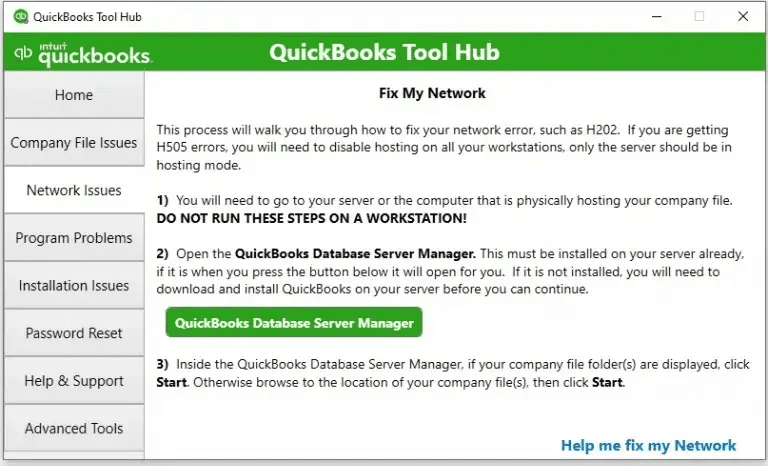
Step 3. Click QuickBooks Database Server Manager.
Step 4. Click the Scan Folders tab.
Step 5. Click Add Folder and select the folder that contains your company file.
Step 6. Click Scan. This can take a while for a large file; let it finish completely. ✔ You should see: a progress bar, then your company file listed once scanning completes.
Step 7. Once it’s done, restart the server computer so the change fully takes effect.
Expected Result: Other computers in the office can now connect to the company file normally.
Did it work? ✅ Yes → You’re done. ❌ No → ➡️ Continue to Solution 2 – Verify Hosting Settings.
🟢 Difficulty: Beginner — checking a menu on each computer.
🟢 Data Risk: Safe — this only changes who’s allowed to host, not any data.
⏱️ Typical time: 5–10 minutes.
★★★★☆ Works best for: Cases where more than one computer might be hosting at once, a very common, easy-to-miss cause.
Why this works: In a multi-user setup, exactly one computer is supposed to be the “host.” If more than one computer thinks it’s the host, or if none of them do, every workstation can end up with this error.
Steps:
Step 1. On every computer in the office that uses this file (except the real server), open QuickBooks and click File, then Utilities.
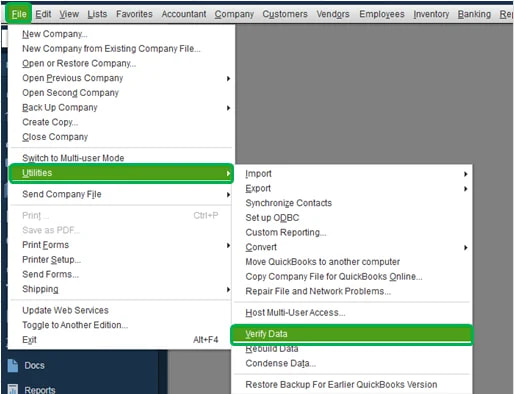
Step 2. Look at what the menu says.
Step 3. If it says “Host Multi-User Access,” that computer is correctly NOT hosting. Leave it alone.
Step 4. If it says “Stop Hosting Multi-User Access,” that computer currently IS hosting. Unless this is your actual server, click that option to turn hosting off on this computer.
Before / After:
Before (wrong): Two computers both show "Stop Hosting Multi-User Access"
After (correct): Only the real server shows "Stop Hosting Multi-User Access";
                  every other computer shows "Host Multi-User Access"
Expected Result: Only your real server computer shows “Stop Hosting Multi-User Access.” Every other computer shows “Host Multi-User Access” (meaning hosting is off there).
Did it work? ✅ Yes → You’re done. ❌ No → ➡️ Continue to Solution 3 – Run Network and Connection Diagnostics.
🟡 Difficulty: Intermediate — involves typing a network path.
🟢 Data Risk: Safe — these are read-only checks.
⏱️ Typical time: 10–15 minutes.
★★★☆☆ Works best for: Figuring out whether this is a QuickBooks problem or a broader office network problem, before spending more time on either.
Why this works: This step tells you where to keep looking: inside QuickBooks, or with whoever manages your network.
Steps:
Step 1. On a workstation, open File Explorer (Windows + E).
Step 2. In the address bar at the top, type your server’s computer name like this: \\ServerName (replacing “ServerName” with your actual server’s name), then press Enter.
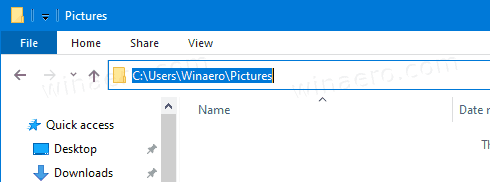
Step 3. If you can see the shared folder, your basic network connection is working, the problem is more specific to QuickBooks. If you can’t see it at all, this is a general network problem worth involving your IT support or internet provider about.
Step 4. Back in QuickBooks Tool Hub, click Network Issues, then QuickBooks Connection Diagnostic Tool, and let it run its automatic check.
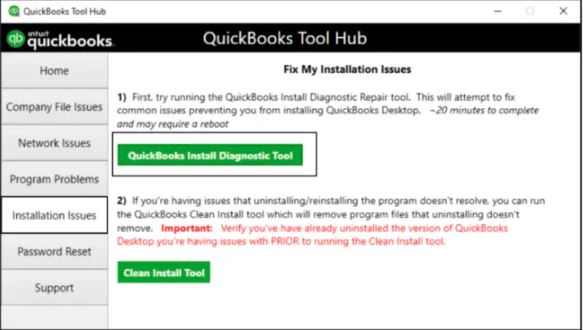
Expected Result: You’ll know whether to keep working through this guide, or whether the issue is bigger than QuickBooks itself.
Did it work? ✅ Yes → You’re done. ❌ No → ➡️ Continue to Solution 4 – Check Server-Side Configuration.
🔵 Checkpoint — you’re through the most common multi-user fixes. Have you fixed the problem?
✅ Yes → stop troubleshooting, you’re done.
❌ No → Solutions 4 through 6 below get more technical (Windows Services, folder permissions, firewalls). This is a completely reasonable point to hand off to IT support if that’s available to you; each one below is marked with how advanced it gets.
🔴 Difficulty: Advanced — involves Windows Services, IT-administrator territory.
🟡 Data Risk: Low risk — you’re changing power and service settings, not data.
⏱️ Typical time: 15–30 minutes.
★★★☆☆ Works best for: Cases where the server was recently renamed, given a new IP address, or is going to sleep during the day.
🔵 This step gets more technical. If you have IT support available, this is a reasonable point to ask for their help.
Why this works: Your server computer needs to stay awake, running, and reachable throughout the workday. This step checks the most common ways that quietly breaks.
Steps:
Step 1. On the server, make sure it never goes to sleep during work hours: go to Settings → System → Power (Windows 11) and set sleep to Never while plugged in.
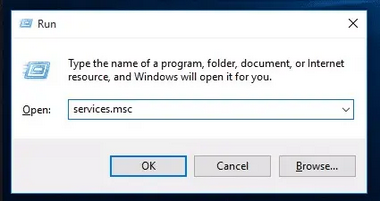
Step 2. Press Windows + R, type services.msc, and press Enter.
Step 3. Scroll down to find a service starting with QuickBooksDB (the exact name includes your QuickBooks year, like QuickBooksDB29).
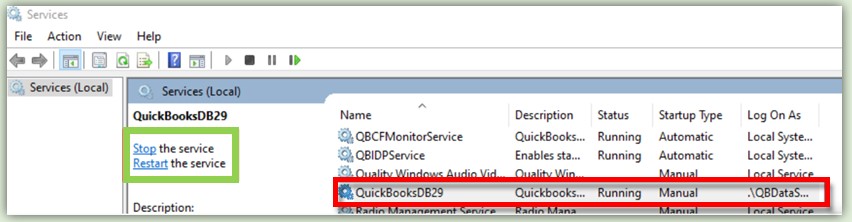
Step 4. Check that the Status column says Running and the Startup Type column says Automatic. If not, right-click it and choose Start, or Properties to change the startup type.
Step 5. If the server’s computer name recently changed, go back to Database Server Manager (Solution 1 above) and re-scan the folder so it registers the new name.
Expected Result: The server stays reachable throughout the day without needing to be manually restarted.
Did it work? ✅ Yes → You’re done. ❌ No → ➡️ Continue to Solution 5 – Fix Windows Folder and Sharing Permissions.
🟡 Difficulty: Intermediate — two separate permission tabs to check.
🟡 Data Risk: Low risk — this changes who can access the folder, not the data inside it.
⏱️ Typical time: 15–20 minutes.
★★★★☆ Works best for: Access-denied-flavored errors, or when hosting checks out but the error persists.
Why this works: Windows checks two separate permission settings before letting a workstation into a shared folder. Both have to say “yes”; if either one says “no,” you get an access error.
Steps:
Step 1. On the server, find the folder containing your company file in File Explorer.
Step 2. Right-click it and choose Properties. What does “right-click” mean? Click the right mouse button once (instead of the usual left button) while your cursor is on the folder; a small menu pops up.
Step 3. Click the Sharing tab, then Advanced Sharing, and make sure Share this folder is checked.
Step 4. Click Permissions, and make sure the relevant users (or “Everyone,” if that fits your office) have Full Control checked. Click OK.
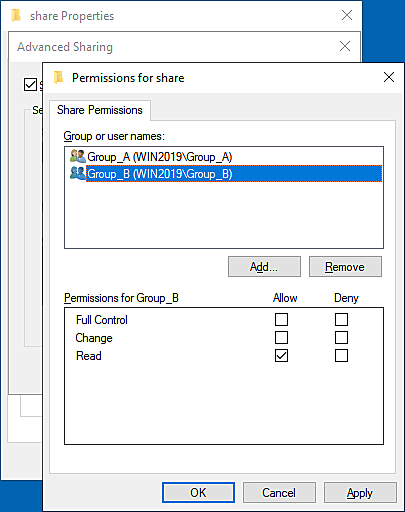
Step 5. Now click the Security tab. This is a different permission list from step 4; both need to be correct.
Step 6. Click Edit, select the same users, and check Full Control here too. Click OK, then OK again.
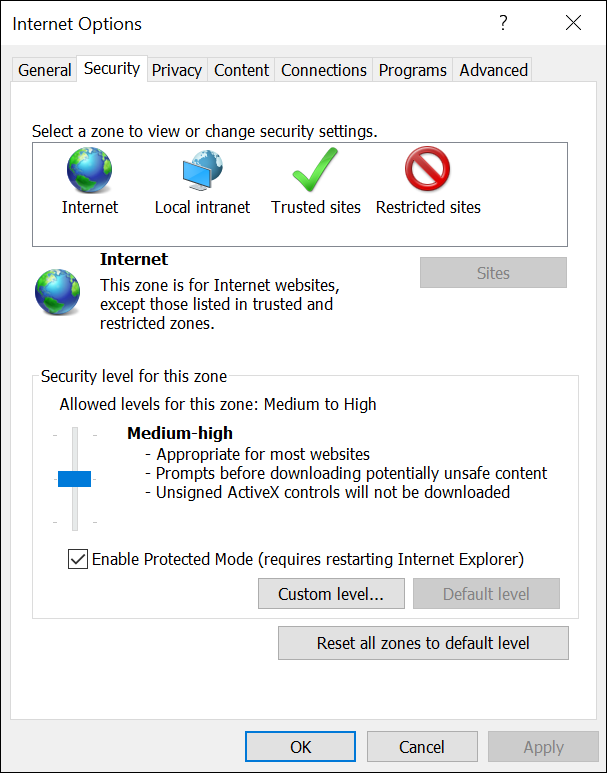
Before / After:
Before:  Sharing tab set correctly, Security tab left at default (Read only)
After:   Both the Sharing tab AND the Security tab show Full Control
         for the relevant users
Expected Result: Workstations can now read and write to the shared folder without an access error.
❌ Common mistakes
Did it work? ✅ Yes → You’re done. ❌ No → ➡️ Continue to Solution 6 – Add Firewall Exceptions.
🔴 Difficulty: Advanced, especially with a business firewall involved.
🟡 Data Risk: Low risk — this changes network rules, not data.
⏱️ Typical time: 10–15 minutes.
★★★★☆ Works best for: Multi-user errors that persist after hosting and permissions both check out.
🔵 This step gets more technical, especially on an office network with its own security software. IT support can help if you’re not comfortable with firewall settings.
Why this works: A firewall’s whole job is to block connections it doesn’t recognize, and it can end up blocking QuickBooks’ own connection between computers by mistake.
Steps:
Step 1. Open QuickBooks Tool Hub, click Network Issues, then QuickBooks Connection Diagnostic Tool.
Step 2. Let it run automatically; it will detect and fix most firewall-related blocks for you without needing to know any technical settings yourself.
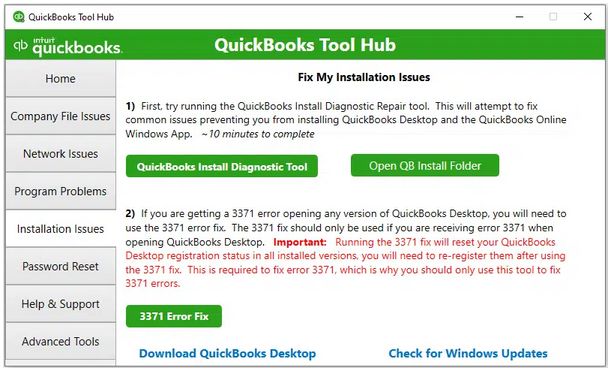
Step 3. If your office uses a separate business firewall or security product, not just what came with Windows, you may need your IT support to add an exception there too, since the automatic tool can only fix the Windows side.
Expected Result: Workstations can reach the server without being blocked.
Did it work? ✅ Yes → You’re done. ❌ No → This is a good point to move on to Advanced Troubleshooting with IT support, or contact a QuickBooks-certified ProAdvisor.
A more detailed view of exactly where a connection can break, useful when you need to identify which specific link in the chain is the problem:
   Server (hosts the company file)
              │
              ▼
   Database Server Manager
   (creates/maintains the .ND file)
              │
              ▼
        Firewall
   (must allow QuickBooks' ports,
    on the server AND the client)
              │
              ▼
       Shared Folder
   (Share + NTFS permissions
    must both allow access)
              │
              ▼
         Client PC
              │
              ▼
   QuickBooks Desktop
   (the application making
    the connection request)
Each of the middle four links maps directly to one of the Multi-User Solutions above. If you know which link is broken, you can skip straight to the matching fix instead of working through the full list in order.
This section assumes familiarity with Windows administration. If networking and Windows administration aren’t your background, this is a good point to hand things off to your IT support or a QuickBooks-certified ProAdvisor rather than working through it solo, the solutions above cover what most non-technical users can safely do themselves.
Faulting Application: qbw32.exe Faulting Module: ntdll.dll Exception Code: 0xc0000005 This doesn’t diagnose Error 6000, 80 by itself, since 0xc0000005 (an access violation) is a generic crash signature shared by countless Windows applications for countless reasons. Its real value is practical: copy the faulting application, module, and exception code exactly as shown, and include them if you contact support or search the QuickBooks Community, since that specific combination narrows the search down far more than “QuickBooks won’t open” alone.ping [servername] and net view \\servername confirm basic connectivity before you spend time inside QuickBooks itself. If a mapped drive is involved, confirm the drive letter actually resolves to the expected path.A systematic network troubleshooting flow, useful when you want to isolate exactly where a connection breaks rather than guessing:
Ping the host
     ↓
Browse to the shared folder in Windows Explorer
     ↓
Try opening a small test file over the same share
     ↓
Check the QuickBooksDBXX service status on the host
     ↓
Check firewall rules (Windows + third-party + EDR)
     ↓
Check share + NTFS permissions
     ↓
Check hosting settings
     ↓
Check QuickBooks-specific ports
     ↓
Proceed to the matching repair step above
Auto Data Recovery (ADR). QuickBooks Desktop automatically maintains recent copies of your transaction log and company file in a “QuickBooks Auto Data Recovery” folder next to your company file. Depending on whether the damage is in your transaction log or the file itself, ADR can sometimes recover more recent data than your last manual backup. It’s meant to be used after you’ve already tried the standard troubleshooting steps above, not as a first resort. Because the right combination of .adr files depends on exactly what’s damaged, follow Intuit’s official Auto Data Recovery instructions step by step rather than guessing (linked in Official References below).
Restore a backup (.QBB). Covered in detail above; the most straightforward option when you have a recent, verified backup.
Portable Company File (.QBM). A compact copy that sometimes opens when the full .QBW won’t. It’s not a substitute for a real backup, since it excludes templates, letters, and some other data, but it’s a useful fallback in a pinch.
Rebuild Company File. Covered above via File → Utilities → Rebuild Data.
Professional data recovery. If the file is severely damaged and none of the above works, the safest next step is Intuit Data Services (Intuit’s own data recovery team) or a QuickBooks-certified ProAdvisor, searchable through Intuit’s Find-a-ProAdvisor directory. Be cautious of any service that asks you to upload your company file, which contains sensitive financial data, to an unverified third party.
Comparing your recovery options:
| Recovery Method | Data Preserved | Best Use Case |
|---|---|---|
| Restore from .QBB backup | High, up to the backup date | Standard recovery when a recent backup exists |
| Portable Company File (.QBM) | Medium (excludes templates, letters, some settings) | Temporary transfer or emergency fallback |
| Auto Data Recovery (ADR) | Very high, often within hours of the incident | Recent corruption, when backups are older than you’d like |
| Rebuild Data | High (repairs in place, no rollback) | Confirmed minor data damage |
| Windows-level file backup | Depends entirely on your backup schedule | Drive failure or full system loss |
| Professional recovery (Intuit Data Services / ProAdvisor) | Varies by damage severity | Severe corruption none of the above resolved |
🚨 Warning: repeatedly force-opening or re-running repair tools on a file that keeps failing can make eventual recovery harder. Stop and get a second opinion if you see any of the following:
.QBW file’s size suddenly shrinks.QBW file becomes 0 KBAny of these point to damage beyond what the standard tools in this guide are designed to fix. At that point, Intuit Data Services or a QuickBooks-certified ProAdvisor is the safer next step, covered in Data Recovery Options above.
| Environment | Most Common Cause | First Action |
|---|---|---|
| Local computer, no network | Corrupt .ND/.TLG or minor file damage | Rename .ND/.TLG, then Verify Data |
| Small office LAN | Hosting misconfiguration | Verify hosting settings |
| Windows Server | Database Server Manager service issue | Restart the QuickBooksDBXX service |
| Remote Desktop (RDP) | Permissions on the shared folder | Check share + NTFS permissions |
| VPN | Network latency | Test opening the file locally instead |
| Cloud-hosted QuickBooks Desktop | Provider-side configuration | Contact the hosting provider’s support |
| NAS storage | SMB compatibility issues | Move the file to a supported Windows host |
Local computer, no network. The issue is file-level, not hosting. If it fails even here, go straight to Rebuild Data, Auto Data Recovery, or restoring a backup.
Standard office LAN. Focus on Database Server Manager, hosting settings, and folder permissions in that order; this covers the large majority of office multi-user cases.
Windows Server environments. Confirm the Database Server Manager service account has the rights it needs, check that Group Policy isn’t blocking the required ports or services, and confirm server-side antivirus or EDR software isn’t quarantining QuickBooks processes.
Remote Desktop (RDP). Host the file on the actual file server, not inside an individual user’s RDP session. Confirm the RDP host’s local firewall allows the QuickBooks ports internally, even though the outer network firewall may already be configured correctly.
VPN. Running the live company file over a VPN connection to an on-premises server tends to be slow and error-prone, because QuickBooks Desktop’s file protocol doesn’t tolerate latency well. Most consultants and Intuit itself steer users toward a dedicated hosting provider instead of pointing a VPN at a raw file share.
Cloud-hosted QuickBooks Desktop (Intuit-authorized hosting providers). If the error shows up in a hosted environment, raise it with the hosting provider’s support first; they manage the server-side configuration you don’t have direct access to.
NAS storage. Many NAS devices are not officially supported by Intuit for hosting a live multi-user company file, due to SMB compatibility quirks. If your file lives on a NAS and this error keeps recurring, moving the file to a proper Windows host is the durable fix, not another workaround.
The scenarios below are illustrative examples meant to help you pattern-match your own situation to a likely cause, not records of specific reported cases.
Scenario 1: Small office, server opens the file, workstations don’t. A three-person office. The company file opens fine when someone sits directly at the server, but every workstation trying to connect over the network gets Error 6000, 80. Likely cause: firewall or hosting misconfiguration. Where to start: Verify Hosting Settings, then Firewall Exceptions.
Scenario 2: Single laptop, error started after a power outage. One user, no network involved. The laptop lost power mid-session, and the file hasn’t opened since, even locally. Likely cause: minor file corruption from the improper shutdown. Where to start: Rename .ND/.TLG, then Verify Data and Rebuild Data if needed.
Scenario 3: Server was recently renamed, and now everyone is affected. An office recently renamed their server computer as part of an IT cleanup. Since then, no workstation can connect, even though the server itself opens the file fine. Likely cause: the .ND file and Database Server Manager still reference the old computer name. Where to start: re-scan the company folder in Database Server Manager so it registers the new name.
| Error Code | What It Usually Means | How It Differs From 6000, 80 |
|---|---|---|
| 6000, -77 | The company file’s location changed, or it’s on a mapped drive letter that’s no longer accessible | A narrower path/location problem specifically |
| 6000, -83 | The file is already open in single-user mode elsewhere, or the mapped path is wrong | Often a locking or path conflict rather than a broad access failure |
| 6147 | The file won’t open even after being copied locally | Points more specifically to file-integrity damage |
| 6177 | QuickBooks can’t find or browse to the folder containing the file | A path-resolution problem specifically |
| 6189 | Combines file damage and network issues, and often appears alongside a 6000 code | Broader in scope, sometimes seen together with 6000, 80 |
| H202 | A workstation can’t communicate with the server in multi-user mode | A distinct “H-series” hosting-communication error, not tied to file damage |
| H505 | The server isn’t correctly identified or configured for hosting | Configuration-specific, but shares much of the same fix set as 6000, 80’s network cases |
| Frequency | What to Do |
|---|---|
| Daily | Close QuickBooks properly at the end of the day rather than just powering off the computer; avoid opening the file from a shortcut pointing at a mapped drive that might disconnect. |
| Weekly | Run Verify Data on actively used files; confirm your scheduled backup actually completed rather than assuming it did. |
| Monthly | Check for QuickBooks updates; if you’ve added or moved company files, re-run the Database Server Manager folder scan. |
| Quarterly | Proactively rebuild data on large, heavily used files even without symptoms; review antivirus and firewall exclusion lists in case an update reset them; confirm host machine OS updates haven’t changed sharing settings. |
Where to keep the file:
| Good | Avoid |
|---|---|
| Local SSD (faster and more reliable than HDD, especially for larger files) | USB or external drives (disconnection risk, slower I/O) |
| A real Windows Server | NAS devices (SMB compatibility quirks) |
| A dedicated host PC | OneDrive, Google Drive, Dropbox, SharePoint, Box, Sync.com |
| An Intuit-authorized hosting provider | Network drives accessed over VPN |
⚠️ Important: never store or open a live company file inside a syncing cloud folder. These services can lock or partially sync the
.QBWfile mid-write, which is a well-documented cause of corruption, not just of this error.
Even careful users run into this error faster than they need to because of a handful of avoidable habits:
.QBW file instead of the .ND file. The single most costly mistake on this list. Always double-check the file extension before deleting or renaming anything; .ND and .TLG are safe to touch, .QBW never is..QBW will usually take a same-drive backup down with it.Qualitative confidence, not measured success-rate percentages, since no reliable dataset like that exists for this error:
| Solution | Confidence |
|---|---|
| Restart | Low |
| Rename .ND/.TLG | High |
| File Doctor | High |
| Verify Data | High (as a diagnostic) |
| Rebuild Data | Medium |
| Database Server Manager reconfiguration | High |
| Firewall exceptions | Medium–High |
| Auto Data Recovery | High |
| Restore Backup | High |
| Professional Recovery | Highest, for severe damage specifically |
Copy this list or print it for your desk. Work top to bottom; stop as soon as the file opens.
If you’ve worked through this guide and the error persists, the next step is usually a QuickBooks-certified ProAdvisor, your IT provider, or Intuit support directly. Before you contact anyone, collect the following so the first conversation is diagnostic rather than a repeat of steps you’ve already tried:
Having this ready typically cuts a support call down significantly, since it skips the first round of diagnostic questions entirely.
It means QuickBooks failed to connect to your company file, whether that file is on your own computer or on a server across the network. It’s a connection failure, not automatically a sign of data damage.
Usually not. Most cases trace back to network, hosting, or permission issues rather than actual file corruption. Confirm the real state of the file with Verify Data before assuming anything is lost.
No, not in that specific company file. You can typically still use QuickBooks with a different company file, or work from a recent Portable Company File copy, while you resolve the issue.
Restart QuickBooks and the computer, then update QuickBooks Desktop to the latest release. Those two steps alone resolve a meaningful share of cases with no further troubleshooting needed.
Often, yes. File Doctor (inside QuickBooks Tool Hub) is Intuit’s own consolidated repair tool and resolves a large share of 6000-series errors, particularly ones tied to file-level issues rather than network configuration. Note that its scan can report “unsuccessful” even when it actually fixed the problem, so always try reopening the file afterward.
Only if you’re on a multi-user or networked setup. Single-user installations on one computer don’t need it at all.
Yes. Security software, including Microsoft Defender, Bitdefender, McAfee, Sophos, CrowdStrike, and similar products, can quarantine or throttle QuickBooks processes if they aren’t set as exclusions, especially right after a definition update.
It’s less common than a process being blocked, but yes, an aggressive heuristic scanner can occasionally flag the company file itself due to QuickBooks’ frequent-write access pattern, which superficially resembles ransomware behavior. If a file goes missing or becomes inaccessible right after a scan, check your antivirus’s quarantine list before assuming file corruption.
Yes, this is one of the more common causes in multi-user setups specifically. The QuickBooks Connection Diagnostic Tool inside Tool Hub can detect and fix most firewall-related blocks automatically.
Yes. Both the Windows share permission and the separate NTFS security permission on the folder need to allow full access. Getting one right and missing the other is a common, easy-to-overlook cause.
No. It shows up in pure single-user setups too, where it usually points to a damaged .ND/.TLG file or, less often, actual file corruption rather than anything network-related.
Not as a first step. Restoring a backup means losing any transactions entered since that backup was made, so it’s worth working through the faster, non-destructive fixes first.
If Verify Data or File Doctor reports genuine data damage that Rebuild Data can’t clear, if your file size suddenly shrinks or the file becomes 0 KB, or if you’ve worked through the network and hosting fixes without success, that’s the point to bring in a QuickBooks-certified ProAdvisor, Intuit Data Services, or your IT provider rather than continuing to retry the same steps.
Keep QuickBooks and Windows updated, standardize which single computer hosts the file, maintain proper backups on a separate drive, and re-scan your company file folder in Database Server Manager any time you move a file or add a new one.
The .QBW file is your actual company file. The .ND (Network Data) file tells QuickBooks how to find it across a network. The .TLG (Transaction Log) file tracks recent changes for recovery purposes. Only the .QBW file holds your real data; the other two can be safely regenerated by QuickBooks.
You can, but it’s better to rename both together. They work as a pair, and leaving a stale .TLG file in place while the .ND file regenerates fresh can occasionally cause a mismatch. It only takes a few extra seconds to rename both.
Rarely, for this specific error. A reinstall addresses a damaged QuickBooks program installation, but your company file lives separately from the program, so reinstalling doesn’t touch whatever is actually blocking the connection. Quick Fix My Program (inside Tool Hub) achieves most of what a full reinstall would, with far less disruption, and is worth trying first.
Opening a file with a newer QuickBooks version than it was created in triggers a one-way upgrade, after which older versions typically can’t open it anymore without restoring a pre-conversion backup. In an office with multiple workstations, everyone should run the same QuickBooks year as the host to avoid both this issue and general connection problems.
Yes, generally. Larger files take longer for Verify Data, Rebuild Data, and File Doctor to process, and are somewhat more prone to timeouts over a network connection or VPN. If your file has grown very large, that’s worth factoring in when solutions seem to take longer than expected.
Yes. A drive that’s beginning to fail can produce symptoms identical to file corruption: intermittent failures to open the file, slow access, or the error appearing and clearing unpredictably. If Rebuild Data keeps finding new issues after each attempt instead of resolving cleanly, check the drive’s health before assuming the problem is QuickBooks-specific.
Yes, and it’s an easy one to miss. Controlled Folder Access is a separate Microsoft Defender feature from regular antivirus scanning, designed to block unrecognized apps from modifying protected folders. If QuickBooks isn’t on its allowed list, it can block access to the company file folder entirely, producing symptoms that look like a permissions or firewall problem.
QuickBooks for Mac uses different underlying architecture and its own set of error codes, so the 6000, 80 numbering specifically applies to QuickBooks Desktop for Windows. Mac users hitting a similar company-file access issue should search for the Mac-specific error code shown in their dialog box.
Occasionally, if the root cause is genuine network instability rather than a QuickBooks-specific setting. It’s a reasonable quick step to try, but it won’t fix hosting misconfiguration, permissions, or file damage.
It causes far more problems than it fixes. Storing or opening a live, actively used company file inside any syncing cloud folder, including all of the services above, is a well-documented cause of file corruption and connection errors, because the sync client can lock or partially sync the file while QuickBooks is writing to it. Use QuickBooks’ own hosting or an Intuit-authorized hosting provider instead.
Multi-user mode is where hosting misconfiguration, folder permissions, and firewall rules actually get exercised. A single-user setup never touches any of those systems, which is why the same file can work perfectly alone and fail the moment a second person connects.
Yes. Windows updates occasionally reset firewall exceptions or restart background services in a bad state, which can produce this error with no other apparent cause.
The non-destructive fixes (restart, update, rename .ND/.TLG, File Doctor’s check mode, Verify Data) carry essentially no risk and can be tried freely. Once you’re repeatedly running Rebuild Data or force-opening a file that keeps failing, that’s the point to stop; see When to Stop Troubleshooting and Get Help above for the specific warning signs.
No, though they’re closely related. Both are in the same company-file-access family, but -82 typically points to a more specific network communication failure. If you’re seeing -82, the same Database Server Manager and hosting fixes above are the right starting point.
QuickBooks Online doesn’t use company files or local hosting, so this specific error class doesn’t apply to it. That’s a genuine advantage, but it’s a separate decision from fixing today’s error, and migrating has its own planning requirements worth researching on its own.
It can help, especially if you’re several releases behind, since Intuit patches known stability issues in newer releases. It’s not a guaranteed fix for network or hosting-configuration causes, which have nothing to do with which release you’re running.
The exact ports vary by which QuickBooks year you have installed. Rather than configuring them by hand, run the QuickBooks Connection Diagnostic Tool inside Tool Hub, which detects your installed version and configures the correct ports automatically.
Yes, this is a common and often-overlooked cause. Many NAS devices aren’t officially supported by Intuit for hosting a live multi-user company file due to SMB compatibility issues, and files hosted this way are more prone to this exact error.
Most people who see Error 6000, 80 resolve it without losing any accounting data. The pattern that works is the one this guide follows throughout: start with the non-destructive fixes (restart, update, rename the .ND/.TLG files, run File Doctor), confirm what’s actually wrong with Verify Data before doing anything more invasive, and only move to Rebuild Data or restoring a backup once you have real evidence pointing that way rather than as a first guess. For the small share of cases involving genuine, severe file damage, Intuit Data Services or a certified ProAdvisor will get you further, faster, and more safely than repeated DIY attempts. Work through the sections above in order, and in most cases you’ll be back in your file well before you reach the bottom of the list.


