Excerpt:
QuickBooks Error 6000 83 occurs when the software is unable to access your company file, often due to file corruption, network issues, or installation problems. This error can disrupt your workflow by causing crashes, slowdowns, or preventing file access. To resolve it, check network settings, rename conflicting files, update QuickBooks, or restore from backup. If the issue persists, more technical solutions like using QuickBooks File Doctor or adjusting firewall settings may be required.
 Add As A Preferred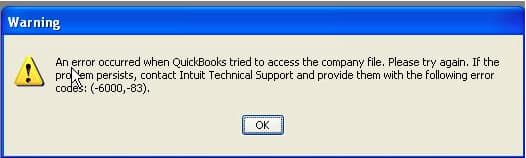
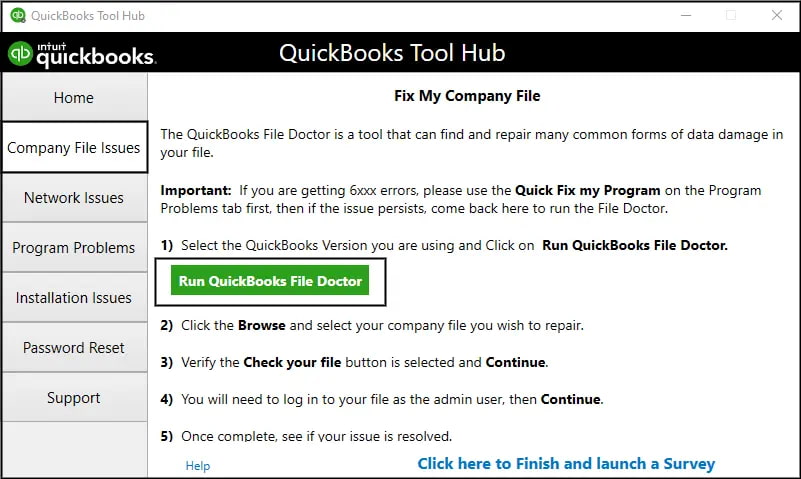
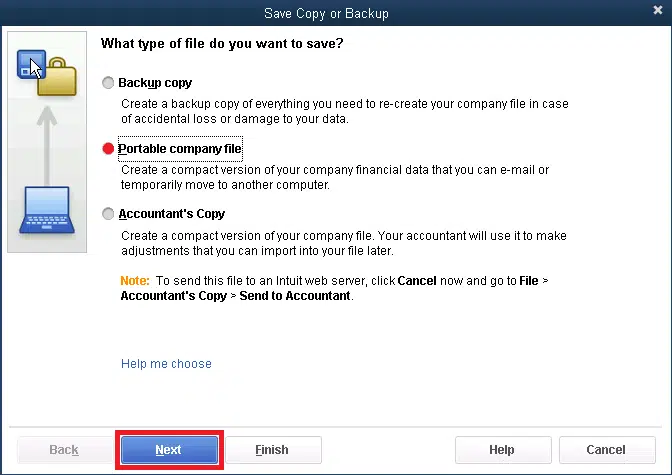
Fix QuickBooks Company File Error 6000 83 by renaming the .ND and .TLG files, running QuickBooks File Doctor, or adjusting multi-user hosting settings to restore access to your company file.
If you’re struggling with repeated company file access problems in QuickBooks Desktop, our detailed QuickBooks company file errors guide provides step-by-step solutions and prevention tips to help you resolve them faster.
QuickBooks Error 6000 83 appears when users are unable to access, open, restore, or back up their company files. This error blocks normal business operations by preventing access to your financial data, especially in multi-user environments. It typically occurs due to hosting configuration problems or insufficient folder permissions when QuickBooks tries to open the company file.
Common error messages include: “An error occurred when QuickBooks tried to access the company file. Please try again. If the problem persists, contact Intuit Technical Support and provide them with the following error codes: (-6000, -83)” or “The user doesn’t have sufficient permissions to access the specified folder.”
If you’re facing other QuickBooks issues and need a broader range of solutions, visit our complete QuickBooks error codes list for more troubleshooting resources and guides.
This article provides a diagnostic framework, risk assessment, and complete solution guide. Hosting configuration errors and permission issues require immediate attention.
When QuickBooks Error -6000, 83 occurs (typically while opening a company file), users typically see one of these messages:
-6000, 83 sits within the broader -6000-series company-file error family Intuit documents through QuickBooks File Doctor, most commonly appearing after a company file is moved or copied to a new folder without updating QuickBooks’ hosting settings — though Intuit’s own File Doctor article explicitly lists -6000 -82, -6000 -305, and -6000 -301 rather than -83, so this specific variant should be verified directly with Intuit before being presented as officially documented.
Error 6000 83 belongs to the 6000 series handling company file access problems and multi-user hosting issues. The 6000 series represents file access failures rather than data corruption. QuickBooks uses this code when hosting settings become incorrect or folder permissions block file access. For a complete breakdown of all errors in this category check out out QuickBooks company file errors guide.
QuickBooks organizes errors into series: C= series (internal processing), H series (multi-user hosting configuration), 6000 series (file access and permissions). Related 6000 errors include 6150 (structural damage), 6144-82 (network configuration), 6105 (condensed data failures). These share common causes: incorrect hosting settings, damaged network files, or insufficient permissions.
Match your symptom to find the correct solution path. Start by identifying when the error appears. Check if the error occurs in single-user or multi-user mode to determine the appropriate fix.
| Possible Causes and QuickFix for Error 6000 83 | ||
| Error Event | Likely Cause | Recommended Fix (When to Perform) |
| Error 6000 83 when opening file | Damaged ND and TLG files | Before attempting to reopen the company file, rename the ND and TLG files and then try opening QuickBooks again |
| Error 6000 83 in multi-user mode | Incorrect hosting settings | When the error appears in multi-user environment and before relaunching QuickBooks, disable hosting on all workstations |
| Error 6000 83 during backup restore | Wrong file extension or special characters | Right after error appearance and before retry, verify file name has no special characters and correct .qbw extension |
| Error 6000 83 with permission message | Insufficient folder permissions | When permission error displays and before accessing file, configure folder permissions for QBDataServiceUser |
Understanding QuickBooks file types prevents data loss during repairs. Follow these data safety advisories for QuickBooks Error 6000 83:
Solutions are organized by skill level, risk level, and success probability. This tiered approach protects your data while maximizing repair chances. Start with Level 1 solutions and move to higher tiers only if lower-tier solutions fail.
These solutions require no technical expertise. The risk of data loss is minimal. Anyone can perform these steps safely.
| Solution 1.1: Run QuickBooks File Doctor | |||
| Skill Level | Risk Level | Success Probability | Approximate Time Required |
| Beginner | Low | High | 30-45 minutes |
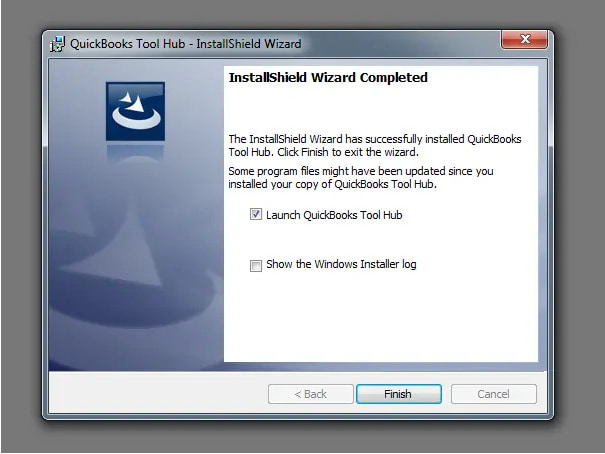
| Risk Explanation | File Doctor repairs files automatically. The tool rarely causes problems. Scan may take significant time for large files. | Solution Explanation | QuickBooks File Doctor tool detects and repairs company file corruption and network issues. The tool fixes common problems causing Error 6000 83. File Doctor is part of QuickBooks Tool Hub. |
Steps to Implement Solution 1.1
| Solution 1.2: Verify and Remove Special Characters from File Name | |||
| Skill Level | Risk Level | Success Probability | Approximate Time Required |
| Beginner | Low | Moderate | 5-10 minutes |
| Risk Explanation | Renaming files requires caution but carries low risk. QuickBooks must be closed before renaming. Improper renaming can prevent temporary file access. | Solution Explanation | QuickBooks cannot access files with special characters in names. Special characters include symbols like !, @, #, $, %, &, *, “, ‘. Removing these characters resolves file access issues. Spaces and long paths also cause problems. |
Steps to Implement Solution 1.2
| Solution 1.3: Verify File Extension is .qbw | |||
| Skill Level | Risk Level | Success Probability | Approximate Time Required |
| Beginner | Low | Moderate | 5-10 minutes |
| Risk Explanation | Changing file extensions requires caution. Incorrect extensions prevent file access. Follow instructions exactly to avoid problems. | Solution Explanation | QuickBooks requires .qbw extension for active company files. Backup files use the .qbb extension. Portable files use the .qbm extension. Auto recovery files use the .adr extension. Using the wrong extension triggers Error 6000 83. Renaming to correct extension enables file access. |
Steps to Implement Solution 1.3
Before proceeding to advanced network fixes or diagnostic tools, make sure your software is running on the latest build. You can check out our QuickBooks Update Download page to download and install the newest software releases and security patches, which often resolve underlying compatibility bugs that trigger company file access issues.
These solutions modify network configurations or file settings. Basic computer knowledge is helpful but not required. Risk increases because operations affect multi-user access. Always create backup before attempting Level 2 solutions.
| Solution 2.1: Rename ND and TLG Files | |||
| Skill Level | Risk Level | Success Probability | Approximate Time Required |
| Intermediate | Low to Moderate | High | 15-20 minutes |
| Risk Explanation | Renaming does not delete transaction data. QuickBooks creates new files automatically. Original files remain as backup with .OLD extension. Follow naming instructions exactly. | Solution Explanation | Corruption in ND and TLG files triggers Error 6000 83 by preventing multi-user access. Renaming forces QuickBooks to generate fresh configuration files. New files contain clean network data without corruption. |
Steps to Implement Solution 2.1
| Solution 2.2: Disable Hosting on All Workstations | |||
| Skill Level | Risk Level | Success Probability | Approximate Time Required |
| Intermediate | Moderate | High | 15-20 minutes |
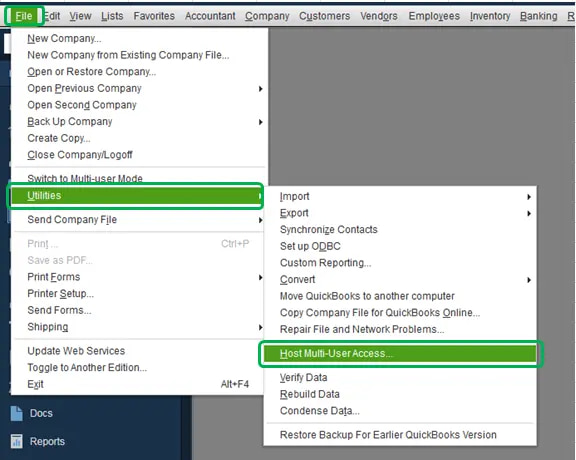
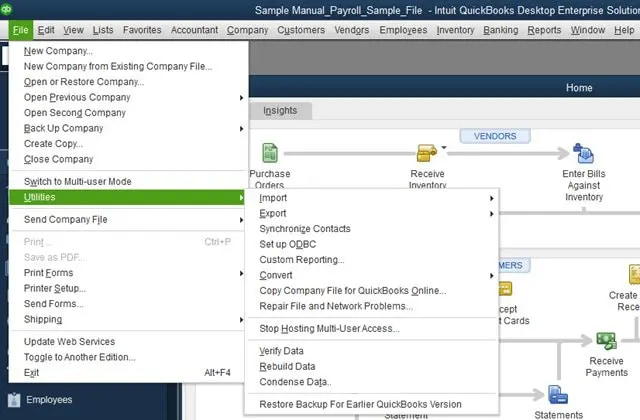
| Risk Explanation | Changing hosting settings affects multi-user access temporarily. Incorrect configuration prevents file access. Follow steps exactly to avoid multi-user problems. | Solution Explanation | Only server computers should host company files. Workstations must not host files. Hosting on multiple computers triggers Error 6000 83. Disabling hosting on workstations resolves conflicts. Proper hosting configuration enables stable multi-user access. |
Steps to Implement Solution 2.2
| Solution 2.3: Move Company File to New Location | |||
| Skill Level | Risk Level | Success Probability | Approximate Time Required |
| Intermediate | Moderate | Moderate to High | 20-30 minutes |
| Risk Explanation | Moving files changes network paths. Incorrect moves may prevent access. Company data remains safe during move. Follow location instructions exactly. | Solution Explanation | Corrupted folder locations trigger Error 6000 83. Moving the company file to a new folder location resolves location-specific corruption. Fresh folder location eliminates path-related access problems. |
Steps to Implement Solution 2.3
These solutions require technical knowledge and carry higher risk. System-level changes can affect network operations. Contact professional support if uncomfortable with these procedures. Data backup is mandatory before attempting Level 3 solutions.
| Solution 3.1: Configure Folder Permissions for QBDataServiceUser | |||
| Skill Level | Risk Level | Success Probability | Approximate Time Required |
| Advanced | Moderate to High | High | 20-30 minutes |
| Risk Explanation | Modifying folder permissions affects file access security. Incorrect permissions may prevent legitimate access or allow unauthorized access. Changes apply to all files in the folder. Professional assistance recommended for unfamiliar users. | Solution Explanation | QuickBooks requires specific folder permissions for multi-user access. The QBDataServiceUser account needs full control permissions. Every group needs full control for network sharing. Incorrect permissions trigger Error 6000 83 by blocking file access. Setting proper permissions restores multi-user access. |
Steps to Implement Solution 3.1
| Solution 3.2: Create Backup and Restore to New Location | |||
| Skill Level | Risk Level | Success Probability | Approximate Time Required |
| Advanced | Moderate | High | 30-45 minutes |
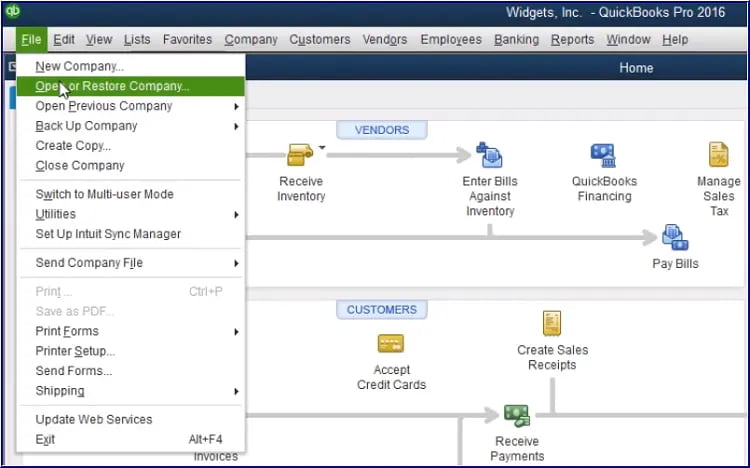
| Risk Explanation | Backup and restore operations are safe when following steps exactly. Incorrect restore locations may cause confusion. The original file remains intact during the process. | Solution Explanation | Creating fresh backup and restoring to a new location eliminates corruption in the original file path. The restore process creates a clean company file with .qbw extension. This comprehensive approach resolves persistent Error 6000 83 issues. |
Steps to Implement Solution 3.2
| Solution 3.3: Run Database Server Manager Scan | |||
| Skill Level | Risk Level | Success Probability | Approximate Time Required |
| Advanced | Moderate | High | 20-30 minutes |
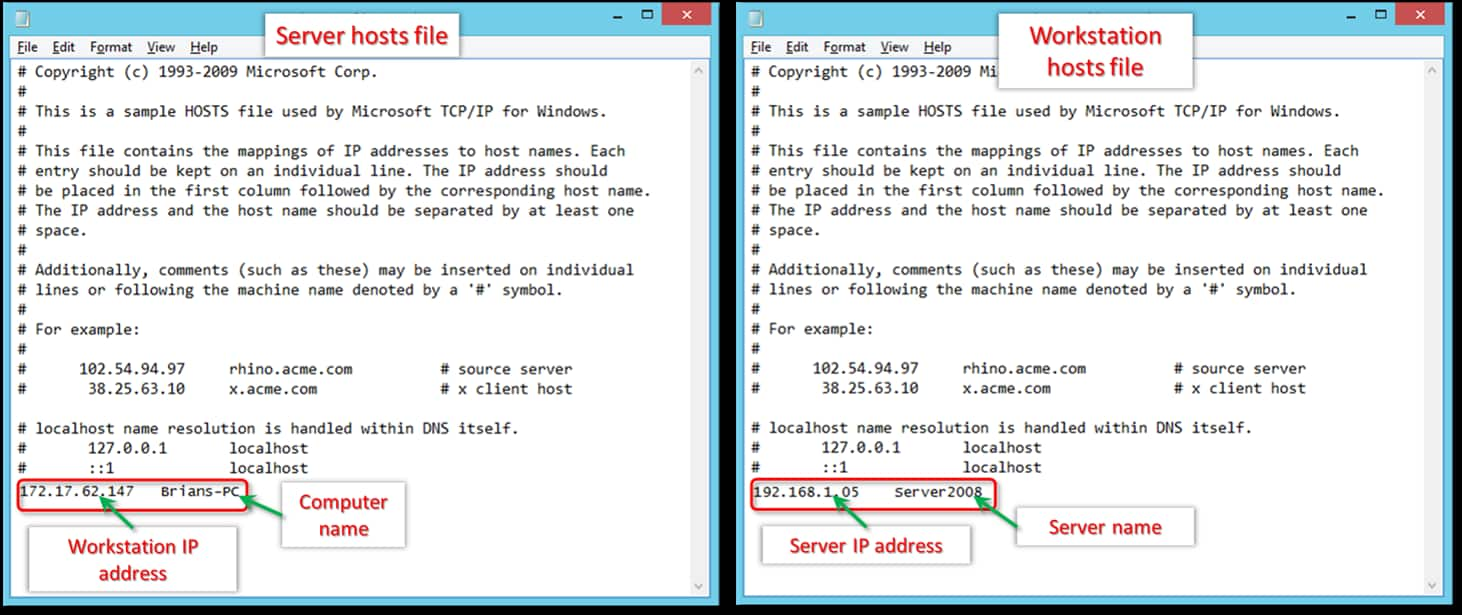
| Risk Explanation | Database Server Manager scan modifies network configuration. Scan creates new ND files for network publishing. The process requires administrator rights on the server. | Solution Explanation | QuickBooks Database Server Manager publishes company file locations to network. Scanning folders creates network data files enabling multi-user access. Manager configures network paths for workstation connections. This scan resolves Error 6000 83 caused by network configuration problems. |
Steps to Implement Solution 3.3
Related QuickBooks Errors
If you are experiencing company file access issues beyond Error 6000 83, these related errors may also be affecting your QuickBooks Desktop:
| Error | Description |
|---|---|
| QuickBooks Desktop Error 6154 | Company file cannot be opened due to incorrect file path or missing network permissions |
| QuickBooks Desktop Pro 2024 Transaction Missing Not Showing Up | Transactions disappear or fail to display due to data file or filter issues |
| QuickBooks Desktop Company File Already in Use Problem | File access blocked because another user or process has the company file open |
Some situations require professional assistance. Attempting DIY repairs risks permanent data loss. Stop attempting solutions if:
Preventing Error 6000 83 requires consistent maintenance practices.
If QuickBooks Error 6000 83 continues after following the tiered solutions above, do not keep experimenting with repeated repairs. Escalating corruption can increase the risk of permanent data damage and network configuration destruction. At this stage, a structured professional diagnosis is the safest path forward.
If you’ve already tried renaming the ND and TLG files, running File Doctor, fixing hosting settings, and checking file names and permissions — but QuickBooks Error 6000 83 is still stopping you from restoring or opening your company file, you’re not alone. This error can make it really hard to get back to your normal work and access your important data.
You can find more practical steps and clear guidance on our QuickBooks support and troubleshooting page.
In many cases, QuickBooks flags folder or hosting issues before you even attempt a restore. If your company files are stored in a restricted Windows folder, synced cloud folder (OneDrive, Dropbox, Google Drive), or a network share with partial permissions, QuickBooks may warn you because these locations can later cause restore failures—especially errors like 6000 83. It’s QuickBooks’ way of telling you your current setup may impact future file operations.
Yes. When different systems use different Windows permissions, antivirus rules, or network paths, QuickBooks may struggle to read or write the file. Many users run into problems right after moving a .QBW or .QBB from one machine to another—especially if it came from a USB drive, email attachment, or a cloud-synced folder. Keeping files on a stable, local location or properly hosted server minimizes these issues.
For backup storage, it’s fine. But for active company files, it’s a major issue. These services lock, sync, and rewrite files in the background, which can interrupt QuickBooks during tasks like verifying, backing up, or restoring. This is one of the most common patterns behind file-based errors users report, including issues closely related to error 6000-series. QuickBooks files should always live in a stable, non-syncing local or server folder.
Yes, and this is actually one of the best ways to isolate the problem. If you are trying to restore your backup directly to a server or a network drive and getting Error 6000 83, try restoring the file to your local desktop (C: drive) first.
This removes the network, firewall, and server permissions from the equation. If the restore works locally, you know your backup file is healthy.
You can then simply copy the restored Company File (.qbw) and paste it into your server folder manually, bypassing the restoration process over the network entirely.
Absolutely. When you restore a company file, QuickBooks is essentially unzipping a massive amount of data and writing it to your hard drive. Aggressive security software (like Bitdefender, Malwarebytes, or Windows Defender) often flags this rapid creation of files as suspicious activity or ransomware behavior.
What to do: Temporarily pause your real-time protection while restoring the file. If the error vanishes, you need to add the specific QuickBooks folder path to your antivirus exclusion list to prevent future conflicts.
Likely not. It is easy to panic, but Error 6000 83 is almost exclusively a connectivity and permissions issue, not a data corruption issue. It means QuickBooks is having trouble communicating with the location where you are trying to put the file, or the “QBDatabaseUser” service doesn’t have the rights to write to that folder.
Note: If the data were actually corrupted, you would typically see C-series errors (like C-224) or an assertion failed error, not a 6000 series code.


