Excerpt:
This guide addresses two critical areas of QuickBooks Desktop: network stability and tax compliance. Multi-user access failures, commonly resulting in H202 or H303 errors, stem from network configuration conflicts, firewall blockages, or service interruptions. To resolve this, users must follow a specific sequence: first running the QuickBooks File Doctor to automate initial fixes, then manually configuring the Database Server Manager and ensuring only the server hosts the file. Simultaneously, maintaining accurate tax compliance requires frequent updates to the Payroll Tax Table (via the Employees > Get Payroll Updates menu) to ensure current FICA (Social Security/Medicare) limits and rates are applied. Finally, for forward-looking financial health, the Cash Flow Planner provides a crucial 90-day forecast based on real bank data and pending transactions, allowing users to test potential expenses and income scenarios without ever affecting the company’s official General Ledger.
 Add As A Preferred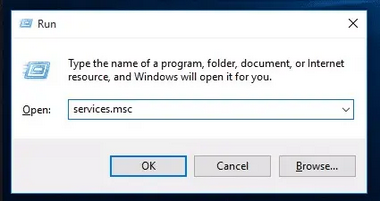
Highlights (Key Facts & Solutions)
services.msc) for multi-user stability.Overview
Encountering QuickBooks Multi-User Mode not working error while switching from single-user mode to multi-user mode? If yes, here’s the solution to all your problems: stay connected till the end.
When the users try to switch from single-user mode to multi-user mode, they might notice some errors like QuickBooks Error H202, Error H303, and Error H505 on their computer screens. Such kinds of errors prevent them from using the software in multi-user mode.
Multi-user mode is an exclusive feature of QuickBooks software that allows several users to work on the same company file simultaneously. But for this, every user must have a QuickBooks License on the workstation.
QuickBooks Multi-User Mode not Working issue occurs due to poor network connectivity or interruptions while accessing the company file by the users. This error commonly arise when the multi-user setup fails to establish a connection with company files on the network.
This error may also slow down your productivity and your business growth; hence, it must be rectified at the earliest.
There are several reasons why this Multi-User Mode QuickBooks error may appear, such as:
Being a regular QB user, it’s important to identify and spot the issue to more efficiently deal with it.
Let’s have a look:
Before proceeding with the solutions for QuickBooks multi-user mode not working, consider the following points:

Here are some steps and solutions that will help you fix this QuickBooks multi-user mode not working error:
If you are getting QuickBooks multi-user mode error due to improper installation of the software, carry out the steps inclined below:
Step 1: Download and Install QuickBooks Tool Hub
Note: If you’ve installed Tool Hub earlier, you can discover which version you use. For this, hit the Home tab, and the version will pop up on the bottom.
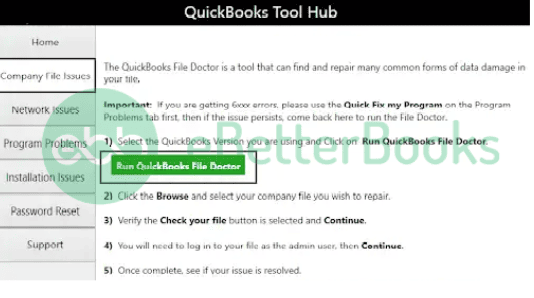
Step 2: Run QuickBooks File Doctor Tool
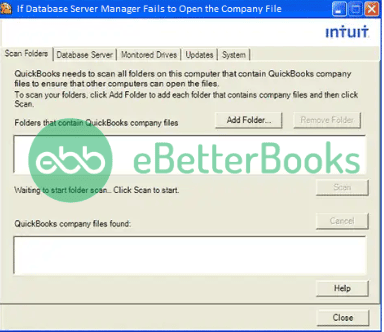
To get over this, you need to scan for the folders holding them before you share your files.
Here’s how:
Once the scanning is over, the folders display in the QB company files found section. You can now open the company files in such folders from other computers on your network.
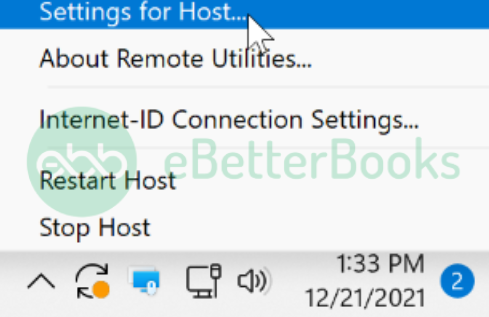
Check Host Mode Settings on all Server Computers to tackle multi-user mode errors.
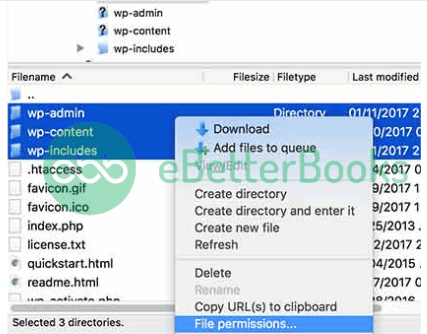
At this point, you need to verify that the folders that host the company file should have the right permissions so that they can be accessed through other systems on the network.
Follow the below-listed steps to check whether the Windows Permissions are set correctly. If not, then do the following:
Set all the below-listed settings to Allow:
If your permissions are set incorrectly:
Windows Firewall settings, if not configured properly, can hamper every single operation on Windows. Below are the instructions to re-configure Windows Firewall settings so QuickBooks can run in multi-user mode.
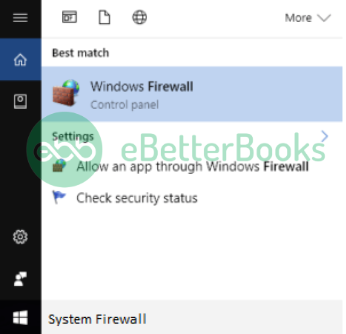
Step 1: Include Firewall Port Exception for QuickBooks
If you’re using multiple QuickBooks Desktop versions on the same computer, implement the following steps for each version.
Enter the particular ports in the Specific local ports field required for the QuickBooks year version you are currently using:
QuickBooks Desktop 2019, 2020, and later versions use dynamic ports.
Here’s how to get a dynamic port number:
Step 2: Create Windows Firewall Exceptions for QuickBooks Programs
QuickBooks uses executable files (.exe) to perform various tasks. Perform these steps to create exceptions for each executable on the table:
Here’s a list of some executable files along with their locations:
| Executable files | Location |
| IntuitSyncManager.exe | C:\Program Files\Common Files\Intuit\Sync |
| QBCFMonitorService.exe | C:\Program Files\Common Files\Intuit\QuickBooks |
| AutoBackupExe.exe | C:\Program Files\Intuit\QUICKBOOKS YEAR |
| QBW32.exe | C:\Program Files\Intuit\QUICKBOOKS YEAR |
| QBLaunch.exe | C:\Program Files\Common Files\Intuit\QuickBooks |
| OnlineBackup.exe | C:\Program Files\QuickBooks Online Backup |
| FileManagement.exe | C:\Program Files\Intuit\QUICKBOOKS YEAR |
Once done, open QuickBooks Desktop and try switching to multi-user mode.
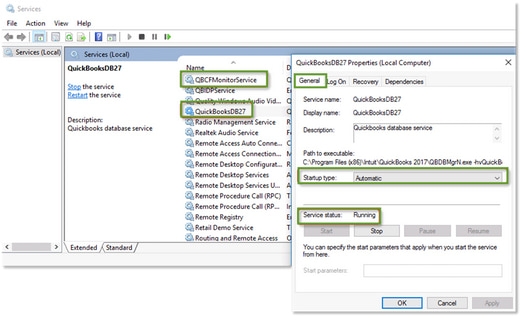
You need to ensure that QuickBooks services are running on your server computer. Follow these steps to check QuickbooksDBXX. Then repeat them for QBCFMonitorService.
Step 1: Go to the Windows Start Menu on your server computer.
Step 2: Type “Run” into the search and open it.
Step 3: Enter “services.msc” into the Run window, then hit the Enter tab.
Step 4: Locate and double-click QuickBooksDBXX on the list. (XX represents the version number like QuickBooks 2023 is QuickBooksDB33)
Step 5: Click Automatic for the Startup Type.
Step 6: Check the Service status under the General section. It should be either Running or Started. If it’s neither, click Start.
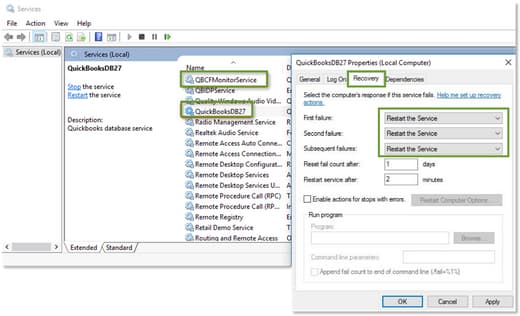
Step 7: Hit the Recovery tab.
Step 8: Select Restart the Service from each of these dropdown menus: First failure, Second failure, and Subsequent failures.
Step 9: Press Apply and then hit OK to save the changes.
Step 10: Repeat the same steps for QBCFMonitorService.
When you’re done, open QuickBooks on each workstation. Navigate to the File menu and choose Switch to Multi-user Mode. If everything opens smoothly, the problem is fixed.
Ping your server from a workstation to check the connection. Ping your server from each workstation getting Multi-user mode not working error.
Step 1: Head to the Windows Start menu on your server and workstations.
Step 2: Type “Network” into the search bar and open Network and Sharing Center.
Step 3: Choose to Change advanced sharing settings.
Step 4: Ensure that the Turn on network discovery is selected in the Network Discovery and File and Printer sharing sections.
Step 5: Next, get your server name from your server:
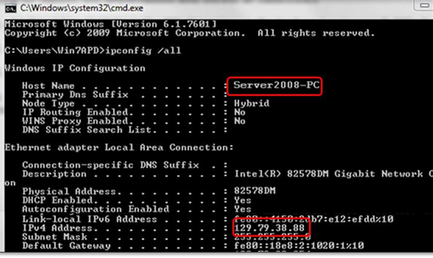
Return to your workstation to test the server and go through the steps below:
Step 1: Move to the Windows Start menu from a workstation.
Step 2: Enter “Run” into the search and open Run.
Step 3: Type “CMD” into the Run window, and then hit the Enter key.
Step 4: Write down “ping [your server name],” and then press Enter. Don’t include the brackets around your server name just like this:

Step 5: Repeat these steps for each workstation that gets multi-user mode not working error.
Step 1: Restart your system.
Step 2: Open the Windows Start menu and then click the Control Panel.
Step 3: Select Programs and Features, then Uninstall a Program.
Step 4: Choose QuickBooks from the list of Programs, then hit the Uninstall/Change tab.
Step 5: Press Continue, or Next.
Step 6: Click Repair, then Next.
Step 7: Once it’s done, hit the Finish icon.
Step 8: If prompted, restart your computer to complete the repair.
Summing-Up!
Hopefully, the information given above will be useful to you. But if you are still facing any kind of issues with your software and need professional assistance regarding accounting, bookkeeping & accounting software-related issues, then feel free to get technical support with us at +1-802-778-9005, or you can email us at support@ebetterbooks.com
The H-series errors (H101, H202, H303, H505) all indicate a failure to connect to the company file, but they represent different locations or severities of the network blockage.
The QuickBooks File Doctor, accessed via the QuickBooks Tool Hub , is the primary diagnostic tool and should always be run first because it automates solutions for the most common causes of multi-user failure.
The QuickBooks Database Server Manager is the specialized service that enables workstations to access the company file over the network. It must be running correctly on the host server.
The Windows Firewall often blocks the specific TCP ports that QuickBooks uses for multi-user communication, requiring explicit port exceptions to be added.
Note: For each version, these ports must be added as both Inbound and Outbound rules in the Windows Firewall Advanced Settings on the server computer.
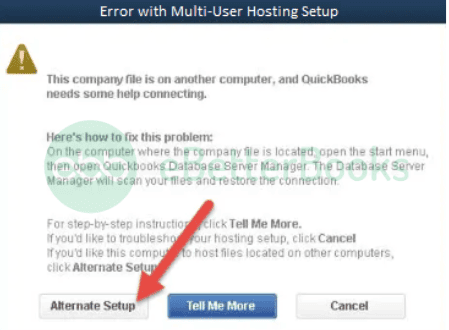
QuickBooks is designed to allow only one computer to “host” the company file and the multi-user mode. Enabling hosting on multiple computers causes immediate H-series errors.
Ensuring the two critical QuickBooks services, QuickBooksDBXX and QBCFMonitorService, are configured for reliable restart is key to preventing the error from recurring after a server reboot or crash.
services.msc).The ‘ping’ command is the final and most authoritative network diagnostic tool to confirm that a workstation can successfully communicate with the server hosting the QuickBooks file.
ping [your server name].

