


Payroll processing delays or system freezes in QuickBooks Desktop Pro/Premier occur when the software operates with outdated program files, damaged company-file data, oversized data indexes, or restrictive security settings. These issues slow payroll loading, reduce module responsiveness, and interrupt normal payroll operations. QuickBooks Desktop Pro/Premier maintains stable payroll processing with updated program files, current payroll-tax tables, a healthy company file, and intact installation components.
Outdated tax tables affect withholding accuracy, corrupted data structures disrupt payroll retrieval, damaged installation elements limit module loading, and restrictive firewall or certificate settings block payroll communication. These conditions create delayed payroll runs, calculation errors, and compliance issues.
This article explains the causes behind payroll delays or freezes in QuickBooks Desktop Pro/Premier and outlines the updates, file repairs, data-management steps, and installation fixes that restore reliable payroll performance. It also provides preventive practices that help maintain long-term system stability.
Quick Fixes for Payroll Processing Delays or System Freezes in QuickBooks
QuickBooks Desktop Pro/Premier stabilizes payroll performance when the system prevents corrupted windows from loading, restores required permissions, reduces background load, and retrieves current program data. These quick fixes provide immediate relief from delays and freezes.
| Use Case Scenario | Quick Fix |
|---|---|
| QuickBooks freezes immediately after launching the payroll module | Restart QuickBooks as an Administrator to gain permissions, which resolves the freeze issue. |
| Payroll processing hangs while loading employee data | Close QuickBooks and reopen the company file while holding down the Ctrl key to prevent damaged forms or windows from loading automatically. |
| The system slows down drastically during payroll submission | Reboot the computer and close all background applications using Task Manager. |
| Delays occur when generating payroll reports | Ensure QuickBooks and the payroll tax table are up to date. ◾ Go to Help > Update QuickBooks Desktop, and update payroll via Employees > Get Payroll Updates. |
| Frequent unresponsiveness when switching between employees in the payroll center | Reduce the number of open windows in QuickBooks. ◾ Click on Window > Close All to minimize system resource consumption. |
| Payroll tasks freeze after a recent Windows update | Run QuickBooks in compatibility mode for Windows 10 or the previous stable version. ◾ Right-click the QuickBooks shortcut > Properties > Compatibility tab. |
| QuickBooks becomes unresponsive when accessing the scheduled payroll | Corrupted print settings impact payroll printing or previewing. To resolve, rename the QBPRINT.QBP file. ◾ Location: C:\ProgramData\Intuit\QuickBooks YEAR |
Common Causes of Payroll Processing Delays or System Freezes
Payroll delays or freezes in QuickBooks Desktop Pro/Premier occur when outdated components, corrupted file structures, or restricted system access disrupt normal payroll-module operations. Identifying these triggers improves diagnostic accuracy.
- Tax Table Issues: Inaccurate tax table files lead to payroll calculation errors and delays.
- Outdated Software: Running an outdated version of QuickBooks or the operating system causes compatibility issues, payroll processing delays, and freezing.
- Firewall and Security Settings: Incorrect firewall or security software settings block QuickBooks from accessing the necessary data or updating.
- Security Certificate Issues: An invalid security certificate prevents payroll data from being sent.
- Multi-User Mode: Sending payroll data in multi-user mode sometimes causes errors.
- Corrupted Files: Damaged or missing QuickBooks files, including QBWUSER.INI, cause various problems, such as freezing.
- Damaged QuickBooks Installation: Missing or corrupted program files cause QuickBooks to become unresponsive during payroll functions.
- Incompatible Plugins or Add-ins: Older or non-certified third-party integrations interfere with QuickBooks components, resulting in unexpected freezing during payroll tasks.
Consequences of Payroll Processing Delays or System Freezes
Payroll processing delays or system freezes in QuickBooks Desktop Pro/Premier disrupt the accuracy, timing, and continuity of payroll-related operations. These conditions interrupt tax calculations, slow payment workflows, and introduce errors in employee compensation data. This section explains how these disruptions affect operational efficiency, financial records, and compliance obligations.
1. Legal and Compliance Risks
- Non-Compliance with Tax Deadlines: Delays in processing payroll or tax information result in missed deadlines for tax remittances, leading to penalties or fines.
- Incorrect Tax Withholding: Payroll errors result in incorrect tax deductions, potentially triggering IRS penalties.
- Employee Benefit Disruptions: Errors in payroll processing cause issues with benefits, such as incorrect deductions or missed contributions to plans like health insurance or 401(k).
2. Loss of Productivity
- Time Spent on Troubleshooting: Delays or system freezes often require manual intervention, wasting valuable time and disrupting normal workflow.
- Increased Troubleshooting: Frequent payroll issues divert employees and management from their regular tasks, reducing overall productivity.
3. Tax Filing Complications
- Incorrect W-2 Forms: Processing delays or system freezes lead to incorrect W-2 or other tax forms, which require time-consuming adjustments and amendments.
- Audit Risk: Repeated payroll processing issues raise red flags with the IRS, which leads to audits and additional scrutiny.
4. Disruptions in Financial Planning
- Cash Flow Impact: Companies must reserve additional funds to cover late fees or interest, which forces them to address cash flow problems caused by late tax payments or penalties.
- Employee Concerns: Companies with persistent payroll issues cause unnecessary financial concerns for employees, which affects their overall productivity and morale.
Prerequisites Before Troubleshooting
To effectively resolve Payroll processing delays or freezes, users should first understand the system and QuickBooks setup. These prerequisites will help them troubleshoot errors more efficiently.
Backup your Company File
Before making any system or file changes, create a secure backup of the company data. To generate a backup safely, go to File > Back Up Company > Create Local Backup.
Verify QuickBooks Desktop is Updated
Users should ensure that they are using the latest version of QuickBooks Desktop. Go to Help > Update QuickBooks Desktop and install any available updates.
Confirm Active Payroll Subscription
An expired or inactive payroll subscription interrupts payroll functionality. To verify the status, go to Employees > My Payroll Service > Account/Billing Information.
Check System Requirements
- Ensure that the system running QuickBooks meets the minimum hardware and OS requirements, with at least 8 GB of RAM.
- Press Ctrl + Shift + Esc to open Task Manager. Go to the Performance tab > check RAM, CPU, and Disk usage.
Run QuickBooks as Administrator
Right-click QuickBooks and choose Run as administrator to grant necessary permissions and prevent access issues.
Fixes for QuickBooks Desktop Pro/Premier Payroll Processing Delays or System Freezes
QuickBooks Desktop Pro/Premier restores stable payroll processing when the software operates with updated program files, intact installation components, and a consistent company-file index. Payroll delays or system freezes resolve when outdated tax data, corrupted structures, restricted security configurations, or oversized data sets are corrected. The fixes in this section describe the update operations, file-integrity checks, and system-level adjustments that normalize payroll-module performance.
Solution 1. Update QuickBooks and Payroll Tax Tables
Ensure that the QuickBooks Desktop software and tax tables are updated, which helps to prevent errors in payroll calculations, system lags, and crashes.
Software updates typically fix known bugs, while the updated tax tables ensure accurate tax calculations by reflecting the latest tax laws.
Step 1: Update QuickBooks Desktop Software
- Open QuickBooks Desktop
- Go to Help menu > select Update QuickBooks.
- In the Update QuickBooks window, click on Update Now.
- Select Let’s go.
- QuickBooks will download, install, and activate the new version.
- Once the update is complete, select Open QuickBooks
Step 2: Update Payroll Tax Tables
To update the payroll tax tables:
- Open QuickBooks Desktop.
- Go to Employees, then select Get Payroll Updates.
| Note: Confirm QuickBooks payroll subscription details when prompted. |
- Check the version by looking for the number next to “You are using tax table version:”
- Select Download Entire Update.
- Select Update and restart QuickBooks to apply the changes.
Step 3: Verify Updates
To ensure the payroll tax tables are updated:
- Go to Employees > Payroll Center,
- Click on the Tax Table to verify the updated version.
Solution 2. Run the QuickBooks File Doctor
These steps will help users to fix company file and network issues that cause payroll delays and system freezes by using QuickBooks File Doctor.
It checks for data corruption and network errors, allowing swift resolution of performance issues. This tool guarantees that the company file is stable and accessible for efficient payroll processing.
Step 1: Download and Install QuickBooks Tool Hub
- Close QuickBooks Desktop.
- Download the latest version of the QuickBooks Tool Hub.
- Open the downloaded .exe file and follow the on-screen instructions to install it.
- Locate and open the QuickBooks Tool Hub.

Step 2: Launch QuickBooks File Doctor
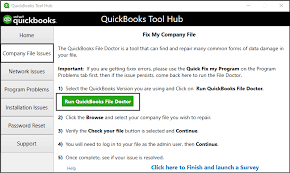
- In the Tool Hub, go to the Company File Uses tab on the left.
- Click on Run QuickBooks File Doctor.
| Note: File Doctor takes a minute to open. |
Step 3: Select Your Company File
- In the File Doctor window, choose the company file from the drop-down menu.
| Tip: Click “Browse” to manually locate the file. |
- Choose Check the file (middle option) and click Continue.
Step 4: Enter Admin Credentials
- Enter the QuickBooks Admin password when prompted.
- Click Next to start the scan.
Step 5: Let File Doctor Run
- The tool will scan the file and network setup.
| Note: Scan time depends on the file size and the system performance. |
- Once the scan is complete, review the results.
- When errors are found and fixed, the user will see a confirmation message.
- In case not, it provides instructions or logs for further troubleshooting.
Step 6: Reopen QuickBooks and Test Payroll
- After the scan and repair process:
- Open QuickBooks Desktop.
- Try processing payroll to see that delays or freezes are resolved.
Solution 3. Reduce Company File Size or Archive Data
Users reduce the company file size or archive data, which will help them process payroll faster, minimize crashes or freezes, and provide better overall QuickBooks performance.
Follow the steps below:
Step 1: Create a Backup
This step will help users create a full backup of their company file without making any changes.
- Open QuickBooks Desktop.
- Go to File > Back Up Company > Create Local Backup.
- Choose Local Backup, click Next.
Step 2: Use the Condense Data Tool
- Go to File > Utilities > Condense Data.
- Choose a Condense Option, when the window appears, “What would you like to do?”
- Remove transactions before a specific date (Ideal for archiving older data).
- Summarize transactions.
- Remove all audit trail data.
| Tip: Use the ‘Remove transactions before a specific date’ option to address payroll performance issues effectively. |
- Select a Cutoff date before which users want to remove the transactions.
- Choose the transaction to remove and click Next > Begin Condense.
- Verify the condensed data and press F2 to check the company file size.
Step 3: Rebuild Data (Optional)
- Go to File > Utilities > Rebuild Data to ensure the remaining data is error-free.
- After rebuilding, verify the integrity using File > Utilities > Verify Data.
Step 4: Test Payroll Performance
After condensing, reopen QuickBooks and test payroll functions to confirm improved speed and stability.
Solution 4. Suppress QuickBooks Desktop Startup
Suppressing the QuickBooks Desktop startup helps bypass potential file corruption or background processes that cause system freezes or delays during payroll processing.
This method opens QuickBooks without automatically loading the company file, reducing the risk of startup errors or crashes.
Step 1: Close QuickBooks Completely
- Make sure QuickBooks Desktop is fully closed.
- Open TaskManager(Ctrl+Shift+Esc) and end any QuickBooks background processes if needed.
Step 2: Launch in Suppressed Mode
- Press and hold the Ctrl key.
- While holding, double-click the QuickBooks Desktop icon.
- Keep holding Ctrl until the No Company Open screen appears.
Step 3: Open the Company File Manually
- From the No Company Open > select the company file.
This prevents automatic file loading, helping to determine if the delay is due to the file or an auto-run process.
Solution 5. Repair QuickBooks Desktop Installation
Running a QuickBooks Desktop installation repair fixes the missing or corrupted program files without affecting the company data, which prevents the system from freezing, slow performance, or payroll issues.
Step 1: Close QuickBooks and All Other Programs
Ensure QuickBooks Desktop and any related services, such as QuickBooks Database Server Manager, are fully closed.
Step 2: Open the Control Panel
- Press Windows + R, type Control, and press Enter.
- Go to Programs > Programs and Features (or Uninstall a Program)
Step 3: Locate QuickBooks Desktop
Locate and select QuickBooks Desktop [Year] from the list of installed programs.
Step 4: Start the Repair Process
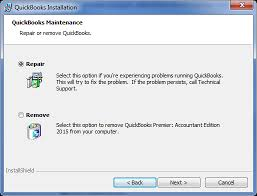
- Click Uninstall/Change.
- In the window that appears, choose Repair > click Next.
- Follow the on-screen instructions to repair the QuickBooks installation.
Step 5: Let the Repair Complete
- The repair process takes several minutes.
- Once it finishes, click Finish and restart the computer.
Step 6: Update QuickBooks (Important)
- Open QuickBooks Desktop.
- Go to Help > Update QuickBooks Desktop.
- Click the Update Now tab and install any available updates.
Solution 6. Contact the QuickBooks Support
In case the issue persists, contact QuickBooks support for assistance with deep troubleshooting, payroll subscription issues, or company file corruption.
- Step: Open QuickBooks Desktop
- Step: Go to Help > QuickBooks Desktop Help
- Step: Click Contact Us
- Step: Enter a short description like “Payroll freezes during processing”, then click Continue.
- Step 5: Choose to start a chat, request a callback, or access community support.
| Tip: Have the license number, product version, and recent error messages ready before contacting support. |
Tips to Prevent Future Payroll Delays or System Freeze
QuickBooks Desktop operates more reliably when the software remains updated, the company file stays within supported size limits, and the system runs with adequate performance resources. The practices in this section prevent payroll delays or freezes and help maintain consistent, accurate payroll processing.
- Keep QuickBooks and payroll tax tables updated.
- Perform regular company-file maintenance.
- Limit overall company-file size.
- Avoid running resource-heavy programs during payroll.
- Use a dedicated time window for payroll processing.
- Create backups before major changes.
Conclusion!
QuickBooks Desktop Pro/Premier maintains stable payroll processing when the software is updated, the payroll-tax data is current, the company file is in good condition, and the installation framework is intact. Payroll delays or system freezes occur when these elements are affected by outdated components, corrupted data, large file sizes, or restrictive security settings.
The steps in this article improve payroll performance by installing updates, repairing file integrity, optimizing data volume, and adjusting security settings. These actions maintain a stable processing environment that supports accurate calculations, timely submissions, and uninterrupted payroll operations.
Frequently Asked Questions
Why does QuickBooks Freeze During Payroll Processing?
QuickBooks freezes due to outdated software, large or corrupted company files, damaged QBPRINT or INI files, or incompatible third-party add-ins. These factors overload system resources or interrupt payroll module functions.
How to Fix Payroll Delays after a Windows Update?
Run QuickBooks in compatibility mode. Right-click the QuickBooks icon > Properties > Compatibility tab > check “Run this program in compatibility mode for” and select Windows 10 or the last stable version. Restart QuickBooks and test payroll processing.
How to Fix QuickBooks Desktop Freezing Up?
To fix QuickBooks Desktop freezing issues, follow these methods:
- Update QuickBooks and Payroll Tax Tables
- Run QuickBooks File Doctor
- Repair QuickBooks Installation
- Suppress Startup
- Check System Performance
Can a Large Company File Cause Payroll Slowdowns in QuickBooks?
Yes, large or bloated company files reduce performance and slow payroll tasks. Use the Condense Data tool (File > Utilities > Condense Data) to remove old transactions and reduce file size for better processing speed.
How do outdated payroll tax tables affect payroll processing performance?
Outdated payroll-tax tables alter statutory-rate interpretation, which disrupts calculation routines and increases processing time within the payroll module.
Disclaimer: The information outlined above for “Fix Payroll Processing Delays or System Freezes in QuickBooks Desktop Pro/Premier” is applicable to all supported versions, including QuickBooks Desktop Pro, Premier, Accountant, and Enterprise. It is designed to work with operating systems such as Windows 7, 10, and 11, as well as macOS.