Excerpt:
Experiencing payroll delays or system freezes in QuickBooks Desktop Pro/Premier? This guide addresses those critical issues—caused by outdated software, corrupted files, or system conflicts—and offers targeted fixes like updating QuickBooks, repairing installations, or condensing company data. Resolving these problems ensures faster, accurate payroll runs, prevents compliance penalties, and restores smooth, uninterrupted payroll processing—protecting both your business operations and employee trust.
 Add As A Preferred
Payroll processing delays or system freezes in QuickBooks Desktop Pro/Premier occur when the software operates with outdated program files, damaged company-file data, oversized data indexes, or restrictive security settings. These issues slow payroll loading, reduce module responsiveness, and interrupt normal payroll operations. QuickBooks Desktop Pro/Premier maintains stable payroll processing with updated program files, current payroll-tax tables, a healthy company file, and intact installation components.
Outdated tax tables affect withholding accuracy, corrupted data structures disrupt payroll retrieval, damaged installation elements limit module loading, and restrictive firewall or certificate settings block payroll communication. These conditions create delayed payroll runs, calculation errors, and compliance issues.
This article explains the causes behind payroll delays or freezes in QuickBooks Desktop Pro/Premier and outlines the updates, file repairs, data-management steps, and installation fixes that restore reliable payroll performance. It also provides preventive practices that help maintain long-term system stability.
QuickBooks Desktop Pro/Premier stabilizes payroll performance when the system prevents corrupted windows from loading, restores required permissions, reduces background load, and retrieves current program data. These quick fixes provide immediate relief from delays and freezes.
| Use Case Scenario | Quick Fix |
|---|---|
| QuickBooks freezes immediately after launching the payroll module | Restart QuickBooks as an Administrator to gain permissions, which resolves the freeze issue. |
| Payroll processing hangs while loading employee data | Close QuickBooks and reopen the company file while holding down the Ctrl key to prevent damaged forms or windows from loading automatically. |
| The system slows down drastically during payroll submission | Reboot the computer and close all background applications using Task Manager. |
| Delays occur when generating payroll reports | Ensure QuickBooks and the payroll tax table are up to date. ◾ Go to Help > Update QuickBooks Desktop, and update payroll via Employees > Get Payroll Updates. |
| Frequent unresponsiveness when switching between employees in the payroll center | Reduce the number of open windows in QuickBooks. ◾ Click on Window > Close All to minimize system resource consumption. |
| Payroll tasks freeze after a recent Windows update | Run QuickBooks in compatibility mode for Windows 10 or the previous stable version. ◾ Right-click the QuickBooks shortcut > Properties > Compatibility tab. |
| QuickBooks becomes unresponsive when accessing the scheduled payroll | Corrupted print settings impact payroll printing or previewing. To resolve, rename the QBPRINT.QBP file. ◾ Location: C:\ProgramData\Intuit\QuickBooks YEAR |
Payroll delays or freezes in QuickBooks Desktop Pro/Premier occur when outdated components, corrupted file structures, or restricted system access disrupt normal payroll-module operations. Identifying these triggers improves diagnostic accuracy.
Payroll processing delays or system freezes in QuickBooks Desktop Pro/Premier disrupt the accuracy, timing, and continuity of payroll-related operations. These conditions interrupt tax calculations, slow payment workflows, and introduce errors in employee compensation data. This section explains how these disruptions affect operational efficiency, financial records, and compliance obligations.
To effectively resolve Payroll processing delays or freezes, users should first understand the system and QuickBooks setup. These prerequisites will help them troubleshoot errors more efficiently.
Before making any system or file changes, create a secure backup of the company data. To generate a backup safely, go to File > Back Up Company > Create Local Backup.
Users should ensure that they are using the latest version of QuickBooks Desktop. Go to Help > Update QuickBooks Desktop and install any available updates.
An expired or inactive payroll subscription interrupts payroll functionality. To verify the status, go to Employees > My Payroll Service > Account/Billing Information.
Right-click QuickBooks and choose Run as administrator to grant necessary permissions and prevent access issues.
QuickBooks Desktop Pro/Premier restores stable payroll processing when the software operates with updated program files, intact installation components, and a consistent company-file index. Payroll delays or system freezes resolve when outdated tax data, corrupted structures, restricted security configurations, or oversized data sets are corrected. The fixes in this section describe the update operations, file-integrity checks, and system-level adjustments that normalize payroll-module performance.
Ensure that the QuickBooks Desktop software and tax tables are updated, which helps to prevent errors in payroll calculations, system lags, and crashes.
Software updates typically fix known bugs, while the updated tax tables ensure accurate tax calculations by reflecting the latest tax laws.
To update the payroll tax tables:
| Note:Confirm QuickBooks payroll subscription details when prompted. |
To ensure the payroll tax tables are updated:
These steps will help users to fix company file and network issues that cause payroll delays and system freezes by using QuickBooks File Doctor.
It checks for data corruption and network errors, allowing swift resolution of performance issues. This tool guarantees that the company file is stable and accessible for efficient payroll processing.

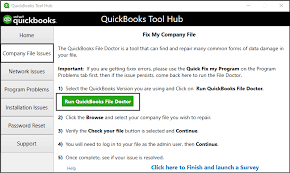
| Note: File Doctor takes a minute to open. |
| Tip: Click “Browse” to manually locate the file. |
| Note: Scan time depends on the file size and the system performance. |
Users reduce the company file size or archive data, which will help them process payroll faster, minimize crashes or freezes, and provide better overall QuickBooks performance.
Follow the steps below:
This step will help users create a full backup of their company file without making any changes.
| Tip: Use the ‘Remove transactions before a specific date’ option to address payroll performance issues effectively. |
After condensing, reopen QuickBooks and test payroll functions to confirm improved speed and stability.
Suppressing the QuickBooks Desktop startup helps bypass potential file corruption or background processes that cause system freezes or delays during payroll processing.
This method opens QuickBooks without automatically loading the company file, reducing the risk of startup errors or crashes.
This prevents automatic file loading, helping to determine if the delay is due to the file or an auto-run process.
Running a QuickBooks Desktop installation repair fixes the missing or corrupted program files without affecting the company data, which prevents the system from freezing, slow performance, or payroll issues.
Ensure QuickBooks Desktop and any related services, such as QuickBooks Database Server Manager, are fully closed.
Locate and select QuickBooks Desktop [Year] from the list of installed programs.
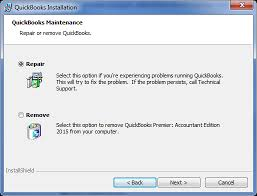
In case the issue persists, contact QuickBooks support for assistance with deep troubleshooting, payroll subscription issues, or company file corruption.
| Tip: Have the license number, product version, and recent error messages ready before contacting support. |
QuickBooks Desktop operates more reliably when the software remains updated, the company file stays within supported size limits, and the system runs with adequate performance resources. The practices in this section prevent payroll delays or freezes and help maintain consistent, accurate payroll processing.
QuickBooks Desktop Pro/Premier maintains stable payroll processing when the software is updated, the payroll-tax data is current, the company file is in good condition, and the installation framework is intact. Payroll delays or system freezes occur when these elements are affected by outdated components, corrupted data, large file sizes, or restrictive security settings.
The steps in this article improve payroll performance by installing updates, repairing file integrity, optimizing data volume, and adjusting security settings. These actions maintain a stable processing environment that supports accurate calculations, timely submissions, and uninterrupted payroll operations.
QuickBooks freezes due to outdated software, large or corrupted company files, damaged QBPRINT or INI files, or incompatible third-party add-ins. These factors overload system resources or interrupt payroll module functions.
Run QuickBooks in compatibility mode. Right-click the QuickBooks icon > Properties > Compatibility tab > check “Run this program in compatibility mode for” and select Windows 10 or the last stable version. Restart QuickBooks and test payroll processing.
To fix QuickBooks Desktop freezing issues, follow these methods:
Yes, large or bloated company files reduce performance and slow payroll tasks. Use the Condense Data tool (File > Utilities > Condense Data) to remove old transactions and reduce file size for better processing speed.
Outdated payroll-tax tables alter statutory-rate interpretation, which disrupts calculation routines and increases processing time within the payroll module.


