Excerpt:
QuickBooks Error H202 is a critical multi-user network failure that occurs when a workstation cannot establish a connection with the server hosting the company file. This communication block is typically traced to incorrect firewall settings, issues with the QuickBooks Database Server Manager (QBDM) service, or damaged network configuration files. To resolve the error, users must prioritize the official troubleshooting flow: first, run the QuickBooks Database Server Manager tool from the QuickBooks Tool Hub to automatically repair firewall exceptions and service links. If the error persists, manual intervention is required to verify the two essential multi-user services (QuickBooksDBXX and QBCFMonitorService) are running and set to automatic startup. Final steps involve confirming that hosting is enabled only on the server, renaming the corrupted .ND network file, or performing a ping test to confirm basic network connectivity. Efficient resolution relies on methodical isolation of the problem, starting with the software-level tools and progressing to advanced network diagnostics.
 Add As A Preferred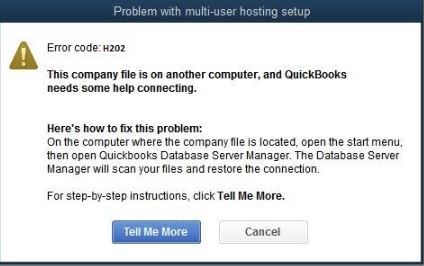
Fix QuickBooks Error H202 by:
QuickBooks Error H202 appears with the message ‘QuickBooks is unable to communicate with the company file due to a firewall’ or ‘Error H202: This company file is on another computer, and QuickBooks needs some help connecting.’
The Intuit QuickBooks Community confirms H202 means a workstation cannot reach the company file that is stored and hosted on a server computer. The workstation and the server are connected to the same network – but something between them is blocking the specific communication QuickBooks requires to open the file in multi-user mode.
Intuit-published articles on H202 document running the QuickBooks Database Server Manager, checking hosting settings, and verifying services as their primary solutions.
The Intuit QuickBooks Community confirms three causes: the .ND file corruption that redirects all workstations to a wrong server path, the Windows service recovery settings that prevent the QuickBooksDBXX service from restarting automatically after a server reboot, and the QBDataServiceUserXX folder permissions that block the database service from reading the company file even when the service is running.
The .ND file – Network Descriptor file – is a small file stored in the same folder as the company file with the same name but a .ND extension. Every QuickBooks workstation reads this file to find the server’s network address.
The Intuit QuickBooks Community confirms: a corrupted or outdated .ND file causes H202 on every workstation simultaneously – because every workstation is reading the same wrong path from the same corrupted file. Deleting the .ND file and running a fresh Database Server Manager scan rebuilds it correctly, restoring multi-user access for all workstations at once.
Error Message Variants (as they appear to users)
When QuickBooks Error H202 occurs (typically when switching to or opening a company file in multi-user mode), users typically see one of these messages:
QuickBooks Error H202 belongs to the H-series of errors, triggered when the multi-user mode in the program is not set up correctly, most commonly appearing when users try to open the company file in multi-user mode stored on a different workstation than where it’s hosted.
QuickBooks uses a specific network service – the QuickBooks Database Server Manager – installed on the server computer to make the company file available to all workstations over the network.
The Database Server Manager runs as a Windows background service called QuickBooksDBXX – where XX is a number that corresponds to the QuickBooks version year (DB34 for 2024, DB35 for 2025, DB36 for 2026). This service must be running on the server at all times while multi-user mode is active. The Intuit QuickBooks Community confirms H202 appears when a workstation sends a request to the server and the server does not respond through the correct channel.
Error H202 is different from Error H505. H202 means the workstation cannot reach the server at all – the connection from workstation to server is blocked or the server service is not running. H505 means the server is reachable but it is not configured to host the file – hosting is turned off on the server. The Intuit QuickBooks Community confirms: H202 points to a network or service issue; H505 points to a hosting configuration issue on the server.
Every workstation in a multi-user setup must have Host Multi-User Access turned OFF. The server computer must have it turned ON.
The Intuit QuickBooks Community confirms the most common cause of H202 on a single workstation is that workstation having Host Multi-User Access turned ON – meaning it is trying to be both the host and the client of the same file simultaneously. The check is simple: open QuickBooks on the workstation > File > Utilities > if the menu shows Stop Hosting Multi-User Access, click it – that workstation has hosting incorrectly turned on.
Pressing F2 inside QuickBooks opens the Product Information window, which confirms the hosting mode in the bottom-left corner under Local Server Information. The hosting line should show Local Files Only on every workstation and Multi-User on the server.
The Intuit QuickBooks Community confirms this F2 check is the fastest way to confirm hosting status without navigating through menus – and it works even when H202 is blocking the file from opening, because it reads local program settings rather than network data.
Run a ping test from the affected workstation to the server before applying any QuickBooks-specific fix. Open Command Prompt on the workstation (press Windows+R, type cmd, press Enter). Type ping [server computer name] and press Enter.
If the ping fails by name but succeeds by IP address (type ping [server IP address] instead), the cause is a DNS name resolution problem – a network naming issue that no QuickBooks tool can fix. If the ping fails entirely, the network connection between the workstation and server is the root cause and must be resolved before any QuickBooks fix applies.
| When H202 Appears | Why This Is Happening | Recommended Fix |
|---|---|---|
| H202 on all workstations immediately after a new multi-user setup or after moving the company file to a new server | QuickBooks Database Server Manager not yet installed on the server, or not scanned for the file’s new location | Open QuickBooks Tool Hub on the server > Network Issues > QuickBooks Database Server Manager > Browse to company file folder > Start Scan. Restart QuickBooks on all workstations and switch to multi-user mode |
| H202 on one specific workstation – all other workstations open the file without error | That workstation has Host Multi-User Access turned ON – it is trying to host the file itself instead of connecting to the server | On the affected workstation: File > Utilities > if the menu shows Stop Hosting Multi-User Access, click it. If it shows Host Multi-User Access, leave it – the host is already off. Restart QuickBooks on that workstation |
| H202 on all workstations – server was restarted recently | QuickBooksDBXX service is not running on the server – it did not start automatically after the restart | Press Windows+R on the server > type services.msc > find QuickBooksDB[version number] > right-click > Start. Set Startup Type to Automatic. Set Recovery tab: all three failure options to Restart the Service |
| H202 appears after the company file was moved to a new folder on the same server | The .ND file in the old folder is outdated – workstations are looking for the file at the old path | Delete the .ND file from the company file folder (same name as the QBW file, extension .ND). Open Database Server Manager on the server > Browse to the new folder > Start Scan. The scan creates a new .ND file at the correct path |
| H202 with a failed ping from workstation to server by computer name – ping by IP address succeeds | DNS (the network name resolution service) is not correctly resolving the server’s computer name to its network address | Open the hosts file on each workstation: C:\Windows\System32\drivers\etc\hosts. Add a line at the bottom: [server IP address] [server computer name]. Save the file. Retry multi-user access |
| H202 after antivirus software was updated or a new firewall rule was applied | Antivirus or firewall is blocking QuickBooks ports or executable files on the server | Add QBDBMgrN.exe, QBCFMonitorService.exe, and QBW32.exe to the antivirus exceptions list on the server. Open Windows Defender Firewall and confirm ports 8019 and the dynamic port shown in Database Server Manager Port Monitor tab are open for both inbound and outbound |
| H202 and QBDataServiceUserXX is not listed with Full Control on the company file folder | The Windows service account that runs the database server has no permission to read or serve the company file | Right-click the company file folder > Properties > Security tab > add QBDataServiceUser28 (or the version-specific name) > set permissions to Full Control > Apply. Also go to Sharing tab > Share > add QBDataServiceUser28 with Full Control > Share > OK |
The QuickBooks Database Server Manager is a program – installed as part of QuickBooks Desktop – that makes the company file visible and accessible to other computers on the network. It runs as a Windows background service (QuickBooksDBXX) on the server computer.
The Intuit QuickBooks Community confirms the Database Server Manager must be installed and running only on the server – the computer where the company file is stored. Installing it on workstations in addition to the server creates a conflict where multiple computers attempt to host the same file simultaneously, producing H202.
The .ND file (Network Descriptor file) is a small text file that QuickBooks stores in the same folder as the company file. It has the same name as the company file but ends in .ND instead of .QBW – for example, MyCompany.QBW.ND. Every QuickBooks workstation reads this file to find the server’s network address and port number for connecting to the company file.
The Intuit QuickBooks Community confirms: a corrupted or outdated .ND file sends every workstation to a wrong address – causing H202 on all computers simultaneously. Deleting the .ND file and running a Database Server Manager scan creates a fresh, accurate one.
QBDataServiceUserXX is the Windows user account that the QuickBooks Database Server Manager service runs under. The XX represents the QuickBooks version number – for example, QBDataServiceUser28 for QuickBooks 2018.
This account must have Full Control permission on the folder containing the company file so that the Database Server Manager can read, serve, and manage the file on behalf of all workstations.
The Intuit QuickBooks Community confirms: without Full Control, the service starts successfully but cannot read the company file – workstations receive H202 because the hosting service has no access to the file it is supposed to host.
Solutions are organized from the fastest confirmed fixes to the deepest network and permission repairs. Start with Level 1 – correcting hosting settings and running Database Server Manager resolve the majority of H202 errors within minutes. Advance to Level 2 only after confirming both Level 1 fixes have been applied correctly.
| Level 1 – Hosting Settings, Database Server Manager, and Services |
These solutions address the three most common confirmed causes of H202 and carry the lowest risk. Run them in the order shown – the hosting check must come before the Database Server Manager scan to prevent a rescanned configuration from being overridden by an incorrectly hosted workstation.
| Skill Level | Risk Level | Success Probability | Approximate Time |
|---|---|---|---|
| Beginner | None | 75% – Resolves immediately when hosting misconfiguration or an outdated scan is the confirmed cause | 15 minutes |
| Risk ExplanationTurning off hosting on workstations and running a Database Server Manager scan changes only multi-user configuration settings – no company file data is modified. The scan rebuilds the .ND file but does not alter any transaction records. | Solution ExplanationThe Intuit QuickBooks Community confirms incorrect hosting settings on any workstation and an outdated or missing Database Server Manager scan are the two most common causes of H202. Both must be confirmed and corrected together – fixing only one leaves the error in place. The Database Server Manager scan also automatically configures firewall permissions, which resolves many firewall-related H202 cases without requiring manual firewall rule creation. | ||
Steps – Correct Hosting on Every Workstation:
1. Go to each workstation that is showing H202. Open QuickBooks on that workstation. Click the File menu at the top. Select Utilities from the dropdown. Look at the submenu carefully.
If the submenu shows Stop Hosting Multi-User Access, click it – this workstation has hosting incorrectly turned on. If the submenu shows Host Multi-User Access, do not click it – hosting is already off on this workstation. Repeat on every workstation.
Steps – Run Database Server Manager on the Server:
2. On the server computer, open the QuickBooks Tool Hub. Click the Network Issues tab on the left. Click QuickBooks Database Server Manager. If prompted to install it, follow the installation prompts.
After the Database Server Manager window opens, click Browse and navigate to the folder where the company file is stored. Click OK to add the folder. Click Start Scan. Wait for the scan to complete – it rebuilds the .ND file and configures firewall permissions automatically.
3. After the scan completes, go to each workstation. Open QuickBooks. Go to File > Open or Restore Company. Select Open a company file. Browse to the server path where the company file is stored. Open it. When prompted, select Multi-User mode. Confirm H202 no longer appears.
| Skill Level | Risk Level | Success Probability | Approximate Time |
|---|---|---|---|
| Beginner | None | 85% for cases where the service is stopped or set to Manual startup | 10 minutes |
| Risk ExplanationStarting a Windows service and changing its startup type carries zero risk to company data. Setting the Recovery tab options to Restart the Service tells Windows to automatically restart the service if it stops unexpectedly – this only affects service behaviour after a failure and does not modify any QuickBooks data. | Solution ExplanationThe Intuit QuickBooks Community confirms the QuickBooksDBXX service must be running on the server at all times for multi-user access to work. A service set to Manual startup stops after every server restart, causing H202 for all workstations until someone manually starts it. Setting the Recovery tab to restart the service on failure prevents temporary service drops from producing recurring H202 errors between planned server restarts. | ||
Steps to Implement Solution 1.2:
1. On the server computer, press Windows+R at the same time. Type services.msc and press Enter. The Windows Services window opens, showing all background services running on the server. Scroll through the list to find the QuickBooks database service. The name matches the QuickBooks version: QuickBooksDB36 for QuickBooks 2026, QuickBooksDB35 for 2025, QuickBooksDB34 for 2024.
2. Right-click the QuickBooksDB service for the correct year. Select Properties. In the Properties window, look at the Startup Type dropdown. Change it from Manual to Automatic. Click Apply. Look at the Service status section – if it shows Stopped, click Start. Wait for the status to show Running.
3. While still in the Properties window, click the Recovery tab at the top. Find the three dropdowns labeled First failure, Second failure, and Subsequent failures. Change all three to Restart the Service. Click Apply.
Click OK. Repeat the same steps for QBCFMonitorService in the services list – this second service also needs to run for multi-user access and should be set identically. Test multi-user access from each workstation after both services show Running.
| Level 2 – .ND File Rebuild, Permissions, and Firewall Fixes |
Use these solutions after Level 1 is complete and H202 still appears on some or all workstations. They address the .ND file corruption, the QBDataServiceUserXX permission gap, and specific firewall port configuration that the Database Server Manager scan may not have resolved fully.
| Skill Level | Risk Level | Success Probability | Approximate Time |
|---|---|---|---|
| Intermediate | Low – deleting the .ND file does not delete or damage the company file; a fresh one is rebuilt by the Database Server Manager scan | 80% – Resolves H202 caused by a corrupted network path or folder permission gap | 20 minutes |
| Risk ExplanationThe .ND file contains only network path information – no transaction data. Deleting it is safe and reversible through a new scan. Granting QBDataServiceUserXX Full Control applies only to that service account within the specific company file folder – no other users or programs are affected. | Solution ExplanationThe Intuit QuickBooks Community confirms the .ND file and the QBDataServiceUserXX permission are two separate causes that produce identical H202 symptoms. A corrupted .ND file sends all workstations to a wrong server path. A missing QBDataServiceUserXX permission prevents the database service from reading the file even when the network path is correct. Both must be checked when Level 1 fixes did not resolve the error. | ||
Steps – Delete the .ND File:
1. On the server, open File Explorer and navigate to the folder where the company file (.QBW) is stored. Look for a file with the same name as the company file but with a .ND extension – for example, MyCompany.QBW.ND. Right-click it and select Delete. Confirm the deletion. The .ND file will be rebuilt in the next step.
2. Open the QuickBooks Tool Hub on the server. Click Network Issues. Click QuickBooks Database Server Manager. Click Start Scan on the folder where the company file is stored. The scan rebuilds the .ND file with the correct current server path and port information.
Steps – Grant QBDataServiceUserXX Full Control:
3. Right-click the company file folder in File Explorer. Select Properties. Click the Security tab. Click Edit. Click Add. In the text field, type QBDataServiceUser and the version number – for example QBDataServiceUser28 for QuickBooks 2024. Click Check Names, then OK.
Select the QBDataServiceUser account in the list. Check the Full Control checkbox under Allow. Click Apply, then OK. Click the Sharing tab > Share > add the same QBDataServiceUser account > set permission to Full Control > click Share > OK. Restart QuickBooksDBXX in services.msc after applying permissions.
| Level 3 – DNS Fix, Firewall Ports, and File Doctor |
Use these solutions when the ping test by name fails but ping by IP succeeds (DNS), or when firewall ports are blocking QuickBooks communication after all other fixes have been applied.
| Skill Level | Risk Level | Success Probability | Approximate Time |
|---|---|---|---|
| Intermediate | Low – editing the hosts file is reversible; firewall port rules can be deleted if added incorrectly | 70% for DNS and firewall-specific H202 cases – resolves immediately when confirmed as the cause | 20 minutes |
| Risk ExplanationEditing the Windows hosts file adds a name-to-address mapping that bypasses DNS for the server name. It is fully reversible by removing the added line. Adding firewall port exceptions creates rules only for the specific ports QuickBooks requires – all other network traffic remains protected by the firewall. | Solution ExplanationThe Intuit QuickBooks Community confirms: a ping that succeeds by IP but fails by server name means the network cannot resolve the server computer’s name to its address – a DNS problem that prevents QuickBooks from finding the server even when the physical network connection works. Adding the server name and IP to the hosts file on each workstation bypasses DNS and resolves this immediately. Firewall port exceptions must include both TCP and UDP rules for the dynamic port shown in Database Server Manager’s Port Monitor tab. | ||
Steps – Fix DNS With the Hosts File:
1. On the server, open Command Prompt (press Windows+R, type cmd, press Enter). Type ipconfig and press Enter. Note the IPv4 Address shown – this is the server’s IP address on the local network.
2. On each affected workstation, press Windows+R. Type notepad C:\Windows\System32\drivers\etc\hosts and press Enter. Notepad opens the hosts file. Scroll to the bottom.
Add a new line at the very end: type the server’s IP address, press Tab, then type the server’s computer name exactly as shown in the ping test. Save the file (Ctrl+S). Close Notepad. Retry multi-user access.
Steps – Open Firewall Ports:
3. On the server, open the QuickBooks Database Server Manager > Port Monitor tab. Note the dynamic port number shown for the installed QuickBooks version. Open Windows Defender Firewall with Advanced Security from the Start menu. Click Inbound Rules > New Rule > Port > TCP.
Enter 8019 and the dynamic port number (separated by a comma) in the Specific local ports field. Click Next > Allow the connection > Next > check all profiles > Next > name the rule QBPorts > Finish. Repeat the same steps under Outbound Rules. Restart the server and test multi-user access from each workstation.
Contact Intuit QuickBooks Support in the following situations. These scenarios require Intuit to investigate on their side or involve network infrastructure beyond QuickBooks’ built-in repair tools.
Preventing QuickBooks Error H202 requires four consistent habits:
The Intuit QuickBooks Community confirms the QuickBooksDBXX service and QBCFMonitorService stopping after a server restart is the most common cause of recurring daily H202 errors.
Setting both to Automatic startup through services.msc eliminates this cause permanently. Setting the Recovery tab to Restart the Service for all failure types means H202 from a service drop resolves within seconds automatically – without any user intervention and without a server restart being required.
The Intuit QuickBooks Community confirms the .ND file stores the server path to the company file at the time of the last scan. Moving the file to a different folder or renaming it makes the .ND file immediately outdated – every workstation begins showing H202 because the stored path no longer exists.
Running a new Database Server Manager scan immediately after any file move or rename rebuilds the .ND file with the correct new path before any workstation attempts to connect.
The Intuit QuickBooks Community confirms QuickBooks Desktop updates occasionally reset the hosting setting on workstations – re-enabling Host Multi-User Access on computers that had it correctly turned off.
Confirming through File > Utilities that no workstation shows Stop Hosting Multi-User Access after every QuickBooks update prevents the most common single-workstation H202 trigger from recurring after routine software maintenance.
Windows Updates that modify security policies occasionally reset custom folder permissions – removing the Full Control permission granted to QBDataServiceUserXX on the company file folder. Verifying the folder permissions through right-click > Properties > Security after each major Windows Update confirms the permission is still in place.
If the QBDataServiceUser account has been removed from the folder permissions, re-adding it with Full Control and restarting the QuickBooksDBXX service restores multi-user access immediately.
Fix QuickBooks Error H202 by first running a ping test from the affected workstation to the server – a failed ping means the network path is broken and no QuickBooks fix applies until the network is restored.
After confirming the network connection works, correct hosting settings on all workstations by turning Host Multi-User Access OFF, run the Database Server Manager scan on the server to rebuild the .ND file, and confirm the QuickBooksDBXX service is running with Automatic startup and Restart recovery settings.
The three verified causes are the .ND file corruption that sends every workstation to a wrong server path, the Service Recovery tab settings that prevent the database service from automatically restarting after a drop, and the QBDataServiceUserXX folder permission gap that blocks the database service from reading the file even when the service is running. Each of these produces H202 with no visible explanation after the standard fixes have been applied – and each has a specific confirmed fix documented in the Intuit QuickBooks Community.
Preventing H202 requires setting both QuickBooks services to Automatic startup with Restart recovery in services.msc, running a Database Server Manager scan after every company file move, confirming hosting settings after every QuickBooks update, and verifying QBDataServiceUserXX permissions after Windows Updates. These four habits cover every confirmed recurring cause of QuickBooks Error H202 before it can interrupt multi-user access.


