Excerpt:
QuickBooks Error H505 disrupts access to company files in multi-user mode, often due to improper hosting configurations, firewall settings, or network data file issues. This guide addresses the root causes and provides step-by-step solutions, such as configuring firewalls, verifying services, editing host files, and running tools like QuickBooks File Doctor. These measures restore seamless connectivity, ensuring uninterrupted financial management and operational efficiency for businesses.
 Add As A Preferred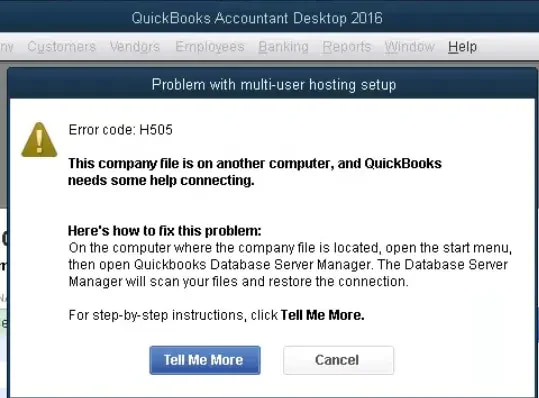
QuickBooks Desktop Error H505 is a network-related issue that prevents workstations from accessing a company file stored on the server in multi-user mode. It typically signals a misconfiguration in hosting settings, blocked firewall permissions, or missing network setup.
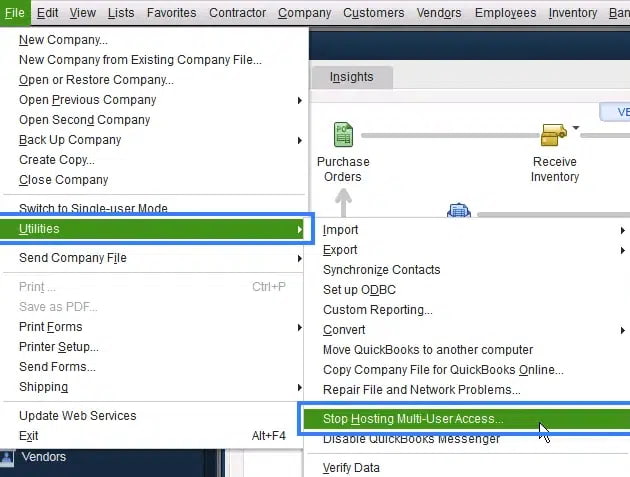
The error arises when one or more workstations are incorrectly set to host the company file, when required QuickBooks services are not running, or when connectivity rules restrict communication with the server.
The error usually encounters H505 while trying to switch QuickBooks into multi-user mode, or when a workstation attempts to open a company file located on the server but fails to establish a proper connection.
Users often see a pop-up stating: “Error H505: This company file is on another computer, and QuickBooks needs help connecting.”
Preventing H505 is critical because repeated disruptions can slow down payroll processing, reporting, and team collaboration. By ensuring correct hosting, stable network communication, and proper permissions, businesses avoid downtime and maintain smooth workflow across multiple users.
The H-series (H101, H202, H303, and H505) errors in QuickBooks Desktop can be defined as network-related errors, which take place when the workstations cannot connect to a company file which is located on the server in the multiuser mode.
They typically state that their host is misconfigured, the firewall has been blocked or lacks QuickBooks services to communicate with. Although each of the codes puts emphasis on slightly different connectivity issues, they all cause disruption to access and slow down the working processes.
The most common one is the Error H505 that is used when several workstations are wrongly configured to share the company file or when firewall rules prevent communication with the server. As with all the H-series, it is crucial to prevent H505 to make the working with multiple users successful and continuous accounting processes.
Preventive measures help avoid repeated disruptions:
| Level | Step Summary | Estimated Time |
| Beginner | Correct hosting configuration: disable hosting on workstations, enable on server | 5–10 minutes |
| Open a sample company file in multi-user mode to isolate issue | 5 minutes | |
| Install trial version of QuickBooks and test with sample file | 15–20 minutes | |
| Intermediate | Host network and coordinate with Intuit Hosting Provider | 15–30 minutes |
| Run QuickBooks Database Server Manager to scan company file folders | 10–15 minutes | |
| Rename damaged ND files and rescan to generate new ones | 10 minutes | |
| Use Verify and Rebuild Data tools, then run QuickBooks File Doctor | 20–30 minutes | |
| Perform a clean install of QuickBooks Desktop | 30–45 minutes | |
| Advanced | Ensure QuickBooks Database Services are running and set to automatic restart | 10–15 minutes |
| Reinstall QuickBooks Database Server Manager with correct configuration | 20–30 minutes | |
| Configure firewall permissions with inbound/outbound rules and program exceptions | 20–40 minutes | |
| Upgrade operating system build to latest version | 20–30 minutes | |
| Provide Windows folder sharing permissions with full control for QB service users | 10–15 minutes | |
| Test network connectivity using ping commands and verify server communication | 10–20 minutes | |
| Edit Windows host files to add server IP and name on both server and workstations | 15–25 minutes |
Method 1: Correct Hosting Configuration
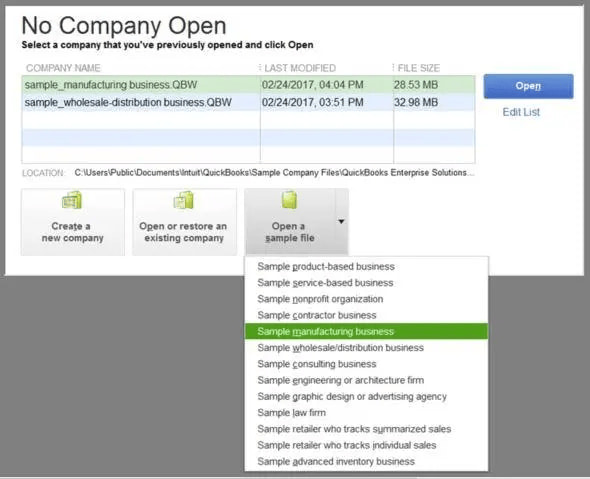
Method 2: Open a Sample File in Multi-User Mode
Method 3: Install a Trial Version
Method 4: Host Your Network
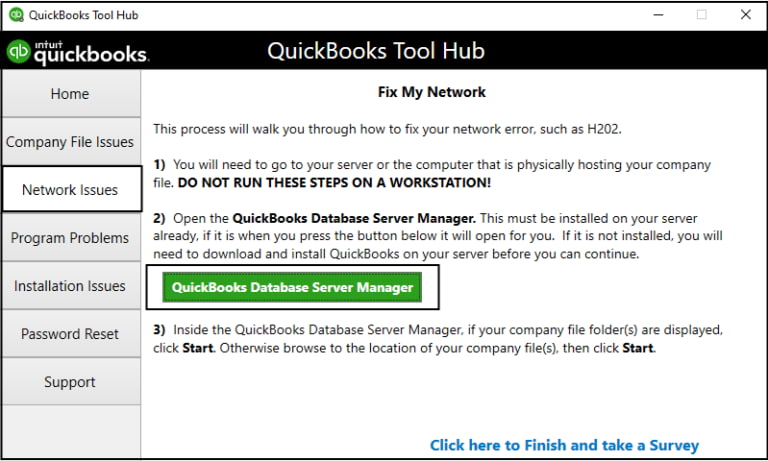
Method 5: Run QuickBooks Database Server Manager
Method 6: Rename the Network Descriptor File
Method 7: Resolve Data Damage
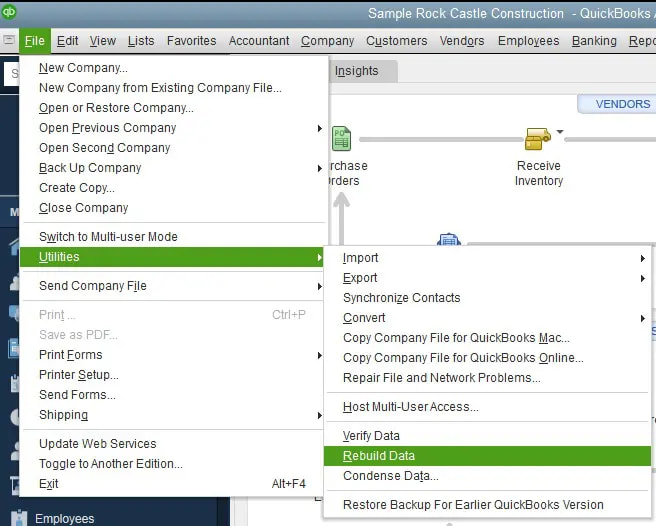
Method 8: Clean Install QuickBooks Desktop
Method 9: Ensure QuickBooks Database Services Are Running
Method 10: Reinstall QuickBooks Database Server Manager
Method 11: Configure Firewall Permissions
Method 12: Upgrade Operating System Build
Method 13: Provide Windows Access Permissions
Method 14: Test Network Connectivity
Method 15: Edit Windows Host Files
The following basics are required before the troubleshooting:
You are able to identify this error by the following indications:
QuickBooks Desktop Error H505 is part of the broader H-series of multi-user mode issues, all of which stem from network misconfigurations, hosting conflicts, or blocked communication between workstations and the server. While the error can appear disruptive, it is fully resolvable through a structured approach starting with basic hosting checks, moving through intermediate fixes like database server scans and file repairs, and finally applying advanced solutions such as firewall configuration or service reinstalls.
By following the outlined methods and ensuring prerequisites like updated software, stable connectivity, and proper permissions, businesses can prevent recurring H505 errors. Effective prevention not only safeguards against downtime but also ensures smooth collaboration, accurate payroll processing, and uninterrupted access to company files in a multi-user environment.
The H-series errors (H101, H202, H303, and H505) all indicate a network communication failure preventing access to a company file in multi-user mode. The distinction lies in the specific cause of the blockage:
To ensure the server is ready to host the file, both associated services must be active and configured for automatic startup.
Steps to Verify Services:
services.msc and press Enter.The Host file is a text file that acts as a local DNS resolver, mapping host names to specific IP addresses. Editing this file is a key solution for H505 because it forces the workstation to directly locate the server by its IP address, bypassing potential DNS or network conflicts.
Required Entries:
You must add two entries at the bottom of the Host file for the server hosting the company file:
Important Note: The $\text{IP}$ address must be separated from the computer name using the Tab key, not the spacebar, to maintain the correct formatting.
When the firewall is blocking communication, specific Transmission Control Protocol ($\text{TCP}$) ports must be opened. Intuit recommends using the QuickBooks File Doctor utility, which automatically configures these rules.
If manual configuration is required, the ports depend on your QuickBooks Desktop version:
The most reliable approach is to add exceptions for the QuickBooks executable files (e.g., QBW32.exe, QBDBMgrN.exe) as both inbound and outbound rules, allowing the application to manage dynamic ports.
The QuickBooks Database Server Manager (QBDBSM) is the core utility that enables multi-user access. Running it from the Tool Hub is critical for two reasons:
The .ND file is a crucial configuration file that stores the following information:
A damaged, missing, or incorrect .ND file is a direct cause of the H505 error, and running the QBDBSM corrects this.
A failed ping test confirms a fundamental network communication breakdown at the IP level, prior to any QuickBooks service starting. The two most common causes are:
Action: Ensure the firewall allows exceptions for ICMP and that Network Discovery is enabled under the Network and Sharing Center on all relevant systems.
Keeping QuickBooks Desktop updated to the latest maintenance release is a simple but effective preventative measure for H505 and other network errors:


