Excerpt:
QuickBooks Error H101 occurs when accessing a company file hosted on another system, blocking multi-user connection. This issue is often caused by incorrect host settings, firewall misconfigurations, or connectivity problems. To resolve it, ensure proper host and network configurations, configure the firewall, and restart essential QuickBooks services. Using tools like QuickBooks File Doctor and Database Server Manager can also help fix the problem, ensuring smooth multi-user access.
 Add As A Preferred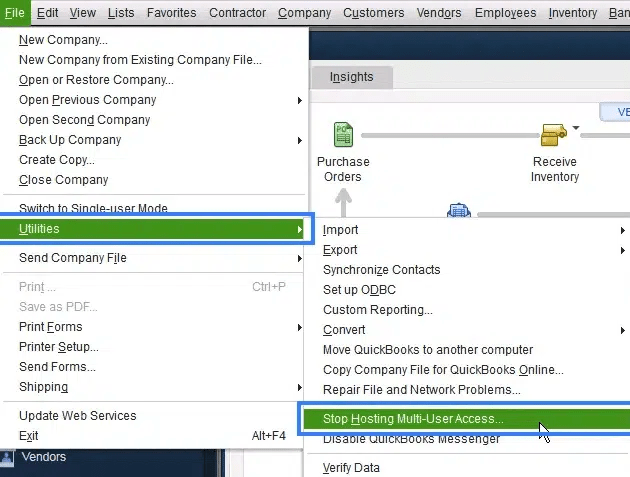
The QuickBooks Error Code H101 is a network-related issue that prevents workstations from accessing a company file stored on the server in multi-user mode. It typically signals a misconfiguration in hosting or connectivity settings.
The error arises when one or more workstations are incorrectly set to host the company file, when required QuickBooks services are not running, or when firewall and network permissions block communication with the server.
The error usually encounters H101 while trying to switch QuickBooks into multi-user mode, or when a workstation attempts to open a company file located on the server but fails to establish a proper connection.
Users often see a pop-up stating:
“This company file is on another computer, and QuickBooks needs some help connecting.”
Note: It may also reference Error Code H101 along with instructions to check hosting or network setup.
Preventing H101 is critical because repeated disruptions can slow down payroll processing, reporting, and team collaboration. By ensuring correct hosting, stable network communication, and proper permissions, businesses avoid downtime and maintain smooth workflow across multiple users.
Before starting troubleshooting, ensure the following are in place:
QuickBooks Error H101 can be recognized by:
| Level | Action | Verification | Expected Result | Estimated Time | Escalation Path |
| Beginner | Stop Hosting on Workstations | File > Utilities → Stop Hosting Multi-User Access | Only server hosts company file | 2–3 minutes per workstation | If error persists, go to Step 2 |
| Configure Server Hosting | File > Utilities → Host Multi-User Access | Server is sole host | 2–3 minutes | If error persists, go to Step 3 | |
| Run QuickBooks Tool Hub | Install → Network Issues → Database Server Manager | Company file scanned successfully | 5–7 minutes | If error persists, go to Step 4 | |
| Run File Doctor | Tool Hub → Company File Issues → File Doctor | File repaired, workstations connect | 8–10 minutes | If error persists, escalate to Intermediate | |
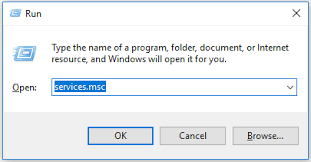
| Intermediate | Verify QuickBooks Services | services.msc → QuickBooksDBXX & QBCF Monitor Service | Startup Type = Automatic, Status = Running | 5 minutes | If services fail, configure Recovery tab |
| Ping Server | CMD → ipconfig/all → ping [server name] | Successful ping response | 3–5 minutes | If ping fails, check network setup | |
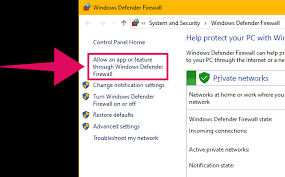
| Adjust Firewall Settings | Control Panel → Firewall → Allow QuickBooks | QuickBooks allowed through firewall | 5–7 minutes | If blocked, configure inbound rules | |
| Configure Ports | Firewall → Advanced Settings → TCP Port 8019 | Port open and accessible | 7–10 minutes | If blocked, escalate to Advanced | |
| Advanced | Relocate Company File | Copy .QBW file to new folder → Open via QuickBooks | File opens from new location | 5 minutes | If error persists, continue |
| Set Folder Sharing | Properties → Sharing → Add QBDataServiceUserXX | User has Full Control | 5–7 minutes | If permissions fail, check Security tab | |
| Verify Security Permissions | Properties → Security → QBDataServiceUserXX | Full Control enabled | 5 minutes | If still failing, continue | |
| Edit Hosts File | C:\Windows\System32\Drivers\etc → Hosts | Server IP & hostname added | 7–10 minutes | Workstations connect successfully |
Designed for users with minimal technical background. Focuses on simple menu options and basic connectivity.
Goal: Ensure only the server hosts multi-user access and run automated repair tools.
For users comfortable with Windows services and basic networking.
Goal: Confirm services are running, workstations can reach the server, and the firewall isn’t blocking QuickBooks.
For IT admins or advanced users. Focuses on permissions, file paths, and manual configuration.
Goal: Ensure file paths are valid, permissions are correct, and the host file allows proper communication.
It is desktop error because:
Preventive measures reduce the chance of recurring disruptions:
QuickBooks Desktop Network Error H101 is a desktop-only issue that arises when workstations attempt to host or connect to a company file incorrectly. It is triggered by misconfigured hosting, inactive QuickBooks services, firewall restrictions, or network connectivity problems.
By following a tiered troubleshooting approach starting with basic hosting checks, moving through service and firewall verification, and finally addressing file permissions and host file configuration users can systematically resolve the error.In short, H101 is a reminder that QuickBooks Desktop relies heavily on correct network setup and permissions, and with proper configuration, businesses can avoid recurring disruptions and maintain smooth multi-user collaboration.
The Windows Firewall needs specific port exceptions to allow network traffic between the server and workstations. QuickBooks Desktop uses different ports based on the version you are running.
The most reliable method is to use the QuickBooks Database Server Manager (DBSM) to scan your folder, as it automates the creation of the correct firewall rules for your specific QuickBooks version.
When the QuickBooks Database Server Manager (DBSM) finishes scanning the folder containing your company file, it performs two essential actions:
Confirmation and Next Steps:
The Host Multi-User Access feature designates a computer to serve the company file and manage the database connection for the entire network.
These two services are the backbone of QuickBooks Desktop’s network connectivity:
If restarting both services (via services.msc) does not fix Error H101, you must check the following settings on the server:
Creating a new folder and moving the company file is a crucial step that helps eliminate hidden issues related to Windows path or security restrictions.
C:\NewQBFolder) eliminates this potential conflict.The Network Data (*.ND) file is a small configuration file automatically created by the QuickBooks Database Server Manager.
MyFile.nd to MyFile.nd.old) forces QuickBooks to automatically regenerate a fresh, accurate version when the server next opens the file, eliminating configuration conflicts.Always start with Quick Fix my File as the first automated step within the QuickBooks Tool Hub.
Using the Quick Fix first allows for a rapid, lightweight resolution before escalating to the more time-consuming, deep-scan process of the File Doctor.


