 Add As A Preferred
QuickBooks Point of Sale (POS) users encountering the “Failed to Open Company File” error require an immediate, structured resolution to restore business operations. This critical issue, which prevents access to essential sales and inventory data, typically results from two main areas: interruptions to core database services or corrupted program files. To begin troubleshooting, the user must log in as a Windows administrator and confirm that the Intuit Entitlement Service and the QBPOS Database Manager services are both running automatically. A crucial diagnostic step is creating a new sample file, which quickly determines if the fault lies with the existing company data file or the POS software installation itself. The confirmed next steps depend on this diagnosis: data-related issues are corrected by restoring the most recent verified data backup, while software-related issues require repairing or performing a clean reinstallation of the POS application. Prevention focuses on maintaining these stable server components and implementing consistent, reliable data backups.
Highlights (Key Facts & Solutions)
QuickBooks Point of Sale generates specific error messages when the system cannot establish a stable connection with the company data file. These messages appear during the initial file-loading process and indicate that the POS application is unable to read, validate, or communicate with the stored data. When this failure occurs, the system may display one of the following notifications:
Read also: QuickBooks POS Client Cannot Connect to Server
QuickBooks Point of Sale (POS) fails to open a company file when the system cannot read, locate, or authenticate the data file. The issue typically results from damaged file components, incorrect file paths, restricted network locations, outdated or incomplete POS installations, blocked connections from antivirus or firewall settings, inactive POS database services, or insufficient file permissions. These conditions prevent POS from establishing the required read and write access to the company file.
The following factors may have been the main reasons for QuickBooks POS (Point of Sale) Failed To Open Company File:

| Error Cause | Solution |
| If you receive errors in QuickBooks Desktop Point of Sale | Restart QuickBooks Desktop Point of Sale service |
| If your existing company file contains errors or QB POS has some issues | Create a test company file |
| Even after creating the new test file, if you cannot open the File | Restore the backup company file |
| when you are unable to access your real corporate File but can open the test file | Change the company File name |
| If the serious faults in your QB POS software prevent you from opening the corporate File, | Repair your QuickBooks Desktop POS software |
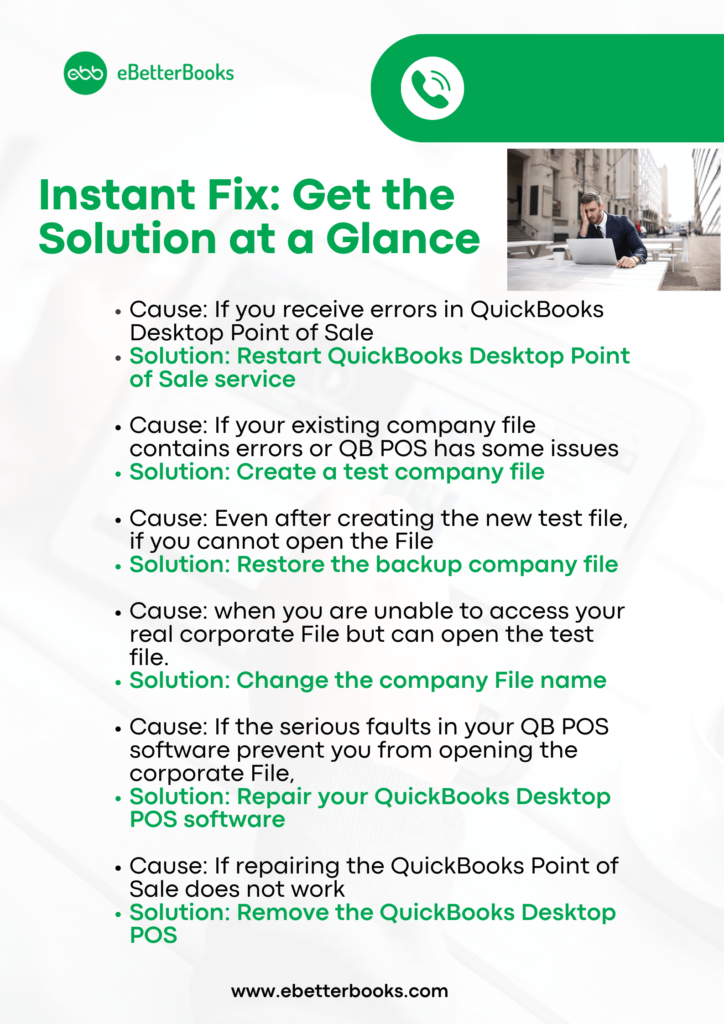
The QuickBooks Point of Sale Won’t Open Company File issue occurs when the system cannot establish a stable connection with the company data file during startup. Troubleshooting steps such as restarting POS services, creating a test file, restoring a backup, renaming the existing file, or repairing the software help restore proper file access and allow the system to recognize the company file correctly.
Let’s go through each approach in more detail:
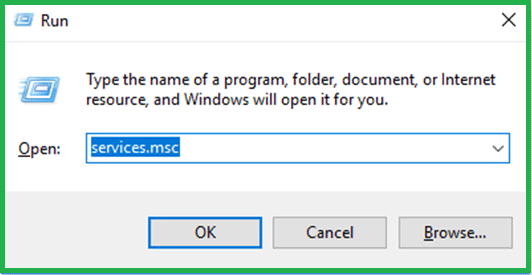
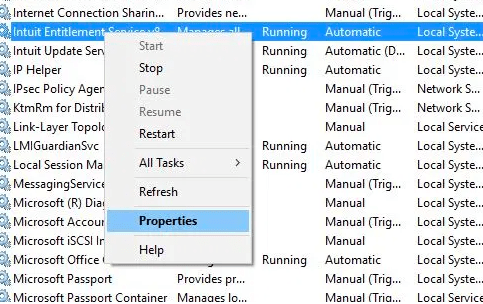
You can attempt to access the company file after restarting the QuickBooks Desktop POS service. Continue with the following fix if QuickBooks Point of Sale cannot open the company file.
Ensure that your user account has read/write access to both the file and the folder where it’s stored. This should resolve most access-related issues and allow you to open the company file.
Updated software, proper permissions, stable network configurations, and secure data folders reduce the risk of file damage or access errors. These practices help QuickBooks Point of Sale maintain a consistent and reliable connection to the company file.
The QuickBooks POS Failed To Open Company File issue results from file damage, service interruptions, permission restrictions, or configuration errors that prevent the system from loading the company data. The troubleshooting steps outlined in this guide provide a structured path to restore file access by validating services, confirming permissions, testing alternate files, repairing installations, or reinstalling the software when necessary. Applying these solutions restores a stable connection to the company file and allows QuickBooks Point of Sale to resume normal business operations without further disruption.
Hopefully, the above-given information is useful for you. But if you still facing any kind of issues with your software and need professional assistance, regarding accounting, bookkeeping & accounting software-related issues then feel free to get in touch with us at +1-802-778-9005, or you can mail to us at: support@ebetterbooks.com
These two services must be running simultaneously on the server computer for QuickBooks Point of Sale (POS) to connect and function correctly.
Knowing the default file path is essential for renaming damaged files, verifying Windows folder permissions, and restoring backups.
The file paths are typically located in the public user profile to facilitate multi-user access:
.qbw file.
C:\Users\Public\Public Documents\Intuit\QuickBooks\Company Files (This is the path for QuickBooks Desktop, but the same principle of Public Documents applies to POS files.)XX is the POS version (e.g., 18, 19).
C:\Users\Public\Public Documents\Intuit\QuickBooks POS XX\DataC:\Users\Public\Public Documents\Intuit\QuickBooks POS XX\Data\Your Company Name\BackupYou must log in to the Windows operating system as an administrator before performing any advanced troubleshooting steps, especially on the server computer.
This is necessary because:
services.msc) utility to stop, start, or change the Startup Type and Log On credentials for services like the QBPOS Database Manager.When the issue is confirmed as data-related (by opening the test file), a specific sequence of data recovery actions is used to minimize data loss and repair the file.
The essential order is:
.qbb or similar backup file that is known to be clean and stable.If a newly created, empty test company file fails to open, the problem is not with your original data’s integrity, but with the core software installation or the local Windows environment.
While multiple maintenance steps are helpful, the single most critical action for preventing the catastrophic “Failed to Open Company File” error is to manage the server environment effectively.
The most critical proactive measure is:
To manually restart the service, you must identify the correct name in the Windows Services management console (services.msc).
The name you need to look for will follow a version-specific naming convention:
QBPOS Database Manager vXX (or sometimes QuickBooksDBXX for related desktop versions)XX in the name represents the version number of your installed QuickBooks Point of Sale software. For example, if you are running POS Version 18, the service name is likely to be QBPOS Database Manager v18.

