



QuickBooks Error 6150 (-1006) is one of the most disruptive company file errors in QuickBooks Desktop — part of a broader set of file access failures listed in our complete QuickBooks error codes list. It typically occurs when creating, opening, or working with a company file. The error message often reads:
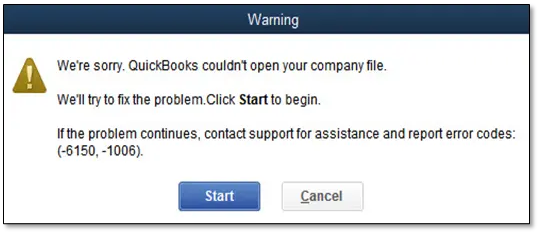
“We’re sorry. QuickBooks couldn’t open your company file. We’ll try to fix the problem. Click Start to begin. If the problem continues, contact support for assistance and report error codes: (-6150, -1006).”
This error signals company file corruption or damage. If left unresolved, it can cascade into other QuickBooks errors, data loss, or complete file inaccessibility. This guide provides a tiered troubleshooting framework from beginner fixes to advanced professional interventions along with preventive strategies.
Error 6150 belongs to the 6000 series, specifically tied to company file corruption or damage — all of which are covered in detail under our QuickBooks company file errors guide. It often appears alongside related errors like 6000-82 (network communication failure) or 6000-83 (permission issues).
Common Causes of QuickBooks Error 6150, -1006
The following table highlights the common causes of error 6150:
| Error Event | Likely Cause | Related Errors |
| Opening company file | File corruption | Error C=387, Error 6000 series |
| Creating new company file | Damaged installation | Unrecoverable error |
| After malware attack | CryptoWall virus | File inaccessible |
| After Windows update | Damaged .NET Framework | Runtime errors |
Common Symptoms of QuickBooks Error 6150, -1006
List of common symptoms generally a user faces:
- QuickBooks crashes when opening or creating a company file
- Error message (-6150, -1006) appears repeatedly
- Windows or QuickBooks freezes during file operations
- Missing or inaccessible company files
Quick Troubleshooting Summary for QuickBooks Error 6150, -1006
The table represent the quick summary:
| Level | Solution | Skill Level | Risk Level | Success Probability | Approx. Time | Key Notes |
| Level 1 – Beginner Safe Fixes | Restart QuickBooks & Computer | Beginner | Low | Low–Moderate | 10 min | Clears temporary memory conflicts; no data risk |
| Update QuickBooks to Latest Release | Beginner | Low | Moderate | 15–30 min | Fixes bugs & runtime conflicts; always backup first | |
| Level 2 – Intermediate Fixes | Run QuickBooks File Doctor (via Tool Hub) | Intermediate | Low–Moderate | High | 20–30 min | Repairs company file corruption automatically |
| Restore Company File from Backup | Intermediate | Low | High | 15–20 min | Safest recovery if backup is recent & verified | |
| Rename ND & TLG Files | Intermediate | Low–Moderate | High | 15–20 min | Forces QuickBooks to recreate fresh network & log files | |
| Level 3 – Advanced / Professional Fixes | Check for CryptoWall Virus | Advanced | Moderate–High | Moderate | 30–60 min | Malware can encrypt company files; antivirus scan required |
| Repair QuickBooks Installation | Advanced | Moderate | High | 20–45 min | Repairs damaged program files without affecting company data | |
| Reinstall QuickBooks Desktop | Advanced | High | High | 30–60 min | Clean installation removes deep corruption; requires license reactivation |
Detailed Explanation of Stepwise Solutions
Level 1 – Beginner Safe Fixes
Solution 1.1: Restart QuickBooks & Computer
- Close QuickBooks via File > Exit (not just the window).
- End QBW32.exe in Task Manager.
- Restart your computer fully.
- Test opening the company file again.
Solution 1.2: Update QuickBooks to Latest Release
- Press F2 in QuickBooks to check the version.
- Go to Help > Update QuickBooks Desktop.
- Install updates and restart QuickBooks.
Level 2 – Intermediate Fixes
Solution 2.1: Run QuickBooks File Doctor (via Tool Hub)
- Download & install QuickBooks Tool Hub.
- Open “Tool Hub” and then go to “Company File Issues”.
- Run QuickBooks File Doctor Tool.
- Select your company file and let the tool repair corruption.
Solution 2.2: Restore Company File from Backup
- Go to “File” and then go to “Open or Restore Company”.
- Select Restore a backup copy.
- Choose your latest verified backup.
Solution 2.3: Rename ND & TLG Files
- Navigate to C:\Users\Public\Documents\Intuit\QuickBooks\Company Files.
- Rename CompanyName.qbw.nd → CompanyName.qbw.nd.OLD.
- Rename CompanyName.qbw.tlg → CompanyName.qbw.tlg.OLD.
- Reopen QuickBooks — fresh files will be created.
Level 3 – Advanced / Professional Fixes
Solution 3.1: Check for CryptoWall Virus
- Open File Explorer → QuickBooks folder.
- Look for suspicious files like decrypt.txt or instructions.html.
- If found, run a full antivirus scan before attempting repairs.
Solution 3.2: Repair QuickBooks Installation
- Go to Control Panel > Programs and Features.
- Select QuickBooks → Uninstall/Change.
- Choose Repair.
- Restart and test QuickBooks.
Solution 3.3: Reinstall QuickBooks Desktop
- Backup company files.
- Uninstall QuickBooks completely.
- Download the latest installer from Intuit.
- Reinstall and reactivate with your license key.
If you are experiencing company file access issues beyond Error 6150, these related errors may also be affecting your QuickBooks Desktop:
| Error | Description |
|---|---|
| QuickBooks Desktop Error Code 6010 | Database server connection blocked, commonly due to antivirus, firewall, or hosting configuration issues. |
| QuickBooks Desktop Error Code 6000 80 | Company file locked or corrupted during open/save operations in multi-user environment. |
| QuickBooks Desktop Error Code 6073 | Company file already open in single-user mode on another computer, causing access conflict. |
Prevention Strategy QuickBooks Error 6150, -1006
To minimize the risk of encountering QuickBooks Error 6150, users should adopt the following preventive measures:
- Backup Discipline: Daily backups stored locally, externally, and in the cloud.
- Update Management: Enable automatic QuickBooks updates; schedule Windows updates off-hours.
- Regular Data Verification: Run “Verify Data” weekly to avoid any discrepancies.
- Multi-User Maintenance: Limit simultaneous users, ensure proper shutdowns, and host files on dedicated servers.
Conclusion
QuickBooks Error 6150 (-1006) is a serious company file corruption issue. Following this tiered troubleshooting framework ensures safe recovery while minimizing data risk. If the error persists after multiple repair attempts, stop immediately and seek QuickBooks support and troubleshooting professional to prevent permanent damage.
Frequently Asked Questions!
What is QuickBooks Error Code 6150, -1006?
QuickBooks Error Code 6150, -1006 occurs when QuickBooks is unable to open or access a company file due to issues like file corruption, incomplete installation, or conflicts with security settings.
What Causes QuickBooks Error Code 6150, -1006?
Common causes include damaged company files, incomplete installation of QuickBooks, conflicts with other software, security settings blocking access, or malware infections.
Is it Necessary to update QuickBooks to fix Error Code 6150, -1006?
Yes, keeping QuickBooks updated ensures you have the latest features and security updates, which can help prevent errors like 6150, -1006.
Disclaimer: The information outlined above for “Fix QuickBooks Error 6150, -1006 When Creating, Opening or Using Company Files” is applicable to all supported versions, including QuickBooks Desktop Pro, Premier, Accountant, and Enterprise. It is designed to work with operating systems such as Windows 7, 10, and 11, as well as macOS.