Excerpt:
QuickBooks Error Code 6073 occurs when a user tries to access a company file that’s already opened by another user in multi-user mode. This issue can disrupt access to your data. To fix it, you can use the QuickBooks File Doctor, adjust file permissions, or resolve multi-user mode conflicts by following step-by-step troubleshooting methods. These solutions ensure smooth file access and safeguard your company data.
 Add As A Preferred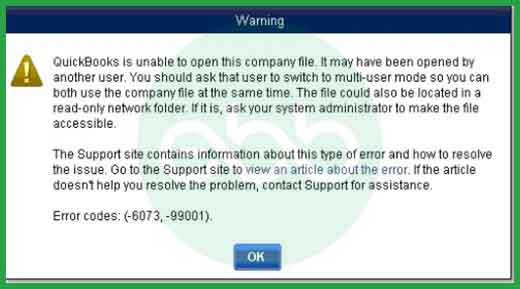
When a user is unable to open their company file due to file restrictions, multi-user conflicts, or network issues, it is generally identified as QuickBooks Error 6073. Unlike minor glitches, this error is closely tied to file access conflicts and hosting misconfigurations, making it a serious obstacle for businesses that rely on QuickBooks Desktop for daily accounting.
This error most often occurs in multi‑user environments where one workstation has locked the file in single‑user mode, or when remotely based users keep sessions active. This error blocks collaboration and halts workflows until resolved.
Error 6073 can be triggered by several scenarios:
This error typically surfaces during:
| Aspect | Details |
| Error Code | -6073, often paired with -99001 |
| Error Message | “QuickBooks is unable to open this company file. It may have been opened by another user.” |
| Primary Cause | File access conflict (single‑user vs multi‑user mode) |
| Other Causes | Read‑only folder, remote access tools, Linux hosting conflicts, damaged .ND/.TLG files |
| When It Appears | During company file opening in multi‑user mode or remote access sessions |
| Impact | Prevents company file access, halts accounting workflows |
| Prevention | Proper file permissions, controlled multi‑user access, updated QuickBooks tools |
| Level | Error Context | Action | Why | Verification / Notes | Time |
| Beginner | File locked in Single‑User Mode | Close QuickBooks on other workstation | Releases file lock and allows multi‑user access | File opens in multi‑user mode | 10–15 min |
| Remote Access Conflict | End remote session (LogMeIn/TeamViewer) | Removes hidden active session | File opens normally | 10–15 min | |
| Intermediate | Damaged Config Files (.ND/.TLG) | Rename support files (.ND, .TLG → .OLD) | Forces QuickBooks to recreate fresh files | Try reopening company file | 15–20 min |
| Read‑Only Folder Issue | Change folder permissions to Full Control | Grants proper read/write access | File opens successfully | 15–20 min | |
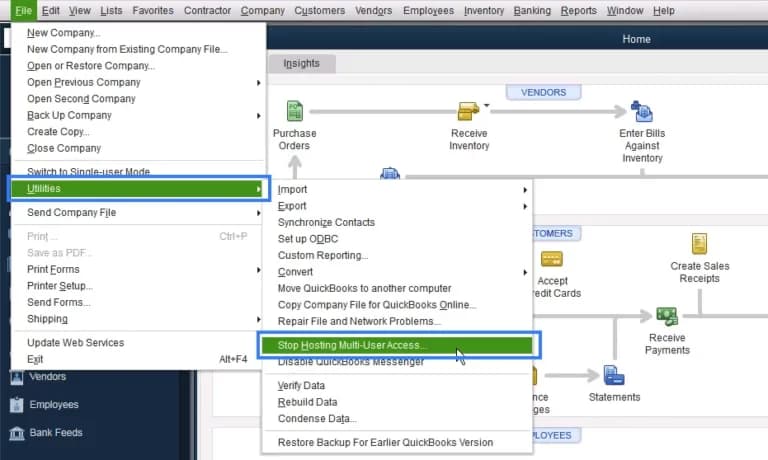
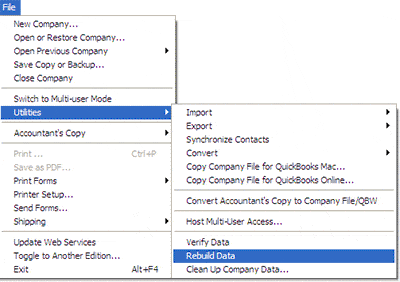
| Hosting Misconfiguration | Reset hosting settings (File > Utilities) | Ensures only one system hosts the file | Verify hosting set correctly | 20–30 min | |
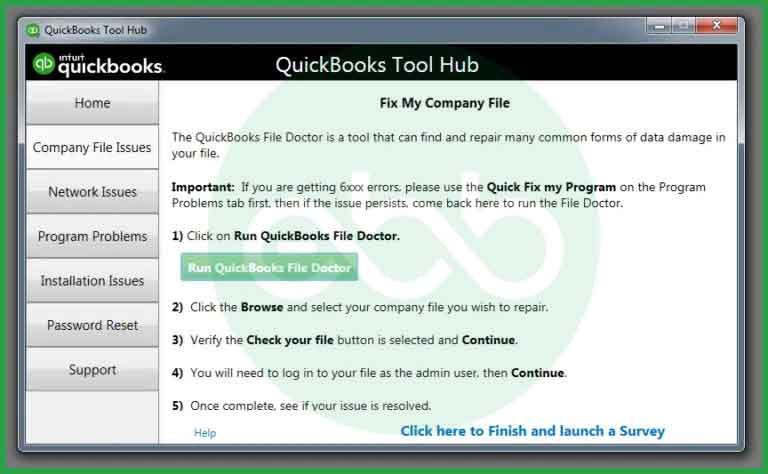
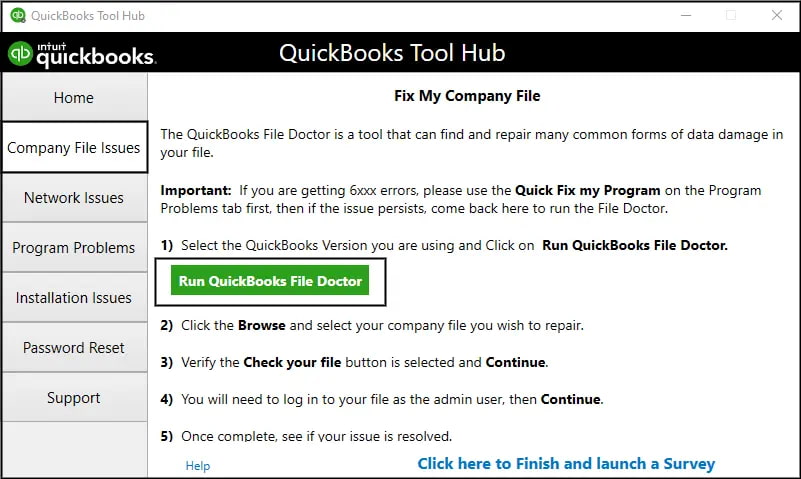
| Advanced | File Corruption | Run QuickBooks File Doctor (via Tool Hub) | Repairs corruption and network issues | Tool completes without errors | 20–30 min |
| Structural Damage in Company File | Verify & Rebuild Data (File > Utilities) | Repairs structural damage in company file | Verify Data shows no issues | 30–60 min | |
| Server/OS Permission Conflict | Check Linux/Windows server permissions | Resolves multi‑credential conflicts | File opens without error | 30–60 min | |
| Windows System Conflict | Run SFC/CHKDSK, check Event Viewer logs | Ensures Windows isn’t causing the issue | No system errors reported | 30–60 min |
These are low‑risk steps that don’t involve system modifications.
Step 1: Close QuickBooks on Other Workstations
Step 2: End Remote Access Sessions
These steps involve QuickBooks data files or system components. Always back up your company file before proceeding.
Step 3: Rename Support Files (.ND and .TLG)
Step 4: Change Folder Permissions
Step 5: Reset Hosting Settings
These are system‑level checks. Attempt only if you’re comfortable with Windows administration, or seek professional help.
Step 6: Run QuickBooks File Doctor (via Tool Hub)
Step 7: Verify & Rebuild Data
Step 8: Check Linux/Windows Server Permissions
Step 9: Advanced Windows Checks (if issue persists)
Quickbook Error 6073 can have following effect on the business:
Following are the best practices that can be included in day to day usage in order to minimise the risk of error:
Access conflicts, hosting misconfigurations, or damaged support files are the main reason due to which the user faces Quickbook Error 6073. By following a structured troubleshooting framework starting with beginner fixes like closing sessions and ending remote access, progressing through intermediate steps such as renaming support files and adjusting folder permissions, and finally applying advanced solutions like File Doctor, Verify & Rebuild, and server checks users can systematically resolve the error while minimizing risk.
Yes. Although this error is most common in multi-user mode, it can still appear in single-user mode if the company file is opened remotely or if residual background sessions remain active. Closing all QuickBooks processes and reopening the file locally often resolves this issue.
Cloud-hosted setups can trigger this error when the file synchronization between the host and the virtual machine fails. Using a stable network connection and verified cloud hosting services that meet Intuit’s configuration standards helps prevent this problem.
Minor data corruption within the .QBW or .ND file can interfere with QuickBooks’ ability to authenticate user access. Running a data verification scan in QuickBooks or using the “Rebuild Data” utility can help correct such inconsistencies.
Yes, accessing the company file via certain remote access tools can trigger Error 6073.
➜The Conflict: When a user accesses the QuickBooks file via a remote connection, the hosting server may incorrectly interpret the session as still being active in Single-➜User Mode even after the user closes the QuickBooks window, especially if they do not properly log out of the remote session itself.
➜Correct Logout: To prevent this, users should not only close the company file within QuickBooks (File > Close Company) but also completely log off or disconnect the Remote Desktop session (using the dedicated disconnect or sign-out option) rather than just closing the remote window. This ensures the system registers that the user has released the file lock.
Yes. Some antivirus programs can lock .QBW, .ND, or .TLG files during real-time scanning. Configuring exclusions for the QuickBooks folder and enabling proper firewall ports can prevent file-access interruptions that lead to secondary errors like 6073-99001.
➜Network Data (.ND) File: This is a configuration file that QuickBooks uses to identify and establish a connection to the company file (.QBW) over a local network. It stores information about the server (host) computer, the Database Server Manager version, and multi-user setup.
➜Transaction Log (.TLG) File: This file tracks all changes to the company file since the last save/sync. It helps maintain data integrity and is essential for recovery.
➜Relevance to Error: If either the .ND or .TLG file becomes damaged or corrupted, QuickBooks may be unable to properly connect to the company file in a multi-user environment, triggering the -6073, -99001 error. A common manual troubleshooting step involves renaming (e.g., to .ND.OLD) these files so QuickBooks is forced to recreate fresh, non-corrupted versions.


