



What is QuickBooks Error 6147, 0?
QuickBooks Error 6147, 0 occurs when the software is unable to open a company file, often displaying a message like “Could not open company file.” This error typically points to an issue with the company file itself, the system configuration, or the way QuickBooks is accessing the file. For a complete reference of all such errors, browse our complete QuickBooks error codes list.
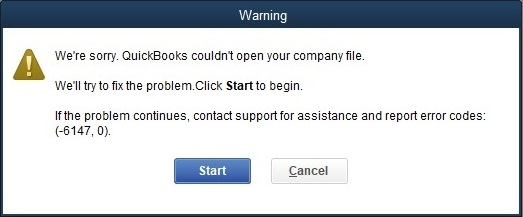
The error may continue even after reinstalling QuickBooks, restoring the company file, or disabling firewall and antivirus programs. If the error occurs only on a specific machine and persists across multiple Windows user accounts, it usually points to a local system-related issue such as incorrect folder permissions or misconfigured settings rather than actual damage to the company file itself.
For a deeper look at all file access failures in this category, our QuickBooks company file errors guide covers the full range of 6000-series errors and their fixes.
Possible Reasons For QuickBooks Error Code 6147, 0
QuickBooks Error 6147, 0 is generally triggered when the software is unable to access or restore a company file properly. Below are the most common causes behind this issue:
- Corrupted or damaged company file (.QBW).
- Damaged backup file (.QBB) during restoration.
- Insufficient folder permissions blocking file access.
- Incomplete or incorrect company file data.
- Trying to access the company file through an invalid or broken mapped drive path.
- Restoring a backup from an external drive, network location, or removable device.
Common Indicators of QuickBooks Error Code 6147, 0
You may experience the following signs when QuickBooks encounters issues accessing or restoring the company file:
- QuickBooks fails to open the company file.
- You are unable to restore a backup (.QBB) file successfully.
- The program freezes or becomes unresponsive while accessing the file.
- The active QuickBooks window crashes unexpectedly.
- QuickBooks shuts down automatically during file operations.
- An error message appears stating that the company file cannot be opened.
Complete Troubleshooting Guide for QuickBooks Error 6147, 0
When QuickBooks Error 6147, 0 prevents you from opening or restoring your company file, follow the troubleshooting methods below in sequence. These solutions help resolve file corruption, permission conflicts, and network-related issues that commonly trigger this error.
Method 1: Run QuickBooks File Doctor
QuickBooks File Doctor automatically diagnoses and repairs company file corruption and network-related issues that may prevent QuickBooks from opening or restoring the file. It is one of the most effective tools for resolving Error 6147, 0 caused by file damage or connectivity problems.
Step 1: Download & Install the QuickBooks Tool Hub
The QuickBooks Tool Hub helps to fix common errors. You’ll need to close QuickBooks to use the tool hub. For the best experience, we recommend you use Tool Hub on Windows 10, 64-bit.
- Close QuickBooks.
- Download and install the most recent QuickBooks Tool Hub version (1.6. 0.8).
- Save the file somewhere you can easily find it such as your Downloads folder or your Windows desktop.
Note: To find out which tool hub version you have, select the Home tab and the version will be on the bottom.
- Open the downloaded file QuickBooksToolHub.exe to start the installation.
- Follow the on-screen steps to install and agree to the terms and conditions.
- When the installation finishes, click twice on your Windows desktop icon to open the tool hub.

Note: If you are unable to find the icon, do a search in Windows for QuickBooks Tool Hub and select the program.
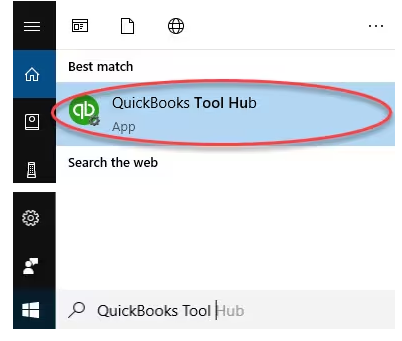
Step 2: Run Quick Fix My Program
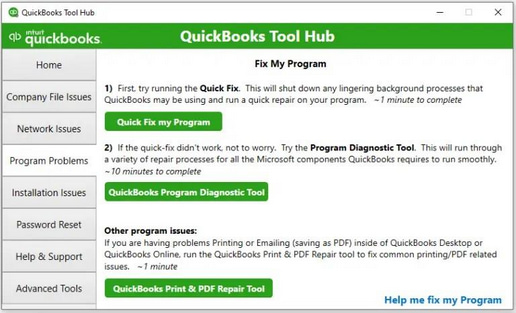
The Quick Fix will shut down any open background processes QuickBooks uses. It’ll run a quick repair on your program.
- From the QuickBooks Tool Hub, choose Program Problems.
- Select Quick Fix My Program.
- Start QuickBooks Desktop and open your data file.
Step 3: Run QuickBooks File Doctor
- Select Company File Issues from the tool hub.
- Choose Run QuickBooks File Doctor Tool. It can take up to one minute for the file doctor to open.
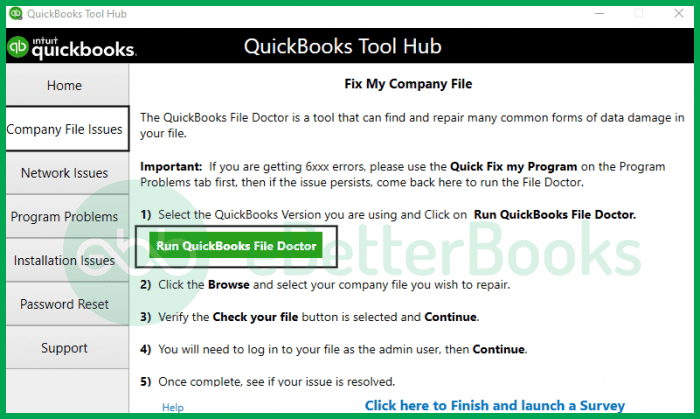
Note: Look for QuickBooks Desktop File Doc and try to open it manually if the QuickBooks File Doctor doesn’t open.
- In QuickBooks File Doctor, select your company file from the dropdown menu. Click Browse in case you don’t see your file and search to find your file.
- Click Check your file (middle option only) and select Continue.
- Enter your QuickBooks admin password and click Next.
Depending on file size, the scan can take 10 to 15 minutes. It may show as unsuccessful even if the problem is fixed. Once finished, reopen QuickBooks and your company file.
Note: When QuickBooks File Doctor doesn’t resolve the issue, proceed by repairing data damage on your QuickBooks Desktop company file.
Method 2: Move the Company File to a Local Drive
Opening or restoring a company file from a network, mapped, or external drive can cause path conflicts or permission errors. Moving the file to a local drive eliminates access restrictions and stabilizes the file path, reducing the likelihood of Error 6147, 0.
- Choose its current location.
- Hit right-click on the file and click Copy.
- Navigate to the new place where you want to save it, right-click to an open area, and select Paste.
- Open your QuickBooks software.
- Select Open or restore an existing company, and choose Open a company file.
- Click Next to proceed. A new window will appear.
- Under the window, go to the new location of your copied company file.
- Select the file, click Open, and the company file will appear on the login screen.
Method 3: Rename .ND and .TLG files
The .ND (Network Descriptor) and .TLG (Transaction Log) files manage network access and track changes. If these files become corrupted, QuickBooks may fail to open the company file. Renaming them forces QuickBooks to recreate fresh configuration files, resolving access conflicts.
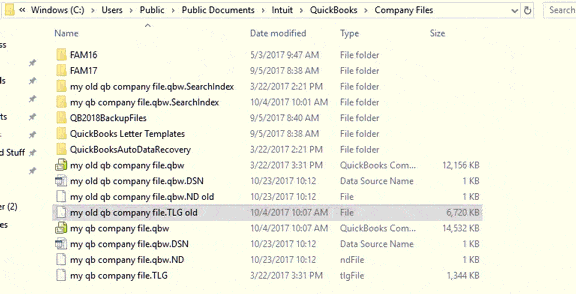
- Navigate to the folder where your QuickBooks company file is stored.
Default Location: C:\Users\Public\Public Documents\Intuit\QuickBooks\Company Files
- Locate the files with the same file name as your company file but with extensions .ND and .TLG.
Example: company_file.qbw.nd, company_file.qbw.tlg
- Hit right-click .nd/.tlg file and choose Rename. Add the word “.old” after the file extension and click enter.
Example: company_file.qbw.nd.OLD, company_file.qbw.tlg.OLD
Method 4: Use Auto Data Recovery
If the main company file is damaged, QuickBooks Auto Data Recovery Tool restores a recent working copy using backup transaction logs. This method helps recover data and bypass corruption that directly causes Error 6147, 0.
Option 1: Recover recent transactions using the original .TLG file with .QBW.adr file
Use the original Transaction Log file along with the ADR version of the company file to recover all recent transactions.
- Create a new folder on your Desktop and name it “QBTest.”
- Open the folder where the company file is stored.
Tip: You can check the location of the company file on the Product Information screen (press F2 or Ctrl+1 on your keyboard) and No Company Open Window.
- Search for the .tlg file in your company file’s folder. It has the same name as your company file.
If you’re unable to identify the .tlg file, perform these to show file extensions.
- Press Windows+E on your keyboard to open File Explorer.
- Choose Organize and select Folder and search options.
- Select Hide extensions for known file types.
- Click Apply and OK.
- Copy the corresponding .tlg file of your company file, and paste it to the QBTest folder on your Desktop.

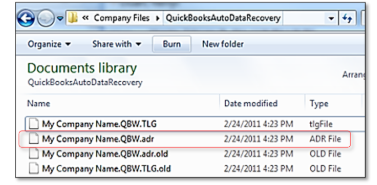
- Open the QuickBooksAutoDataRecovery folder. It is in the same location as your company file.
- Copy the .QBW.adr file and paste it to the QBTest folder. You must now have a .QBW.adr and .tlg file on your QBTest folder.
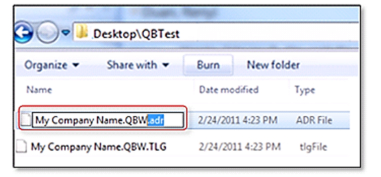
- In your QBTest folder, right-click on the .QBW.adr file and click Rename.
- Delete .adr at the end of the file.
- Open QuickBooks.
- Go to the company file saved on your QBTest folder. Use your account register to verify all transactions are there.
- Select File > Utilities > Verify Data to check the data integrity of the recovered file.
- Move the damaged company file to a different location and replace it with the healthy copy from the QBTest folder if this copy of the company file is working properly.
Option 2: Recover recent transactions using .QBW.adr and .TLG.adr files
This method uses the ADR versions of both the .QBW and .TLG files to recover everything except the last 12 hours of transactions.
- Create a new folder on your Desktop and name it “QBTest.”
- Open the folder where the company file is saved and search for the QuickBooksAutoDataRecovery folder.
Tip: You can check the location of the company file on the Product Information screen (press F2 or Ctrl+1 on your keyboard) and No Company Open Window.
- Look for the .TLG.adr and .QBW.adr files. These files have the same name as your company file.
If you’re not able to identify the .TLG.adr and .QBW.adr files, perform these steps to show file extensions.
- Hold and Press Windows+E on your keyboard to open File Explorer.
- Choose Organize and select Folder and search options.
- Select Hide extensions for known file types.
- Click Apply, and OK.
- Copy the .TLG.adr and .QBW.adr files and paste them to the QBTest folder.
- On your QBTest folder, remove the .adr extension from the end of the file name. You should now have both a .QBW and a .TLG file in the folder.
- Open QuickBooks.
- Navigate to the company file saved on your QBTest folder. Use your account register to verify all transactions are there.
- Select File > Utilities > Verify Data to check the data integrity of the recovered file.
- Move the damaged company file to a different location and replace it with the healthy copy from the QBTest folder if this copy of the company file is working properly.
Method 5: Check the File Path Length
QuickBooks may fail to open files stored in long or complex directory paths. Shortening the file path reduces system limitations and eliminates path-related conflicts that trigger Error 6147, 0.
- Make sure the full file path does not exceed 210 characters.
- Avoid special characters in the file or folder name.
- Move the company file to a simple, local directory such as:
C:\QBData - Open QuickBooks and browse to the new file location.
- Try to open or restore the company file again.
Method 6: End all QuickBooks processes
Background QuickBooks processes can lock the company file or interrupt communication between the workstation and server. Ending these processes removes file locks and clears temporary conflicts, allowing QuickBooks to access the file properly.
- Log in as the Administrator on the server computer.
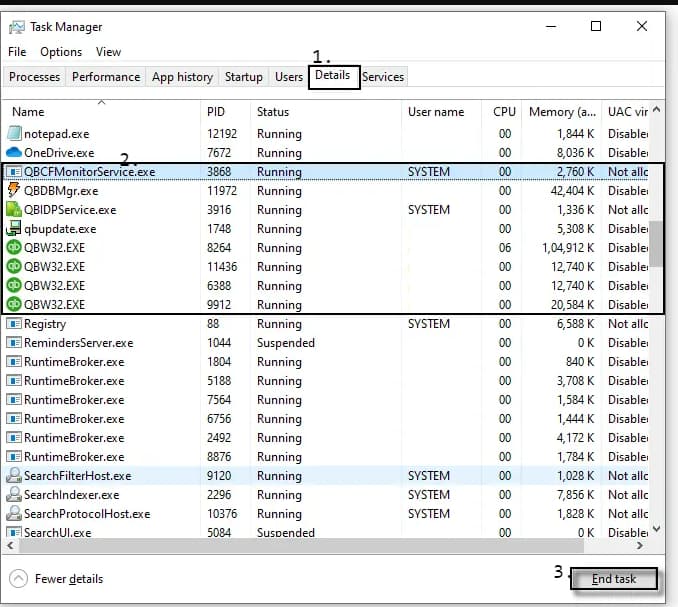
- Hold and press Ctrl+Shift+Esc to open the task manager.
- Show processes for all users. Choose Users.
- Select each QuickBooks process (QBW32.EXE, qbupdate.exe, and QBDBMgr.exe), and choose End Task.
- Open the company file in multi-user mode. If multi-user access issues persist across workstations, refer to our QuickBooks multi-user mode errors guide for detailed hosting configuration and H-series error fixes.
Method 7: Verify and Rebuild Data Utility
The Verify tool scans the company file for data integrity issues, while Rebuild repairs detect corruption. Running both utilities helps fix internal structural damage that may be preventing QuickBooks from opening the file.
Verify your company data
- Navigate to Windows > click Close All.
- Open the File menu > select Utilities.
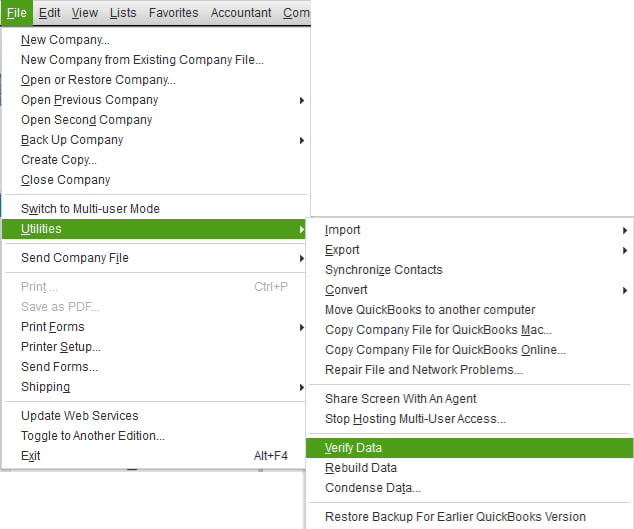
- Choose Verify Data when you see:
- QuickBooks detected no problems with your data—your data is clean, and there’s nothing else to do with it.
- An error message—look for it on the QuickBooks Desktop support site for how to fix it.
- Your data has lost integrity—Data damage was found in the file. Rebuild your data to fix it.
Note: Contact the QuickBooks Support Team before you rebuild your data in case you use Assisted Payroll.
Rebuild your company file data
- Navigate to File > Utilities > select Rebuild Data.
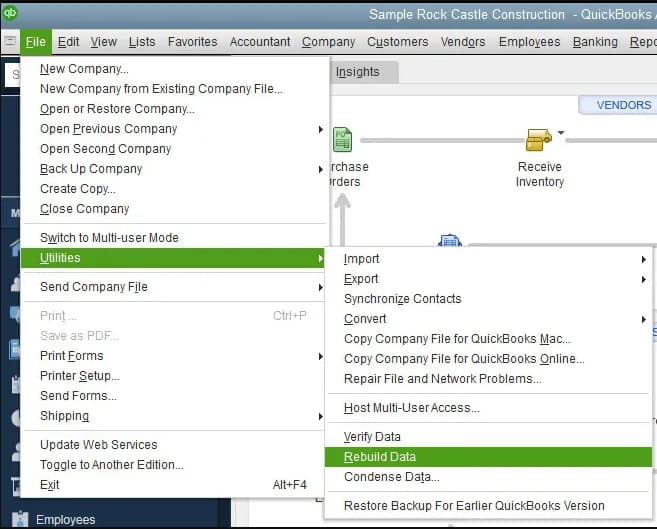
- QuickBooks will ask to create a backup before it rebuilds your company file. Click OK. A backup is required before you rebuild.
- Choose where to save your backup and click OK. Don’t replace another backup file. Enter a new name in the File name and click Save.
- Click the OK tab when the message Rebuild has completed appears.
- Move to File > select Utilities > choose Verify Data again to check for additional damage.
- When the verify tool finds more damage, fix it manually. Look for the error(s) in the qbwin.log on the QuickBooks Desktop support site for how to fix them.
- When your error can’t be found, restore a recent backup. Go to File, then choose Open or Restore Company.
Note: Avoid replacing your existing company file and re-entering the info into your company file after the backup was created.
Related QuickBooks Errors
If you are experiencing company file access issues beyond Error 6147, 0, these related errors may also be affecting your QuickBooks Desktop:
| Error | Description |
|---|---|
| QuickBooks Desktop Payroll Error Code 557 | Payroll update or processing failure due to connectivity or file permission issues |
| QuickBooks Desktop Error Code 6209 | Company file cannot be opened due to damaged installation or incorrect configuration |
| QuickBooks Desktop Error Code 6000 83 | File access blocked due to hosting configuration problems or insufficient permissions |
Conclusion!
QuickBooks Error 6147, 0 can prevent you from opening or restoring your company file, disrupting daily accounting activities and workflow. The issue is commonly linked to file corruption, damaged configuration files, improper folder permissions, or path-related conflicts.
By following the structured troubleshooting methods such as running QuickBooks File Doctor, verifying and rebuilding data, renaming .ND and .TLG files, and checking the file location, you can systematically identify and resolve the root cause of the error. If the company file is severely damaged, the Auto Data Recovery (ADR) feature can assist in restoring a functional version of your data.
Maintaining regular backups, storing company files in secure yet easily accessible locations, and keeping QuickBooks updated to the latest release help prevent Error 6147, 0 and ensure smooth, uninterrupted access to your financial records.
Still unable to resolve Error 6147, 0? Visit our QuickBooks support and troubleshooting page for expert assistance and advanced resolution options.
FAQs
What exactly are the .ND and .TLG files, and why does renaming them help?
The .ND (Network Data) file and the .TLG (Transaction Log) file are configuration files created by QuickBooks to help manage multi-user access and track changes.
1. The .ND file helps QuickBooks Desktop connect to the company file over a network. If it’s damaged or contains incorrect pathing data, the connection fails, triggering Error 6147, 0.
2. The .TLG file records all transactions since the last backup. If it gets too large or corrupted, it can block file access.
By renaming them (e.g., to
.nd.old), QuickBooks is forced to automatically generate new, clean, uncorrupted versions of these files the next time you open the company file, resolving most connection and corruption issues.Can I use the QuickBooks File Doctor tool if my file is located on a network drive?
Yes, the QuickBooks File Doctor tool is designed to work with files over a network, but for best results, follow these guidelines:
1. Run the tool from the server computer (the one hosting the QuickBooks file).
2. If the file is on a different machine, run the tool on the machine where you are experiencing the error, but ensure you select the “Network Connectivity Only” option if you suspect a multi-user setup issue.
3. Ensure the file path you select is the correct network path (not a local copy) to allow the tool to properly diagnose the connection and data.
I got the error because the file name was too long (over 210 characters). Does this limit include the file extension (.qbw)?
Yes, the 210-character limit includes the file extension. The operating system and QuickBooks count the total characters from the drive letter through the file name, up to and including the
.qbwextension.For example,
C:\Users\Documents\Company_File_Name.qbwcounts every letter, space, symbol, and the path structure. It’s safest practice to keep the filename (before the extension) concise, ideally under 100 characters, to avoid running into this limit when combined with long folder paths.What is the difference between “Rebuilding Data” and “Verifying Data”?
These are both essential data utility functions found under the File > Utilities menu, but they serve different purposes:
Utility – Verify Data
Purpose – Checks the company file for internal data damage or corruption.
Action on Error – Reports the error and suggests a fix (usually Rebuild Data).Utility – Rebuild Data
Purpose – Fixes the data damage identified by the verification process.
Action on Error – Creates a new, repaired data file structure based on the existing transactions.You should always Verify Data first. If verification reports any issues, you then proceed with Rebuild Data (after creating a backup, as noted in the article).
My Windows Firewall is blocking QuickBooks. Which files/ports do I need to make an exception for?
The QuickBooks firewall exception must be set for both specific executable files and ports to ensure full functionality:
Exception Type – Executable Files
File/Port –QBDBMgrN.exe,QBW32.exe,qbupdate.exe,QBCFMonitorService.exe
Purpose – Allows the core QuickBooks application and Database Manager access.Exception Type – Ports
File/Port – Ports8019,56725,56726, etc. (Ports vary by year)
Purpose – Allows network communication between the server and workstation computers.You can often use the QuickBooks Database Server Manager (found in the Tool Hub) to automatically configure the Windows Firewall rules, which is easier and more reliable than doing it manually.
Disclaimer: The information outlined above for “How to Fix QuickBooks Error 6147, 0 When Opening Company Files?” is applicable to all supported versions, including QuickBooks Desktop Pro, Premier, Accountant, and Enterprise. It is designed to work with operating systems such as Windows 7, 10, and 11, as well as macOS.