Excerpt:
QuickBooks Error 6094 typically occurs when antivirus or firewall software disrupts communication with the company file, often blocking QuickBooks from running. This error can be fixed by updating QuickBooks and antivirus software, adding exceptions, and ensuring proper server settings. Follow a step-by-step process to restore functionality, including checking internet connections, repairing QuickBooks installation, and managing firewall settings, allowing seamless multi-user access and avoiding data loss.
 Add As A Preferred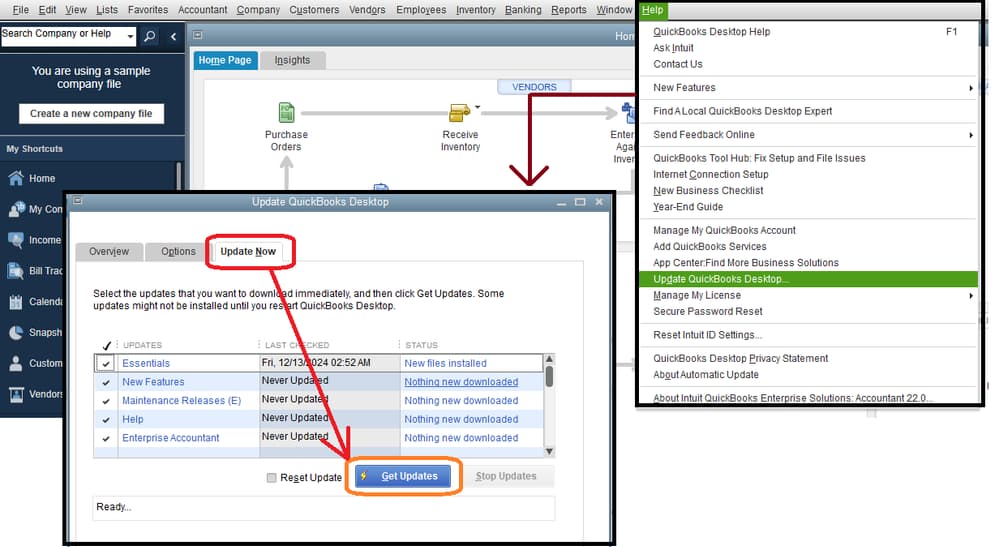
QuickBooks Error 6094 typically occurs when antivirus or firewall software disrupts communication with the company file, often blocking QuickBooks from running. This error can be fixed by updating QuickBooks and antivirus software, adding exceptions, and ensuring proper server settings. Follow a step-by-step process to restore functionality, including checking internet connections, repairing QuickBooks installation, and managing firewall settings, allowing seamless multi-user access and avoiding data loss. For users dealing with frequent company file access problems on a network, our comprehensive QuickBooks Desktop error troubleshooting guide provides detailed insights into resolving such server-related issues.
The error can also appear when QuickBooks Desktop is unable to read or access the company file due to interference from security software. In many cases, antivirus programs such as AVG, SpyHunter, or PC Tools block essential QuickBooks processes such as QBDBMgrN.exe or QBW32.exe from running properly. If you are facing repeated company file access failures, our QuickBooks company file errors guide covers the full range of 6000-series errors and their step-by-step fixes.
When QuickBooks Error -6094, 0 occurs (typically the first time QuickBooks tries to open a company file after startup), users typically see one of these messages:
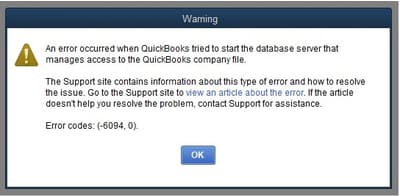
Error-6094, 0 belongs to the same company-file/database-server error family as 6150 and 6147, but is specifically about the database server failing to launch rather than the file itself being damaged, most commonly appearing right after installing or updating antivirus software. No official Intuit KB page was located for this exact code; the message text above is corroborated across many independent third-party sources, including a CPA firm’s own client-help page.
Widely corroborated by third parties (not Intuit-published).
This error usually occurs when QuickBooks fails to start the Database Server Manager, preventing access to the company file. The most common causes include:
QuickBooks Error 6094, 0 can prevent multiple users from accessing the company file simultaneously. This error often occurs due to blocked files, firewall restrictions, outdated updates, or issues with database services — all of which are common triggers in shared network environments covered in our QuickBooks multi-user mode errors guide. The following step-by-step solutions help identify and resolve the underlying causes, restoring smooth multi-user access.
Antivirus programs may sometimes block critical QuickBooks files, such as qbdbmgr.exe or qbdmgrN.exe, which can disrupt multi-user mode. Restoring any quarantined files and adding the QuickBooks installation folders to your antivirus exceptions ensures these essential files are not blocked. This allows QuickBooks to run its network services smoothly, enabling proper multi-user access to your company file.
To restore “infections” that have been quarantined:
To set up exception to prevent QuickBooks directory from being scanned:
To prevent QuickBooks directory for being scanned:
NOTE: If QuickBooks is installed in a different folder, add that folder path.
NOTE: It may be necessary to restore all QuickBooks files that AVG Anti-Virus quarantined.
To check if any of the QuickBooks files are quarantined:
Example: qb.exe, qbw32.exe, qbdbmgr.exe, qbdbmgrn.exe
To check for renamed files in the installation Directory
Example: QBDBMGRN_AVG_RESTORED
Set Up Prompts for Unknown Programs:
Unblock a Program if Needed:
See Which Programs Are Blocked:
Modify User-Added Rules:
Check for Blocked PUPs:
Programs that are not found in the User Added section but are still prevented from running may be categorized as PUPs (Potentially Unwanted Programs). You can review and manage these items directly in the PUP section of System Guard.
QuickBooks updates frequently include fixes for bugs and issues that can impact multi-user mode, including Error 6094. Keeping QuickBooks Desktop updated resolves software conflicts, enhances file compatibility, and addresses vulnerabilities that may prevent company files from opening properly in multi-user mode.
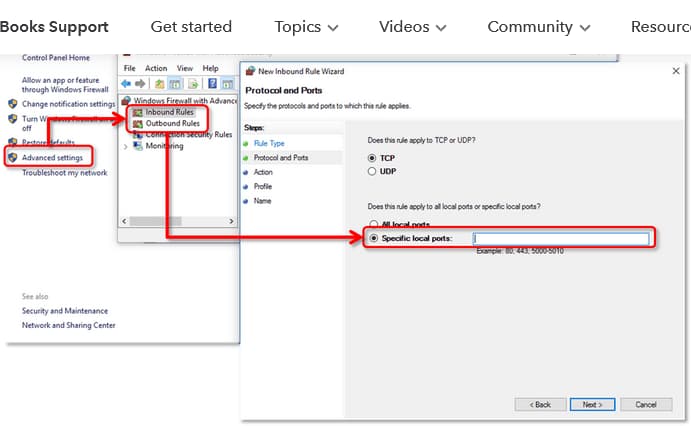
Windows Firewall may block QuickBooks from accessing the network, which can prevent multi-user connections. Without the correct ports and program exceptions, QuickBooks cannot communicate with other computers. Setting up proper firewall exceptions allows QuickBooks and its necessary ports to function without restrictions, resolving errors caused by blocked network access.
Follow the steps below for each QuickBooks Desktop version if you’re using multiple versions on the same computer.
Step 1: Navigate to the Windows Start menu.
Step 2: Type “Windows Firewall” in the search bar and then hover over Windows Firewall Settings.
Step 3: Choose Firewall Advanced options from the left sidebar.Step 4: After this, you get the inbound and outbound rules under Advanced Settings.
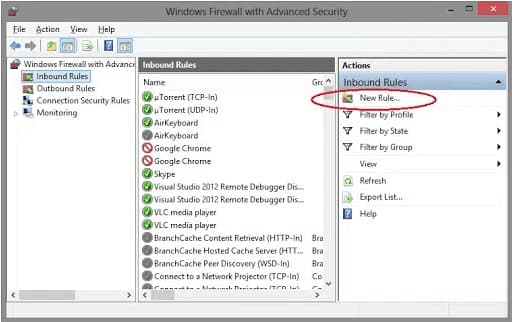
Step 5: Hit right-click on Inbound Rules and then select the New Rule option.
Step 6: Under the New Rule window, click on Port and later press Next.
Step 7: Next, be sure that TCP is selected.
Step 8: Under the Specific local ports field, type the Specific ports required for the QB year version you are currently using:
QuickBooks Desktop 2021, 2022, and later versions use dynamic ports. Here’s how to get a dynamic port number:
Remember: You can change the assigned port number by selecting Renew. After renewing, go to the Scan Folders tab and choose Scan Now to reset firewall permissions. Port renewal is only available for QuickBooks Desktop 2019 and later; older versions do not support this option.
Step 9: Once you enter the port number, press Next.
Step 10: Choose Allow the Connection and hit the Next tab.
Step 11: If you’re prompted, make sure all profiles are marked. Click Next again.
Step 12: Create a rule and name it “QBPorts(year).”
Step 13: Select Finish.
Step 14: Re-perform the same steps to create outbound rules.
QuickBooks uses executable files (.exe) to perform various tasks. To create exceptions for each executable on the table, adhere to the following steps:
Step 1: Navigate to the Windows Start menu.
Step 2: Enter Windows Firewall into the search box, and open Windows Firewall.
Step 3: Select Advanced Settings.
Step 4: Hit right-click on Inbound Rules and hit the New Rule tab.
Step 5: Click Program and press Next.
Step 6: Select This Program Path and click Browse.
Step 7: Locate and select any one executable file from the table listed below. Then, hit the Next tab.
Step 8: Select the option Allow the Connection and click Next.
Step 9: If prompted, make sure all profiles are marked. Then, click the Next button.
Step 10: Create a rule and name it “QBFirewallException(name.exe).”
Step 11: Re-implement the same steps to create Outbound Rules.
Here’s a list of some executable files, along with their locations:
| Executable files | Location |
| IntuitSyncManager.exe | C:\Program Files\Common Files\Intuit\Sync |
| QBCFMonitorService.exe | C:\Program Files\Common Files\Intuit\QuickBooks |
| AutoBackupExe.exe | C:\Program Files\Intuit\QUICKBOOKS YEAR |
| QBW32.exe | C:\Program Files\Intuit\QUICKBOOKS YEAR |
| QBLaunch.exe | C:\Program Files\Common Files\Intuit\QuickBooks |
| OnlineBackup.exe | C:\Program Files\QuickBooks Online Backup |
| FileManagement.exe | C:\Program Files\Intuit\QUICKBOOKS YEAR |
Note: If you see “Program Files (x86),” it simply means your computer is running a 64-bit operating system.
Once you’re ready, open QuickBooks Desktop and try accessing your company file in multi-user mode.
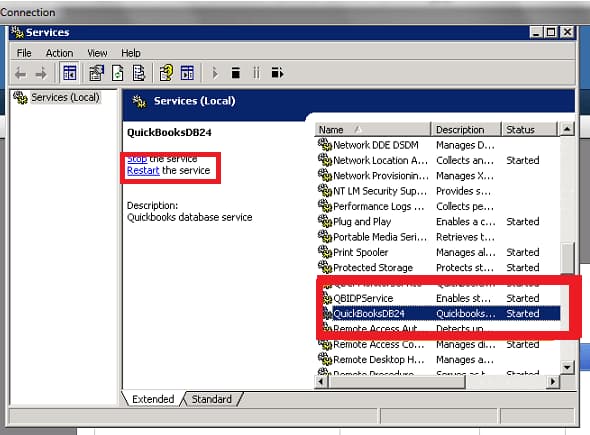
The QuickBooks Database Server Manager handles the services needed for multi-user mode. If these services are stopped or misconfigured, QuickBooks may be unable to access the company file. Restarting the QuickBooksDBXX service ensures that database services run correctly, are set to start automatically, and can recover if they fail, resolving multi-user access issues.
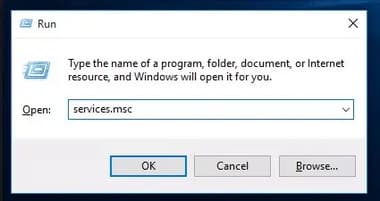
Corrupted program files or incomplete installations can cause Error 6094. The QuickBooks Tool Hub offers diagnostic tools to fix both program and installation issues. Using Quick Fix My Program and the Install Diagnostic Tool repairs damaged or missing files, resolves installation errors, and ensures QuickBooks operates smoothly in multi-user mode.
The QuickBooks Tool Hub helps to fix common errors. You’ll need to close QuickBooks to use the tool hub. For the best experience, we recommend you use Tool Hub on Windows 10, 64-bit.
Note: To find out which tool hub version you have, select the Home tab and the version will be on the bottom.

Note: If you are unable to find the icon, do a search in Windows for QuickBooks Tool Hub and select the program.
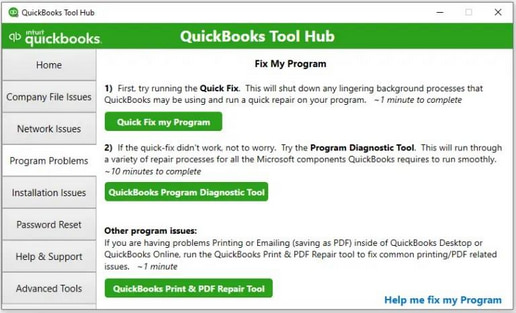
The Quick Fix will shut down any open background processes QuickBooks uses. It’ll run a quick repair on your program.
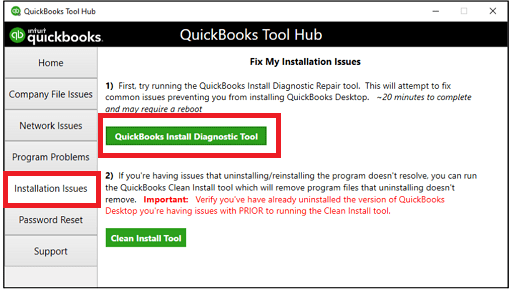
If something went wrong during the QuickBooks installation process, it may cause problems when you try to use it. Run the QuickBooks Install Diagnostic Tool to fix common installation issues.
Related QuickBooks Errors
If you are experiencing company file access issues beyond Error 6094, 0, these related errors may also be affecting your QuickBooks Desktop:
| Error | Description |
|---|---|
| QuickBooks Desktop POS Error Code 3180 | Point of Sale sync failures caused by invalid transaction or item mapping |
| QuickBooks Desktop Error Code 6176 | Company file cannot be accessed due to server connection or network configuration issues |
| QuickBooks Desktop Error Code 6000 83 | File access blocked due to hosting configuration problems or insufficient permissions |
QuickBooks Error 6094, 0 in multi-user mode is typically caused by issues such as antivirus interference, outdated software, firewall restrictions, database service interruptions, or corrupted program files. By updating antivirus settings, downloading QuickBooks updates, configuring firewall exceptions, restarting database services, and repairing QuickBooks Desktop, you can restore smooth multi-user access and prevent recurring errors. These steps ensure that your company files remain accessible, secure, and fully functional, allowing your team to work efficiently without disruption. If the error continues after trying these solutions, seek complete QuickBooks Desktop troubleshooting support for further assistance.


