Excerpt:
QuickBooks Error 6176 occurs due to issues like incorrect folder permissions, firewall settings, or corrupted company files. This article provides step-by-step solutions to resolve the error, such as checking system security, using QuickBooks File Doctor, updating the software, and repairing the installation. These methods aim to restore smooth QuickBooks functionality, preventing future disruptions. If the problem persists, professional support is available for further assistance.
 Add As A Preferred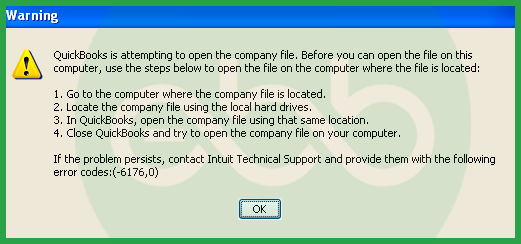
Fix QuickBooks Company File Error 6176 by using QuickBooks File Doctor, configuring firewall exceptions, or renaming the .ND and .TLG files to quickly restore access to your company file.
QuickBooks Error 6176 occurs when the software cannot connect to the system hosting your company file. This issue commonly disrupts business operations by blocking file access, especially in multi-user environments. It typically appears when trying to open a company file due to server connection problems or incorrect network settings.
If you’re facing repeated company file access issues, our QuickBooks company file errors guide offers detailed troubleshooting steps for the entire 6000-series errors and their solutions. For a complete reference of all QuickBooks errors and fixes, browse our complete QuickBooks error codes list.
Common Error 6176 messages: “QuickBooks is attempting to open the company file. Before you can open the file on this computer, use the steps below to open the file on the computer where the file is located. If the problem persists, contact Intuit Technical Support and provide them with the following error codes (-6176, 0).”
This article provides a diagnostic framework, risk assessment, and complete solution guide. Server connection errors and network configuration issues require immediate attention. Delayed repairs prevent access to critical financial records.
Error 6176 means QuickBooks could not resolve the path to the company file (.qbw). Intuit also attributes the error to folder permissions, firewall configuration, or Windows internet settings, and advises users to try several fixes in sequence.
Error 6176 belongs to the 6000 series handling company file access problems and network connection issues. The 6000 series represents file access failures rather than data corruption. QuickBooks uses this code when the software cannot locate the server system address or network path to the company file.
QuickBooks organizes errors into series: C= series (internal processing), H series (multi-user hosting configuration), 6000 series (file access and network connectivity). Related 6000 errors include 6150 (structural damage), 6000-83 (permission problems), 6144-82 (network configuration). These share common causes: incorrect firewall settings, damaged network files, or server communication problems.
Match your symptom to find the correct solution path. Start by identifying when the error appears. Check if the error occurs in single-user or multi-user mode to determine the appropriate fix.
| Possible Causes and QuickFix for Error 6176 | ||
| Error Event | Likely Cause | Recommended Fix (When to Perform) |
| Error 6176 when opening file in multi-user mode | Damaged ND and TLG files | Before attempting to reopen the company file, rename the ND and TLG files and then try opening QuickBooks again |
| Error 6176 with firewall message | Firewall blocking QuickBooks | When firewall error displays and before accessing file, configure Windows Firewall exceptions for QuickBooks |
| Error 6176 after Windows update | Outdated QuickBooks version | Right after Windows update and before reopening QuickBooks, install latest QuickBooks updates |
| Error 6176 on workstations only | Incorrect hosting settings | When error appears on workstations and before relaunching QuickBooks, verify hosting is disabled on all workstations |
Understanding QuickBooks network requirements prevents data loss during repairs. Follow these data safety advisories for QuickBooks Error 6176:
Solutions are organized by skill level, risk level, and success probability. This tiered approach protects your data while maximizing repair chances. Start with Level 1 solutions and move to higher tiers only if lower-tier solutions fail.
These solutions require no technical expertise. The risk of data loss is minimal. Anyone can perform these steps safely.
| Solution 1.1: Update QuickBooks to Latest Release | |||
| Skill Level | Risk Level | Success Probability | Approximate Time Required |
| Beginner | Low | Moderate to High | 15-20 minutes |
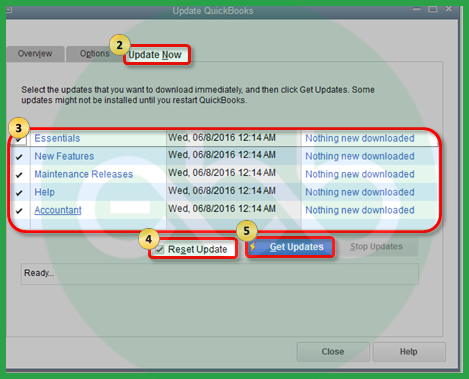
| Risk Explanation | Updates rarely cause problems. Always maintain backups before updating. | Solution Explanation | Updating QuickBooks installs network communication improvements. The latest version includes corrected server connection routines. Updates resolve known issues causing Error 6176. Version compatibility across network computers prevents communication problems. |
Steps to Implement Solution 1.1
| Solution 1.2: Run QuickBooks File Doctor | |||
| Skill Level | Risk Level | Success Probability | Approximate Time Required |
| Beginner | Low | High | 30-45 minutes |
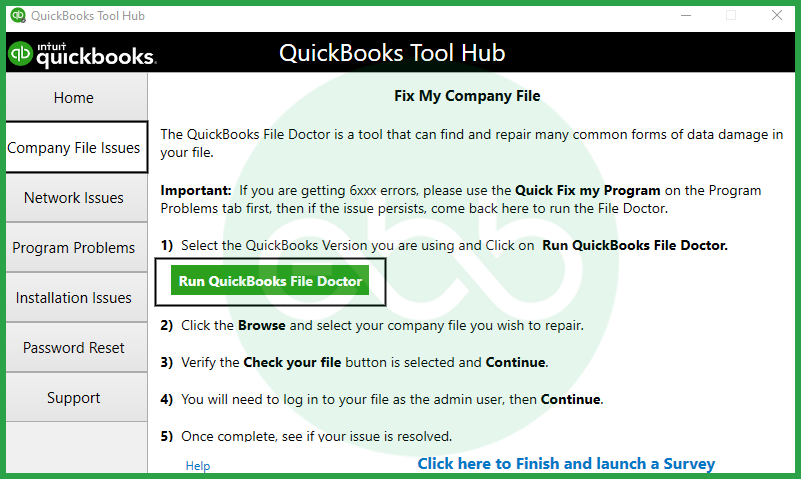
| Risk Explanation | File Doctor repairs files automatically. The tool rarely causes problems. Scan may take significant time for large files. | Solution Explanation | QuickBooks File Doctor tool detects and repairs company file corruption and network issues. The tool fixes common problems causing Error 6176. File Doctor also configures network settings. The tool is part of QuickBooks Tool Hub. |
Steps to Implement Solution 1.2
| Solution 1.3: Verify Hosting Settings on Workstations | |||
| Skill Level | Risk Level | Success Probability | Approximate Time Required |
| Beginner | Low | High | 10-15 minutes |
| Risk Explanation | Changing hosting settings affects multi-user access temporarily. Incorrect configuration prevents file access. Follow steps exactly to avoid problems. | Solution Explanation | Only server computers should host company files. Workstations must not host files. Hosting on multiple computers triggers Error 6176. Disabling hosting on workstations resolves conflicts. Proper hosting configuration enables stable server connections. |
Steps to Implement Solution 1.3
These solutions modify network configurations or system settings. Basic computer knowledge is helpful but not required. Risk increases because operations affect network communication. Always create backup before attempting Level 2 solutions.
| Solution 2.1: Rename ND and TLG Files | |||
| Skill Level | Risk Level | Success Probability | Approximate Time Required |
| Intermediate | Low to Moderate | High | 15-20 minutes |
| Risk Explanation | Renaming does not delete transaction data. QuickBooks creates new files automatically. Original files remain as backup with .OLD extension. Follow naming instructions exactly. | Solution Explanation | Corruption in ND and TLG files triggers Error 6176 by preventing server connection. Renaming forces QuickBooks to generate fresh configuration files. New files contain clean network data without corruption. |
Steps to Implement Solution 2.1
| Solution 2.2: Run Database Server Manager Scan | |||
| Skill Level | Risk Level | Success Probability | Approximate Time Required |
| Intermediate | Moderate | High | 20-30 minutes |
| Risk Explanation | Database Server Manager scan modifies network configuration. Scan creates new ND files for network publishing. The process requires administrator rights on the server. | Solution Explanation | QuickBooks Database Server Manager publishes company file locations to network. Scanning folders creates network data files enabling multi-user access. Manager configures network paths for workstation connections. This scan resolves Error 6176 caused by network configuration problems. |
Steps to Implement Solution 2.2
| Solution 2.3: Update Windows Operating System | |||
| Skill Level | Risk Level | Success Probability | Approximate Time Required |
| Intermediate | Low | Moderate | 30-60 minutes |
| Risk Explanation | Windows updates rarely cause problems. Updates improve system security and compatibility. The computer may restart during installation. | Solution Explanation | Outdated Windows versions cause compatibility problems with QuickBooks network features. Windows updates include network driver improvements. Updated operating system ensures proper communication between QuickBooks and server. This resolves Error 6176 caused by system incompatibility. |
Steps to Implement Solution 2.3
These solutions require technical knowledge and carry higher risk. System-level changes can affect network operations. Contact professional support if uncomfortable with these procedures. Data backup is mandatory before attempting Level 3 solutions.
| Solution 3.1: Configure Windows Firewall Exceptions | |||
| Skill Level | Risk Level | Success Probability | Approximate Time Required |
| Advanced | Moderate to High | High | 30-45 minutes |
| Risk Explanation | Firewall modifications affect network security settings. Incorrect configurations may expose systems to security risks. Professional assistance recommended for unfamiliar users. | Solution Explanation | Windows Firewall blocks QuickBooks network communication by default. QuickBooks requires specific ports open for server access. Port 8019 enables Database Server Manager communication. Additional ports vary by QuickBooks version. Configuring firewall exceptions allows QuickBooks network traffic. |
Steps to Implement Solution 3.1
| Solution 3.2: Clean Reinstall QuickBooks | |||
| Skill Level | Risk Level | Success Probability | Approximate Time Required |
| Advanced | High | High | 60-90 minutes |
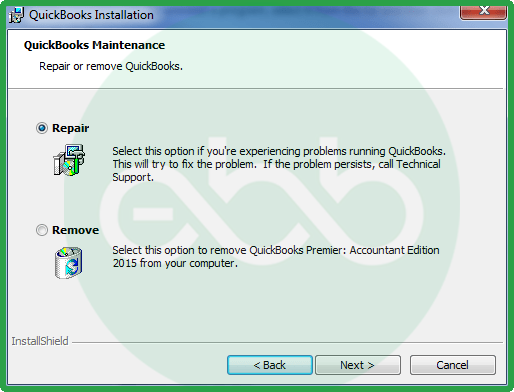
| Risk Explanation | Clean install removes all QuickBooks traces. The process requires complete uninstallation and reinstallation. Company files remain safe but backup is mandatory. Requires product license key. | Solution Explanation | Corrupted QuickBooks installation files cause persistent Error 6176. Clean install completely removes QuickBooks and all associated files. This eliminates deep corruption that repair cannot fix. Fresh installation provides a clean slate for network operations. |
Steps to Implement Solution 3.2
| Solution 3.3: Run System File Checker | |||
| Skill Level | Risk Level | Success Probability | Approximate Time Required |
| Advanced | Low | Moderate | 30-60 minutes |
| Risk Explanation | System File Checker is a safe Windows utility. Scan cannot damage files. Processes may take significant time on large drives. | Solution Explanation | Windows System File Checker scans for corrupted system files. The utility repairs damaged files automatically. Corrupted system files cause Error 6176 by preventing QuickBooks network operations. SFC restores system integrity enabling proper QuickBooks function. |
Steps to Implement Solution 3.3
Related QuickBooks Errors
If you are experiencing company file access issues beyond this error, these related errors may also be affecting your QuickBooks Desktop:
| Error | Description |
|---|---|
| QuickBooks Desktop Error Code 6143 | Company file access blocked due to damaged or locked file |
| QuickBooks Desktop Unable to Commit File Write Operation to Disk | Data cannot be saved due to disk write failure or file corruption |
| QuickBooks Desktop Error Code 6000 83 | Company file fails to open due to network or multi-user configuration issues |
Some situations require professional assistance. Attempting DIY repairs risks permanent data loss. Stop attempting solutions if:
Preventing Error 6176 requires consistent maintenance practices.
If you’ve already tried updating QuickBooks, renaming the ND and TLG files, running File Doctor, fixing the firewall, and checking hosting settings but QuickBooks Error 6176 is still not letting you open your company file, you’re not alone. This kind of network issue can stop your whole team from working when you need your data the most. You can find more clear steps and practical help on our QuickBooks Desktop support and troubleshooting page.
Hopefully, the information given above will be useful to you. But if you are still facing any kind of issues with your software and need professional assistance regarding accounting, bookkeeping & accounting software-related issues, then feel free to get technical support with us at +1-802-778-9005, or you can email us at support@ebetterbooks.com
No, this is a common configuration mistake that often leads to network errors.
Yes, there are risks involved while resolving the error on your own:
It is also important to always make data copies and seek help if you don’t know what to do.
It is strongly advised against keeping your live working file (.QBW) in a real-time sync folder. While these services are great for backups, they actively try to “lock” and sync the file every time you save a transaction. This conflicts with the QuickBooks Database Manager, which also needs continuous access to the file. This tug-of-war often results in:
CompanyFile_Conflicted_Copy.qbw). Best Practice: Store the live file on a local C: drive or a dedicated network server, and use the cloud only for scheduled zipped backups (.QBB).Many small businesses use NAS drives (like Synology or QNAP) because they are affordable and easy to set up. However, QuickBooks Desktop is built to run on Windows-based file systems. Most NAS devices run on Linux operating systems. The QuickBooks Database Server Manager cannot run directly on a Linux OS to manage the “handshake” between the file and the user. Without that manager running directly on the storage device, you rely on standard network file sharing, which is slower and significantly more prone to connection drops and data corruption.
If you are a single user running QuickBooks on the same computer where the file is saved, you do not need the separate Database Server Manager tool scanning your folders. The QuickBooks application handles the connection internally. However, if you ever plan to add a second user or move the file to a remote server, the Database Server Manager becomes mandatory. It is the engine that allows multiple people to read and write to the database simultaneously without overwriting each other’s work.


