Excerpt:
If you're encountering QuickBooks Error 3180 while saving a sales receipt, this article provides essential troubleshooting steps to resolve it. The error can stem from issues like incorrect vendor assignments, damaged payment items, or faulty tax settings. By following the provided solutions—such as verifying vendor associations, repairing damaged items, and ensuring proper tax mapping—you can fix this issue and restore your QuickBooks POS functionality, ensuring smooth operations for your business.
 Add As A Preferred
Fix QuickBooks Error 3180 by correcting sales tax account mapping, repairing damaged payment items, closing modal dialog boxes during Web Connector operations, and switching to single-user mode before processing transactions.
QuickBooks Error 3180 appears when the software cannot lock internal records during transaction processing-specifically when saving sales receipts or during financial exchanges between QuickBooks Desktop and QuickBooks Point of Sale.
Error 3180 blocks business operations by preventing users from saving sales receipts, processing invoices, or completing data synchronization through the Web Connector. The message “The internals could not be locked” indicates another process, user, or dialog box is holding the transaction data that QuickBooks needs exclusive access to.
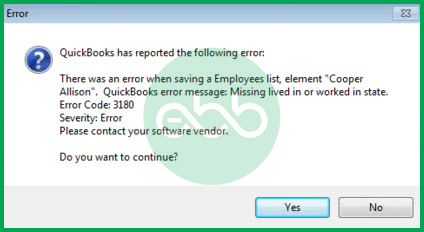
Common Error 3180 messages: “Status code 3180: There was an error when saving a Sales Receipt” or “QuickBooks Error 3180: The internals could not be locked. They are in use by another user.”
This article provides a diagnostic framework, risk assessment, and complete solution guide. Internal lock failures require immediate attention because they prevent all transaction recording operations. Delayed repairs stop sales recording and halt business revenue tracking.
Error 3180 belongs to the 3000 series of QuickBooks errors handling financial exchange and transaction synchronization problems between QuickBooks Desktop and QuickBooks Point of Sale.
The 3000 series represents transaction-level access failures rather than company file corruption. QuickBooks generates code 3180 specifically when it cannot obtain an exclusive lock on transaction data that another process is currently using.
The 3000 series focuses on cross-application data exchange errors. Error 3180 indicates a record lock conflict during synchronization. Error 3140 points to missing vendors in tax items. Error 3120 signals invalid account mapping. Each error in this series targets a specific transaction processing failure between Desktop and POS applications.
QuickBooks organizes errors by series: C= series (internal processing), H series (multi-user hosting), 3000 series (Desktop-POS exchange), 6000 series (file access). Related errors include “Company File in Use” messages and “Transaction could not be locked” warnings. Error 3180 is unique because it targets active transaction locks, not file-level access.
QuickBooks errors create additional failures when the transaction lock goes unresolved. One locked record generates multiple error codes across linked operations.
| Cause of Error 3180 | Possible Triggered Errors |
| Invalid sales tax account mapping | Error 3140 (missing vendor in sales tax item) |
| Damaged payment items | Financial exchange failure (POS cannot sync) |
| Open modal dialog boxes during sync | Web Connector timeout errors |
| Corrupted company file | File access failures (various codes) |
Any sales receipt attempting to post to a locked tax account triggers Error 3180. Error 3140 then appears when the system cannot locate the vendor associated with the tax item.
The Web Connector attempts to insert an invoice while the dialog holds internal locks. Error 3180 appears immediately because both processes compete for the same record.
Read the complete error message. Identify whether the error appears during Web Connector sync, manual sales receipt saving, or Desktop-POS financial exchange. Each scenario requires a different first fix.
| Possible Causes and QuickFix for Error 3180 | ||
| Error Event | Likely Cause | Recommended Fix (When to Perform) |
| Error 3180 during Web Connector sync | Modal dialog box open during insert operation | Before running Web Connector again, close all QuickBooks windows and dialog boxes, then disable AutoRun in Web Connector settings |
| Error 3180 when saving sales receipt | Sales Tax Payable account used as posting account | Before saving another receipt, verify sales tax account mapping in Lists > Item List and ensure no receipt items post to Tax Payable account |
| Error 3180 during Desktop-POS exchange | Damaged POS payment item | Right after financial exchange fails, rename all POS payment items by adding “OLD” prefix, then run exchange to recreate items |
| Error 3180 on multiple transactions | Another user has transaction open | When error displays user name, ask that user to close and save their transaction, or switch to single-user mode before processing |
Understanding QuickBooks transaction locks prevents data loss during repairs.
The lock releases automatically when the user saves or closes the record. Error 3180 appears when QuickBooks cannot place a lock because another process already holds one.
Modal dialogs hold internal transaction locks silently. The Web Connector attempting data insertion during a modal dialog triggers Error 3180.
This creates a circular reference where tax calculation locks the account that the item tries to post to. Correct mapping uses separate income or asset accounts.
Solutions are organized by skill level, risk level, and success probability. Start with Level 1 solutions and move to higher tiers only if lower-tier solutions fail.
These solutions require no technical expertise. The risk of data loss is minimal. Anyone can perform these steps safely.
| Solution 1.1: Close All Modal Dialog Boxes and Retry | |||
| Skill Level | Risk Level | Success Probability | Approximate Time Required |
| Beginner | Low | Moderate to High | 5-10 minutes |
| Risk Explanation | Closing dialog boxes does not modify any data. This step clears temporary locks only. No financial records are changed. | Solution Explanation | Modal dialog boxes hold internal transaction locks that block other operations. Closing all open QuickBooks windows releases these locks. Retrying the operation after clearing locks allows QuickBooks to obtain the access it needs. |
Steps to Implement Solution 1.1
| Solution 1.2: Switch to Single-User Mode Before Processing | |||
| Skill Level | Risk Level | Success Probability | Approximate Time Required |
| Beginner | Low | High | 5-10 minutes |
| Risk Explanation | Switching modes disconnects other users temporarily. Company data is not modified. Users can reconnect after the operation completes. | Solution Explanation | Multi-user mode allows multiple people to edit different records simultaneously. Another user may have the transaction open without your knowledge. Single-user mode disconnects all other users and releases all transaction locks. This guarantees exclusive access for saving the problematic record. |
Steps to Implement Solution 1.2
| Solution 1.3: Restart QuickBooks and Web Connector | |||
| Skill Level | Risk Level | Success Probability | Approximate Time Required |
| Beginner | Low | Moderate | 10-15 minutes |
| Risk Explanation | Restarting releases all locks and clears cached processes. No data is modified. The worst outcome is that the error continues. | Solution Explanation | QuickBooks and Web Connector sometimes hold ghost locks after operations crash or close unexpectedly. These locks remain active in memory even though no visible window shows them. Fully restarting both applications clears all memory-resident locks. |
Steps to Implement Solution 1.3
These solutions modify account mapping and payment items. Basic QuickBooks knowledge is helpful. Always create backup before attempting Level 2 solutions.
| Solution 2.1: Verify Sales Tax Account Mapping | |||
| Skill Level | Risk Level | Success Probability | Approximate Time Required |
| Intermediate | Low to Moderate | High | 15-20 minutes |
| Risk Explanation | Changing account mapping affects how transactions are posted. Incorrect changes may post revenue to wrong accounts. Follow these steps exactly. Back up before starting. | Solution Explanation | Error 3180 appears when receipt items incorrectly use the Sales Tax Payable account as their posting account. This account should only receive sales tax amounts, never item sales. Changing items to post to appropriate income accounts resolves the lock conflict. |
Steps to Implement Solution 2.1
| Solution 2.2: Rename and Recreate Damaged POS Payment Items | |||
| Skill Level | Risk Level | Success Probability | Approximate Time Required |
| Intermediate | Moderate | High | 20-30 minutes |
| Risk Explanation | Renaming payment items affects how POS records payments in Desktop. Items link to historical transactions. Renaming preserves history while allowing fresh items to be created. | Solution Explanation | QuickBooks POS creates payment method items in Desktop during financial exchanges. Corrupted payment items retain invalid data from failed exchanges. Renaming damaged items by adding “OLD” prefix deactivates them. The next successful exchange creates fresh replacement items automatically. |
Steps to Implement Solution 2.2
| Solution 2.3: Run QuickBooks File Doctor | |||
| Skill Level | Risk Level | Success Probability | Approximate Time Required |
| Intermediate | Low | Moderate | 30-45 minutes |
| Risk Explanation | File Doctor scans and repairs company file damage automatically. The tool does not modify financial data. Scan takes longer on large files. | Solution Explanation | Corrupted company files create ghost transaction locks that Error 3180 detects. File Doctor scans the company file structure and repairs damaged records preventing lock release. This resolves Error 3180 caused by file-level corruption rather than user actions. |
Steps to Implement Solution 2.3
These solutions require technical knowledge and modify Web Connector and registry settings. Data backup is mandatory.
| Solution 3.1: Adjust Web Connector AutoRun Settings | |||
| Skill Level | Risk Level | Success Probability | Approximate Time Required |
| Advanced | Low | High | 10-15 minutes |
| Risk Explanation | Changing AutoRun settings affects sync frequency only. Company data is not modified. Too-frequent syncs may cause performance issues. | Solution Explanation | Web Connector AutoRun set to short intervals (10 minutes) starts new syncs before previous operations finish. This creates overlapping processes competing for the same transaction locks. Increasing AutoRun to 45-60 minutes gives each operation time to complete and release locks. |
Steps to Implement Solution 3.1
| Solution 3.2: Rebuild Data to Release Ghost Locks | |||
| Skill Level | Risk Level | Success Probability | Approximate Time Required |
| Advanced | Moderate to High | High | 30-60 minutes |
| Risk Explanation | Rebuild Data rewrites company file internal structure. The process must complete without interruption. Always create backup before Rebuild. Interrupting Rebuild causes file damage. | Solution Explanation | Rebuild Data reorganizes company file records and clears ghost transaction locks that persist after crashes. The process releases all internal locks and rewrites lock management tables. This resolves Error 3180 when ghost locks from previous sessions block current operations. |
Steps to Implement Solution 3.2
Some situations require professional assistance. Stop attempting solutions if:
Preventing Error 3180 requires disciplined transaction processing and Web Connector management.
If QuickBooks Error 3180 continues after completing the tiered solutions above, do not attempt further repairs without professional assessment. Ghost transaction locks and corrupted payment items require specialized tools beyond standard troubleshooting. At this stage, structured professional diagnosis is the safest path forward.
Get expert assistance to analyze transaction lock states, repair account mapping, and restore Desktop-POS exchange functionality. Acting early protects both your records and your business continuity. Professional support resolves complex lock conflicts that standard solutions cannot address.
Yes, the error can interrupt the saving of sales receipts, leading to incomplete or inaccurate financial data exchange between QuickBooks Desktop and POS.
QuickBooks Error 3180 often affects integration with Point of Sale (POS) systems. This error usually happens when sales tax or payment items are not set up correctly. For instance, if the sales tax items are not linked properly or payment methods are misconfigured, you might encounter this error during POS transactions.
Error 3180 can impact tax filing in QuickBooks by causing issues with sales tax items and payment records. When this error occurs, it can prevent you from saving sales receipts correctly, leading to incorrect or incomplete sales tax information. If sales tax items are incorrectly assigned or linked to accounts, Error 3180 can disrupt tax-related transactions. This can make it challenging to file your taxes accurately and on time.
It’s a foundational accounting requirement. The sales tax you collect isn’t your money; it belongs to the government. In QuickBooks, the Vendor you assign to the Sales Tax Item is the designated Tax Agency (e.g., your state’s Department of Revenue). When you save a Sales Receipt, QuickBooks immediately needs to know who to credit that liability to. If the Tax Agency Vendor is missing or deleted, the transaction violates the system’s financial integrity checks, causing the 3180 error upon saving.
This is a common setup mistake that guarantees the 3180 error. A Payment Item (like “Credit Card Payment”) should always be mapped to a bank account or Undeposited Funds. The Sales Tax Payable account is a Liability account used only for tracking the money owed to the tax agency. If you link a payment item directly to it, you incorrectly try to reduce a liability every time you get paid, breaking the fundamental rules of double-entry bookkeeping and blocking the transaction from saving.
When you import new products or services into your Item List, you must ensure the correct Account Mapping is maintained for every single item. If the import process fails to map an item to a valid Income Account (or a Cost of Goods Sold account, if applicable), or if it accidentally maps an item to an A/R or A/P account, QuickBooks will halt the saving of any transaction containing that item, triggering the 3180 error. It’s a data integrity issue caused by incomplete item definitions.
Definitely. Even if an item or account is marked as Inactive, QuickBooks still retains its transactional history and financial connections. If an item or payment method on your Sales Receipt is somehow linked to a system component that was later made inactive (especially if it’s the Sales Tax Item’s underlying liability account), QuickBooks struggles to process the financial movement, leading to the exchange failure and the 3180 error. You should check the Inactive lists when troubleshooting.
This is a classic symptom of damaged or duplicated Payment Items that have been created and merged incorrectly between POS and Desktop. The sync process (Financial Exchange) forces the corrupted data mapping into Desktop repeatedly. The fix isn’t just correcting the item once; it requires a specific process of renaming and merging the duplicate POS-created payment items on the QuickBooks Desktop side to eliminate the bad link entirely, otherwise the next sync will just corrupt it again.


