



Fix QuickBooks Error 6000 by renaming ND and TLG files, running QuickBooks File Doctor, moving the company file to a local drive, and setting correct folder permissions to restore company file access.
QuickBooks Error 6000 is the parent code for an entire series of company file access failures. Error 6000 appears when users cannot open, restore, or back up a company file due to damaged companion files, network configuration problems, incorrect permissions, or corrupted installations.
QuickBooks always displays Error 6000 alongside a second number – such as -77, -80, -83, -301, or -816 – and that second number identifies the exact cause.
Common Error 6000 messages: “Error -6000 occurred when opening a company file. We are sorry for the inconvenience” or “An error occurred when QuickBooks tried to access the company file. Please try again. Error codes: (-6000, -77).”
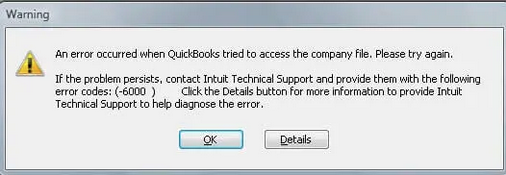
This article provides a diagnostic framework, risk assessment, and complete solution guide. The second error code in every -6000 message is the single most important clue. Read that code first and match it to the root cause table below before attempting any fix.
Error Classification: Which Series Does Error 6000 Belong To?
Error 6000 is the header code for the entire 6000 series handling company file access failures. The 6000 series represents file access problems rather than accounting data errors inside the file. QuickBooks generates a 6000 code any time the program cannot complete a file operation – opening, restoring, backing up, or converting.
The second number attached to -6000 identifies the specific failure type. Code -77 means the company file is in an incorrect location or requires admin access. Code -80 points to file damage or a host configuration problem.
Code -83 means the user or service lacks permission to access the folder. Code -301 indicates a damaged or missing company file. Code -816 signals a transaction log file mismatch. Each requires a different first fix.
QuickBooks organizes errors by series: C= series (internal processing), H series (multi-user hosting), 6000 series (file access). Related errors include H101, H303, H505 (hosting conflicts) and -6189, -816 (transaction log mismatch). Identifying the second code before choosing a solution saves significant repair time.
Can QuickBooks Error 6000 Trigger Other Errors?
QuickBooks errors create additional failures when the root cause goes unresolved. One underlying file access problem generates multiple error codes across the system.
| Cause of Error 6000 | Possible Triggered Errors |
| Damaged ND and TLG files | -6189, -816 (transaction log lock on network) |
| Incorrect folder permissions | -6000, -83 (access denied on shared folder) |
| File stored on cloud or external drive | -6000, -301 (file path invalid or unreachable) |
| Hosting on multiple computers | H101, H303, H505 (hosting conflict errors) |
- Damaged ND and TLG files cause Error 6000 by removing the network path and transaction log data QuickBooks reads before opening any file. Without valid ND data, workstations cannot locate the company file on the server. Without matching TLG data, QuickBooks locks the file to prevent data conflicts. Both companion files must be intact for any file operation to succeed.
- Incorrect folder permissions block QuickBooks from writing to the folder during open and save operations. QuickBooks does not just read company files – it writes lock data and updates the TLG during every session. A folder that prevents writing triggers -6000, -83 immediately. The QBDataServiceUser account and the Everyone group both need full control of the company file folder.
- Files stored on cloud-sync folders such as OneDrive, Dropbox, or Google Drive local sync folders generate -6000, -301 errors because these storage locations disconnect and reconnect during sync operations. QuickBooks requires constant uninterrupted read/write access during file operations. Any disconnection during syncing breaks the file path and triggers the error.
- Hosting enabled on multiple computers causes -6000, -80 errors because two computers compete for file control simultaneously. QuickBooks assigns control to the first computer that claims the hosting role. Every other computer requesting control receives an error. Only the server should have hosting enabled at any time.
The Root Cause For QuickBooks Error 6000
Read the second error code first. Match your specific code to the table below to find the correct solution path. Using the wrong fix for the wrong sub-code wastes time and risks file damage.
| Possible Causes and QuickFix for Error 6000 | ||
| Error Event | Likely Cause | Recommended Fix (When to Perform) |
| Error 6000, -77 | File in wrong location or insufficient admin rights | Before reopening the file, copy it to C:\Users\Public\Documents\Intuit\QuickBooks\Company Files and run QuickBooks as administrator |
| Error 6000, -80 | File damage or hosting on multiple computers | Before accessing file again, rename ND and TLG files, then check File > Utilities on all workstations to disable hosting |
| Error 6000, -83 | Folder permissions blocking access | When permission error displays and before retry, set Full Control for QBDataServiceUser and Everyone on the company file folder |
| Error 6000, -301 | Missing or unreachable company file | Right after error appears, verify the file exists at the displayed path; restore from backup if the file is missing |
Data Safety Advisory Section For QuickBooks Error 6000
Understanding QuickBooks companion files prevents data loss during repairs.
- ND File – Network Data: The ND file stores the server name and network path that workstations use to find the company file. This file is created automatically alongside the company file.
Renaming it does not delete any financial data. QuickBooks recreates it automatically the next time the company file is opened or a Database Server Manager scan runs.
- TLG File – Transaction Log: The TLG file records every transaction made since the last backup. QuickBooks checks the TLG file against the company file before allowing any user to open it.
A mismatch between these two files creates a lock that blocks access. Renaming the TLG file removes the lock without deleting any data – QuickBooks writes a fresh TLG from the company file content.
- Folder Permissions: The company file folder requires specific Windows permission settings. The QBDataServiceUser account – a special Windows account QuickBooks creates during installation to manage file access – needs Full Control.
The Everyone group also needs Full Control for network sharing. Without these permissions, QuickBooks cannot write lock files or update the TLG during sessions.
- Test with a Sample File First: QuickBooks ships with sample company files that test whether the problem is the program or the company file. Opening a sample file from the No Company Open window tells users which path to follow.
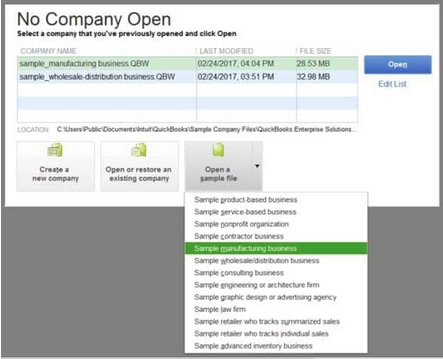
If the sample file opens, the QuickBooks program is healthy and the problem is isolated to the specific company file. If the sample file also fails, the QuickBooks installation itself is damaged.
Steps to Fix QuickBooks Error 6000
Solutions are organized by skill level, risk level, and success probability. Start with Level 1 solutions and move to higher tiers only if lower-tier solutions fail.
Level 1 – Beginner Safe Fixes
These solutions require no technical expertise. The risk of data loss is minimal. Anyone can perform these steps safely.
| Solution 1.1: Open a Sample File to Identify the Problem Source | |||
| Skill Level | Risk Level | Success Probability | Approximate Time Required |
| Beginner | Low | High (as diagnostic) | 5-10 minutes |
| Risk Explanation | Opening a sample file cannot damage any data. This step identifies whether the problem is in the program or the specific company file. No files are modified. | Solution Explanation | QuickBooks sample files open from the same program environment as real company files. A sample file that opens successfully confirms the QuickBooks program is working and the problem lives in the specific company file. A sample file that also fails confirms the QuickBooks installation itself needs repair. |
Steps to Implement Solution 1.1
- Close all open QuickBooks windows. Hold the Ctrl key on your keyboard. Click the QuickBooks Desktop icon while still holding Ctrl. Keep holding Ctrl until the No Company Open window appears on screen. Release the Ctrl key.
- Look for the option “Open a Sample File” in the window. Click it. A short list of sample company files appears. Click any one of them to open it.
- If the sample file opens without error, the QuickBooks program is working correctly. The problem is specific to your company file. Move to Solution 1.3 to address the company file directly.
- If the sample file shows Error 6000, the QuickBooks installation is damaged. Do not attempt file repairs until the program itself is fixed. Move to Solution 2.3 to run the Install Diagnostic Tool.
| Solution 1.2: Update QuickBooks to Latest Release | |||
| Skill Level | Risk Level | Success Probability | Approximate Time Required |
| Beginner | Low | Moderate | 15-20 minutes |
| Risk Explanation | Updates do not modify company file data. Always maintain a backup before updating. The computer may restart during installation. | Solution Explanation | Outdated QuickBooks versions contain file access bugs that Intuit has since fixed in update patches. Installing the latest release replaces old file-handling routines with corrected versions. Updated software reads ND and TLG files correctly and resolves permission handling problems that cause Error 6000. |
Steps to Implement Solution 1.2
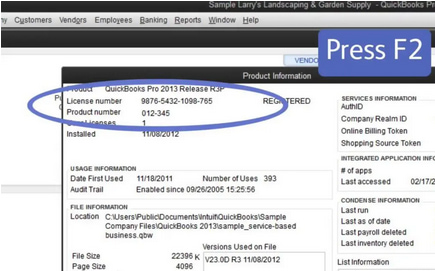
- Open QuickBooks. Press F2 to view the Product Information window. Note the current version and release number displayed. Close the window. Click the Help menu. Select Update QuickBooks Desktop.
- Click the Update Now tab. Check the box labeled “Reset Update” to clear any incomplete previous downloads. Click Get Updates. QuickBooks downloads new files in the background. Do not close QuickBooks during this download.
- Close QuickBooks after the download finishes. Click Yes when the installation prompt appears. Installation takes several minutes. Restart the computer if prompted. Open QuickBooks again after restart. Attempt to open the company file and test if Error 6000 still appears.
| Solution 1.3: Copy Company File to a Local Drive and Reopen | |||
| Skill Level | Risk Level | Success Probability | Approximate Time Required |
| Beginner | Low | Moderate to High | 10-15 minutes |
| Risk Explanation | Copying does not modify the original file. Company data stays intact. This test identifies whether storage location causes the error. | Solution Explanation | Company files stored on cloud-sync folders, external USB drives, or deep folder paths trigger Error 6000 because these locations disconnect during access or exceed path length limits. QuickBooks requires constant uninterrupted access to local storage. Copying the file to a simple local path tests this immediately. |
Steps to Implement Solution 1.3
- Close QuickBooks on all computers. Navigate to the current company file location. Right-click the .QBW company file and select Copy.
- Navigate to C:\Users\Public\Documents\Intuit\QuickBooks\Company Files. This is the default QuickBooks folder and has all required permissions pre-configured. Right-click inside the folder and select Paste. Wait for the copy to complete.
- Open QuickBooks. Click File > Open or Restore Company. Select Open a company file. Browse to C:\Users\Public\Documents\Intuit\QuickBooks\Company Files. Select the company file and click Open.
- If the file opens, the original storage location was causing Error 6000. Use this new location as the permanent company file path. Remove the file from any cloud-sync folder or external drive. If Error 6000 still appears, the file itself has damage and needs repair through the next solutions.
Level 2 – Intermediate Fixes
These solutions modify companion files and network settings. Basic computer knowledge is helpful. Always create a backup before attempting Level 2 solutions.
| Solution 2.1: Rename ND and TLG Files | |||
| Skill Level | Risk Level | Success Probability | Approximate Time Required |
| Intermediate | Low to Moderate | High | 15-20 minutes |
| Risk Explanation | Renaming ND and TLG files does not delete transaction data. QuickBooks recreates both files automatically. Original files remain with .OLD extension as backup. | Solution Explanation | Damaged ND and TLG files are the most common direct cause of Error 6000 across all sub-codes. The ND file provides the network path to the file. The TLG file provides the transaction sync check. Renaming both removes the damaged data and lets QuickBooks build clean replacements. |
Steps to Implement Solution 2.1
- Close QuickBooks on all computers. Press Windows key + E to open File Explorer. Navigate to the company file folder. The default location is C:\Users\Public\Documents\Intuit\QuickBooks\Company Files.
- Click the View tab in File Explorer. Check the box for Hidden items to reveal hidden files. Locate two files matching the company file name with .ND and .TLG extensions. For a company file named ABC-Corp.qbw, find ABC-Corp.qbw.nd and ABC-Corp.qbw.tlg.
- Right-click the .ND file. Select Rename. Type .OLD at the end of the name. New name: ABC-Corp.qbw.nd.OLD. Press Enter. Right-click the .TLG file. Select Rename. Add .OLD to the end. New name: ABC-Corp.qbw.tlg.OLD. Press Enter.
- Open QuickBooks. Navigate to File > Open or Restore Company. Browse to the company file. Click Open. QuickBooks creates fresh ND and TLG files during this open operation. Test file access and enable multi-user mode if required.
| Solution 2.2: Run QuickBooks File Doctor | |||
| Skill Level | Risk Level | Success Probability | Approximate Time Required |
| Intermediate | Low | High | 30-45 minutes |
| Risk Explanation | File Doctor repairs file and network configuration automatically. The tool does not modify financial data. Scan takes longer on large company files. | Solution Explanation | QuickBooks File Doctor scans both the company file structure and network access settings simultaneously. The tool identifies damaged ND files, permission problems, and hosting conflicts that cause Error 6000. File Doctor then repairs these issues automatically in a single scan. |
Steps to Implement Solution 2.2
- Close QuickBooks on all computers. Download QuickBooks Tool Hub from the Intuit website. Search “QuickBooks Tool Hub download” in a browser and select the official Intuit result. Save QuickBooksToolHub.exe to the Downloads folder.
- Double-click the file to install. Click Yes for User Account Control. Follow the wizard steps. Check the license agreement box. Click Install. Installation takes 2-3 minutes. Open Tool Hub from the desktop icon after installation.
- Click Company File Issues. Select Run QuickBooks File Doctor. File Doctor opens in a new window. Click the dropdown arrow. Select your company file. If it does not appear, click Browse, navigate to the .QBW file, and click Open.
- Select “Check your file and network” to scan both elements. Click Continue. Enter the QuickBooks administrator password. Click Next to begin. Scan takes 20-40 minutes. Progress bar shows scan status. Review results for green checkmarks indicating completed repairs. Open QuickBooks and test the company file.
| Solution 2.3: Set Correct Folder Permissions | |||
| Skill Level | Risk Level | Success Probability | Approximate Time Required |
| Intermediate | Moderate | High | 20-30 minutes |
| Risk Explanation | Permission changes affect file access for all users on this computer. Incorrect permissions may block access unexpectedly. Follow these steps exactly. Back up the company file before starting. | Solution Explanation | Error 6000, -83 appears specifically when the company file folder blocks QuickBooks from writing. The QBDataServiceUser account – the Windows account QuickBooks uses to manage file access in the background – needs Full Control on the folder. The Everyone group needs the same to allow shared network access. |
Steps to Implement Solution 2.3
- Navigate to the company file folder. The default is C:\Users\Public\Documents\Intuit\QuickBooks\Company Files. Right-click the Company Files folder. Select Properties. Click the Security tab.
- Click Edit. User Account Control asks for permission. Click Yes. In the Permissions window, click Add. Type QBDataServiceUser followed by the two-digit version number matching your QuickBooks. QuickBooks 2024 uses QBDataServiceUser33. Click Check Names. The name underlines to confirm it is recognized. Click OK.
- Select the QBDataServiceUser account in the list. Check the Full Control box under Allow. Click Apply.
- Click Add again. Type Everyone in the box. Click Check Names. Click OK. Select Everyone in the list. Check the Full Control box under Allow. Click Apply. Click OK. Close the Properties window. Restart the computer. Open QuickBooks and test file access.
Level 3 – Advanced / Professional Intervention
These solutions require technical knowledge and modify program files or system settings. Data backup is mandatory before attempting Level 3 solutions.
| Solution 3.1: Run QuickBooks Install Diagnostic Tool | |||
| Skill Level | Risk Level | Success Probability | Approximate Time Required |
| Advanced | Moderate | High | 20-30 minutes |
| Risk Explanation | The Install Diagnostic Tool repairs Windows components and QuickBooks program files. Company data is not affected. The process requires no user input during scanning. | Solution Explanation | The QuickBooks Install Diagnostic Tool repairs damaged Microsoft components that QuickBooks depends on, including .NET Framework, MSXML, and Visual C++ files. When these Windows components are damaged, QuickBooks cannot open company files. This tool addresses the cause identified when the sample file test in Solution 1.1 also fails. |
Steps to Implement Solution 3.1
- Open QuickBooks Tool Hub. Click the Installation Issues category from the main menu. Select QuickBooks Install Diagnostic Tool from the list. The tool begins running automatically.
- Do not close Tool Hub during the process. The tool scans for damaged Windows components. It repairs .NET Framework issues, MSXML problems, and corrupted Visual C++ files automatically. The entire process takes 10-20 minutes.
- A completion message appears when the tool finishes. Restart the computer after the tool completes. Open QuickBooks after restart. Open the company file. Run Verify Data from File > Utilities > Verify Data to confirm the file is accessible.
| Solution 3.2: Restore Backup and Rebuild Company File | |||
| Skill Level | Risk Level | Success Probability | Approximate Time Required |
| Advanced | High | High | 30-60 minutes |
| Risk Explanation | Restoring overwrites the current company file with the backup version. Any transactions entered after the backup date will be lost. Only restore when other solutions fail and the current file cannot open. | Solution Explanation | Error 6000, -301 appears when the company file itself is damaged beyond what File Doctor can repair. Restoring from backup creates a new working QBW file from the most recent QBB backup copy. This resolves the error by replacing the damaged file with a clean version. |
Steps to Implement Solution 3.2
- Locate the most recent backup file with a .QBB extension. Backup files are stored in the location you selected when creating them. Copy the .QBB file to local storage at C:\Users\Public\Documents\Intuit\QuickBooks\Company Files. Open QuickBooks.
- Click File > Open or Restore Company. Select Restore a backup copy. Click Next. Select Local Backup. Click Next. Browse to the .QBB file. Select it. Click Open.
- Choose a save location for the restored company file. Use C:\Users\Public\Documents\Intuit\QuickBooks\Company Files. Name the file clearly. Click Save. QuickBooks restores the company file. Open the restored file. Run Verify Data to confirm file integrity.
Scenarios Requiring Expert Support
Some situations require professional assistance. Stop attempting solutions if:
- Error 6000 appears on the server itself after renaming ND and TLG files, copying to local drive, and running File Doctor – all three solutions failing together indicates deep file damage.
- Restoring from backup also fails with a new error code indicating the backup file is itself damaged.
- Verify Data after restore reports critical data loss.
- File Doctor cannot complete its scan after multiple attempts.
- The company file exceeds 1.5GB and Rebuild Data fails repeatedly after restore.
Prevention Strategy
Preventing Error 6000 requires consistent file, network, and system maintenance.
- File Storage Rules: Store all company files in C:\Users\Public\Documents\Intuit\QuickBooks\Company Files on the server. Never store active company files in OneDrive, Dropbox, Google Drive sync folders, or on USB drives. Cloud-sync tools and removable drives disconnect during use and trigger Error 6000.
- Backup Discipline: Create daily backups before processing transactions. Store copies in three locations: local drive, external drive, and cloud storage (of the backup file, not the live company file). Use File > Back Up Company > Create Local Backup with automatic scheduling. Test restoration quarterly to verify backup integrity.
- Companion File Maintenance: Run a Database Server Manager scan monthly. Open QuickBooks Database Server Manager from the Windows search bar. Click Scan Folders > Start Scan. Monthly scans recreate ND files and detect path problems before they trigger Error 6000.
- Folder Permission Checks: Verify QBDataServiceUser and Everyone both have Full Control on the company file folder quarterly. Windows updates sometimes reset permission levels. Open Properties > Security on the Company Files folder to confirm. Reconfigure immediately if any permissions are missing.
- QuickBooks Updates: Apply QuickBooks updates immediately when available. Go to Help > Update QuickBooks Desktop > Update Now. Keep all network computers on the same release number. Version mismatches between server and workstations cause file access failures.
- Hosting Configuration: Confirm only the server has hosting enabled. Check File > Utilities on every workstation monthly. Disable hosting on any workstation showing “Stop Hosting Multi-User Access.” Workstation hosting competes with the server and triggers Error 6000, -80.
Conclusion
If QuickBooks Error 6000 continues after completing the tiered solutions above, do not attempt further repairs without a professional assessment. Each failed repair attempt on a damaged file increases the complexity of recovery. At this stage, a structured professional diagnosis is the safest path forward.
Get expert assistance to analyze your specific sub-code, repair companion files, and restore company file access. Acting early protects both your records and your business continuity. Professional support resolves file damage and network configuration issues that go beyond the scope of standard troubleshooting.
Step 10: The Profile window will appear. Select all the profiles (Domain, Private, and Public) and then click Next.
Disclaimer: The information outlined above for “Fix QuickBooks Error 6000 – When Opening a Company File” is applicable to all supported versions, including QuickBooks Desktop Pro, Premier, Accountant, and Enterprise. It is designed to work with operating systems such as Windows 7, 10, and 11, as well as macOS.