


Highlights (Key Facts & Solutions)
- Prerequisites: Always check system requirements (64-bit OS, 8 GB RAM minimum) and have a valid license or active subscription before starting the download.
- Data Safety: Users must create a full backup of their QB company file before installation or migration to protect data integrity and meet IRS record-keeping requirements (generally a minimum of three years).
- Download Source: Downloading should be done through the Intuit account dashboard or the official Downloads & Updates page after logging in and confirming the required country, product, and version.
- Installation Choice: The two installation methods are:
- Express Install: Recommended for single, standalone computer installations and reinstallation.
- Custom and Network Options: Required for all multi-user setups, installing the QuickBooks Database Manager on a server, or changing the default installation location.
- Server Setup Options: When using the custom option, you must specify the server’s role: running QuickBooks and hosting files, or only hosting files for network access.
- Activation: Activation requires the product and license number and is completed within the software using the Help > Activate QuickBooks menu option.
- Installation Troubleshooting: If the installation fails to start, users should right-click the file and select Run as administrator or utilize the QuickBooks Install Diagnostic Tool to resolve corrupted components.
Things to Do Before Downloading QuickBooks Desktop 2024
Check for System Requirements for QuickBooks Desktop 2024
Before downloading the latest release, you need to make sure that your operating system meets the requirements you need to run for QuickBooks Desktop 2024. Click on this link to check the system requirements for the version you are currently using.
Explore System Requirements for QuickBooks Desktop Editions (2024):
Purchase QuickBooks Desktop 2024
If you want to download QuickBooks 2024 to your system, it is necessary to have a valid license or active subscription. You are recommended to purchase the software from the official website. For this, follow the on-screen instructions to choose and activate the edition that suits your business needs.
Create or Log in to Your Account
Are you new to QuickBooks or an existing QB user? No worries; if you have been using QuickBooks for a long time, you can simply log in with your credentials.
However, if not, you need to create a new user account by following the below-listed steps:
Step 1: Open the Intuit account page
- Navigate to the Intuit accounts page.
Step 2: Click the Create an Account Link
- Press the Create an Account link.
Step 3: Enter your Personal Details
- Type your email address and phone number.
Note: If you notice a “This user ID is already taken” message, you may already have an account. In this case, select the ” I forgot my User ID or Password” link and then enter your email address.
Step 4: Create a unique password
- Make a unique password to secure your data.
Step 5: Log into your own QB Account
Finally, select the Create Account option to create a QuickBooks user account and use this account any time you want a separate user account for yourself or your business.
Download QuickBooks Desktop 2024
When QuickBooks Desktop 2024 purchase is complete, and you have logged in to your Intuit account, adhere to the steps as follows:
Step 1: Hover over the Product & Services page
- Go to the Products & Services Page from your Intuit account dashboard, or click here.
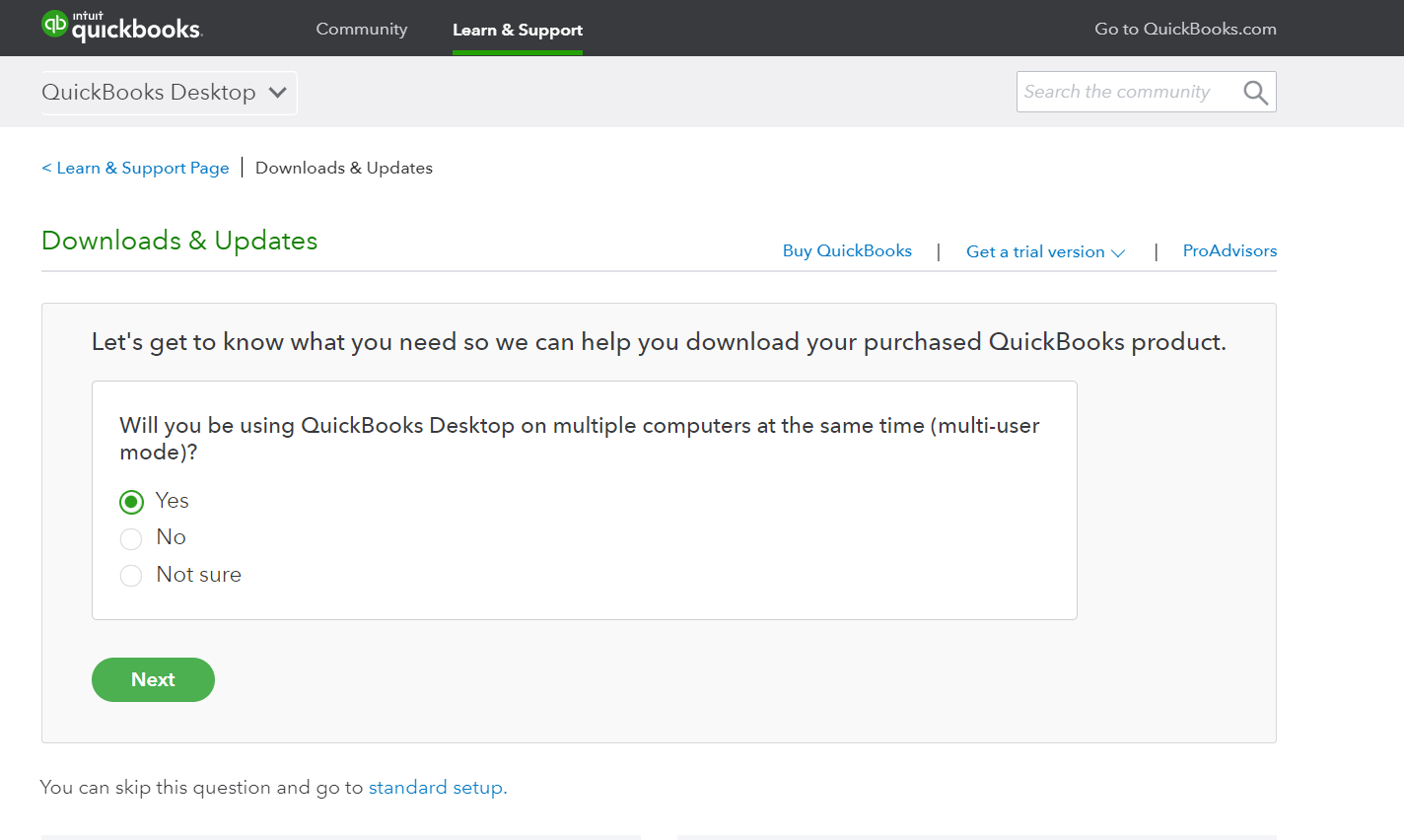
Step 2: Open QB Desktop in multi-user mode
- Click Yes, No or Not sure accordingly if you want to use QuickBooks Desktop in multi-user mode.
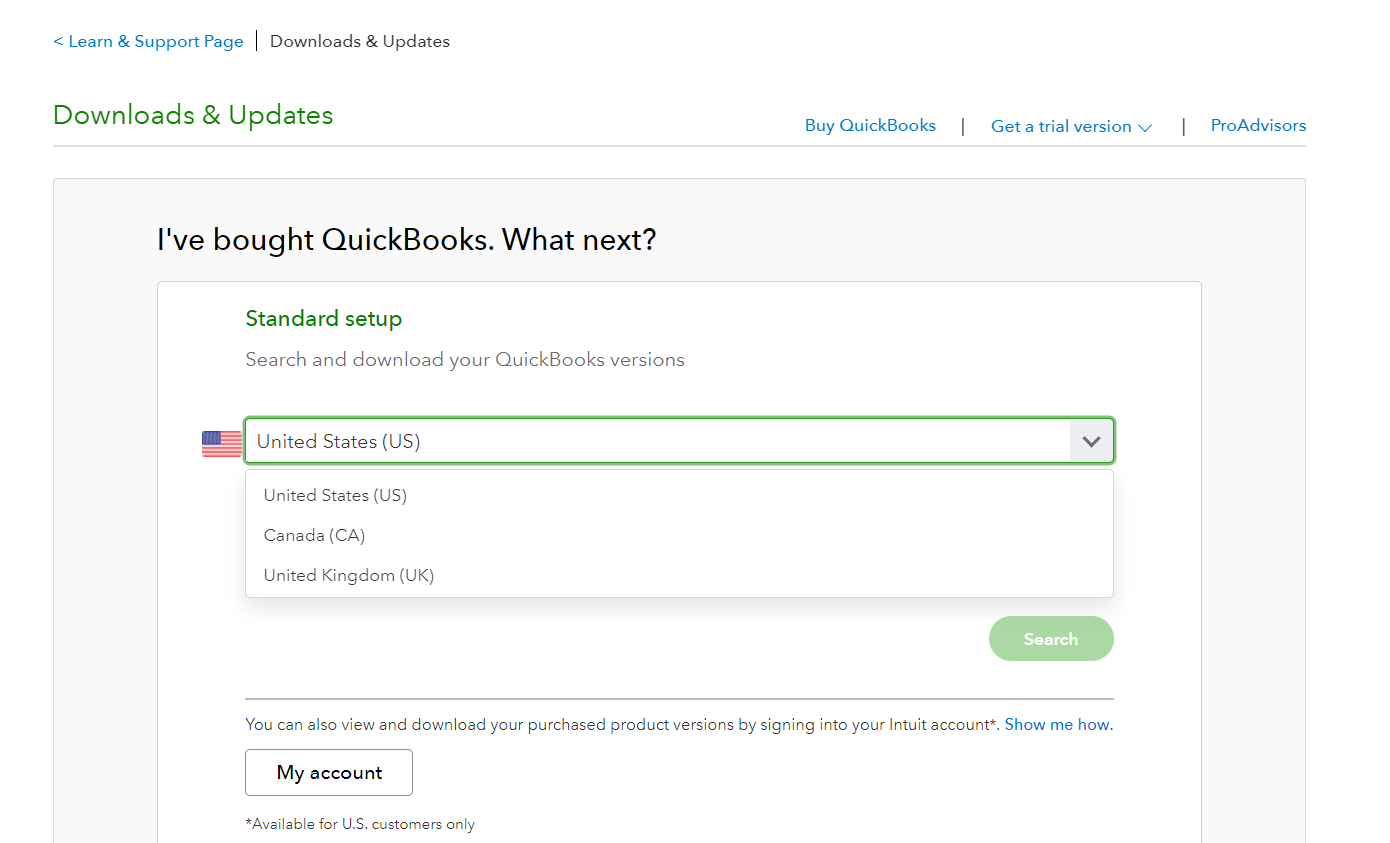
Step 3: Choose your country
- Select your preferred country.
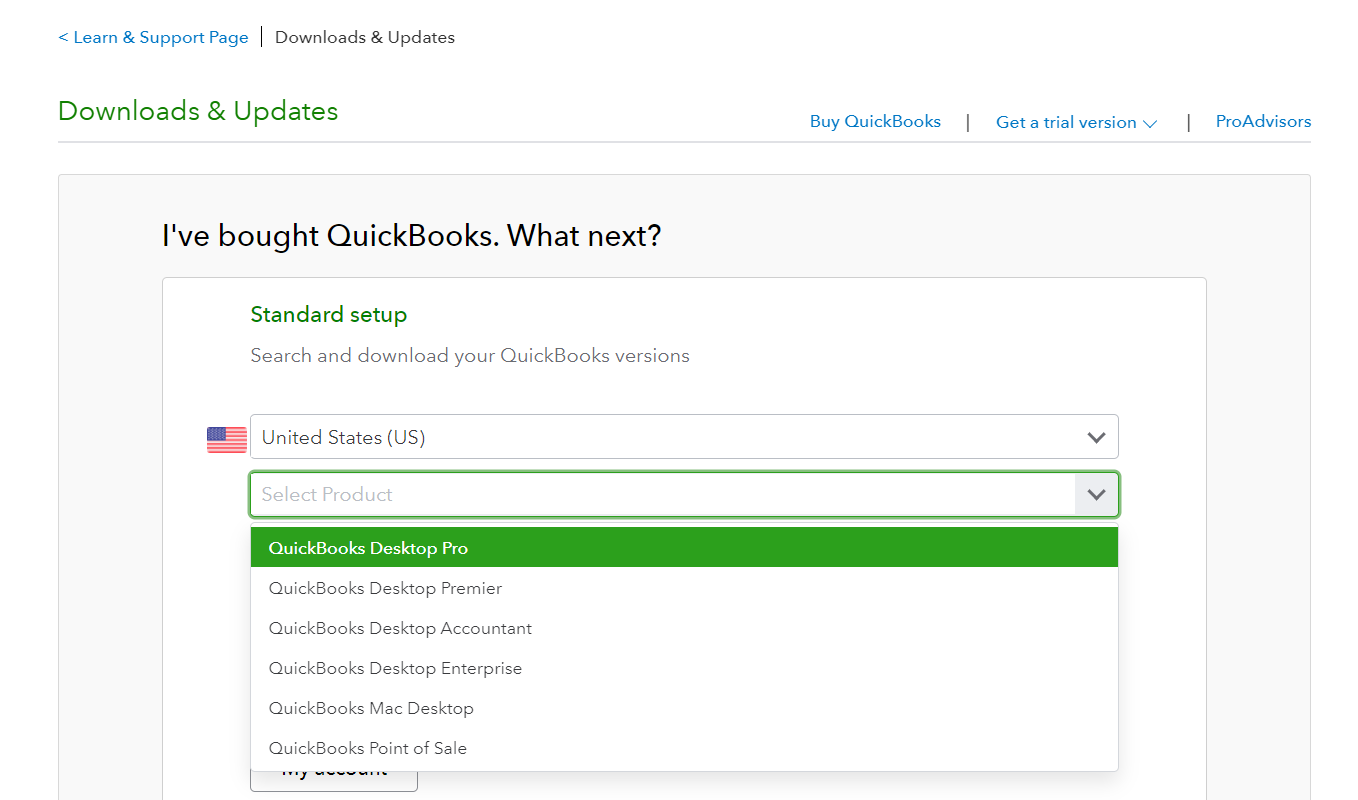
Step 4: Go for the edition you want
- Select the edition (Pro, premier, or enterprise) as per your requirements.
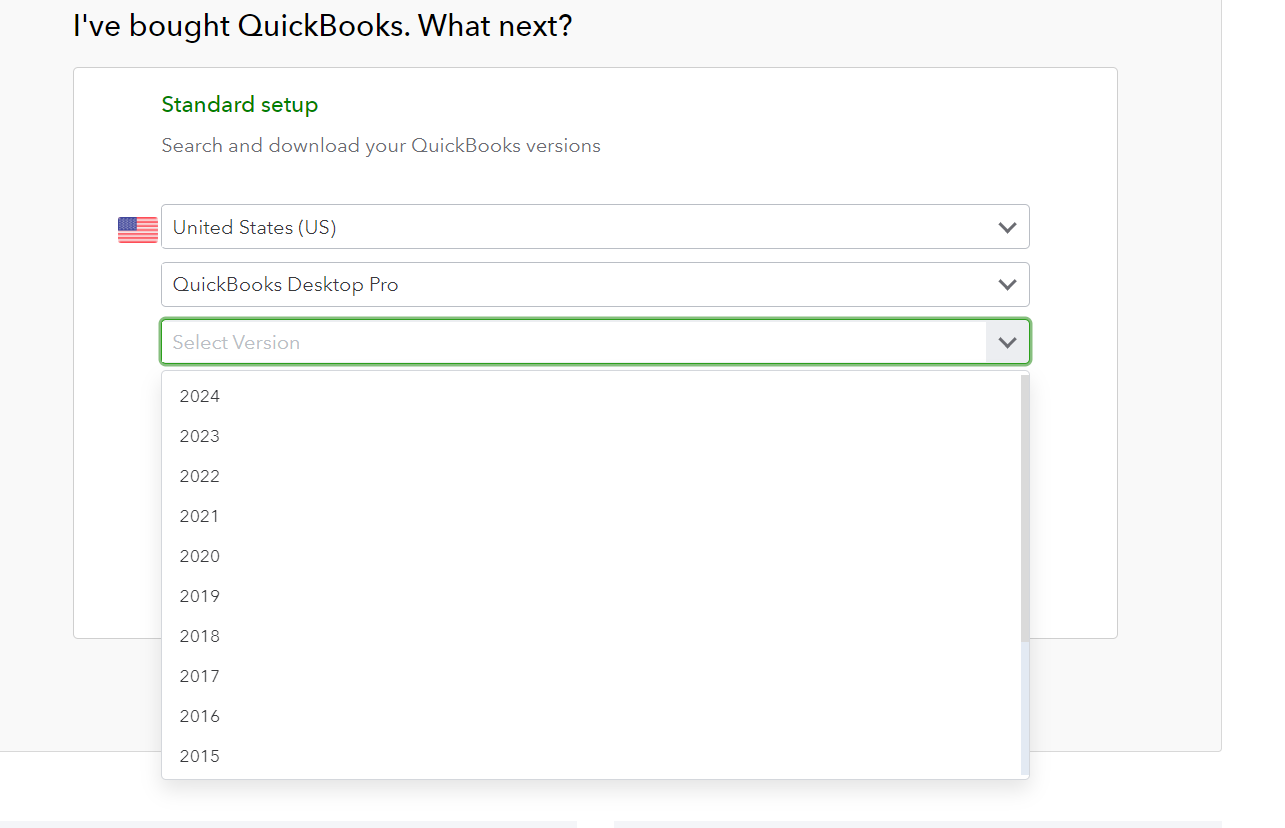
Step 5: Check the latest QuickBooks release
- Look for the latest QB release in the list of products and click on it.
Step 6: Start downloading QB Desktop
- After this, you will be directed to the download page for QuickBooks Desktop 2024.
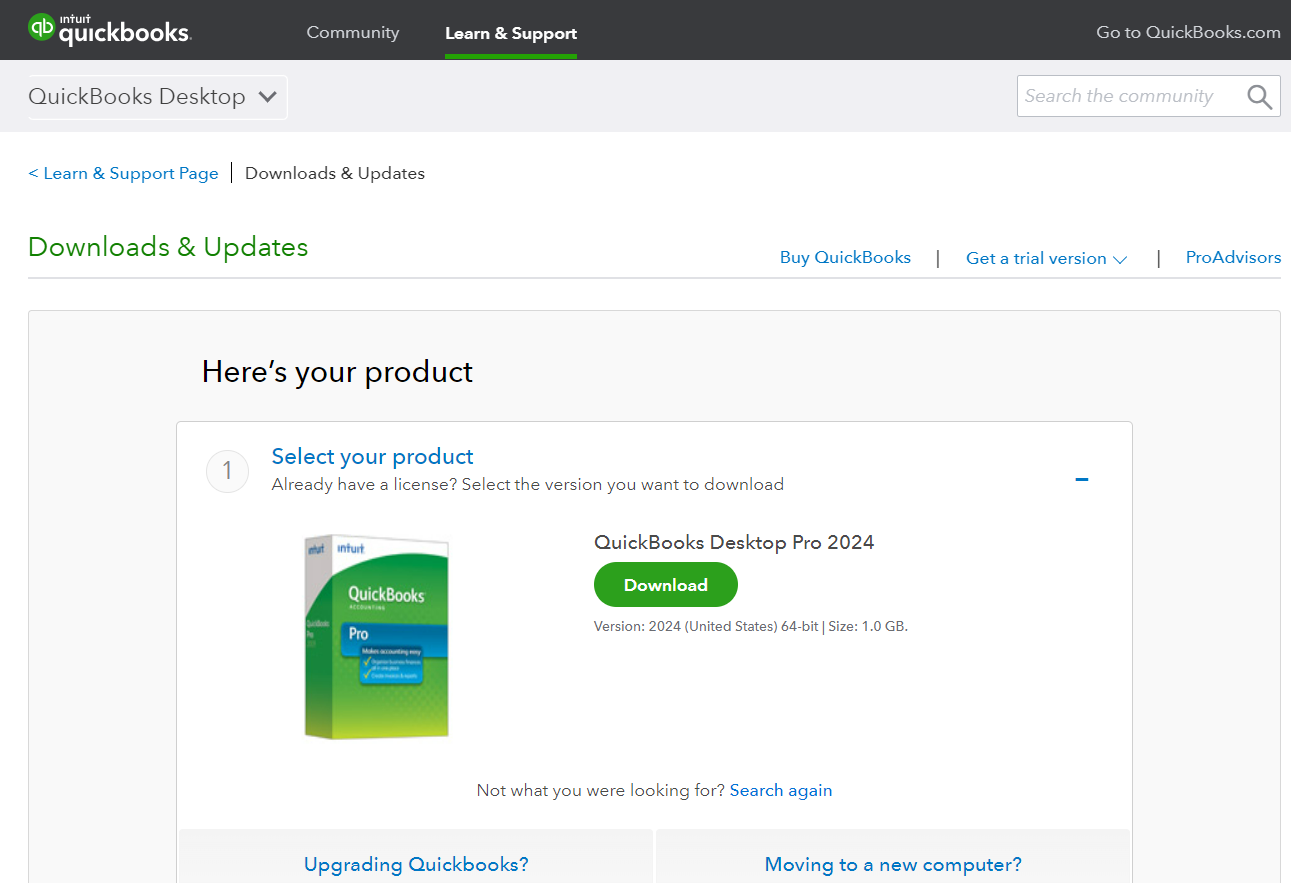
Step 7: Click Download
- Finally, press download from here to start the download process.
Quick Navigation: 2011 | 2012 | 2013 | 2014 | 2015 | 2016 | 2017 | 2018 | 2019 | 2020 | 2021 | 2022 | 2023 | 2024
Direct Download Different Editions of QuickBooks Desktop 2024 – US Version
With QuickBooks Desktop 2024 US Version, users can get deep business insights which enable them to track finances, taxes, and sales reports. There are various QuickBooks Desktop US editions including Pro, Premier, Enterprise, Accountants, Mac or POS. To enjoy all the exclusive QB features, it is important to know how to download QuickBooks Desktop 2024 in different US editions.
Download QuickBooks Desktop Pro 2024
In the Pro edition, you can set automatic reminders according to your payment dates and also create invoices, reconcile accounts and generate reports within no time. To download the latest version of QuickBooks Desktop Pro 2024 click on the link below:
Download QuickBooks Desktop Pro
OR
Download QuickBooks Desktop Pro 2024 from Intuit’s Official Website
Before downloading, make sure your system meets the:
QuickBooks Desktop Pro 2024 System Requirements
Download QuickBooks Desktop Premier 2024
In QuickBooks Desktop 2024 Premier edition, you can monitor your expenses, consolidate payments and manage invoices whenever you want. Before you proceed for QuickBooks premier 2024 download, make sure your computer meets minimum requirements. To download the latest version of QuickBooks Desktop Premier 2024 click on the link below:
Download QuickBooks Desktop Premier 2024
OR
Download QuickBooks Desktop Premier 2024 from Intuit’s Official Website
Before downloading, make sure your system meets the:
QuickBooks Desktop Premier 2024 System Requirements
Download QuickBooks Desktop Accountant 2024
QuickBooks Desktop 2024 Accountant edition allows you to remove duplicate transactions in just a single click which will help you to improve accuracy of financial records. To download the latest version of QuickBooks Desktop Accountant 2024 click the link below:
Download QuickBooks Desktop Accountant 2024
OR
Download QuickBooks Desktop Accountant 2024 from Intuit’s Official Website
Before downloading, make sure your system meets the:
QuickBooks Desktop Accountant 2024 System Requirements
Download QuickBooks Desktop Enterprise 2024
QuickBooks Desktop Enterprise 2024 helps to track customer deposits or prepayments and categorize your inventory items for better management. To begin download QuickBooks Enterprise 2024, click on the download link below:
Download QuickBooks Desktop Enterprise 2024
OR
Download QuickBooks Desktop Enterprise 2024 from Intuit’s Official Website
Before downloading, make sure your system meets the:
QuickBooks Desktop Enterprise 2024 System Requirements
Download QuickBooks Mac Desktop 2024
QuickBooks Mac Desktop 2024 provides a better security feature that employs 256-bit encryption, which is best-in-class and keeps your data safe and secure.
Download QuickBooks Mac Desktop 2024
OR
Download QuickBooks Mac Desktop 2024 from Intuit’s Official Website
Before downloading, make sure your system meets the:
QuickBooks Desktop Mac Plus 2024 System Requirements
Direct Download Different Editions of QuickBooks Desktop 2024 – Canada (CA) Version
QuickBooks Desktop 2024 Canadian version has come up with a variety of features and functionalities such as inventory management, track financial records, create invoices and maintain sales reports and monitor cash inflow etc. There are four different QuickBooks Desktop Canadian editions including Pro, Premier, Enterprise, and Accountant. Here you can download QuickBooks Desktop 2024 Canadian version in the edition of your choice:
Download QuickBooks Desktop Pro 2024 (Canada)
QuickBooks Desktop 2024 Pro Canadian Version supports 64-bit processors to complete your ongoing task faster and also it helps you to locate your item lists at the earliest.
Download QuickBooks Desktop Pro 2024 (Canada)
OR
Download QuickBooks Desktop Pro 2024 (Canada) from Intuit’s Official Website
Download QuickBooks Desktop Premier 2024 (Canada)
In QB Desktop 2024 Premier Canadian Version, you can take your brand to the next level using the designer templates and enhance your business across the globe.
Download QuickBooks Desktop Premier 2024 (Canada)
OR
Download QuickBooks Desktop Premier 2024 (Canada) from Intuit’s Official Website
Download QuickBooks Desktop Accountant 2024 (Canada)
QB Desktop 2024 Accountant Canadian Version enables you to stay compliant with tax regulations and simplifies your financial tracking to get accurate results.
Download QuickBooks Desktop Accountant 2024 (Canada)
OR
Download QuickBooks Desktop Accountant 2024 (Canada) from Intuit’s Official Website
Download QuickBooks Desktop Enterprise 2024 (Canada)
Under QuickBooks Desktop 2024 Enterprise Canadian Version, you can get category-level reports, sales, or inventory, and make informed and data-driven decisions to manage your inventories properly.
Download QuickBooks Desktop Enterprise 2024 (Canada)
OR
Download QuickBooks Desktop Enterprise 2024 (Canada) from Intuit’s Official Website
Direct Download Different Editions of QuickBooks Desktop 2024 – United Kingdom (UK) Version
QuickBooks Desktop UK Version offers customized accounting solutions for different business owners, bookkeepers or entrepreneurs. You can manage finances efficiently, generate local tax reports, and stay compliant with tax. This latest release has simplified payroll, costs, and invoicing to give UK firms effective financial management. Learn how to download the different versions of QuickBooks Desktop 2024 for UK firms:
Download QuickBooks Desktop Pro (UK)
With QuickBooks Desktop Pro UK version, you can manage your finances effectively and generate reports that are accurate and customized for the target audience.
Download QuickBooks Desktop Pro (UK)
OR
Download QuickBooks Desktop Pro (UK) from Intuit’s Official Website
Download QuickBooks Desktop Premier (UK)
QuickBooks Desktop Premier UK version offers better features for accounting needs. To improve business operations and financial control, manage funds, keep track of inventories, provide in-depth reports, and create customized invoices.
Download QuickBooks Desktop Premier (UK)
OR
Download QuickBooks Desktop Premier (UK) from Intuit’s Official Website
Download QuickBooks Desktop Accountant (UK)
QuickBooks Desktop Accountant UK version allows accountants an efficient client management, improved workflows, in-depth financial analysis, and enhanced collaboration, ensuring precise and effective accounting services in the market.
Download QuickBooks Desktop Accountant (UK)
OR
Download QuickBooks Desktop Accountant (UK) from Intuit’s Official Website
After Downloading the latest edition of QuickBooks, Follow the mentioned below process to Install & Activate the QuickBooks on Your System.
How to Install QuickBooks Desktop 2024
Before starting the installation, make sure you have the latest QuickBooks version downloaded in your system and then save the file somewhere you can easily access it such as your Windows desktop.
Also, keep your product and license number handy. Once done, locate the installation file on your desktop and click twice to begin the QuickBooks Desktop 2024 installation process. Here’s what to do:
Note: If you’re upgrading or moving your books to QuickBooks Desktop, create a backup of your data before the installation. Make sure to keep either your previous accounting system or print outs of your books. The IRS requires that 10 years of records be kept.
On one computer with no network
Follow these steps to:
- Install on one computer for the first time
- Reinstall on a computer
Note: If you want to install or move QuickBooks Desktop to another computer, we’ll show you how you can do it with the migrator tool.
Step 1: Check your Internet connection
- Make sure you have an active internet connection.
Step 2: Access the QB company file
- Open the file QuickBooks.exe.
Step 3: Select any one;
- Express install – This will save all the preferences and install over your previous QuickBooks version. You’ll need to use custom install to reinstall your previous version to access it.
- Custom and Network Options – This allows you to install the new version in a different location and keep prior versions installed. Your prior version preferences are not added to the new version.
Step 4: Press Next and Install
- Hit the Next tab and select Install.
Step 5: Open QuickBooks
- Once done, choose to Open QuickBooks.
On a dedicated server or workstations
You can use these steps to install QuickBooks on either a dedicated server or computers that access the data on a server. This can also be a Terminal server or a server that hosts both QuickBooks and your company file.
When you access your company file from a server, make sure you’re accessing the direct path to your company file.
Step 1: Check your Network connection
- Make sure you have an active internet connection.
Step 2: Open the QB company file
- Click on the file QuickBooks.exe.
Step 3: Choose Custom & Network options
- Select Custom and Network Options then press Next.
Step 4: Select any from the following;
- I’ll be using QuickBooks Desktop on this computer to install on a workstation.
- I’ll be using QuickBooks Desktop on this computer AND I’ll be storing our company file here so it can be shared over our network to install QuickBooks on a server and host files on the same computer. Use this option to install on a Terminal Server.
- I will NOT be using QuickBooks on this computer. I will be storing our company file here so it can be shared over our network to install only the QuickBooks Database Manager on a server to host files.
Step 5: Press Next twice
- Hit Next twice to start the installation.
Step 6: Edit the Installation location
- If you need to change the installation location, choose Change the install location then Browse to decide where to save your QuickBooks folder. Most people put it in their Programs folder.
Step 7: Access QuickBooks software
- When you’re ready, click to Open QuickBooks.
How to Activate Activation of QuickBooks Desktop 2024
After installing the QuickBooks Desktop 2024, the next step is to activate the product to use its features. The activation process of QuickBooks desktop 2024 requires the valid license and product key that is supplied to you (be it by email or any other means) after the successful purchase.
Below are the steps to activate QuickBooks Desktop 2024 after the installation:
| 1. Use the ‘Help’ Menu: | Select “Help” from the QuickBooks toolbar at the top. |
| 2. Select ‘’Activate QuickBooks: | Choose “Activate QuickBooks” from the drop-down menu that appears. |
| 3. Enter the License and Product Information: | Fill in the required information accurately when a window pops up and asks you to enter your valid license and product key. |
| 4. Choose the Installation Method: | Choose between a quick installation or a manual installation. |
| 5. Accept Terms and Conditions: | Read and agree to the terms and conditions presented in the licensing agreement. Click “Next” or “Accept” to proceed. |
| Complete Activation: | Click “Activate” to finish the activation procedure. Now, QuickBooks will check your product and licensing details. |
Get access to QuickBooks Desktop 2024’s upgraded features after it has been enabled. If your QuickBooks Version showing there is an update pending, follow the QuickBooks Upgrade Guide.
Still have questions? Explore our detailed FAQs.