Excerpt:
Ensuring system compatibility is crucial for stable and optimal performance across all QuickBooks Desktop (QBDT) versions, including Pro, Premier, and Enterprise. Recent versions, such as QBDT 2024, strictly mandate a 64-bit Windows OS and recommend at least 8 GB of RAM for client workstations, with higher requirements needed for multi-user setups. For servers, RAM must scale according to the user count (e.g., 20+ GB for 20+ users), and storing the company file on a Solid State Drive (SSD) is highly recommended to prevent performance bottlenecks during essential tasks like reporting and payroll. Users must confirm that the QBDT version is running on a Microsoft-supported operating system and that any integrated software, such as Microsoft Office, is the locally installed 64-bit version to avoid errors when exporting data.
 Add As A Preferred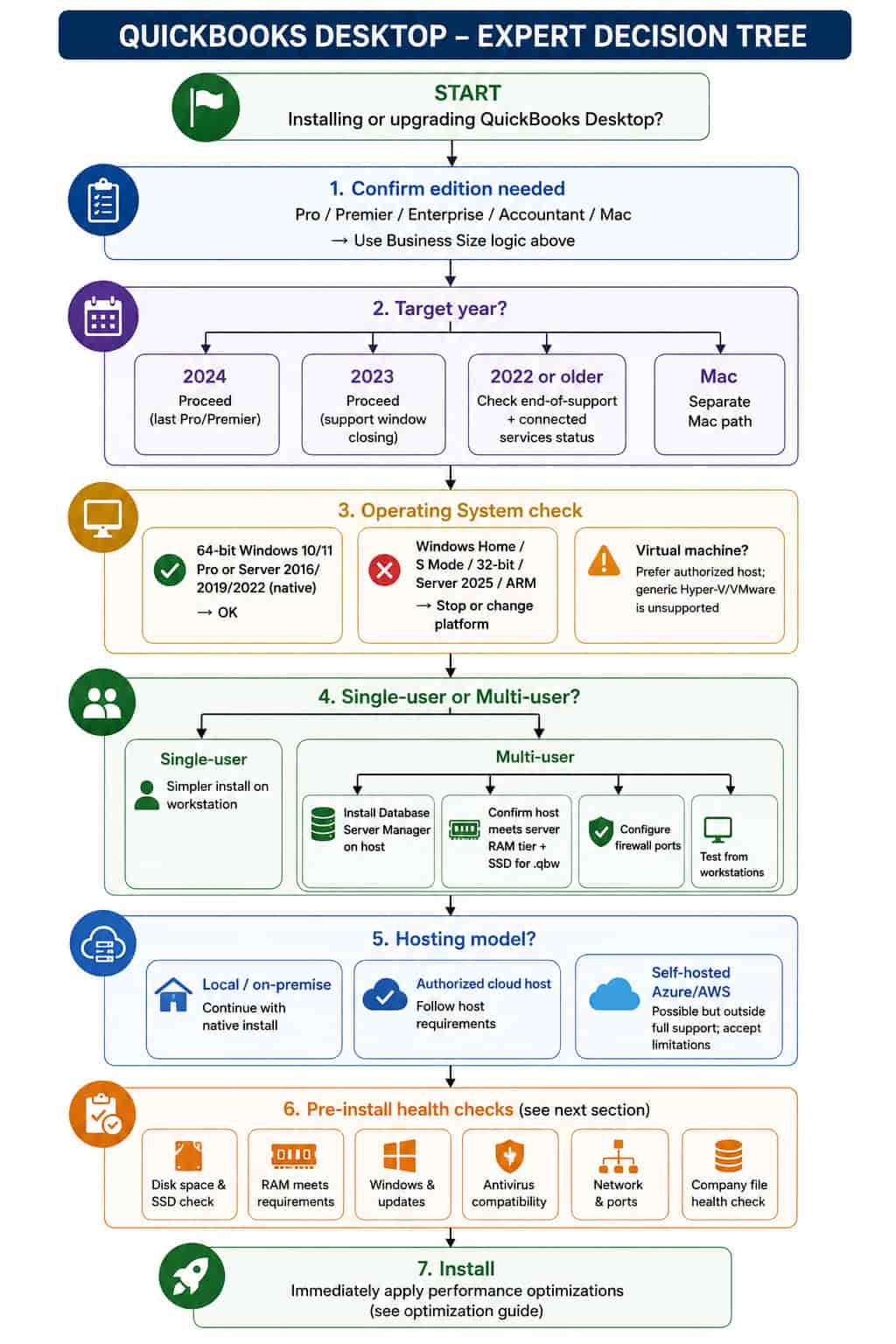
QuickBooks Desktop treats the company file (.qbw) as a live, continuously accessed database-like structure. Every transaction, report, payroll run, Verify Data, and multi-user lock generates random I/O and memory pressure. Undersized RAM, mechanical storage, unsupported processors, or incorrect hosting architecture produce cascading problems: installation failures, multi-user disconnects, slow year-end closes, and elevated risk of data corruption. Meeting the official minimum keeps the software running. Exceeding it with the right architecture keeps the business running efficiently.
| Component | Supported | Not Supported / High Risk | Notes & Real-World Impact |
|---|---|---|---|
| CPU Architecture | Intel x86/x64, AMD x86/x64 | ARM (Snapdragon, Surface Laptop 7 ARM models) | Official: x86 only. ARM may install via emulation but produces instability and zero support. |
| Server-class CPUs | Xeon, high-core Ryzen | Low-core or older single-thread limited CPUs | Multi-user and large-file report generation benefit from core count and cache. |
| RAM Type | Standard DDR4/DDR5 | ECC preferred on servers but not mandatory | ECC reduces rare memory-induced file corruption risk on long-running hosts. |
| Storage – Program | Any modern drive | — | Program files are not the bottleneck. |
| Storage – Company File (.qbw) | SATA SSD, NVMe SSD | Mechanical HDD, most USB external SSDs for multi-user, basic NAS | Random I/O intensive. USB and many NAS introduce latency and locking issues. |
| Storage – RAID | RAID 1 or 10 (with care) | RAID 5 / RAID 6 for active .qbw | Parity calculation on RAID 5 makes random writes significantly slower. |
| SAN / Advanced Storage | Possible with careful tuning | Generic iSCSI without low-latency tuning | Often introduces multi-user locking problems. |
| OS Edition | Windows 10/11 Pro, Windows Server 2016/2019/2022 | Windows Home, S Mode, IoT, 32-bit, Server 2025 (as of 2026) | Home lacks required networking and policy features for stable multi-user. |
| Virtualization | Authorized Intuit hosts only for full support | Generic Hyper-V, VMware, Parallels as primary install | Support typically stops once virtualization is detected. |
Official concurrent-user RAM tiers are only half the story. File size drives memory pressure because QuickBooks loads indexes, recent transaction history, and temporary working sets into RAM.
What actually happens in memory as the file grows:
| Company File Size | Practical Workstation RAM | Practical Host/Server RAM | Why This Level |
|---|---|---|---|
| Under 200 MB | 8 GB | 8–12 GB | Minimal index and temp set. Official minimum is usually enough. |
| 200–500 MB | 16 GB | 16 GB | Noticeable growth in indexes and report working sets. 8 GB starts swapping under concurrent users or complex reports. |
| 500 MB – 1 GB | 16–32 GB | 32 GB | Temporary caches for payroll, inventory, and long reports become large. Multi-user contention rises. |
| 1–2 GB | 32 GB | 32–64 GB | Heavy Verify/Rebuild and year-end operations need headroom. |
| Over 2 GB | 32–64 GB | 64 GB+ | Treat as a serious database workload. Consider archiving or Enterprise + strong server. |
Real-world impact: A 700 MB file on 8 GB RAM with 6 users often produces multi-second pauses during reports and occasional H202-style lock timeouts. The same file on 32 GB + SSD feels responsive.
Simple “Pro for small, Enterprise for large” advice is incomplete. Use these thresholds:
Stay on Pro when:
Move to Premier when:
Move to Enterprise when any of these appear:
Additional triggers for Enterprise or hosting:
These are practical thresholds observed across deployments, not hard Intuit rules.
QuickBooks is unusually sensitive to storage latency because of how the .qbw file is accessed.
Sequential vs Random:
Backup and Restore impact:
USB external SSDs and many NAS devices introduce protocol and latency overhead that frequently causes multi-user locking problems. Prefer internal or properly tuned server storage for the active .qbw.
Observed pattern across technician deployments: Moving a 600 MB–1.2 GB file from HDD to a decent SSD typically produces the single largest perceived performance improvement—often more noticeable than a moderate RAM upgrade alone. Actual times vary with file fragmentation, Windows version, concurrent users, and network path.
Start: Installing or upgrading QuickBooks Desktop?
│
├─ Confirm edition needed (Pro / Premier / Enterprise / Accountant / Mac)
│   └─ Use Business Size logic above
│
├─ Target year?
│   ├─ 2024 → Proceed (last Pro/Premier)
│   ├─ 2023 → Proceed (support window closing)
│   ├─ 2022 or older → Check end-of-support + connected services status
│   └─ Mac → Separate Mac path
│
├─ Operating System check
│   ├─ 64-bit Windows 10/11 Pro or Server 2016/2019/2022 (native) → OK
│   ├─ Windows Home / S Mode / 32-bit / Server 2025 / ARM → Stop or change platform
│   └─ Virtual machine? → Prefer authorized host; generic Hyper-V/VMware is unsupported
│
├─ Single-user or Multi-user?
│   ├─ Single → Simpler install on workstation
│   └─ Multi-user
│       ├─ Install Database Server Manager on host
│       ├─ Confirm host meets server RAM tier + SSD for .qbw
│       ├─ Configure firewall ports
│       └─ Test from workstations
│
├─ Hosting model?
│   ├─ Local / on-premise → Continue with native install
│   ├─ Authorized cloud host → Follow host requirements
│   └─ Self-hosted Azure/AWS → Possible but outside full support; accept limitations
│
├─ Pre-install health checks (see next section)
│
└─ Install (or grab your setup files directly from our Download QuickBooks Desktop page) → Immediately apply performance optimizations
Before running the installer, verify these to avoid 1603-class failures and later instability:
Skipping these is a frequent cause of “system meets requirements but install still fails.”
Quick Answer
64-bit native Windows 11 or Windows 10 (Pro preferred) or Server 2016/2019/2022 · 2.4 GHz x86 processor · 8 GB RAM minimum / 16 GB+ recommended (scale by file size) · 2.5 GB program space + data room · Company file on SSD · Chrome · Local 64-bit Office/365 · Broadband internet · TLS 1.2.
Supported Operating Systems
Windows 11 64-bit native, Windows 10 64-bit native (security risk after Oct 2025), Windows Server 2016/2019/2022 Standard or Essentials. Must be natively installed.
Unsupported
32-bit Windows, Windows Home (multi-user), S Mode, IoT, Linux (except limited Enterprise Database Server-only cases on older distros), Windows Server 2025 (as of current documentation), ARM processors, generic virtual machines as primary install.
CPU Compatibility
Intel or AMD x86/x64 only. No ARM. Multi-core preferred for reports and multi-user.
RAM
Client: 8 GB min, 16 GB recommended, higher by file size table.
Server: 1–5 users 8 GB → 10 users 12 GB → 15 users 16 GB → 20+ users 20 GB+, then scale further by file size.
Storage
2.5 GB for program + additional for data and Intuit Data Protect working space. Company file must be on SSD for acceptable performance.
Display & Peripherals
1280×1024 or higher, up to 2–3 monitors, default 100% DPI. Optical drive only for physical media.
Office & Email Integration
Locally installed Office 2016–2021 or Microsoft 365 (64-bit preferred). Web-only 365 is not supported for export/letters/Outlook sync. Email via Outlook, Gmail, Yahoo, Outlook.com, or SMTP clients.
Browser & Internet
Google Chrome recommended. Minimum 56 Kbps technical; broadband required for practical use. TLS 1.2 mandatory for connected services.
Antivirus
Major suites (McAfee, Norton, Bitdefender, Avast, Kaspersky, ESET, Malwarebytes, Defender, etc.) are tested but almost always need folder and port exclusions for the .qbw and Database Server Manager.
Network
Wired Gigabit preferred for multi-user. Wireless introduces variable latency that worsens locking.
Need help with 2024 install or multi-user?
→ Error 1603 · Error H202 · Database Server Manager · 2024 Download
2023 is essentially identical to 2024 in hardware profile; Windows 8.1 and Server 2012 are blocked.
2022 introduced the hard 64-bit requirement and dropped Windows 8.1.
2021 still allowed Windows 8.1 and listed 4 GB minimum RAM.
Older versions have progressively broader OS support but lose security updates, payroll, and banking services over time.
Apply the same file-size RAM logic, SSD preference, and multi-user practices. Common errors remain 1603 on install and H202 on multi-user.
macOS Monterey 12 or later (Intel or Apple Silicon). 2 GB RAM minimum (4 GB recommended). 250 MB storage. Multi-user server needs Intel Core 2 Duo or higher. File format differs; conversion tools are required for Windows interchange. See Mac system requirements page.
For 20–30 users and files approaching or exceeding several GB:
Windows Server 2025
Not listed as supported for QuickBooks Desktop 2024 or current Enterprise. Database Server Manager and related components have reported compatibility friction. Recommendation: stay on Server 2022 until Intuit explicitly adds support.
Azure VM / AWS EC2 self-hosted
Possible for internal use. You control the Windows Server instance, licensing, and RDP. Pros: full control, scalability. Cons: outside official Intuit support boundary; performance depends entirely on your VM sizing, storage (Premium SSD recommended), and network configuration; troubleshooting is limited once virtualization is identified. Best practice: oversize RAM and use premium low-latency storage; treat it like a high-spec on-premise server.
Hyper-V / VMware generic
Not officially supported as the primary installation environment. Intuit expects native Windows. Many deployments run but support sessions often end when the virtual layer is discovered. Latency, snapshot, and storage configuration issues are common sources of multi-user problems.
ARM processors (Snapdragon, ARM Surface devices)
Officially unsupported. QuickBooks Desktop is built for x86. Emulation may allow launch but leads to crashes, performance problems, and no support path. Choose Intel/AMD hardware.
Microsoft Surface
Only Intel/AMD models that fully meet the 64-bit Windows + RAM + storage requirements. ARM Surfaces are unsupported.
Remote Desktop Services / RDP
Enterprise is RDS-compliant. Proper Windows Server CALs and RDS CALs are required. Performance is sensitive to latency and the host’s storage/RAM. Best with local or low-latency network paths and SSD-hosted company files.
Authorized Cloud Hosting (Rightworks-powered etc.)
The supported way to get multi-device, remote, and managed access. Follow the host’s published requirements; they handle the underlying infrastructure within Intuit’s support model.
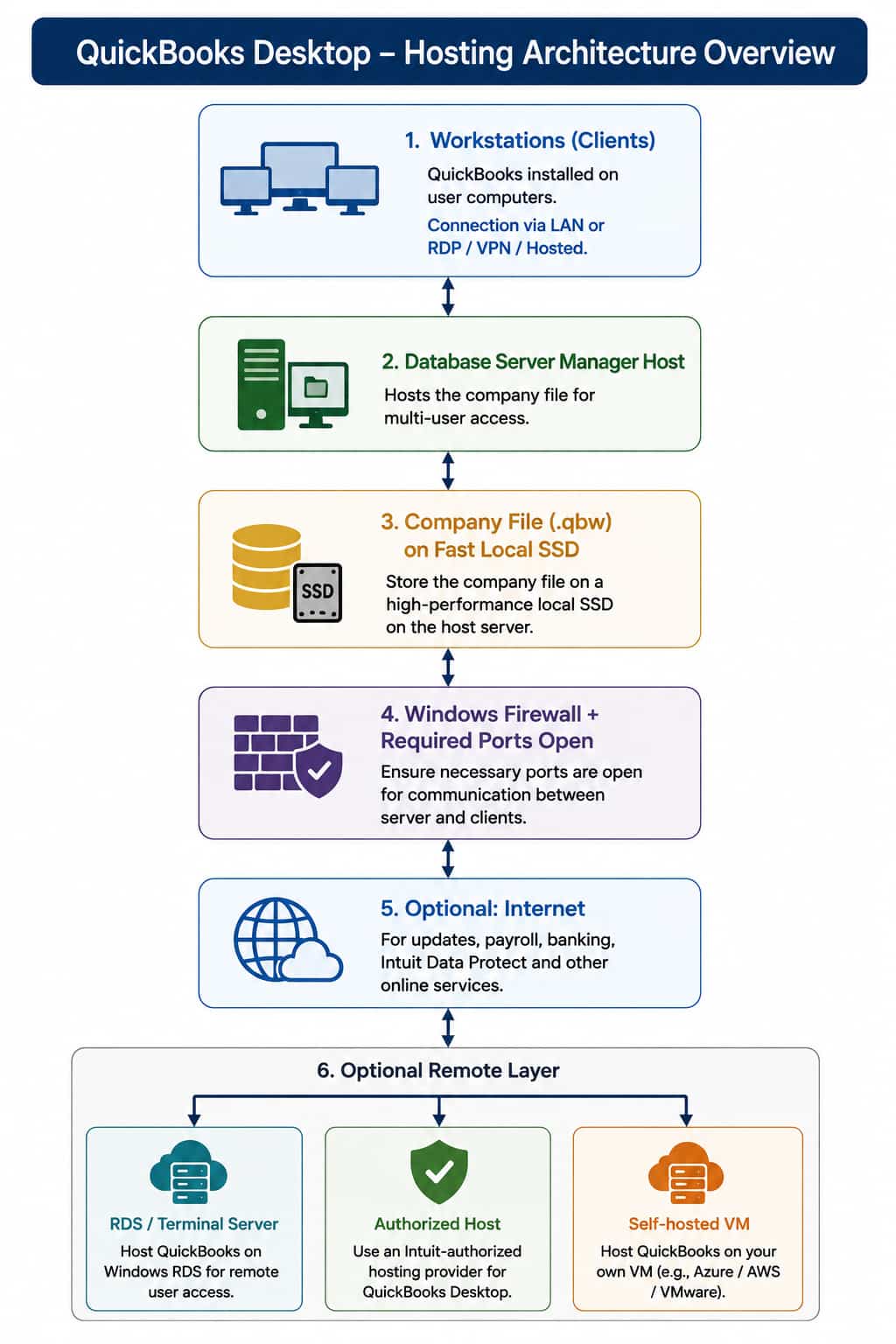
Workstations (Clients)
        ↕  (LAN or RDP / VPN / Hosted)
Database Server Manager Host
        ↕
Company File (.qbw) on fast local SSD
        ↕
Windows Firewall + required ports open
        ↕
Optional: Internet for updates, payroll, banking, Intuit Data Protect
        ↕
Optional remote layer: RDS / Authorized Host / Self-hosted VM
The company file should live on the same machine (or extremely low-latency storage) as the Database Server Manager for best multi-user behavior.
After a clean install:
These steps often recover more performance than another hardware upgrade.
| Current Situation | Upgrade Urgency | Primary Reasons | Recommended Path |
|---|---|---|---|
| 2020 or older on Windows 10 | High | Security (Win10 EOL), lost connected services, performance | Move to 2024 or Enterprise + modern hardware/hosting |
| 2022/2023 on solid hardware | Medium | Remaining support window, new features | Stay or move to 2024 before support ends |
| Large file + multi-user pain | High | Performance & stability | Enterprise + SSD + proper server RAM or authorized host |
| Need remote access | High | Business continuity | Authorized hosting or properly licensed RDS |
| ARM or unsupported OS | Critical | Compatibility | Change platform before further investment |
| Symptom | Likely Area | Start Here |
|---|---|---|
| Install fails | Pre-requisites / permissions | Error 1603 |
| Multi-user cannot see company file | Hosting / firewall / Database Server Manager | Error H202 + Database Server Manager |
| Slow performance | Storage / RAM / file size | Review SSD deep dive + file-size RAM table |
| Update or payroll errors | Internet / TLS / permissions | Tool Hub + temporary antivirus disable |
| Need a specific year download | — | Year-specific product pages (2024, 2023, 2022, etc.) |
After every major section, if something still fails: return to the relevant error guide or the Database Server Manager tool before changing more hardware.
Because the .qbw file is accessed in a scattered pattern for transactions, lists, locks, and reports. Mechanical drives spend most of their time seeking rather than transferring data. SSDs eliminate that penalty.
It ignores file size. Larger files increase the in-memory working set for indexes, temporary report data, and multi-user structures. The file-size table fills that gap with practical observation.
When advanced inventory, granular permissions, multi-location, or large-file stability become daily requirements. User count alone is an incomplete trigger.
It can run, but it sits outside Intuit’s normal support boundary. You own performance, licensing, and troubleshooting. Authorized hosts keep you inside the supported model.
This guide is intentionally vertical. Each major topic is written as a mini-reference so you understand not only the requirement but the underlying behavior, the conditions that change the recommendation, and the real-world consequences of ignoring it. Use the decision tree and pre-install checklist before every new deployment, and return to the optimization and file-size sections whenever performance degrades.
To run QuickBooks Desktop Pro 2013, your system must meet minimum requirements such as Windows XP, Vista, 7, 8, 2 GB (Minimum) RAM, at least 2.5 GB for setup + 250 MB at runtime of free disk space, and a processor of 2.0 GHz (Minimum) or faster. It also requires .NET Framework 3.5, and a supported browser like Internet Explorer.
You can check if your system supports QuickBooks Desktop Pro 2013 by reviewing your computer’s settings. On Windows XP, Vista, 7, 8, go to Settings > System > About and confirm the OS, RAM (2 GB (Minimum)), and processor speed (2.0 GHz (Minimum)) meet the requirements. Ensure at least 2.5 GB for setup + 250 MB at runtime free disk space is available.
QuickBooks Desktop Pro 2013 doesn’t need constant internet access for basic functions, but an internet connection is Required for installation, license validation, updates, and integration with services like None Listed.
Yes, QuickBooks Desktop Pro 2013 can run on virtual machines or cloud-hosted environments like VMware or Azure. Make sure the virtual server meets minimum specs: 2 GB (Minimum) RAM, 2.0 GHz (Minimum) CPU, 2.5 GB for setup + 250 MB at runtime storage, and a reliable Required internet connection.
QuickBooks Desktop Pro 2013 works with most security software. Compatible antivirus includes: May require configuration. For best performance, add QuickBooks exceptions to your firewall and antivirus settings.
In multi-user mode, QuickBooks Desktop Pro 2013 requires at least 2 GB (Minimum) RAM and a processor of 2.0 GHz (Minimum) to support 3–5 Users. For improved performance, especially with large company files, SSD storage is recommended.
Yes, switching from HDD to SSD can significantly boost QuickBooks Desktop Pro 2013’s speed. Tasks like loading company files, saving backups, and generating reports are noticeably faster when using an SSD.
Installing QuickBooks Desktop Pro 2013 on Windows XP, Vista, 7, 8 requires administrator rights. This is necessary to allow system-level changes, including installing .NET Framework 3.5 and modifying security settings.
You don’t need a CD or physical media to install QuickBooks Desktop Pro 2013. Just download the installer from this link of: QB Desktop Pro 2013 and follow the setup instructions. Ensure you meet the minimum system requirements before proceeding.
Yes, you can install multiple versions of QuickBooks Desktop Pro (e.g., 2022 and 2013) on the same system. Each version should be installed in a separate directory. Just make sure your system has enough resources—at least 2 GB (Minimum) RAM and 2.5 GB for setup + 250 MB at runtime free disk space.
To run QuickBooks Desktop Premier 2013, your system must meet minimum requirements such as Windows XP SP3, Vista SP1+, Windows 7 (Win 10 unofficial), 2 GB (4 GB w/ IDP), 8–20 GB+ for Multi-user RAM, at least 2.5 GB + 250 MB runtime + more for data of free disk space, and a processor of 2.0 GHz (2.4 GHz recommended) or faster. It also requires .NET Framework 3.5/4.0, and a supported browser like Internet Explorer 8+.
You can check if your system supports QuickBooks Desktop Premier 2013 by reviewing your computer’s settings. On Windows XP SP3, Vista SP1+, Windows 7 (Win 10 unofficial), go to Settings > System > About and confirm the OS, RAM (2 GB (4 GB w/ IDP), 8–20 GB+ for Multi-user), and processor speed (2.0 GHz (2.4 GHz recommended)) meet the requirements. Ensure at least 2.5 GB + 250 MB runtime + more for data free disk space is available.
QuickBooks Desktop Premier 2013 doesn’t need constant internet access for basic functions, but an internet connection is Required for installation, license validation, updates, and integration with services like POS 10–12, TurboTax, Lacerte, ProSeries, Acrobat 9+.
Yes, QuickBooks Desktop Premier 2013 can run on virtual machines or cloud-hosted environments like VMware or Azure. Make sure the virtual server meets minimum specs: 2 GB (4 GB w/ IDP), 8–20 GB+ for Multi-user RAM, 2.0 GHz (2.4 GHz recommended) CPU, 2.5 GB + 250 MB runtime + more for data storage, and a reliable Required internet connection.
QuickBooks Desktop Premier 2013 works with most security software. Compatible antivirus includes: May require configuration. For best performance, add QuickBooks exceptions to your firewall and antivirus settings.
In multi-user mode, QuickBooks Desktop Premier 2013 requires at least 2 GB (4 GB w/ IDP), 8–20 GB+ for Multi-user RAM and a processor of 2.0 GHz (2.4 GHz recommended) to support Up to 20+ users (RAM dependent). For improved performance, especially with large company files, SSD storage is recommended.
Yes, switching from HDD to SSD can significantly boost QuickBooks Desktop Premier 2013’s speed. Tasks like loading company files, saving backups, and generating reports are noticeably faster when using an SSD.
Installing QuickBooks Desktop Premier 2013 on Windows XP SP3, Vista SP1+, Windows 7 (Win 10 unofficial) requires administrator rights. This is necessary to allow system-level changes, including installing .NET Framework 3.5/4.0 and modifying security settings.
You don’t need a CD or physical media to install QuickBooks Desktop Premier 2013. Just download the installer from this link of: QB Desktop Premier 2013 and follow the setup instructions. Ensure you meet the minimum system requirements before proceeding.
Yes, you can install multiple versions of QuickBooks Desktop Premier (e.g., 2022 and 2013) on the same system. Each version should be installed in a separate directory. Just make sure your system has enough resources—at least 2 GB (4 GB w/ IDP), 8–20 GB+ for Multi-user RAM and 2.5 GB + 250 MB runtime + more for data free disk space.


