Excerpt:
If you're facing the "Transaction Not Showing Up" error in QuickBooks Desktop Pro 2024, the issue could stem from data corruption, incorrect settings, or syncing issues. This guide walks you through troubleshooting steps, including verifying and rebuilding your company file, manually searching for transactions, and checking logs for hidden errors. By following these steps, you can resolve discrepancies, ensure accurate financial records, and prevent future issues from affecting your bookkeeping.
 Add As A Preferred
“Hey everyone, Mark here — has anyone else run into this issue where transactions just aren’t showing up in QuickBooks Desktop?
I’m on QuickBooks Desktop Pro 2024, and I recently noticed that a few vendor payments and bank transactions I entered last week have completely disappeared from the register. I know for a fact I saved them — no errors popped up — but now they’re nowhere to be found.
I’ve checked all the filters, date ranges, and even toggled between accounts, but still nothing. What’s weird is that the account balances are off, and now I’m out of sync during reconciliation. I also ran the Audit Trail, and there’s no trace of those entries at all.
I’m the only user on this company file, and I haven’t restored any backups or changed any preferences lately. Could this be a sign of data corruption, or maybe a glitch in the file? I’d really appreciate any guidance.
Before deactivating or archiving your QuickBooks account, it’s a good idea to check for common issues like “Transaction Not Showing Up” Error in QuickBooks Desktop Pro 2024. Fixing this issue will ensure all your data is complete and accurate, so you can retain necessary records without worrying about missing transactions in the future.
Hi Mark,
Thanks for sharing the details — I can understand how frustrating it must be to have your transactions disappear, or don’t reflect in registers, reports, or reconciliations — even after being entered and saved correctly. This can lead to discrepancies in your books, delays in closing reports, and unnecessary confusion. You need to try first:
If the transaction not showing up in QuickBooks Desktop Pro 2024, don’t worry —since you’ve already ruled out filters, date ranges, and different accounts, let’s walk through a few other potential causes and solutions to get things back on track.
There are certain underlying causes leading to Transaction not showing up error in QuickBooks Desktop Pro 2024:
When transactions go missing or fail to appear unexpectedly, it can result in serious discrepancies across your accounting system. These discrepancies not only affect your day-to-day bookkeeping but can also have long-term consequences for reporting accuracy, compliance, and financial planning.
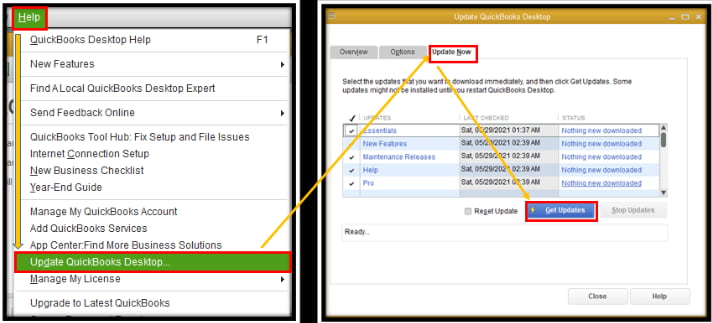
Mark, since you’re using QuickBooks Desktop Pro 2024 and notice that a transaction isn’t appearing where it should—whether in reports, registers, or account histories—don’t worry. This issue is common and can often be resolved with a few troubleshooting steps.
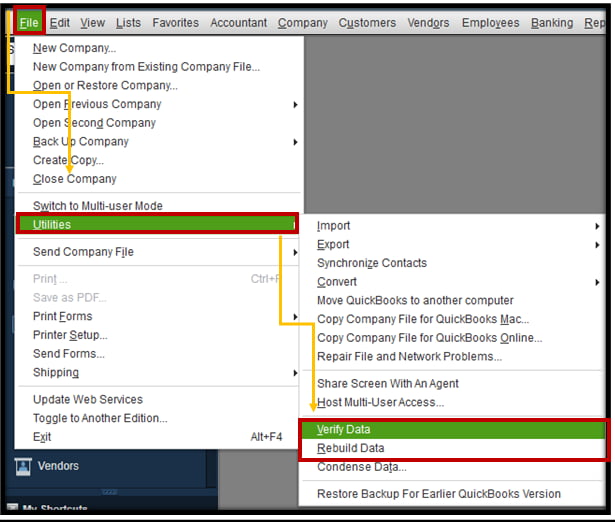
The verify tool finds the most common issues in a company file and the rebuild tool fixes them.
Note: If you use Assisted Payroll contact us before rebuilding your data.
Note: Don’t replace your existing company file. You’ll need to enter info into your company file again since the backup was created.
If you have a specific transaction in mind, you can use the Find feature and get matching results for transactions only.
Note: Switch to the Find window by selecting Go to Find if you’re in the Search window already.
Important: To print a report showing the transactions that QuickBooks found, click Report. When the report displays on the screen, select Print.
The Audit Trail reports provide valuable historical documentation, which enhances accountability and transparency.
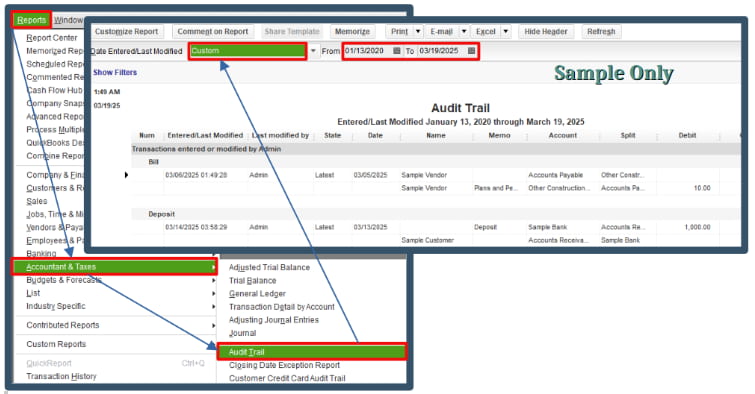
To download the report, click Export. Select the Create New Worksheet option, and press Export. See the attached screenshots for visual reference.
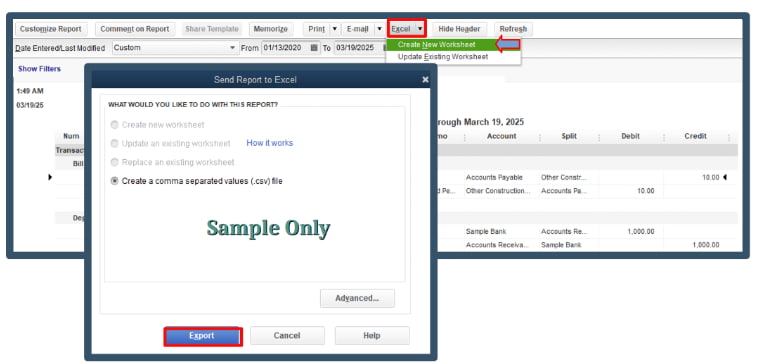
By default, QuickBooks saves the company file to C:\Users\Public\Documents\Intuit\QuickBooks\yourcompanyfile.qbw. To change the location where your company file is stored, do the following:
QuickBooks Desktop logs program messages and errors, including information created by Verify, Rebuild, and Condense Data utilities, in a specific file. In Windows, the file is called QBWin.log while for Mac, it is called QuickBooks.log. If Verify/Rebuild doesn’t give you clear results, the QBWin.log may show what’s wrong behind the scenes.
Tip: Paste this in the address bar for the faster way: %localappdata%\Intuit\QuickBooks\log\XX.X\QBWin.log
When you restore, QuickBooks uses the backup company file (.qbb) to create a new company file (.qbw).
Important: If your backup company file is on an external device like a USB or a hosting service like Box, move it to your local hard drive first. Then follow the steps below.
Note: If you see any messages about possibly overwriting your data, select the option that best fits your needs. Don’t overwrite anything unless you know you want to.
You’re definitely on the right track, Mark.
I completely understand how discouraging it can be when transactions you’ve entered don’t appear as expected — especially when you’re trying to stay on top of your financial records. You’re not alone in this, and the good news is that most of these issues have clear solutions. With a little time and the right approach, we can get your QuickBooks working the way it should.
This guide will help you troubleshoot missing transactions while ensuring your company data stays safe and intact. Whether it’s reviewing the QBWin.log file or walking through the Rebuild Data process, we’re here to support you every step of the way. Even if you need help restoring a backup or moving your records to a new file? Just reach out to us — we’ll make sure you’re taken care of.


