


![How to Fix QuickBooks Error 30159 [Payroll Update Error]?](https://ebetterbooks.com/wp-content/uploads/2023/09/fix-quickbooks-error-30159.png)
QuickBooks Error 30159 is a payroll setup issue that prevents the system from processing payroll correctly. It usually appears when the payroll subscription or system files are misconfigured.
The error often arises due to an inactive payroll subscription, incorrect EIN (Employer Identification Number) setup, or corrupted Windows system files. Outdated QuickBooks versions and incomplete installation can also trigger it.
You’ll typically encounter this error while running payroll or updating payroll services. It may also show up when trying to add a new payroll subscription or during paycheck processing.
Users often see a message like “Error 30159: Payroll Error – QuickBooks has encountered a problem”. Sometimes, it appears as a payroll update failure or subscription validation error.
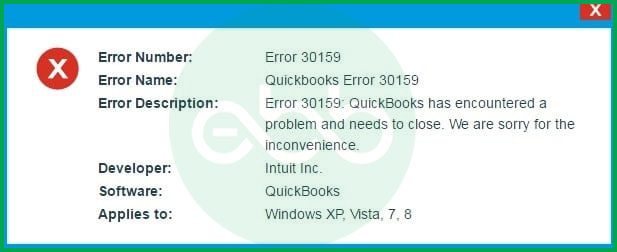
Leaving this error unresolved can block payroll processing, delay employee payments, and create compliance risks. Preventing it ensures smooth payroll runs, accurate tax filings, and uninterrupted business operations.

About the 3000 Series of Errors
The 3000 series in QuickBooks generally refers to payroll‑related errors tied to subscription validation, system file conflicts, or incorrect setup of employer/employee information. These errors often block payroll processing, prevent updates, or cause compliance issues.
Error 30159 is one of the most common in this series. It specifically points to problems with payroll subscription activation or system file corruption. Like other 3000‑series errors, it signals that QuickBooks cannot properly validate payroll data, which stops paychecks from being processed correctly.
Possible Reasons for QuickBooks Error 30159
Corrupted Windows Registration Files
- Damaged or missing system files can interfere with QuickBooks’ ability to validate payroll services.
Incomplete or Incorrect Payroll Setup
- Errors in employee or company payroll configuration, such as missing EIN details, can trigger this issue.
Outdated QuickBooks Desktop Version
- Running payroll on an older QuickBooks version often causes compatibility issues with tax table updates.
Inactive Payroll Subscription
- If your payroll subscription is expired or not properly activated, QuickBooks cannot verify it, leading to Error 30159.
Misconfigured Windows System Files
- Incorrect file settings or cluttered temporary files can disrupt QuickBooks’ payroll functions.
Virus or Malware Attack
- Malicious software can corrupt QuickBooks files or block payroll service validation.
Outdated Windows Operating System
- Missing system updates may prevent QuickBooks from syncing properly with payroll services.
Incorrect Payroll Service Key
- If the payroll service key is missing, expired, or entered incorrectly, QuickBooks cannot validate payroll.
Quick overview of Troubleshooting steps for Quickbook Error 30159
The tabular presentation shows a quick overview of all the causes along with their solution and estimated time limit.
| Cause | Solution | Verification Step | Estimated Time |
| Corrupted Windows registration files | Run System File Checker (sfc /scannow) | Confirm scan completes and reports no integrity violations | 15–25 minutes |
| Misconfigured Windows files | Perform Disk Cleanup | Check that temporary/unwanted files are removed and drive space is freed | 10–15 minutes |
| Virus or malware attack | Run QuickBooks Payroll Error Utility scan | Ensure detected errors are fixed and system reboots without issues | 20–30 minutes |
| Inactive EIN status | Add EIN in Payroll Account Maintenance | Verify EIN is active and payroll subscription shows as valid | 10–20 minutes |
| Outdated Windows version | Install latest Windows Updates | Confirm system restarts with updates applied successfully | 20–40 minutes |
| Miscellaneous system issues | Use System Restore to roll back | Verify QuickBooks opens without error after restore | 20–30 minutes |
| Manual PC update/repair | Restore to recent point + run File Repair Tool | Confirm QuickBooks scan shows no remaining payroll errors | 25–40 minutes |
| Incorrect payroll service key | Re‑enter Payroll Service Key | Validate payroll subscription activates and error no longer appears | 10–15 minutes |
Detailed Explanation of Quickbook Error 30159
Cause 1: Corrupted Windows Registration Files
Fix: Run the Windows System File Checker
- Sign in as a system administrator.
- Open the Start menu, press Windows + R, and type CMD.
- Right‑click and choose Run as Administrator.
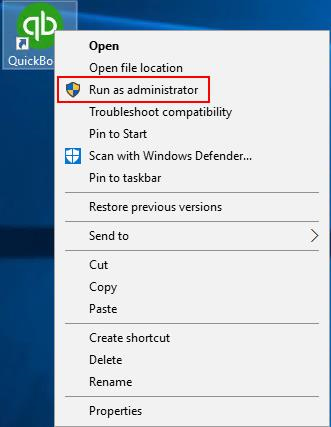
- In the command prompt window, type sfc /scannow and press Enter.
- Allow the scan to complete, then follow any on‑screen instructions to repair damaged system files.

Cause 2: Misconfigured Windows Files
Fix: Perform a Disk Cleanup
- Open the Start menu and search for Disk Cleanup.
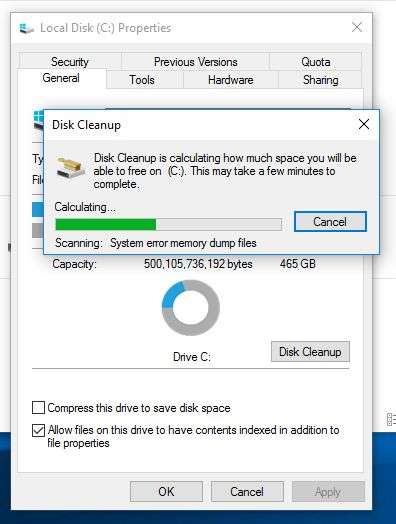
- Select the drive you want to clean and click OK.
- Mark all unnecessary file types and confirm deletion.
- Choose Clean up system files to remove deeper temporary files.
- This frees space and eliminates corrupted temporary data that may interfere with QuickBooks.
Cause 3: Virus or Malware Infection
Fix: Scan for QuickBooks Payroll Errors
- Download and install the QuickBooks Payroll Error Utility.
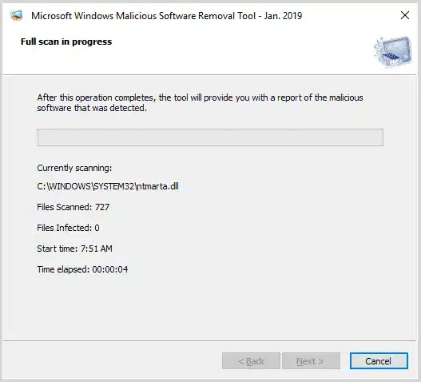
- Launch the program and start a full system scan.
- Once scanning completes, select detected QuickBooks errors.
- Apply the fixes and restart your computer to finalize changes.
Cause 4: Inactive EIN Status
Fix: Add EIN to the Company File
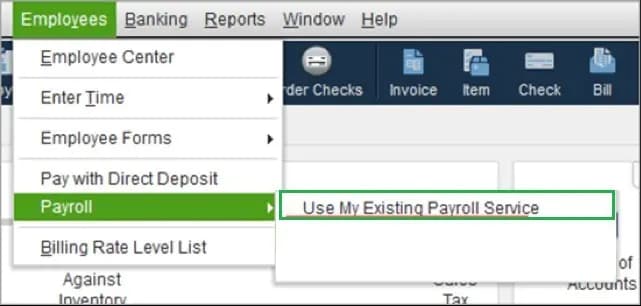
- Open QuickBooks and go to the Payroll section.
- Select Use my existing payroll service.
- In the Account Maintenance window, click Add File.
- Choose Add EIN number. If this option is disabled, it means the EIN is already active.
- Review the details, confirm, and restart QuickBooks.
Cause 5: Outdated Windows Version
Fix: Update Windows
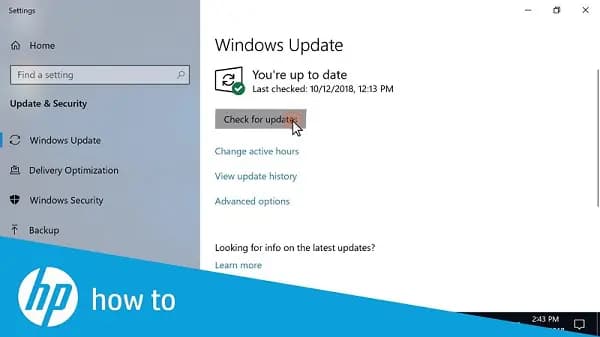
- Open the Start menu and search for Update.
- Allow the system to check for available updates.
- Install all pending updates.
- Restart your computer to apply changes.
Miscellaneous Fixes
If none of the above causes apply, try these additional solutions:
Option 1: Use System Restore
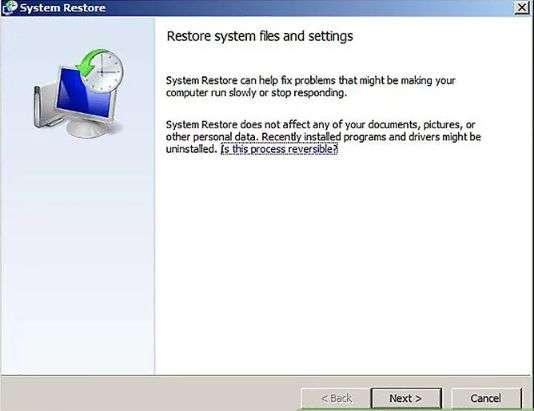
- Search for System Restore in Windows.
- Enter the administrator password if prompted.
- Follow the guided steps to restore your computer to a previous stable point.
- Restart and re‑open QuickBooks.
Option 2: Manual PC Update & Repair
- Log in as administrator and open All Programs → Restore.
- Select Restore my computer to an earlier time.
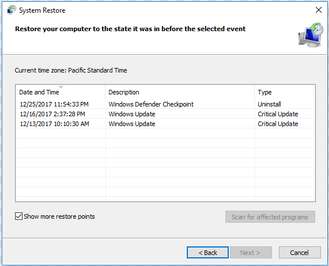
- Choose the most recent restore point and confirm.
- Restart the system, then download and run the QuickBooks File Repair Tool.
- Scan for issues, apply fixes, and reboot.
Option 3: Re‑enter Payroll Service Key
- Go to Employees → My Payroll Service → Manage Service Key.
- Select your payroll service key and remove it.
- Click Add, enter the active service key, and finish setup.
- Confirm changes and restart QuickBooks.
Impact of QuickBooks Payroll Error 30159 on Your System
- Payroll Processing Halted – Employees may not receive paychecks on time because the system blocks payroll runs.
- Subscription Validation Failure – QuickBooks cannot verify your payroll subscription, leading to interruptions in payroll services.
- System Performance Issues – Corrupted files or misconfigured settings can slow down your computer and cause repeated crashes.
- Compliance Risks – Missing or incorrect payroll data can result in inaccurate tax filings and potential IRS penalties.
- Data Integrity Concerns – Damaged system files or malware attacks may compromise the accuracy of payroll records.
- Operational Delays – Frequent error prompts force technicians to spend extra time troubleshooting instead of completing payroll tasks.
- Employee Dissatisfaction – Delayed or incorrect paychecks can reduce trust and morale among staff.
Conclusion:
QuickBooks Error 30159 is part of the 3000‑series payroll errors, most often linked to subscription validation, corrupted system files, or outdated configurations. While the causes range from inactive EIN status to malware attacks, the impact is consistent blocked payroll runs, compliance risks, and operational delays. By following the stepwise fixes outlined above and applying preventive measures such as keeping Windows updated, verifying payroll subscription details, and maintaining system health, businesses can minimize disruptions.
FAQs:
1. What does the specific error message “PSID null” indicate in QuickBooks Error 30159?
The term “PSID null” (Payroll Service ID null) in the Error 30159 message is a critical indicator that QuickBooks cannot find or validate the required Payroll Service ID necessary for your subscription to function.
- Meaning: “Null” means the software is receiving an empty or unrecognizable value where a valid Payroll Service ID should be.
- Root Cause: This usually stems from a corrupted or missing payroll entitlement file (
Paysub.ini) within your system’s hidden configuration folders. - Resolution: The primary fix involves either verifying your payroll subscription status through the My Payroll Services menu or renaming the corrupted
Paysub.inifile to force QuickBooks to generate a new, correct entitlement file upon the next launch.
2. Can I fix Error 30159 by just verifying my subscription status online, or do I need to perform file repairs?
Verification is the essential first step, but it may not be sufficient if the error is caused by a corrupted local file. You should always start with the least destructive solution.
- First Attempt (Verification): Checking your subscription status via the Employees ➜ My Payroll Services ➜ Account/Billing Info menu forces QuickBooks to re-authenticate with the Intuit servers. If the error was due to a temporary authentication glitch, this is often enough.
- Second Attempt (File Repair): If the verification fails, the problem is local. The next step requires using the QuickBooks Tool Hub to run the Quick Fix My Program utility, which is designed to repair minor program errors and system components related to payroll entitlements.
- Last Resort: If both fail, file-level intervention, such as renaming the
Paysub.inifile, is necessary.
3. What is the role of the Paysub.ini file, and where can I find it to rename it?
The Paysub.ini file is a crucial configuration file that stores the local information about your payroll subscription, including the Service ID (PSID) and entitlement data. When this file is corrupted, it causes Error 30159.
Steps to locate and rename the file:
- Enable Hidden Items: In File Explorer, navigate to the View tab and enable the option to show Hidden Items (or Hidden Files and Folders).
- Locate the Path: The file is located in a hidden folder, typically under the path similar to
C:\ProgramData\Intuit\QuickBooks\20XX\Components\Payroll. - Rename: Once found, rename the file by adding
.oldto the end (e.g.,Paysub.ini.old). - Auto-Generation: When you restart QuickBooks, the software detects the missing file and automatically generates a new, clean version, resolving the corruption issue.
4. Why are the Windows System File Checker and Windows updates listed as solutions for a QuickBooks error?
Error 30159 is often a symptom of underlying operating system issues that prevent QuickBooks from communicating with its entitlement files or servers. Therefore, Windows maintenance is a critical part of the fix.
- System File Checker (
sfc /scannow): This command scans all protected Windows system files for corruption and replaces any damaged or missing files. If a core Windows component needed by QuickBooks is damaged, this utility fixes it. - Windows Updates: Outdated Windows versions can cause incompatibility problems. Ensuring the operating system is fully updated resolves known security issues and patches that can interfere with QuickBooks software services.
- Compatibility: Intuit designs QuickBooks to run on fully patched, supported versions of Windows. Mismatches frequently lead to validation errors like 30159.
5. What role does the Employer Identification Number (EIN) play in triggering or resolving Error 30159?
The Employer Identification Number (EIN) is directly tied to your payroll service subscription and is a common point of failure for Error 30159.
- Subscription Linkage: Intuit links your payroll service subscription and activation key directly to your specific company’s EIN.
- Mismatched Data: The error can occur if:
- The EIN in your QuickBooks company file is incorrect.
- You have multiple company files and are trying to run payroll with the wrong EIN linked to the active subscription.
- Resolution Step: By going to the Account Maintenance window and verifying the EIN, you force a reconciliation between the data stored on the Intuit servers and the data in your local company file, often restoring the lost entitlement link.
6. If Error 30159 appears after an automatic update, how should I proceed to ensure the tax table is not the issue?
After resolving the primary error through subscription verification or file repair, you must manually run a payroll tax table update to ensure the correct tax data is applied.
Steps to ensure the tax table is current:
- Access Update Menu: Go to the Employees menu➜ Get Payroll Updates.
- Verify Version: Check the tax table version listed against the latest version available on the official Intuit payroll news page.
- Download Entire Update: Select the Download Entire Update option.
- Confirm: Click Update to install the full, current tax table, ensuring the system has the latest regulations needed to run payroll without validation errors.
7. Does the QuickBooks Tool Hub contain a specific tool for resolving Error 30159?
Yes, the QuickBooks Tool Hub is the official starting point for many payroll errors and contains utilities specifically designed to repair the underlying causes of Error 30159.
- Quick Fix My Program: Found under the Program Problems tab, this utility often resolves general program glitches and permissions errors that interfere with entitlement checks.
- Payroll Update Tool: The Payroll Issues tab within the Tool Hub directs you to specific fixes for validation and update errors.
- Tool Hub Benefit: Intuit designed the Tool Hub to perform automated diagnostics and non-destructive repairs that are safer and more efficient than manual file manipulation or system restores.
Disclaimer: The information outlined above for “How to Fix QuickBooks Error 30159 [Payroll Update Error]?” is applicable to all supported versions, including QuickBooks Desktop Pro, Premier, Accountant, and Enterprise. It is designed to work with operating systems such as Windows 7, 10, and 11, as well as macOS.