



QuickBooks Error 6000, 301 is a critical company file access error that belongs to the 6000‑series of QuickBooks Desktop issues, all of which are closely tied to company file integrity and supporting configuration files. Unlike minor glitches, this error directly interferes with your ability to open or work with the company file (.QBW), making it a serious obstacle for businesses that rely on QuickBooks for daily accounting and financial management.
The error typically appears like:
“An error occurred when QuickBooks Desktop tried to access the company file. Please try again. If the issue persists, contact Intuit Technical Support and provide them with the following error codes: (-6000, -301).”
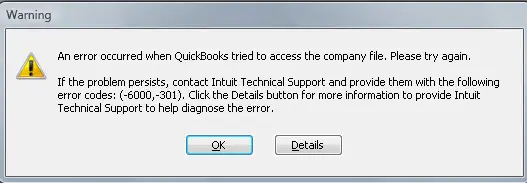
This error arises when QuickBooks encounters damaged or corrupted support files such as the Transaction Log (.TLG), Network Descriptor (.ND), or Data Source Name (.DSN) files.
It can also be triggered by encryption software conflicts, outdated QuickBooks versions, or corruption within the company file itself. Because these files are essential for multi‑user access and data management, any damage or misconfiguration can prevent QuickBooks from establishing a stable connection with the company file.
QuickBooks Error 6000, 301 often occurs in scenarios such as:
- Attempting to open a company file stored on a network or another computer.
- Accessing a company file that has been damaged or corrupted.
- Running QuickBooks with outdated software versions.
- Using third‑party encryption software that interferes with QuickBooks processes.
The impact of this error can be significant ranging from workflow interruptions and time loss to potential data rebuilding requirements. Since the company file contains sensitive financial information, resolving this error promptly is essential to avoid downtime and ensure data integrity.
What causes QuickBooks Error 6000, 301?
- Damaged or corrupted support files (.ND, .TLG, .DSN) restrict QuickBooks from linking properly to the company file which ultimately leads to this error.
- Corrupted company files (.QBW) generally block access to financial data.
- Outdated QuickBooks Desktop versions can cause compatibility issues and trigger file access errors.
- Encryption software interferes with QuickBooks processes and restricts the user to access or read company files.
- Improper network path or insufficient permissions to companies financial data restrict quickbooks to work properly
Effect of this error on business:
The Quickbook error 6000, 301 generally effect the business in following ways:
- Prevents access to financial data
- Causes workflow interruptions and downtime
- May require rebuilding or repairing the company file
- Risk of data loss if backups are not available
- Increased troubleshooting and IT resource costs
How can I prevent QuickBooks Error 6000, 301 in the future?
In order to prevent this error in future, following steps are required to be implemented:
- Keep QuickBooks Desktop updated.
- Regularly back up company files.
- Avoid encrypting QuickBooks files with third‑party software.
- Store company files on stable, permission‑controlled servers.
- Run Verify & Rebuild Data periodically to maintain file integrity.
Quick Stepwise Summary of Troubleshooting Framework
| Level | Error Context | Action | Why | Verification / Notes | Time |
| Beginner | QuickBooks Error 6000, 301 – Outdated Version | Update QuickBooks Desktop (Help > Update QuickBooks Desktop > Get Updates > Restart) | Updates often fix bugs and improve stability | Confirm QuickBooks launches without error | 15–30 min |
| QuickBooks Error 6000, 301 – File vs. Software Check | Open a Sample Company File (No Company Open > Open a Sample File) | Confirms if issue is file‑specific or software‑related | If sample file opens, issue lies in company file | 10–15 min | |
| Intermediate | QuickBooks Error 6000, 301 – Damaged Config Files | Rename Support Files (.ND, .TLG, .DSN → add .OLD) | Forces QuickBooks to recreate fresh config files | Try reopening company file | 15–20 min |
| QuickBooks Error 6000, 301 – Network Path Issue | Copy Company File Locally (move .QBW to Desktop, open via QuickBooks) | Rules out network path issues | File opens successfully from Desktop | 15–20 min | |
| QuickBooks Error 6000, 301 – Encryption Conflict | Disable Encryption Software Temporarily | Encryption tools can block QuickBooks processes | File opens after disabling | 10–15 min | |
| Advanced | QuickBooks Error 6000, 301 – File Corruption | Run QuickBooks File Doctor (Tool Hub > Company File Issues) | Repairs corruption and network issues | Tool completes without errors | 20–30 min |
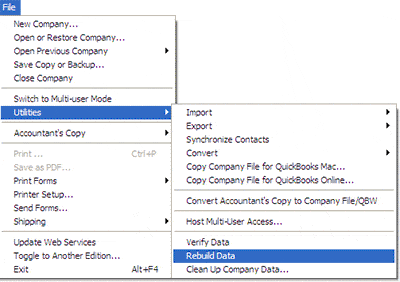
| QuickBooks Error 6000, 301 – Structural Damage | Verify & Rebuild Data (File > Utilities > Rebuild Data, then Verify Data) | Repairs structural damage in company file | Verify Data shows no issues | 30–60 min | |
| QuickBooks Error 6000, 301 – Installation Corruption | Repair/Reinstall QuickBooks (Control Panel > Programs and Features > Repair; if fails, uninstall/reinstall) | Fixes installation corruption | QuickBooks launches cleanly | 30–60 min | |
| QuickBooks Error 6000, 301 – Windows System Conflict | Advanced Windows Checks (sfc /scannow, chkdsk /f, Event Viewer logs) | Ensures Windows isn’t causing the issue | No system errors reported | 30–60 min |
Detailed Stepwise Troubleshooting Framework for Quickbook Error 6000, 301
Level 1 – Beginner Safe Fixes
These are low‑risk steps that don’t involve system modifications.
Step 1: Update QuickBooks Desktop
- Open QuickBooks.
- Go to Help > Update QuickBooks Desktop.
- Select Get Updates and install patches.
- Restart QuickBooks.
Step 2: Open a Sample Company File
- From the No Company Open window, select Open a Sample File.
- To confirm whether the issue is file‑specific or software‑related.
- If the sample file opens, the problem lies in your company file.
Level 2 – Intermediate Fixes
These steps involve QuickBooks data files or system components. Always backup your company file before proceeding.
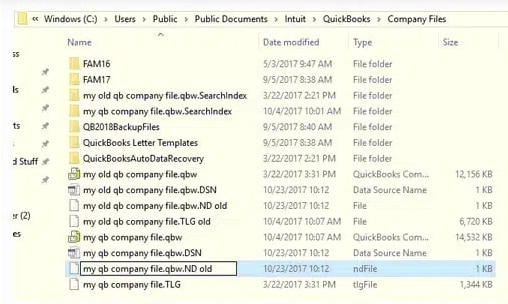
Step 3: Rename Support Files (.ND, .TLG, .DSN)
- Locate the folder containing your company file.
- Find files with the same name as your company file but extensions .ND, .TLG, and .DSN.
- Rename them by adding .OLD at the end (e.g., companyfile.qbw.nd → companyfile.qbw.nd.old).
- QuickBooks will recreate fresh configuration files.
Step 4: Copy Company File Locally
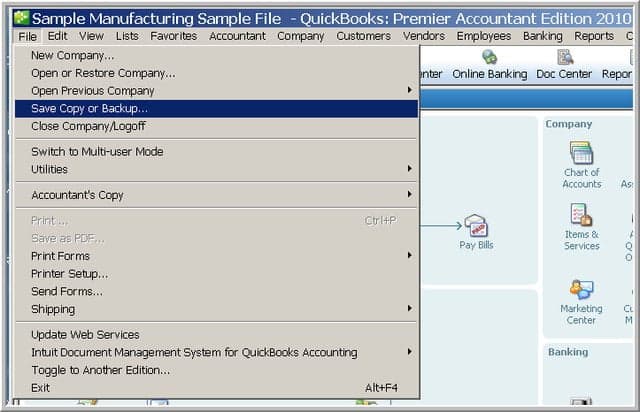
- Copy your company file (.QBW) to the Desktop.
- Open QuickBooks and select Open or Restore Company > Open a Company File.
- This rules out network path issues.
Step 5: Disable Encryption Software Temporarily
- If you use third‑party encryption software, disable it temporarily.
- Restart QuickBooks and try opening the file.
- Encryption tools can block QuickBooks processes.
Level 3 – Advanced / Professional Fixes
These are system‑level checks. Attempt only if you’re comfortable with Windows administration, or seek professional help.
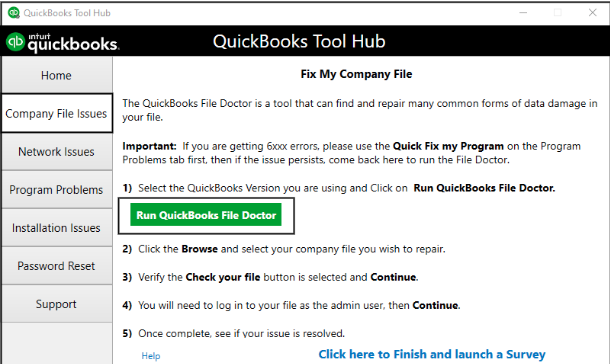
Step 6: Run QuickBooks File Doctor (via Tool Hub)
- Download and install QuickBooks Tool Hub.
- Open it and select Company File Issues > Run QuickBooks File Doctor.
- Choose your company file and let the tool repair it.
- Automatically fixes corruption and network issues.
Step 7: Verify & Rebuild Data
- In QuickBooks, go to File > Utilities > Rebuild Data.
- Follow prompts to repair the company file.
- After rebuilding, run Verify Data.
- Repairs structural damage in the company file.
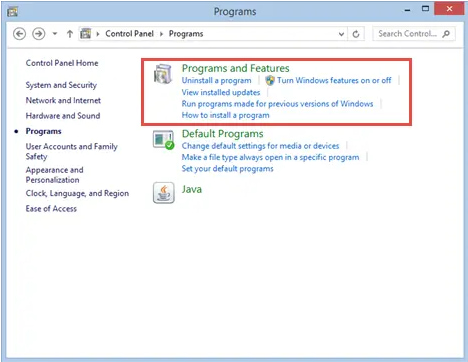
Step 8: Repair/Reinstall QuickBooks
- Go to Control Panel > Programs and Features.
- Select QuickBooks and choose Repair.
- If repair fails, uninstall and reinstall QuickBooks.
- Fixes installation corruption.
Step 9: Advanced Windows Checks
- Open Command Prompt as Administrator.
- Run SFC /scannow to repair system files.
- Run CHKDSK /f to check disk health.
- Review Event Viewer logs for related errors.
- This ensures Windows itself isn’t causing the issue.
Conclusion
QuickBooks Error 6000, 301 is a critical company file access issue that directly impacts financial workflows and data integrity. Because it stems from damaged support files, corrupted company data, outdated software, or improper network permissions. The error requires a structured, stepwise approach (given above) to be resolved.
By starting with beginner‑level safe fixes (updates and sample file checks), progressing through intermediate solutions (renaming support files, local file testing, disabling encryption), and finally applying advanced professional methods (File Doctor, Verify & Rebuild, reinstalling QuickBooks, and Windows system checks), businesses can systematically eliminate root causes while minimizing risk.
Ultimately, by addressing QuickBooks Error 6000, 301 the user can promptly safeguards business continuity, protects sensitive financial data, and restores all the confidential information in QuickBooks as a reliable accounting solution.
FAQ
-
What exactly are the .ND and .TLG files, and why is renaming them a safe fix?
The Network Data (.ND) file and the Transaction Log (.TLG) file are essential support files QuickBooks uses to access your Company File (.QBW), particularly in a multi-user or network environment.
1. The .ND file stores configuration data, allowing QuickBooks Desktop to connect to the Company File over a network.
2. The .TLG file records all recent transactions and modifications since the last successful backup or data integrity check.Renaming them to
.ND.OLDand.TLG.OLDis safe because it forces QuickBooks to automatically create fresh, uncorrupted versions the next time you open the company file. This process often resolves errors caused by damaged network paths or corrupt transaction logs without affecting the core accounting data in the .QBW file. -
Is it safe to use the QuickBooks File Doctor tool, and what specific issues does it resolve for Error 6000 301?
Yes, the QuickBooks File Doctor tool is highly recommended and safe, as it is an official utility provided by Intuit. It is specifically designed to diagnose and repair two main categories of issues that cause 6000-series errors:
1. Data Damage: It scans and attempts to fix internal corruption within the QuickBooks Company File (.QBW) itself.
2. Network and Connectivity Issues: It checks your network settings, Windows firewall configuration, and the connection between the QuickBooks application and the server hosting the company file.For Error 6000 301, the File Doctor can be the definitive tool to fix file structure problems that prevent access, especially when simple steps like renaming .ND and .TLG files fail.
-
I get this error when opening my file from a network drive. What permissions do I need to check?
When accessing a company file over a network, Error 6000 301 is often triggered by insufficient permissions on the server or host computer. You must ensure that the user accessing the file has full access rights.
Specifically, check the following:
1. Folder Permissions: The Windows user account running the QuickBooks Database Server Manager (on the server) must have Full Control permissions for the folder that contains the company file.
2. Firewall Exclusion: The QuickBooks Database Server Manager program and specific QuickBooks ports must be added as exceptions in the firewall settings on both the server and the workstation to allow uninterrupted network communication.
3. QuickBooks Admin Login: You must be logged into the QuickBooks software using a user ID with Admin credentials, as instructed in the article’s Solution 1. -
Why does the article recommend restarting the computer and running QuickBooks as an administrator?
These are initial, foundational troubleshooting steps that address common system-level conflicts and restrictions:
1. Restarting the Computer: Clears temporary system caches, resolves conflicts caused by background processes, and refreshes system resources (like RAM) that might be causing internal glitches or slow performance.
2. Running as Administrator: QuickBooks often requires elevated permissions to fully access and modify the necessary system files, including database server components and network files. Running the application as an administrator ensures it is not being blocked by Windows User Account Control (UAC) settings from accessing the company file. -
Can using third-party encryption software really cause Error 6000 301?
Yes, third-party encryption software is a frequent cause of the Error 6000 301.
1. QuickBooks Desktop is designed to handle company files in a standard, unencrypted format.
2. When a third-party application encrypts the folder or the company file itself, it blocks QuickBooks from reading or writing data.
3. The application cannot decrypt the file fast enough or fails to access the file altogether, resulting in the 6000-series access error.Intuit advises against using external encryption software on company files and instead recommends using built-in Windows security features or contact the software vendor for guidance on disabling encryption.
-
If copying the file to the Desktop fixes the error, what does that tell me about the original problem?
If you can successfully open the company file after copying it to your local desktop, the file itself is likely not damaged. This diagnosis points directly to the original storage location as the source of the error, indicating one of the following issues:
1. Long File Path: The original folder structure was too deep, exceeding Windows’ character limit for file paths.
2. Network Interruption: The network connection was unstable or slow when accessing the server.
3. Folder Permissions: The original server folder lacked the necessary read/write permissions for your user account.
4. Synchronization Service Conflict: Cloud or sync services (like Dropbox, OneDrive) were actively locking the file.The solution is to resolve the underlying issue at the original network location (e.g., shorten the path, fix permissions, or move the file to a standard QuickBooks hosting location).
-
Which specific QuickBooks Desktop components should I repair when using the installation repair option?
When you choose the Repair option via the Windows Control Panel (Solution 4), the process automatically checks and restores all the necessary core components of your QuickBooks Desktop installation.
This includes:
1. QuickBooks Executable Files (.EXE): The main program files.
2. DLL Files: Critical system and dynamic-link libraries that enable various QuickBooks features.
3. Database Server Manager Files: Components required for multi-user access.
4. Windows Registry Entries: Corrects any damaged or missing configuration entries in the system registry.You do not need to manually select individual components; the repair function is comprehensive and designed to fix internal installation errors without affecting your company file data.
Disclaimer: The information outlined above for “How to Fix QuickBooks Error Code 6000 301 While Accessing the Company File?” is applicable to all supported versions, including QuickBooks Desktop Pro, Premier, Accountant, and Enterprise. It is designed to work with operating systems such as Windows 7, 10, and 11, as well as macOS.