Excerpt:
Facing a “Company File is Already in Use” error in QuickBooks Desktop 2024, even when no one is logged in? This guide resolves the phantom file lock issue caused by stuck sessions, hosting conflicts, or corrupted support files. Learn how to safely regain access without damaging your data, using proven steps like verifying hosting, renaming .ND/.TLG files, and restarting services—all tailored for multi-user environments.
 Add As A Preferred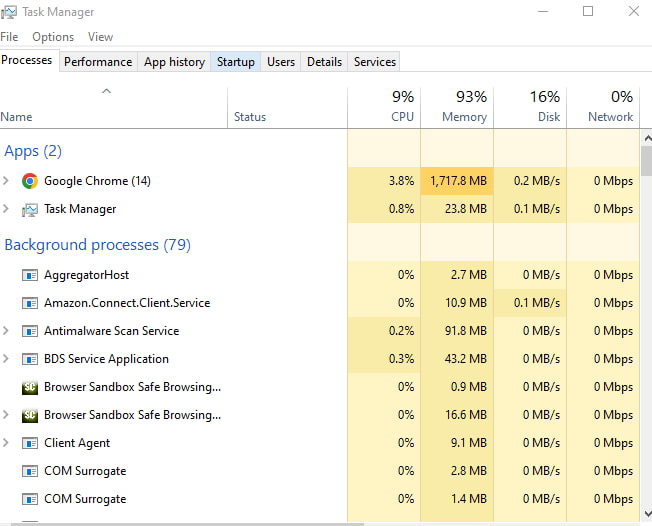
Hi, I’m Shari Emerson, and I’ve been using QuickBooks Desktop Enterprise 2024 to handle our company’s day-to-day financials across multiple users in our office. Everything’s been working fine until just recently—now every time I try to open our main company file, I get a message that says the file is already open on another system, even when no one else is using it.
It’s really puzzling because we’re careful about logging out and closing QuickBooks properly. I’ve checked with all our team members, and no one else is currently logged into the file. Still, I keep getting that same “company file is in use” or “file already open” error. It’s become a serious roadblock—I can’t access critical data, post transactions, or run reports.
We are running in a multi-user setup, and I suspect it might have something to do with the hosting settings, the network connection, or maybe a locked .ND or .TLG file. But honestly, I’m not sure where to begin troubleshooting. I don’t want to risk corrupting the file or making the problem worse by forcing it open.
What steps should I need to take to safely regain access to your company file when QuickBooks said it was already open on another computer, but it wasn’t? Is this something that requires server-level changes, or is there a way to reset access without losing data or multi-user connectivity? I’d really appreciate any help and support from someone who’s dealt with this firsthand.”
Hi Shari Emerson, you’re certainly not alone in encountering this issue.
In QuickBooks Desktop Enterprise 2024, multi-user environments are powerful but prone to subtle file access issues especially when multiple users, server connections, and hosting permissions are involved, and the complete QuickBooks error codes list helps identify related file-access and multi-user errors quickly. You’re following all the right practices, yet QuickBooks insists the company file is already open on another computer, locking you out of critical tasks like posting entries or running reports.
Before you attempt any risky fixes like force-opening the file or restarting randomly, it’s important to understand why this happens and how to resolve it without damaging your company file or disrupting multi-user access.
When you’re working in a multi-user setup, QuickBooks uses a set of network and log files to manage access to your company file, and the QuickBooks company file errors guide explains how such file-locking and access issues occur in detail. Sometimes, these files hold onto session data or become “stuck,” making QuickBooks believe the file is still in use even after everyone has logged off.
This can be triggered by:
As a result, QuickBooks blocks access, assuming the file is still active whereas it’s just a phantom lock caused by a network or file miscommunication.
These steps are carefully structured to help you resolve the file lock issue without corrupting your company file or interfering with multi-user functionality.
Before diagnosing any file conflict, the first task is to ensure that no QuickBooks Desktop session is running anywhere in the office, even in the background.
Why this matters: Sometimes, QuickBooks doesn’t close properly, and the process continues running invisibly in the background, making the system think the file is still in use.
If lingering memory locks or sessions exist on the file server or other computers, restarting clears them safely.
Why this helps: It refreshes the network connection, ends stuck file sessions, and clears out temporary locks held by Windows or QuickBooks services.
QuickBooks uses hidden files to manage access and track transactions. If these files are corrupted or stuck in a “locked” state, they can trigger access errors.
Why this works: Renaming deactivates the old connection files. The next time you open the company file, QuickBooks will generate new, clean versions of these support files automatically.
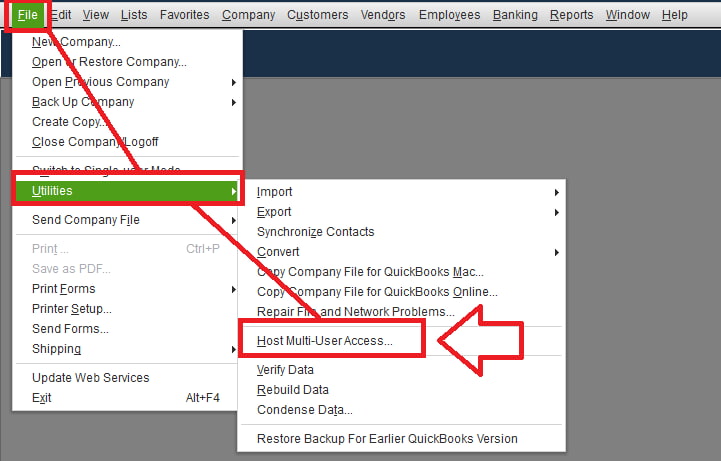
In a proper QuickBooks multi-user environment, only one machine (usually the server) should have hosting enabled. If multiple systems have hosting turned on, QuickBooks gets confused about file ownership — causing lockouts or unexpected errors.
Why this matters: Hosting should only be active on one system (usually the server). Multiple hosts can create confusion and false file-open errors.
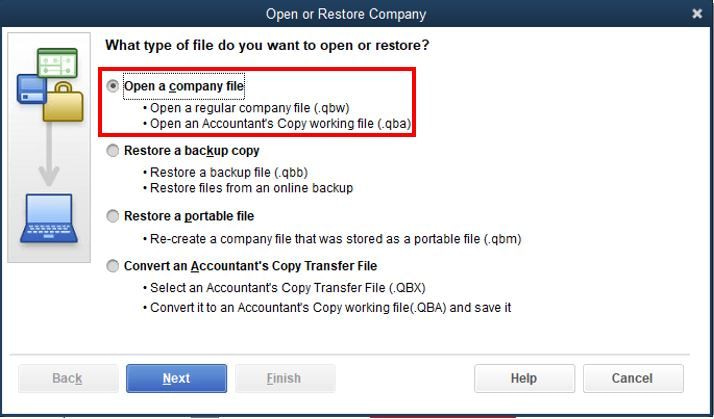
The QuickBooks Database Server Manager is a utility designed to manage access to your company file on a network. Running it helps rebuild permissions and regenerate necessary support files. You can also use the QuickBooks File Doctor Tool, a built-in repair utility that detects and fixes file and network-related issues automatically.
Why this helps: Scanning ensures that QuickBooks can properly host your company file in multi-user mode and updates the .ND file to reflect accurate network settings.
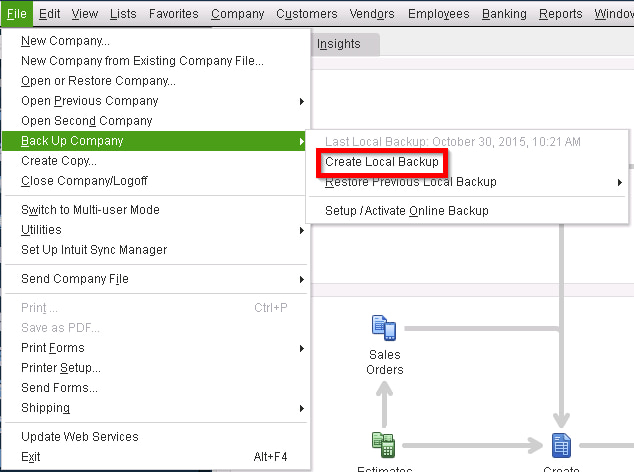
Once QuickBooks opens the file successfully, take the following post-recovery precautions:
To reduce the chances of QuickBooks falsely reporting that your company file is already in use, it’s important to follow these operational and network hygiene practices regularly. These small steps can go a long way in preserving file integrity, multi-user access, and overall system performance.
Many users close QuickBooks by clicking the X in the corner of the window. However, this method doesn’t always close background services cleanly. Using File > Exit ensures QuickBooks shuts down all processes correctly, including the network connection to the company file. This prevents ghost sessions that can trigger file lock errors.
Hosting settings control which computer shares access to the company file. If hosting is enabled on more than one system, QuickBooks can get confused about file control, leading to access errors or even data damage. Only the dedicated server or host computer should have hosting enabled—all other workstations must have it turned off.
Over time, servers can accumulate stale memory sessions, open ports, or incomplete disconnections—especially in multi-user environments. A weekly reboot clears these temporary locks and refreshes QuickBooks services, improving stability and access consistency across all users.
Security software can mistakenly block or quarantine QuickBooks support files like .ND, .TLG, or even the .QBW file. This interferes with network communication and may corrupt the file or restrict access. Add your QuickBooks folders to your antivirus exception list to ensure smooth operation.
While portable drives are great for backups, they are not suitable for storing active company files. Disconnection risks, write-speed inconsistencies, and auto-eject features can interrupt QuickBooks’ real-time data access—often leading to file damage or version conflicts.
Mapped network drives are commonly used to access the company file stored on a server. However, if they’re not configured to auto-reconnect at login, QuickBooks might not find the file path, causing errors or forcing you into single-user mode. Set them as “persistent” so they automatically re-establish at each reboot.
Anytime a user is added, removed, or when your server undergoes a Windows or QuickBooks update, the QuickBooks Database Server Manager should be run again. This re-indexes your folders, recreates network descriptors, and ensures all systems are pointing to the correct file path.
Related QuickBooks Errors
If you are experiencing similar issues related to company file access, these related errors may also be affecting your QuickBooks Desktop:
| Error | Description |
|---|---|
| Quickbooks Desktop Error code 6000 83 | Occurs when QuickBooks cannot access the company file due to network issues, incorrect permissions, or damaged file paths |
| Quickbooks Desktop Error code 6094 0 | Triggered when security software blocks QuickBooks Database Server Manager, preventing access to the company file |
| Quickbooks Desktop Error the File you specified cannot be open | Indicates that QuickBooks is unable to open the company file due to incorrect file location, corruption, or restricted access permissions |
If you continue facing access issues in a multi-user setup, referring to the QuickBooks multi-user mode errors guide can help you understand common network conflicts, hosting misconfigurations, and user-session problems that cause QuickBooks to incorrectly show the company file as already in use.
Yes. Dropped connections, unstable Wi-Fi, or a loose Ethernet cable can disrupt the handshake between QuickBooks and the host system. This leaves sessions incomplete, and QuickBooks may still register the file as being in use. Using a wired, stable network connection is highly recommended for QuickBooks Desktop multi-user setups.
While not mandatory, using a dedicated server significantly improves reliability and reduces conflicts in multi-user environments. A server provides centralized control over hosting, network settings, and file access. This prevents inconsistencies caused by sharing the company file from a regular workstation.
If either becomes corrupted or outdated, it can block access or cause the system to falsely detect that the file is still open.


