


Highlights (Key Facts & Solutions)
- Biggest Risk: Running QuickBooks Desktop 2015 leads to severe data security and compliance exposure because Intuit has discontinued all security updates and payroll tax table patches.
- Essential Requirement: The original License Number and Product Code are mandatory for reinstallation and re-activation; the software cannot run without validation.
- Compatibility Warning: QuickBooks 2015 is explicitly incompatible with newer macOS versions and may encounter severe issues on modern Windows installations due to conflicts with new security features.
- File Matching: Users must install the exact same edition (Pro, Premier, Accountant, etc.) that was used to create the
.QBWcompany file to avoid incompatibility errors. - Live Services Status: All online services, including bank feed integration and live support, are permanently disabled, requiring users to rely on manual import methods (like QBO files) for transactions.
- Installation Preparation: Before running the installer, users must back up their data, temporarily disable antivirus, and execute the installer using the Run as Administrator option.
- Third-Party Safety: Downloads from third-party sources require extreme caution and should be validated through security scans and file hashing to ensure the installer is not corrupted or malicious.
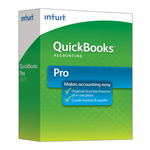
| Version: | Desktop 2015 (United States) 32-Bit |
| Size: | 619.29 MB – Version 2015 |
| Latest Update Release | Release 16(R16) |
| Update Size: | 696 MB |
QuickBooks Desktop 2015 was a popular release by Intuit, widely adopted by small to large businesses across different industries. As of today, Intuit has discontinued official downloads and support for QuickBooks Desktop 2015, meaning no updates, payroll tax tables, or live support are available. Still, many users search for installation files to access old company data, maintain historical records, or reinstall on existing systems.
Quick Navigation: 2011 | 2012 | 2013 | 2014 | 2015 | 2016 | 2017 | 2018 | 2019 | 2020 | 2021 | 2022 | 2023 | 2024
Steps to Download QuickBooks Desktop 2015 on Windows & Mac
1. How to Download QuickBooks Desktop 2015 for Windows?
- Locate your license number and product code.
- Go to the Intuit QuickBooks Download & Updates page.
- Search under older versions archive. If unavailable, you must:
- Use the original installation CD/DVD.
- Contact Intuit support (if still tied to your account).
- Retrieve archived files from authorized resellers.
- Install and enter your license details to activate.
⚠ Important: Online services such as payroll, live support, and Intuit data sync are no longer functional with 2015.
2. How to Download QuickBooks Desktop 2015 for Mac?
- QuickBooks for Mac 2015 was a separate release.
- Use your original installer or purchase email link.
- Compatible macOS: OS X 10.8 Mountain Lion to OS X 10.10 Yosemite.
- Newer macOS versions (Monterey, Ventura, Sonoma) will not support QuickBooks Mac 2015.
| Edition | Best For | Key Features (2015) | Country-Specific Notes |
|---|---|---|---|
| Pro 2015 | Small businesses | Invoicing, bill tracking, basic reporting, up to 3 users | USA, UK, Canada |
| Premier 2015 | Small–medium businesses | Industry-specific reports, forecasting, sales orders, up to 5 users | USA & Canada (industry editions: Manufacturing, Contractor, Retail, Professional Services, Nonprofit) |
| Accountant 2015 | Accountants & bookkeepers | Client data review, accountant toolbox, reclassify transactions, batch entries | USA & Canada |
| Enterprise 2015 | Large organizations | Advanced inventory, up to 30 users, advanced reporting tools, role-based permissions | USA, UK, Canada |
| POS 2015 | Retail businesses | Inventory, barcode scanning, payment integration | USA only |
| Mac 2015 | Mac-based small businesses | Invoicing, bank reconciliation, expense tracking, basic payroll | USA only |
Download QuickBooks Desktop Pro 2015
Download QuickBooks Desktop Pro 2015 for easy-to-use accounting software that helps small businesses track expenses, create invoices, and manage payroll.
Download QuickBooks Desktop Pro 2015 – United States Edition
| Items | Details |
|---|---|
| Product Name: | QuickBooks Desktop Pro 2015 (USA) |
| Version: | 2015 (United States) 32-bit |
| Size: | 619.29 MB |
| Latest Release: | Release 16(R16) |
| Update Size: | 696 MB |
| Download Link: | Download QuickBooks Desktop Pro 2015 USA Version |
Before downloading, make sure your system meets the: QuickBooks Desktop Pro 2015 System Requirements
Download QuickBooks Desktop Premier 2015
Get QuickBooks Desktop Premier 2015 and enjoy advanced tools for invoicing, reporting, and inventory management, all in one easy-to-use accounting solution.
Download QuickBooks Desktop Premier 2015 – United States Edition
| Items | Details |
|---|---|
| Product Name: | QuickBooks Desktop Premier 2015 (USA) |
| Version: | 2015 (United States) 32-bit |
| Size: | 619.29 MB |
| Latest Release: | Release 17(R17) |
| Update Size: | 696 MB |
| Download Link: | Download QuickBooks Desktop Premier 2015 USA Version |
Before downloading, make sure your system meets the: QuickBooks Desktop Premier 2015 System Requirements
Download QuickBooks Desktop Accountant 2015
QuickBooks Desktop Accountant 2015 offers accountants advanced tools to manage multiple client files, track finances, and deliver accurate reports with ease.
Download QuickBooks Desktop Accountant 2015 – United States Edition
| Items | Details |
|---|---|
| Product Name: | QuickBooks Desktop Accountant 2015 (USA) |
| Version: | 2015 (United States) 32-bit |
| Size: | 619.29 MB |
| Latest Release: | Release 17(R17) |
| Update Size: | 696 MB |
| Download Link: | Download QuickBooks Desktop Accountant 2015 USA Version |
Before downloading, make sure your system meets the: QuickBooks Desktop Accountant 2015 System Requirements
Download QuickBooks Desktop Enterprise 2015
With QuickBooks Desktop Enterprise 2015, you can efficiently manage your business’s accounting, inventory, and financial reporting, all in one comprehensive solution.
Download QuickBooks Desktop Enterprise 2015 – United States Edition
| Items | Details |
|---|---|
| Product Name: | QuickBooks Desktop Enterprise 2015 (USA) |
| Version: | 15.0 (United States) 32-bit |
| Size: | 627.4 MB |
| Latest Release: | Release 17(R17) |
| Update Size: | 751 MB |
| Download Link: | Download QuickBooks Desktop Enterprise 2015 USA Version |
| Download Link: | Download QuickBooks Desktop Enterprise Accountant 2015 USA Version |
Before downloading, make sure your system meets the: QuickBooks Desktop Enterprise 2015 System Requirements
Download QuickBooks Desktop Mac 2015
Download QuickBooks Desktop for Mac 2015 to streamline your accounting tasks with an intuitive, Mac-friendly interface, designed specifically for small business owners using macOS.
Download QuickBooks Desktop Mac 2015 – United States Edition
| Items | Details |
|---|---|
| Product Name: | QuickBooks Mac Desktop 2015 |
| Version: | 2015 (United States) |
| Size: | 96.4 MB & 117 MB |
| Latest Release: | Release 15(R15) |
| Update Size: | N/A |
| Download Link: | Download QuickBooks Desktop Mac 2016 USA Version (macOS Mavericks 10.9) |
| Download Link: | Download QuickBooks Desktop Mac 2016 USA Version (macOS Yosemite 10.10 or Later) |
Before downloading, make sure your system meets the: QuickBooks Desktop Mac 2015 System Requirements.
Still have questions? Explore our detailed FAQs.