Excerpt:
Experiencing payroll access issues in QuickBooks? This guide helps resolve the Payroll Subscription Verification Issue by addressing expired subscriptions, incorrect service keys, or outdated software. Whether using Desktop or Online, it walks you through verifying your subscription, reactivating payroll services, and fixing system errors—ensuring uninterrupted payroll processing, accurate tax updates, and full compliance with minimal downtime.
 Add As A Preferred
Last updated: 23 Oct, 2026. Reviewed by Rajat, eBetterBooks Technical Content Manager.
A QuickBooks payroll subscription not verified message means QuickBooks Desktop could not confirm an active payroll service for this company file. Either the subscription is inactive, through a lapse, a cancellation or a billing hold, or it is active in your Intuit account and the file has not caught up. The wording you see points to the right page.
| What you see | What it usually means | Where to go |
|---|---|---|
| Payroll cannot be verified | Active or inactive; check to know | The status check |
| Payroll inactive or expired | The file shows the service as Inactive | The status check, then the fixes or the expired section |
| Service key invalid, or no key listed | The key is missing, wrong, or not tied to this file | The service key fix |
| Suspended | Can mean a billing hold on the account | The expired or suspended section |
| Error 557 or PS036 while checking payroll | Users report both during verification | Finish the status check, then the error 557 guide or the PSXXX errors guide |
| Another PS code, such as PS032 or PS101 | A payroll update error | The PSXXX errors guide |
| “Your QuickBooks subscription has lapsed.” | The Desktop software plan, not payroll | QuickBooks subscription lapsed with an active plan |
| A payroll account that is no longer in service, with Gear menu steps | QuickBooks Online, not Desktop | QuickBooks Online auto-renewal problem |
Payroll is a separate subscription from the QuickBooks Desktop software plan. Canceling Desktop does not cancel payroll, but payroll cannot be used without another active Desktop subscription.
Enterprise is the exception for some plans. Gold and Platinum include Enhanced Payroll, and Diamond includes Assisted Payroll, so on those plans a payroll message usually traces back to the Enterprise subscription itself. Enterprise Silver can carry Enhanced Payroll as a paid add-on.
This guide gives one read-only check that tells an inactive payroll subscription from an active one QuickBooks cannot confirm. It then gives five fixes in a safe order, each with its own steps, expected result and stop point, and a backup wherever a file changes. You can start at any fix and finish it without reading the others.
To check whether your QuickBooks payroll subscription is really active, read the status in two places. In QuickBooks, open Employees, My Payroll Service, Manage Service Key. Then open Account/Billing Info, or the account portal. Account Active and file Inactive means use the fixes. Both Inactive means renew.
This check only reads information. Open the company file that shows the message. Only the primary contact, the person who owns the Intuit account, can change billing. If you cannot sign in to the Intuit account, send the details with the no-login form on this page.
Employees menu with Get Payroll Updates and My Payroll Service, whose flyout shows Manage Service Key and Account/Billing Info
In QuickBooks, open Employees, hover over My Payroll Service, and select Manage Service Key. Some older versions label it Manage Payroll Service. If the menu shows only Activate Service Key, do not select it here: note the key as missing, and add it in Fix 2 after its backup.
You see: a list with your payroll service name and a status.
Write down Active, Inactive, or missing. An empty list means the key is missing. Select OK to close the window.
Service key window drawn twice, once with the status Active and once with Inactive
Open Employees, hover over My Payroll Service, and select Account/Billing Info (Account/Billing Information in some versions). Sign in with the Intuit account that holds payroll. Assisted Payroll uses Billing/Bank Information instead.
You see: an account page with a status.
If that menu fails, sign in to the account portal at camps.intuit.com. Open Products & Services and select Details for the payroll product.
You see: the payroll service key, the EIN and the subscription number.
If Account/Billing Info shows an error: some users report error 557 here. Use the account portal instead.
If sign-in fails twice: stop and send the details with the form.
| File status | Account status | What it means | Go to |
|---|---|---|---|
| Inactive or missing | Active | Active but not verifying | The fixes, starting with the update |
| Inactive | Inactive, canceled, or a payment problem | Truly inactive | The expired or suspended section |
| Any | You cannot sign in, or the primary contact is unknown | The account side needs its owner | Send the details with the form |
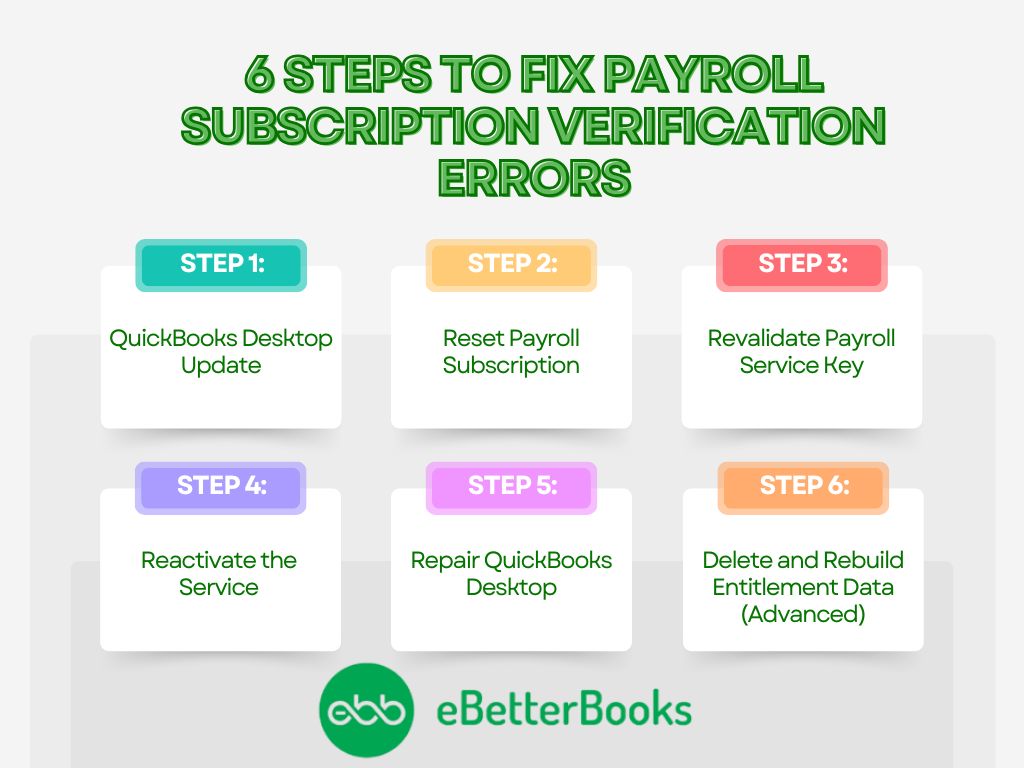
When the account shows Active and the file does not, work the fixes in order: restart and update QuickBooks with the full payroll update, re-save the service key, check the EIN, sync license data and run the Install Diagnostic Tool, then reset the license data file. Stop as soon as payroll shows Active.
| Fix | Where | Risk | Back up first | Stop if |
|---|---|---|---|---|
| 1. Restart, update QuickBooks, download the entire payroll update | Help and Employees menus | Low | Yes | The tax table downloads and the key shows Active |
| 2. Re-save or add the service key | Employees menu | Low | Yes | The key shows Active |
| 3. Check the EIN | Account portal and Company menu | None, read only | No | The numbers match and the key shows Active |
| 4. Sync license data, run the Install Diagnostic Tool | Help menu and Tool Hub | Low | Recommended | The key shows Active |
| 5. Reset the license data file | A Windows folder | Moderate | Yes | The key shows Active after you register again |
The reset comes last because QuickBooks asks you to register again afterward.
| Situation | Start at |
|---|---|
| The account shows Active and you have tried nothing | Fix 1, the update |
| You moved to a new computer or reinstalled QuickBooks | Fix 2, the service key |
| The key is refused, or the account lists a different key | Fix 3, the EIN check |
| Fixes 1 to 3 did not change the status | Fix 4, the sync, then Fix 5, the reset |
| Error 557 or PS036 stays after Fixes 1 and 2 | The error 557 guide or the PSXXX errors guide, then call if it stays |
| QuickBooks does not open | Check the account status, then send the details with the no-login form on this page |
To update QuickBooks when the payroll subscription is not verified, back up the company file, close it, and restart the computer. Then select Help, Update QuickBooks Desktop, Update Now, Reset Update and Get Updates. Restart QuickBooks, select Employees, Get Payroll Updates, Download Entire Update, then Update, and recheck the service key.
Fix 1 of 5. Use this fix when the account shows Active. Back up on the computer that holds the company file, as the Admin user, the main login that can set up users, with nobody else in the file. If any step fails twice, stop and send the details with the no-login form on this page.
You see: a confirmation message, and a backup file that ends in .qbb. If the backup fails twice, stop and use the form. Do not continue without a backup.
File menu with Back up Company and Create Local Backup highlighted, then three backup windows
Close every company file, close QuickBooks, and restart the computer.
Open QuickBooks and the company file, then press F2 (or Ctrl + 1). Note the release and check that the license shows as activated.
If the license is not activated: follow the prompts to register, then continue.
Open Help and select Update QuickBooks Desktop. Open the Update Now tab.
Select the Reset Update checkbox, then select Get Updates.
When the download finishes, close QuickBooks and open it again. Install the update if QuickBooks offers it.
You see: the update finishes without an error. If an update installed, F2 shows a higher release.
Update Now tab with Reset Update and Get Updates, then Get Payroll Updates with Download Entire Update and Update
Open Employees and select Get Payroll Updates.
Select Download Entire Update, then select Update.
You see: an information window when the download finishes, and a number after “You are using tax table version:”.
Open Employees, My Payroll Service, Manage Service Key. You see: the status Active, and the tax table download ends without an error.
To re-save the payroll service key, back up the company file, then select Employees, My Payroll Service, Manage Service Key. Select the payroll service, select Edit, then Next. Clear Open Payroll Setup, select Finish, and select OK on the Payroll Update message. If no key is listed, select Add.
Fix 2 of 5. The service key is a 16-digit number tied to your EIN and your payroll service, and each company file needs its own. Write the key down first. It is in your purchase email, in the account portal under Products & Services, Details, or in Intuit’s service key retrieval tool.
Work as the Admin user, the main login that can set up users. If any step fails twice, stop and send the details with the no-login form on this page.
You see: a confirmation message, and a backup file that ends in .qbb. If the backup fails twice, stop and use the form.
Open Employees, hover over My Payroll Service, and select Manage Service Key.
Select the payroll service in the list, then select Edit.
Select Next without changing the key.
Clear the Open Payroll Setup checkbox, then select Finish.
When the Payroll Update message appears, select OK. Check that the status reads Active, then select OK again.
Service key edit screens: the key field and Next, then Open Payroll Setup cleared and Finish, then the Payroll Update message with OK
In the same Manage Service Key window, select Add. If the menu showed Activate Service Key instead, select that and enter the key.
Type the 16-digit key exactly, then select Next through the screens. Clear Open Payroll Setup and select Finish.
If the key is refused twice: stop. Compare the key with the one in the account portal, run the EIN check, or use the form.
You see: the status Active in Manage Service Key. Then confirm with Employees, Get Payroll Updates, Download Entire Update, Update: the download ends without an error.
To check the EIN, sign in to the account portal at camps.intuit.com, open Products & Services, select Details for payroll, and note the EIN. In QuickBooks, open Company, then My Company, and read the federal employer identification number. If the two differ, change nothing and get help.
Fix 3 of 5. This check only reads two numbers, so no backup is needed. An incorrect EIN or payroll ID (PSID) can cause an Inactive status even when the account is Active. Changing an EIN is not a self-service step here. If the numbers differ, send the details with the no-login form on this page or contact Intuit.
Account portal at camps.intuit.com: Products & Services with Details, and a Details panel with the EIN row highlighted between the service key and subscription number rows
Go to camps.intuit.com and sign in with the Intuit account that holds payroll.
Open Products & Services and select Details for the payroll product.
You see: the payroll service key, the EIN and the subscription number. Write down the EIN.
In QuickBooks, open Company and select My Company.
Find the federal employer identification number. The field label can differ by version, so look for the EIN under the company or legal information.
You see: the EIN. Compare it digit by digit with the account.
You see: the same EIN in both places. If they match, the EIN is not the cause, so go on to the sync fix.
To sync license data, open Help, select Manage My License, then Sync License Data Online, and select OK. If payroll still shows Inactive, close QuickBooks, open QuickBooks Tool Hub, select Installation Issues, then QuickBooks Install Diagnostic Tool. When it ends, reopen QuickBooks and recheck Manage Service Key.
Fix 4 of 5. If you have no backup from the earlier fixes, make one first: File, Switch to Single-user Mode, File, Back up Company, Create Local Backup, Local Backup, Next, Browse, OK, Save it now, Next. Make sure the computer is online. If either step fails twice, stop and send the details with the no-login form on this page. The Install Diagnostic Tool guide has more detail. When you finish, if other people share this file, select File, Switch to Multi-user Mode.
Help menu with Manage My License and Sync License Data Online, then QuickBooks Tool Hub with Installation Issues and the QuickBooks Install Diagnostic Tool button
In QuickBooks, open Help and hover over Manage My License.
Select Sync License Data Online. Select OK when it finishes.
Close QuickBooks, open it again, and open Employees, My Payroll Service, Manage Service Key.
You see: the status Active. If so, stop here.
Close every QuickBooks window before you open Tool Hub.
If QuickBooks Tool Hub is not installed, download it from Intuit’s website only and install it. Then open QuickBooks Tool Hub.
Select Installation Issues, then QuickBooks Install Diagnostic Tool. Keep the window open until the tool ends, then select OK.
Open QuickBooks and the company file, then Employees, My Payroll Service, Manage Service Key: select the service, Edit, Next, clear Open Payroll Setup, Finish.
You see: Active, and Employees, Get Payroll Updates downloads without an error.
To reset the license data file, back up the company file and note your license and product numbers. Close QuickBooks, press Windows + R, open C:\ProgramData\Intuit\Entitlement Client\v8, and rename EntitlementDataStore.ecml by adding .OLD. Reopen QuickBooks, register again, update, and recheck the service key.
Fix 5 of 5. The license data file, EntitlementDataStore.ecml, holds this computer’s QuickBooks license data. QuickBooks rebuilds it and asks you to register again, so press F2 and write down your license and product numbers. Rename it rather than delete it, so you can undo the change. Use this fix only after the earlier four fail. If any step fails twice, stop and send the details with the no-login form on this page.
You see: a confirmation message, and a backup file that ends in .qbb. If the backup fails twice, stop and use the form.
Close every QuickBooks window.
Press Windows + R, paste C:\ProgramData\Intuit\Entitlement Client\v8, and press Enter. If nothing opens, use v6 in place of v8.
You see: a folder that contains EntitlementDataStore.ecml. If the file is not there, stop and use the form.
Right-click EntitlementDataStore.ecml, select Rename, type EntitlementDataStore.ecml.OLD, and press Enter.
If Windows asks whether to change the file extension, confirm. You see: the name now ends in .OLD. If Windows says the file is in use: make sure QuickBooks is closed, try once more, then stop and use the form.
EntitlementDataStore.ecml before and after adding the .OLD suffix
Open QuickBooks and the company file. Follow the prompts to register with your license and product numbers. If registration fails twice, see QuickBooks registration error after renewal.
Open Help, Update QuickBooks Desktop, Update Now, select Reset Update, then Get Updates. Close and reopen QuickBooks.
Open Employees, My Payroll Service, Manage Service Key: select the service, Edit, Next, clear Open Payroll Setup, Finish.
EntitlementDataStore.ecml to EntitlementDataStore.ecml.NEW, then rename the .OLD file back. QuickBooks may ask you to register again. Rename only the file, not the v8 folder.You see: QuickBooks opens registered, and Manage Service Key shows Active.
Payroll still inactive after the reset? Do not repeat the rename. Call 1-802-778-9005 or send the details with the form, or use Intuit’s Contact Us route under Help. Support hours: Monday through Friday, 24 hours a day.
If your QuickBooks payroll subscription is expired or suspended, the fix is on the account side. The primary contact signs in to the Intuit account and updates the payment method if a card failed, or resubscribes. Then sync license data and recheck the service key. The file fixes do not change the account.
Confirm the account status first in Employees, My Payroll Service, Account/Billing Info. Only the primary contact can change payment details. If you cannot reach that person, send the details with the no-login form on this page.
Checked on October 20, 2026. Re-check Intuit’s notices before you rely on these rules.
| Account shows | What to do |
|---|---|
| A payment problem or a hold | The primary contact updates the payment method, then you sync license data and recheck the key |
| Canceled or inactive | Resubscribe from Account/Billing Info or the Intuit account; Assisted Payroll customers contact Intuit |
| A renewal you tried that did not take | Enhanced Payroll renewal |
| The Desktop software plan ended too | QuickBooks subscription ended, canceled or payment failed |
Intuit can suspend an account with outdated payment information. The primary contact signs in at camps.intuit.com and updates the payment method for the payroll product.
In QuickBooks, open Help, Manage My License, Sync License Data Online, and select OK.
Open Employees, My Payroll Service, Manage Service Key, and read the status.
You see: Active. The status may not change right away, so re-check later before you repeat anything.
Renewal steps are in the Pro or Premier payroll renewal guide. On Gold, Platinum or Diamond, payroll renews with the Enterprise subscription itself. For an Enterprise Silver payroll add-on, the Enterprise payroll renewal guide may help; confirm the add-on in the account portal first. Plan choices are in the QuickBooks payroll subscription guide.
You see: Active in the account and in Manage Service Key. If only the account shows Active, use the fixes, starting with the update.
The payment or resubscribe fails twice: stop and see the Enhanced Payroll renewal error guide, or send the details with the form.
While a QuickBooks payroll subscription is not verified, payroll tax table updates stop, because they need an active payroll subscription. An expired Desktop payroll subscription cannot process payroll with its tax tables or forms until it is current and updated. If the subscription ends by cancellation, payroll data stays accessible.
If the subscription lapsed or will not verify but was not canceled, confirm direct deposit, e-file and payments already in progress with Intuit before payday rather than assume either way.
Do not estimate withholding to get around the block. If payroll is due within a day or two, call 1-802-778-9005 or send the details with the no-login form on this page. Support hours: Monday through Friday, 24 hours a day.
Get help when the account shows Active and the five fixes have not changed the file status, when the EIN differs, when you are unsure about renaming the license data file, or when payday is close. Also stop after two failed attempts at any step, and call if error 557 or PS036 stays after its guide.
Get help with my payroll subscription. Call 1-802-778-9005 or send the details with the no-login form on this page. Include your QuickBooks year and edition, payroll plan, the exact message or code, the status in Manage Service Key and in the account, whether the primary contact is reachable, and the fixes you tried. Never send card numbers, passwords or Social Security numbers. Support hours: Monday through Friday, 24 hours a day.
Allow remote access only to a provider you contacted yourself. More help is on the QuickBooks Desktop payroll support page.
Users ask these ten questions after a QuickBooks payroll subscription not verified message. Each answer ends with a narrowing question and what each reply means, so you can pick the next step. If your case does not fit, send the details with the no-login form on this page and say which answer applied.
A payment and a verified status are separate checks. The account can show the payment while the company file still reads Inactive, and the status may not change right away. Read both statuses before you pay again or dispute the charge.
To narrow it down: does the account now show Active? If yes, start with the update fix. If no, the payment has not applied, so see the Enhanced Payroll renewal page.
Possibly not. New tax table updates need an active, verified subscription, and an expired subscription cannot process payroll with its tax tables or forms. If the file only fails verification, confirm with Intuit before payday, and do not estimate withholding. Run the status check first.
Your answer decides the next step: is payday today or tomorrow? If yes, call now and run the status check while you wait. If no, work through the fixes.
No. That message is about the QuickBooks Desktop software plan. Payroll is a separate subscription, though payroll needs an active Desktop subscription to work. Read the payroll status in Manage Service Key to see whether payroll is affected at all.
Worth checking first: does Manage Service Key show the payroll service as Active? If yes, fix the software message on the lapsed-subscription page. If no, run the payroll status check.
Not on your own. Those steps come from support sessions, the file names differ between guides, and the payroll fixes here do not need them. The only file this guide changes is the license data file, renamed after a backup.
Before you touch any file: is a payroll support agent asking you to do it on a call you started? If yes, back up the company file first. If no, stop at the license data reset and get help.
Some users report one computer fixed while a second still failed. Compare the release on both computers with F2, then update QuickBooks and sync license data on the one that fails. Recheck Manage Service Key on that computer before anything else.
To pinpoint it: do both computers open the same company file? If yes, work on the computer that fails. If no, each company file needs its own subscription and key, so check each file.
Enterprise Gold and Platinum include Enhanced Payroll, and Diamond includes Assisted Payroll, so on those plans payroll comes with the Enterprise subscription. If payroll shows Inactive, check the Enterprise subscription status in the account before you look for a separate payroll renewal or buy anything.
Your answer decides the next step: does the Enterprise subscription show Active in the account? If yes, use the payroll fixes. If no, renew Enterprise first, then recheck the service key.
Basic and Standard are no longer offered, and subscribers move to Enhanced with in-product consent. If consent was missed, the old service may have ended at renewal. Read the account to see which payroll product it now lists, if any.
To choose a route: does the account list Enhanced Payroll as Active? If yes, re-save the service key in QuickBooks. If no, contact Intuit about moving to a current payroll product.
Partly. The status check and the file fixes use the same Manage Service Key window, but Assisted shows its account status under Billing/Bank Information. Reactivating a canceled or inactive Assisted subscription has no self-service steps, so that part goes to Intuit.
Before you go further: does Billing/Bank Information show Assisted as Active? If yes, run the update and service key fixes. If no, contact Intuit to reactivate; on Enterprise Diamond, check the Enterprise plan first.
Some users report the status flipping back, sometimes around a monthly payroll run. No single cause is documented, so do not keep repeating the same fix. Record each date, run the status check, and have the setup checked if it returns again.
To narrow it down: does the account also show a problem when the file flips? If yes, the primary contact checks billing. If no, record the dates and send them.
No. A hold for a returned payroll debit on your bank account is separate from the subscription status, and Intuit can hold tax payments while it lasts. The service key may still read Active. Contact Intuit payroll support about the hold itself.
Worth checking first: did you get a notice about a returned or failed payroll debit? If yes, deal with the bank hold through Intuit. If no, run the status check.


