Excerpt:
Renewing the QuickBooks Payroll subscription requires precise coordination between the desktop software and the Intuit online management portals to prevent the service from becoming inactive. An expired subscription immediately halts essential functions like direct deposit and tax form access, potentially leading to compliance issues, though historical data remains read-only for up to 12 months. To ensure continuity, the Primary Admin must first verify the subscription status and then use either the QuickBooks file or the Customer Account Management Portal (CAMPS) to process the renewal payment. Crucially, after renewal, users must manually update the Service Key within QuickBooks Desktop to synchronize the active status, a step that may take up to 24 hours for full feature reactivation. Failure during auto-renewal is often due to minor billing address mismatches or mandated transitions away from legacy payroll plans.
 Add As A Preferred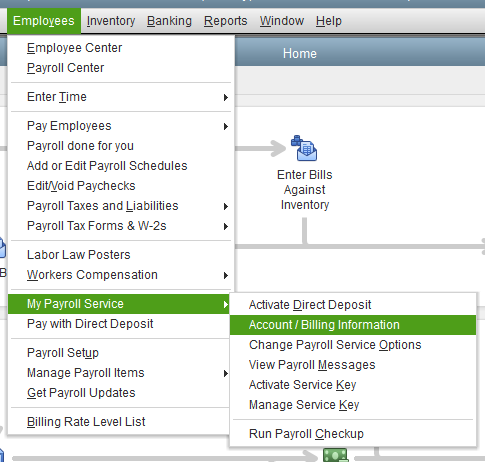
Highlights (Key Facts & Solutions)
Overview
To renew QuickBooks Enterprise Payroll Subscription, check your payroll service subscription status, renew payroll service using the company file and the Intuit Account Manager, update your billing info/ payment method, and turn Auto-renewal on if needed.
Renew QuickBooks Enterprise Payroll Subscription means your subscription is still active, but it’s about to expire or require renewal to be continued for the next billing cycle. Renew Payroll Subscription error occurs when the subscription has already expired or become inactive, there’s a billing issue, such as Payment authorization failure, and auto-renewal is disabled in your subscription settings.
Inactive or expired Payroll Subscription leads to several consequences, such as blocked payroll processing features, including employee payments, filing taxes, and direct deposit, limited access to payroll tax forms (941, W-2, W-3), and inability to print or file payroll tax forms electronically. When the subscription remains inactive for an extended period, historical payroll data becomes read-only, preventing any edits or updates, and employee data access is partially restricted.
Note:
Certain billing or account conditions require you to renew your QuickBooks Enterprise Payroll subscription. These include disabled auto-renewal, incorrect billing details, declined payments, an expired subscription, or a status showing as inactive.
You must also renew if payroll services were cancelled or interrupted due to technical errors:
Renewal requires logging in as a Primary or Standard user with access to all company files and checking your payroll status to determine if it is Active or Inactive. A status marked as Active allows direct reactivation, while an Inactive status requires subscription renewal first.
Renew your Payroll Subscription Using these Methods:
Use your QuickBooks Desktop company file to reactivate your payroll service.
Renew your payroll service from the web.
Note: Reactivation of your subscription requires up to 24 hours to complete. Your subscription shows Active upon completion of the renewal. After completing the renewal process, proceed to reactivate QuickBooks Desktop Enterprise Payroll Subscription.
Update and renew billing information and payment methods using these methods:
Note: Use a Visa, MasterCard, American Express, or Discover credit card.
You can also do the same process inside your company file.
Here’s how:
Log in to your account as a primary admin, then head to your Billing and Subscription page for your payment method renewal.
Here’s how:
QuickBooks ended support for legacy Standard Payroll and legacy Basic Payroll starting from December 1, 2023. Users on these plans transition to Enhanced Payroll. This includes additional functionality for electronic filing and payment of federal and state payroll taxes. These changes take effect on their subscription renewal date.
QuickBooks will notify affected users of this update via the product and email. Users must provide consent in the Customer Account Management Portal (CAMPS). QuickBooks will terminate the payroll service if consent is not received from the users before their subscription renewal date. Users must contact Intuit to subscribe to a new payroll and link their past payroll history.
An inactive or expired QuickBooks Payroll subscription immediately blocks crucial payroll functions, leading to compliance risks and administrative delays.
While the renewal process itself is fast, the system requires time to synchronize the updated subscription status across all services and unlock the payroll features within your QuickBooks Desktop file.
Renewing online updates your Intuit account, but you must manually update the service key within your QuickBooks Desktop file to restore full functionality and activate the new subscription.
The Customer Account Management Portal (CAMPS) is Intuit’s dedicated portal for managing all payment, billing, and subscription details and is often separate from the sign-in page within the QuickBooks desktop file.
camps.intuit.com).The Primary Admin (or Primary Principal for Payroll) holds the highest authority and is the only user who can access and change critical billing and subscription details, making their login essential for renewal.
Intuit’s data retention policy ensures that your critical payroll records are not immediately deleted, providing a grace period for potential reactivation or data retrieval.
Auto-renewal failure is often triggered by issues beyond a simple expired card, usually involving security checks or mismatched payment data.


