Excerpt:
To fix QuickBooks Online's slow performance, run internet speed test to ensure a fast internet, clear the browser cache and cookies, disable browser extensions, reload the page, and ensure that you have sufficient RAM by removing any background processes or other unrelated browser tabs.
 Add As A Preferred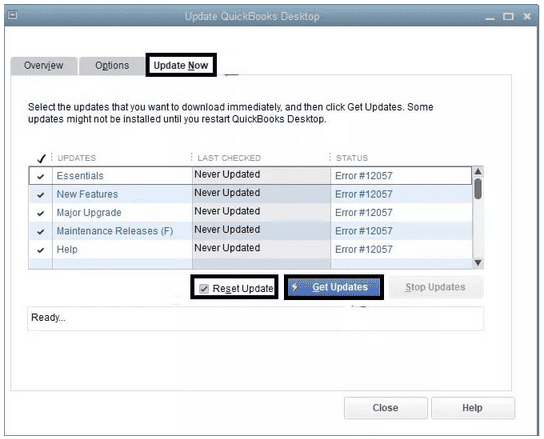
To fix a slow QuickBooks Online (QBO), you should first optimize your browser and internet connection by clearing the cache, updating your browser, and disabling extensions. Then improve your computer performance by closing background programs, restarting the system, and updating the operating system. Check outdated add-ons or configuration conflicts if delays continue, and contact QuickBooks support when the issue persists.
QuickBooks Online processes financial data through browser resources, system hardware, and real-time network access, so any limitation slows the interface. Browser cache accumulation, outdated browser versions, unstable internet, insufficient memory, and large company files reduce loading speed and delay data synchronization. These constraints create visible lag during navigation, reporting, and transaction processing.
This article identifies the direct causes of reduced QuickBooks Online performance and provides verified steps to restore stable operation. The solutions include cache removal, browser updating, system optimization, bandwidth verification, and company-file management. Each action targets a specific performance bottleneck that affects QBO responsiveness.
The sections ahead outline the main causes of QBO slowness, the corrective steps to improve speed, the system requirements for stable operation, and supplementary technical factors that influence performance. This structure ensures a clear path from diagnosis to resolution for all QuickBooks Online performance issues.
QuickBooks Online (QBO) may slow down due to browser issues like cached data, cookies, outdated versions, or heavy extensions, as well as unstable internet, misconfigured firewalls, outdated software, limited system resources, or large and corrupted files.
These factors disrupt data flow and cause lag or freezing. Clearing browser data, updating QuickBooks and your system, ensuring a stable connection, and reducing background processes can quickly improve performance.
The reason behind QuickBooks running very slowly is:
Note: Intuit recommends not using QuickBooks Online with Incognito (Private Browsing) mode.
Users can attempt several quick fixes to resolve the issue of QuickBooks Online (QBO) running slowly. The sections below highlight the quick fixes for each of the issues mentioned above, causing QuickBooks to run slowly on your system.
| Error Causes | Solutions |
|---|---|
| You are using an outdated version of QuickBooks. | Check for the latest version of QuickBooks from within the application. Install the latest version if available and check if the issue is resolved. |
| You are not using a system that meets the minimum requirements put forth by the developer of QuickBooks. | To resolve this issue, check the minimum requirements and upgrade the hardware as mentioned. |
| You have exceeded the maximum permitted file size by QuickBooks online. | Verify the company file size that has been allocated. If it exceeds, perform necessary fixes to reduce the file size. |
| QBWUSER.INI is missing or corrupted. | Check for the concerned file in your system and relaunch QuickBooks Online. |
| Inaccurate setup of firewall settings, restricting the functioning of QuickBooks Online | Check Windows firewall settings and see if it limits any functional aspect of QuickBooks Online. |
| Damaged or corrupted QuickBooks online file. | Use QuickBooks to verify or rebuild Data utility to recover or repair corrupted files of QuickBooks online. |
| Use of a corrupted hard drive. | Create a backup of your QuickBooks Online files, then change the hard drive. Installing a new hard drive is recommended to fix QuickBooks Online’s slow issues on your system. |
| Using a corrupted window. | Create a backup of the files of QuickBooks and online and try reinstalling Windows and its components. |
Troubleshooting techniques can help with fixing QuickBooks online slow errors. Follow all the necessary steps mentioned below to speed up your QuickBooks Online:
Note: Ensure your operating system is up to date and you meet all the necessary System Requirements for QuickBooks Online.
The first step towards troubleshooting and resolving QuickBooks Online Slow error for Mac or Windows is to update QuickBooks to its latest version.
Users can follow the steps below to update QuickBooks Online to its latest version:
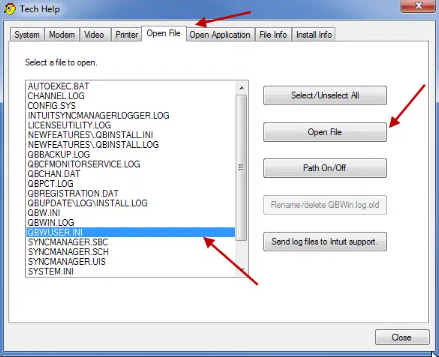
The second troubleshooting approach to fix QuickBooks Online slow to load is to check and rename the QBWUSER.INI file.
Follow the steps below to fix this and resolve the QuickBooks online Slow issue:
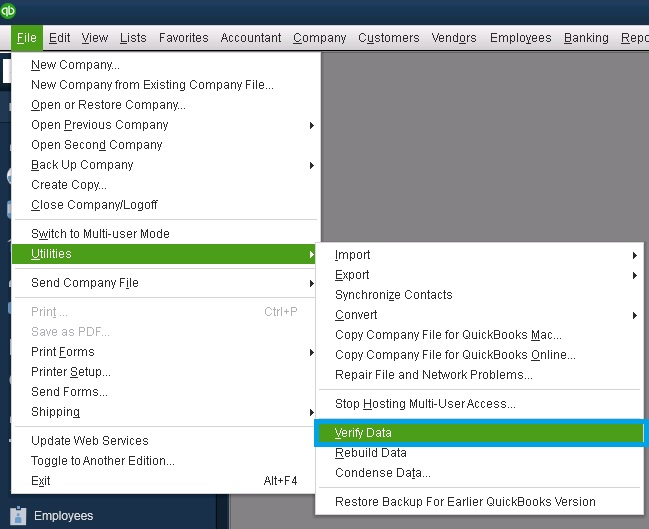
Users can install the QuickBooks Verify/Rebuild Data utility to check and repair damaged or corrupted files.
Here’s how to fix the damaged or corrupted file by performing the verify and rebuild tools:
The fourth step in the process of resolving issues in regards to QuickBooks Online functioning slowly on your system is to verify the company file size.
Users can follow the below-mentioned approach to check and verify the company file size:
If the above troubleshooting steps fail to resolve your concern, the next step is to reinstall QuickBooks Desktop. A clean installation of QuickBooks Desktop can help eradicate the QuickBooks Online Slow error.
Follow the steps below to perform a reinstallation of the QuickBooks desktop:
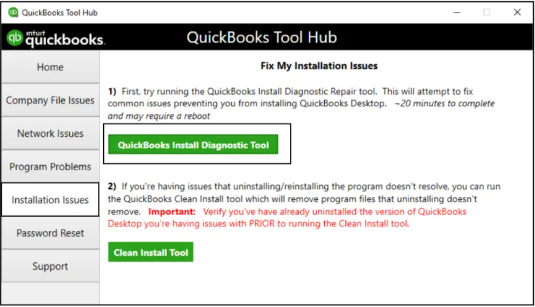
QuickBooks Diagnostic Tool is required for checking and fixing .NET Framework, MSXML, and C++ file errors on Windows computers. Resolving these errors helps with fixing issues with QuickBooks updates.
Follow the steps below to understand how to operate the QuickBooks Diagnostic Tool:
A few antivirus software programs may interfere with the functioning and compatibility of QuickBooks Online and cause QuickBooks Online to slow errors.
Follow the steps below to restrict or stop the impact of antivirus software on QuickBooks:
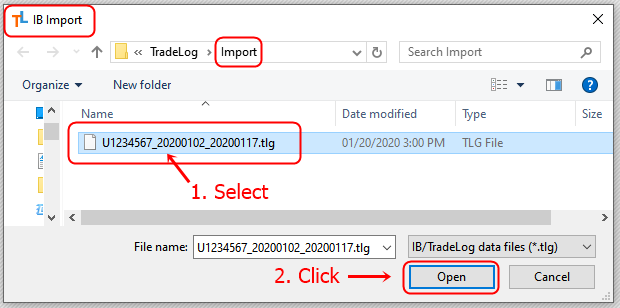
Users can follow the below-mentioned steps to perform a reset.TLG file:
Users can follow the below-mentioned steps to perform a defragmentation of the disc corporate file to fix QuickBooks Online Slow:
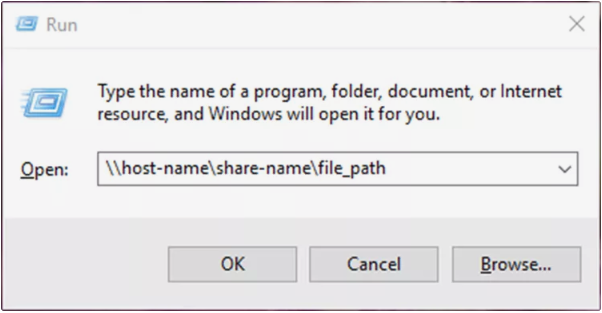
Users can verify QuickBooks performance in a Multi-user aspect and determine if any network issue causes QuickBooks Online’s slowness. If a performance issue is found, this indicates that more than one user is logged into the business folder.
In case QuickBooks is working slowly and just one user is logged in, you can follow the below-mentioned steps to resolve this issue:
Your browser’s cache stores files to help websites load faster during future visits. However, these files can become outdated and may cause QuickBooks Online to slow to load. Clearing your cache usually resolves most problems. If issues persist, clearing cookies specific to Intuit can help, especially when using QuickBooks Online.
Note: Only clear Intuit-specific cookies to avoid resetting other site preferences.
Note – When to Contact Intuit Support:
System requirements to run QuickBooks Online properly [Operating Systems/ Internet Speed/ Memory].
| Windows PC | Mac | Web Browsers | Internet Speed | Mobile Browsers | RAM | Screen Resolution | Other Requirements |
|---|---|---|---|---|---|---|---|
| Windows 10, Intel Core i5 or comparable processor (2015 or newer) with at least 4 GB of RAM. (recommended) | OS X “Big Sur” 11.1 or newer. (recommended) | Google Chrome: version 78 or newer | 1.5 Mbps. (recommended) | Android smartphones and tablets: Nougat 7.1.1 or newer, Chrome browser (supported browser) | 4 GB or above | 1440 x 900 or above (minimum) | Software for Processing Document: For Windows, users must have installed Adobe Reader 11.0 or higher. |
| Windows 10, Intel Core i3 or a comparable processor (2013 or newer) with at least 2 GB of RAM. (minimum) | OS X El Capitan 10.11 or newer. (minimum) | Samsung: version 10 or newer | 3 Mbps or higher. (minimum) | iPhone / iPad, OS 11.1 or newer, Safari browser. (supported browser) | – | – | Printing of Documents: To print necessary documents, users must have installed Laser-jet or Ink-jet printers. |
| – | – | Mozilla Firefox: version 76 or newer. | – | Microsoft Surface, Microsoft Edge (supported browser) | – | – | – |
| – | – | Safari: version 12 or newer (Mac only) | – | – | – | – | – |
| – | – | Opera: version 68 or newer | – | – | – | – | – |
| – | – | Microsoft Edge: version 79 or newer | – | – | – | – | – |
Users may experience slower performance, delayed loading times, or unresponsive features, after updating QuickBooks Online.
Common Causes of Slow Performance After an Update:
Using the right browser can significantly improve the speed and performance of QuickBooks Online.
Here are the best browsers to ensure smooth operation:
| Browser Name | Google Chrome (Recommended) | Mozilla Firefox | Microsoft Edge | Safari (For Mac Users) |
|---|---|---|---|---|
| Why is it best for QuickBooks Online? | Offers the best compatibility with QuickBooks Online | A reliable alternative to Chrome with strong security features | Optimized for Windows users and integrates well with QuickBooks Online | Best choice for QuickBooks Online on macOS |
| – | Supports extensions and updates frequently for better security and speed | Works well with QuickBooks Online but may require occasional updates | Improved speed and efficiency compared to older versions of Internet Explorer | Faster processing and better battery efficiency |
| – | Allows multiple tabs without slowing down performance | Faster performance when using fewer extensions | Runs well with fewer system resources | Limited extension support compared to Chrome and Firefox |
Tips to Improve Browser Performance
By choosing the right browser and optimizing settings, you can ensure a faster, smoother QuickBooks Online experience.
QuickBooks Online (QBO) performance issues often arise from browser inefficiencies, outdated system components, large company files, and insufficient hardware resources. Addressing these factors through systematic troubleshooting, such as clearing cache, updating software, optimizing data, and ensuring a stable internet connection, can restore smooth and responsive operation.
Maintaining updated browsers, ensuring system compatibility, and regularly monitoring performance are essential for consistent QuickBooks Online (QBO) speed and reliability. By applying these preventive measures, users can maintain smooth functionality, uninterrupted financial workflows, and reliable operation even under heavy usage conditions. Ongoing optimization of system settings, data management, and user access further strengthens long-term efficiency and operational stability.
Still have questions? Explore our detailed FAQs.


