Excerpt:
This article addresses common payroll errors in QuickBooks, including issues with updates, company files, and tax calculations. It provides practical troubleshooting steps and solutions to resolve these errors, ensuring accurate and timely payroll processing. By identifying specific error codes and offering actionable fixes, the article helps users overcome payroll issues, improve system performance, and maintain compliance. It is tailored to business owners and QuickBooks users facing payroll-related challenges, offering clear guidance for resolving technical problems and avoiding delays.
 Add As A Preferred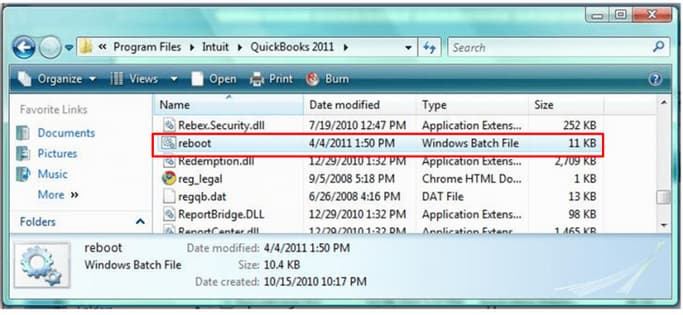

QuickBooks Payroll Most Common Errors often cause significant operational delays, but they are generally resolvable by identifying the specific error series and applying targeted solutions. Errors are typically categorized by series: the 15000 and PS series indicate issues with payroll updates, tax table files, or connection and firewall settings, while the 3000 series relates to tax arrangement verification, and the H series points to multi-user network or hosting problems. Successful troubleshooting requires performing preparatory actions such as backing up data, verifying the payroll subscription status, and confirming the current QuickBooks version. Solutions range from utilizing official manufacturer tools like the QuickBooks Tool Hub to running diagnostics, or, in more severe cases, rebuilding company data or adjusting system-level settings like the User Account Control (UAC) or Internet Explorer configurations. Addressing these issues promptly is crucial to ensuring accurate and timely payroll processing and maintaining compliance.
reboot.bat file to re-register QuickBooks components.Oversized QuickBooks Desktop files disrupt payroll processing, reduce file stability, and degrade overall system performance.
QuickBooks may freeze or become unresponsive during paycheck calculations, direct deposit submissions, and payroll report generation.
Common error messages when updating payroll, paying taxes, or opening federal and state forms include:
Additional issues include:
Common payroll errors in QuickBooks may seriously harm both organizations and employees. Here is a list of several typical payroll issues in QuickBooks Desktop, along with a brief explanation of each:
| QuickBooks Payroll PS077 Error | QuickBooks cannot download payroll updates. |
| QuickBooks Desktop Payroll PS107 | Company file issues or errors while updating. |
| QuickBooks Payroll Error PS060 | Unavailable Payroll Service |
| QuickBooks Payroll Error PS058 | Payroll update problems. |
| QuickBooks Error PS032 | QuickBooks payroll service error due to issues in the company file. |
| QuickBooks Error 30159 | Error in verifying payroll tax arrangements like EIN. |
| QuickBooks Payroll Error PS033 | Obsolete or inaccurate tax table files. |
| QuickBooks Error 17337 | Issues with an internet connection, firewall or software setup causing payroll errors. |
| QuickBooks Error Code 15240 | Payroll errors due to network connection failure, firewall misconfiguration, or inaccurate system date and time settings. |
| QB Payroll Error 15102 | Payroll issues arise due to an error in the download location or access issues due to firewall settings. |
Businesses need to troubleshoot and resolve these issues promptly to ensure accurate and timely payroll processing.
If you encounter any of these errors, it’s advisable to consult QuickBooks Expert by calling the telephone 1-802-778-9005 for assistance in resolving the specific issue.
1
Error in QuickBooks Payroll PS077
This issue often appears when QuickBooks cannot download payroll updates. It can be connected to problems with the tax table update or the QuickBooks company file.
2
Error with QuickBooks Desktop Payroll PS107
Incorrect When someone attempting to download the most recent payroll updates, PS107 frequently happens. Issues with the company file or the updating procedure might be the cause.
3
Payroll Error PS058
PS058 is another update-related error in QuickBooks Payroll. It may indicate issues with the installation of a payroll update or problems with the update files.
4
Errors Related With QuickBooks Payroll Update
These are common issues with updating payroll in QuickBooks Desktop. They may include several problems that stop the program from obtaining and installing the most recent payroll updates.
5
QuickBooks Error PS032
This error is related to the QuickBooks payroll service and usually arises when there is a problem with the company file or the installation of QuickBooks.
6
Error 30159
This QuickBooks Payroll Most Common Errors are frequent problems with payroll taxes. Establishing the EIN (Employer Identification Number) or other payroll tax arrangements are often the problems it points to.
7
QB Payroll Error PS033
PS033 is a payroll-related issue that might appear while accessing a company file or downloading payroll updates in QB. It frequently has to do with obsolete or inaccurate tax table files.
8
Error 17337
This issue may occur while upgrading QuickBooks Payroll. It frequently concerns problems with the internet connection or how the firewall and security software are set up.
9
QuickBooks Error Code 15240
Error 15240 can pop up during the payroll update procedure and be caused by problems with the network connection, firewall configuration, or inaccurate system date and time settings.
10
The QB Payroll Error 15102
It typically appears when updating a payroll service in QuickBooks Desktop fails. It might be brought on by a number of things, such as problems with the download location or firewall settings.
| Errors in the 6000 Series | Difficulties accessing or using a company file. |
| 3000 Series Errors | Issues in banking services. |
| Errors in the 15000 Series | Error in QuickBooks Payroll service. |
| H Series Error | Problems with the server hosting the corporate file’s multi-user mode. |
QuickBooks can generate different error codes and messages to show issues. These error codes are often divided into many series, each associated with a certain problem.
Common payroll errors in QuickBooks often arise from incorrect tax setups, data entry mistakes, or misclassified employees. Outdated program versions, misconfigured benefit deductions, or flawed time-off accruals can lead to miscalculations and non-compliance. Integration conflicts, reporting inaccuracies, or legislative changes may further disrupt payroll accuracy. In some cases, data corruption or incomplete employee terminations can also trigger payroll discrepancies.
Certainly, the following is a succinct list of typical problems that lead to payroll errors in QuickBooks:
Here’s how to confirm the presence of the most common payroll errors in QuickBooks software:
Below are certain things to keep in mind before resolving QuickBooks Payroll-related errors:

Solving QuickBooks Payroll Most Common Errors can be a bit complex. However, it’s important to note that specific solutions may vary depending on the nature of the error you encounter.
Here are the methods with some details on how to use them:
If the above-mentioned method is not helping you out, then you can try reinstalling it:
Uninstall QuickBooks:
Now, Download and reinstall QuickBooks:
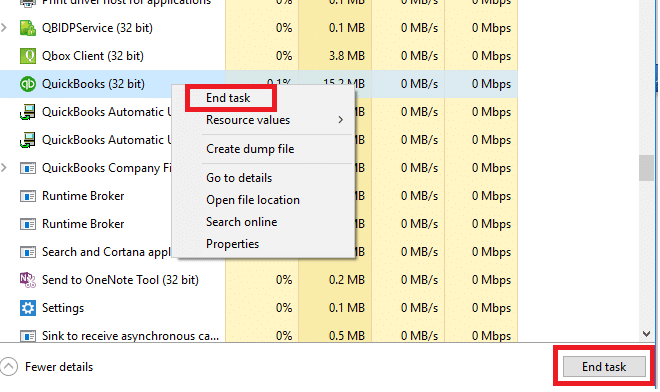
Sometimes, The error can arise due to damaged installation files. Thus, you can manually remove installation folders:
The CPS (CPS.exe) folder can be a source of errors:
Note: As per your ‘Windows Folder Option settings’, the file may appear as either bat or reboot. The command prompt windows will show up on the display with the scrolling file names. Do not close the windows manually.
Remember that while these methods can help resolve QuickBooks payroll most common errors, it’s crucial to back up your data before making any major changes to your system, such as reinstalling software or modifying system settings.
Additionally, for specific error codes or issues, it’s often beneficial to consult QuickBooks support or their official documentation for more tailored solutions.
Check your payroll subscription status to confirm compatibility with larger company files. If you run into licensing issues or need help verifying or updating your active payroll plan, ensure your account details are properly synced, as the file size limit varies based on your active payroll plan in QuickBooks Desktop.
QuickBooks Desktop Enterprise Payroll errors due to large or oversized files generally take place when your company files are too large to handle, and the payroll data they have is more than their file size limit.
Before you condense your file, make sure to create a backup copy of your company file. A backup copy allows you to restore it to undo the changes in case any changes happen.
Keeping all transactions
Condense the data while keeping all the transactions:
Removing selected transactions
Condense the data while removing all the selected transactions:
The verify tool finds the most common issues in a company file, and the rebuild tool fixes them.
Verify your company data
Note: Contact the QuickBooks Support Team before you rebuild your data in case you use Assisted Payroll.
Rebuild your company file data
Note: Avoid replacing your existing company file and re-entering the info into your company file after the backup was created.
Before you start, create a backup copy of your company file then download and install QuickBooks Tools Hub. Run the Quick Fix My File and make use of QuickBooks File Doctor tool. This is a built-in tool that auto-detects and auto-fix data damage issues within QuickBooks.
Step 1: Run Quick Fix My File
Step 2: Run QuickBooks File Doctor
Note: Look for QuickBooks Desktop File Doc and open it manually in case the QuickBooks File Doctor doesn’t open.
Note: Click Browse and search to find your file when you’re unable to see your file.
Scan time depends on the file size and usually takes 10–15 minutes. Even if the scan result shows as unsuccessful, it may still resolve underlying issues. After the scan completes, open QuickBooks and access your company file to verify the fix.
Creating a new company file from scratch in QuickBooks gives you full control over how your business is set up tailored exactly to your needs.
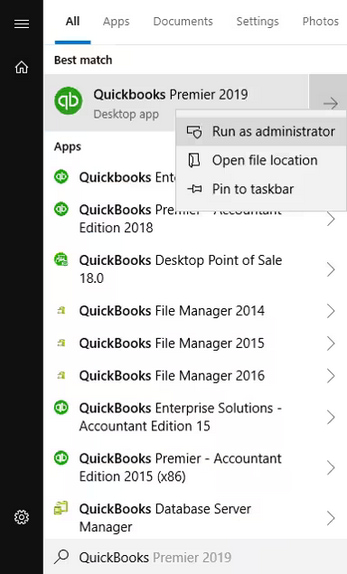
Running QuickBooks as an administrator grants the permissions to the program and allows it to work smoothly especially when managing company files, installing updates, or accessing payroll features.
Regular updates ensure QuickBooks has the latest features, security patches, and accurate payroll tax rates so you can process payroll confidently and avoid costly mistakes. The following steps help you to download the most recent QuickBooks and payroll tax table updates.
Update QuickBooks to the latest version
To resolve this error, update your software to the latest release or set up Automatic QuickBooks Updates to ensure your system stays current.
Get the Payroll Tax Table Updates
To maintain compliance with the most recent tax regulations, download and install the latest Payroll Tax Table updates. These updates ensure that all payroll calculations reflect the newest federal, state, and local tax rates, deductions and benefits.
Note: The 2024 payroll tax table updates are not available as a web patch. You must install them directly through the QuickBooks Desktop software.
Multiple users accessing the company file at the same time causes data conflicts, file locking, and delays. QuickBooks fails to calculate paychecks, update tax tables, or process direct deposits. Switch to single-user mode to run payroll without errors and maintain file stability.
Consider the following best practices to avoid QuickBooks Desktop Payroll-related errors due to large or oversized files.
Conclusion
In the end, users will be able to fix their QuickBooks Payroll Most Common Errors and know the quick solutions.
If your issues are not solved, and you need any further assistance, then you can call us at 1-802-778-9005 and connect with the QB expert to resolve the issue. You can also schedule a meeting or write a mail to us at support@ebetterbooks.com
Errors in the 15000 series, such as Error 15240, typically indicate issues with downloading or installing payroll updates, often related to security settings or network connectivity. The most effective first step is to use the QuickBooks Tool Hub.
➜Solution: Run the Quick Fix My File or the specific Payroll Update Fix tool found within the Tool Hub.
➜Why it works: This utility automatically checks and repairs common file corruption, connection issues, and update components without requiring the user to manually change complex firewall or security settings.
Yes, PS series errors often specifically point to issues with the Payroll Tax Table files, which can be obsolete, damaged, or incorrectly applied.
Verification Steps:
➜Go to the Employees menu in QuickBooks.
➜Select Get Payroll Updates.
➜Check the version number displayed in the window against the latest version posted on the Intuit Payroll Tax Table website.
➜Resolution: If the version is outdated, check the Download Entire Update box and click Download Latest Update. If the file is damaged, running the reboot.bat file may be required to re-register essential QuickBooks files.
The H Series Error (such as H202 or H501) indicates that the QuickBooks company file cannot establish a proper connection to the server or host computer when accessed in multi-user mode.
➜Core Issue: This error is not a payroll calculation problem but a network connectivity or server hosting issue. QuickBooks cannot securely verify the file location or communicate with the system hosting the company file data, which then prevents any data-intensive function like payroll from running.
➜Typical Cause: Misconfigured firewall settings on the server, issues with the QuickBooks Database Server Manager, or incorrect hosting settings on a workstation.
Oversized company files, generally those approaching or exceeding the recommended size limits for QuickBooks Desktop Enterprise (which vary but can be a few gigabytes), significantly impact payroll stability.
Consequences include:
➜Freezing: QuickBooks may freeze or become unresponsive during paycheck calculations or direct deposit submissions.
➜Data Integrity: A higher risk of data corruption, which can trigger errors when opening employee records or running tax forms.
➜Report Delays: Substantial delays when generating payroll reports, affecting compliance deadlines.
➜Utility Failure: Errors when running the essential Verify and Rebuild Data utilities, which rely on processing the entire file efficiently.
The reboot.bat file is a critical troubleshooting tool reserved for specific payroll update or installation problems, particularly when components are not registering correctly.
➜When to Run: Use this file after attempting basic troubleshooting, specifically for PS series errors or when a full payroll update fails to install correctly.
➜Action Performed: Running reboot.bat re-registers all necessary QuickBooks components and Dynamic Link Library (DLL) files within the Windows registry. This re-registration ensures that the program recognizes and utilizes the latest payroll update files and tax tables.
Checking and temporarily disabling the User Account Control (UAC) settings is often a required step for resolving update errors because UAC can interfere with the installation process.
➜Interference: UAC is a Windows security feature that restricts how programs, including QuickBooks, can write and modify files in protected directories, such as those where payroll components and tax tables are stored.
➜Resolution: Temporarily lowering the UAC setting allows QuickBooks to successfully download and install the update files without being blocked by Windows security prompts, ensuring the new components are fully written to the system. The UAC setting should be returned to its secure level after the installation is complete.


