Excerpt:
QuickBooks Error PS077 prevents payroll updates due to issues like incorrect billing information, software registration problems, or corruption in payroll files. This article provides step-by-step solutions, including repairing QuickBooks, updating billing details, running diagnostic tools, and modifying system settings to resolve the error. Following these steps will help restore payroll functionality and prevent future interruptions in tax table updates.
 Add As A Preferred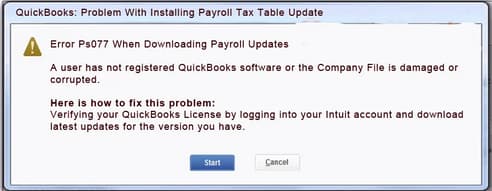
“Quickbook Payroll Error PS077” is an error that usually arises when the user is downloading or installing payroll tax table updates in Quickbook desktop. When Quickbook software fails to validate and install payroll tax table updates it often shows a message:
“QuickBooks: Problem With Installing Payroll Tax Table Update – Error PS077.”
This error can be triggered by corrupted tax files, inactive payroll subscriptions, incorrect billing information, or damaged company files. Since payroll updates are essential for accurate employee payments and tax compliance, preventing PS077 is a critical failure to resolve.
This error leads to delayed payroll runs, incorrect tax compliances or invalid employees payments. It affects both single and multi – users with active payroll subscription.
Several factors can contribute to this error:
This error specifically disrupts payroll updates and processing, and its symptoms often differ from general QuickBooks runtime errors. Key indicators include:
Before applying fixes, ensure the following:
The tabular presentation shows the quick overview of troubleshooting guide:
| Level | Cause | Fix | Notes / When to Use |
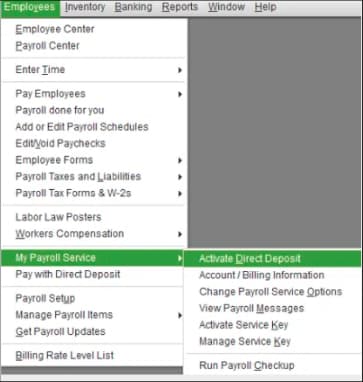
| Beginner | Payroll subscription inactive | Verify service key in Employees > My Payroll Service > Manage Service Key | First step for most users; resolves subscription validation issues. |
| QuickBooks not registered | Register QuickBooks via Help > Activate QuickBooks Desktop | Essential for payroll updates; without registration, updates fail. | |
| Outdated QuickBooks version | Update QuickBooks Desktop and payroll tax table | Always ensure you’re on the latest release before deeper fixes. | |
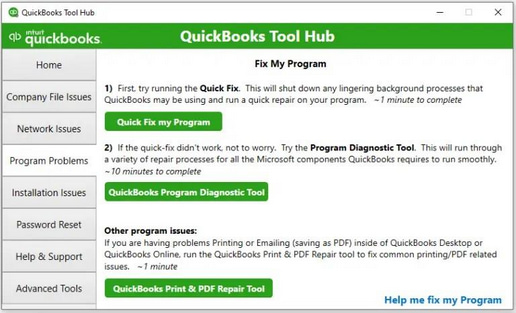
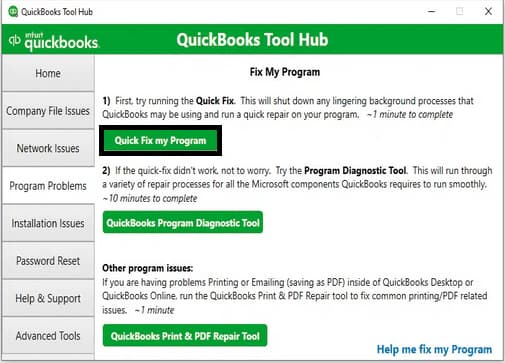
| Intermediate | Minor program glitches | Run Quick Fix My Program from QuickBooks Tool Hub | Quick repair for crashes or update interruptions. |
| Damaged QuickBooks installation | Repair QuickBooks via Control Panel > Programs and Features | Use if QuickBooks crashes repeatedly or payroll features won’t load. | |
| Company file damage | Run QuickBooks File Doctor from Tool Hub | Best for file corruption or validation failures in logs. | |
| Advanced | Persistent installation errors | Perform a Clean Install using Tool Hub’s Clean Install Tool | Removes all installation errors; requires reinstalling QuickBooks. |
| Security settings blocking updates | Adjust User Account Control (UAC) settings to Never Notify | Use if antivirus/firewall interference suspected; revert after testing. | |
| Network/multi-user conflicts | Check shared file access and reconfigure permissions | Applies in multi-user setups where multiple workstations are |
These are quick fixes suitable for non‑technical users.
For users comfortable with QuickBooks utilities and Windows settings.
For IT admins or advanced users dealing with deeper system conflicts.
To prevent this error following things should be kept in mind:
QuickBooks Payroll Error PS077 can disrupt payroll processing and tax compliance if not addressed promptly. By verifying your subscription, updating QuickBooks, repairing company files, and adjusting system settings, you can resolve the issue effectively. If the error persists even after following these steps, professional assistance may be required to diagnose deeper system or file damage.
No, this error typically does not damage company data. It mainly affects payroll updates, but it is still advisable to back up your company file before performing any troubleshooting steps.
Some common QuickBooks payroll installation errors include:
➜PS077 and PS032: Problems that arise when amending payroll taxes.
➜PS036: Failed to validate subscription.
➜15240: Lack of permission settings on the internet connection or wrong Internet settings.
➜12002: Certain situations include a network timeout or loss of connectivity.
Yes, having multiple or conflicting QuickBooks versions installed on the same computer can interfere with payroll updates and lead to Error PS077. It is best to keep only one active version installed.
Yes. QuickBooks tax table updates are released for specific, supported versions of the software. If your QuickBooks Desktop application is significantly outdated and you try to apply the newest tax table update, compatibility conflicts or improper installation routines can occur. This often leads to data corruption within the payroll files, which in turn triggers errors like PS077 during the update attempt.
The CPS (Client Payroll Service) folder is where QuickBooks temporarily stores the downloaded payroll update files and the core tax table data that is about to be installed. Errors like PS077 often mean the files within this folder are corrupted or incomplete due to an interrupted download. Renaming the CPS folder forces QuickBooks to create a new, clean folder and download a fresh set of tax table files, bypassing the corruption.
Yes. If payment or billing information is outdated or incorrect, Intuit may temporarily restrict payroll services. Users can update payment details through the Intuit Account Billing Portal, which ensures uninterrupted payroll update access.
No, renaming the EntitlementDataStore.ecml file (a common troubleshooting step) does not cause loss of company data, payroll transactions, or employee records. This file only stores encrypted licensing and registration information. Renaming it forces QuickBooks to assume the file is missing and prompt you to re-register the product when you next open the company file, effectively resetting the licensing status without touching your transactional data.
To verify a successful tax table update:
➜In QuickBooks, press the F2 key (or Ctrl + 1).
➜In the Product Information window that appears, look for the Tax Table Version line.
➜Confirm that the version number displayed is the current, expected version for the latest payroll release date (e.g., 22401). If the number is correct, the update was successful and the payroll is compliant.


