QuickBooks Payroll Update Failure occurs when QuickBooks Desktop cannot download or install payroll updates while working with a large company file. When the file size exceeds the recommended limits, typically over 200 MB for QuickBooks Pro/Premier or over 450 MB for Enterprise, the software may struggle to process payroll data during the update process.
Large company files contain extensive transaction and payroll records, which increases validation time and may cause system slowdowns or timeouts. This can trigger PSXXX series errors, such as PS032, PS033, PS036, or PS038, preventing payroll tax table updates from completing successfully. Larger files are also more prone to data damage, which can further interrupt the payroll update process.
Reasons Why QuickBooks Payroll Updates Are Not Working
Several factors can cause payroll updates to fail in QuickBooks Desktop, especially when the system cannot properly download, validate, or install payroll components. Identifying the root cause helps resolve the issue more efficiently.
- Large or damaged company file: Oversized or corrupted company files can slow down validation and interrupt payroll updates.
- Outdated QuickBooks version: Using an older version of QuickBooks may create compatibility issues with the latest payroll tax table updates.
- Corrupted QuickBooks installation: Damaged or incomplete program files can prevent payroll updates from installing properly.
- Incorrect payroll setup details: Errors in paycheck information, payroll settings, or employee records may interfere with the update process.
- Invalid payroll service key: Entering an incorrect or inactive payroll service key can stop payroll updates from downloading.
- Expired payroll subscription: QuickBooks cannot download updates if the payroll subscription is inactive or expired.
- Mismatched Employer Identification Number (EIN): Incorrect EIN information in payroll settings may lead to update validation errors.
- Insufficient administrative permissions: Running QuickBooks without proper admin rights may restrict access to update components.
- Firewall or antivirus restrictions: Security software may block QuickBooks update services or internet access required for payroll updates.
- Conflicts with background applications: Other programs running simultaneously may interrupt QuickBooks update processes.
Effective Ways to Fix QuickBooks Desktop Payroll Update Failure
These troubleshooting solutions help identify and resolve issues that prevent QuickBooks Desktop from downloading or installing payroll updates. By following these steps below, you can restore the update process and ensure payroll functions operate properly.
Solution 1: Check Payroll Subscription & Service Key
An incorrect, inactive, or missing payroll service key can prevent QuickBooks from validating your payroll subscription. Re-entering the correct service key refreshes payroll activation and allows QuickBooks to download the latest payroll updates.
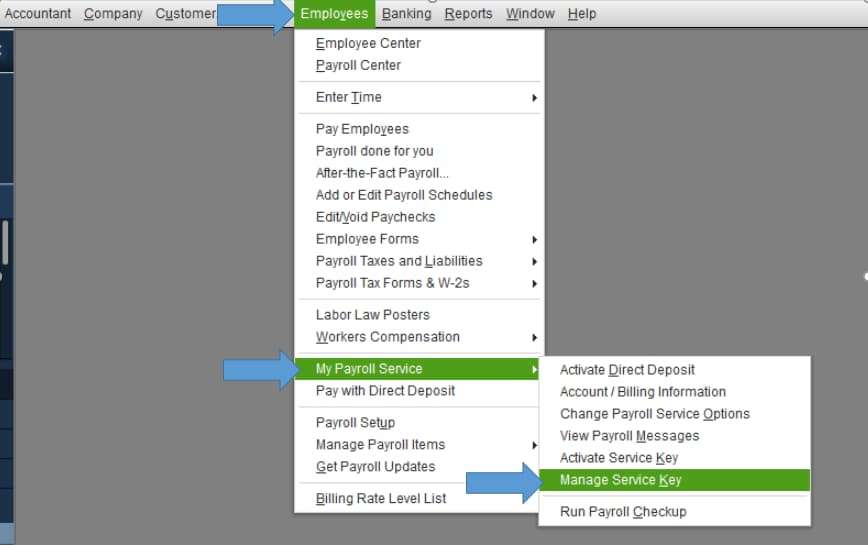
- Open the QuickBooks Service Keys window:
- Select Employees > Payroll > Enter Payroll Service Key if you do not have a payroll service in your company file.
- Choose Employees > My Payroll Service > Manage Payroll Service if you do have a payroll service in your company file.

- Under the QuickBooks Service Keys window:
- Click Add if no payroll service is listed, or select Edit if one already exists.
- Note down the current service key, and then remove it.
- Re-enter the correct Payroll Service Key and follow the on-screen instructions.
- Choose Next, and select OK when the Payroll Update message appears.
- Confirm the Service Status shows ACTIVE, and click OK to finish.
Solution 2: Register & Update QuickBooks Desktop
Running an unregistered or outdated QuickBooks version can create compatibility issues with payroll updates. Registering and updating the program installs the latest fixes and ensures the software supports current payroll tax table updates.
- Press F2 on your keyboard to open the Product Information window.
- Next to the license number, check if it says Activated to ensure that your QB software is registered.
Note: Register your QuickBooks Desktop immediately in case it doesn’t say Activated.
- To register, open QuickBooks.
- Navigate to the Help menu and choose Activate QuickBooks Desktop.
- Follow the on-screen steps to verify your info.
- Once you register, click the Help menu to update QuickBooks.
- Choose Update QuickBooks Desktop.
- Hit the Update Now tab. Tip: Tickmark the Reset Update checkbox to clear all previous update downloads.
- Select Get Updates to start the download.

- Close and reopen QuickBooks to install the update again.
Solution 3: Send your payroll data or usage data
QuickBooks may fail to download payroll updates if payroll usage data has not been synced with Intuit servers. Sending payroll data refreshes the payroll connection and resolves update validation errors.
- Navigate to Employees, select My Payroll Service, and choose Send Usage Data. If you don’t see this option, follow the next step.
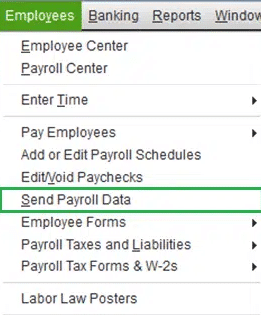
- Click Employees, and select Send Payroll Data.

- Select Send All under the Send/Receive Payroll Data window.
- Enter your payroll service pin if prompted.
- Once the Send is successful, download the latest payroll updates again.
Solution 4: Verify and Rebuild Company File Data
Data damage in the company file can interrupt payroll updates. The Verify and Rebuild utilities scan the company file for corruption and repair minor data issues that may prevent payroll updates from completing.
Verify your company data
- Navigate to Windows > click Close All.
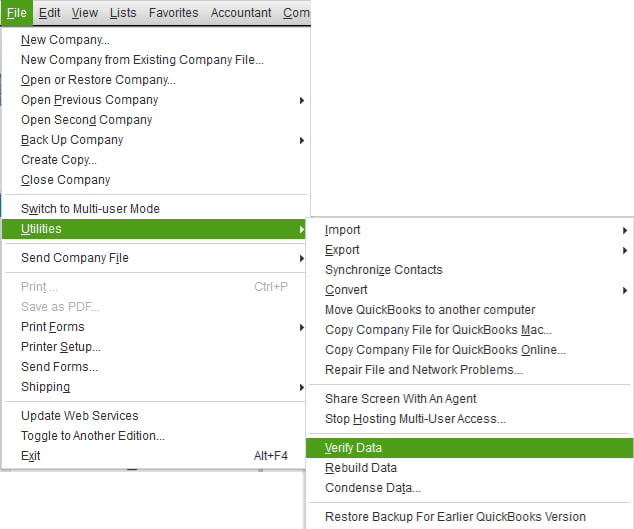
- Open the File menu > select Utilities.

- Choose Verify Data when you see:
- QuickBooks detected no problems with your data—your data is clean, and there’s nothing else to do with it.
- An error message—look for it on the QuickBooks Desktop support site for how to fix it.
- Your data has lost integrity—Data damage was found in the file. Rebuild your data to fix it.
Note: Contact the QuickBooks Support Team before you rebuild your data in case you use Assisted Payroll.
Rebuild your company file data
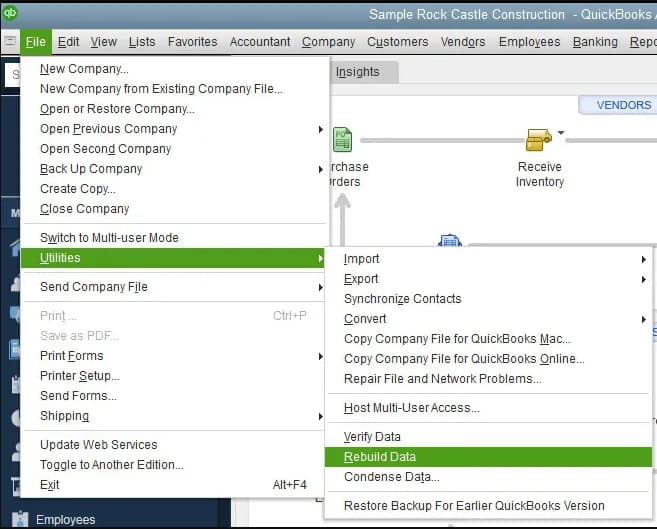
- Navigate to File > Utilities > select Rebuild Data.

- QuickBooks will ask to create a backup before it rebuilds your company file. Click OK. A backup is required before you rebuild.
- Choose where to save your backup and click OK. Don’t replace another backup file. Enter a new name in the File name and click Save.
- Click the OK tab when the message Rebuild has completed appears.
- Move to File > select Utilities > choose Verify Data again to check for additional damage.
- When the verify tool finds more damage, fix it manually. Look for the error(s) in the qbwin.log on the QuickBooks Desktop support site for how to fix them.
- When your error can’t be found, restore a recent backup. Go to File, then choose Open or Restore Company.
Note: Avoid replacing your existing company file and re-entering the info into your company file after the backup was created.
Solution 5: Check the System’s Date & Time Settings
Incorrect system date and time settings can cause authentication errors during payroll update downloads. Correct system time ensures QuickBooks communicates properly with payroll servers.

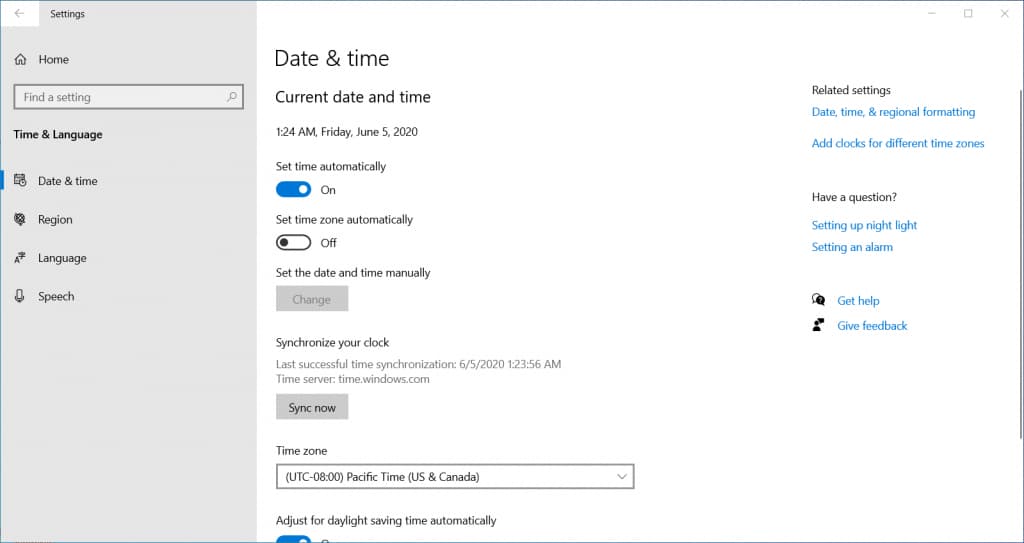
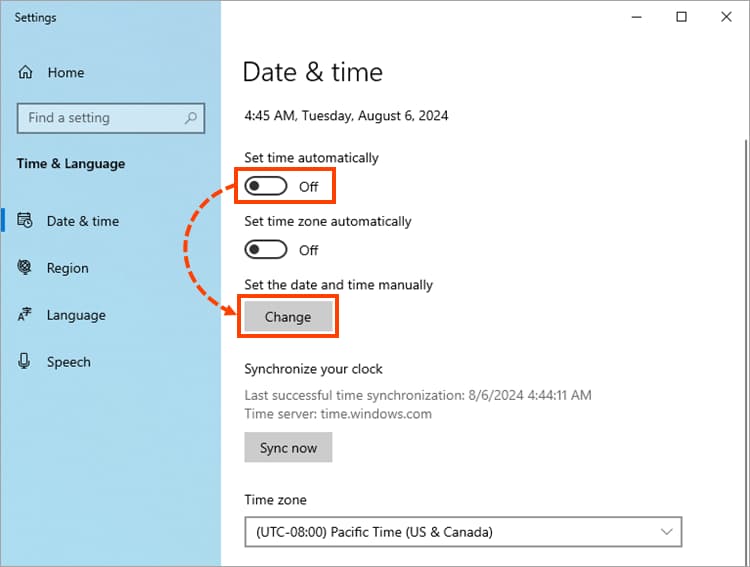
- Click Start and select Settings > Time & language > Date & time.
- Or, select the following Date & time shortcut:

- Under the Date & time window:
- To set the date and time automatically, ensure “Set time automatically” option is turned On.

- To set the date and time manually, turn off the “Set time automatically” option, and choose the Change button under “Set the date and time manually.”

- When the Change Date and Time window opens, type the correct date and time, and click Change to save your settings.

Solution 6: Reset Internet Explorer Settings
QuickBooks Desktop relies on Internet Explorer settings to access online services. Resetting these settings restores default internet configurations and resolves connectivity problems affecting payroll updates.
- Close all open windows and programs.
- Open Internet Explorer and choose Tools > Internet options.
- Select the Advanced tab.
- Click Reset under the Reset Internet Explorer Settings section.
- In the box, Are you sure you want to reset all Internet Explorer settings?, choose Reset.
- Choose Close when Internet Explorer finishes applying default settings.
- Restart your PC to apply the changes you’ve made.
Solution 7: Restart Your System in Safe Mode
Background applications, drivers, or recently installed software can interfere with payroll updates. Booting Windows in Safe Mode runs only essential services, helping identify and eliminate conflicts affecting QuickBooks. You can access the Safe Mode option after turning on Advanced Startup Settings.
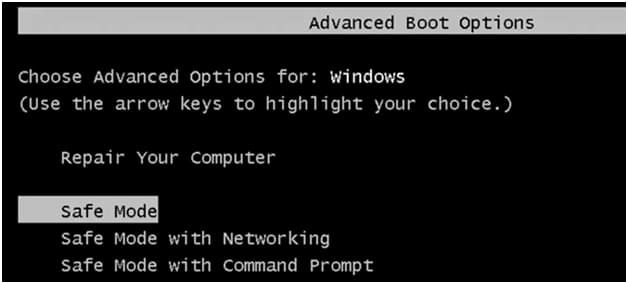
- Choose the Power button on the Windows login screen.
- Or, click the Start Menu button.
- Press and hold the Shift key on your keyboard and select Restart.
- Select Troubleshoot if Windows asks you to choose an option.
- Choose Advanced Options and select Startup Settings.
- Then, click Restart.
- Wait for the computer to restart and display the Advanced Startup Settings screen.
- Select an option using the keyboard:
- Press 4 for Safe Mode
- Press 5 for Safe Mode with Networking

Note: This option allows you to access the internet.
You can use the following command as an alternative to open the Advanced Startup Settings menu if the Shift + Restart option isn’t working.
- Navigate to the Start Menu.
- Type CMD.
- Select Command Prompt from the search results.
- Under the Command Prompt window that opens, type shutdown /r /o and click Enter.
- When Windows restarts and the Advanced Startup Settings menu appears, continue following the on-screen instructions to boot your system into Safe Mode.
Solution 8: Download the Latest Payroll Updates
QuickBooks Desktop Payroll provides regular updates that include the latest payroll tax tables, calculation rates, payroll forms, and e-file and e-pay features. Manually downloading the latest payroll update ensures that QuickBooks installs the most recent payroll components required for accurate tax calculations and smooth payroll processing.
Note: The latest payroll update number is 22516 released on September 18, 2025.
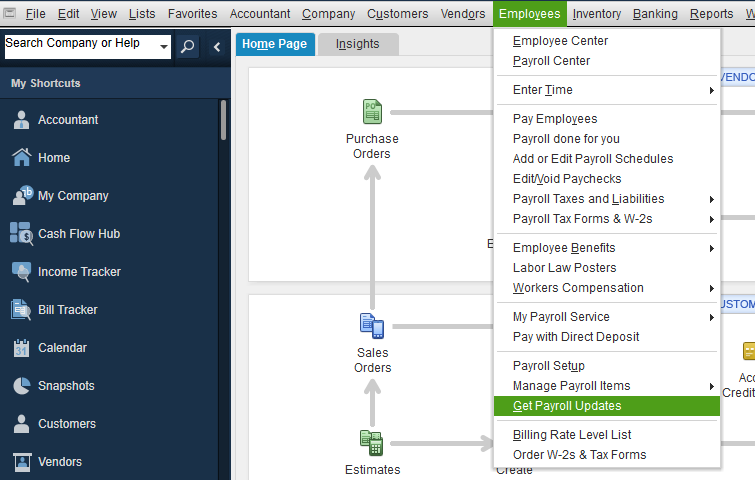
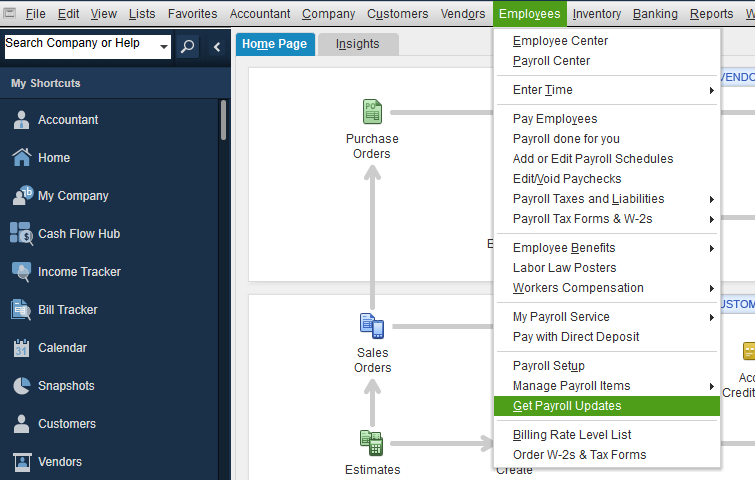
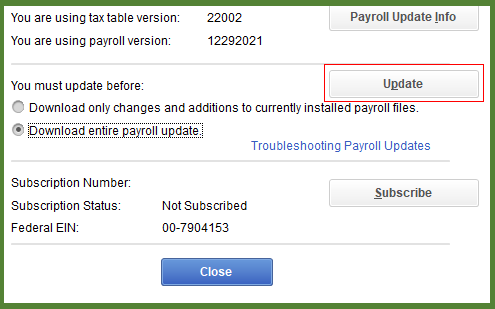
- Navigate to the Employees menu and select Get Payroll Updates.

- Tickmark the Download Entire Payroll Update checkbox.
- Select Update.
- An informational window appears when the download is complete.

- Click Close at the bottom.
Solution 9: Run Quick Fix My Program from the Tool Hub
Damaged QuickBooks program components can interrupt payroll updates. The QuickBooks Tool Hub repairs common program errors and fixes background processes that may block payroll update installation.
Step 1: Download & Install the QuickBooks Tool Hub
The QuickBooks Tool Hub helps to fix common errors. You’ll need to close QuickBooks to use the tool hub. For the best experience, we recommend you use Tool Hub on Windows 10, 64-bit.
- Close QuickBooks.
- Download and install the most recent QuickBooks Tool Hub version (1.6. 0.8).
- Save the file somewhere you can easily find it such as your Downloads folder or your Windows desktop.
Note: To find out which tool hub version you have, select the Home tab and the version will be on the bottom.

- Open the downloaded file QuickBooksToolHub.exe to start the installation.
- Follow the on-screen steps to install and agree to the terms and conditions.
- When the installation finishes, click twice on your Windows desktop icon to open the tool hub.

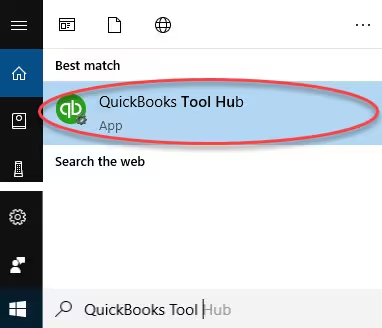
Note: If you are unable to find the icon, do a search in Windows for QuickBooks Tool Hub and select the program.
Step 2: Run Quick Fix My Program

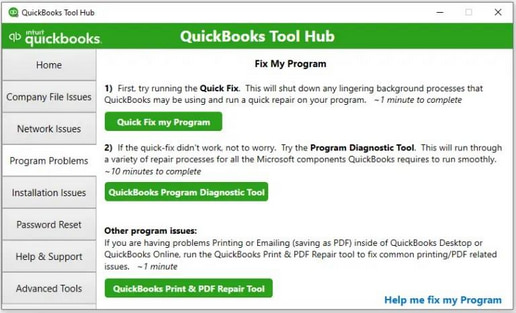
The Quick Fix will shut down any open background processes QuickBooks uses. It’ll run a quick repair on your program.
- From the QuickBooks Tool Hub, choose Program Problems.
- Select Quick Fix My Program.
- Start QuickBooks Desktop and open your data file.
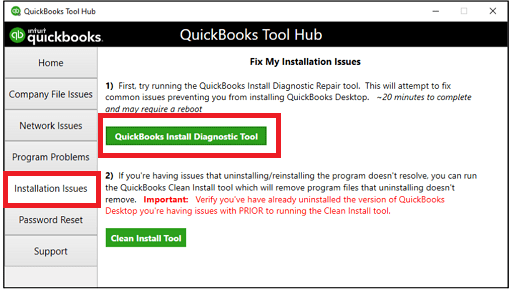
Step 3: Run QuickBooks Install Diagnostic tool

If something went wrong during the QuickBooks installation process, it may cause problems when you try to use it. Run the QuickBooks Install Diagnostic Tool to fix common installation issues.
- Open the QuickBooks Tool Hub and then choose Installation Issues.
- Select QuickBooks Install Diagnostic Tool. Let the tool run. It may take up to 20 minutes to detect the issue.
- When it’s done, restart your computer and start QuickBooks Desktop, then open your data file.
- Update your QuickBooks to the latest release. This will make sure you have the most recent fixes and security updates.
Conclusion!
QuickBooks Payroll Update failures caused by large company files usually occur when the software struggles to process extensive data during payroll validation and update operations. Oversized or damaged files can slow down system performance, trigger timeouts, and prevent payroll tax table updates from installing successfully.
By identifying the underlying causes, such as large file size, damaged data, or outdated program components, users can apply solutions like verifying the company file, updating QuickBooks Desktop, checking payroll subscription details, and repairing program files to restore the payroll update process. Regular file maintenance, timely software updates, and proper system configuration can also help reduce the chances of similar issues occurring in the future.
Frequently Asked Questions
How to Avoid Payroll File Overload ?
- Regularly condense files and run data verification to maintain file health.
- Manage audit trail size by turning it off and clearing logs when possible.
- Avoid storing non-accounting files in the same folder as your company file.
- Run the Rebuild Data tool regularly to fix minor errors early.
- Limit simultaneous users, especially during payroll or file-intensive tasks.
- Avoid attaching large documents to transactions to prevent slowdowns.
How can I Avoid Payroll Errors Due to Oversized Company Files?
Keep your file size under 250MB by regularly condensing data, cleaning up lists, and managing attachments. Use built-in tools like Rebuild and Verify, and consider upgrading to Enterprise ( if needed).
What Causes Oversized Company Files in QuickBooks?
- Unarchived transactions and lists.
- Excessive payroll entries.
- Inadequate multi-user mode cleanup.
- Large audit trails, and insufficient data maintenance.
What file size is considered too large for QuickBooks Desktop Pro and Premier?
QuickBooks Pro and Premier typically begin experiencing performance issues when the company file exceeds about 250 MB, which increases the likelihood of payroll-related errors.
What tool should I use if my payroll errors are caused by corrupted data in a large file?
QuickBooks Tool Hub and QuickBooks File Doctor can identify and repair corrupted data, fix structural issues, and restore access to payroll features.
How can I reduce the size of my QuickBooks company file to fix payroll issues?
You can use the Condense Data utility to remove unnecessary audit-trail history or condense selected transactions. This reduces file load and improves payroll performance.
Disclaimer: The information outlined above for “Resolve QuickBooks Desktop Pro/Premier Payroll Errors Due to Large or Oversized Files” is applicable to all supported versions, including QuickBooks Desktop Pro, Premier, Accountant, and Enterprise. It is designed to work with operating systems such as Windows 7, 10, and 11, as well as macOS.