Excerpt:
QuickBooks Payroll Internet Connection errors can disrupt payroll operations, causing delays and inaccuracies. This issue may arise from misconfigured firewalls, incorrect system settings, outdated tax tables, or internet connectivity problems. To fix this, adjust firewall settings, restart the system, clear cache, validate your payroll subscription, and update QuickBooks. Proper configuration of internet and security settings will ensure smooth payroll processing and eliminate connection errors.
 Add As A Preferred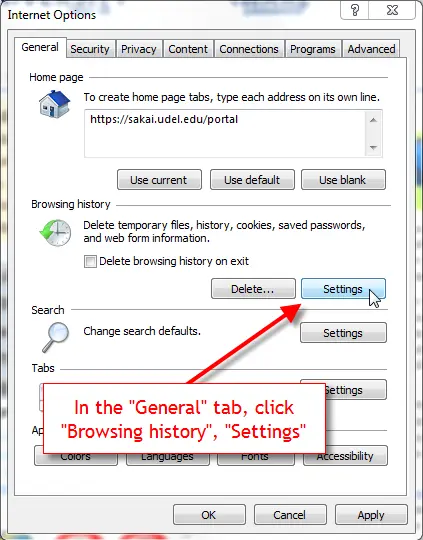
QuickBooks Payroll Internet Connection Error is a connectivity disruption entity that prevents QuickBooks Desktop Payroll from transmitting payroll data, validating direct deposit information, and retrieving payroll tax-table updates. The error originates from firewall restrictions, incorrect system-time configurations, invalid security-certificate states, outdated payroll metadata, and DNS inconsistencies. The article evaluates the structural causes of the QuickBooks Payroll Internet Connection Error and explains how incorrect network parameters, blocked TCP ports, corrupted cache files, and misaligned certificate-revocation settings alter the communication path between QuickBooks Desktop and Intuit’s authentication servers.
Internet connectivity issues that prevent Payroll from performing operations might cause a QuickBooks Payroll Internet connection error or read error. Its effects are severe regardless of whether network setup problems, firewall limitations, or erratic internet connections are to blame. Payroll processing delays or inaccurate data transfer can hinder an organization’s financial workflow.
The importance of quickly fixing this problem cannot be overstated for companies that rely significantly on QuickBooks for payroll operations. To quickly resolve this technological issue and guarantee flawless payroll performance, prevent disruptions, and enable accurate financial record-keeping, a full grasp of network protocols, security setups, and troubleshooting procedures is required.
QuickBooks Payroll Internet Connection Errors occur when QuickBooks Desktop cannot establish a stable connection with Intuit’s servers. These errors interrupt essential payroll functions, including sending payroll data, processing direct deposits, and downloading payroll tax updates. The disruptions arise from factors such as network instability, misconfigured firewall or security settings, outdated payroll components, incorrect system time, and issues with security certificates or DNS settings.
This article explains the specific errors that appear during payroll transmission, outlines the common causes behind QuickBooks Payroll Internet Connection Errors, and provides detailed troubleshooting methods to restore reliable connectivity. The goal is to ensure uninterrupted payroll operations by identifying the underlying issue and applying the appropriate corrective steps.
| Key Takeaways: QuickFix: |
|---|
| ✔ Adjust firewall settings and ensure they comply with QuickBooks’ specifications to allow for smooth connections. |
| ✔ Network glitches or misconfigurations may be fixed with a quick system restart, restoring correct connectivity for QuickBooks Payroll. |
| ✔ Verify the system’s time, date, and time zone settings and make any necessary corrections to eliminate any inconsistencies that could affect internet connections and payroll procedures. |
| ✔ To minimize disruptions to connectivity, QuickBooks and its components should be updated often to ensure compatibility and optimal operation. |
| ✔ Internet Explorer’s cookies and cache can be cleared to freshen the browser experience and enhance QuickBooks payroll access. |
| ✔ Revalidate the service keys for QuickBooks Payroll to confirm accurate subscription information and eliminate any potential connection issues. |
| ✔ Set up QuickBooks’ internet settings properly, coordinating them with the computer’s connectivity settings for effective communication. |
| ✔ To get around any difficulties brought on by strict security measures, modify the server’s certificate revocation settings. |
| ✔ To improve the efficiency of QuickBooks Payroll and fix security and internet connection problems, clearing DNS records might be essential. |

Connectivity errors interrupt payroll data transmission, delay direct deposits, and block payroll updates. These errors typically indicate issues with network settings, system configurations, or communication with Intuit servers. Common errors include:
QuickBooks Payroll Internet Connection Errors occur when the software cannot communicate with Intuit’s servers. These errors often result from network misconfigurations, security restrictions, or system-level issues that block data transmission. Common contributing factors include firewall restrictions, incorrect system time, outdated payroll updates, and invalid security certificates.
Fix QuickBooks Payroll Connection Errors by following specific troubleshooting steps to restore proper communication between QuickBooks Desktop and Intuit’s servers. These steps address network issues, system misconfigurations, and software updates that block payroll processing. Use Single-User mode to apply the solutions accurately and verify that payroll data and direct deposits transmit successfully.
Note: Before proceeding with every solution, ensure that you are in Single-User mode. After applying each methods, send payroll data to verify if the issue is resolved.
The payroll tax tables provide current and accurate rates and calculations for federal and supported state taxes, as well as information on payroll tax forms and options for e-filing and e-paying. To update your tax tables, you must have an active QuickBooks Desktop Payroll subscription.
Note: If you are using QuickBooks Online Payroll, don’t use tax tables, which are updated automatically, so no action is required on your part.
Go to Employees, then select Get Payroll Updates.
Look for the version number listed next to “You are using the tax table version:” and then compare it with the latest payroll news and updates to ensure it is up to date. In order to find more details on your tax table version, select Payroll Update Info.
Pick Download Entire Update and then choose Update. An informational window appears when the download is complete.
It is also important to clear the cookies and cache in Internet Explorer to smooth out QuickBooks Payroll operations. As a result of this simple action, data pathways are optimized, fixing any Internet connection issues that might interfere with payroll processing.
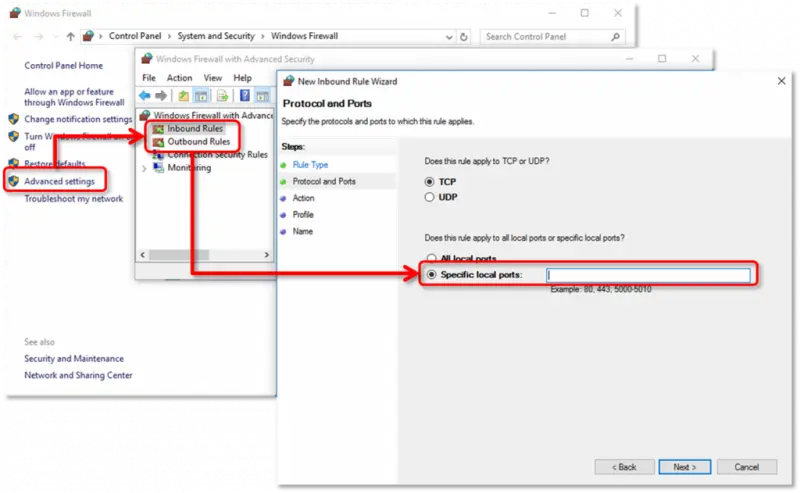
If wrong-configured or misconfigured, firewall settings do not permit the software on the system to synchronize with QuickBooks online. Firewalls are a set of rules that either “allows” or “blocks” the programs on the computer to access the internet.
Sometimes, the computer system’s temporary files, local files, cookies, etc., hinder the updated connection request. Also, any background processes or lack of processing allocation by the CPU could be an issue; such issues can be solved by restarting the PC because it resets some of the current Windows settings and frees the computer’s resources.
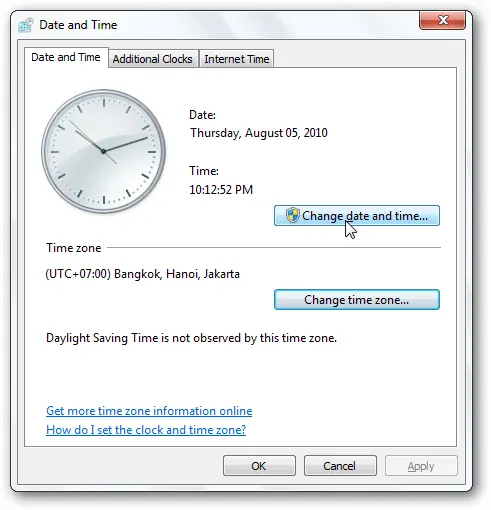
You may prevent problems in payroll processing and other crucial operations by checking and updating the system’s date and time, enabling effortless and synchronized performance within the software.
It’s crucial to update your payroll in QuickBooks. The most recent updates often include safety updates and bug fixes to guarantee maximum performance and data security. By keeping your system up to date, you increase its efficiency and access to new features, compliance updates, and enhancements that make your payroll procedures more accurate, precise, and compliant with current legal standards.
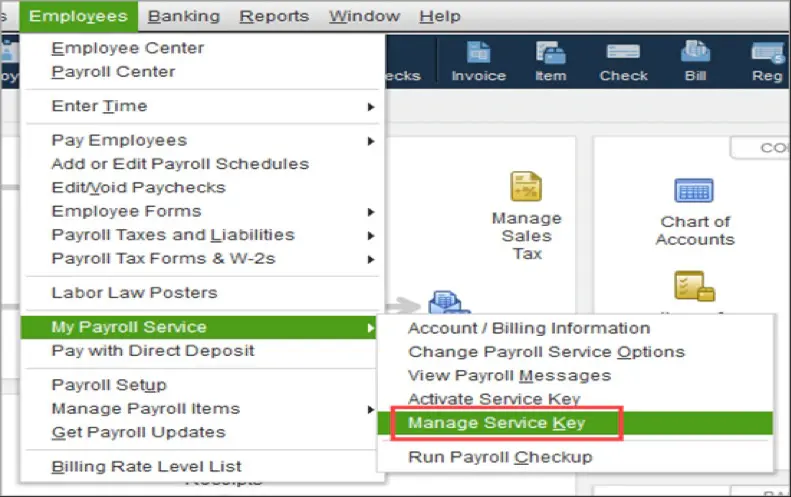
Revalidating your QuickBooks Payroll subscription is a way to ensure your access credentials are current and accurate, aligning with QuickBooks’ servers. It’s similar to a secure login, ensuring your payroll functions remain seamless, authorized, and in sync with the service. This validation ensures the smooth operation of payroll features.
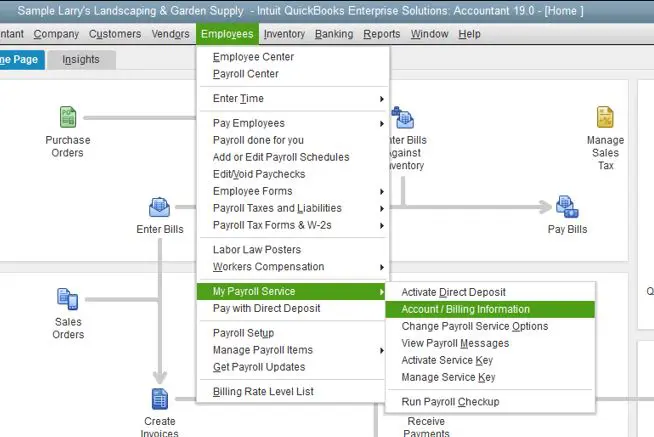
You may ensure smooth online operations by configuring QuickBooks to use your computer’s internet connection preferences. This is done by checking QuickBooks’ Internet Connection Settings.
Clearing server certification revocation entails removing a security check to avoid delays in safe connections. Like deleting a checkpoint, it ensures that no pointless stops cause your connection to be delayed. This improves QuickBooks’ capacity to effectively authenticate and connect with servers, lowering the possibility of mistakes.
Clearing IP addresses and DNS entries from caches by flushing the DNS will assist in resolving connection and security concerns with the internet. To Delete / Clear the DNS:
To enable Compatibility View for websites in Internet Explorer, follow these steps:
In the Add this website field, enter the following URLs one by one and click Add after each:
If your QuickBooks Payroll isn’t working due to an internet connectivity issue, it can prevent payroll updates, direct deposit processing, and tax calculations. This problem usually occurs due to network restrictions, firewall settings, outdated software, or incorrect internet configurations.
Common Causes of QuickBooks Payroll Connectivity Issues:
How to Fix QuickBooks Payroll Internet Connection Issues:
QuickBooks Payroll Internet Connection Errors become noticeable when the software is unable to maintain stable communication with Intuit’s servers. Common symptoms include:
If you notice any of these symptoms, troubleshooting your internet connection and QuickBooks settings can help restore normal payroll functionality.
Using a VPN (Virtual Private Network) or proxy server can sometimes interfere with QuickBooks Payroll connectivity. These tools reroute your internet traffic through different servers, which may cause issues with verifying your connection to Intuit’s servers.
Why VPN or Proxy Causes Payroll Connection Errors?
How to Fix QuickBooks Payroll Issues Caused by VPN or Proxy
Clearing cache and cookies removes outdated or corrupted temporary data that interferes with QuickBooks Payroll’s ability to connect to Intuit’s servers. When these files accumulate, they disrupt network communication and prevent payroll data, updates, or direct deposits from processing correctly. Removing them helps restore a clean connection path and improves overall system responsiveness.
If you’re experiencing QuickBooks Payroll Internet Connection Errors, clearing your browser’s cache and cookies can help. Stored cache files may become outdated or corrupted, causing connection issues.
Steps to Clear Cache and Cookies:
Payroll internet errors in QuickBooks Multi-User Mode often occur due to network issues, firewall restrictions, or incorrect settings. Follow these steps to fix them:
These steps will help resolve payroll internet errors and ensure smooth payroll processing.
Why This Helps?
Clearing cache and cookies removes outdated data that may interfere with payroll connectivity. After clearing, restart your browser and try accessing QuickBooks Payroll again.
QuickBooks Payroll Internet Connection Errors disrupt payroll processing, direct deposit transmission, and tax-table updates. These errors typically result from network issues, misconfigured firewall or security settings, incorrect system time, outdated payroll updates, and invalid security certificates. Implementing the recommended troubleshooting steps, such as updating payroll tax tables, adjusting firewall settings, clearing cache, validating service keys, and correcting internet configurations, restores proper communication with Intuit servers.
Maintaining accurate system settings and network configurations ensures stable payroll operations and prevents future connectivity errors. Feel free to reach out to us for expert guidance and support at 1-802-778-9005 if you still have any doubts.
Still have questions? Explore our detailed FAQs.


