


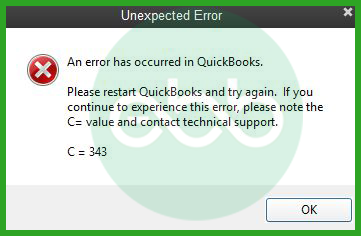
QuickBooks Error C=343 often occurs when the QuickBooks software is unable to read a QuickBooks company file — part of a broader set of internal processing errors documented in our complete QuickBooks error codes list. It is caused by a missing or corrupted MSXML.dll file or compatibility issues between your Windows and QuickBooks versions. If repeated company file access failures are affecting your workflow, our QuickBooks Desktop error C series guide covers related errors and their step-by-step fixes. You will see the following error message on your screen when accessing the company file.
What Triggers QuickBooks Desktop Error c343?
QuickBooks Error C343 is usually encountered when the company file is damaged or stored in an unstable location. It often appears due to improper shutdowns, network interruptions, or issues with the QuickBooks installation while opening the file.
- Corruption or damage in the QuickBooks company file.
- Improper system shutdown or sudden power failure.
- Network interruptions while opening or accessing the company file.
- Hosting configuration issues in multi-user mode.
- Outdated, damaged, or improperly installed QuickBooks Desktop.
- Company file stored on an unstable, external, or network location.
- Incomplete or failed QuickBooks updates.
- Damaged, missing, or unregistered MSXML components.
- Outdated or incompatible Windows operating system.
QuickBooks Error C343: Common Symptoms and Error Messages
QuickBooks Error C343 may appear in different forms depending on system configuration and MSXML-related issues. If you experience any of the following messages or behaviors, it indicates a registration or installation problem that requires immediate attention.
- Prompts stating MSXML 4 is not installed or configured correctly on the system.
- Errors indicating QuickBooks cannot access the QBRegistration.dat file.
- Messages such as “An unrecoverable error has occurred. Exception: MSXML could not CoCreate instance.”
- QuickBooks installation or update freezing at “Installing MSXML 4.0”
- Warnings like “Error C=343: Filename.dll is not an executable file.”
- Failures while registering msxml3.dll or msxml4.dll, commonly on 64-bit Windows systems.
- Alerts stating “No registration helper is registered for this file type.”
- QuickBooks closes unexpectedly during company file access or registration.
- Inability to open the company file after a QuickBooks installation or update.
Troubleshooting Guide for QuickBooks Desktop Error C343
QuickBooks Desktop Error C343 can be resolved by repairing the company file and ensuring all required system components are properly installed and updated. Addressing file corruption, network issues, and software compatibility helps restore smooth access to your company data.
Method 1: Download the latest QuickBooks Updates
An outdated QuickBooks version can cause compatibility issues with Windows components like MSXML and .NET Framework. Updating QuickBooks installs critical patches that fix registration conflicts and known bugs responsible for Error C343.
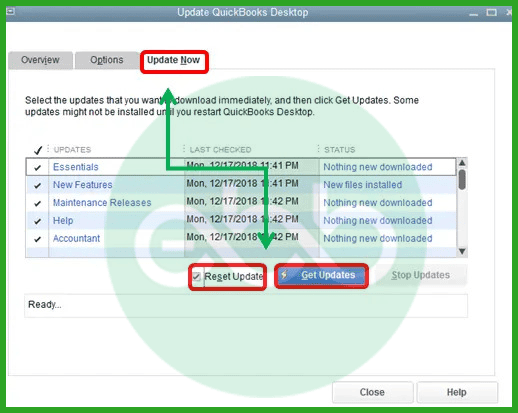
- Open QuickBooks Desktop and navigate to the Help menu.
- Choose Update QuickBooks Desktop.
- Hit the Update Now tab. Tip: Tickmark the Reset Update checkbox to clear all previous update downloads.
- Select Get Updates to start the download.
- Once done, close and reopen QuickBooks to install the update again.
Method 2: Manually Install Windows Updates
QuickBooks Error C343 often occurs when required Windows components are outdated or missing. Installing pending Windows updates ensures MSXML, .NET Framework, and Visual C++ Redistributables are up to date, preventing assembly and registration failures.
- Navigate to the Windows Start menu, and click the Gear icon at the left.
- Select Update & Security > Windows Update.
- Choose Check for updates.
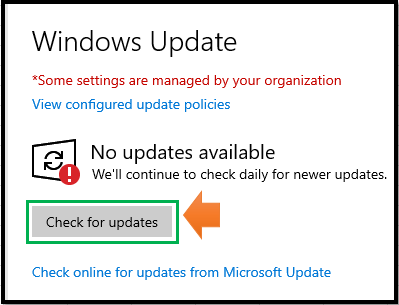
- Click Download & install if any updates are available there. Your device will download and install the updates.
- After this, restart your device to apply the updates.
Method 3: Create a New Windows User Profile
A corrupted Windows user profile may prevent QuickBooks from accessing system files or registration entries. Creating a new administrator profile resets permissions and environment settings, helping QuickBooks function correctly without encountering Error C343.
- Hold and press Windows + I to open Settings.
- Choose Accounts, and select Family & other users.
- Under Other users, click Add someone else to this PC.
- Select I don’t have this person’s sign-in information, and choose Add a user without a Microsoft account.
- Enter a username and password, and click Next.
- Once the account is created, select the new user and click Change account type.
- Set the account type to Administrator and click OK.
- Log out from the current account and log in using the new Windows profile.
- Open QuickBooks and try accessing the company file again.
Method 4: Re-register the MSXML .DLL files
Error C343 often occurs when MSXML components are missing, damaged, or not properly registered on the system. Re-registering the MSXML DLL files re-establishes the connection between QuickBooks and Windows XML services, helping fix registration issues and execution errors.
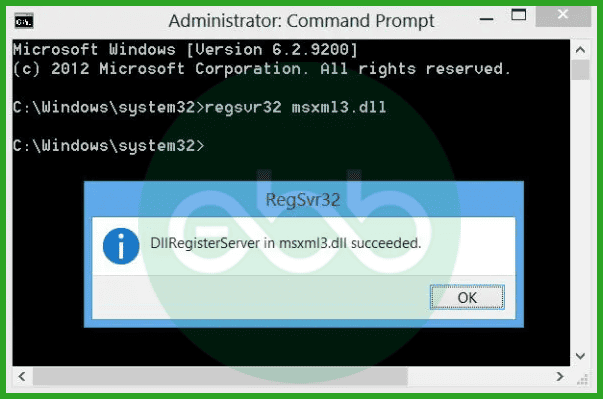
Register the MSXML DLL files
64-Bit operating system, register MSXML with the following steps:
- Choose the Windows Start menu and type cmd.
- Right-click cmd and select Run as Administrator.
- At the C: prompt, enter cd\windows\syswow64.
- Type regsvr32 MSXML6.dll and click Enter.
- Install QuickBooks Desktop application at the end.
32-Bit operating system, register MSXML with the following commands:
- Hold and press Windows+R on your keyboard to open the Run command.
- Type cmd, and click Enter.
- Enter regsvr32 MSXML6.dll, and select Enter.
- Install QuickBooks Desktop in the end.
Method 5: Run QuickBooks in Selective Startup Mode
Third-party applications or background services may block MSXML registration or QuickBooks installation. Running Windows in Selective Startup mode minimizes interference, allowing QuickBooks to install, update, or run without conflicts.
Step 1: Log in to the System in Selective Startup Mode
- Hold and press Windows+R on your keyboard to open the Run command.
- Enter “msconfig,” and click OK.
- Under the General tab, choose Selective Startup and Load system services.
- Navigate to the Services tab, and select Hide all Microsoft Services.
- Click Disable All and uncheck Hide all Microsoft services.
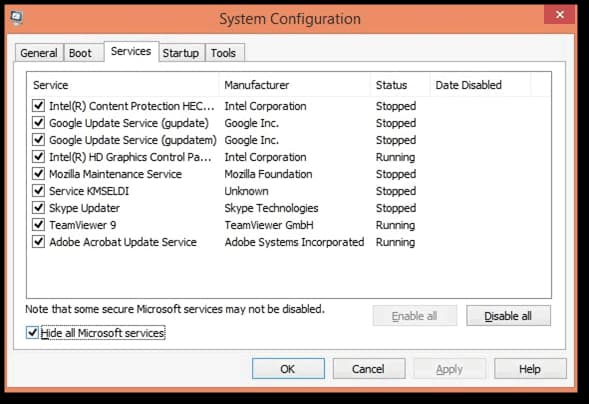
- Choose Windows Installer from the list of services.
- Select OK.
- Click Restart from the System Configuration window.
Step 2: Switch Back to Normal Startup Mode
- Hold and press Windows+R on your keyboard to open the Run command.
- Enter msconfig, and click OK.
- Choose Normal startup in the General tab.
- Select OK.
- Click Restart on the System Configuration window.
Method 6: Use QuickBooks File Doctor Tool
Error C343 may appear while opening a company file due to data corruption or network-related issues. The QuickBooks File Doctor scans the company file and network setup to identify and repair problems that cause access errors or unexpected crashes.
Step 1: Download & Install the QuickBooks Tool Hub
The QuickBooks Tool Hub helps to fix common errors. You’ll need to close QuickBooks to use the tool hub. For the best experience, we recommend you use Tool Hub on Windows 10, 64-bit.
- Close QuickBooks.
- Download and install the most recent QuickBooks Tool Hub version (1.6. 0.8).
- Save the file somewhere you can easily find it such as your Downloads folder or your Windows desktop.
Note: To find out which tool hub version you have, select the Home tab and the version will be on the bottom.
- Open the downloaded file QuickBooksToolHub.exe to start the installation.
- Follow the on-screen steps to install and agree to the terms and conditions.
- When the installation finishes, click twice on your Windows desktop icon to open the tool hub.

Note: If you are unable to find the icon, do a search in Windows for QuickBooks Tool Hub and select the program.
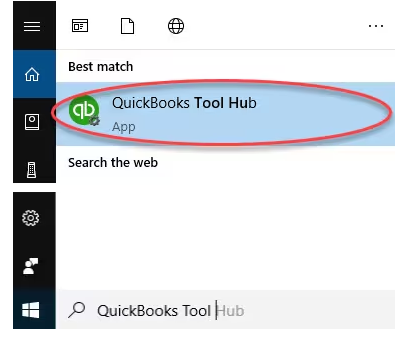
Step 2: Run QuickBooks File Doctor
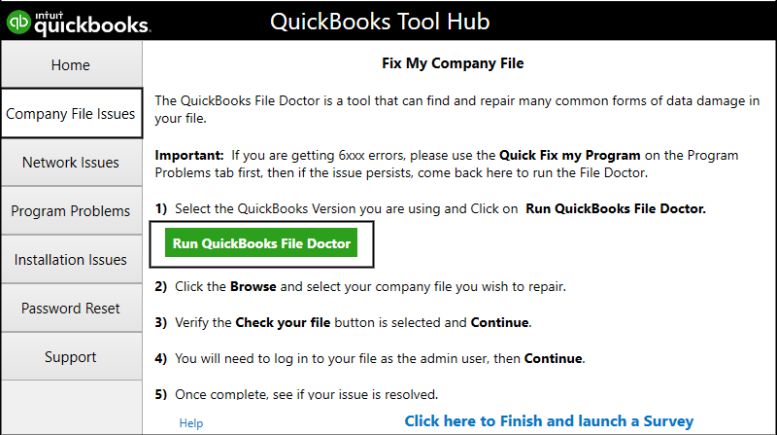
- Select Company File Issues from the tool hub.
- Choose Run QuickBooks File Doctor. It can take up to one minute for the file doctor to open.
Note: Look for QuickBooks Desktop File Doc and try to open it manually if the QuickBooks File Doctor doesn’t open.
- In QuickBooks File Doctor, select your company file from the dropdown menu. Click Browse in case you don’t see your file and search to find your file.
- Click Check your file (middle option only) and select Continue.
- Enter your QuickBooks admin password and click Next.
Depending on file size, the scan can take 10 to 15 minutes. It may show as unsuccessful even if the problem is fixed. Once finished, reopen QuickBooks and your company file.
Note: When QuickBooks File Doctor doesn’t resolve the issue, proceed by repairing data damage on your QuickBooks Desktop company file. For a complete overview of file damage scenarios and advanced fixes, refer to our QuickBooks company file errors guide.
Method 7: Uninstall & Reinstall QuickBooks
Error C343 often occurs due to damaged QuickBooks program files or faulty MSXML integration. Reinstalling QuickBooks replaces corrupted components, restores proper file registration, and resolves the issue at its source.
Uninstall QuickBooks
- Hold and press the Windows + R keys to open the Run command.
- Now, enter the Control Panel into the search bar and then hit the Enter key.
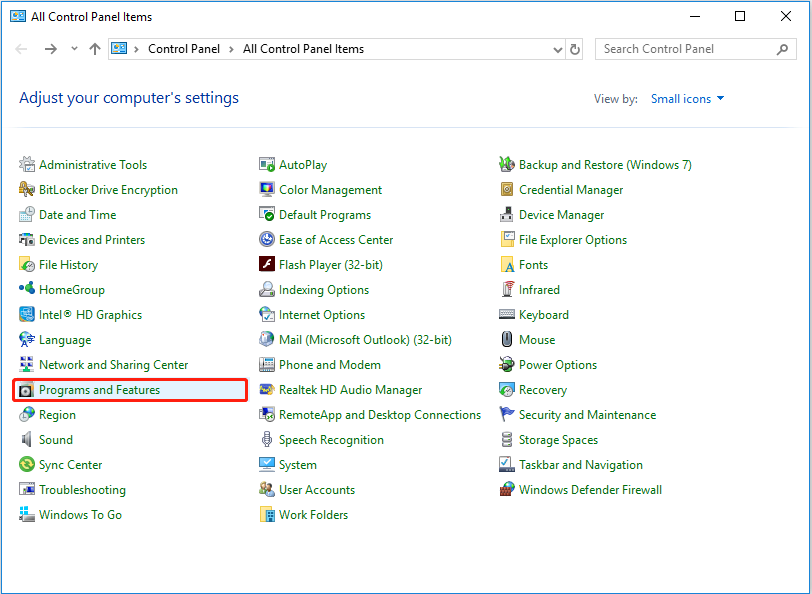
- Select Programs and Features and click on Uninstall or change a Program option.
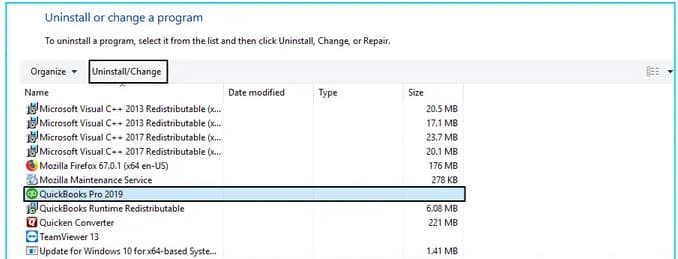
- After this, choose the QuickBooks Desktop version you want to remove from the list of programs.
- Click on Uninstall/Change, Remove, then press the Next button.
Note: If you don’t get this option on your display, sign out and sign back into Windows as an administrator.
- Follow the on-screen prompts to complete the uninstallation process.
Reinstall QuickBooks
- Insert the Installation CD to the computer if you have any, and then follow the on-screen instructions to complete the installation process.
- Or, download your QuickBooks version from the QuickBooks Product Download Page in case you have purchased QuickBooks from the official Intuit website.
- Once the product is successfully installed into your system, it will ask you to enter the Product and QuickBooks License number.
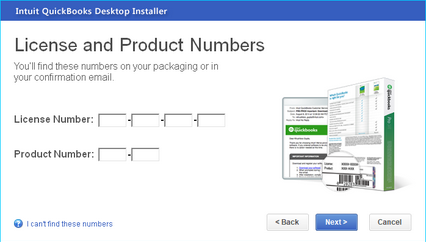
Note: Type the credentials just as they were mentioned in the system earlier.
- After entering the above information, follow the on-screen prompts to get the step completed.
- Click on the Next icon and then select the type of installation you want for your accounting process.
- Click Next and hit the Install tab.
- When QuickBooks installation finishes, you are all set to run it in your system.
Related QuickBooks Errors
If you are experiencing similar C-series errors beyond Error C=343, these related errors may also be affecting your QuickBooks Desktop:
| Error | Description |
|---|---|
| QuickBooks Desktop Error Code 61 | File access failure caused by damaged or inaccessible company file data |
| QuickBooks Desktop Error C=51 | Internal processing error triggered by corrupted templates or damaged file structures |
Conclusion!
QuickBooks Desktop Error c343 is primarily caused by issues with MSXML components, damaged program files, or incorrect system configurations. The error can block access to the company file or interrupt the QuickBooks installation process, but it can be resolved by following a clear and systematic troubleshooting approach.
Updating QuickBooks and Windows, re-registering MSXML files, repairing the company file, and reinstalling QuickBooks help restore proper communication with essential Windows services. Timely resolution fixes Error C343 and helps prevent data access issues and future workflow disruptions.
Still facing issues with QuickBooks Error C=343? Visit our QuickBooks support and troubleshooting page for expert assistance and advanced resolution options.
Hopefully, the information given above will be useful to you. But if you are still facing any kind of issues with your software and need professional assistance regarding accounting, bookkeeping & accounting software-related issues, then feel free to get technical support with us at +1-802-778-9005, or you can email us at support@ebetterbooks.com
FAQs!
Can outdated Windows versions cause QuickBooks Error Code C=343?
Yes, outdated Windows versions can cause compatibility issues that trigger Error Code C=343. Installing the latest Windows updates ensures that QuickBooks can communicate properly with the required system components.
Does reinstalling QuickBooks help fix Error Code C=343?
Yes, reinstalling QuickBooks using the Clean Install Tool can help resolve Error Code C=343 if other troubleshooting methods fail. This process removes damaged program files and reinstalls a fresh copy of the software.
What is the role of MSXML in QuickBooks, and why does its corruption cause a C-series error?
MSXML (Microsoft XML Core Services) is the underlying Windows component that QuickBooks uses to handle data structuring. QuickBooks company files, templates, and reports rely heavily on the XML format for storing and transmitting information internally. When these MSXML files are corrupt or unregistered, QuickBooks loses its “translator.” It can’t read its own structured data at startup or display essential elements, leading to a critical runtime failure like the C=343 error code.
I use a third-party application that integrates with QuickBooks. Could that be causing my C=343 error?
Absolutely, yes. This is a common and often overlooked scenario. Many third-party integration applications (like inventory managers or specialized POS systems) also rely on and often modify or overwrite the same core Microsoft XML (MSXML) files that QuickBooks uses. If an update or installation of that external application damages the shared MSXML library, QuickBooks Desktop will immediately throw Error C=343 because it can’t execute its necessary functions. We often recommend temporarily disabling or uninstalling the integrator during troubleshooting.
My C=343 error happened right after a Windows Update. Is Microsoft or Intuit responsible?
This is a classic compatibility conflict, and it’s usually an interaction issue, not a single party’s fault. Windows Updates sometimes include patches or service pack rollouts (like to the .NET Framework or C++ Redistributables) that inadvertently change the permissions or un-register older versions of core libraries like MSXML. Since QuickBooks is heavily dependent on these specific, sometimes older, libraries, the Windows update breaks the chain of dependencies required for QB to launch.
If I use Regsvr32 to fix the MSXML files, will that impact other applications on my PC?
The Regsvr32 command is the standard Windows method for registering or unregistering a DLL file (like the MSXML files). When fixing C=343, you are simply restoring the necessary registry links for those files. Since MSXML is a common component used by many Microsoft and third-party applications, restoring its proper registration status is generally a safe and necessary step that should resolve issues, not cause them, for other programs. It restores your system to its intended working state.
Can my Antivirus software cause this C=343 error by blocking a crucial file?
Yes, absolutely. Aggressive or overzealous Antivirus (AV) or security software can sometimes mistake a critical QuickBooks or MSXML component for a threat, quarantine the file, or block the necessary program execution at startup. This interference leads to the exact “unexpected error” associated with C=343. If you’ve tried the MSXML fixes without success, temporarily disabling your AV or ensuring your entire QuickBooks installation folder is listed as an exception is a critical troubleshooting step.
Disclaimer: The information outlined above for “Fix QuickBooks Error Code C=343? (An Expected Error)” is applicable to all supported versions, including QuickBooks Desktop Pro, Premier, Accountant, and Enterprise. It is designed to work with operating systems such as Windows 7, 10, and 11, as well as macOS.