Excerpt:
QuickBooks Error C=387, often caused by corrupted registry entries or invoice template issues, disrupts your workflow and efficiency. This guide offers several solutions, such as refreshing the system, using repair tools, troubleshooting templates, and running data utilities to fix the error. Follow these steps to resolve the issue and restore seamless operation of QuickBooks.
 Add As A Preferred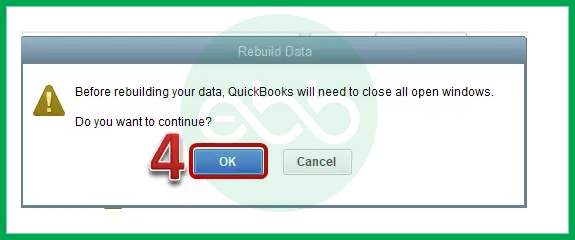
Fix QuickBooks Company File Error C=387 by using the Verify/Rebuild Data tool, editing the damaged invoice template, or running the File Doctor via the QuickBook Tool Hub to repair file damage.
QuickBooks Error Code C=387 is a runtime error belonging to the internal C= error series, which means the problem occurs during program execution of QuickBooks Desktop. It signifies an internal problem, and QuickBooks cannot continue with the current task.
Error C=387 shows up in several situations within QuickBooks Desktop. In each case, QuickBooks encounters difficulty accessing or updating the necessary company data, which prevents the operation from completing successfully. You can also browse complete list of QuickBooks error codes to find related issues and their fixes.
Following are the cases that triggers Error C=387
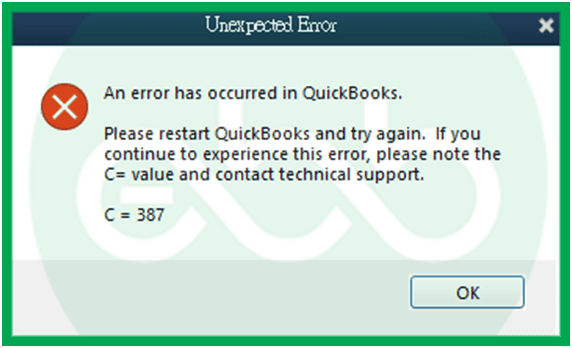
The most commonC=387 error message reads:
“An error has occurred in QuickBooks. Please restart QuickBooks and try again. If you continue to experience this error, please note the C= value and contact technical support.”
The Error C=387 code helps technical support identify the specific type of failure. This article provides a diagnostic, risk & solution framework along with the preventive strategy.
The time investment in prevention is far less than the time required to repair corrupted data. Professional businesses should treat QuickBooks maintenance as a critical financial control activity.
QuickBooks Desktop shows C=387 as an “Unexpected Error” message. The error usually appears when QuickBooks fails to read company file data. Published sources and Intuit Community moderators link it to five conditions:
The company file stores every transaction, list, and payroll item, so damage to one area can block any operation that reads it. Users often see C=387 while accessing data in the company file.
Templates control how QuickBooks builds forms and reports. An Intuit Community moderator called a damaged template the likely source of C=387.
QuickBooks Desktop relies on its own installation files to run each operation. Intuit moderators recommend the Repair utility for this error, which points to program-level damage.
QuickBooks Desktop runs on Windows components outside its own folder. Damage to these components triggers C=387 even when the company file is healthy.
C= errors represent runtime failures in QuickBooks Desktop. The C prefix stands for “critical” or “code-level” errors that happen during program execution. These errors occur when QuickBooks is actively processing data or performing operations. The program encounters something unexpected and cannot continue safely.
Error C=387 belongs to the internal processing failure category. This category includes errors that happen when QuickBooks reads company files, processes templates, or handles registry entries. The program expects certain data structures to exist in specific formats. When these expectations are not met, C= errors appear. This differs from user input errors or network communication problems.
QuickBooks uses several error code series to organize different problem types. The 6000 series handles company file access and network issues. The H series deals with multi-user hosting configuration.
The 12000 series addresses internet connectivity problems. The C= series focuses on internal program operations and data integrity. Each series helps users and support staff identify where the problem originates.
Related C-series errors include:
| Error Code | Trigger Scenario | Common Cause |
|---|---|---|
| Error C=47 | Running specific reports | Corrupted transaction data |
| Error C=343 | Form template processing | Damaged templates |
| Error C=272 | Damaged invoice layouts | File structure problems |
| Error Code 61 | File access issues | Corrupted registry entries |
| Error C=51 | Template processing issues | File structure problems |
These errors share common causes: corrupted registry entries, damaged templates, or file structure problems. Understanding this connection helps diagnose issues faster.
The Root Cause helps users identify the specific trigger for Error C=387. Use this table before attempting any fixes. Match your symptom to identify the correct solution path. This approach saves time by avoiding irrelevant solutions.
Start by identifying when the error appears. The timing reveals the root cause.
| Possible Causes and QuickFix for Error c387 in QuickBooks | ||
|---|---|---|
| Error Event | Likely Cause | Recommended Fix |
| Error c387 occurs while opening invoice | Damaged template | Delete and recreate invoice template |
| Error c387 occurs while opening company file | Data corruption | Run Verify and Rebuild Company Data |
| Error c387 occurs after Windows update | .NET Framework conflict | Repair .NET Framework after Windows Update |
| Error c387 in multi-user mode | ND file issue | Rename ND and TLG files |
Understanding which files QuickBooks uses helps prevent data loss. Each file type serves a specific purpose. Knowing these purposes explains why backup is critical before repairs.
ND files manage network connections between workstations. They track which users access the company file. Corruption prevents multi-user access.
TLG files record transaction history. They enable QuickBooks to undo changes. Corruption prevents data verification. Without TLG files, Rebuild Data cannot function.
The Rebuild process reorganizes internal data. It rewrites list structures, transaction links, and index tables. This reorganization can expose hidden corruption.
Exposed corruption sometimes makes files unopenable. The original file becomes inaccessible. Only the backup remains. This is why backing up before Rebuild is critical.
Solutions are organized by skill level, risk level, and success probability. This tiered approach protects your data while maximizing repair chances. Start with Level 1 solutions and move to higher tiers only if lower-tier solutions fail.
These solutions require no technical expertise. The risk of data loss is minimal. Anyone can perform these steps safely. Success probability varies but these methods fix common simple issues.
| Solution 1.1: Restart QuickBooks and Computer | |||
| Skill Level | Risk Level | Success Probability | Approximate Time Required |
| Beginner | Low | Low to Moderate | 10 minutes |
| Risk Explanation | This solution cannot damage data. The worst outcome is the error continues after restart. No files are modified or deleted. | Solution Explanation | Restarting QuickBooks and your PC results in freeing up any files or resources that are consumed in the background processes. |
Steps to Implement the Solution 1.1
| Solution 1.2: Update QuickBooks to Latest Release | |||
| Skill Level | Risk Level | Success Probability | Approximate Time Required |
| Beginner | Low | Moderate | 15-30 minutes |
| Risk Explanation | QuickBooks updates rarely cause problems. Intuit tests updates extensively before release. Always maintain a backup before updating. The update process does not modify company files directly. | Solution Explanation | Updating QuickBooks installs the latest release which is an official software improvement issued by Intuit to fix bugs and performance issues. The latest version ensures your software runs with improved stability and corrected internal program conflicts. |
Steps to Implement the Solution 1.2
These solutions modify data files or system configurations. Basic computer knowledge is helpful but not required. Risk increases because these operations affect file structures. Always create a backup before attempting Level 2 solutions.
| Solution 2.1: Rename ND and TLG Files | |||
| Skill Level | Risk Level | Success Probability | Approximate Time Required |
| Intermediate | Low to Moderate | High | 15–20 minutes |
| Risk Explanation | Renaming these files does not delete data. QuickBooks creates new files automatically. The original files remain as backup. Improper renaming might prevent QuickBooks from finding the company file. Follow naming instructions exactly. | Solution Explanation | The ND file stores network connection settings used in multi-user mode. The TLG file records transaction history since the last backup for recovery. Corruption in these files can trigger Error C=387. Renaming them forces QuickBooks to generate fresh configuration files. |
Steps to Implement the Solution 2.1
| Solution 2.2: Verify and Rebuild Data | |||
| Skill Level | Risk Level | Success Probability | Approximate Time Required |
| Intermediate | Moderate | High | 30 minutes to several hours |
| Risk Explanation | Rebuild Data modifies the internal structure of the company file. The process rewrites corrupted data blocks to restore integrity. Interrupting the rebuild may cause serious file damage. Always create a full backup before running this utility. | Solution Explanation | Verify Data scans the company file for structural errors without making changes. Rebuild Data repairs issues by reconstructing damaged data sections and reorganizing file structure. These built-in tools fix corruption that may cause Error C=387. |
Steps to Implement the Solution 2.2
| Solution 2.3: Delete and Recreate Damaged Template | |||
| Skill Level | Risk Level | Success Probability | Approximate Time Required |
| Intermediate | Low | High | 20–30 minutes |
| Risk Explanation | Deleting a template removes only layout and formatting settings. Transaction data such as invoices and payments remain unchanged. The worst case is recreating the template design. This process does not damage the company file. | Solution Explanation | Templates control the appearance of invoices and other forms. Corruption in template configuration can prevent QuickBooks from rendering forms properly. Error C=387 may appear when loading a damaged template. Creating a new template removes the corrupted layout data. |
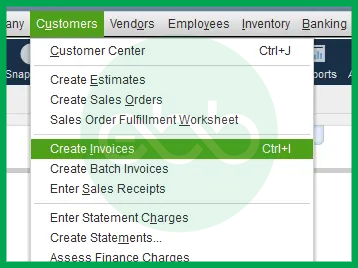
Steps to Implement the Solution 2.2
These solutions require technical knowledge and carry higher risk. System-level changes can affect other programs. Contact professional support if you are uncomfortable with these procedures. Data backup is mandatory before attempting any Level 3 solution.
| Solution 3.1: Repair .NET Framework | |||
| Skill Level | Risk Level | Success Probability | Approximate Time Required |
| Advanced | Moderate to High | Moderate | 30–60 minutes |
| Risk Explanation | .NET Framework repair may fail if Windows system files are corrupted. Other software programs depend on .NET Framework to function properly. Incorrect repair steps may cause applications to stop working. Professional assistance is recommended for users unfamiliar with Windows components. | Solution Explanation | Microsoft .NET Framework provides essential system libraries required for QuickBooks to run. Version conflicts or corruption can trigger Error C=387. Repairing or reinstalling .NET restores required system components. This process resolves compatibility and runtime issues affecting QuickBooks. |
Steps to Implement the Solution 3.1
| Solution 3.2: Repair or Reinstall QuickBooks | |||
| Skill Level | Risk Level | Success Probability | Approximate Time Required |
| Advanced | High | High | 20–45 minutes |
| Risk Explanation | Repair modifies QuickBooks installation files but does not change company data. Reinstallation requires product activation using your license key. Failed repair attempts may prevent QuickBooks from starting. Professional support is strongly recommended before proceeding. | Solution Explanation | Corrupted QuickBooks program files can cause persistent Error C=387. Repair replaces damaged components without affecting company files. Reinstallation removes all corrupted program traces and installs a clean version. A fresh installation resolves deep software-level corruption issues. |
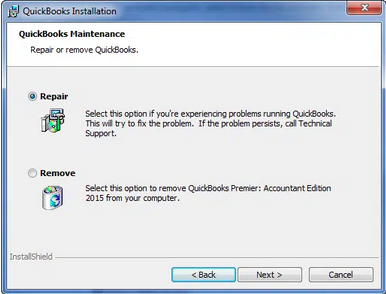
Steps to Implement the Solution 3.2
Some situations require professional assistance. Attempting DIY repairs in these cases risks permanent data loss. Recognize these situations early and contact professional support.
Preventing Error C=387 requires consistent maintenance practices. Most occurrences stem from preventable causes. Regular maintenance reduces error frequency significantly. These strategies protect against data corruption and system conflicts.
Following these prevention strategies reduces Error C=387 occurrence significantly. Consistent maintenance catches problems early when they are easiest to fix.
Create backups daily before processing transactions. Store backups in three locations: local hard drive, external drive, and cloud storage.
Set up automatic backup schedules in QuickBooks. Click File menu, select Back Up Company, then Create Local Backup. Choose to backup automatically.
Test backup restoration quarterly. Verify backups are complete and usable. Failed backups provide no protection.
Enable automatic updates in QuickBooks. Click Help menu, select Update QuickBooks Desktop. Click the Options tab. Check “Automatic update.”
Install Windows updates during non-business hours. Schedule updates for evenings or weekends. This prevents interruption during critical tasks.
Review update notes before installing. Some updates require preparation. Major version updates need testing in separate environments first.
Run Verify Data weekly. Click File menu, Utilities, then Verify Data. Schedule verification every Friday before weekly close.
Address verification warnings immediately. Small issues grow into large problems. Early detection prevents major corruption.
Maintain a verification log. Record verification dates and results. Track patterns indicating developing problems.
Limit simultaneous users to necessary personnel. Each additional user increases network file stress. More users create more corruption opportunities.
Establish proper shutdown procedures. Ensure all users exit QuickBooks before server shutdown. Improper shutdowns corrupt network files.
Host company files on dedicated servers, not workstations. Workstation shutdowns disrupt access. Server-based hosting provides stability.
Monitor network stability. Connection interruptions corrupt network files. Stable networks prevent C=387 in multi-user environments.
If QuickBooks Error C=387 continues after following the tiered solutions above, do not keep experimenting with repeated repairs. Escalating corruption can increase the risk of permanent data damage. At this stage, a structured professional diagnosis is the safest path forward.
Get expert assistance to analyze your company file, secure your financial data, and restore system stability quickly. Acting early protects both your records and your business continuity.
For most complex QuickBooks errors, including C=387, you should always start with the QuickBooks Tool Hub. This single application, provided by Intuit, contains all the necessary utilities:
1. Quick Fix my Program: Solves common installation and performance issues.
2. QuickBooks File Doctor: Identifies and repairs company file corruption and network/hosting errors.
3. QuickBooks Install Diagnostic Tool: Addresses underlying Windows components (.NET Framework, MSXML) that often cause installation-related problems.
Always download the latest version of the QuickBooks Tool Hub directly from the official Intuit support site.
Yes, firewall and security software are frequent causes of connection and access errors like C=387, especially in multi-user environments. If QuickBooks cannot communicate with the company file over the network, it can display a synchronization error.
To check this:
1. Temporarily disable your security software (Firewall/Antivirus).
2. Attempt to reproduce the error (e.g., open the company file or create an invoice).
3. If the error disappears, the security software is the culprit. You must then add QuickBooks executable files and ports as exceptions in your firewall settings permanently.
Both tools are crucial for maintaining the integrity of your company file, but they serve different purposes:
Utility: Verify Data
Purpose: Diagnosis
Action: Scans the data file for common issues, corruption, or damaged links without changing the file.
When to Run: Run this first to see if there is any data damage before attempting a fix.
Utility: Rebuild Data
Purpose: Repair
Action: Fixes issues identified by the Verify Data utility by rebuilding the data structure, tables, and indices.
When to Run: Run this only after creating a backup, when the Verify Data utility reports damage.
Proactive maintenance significantly reduces the risk of unexpected errors:
1. Weekly: Run the Verify Data utility to catch small data inconsistencies early.
2. Monthly: Create a physical backup of your company file and store it externally (not just a local copy). Ensure all users are logged out before creating the backup.
3. Quarterly: Ensure your QuickBooks software and your Windows operating system (including the .NET Framework) are fully updated to maintain compatibility and security.
No, it is generally not recommended. Third-party registry cleaners are high-risk tools that can incorrectly delete or modify critical Windows or QuickBooks registry keys, potentially causing severe system instability or more complex QuickBooks errors.
Instead, rely on official, verified tools:
1. Microsoft System File Checker (SFC) and DISM: Use these native Windows tools to repair damaged operating system files.
2. QuickBooks Install Diagnostic Tool: This tool specifically addresses registry keys and dependencies related to the QuickBooks application, providing a targeted and safe fix.
Outdated or improperly modified invoice templates can directly trigger Error C=387, as the error often pops up when the user attempts to create, save, or modify an invoice.
When QuickBooks attempts to load a template that contains corrupt code, a missing dependency, or formatting conflicts with the current software version, the operation fails, and the system defaults to a generic Unexpected Error. To resolve this, you may need to:
1. Switch to a Standard Template: Temporarily change your preferred template to a default QuickBooks template (e.g., Intuit Product Invoice) to confirm if the template is the source of the issue.
2. Recreate Custom Templates: If a custom template is the culprit, you should try editing and saving it again (as described in Solution 3) or completely recreate the template from scratch.
In a multi-user environment, network issues are a prime suspect. The first and simplest networking check is ensuring the QuickBooks Database Server Manager (QBDBSM) is running correctly on the host computer (the machine holding the company file).
Check these items on the host computer:
QBDBSM Status: Verify that the QBDBSM service is running and configured to scan the folders containing your company files.
Hosting Status: In QuickBooks, go to File $\rightarrow$ Utilities. If you see the option “Host Multi-User Access,” this means the computer is currently not hosting. If you see “Stop Hosting Multi-User Access,” this means the computer is hosting, which is correct for the server.
Firewall Ports: Confirm that the necessary ports for the specific QuickBooks version are open in the Windows Firewall for the QBDBSM service.


