Excerpt:
If you're facing QuickBooks Error 6144-82, it indicates issues with your company file, Windows registry, or network setup. This error can disrupt your workflow by slowing down QuickBooks or causing crashes. Our guide provides detailed solutions like repairing the Windows registry, managing firewall settings, renaming essential files, and using QuickBooks' built-in tools to resolve the issue. Get back to managing your finances efficiently with these straightforward troubleshooting steps.
 Add As A Preferred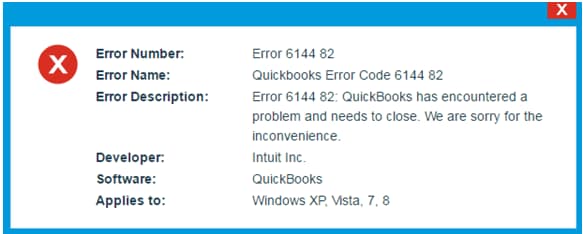
Fix QuickBooks Company File Error 6144 82 by renaming ND and TLG files, using QuickBooks File Doctor, or scanning folders with Database Server Manager to restore network access to your company file.
QuickBooks Error 6144 82 appears when the software cannot access or open company files. This error blocks business operations by preventing file access in both single-user and multi-user modes. QuickBooks triggers this error when accessing files stored on network locations or when multi-user environments face connectivity issues.
The most common Error 6144 82 messages read: “Error 6144 82: QuickBooks has encountered a problem and needs to close” or “Error -6144, -82: This company file cannot be opened. Please verify your network settings.”
This article provides a diagnostic framework, risk assessment, and complete solution guide. Data corruption and network issues require immediate attention. Delayed repairs allow problems to spread through the network configuration.
Error 6144 82 belongs to the 6000 series handling company file access problems and network configuration issues. The 6000 series represents file access failures rather than processing errors. QuickBooks uses this code when network data files become corrupted or connection settings fail.
QuickBooks organizes errors into series: C= series (internal processing), H series (multi-user hosting), 12000 series (internet connectivity), 6000 series (file access and network setup). Related 6000 errors include 6150 (structural damage), 6000-83 (permission problems), 6000-82 (network communication failures). These share common causes: damaged network data files, corrupted transaction logs, or incorrect network configuration.
QuickBooks errors create chain reactions across network systems. One underlying problem generates multiple error codes at different access points.
| Cause of Error 6144 82 | Possible Triggered Errors |
| Damaged ND files | H202 (multi-user hosting cannot be turned on) |
| Corrupted TLG files | Error 6150 (company file structural damage) |
| Network configuration | 6000-83 (lack of folder permissions) |
| Database Server Manager | QBCFMonitorService not running errors |
Match your symptom to find the correct solution path. Start by identifying when the error appears. Check if the error occurs in single-user or multi-user mode to determine the appropriate fix.
| Possible Causes and QuickFix for Error 6144 82 | ||
| Error Event | Likely Cause | Recommended Fix (When to Perform) |
| Error 6144 82 when opening file | Damaged ND and TLG files | Before reopening QuickBooks, rename the ND and TLG files and then reopen the company file. |
| Error 6144 82 in multi-user mode | Database Server Manager not configured | After switching to multi-user mode and before reconnecting workstations, run the Database Server Manager scan. |
| Error 6144 82 after Windows update | Firewall blocking QuickBooks | Immediately after the Windows update and before launching QuickBooks again, configure firewall exceptions. |
| Error 6144 82 with file name over 65 characters | Company file name too long | Before attempting to open the company file again, rename the file to a shorter name (under 65 characters). |
Follow this data safety advice before trying the solutions. Understanding QuickBooks file types prevents data loss during repairs.
Solutions are organized by skill level, risk level, and success probability. This tiered approach protects your data while maximizing repair chances. Start with Level 1 solutions and move to higher tiers only if lower-tier solutions fail.
These solutions require no technical expertise. The risk of data loss is minimal. Anyone can perform these steps safely. Success probability varies but these methods fix common simple issues.
| Solution 1.1: Restart QuickBooks and Computer | |||
| Skill Level | Risk Level | Success Probability | Approximate Time Required |
| Beginner | Low | Low to Moderate | 10 minutes |
| Risk Explanation | This solution cannot damage company data. No files undergo modification or deletion. | Solution Explanation | Restarting clears network communication issues. Memory conflicts prevent QuickBooks from reading network data properly. A fresh start resolves temporary network conflicts. |
Steps to Implement Solution 1.1
| Solution 1.2: Update QuickBooks to Latest Release | |||
| Skill Level | Risk Level | Success Probability | Approximate Time Required |
| Beginner | Low | Moderate | 20-30 minutes |
| Risk Explanation | Updates rarely cause problems. Always maintain a backup before updating. | Solution Explanation | Updating installs bug fixes and network improvements. The latest version includes corrected network communication routines. |
Steps to Implement Solution 1.2
| Solution 1.3: Verify Company File Name Length | |||
| Skill Level | Risk Level | Success Probability | Approximate Time Required |
| Beginner | Low | Moderate | 5-10 minutes |
| Risk Explanation | Renaming requires QuickBooks to be closed on all computers. Improper renaming can prevent temporary file access. | Solution Explanation | QuickBooks requires file names under 65 characters. Long names prevent network access. File names with special characters create path recognition problems. |
Steps to Implement Solution 1.3
These solutions modify network configuration files or system settings. Basic computer knowledge is helpful but not required. Risk increases because these operations affect network access. Always create a backup before attempting Level 2 solutions.
| Solution 2.1: Rename ND and TLG Files | |||
| Skill Level | Risk Level | Success Probability | Approximate Time Required |
| Intermediate | Low to Moderate | High | 15-20 minutes |
| Risk Explanation | Renaming does not delete transaction data. QuickBooks creates new files automatically. Follow naming instructions exactly. | Solution Explanation | Corruption in ND and TLG files triggers Error 6144 82 by preventing network communication. Renaming forces QuickBooks to generate fresh configuration files. |
Steps to Implement Solution 2.1
| Solution 2.2: Use QuickBooks File Doctor | |||
| Skill Level | Risk Level | Success Probability | Approximate Time Required |
| Intermediate | Low | High | 30-45 minutes |
| Risk Explanation | File Doctor repairs files automatically. The tool rarely causes problems. Scan may take significant time for large files. | Solution Explanation | QuickBooks File Doctor detects and repairs company file corruption and network configuration problems. The utility is part of QuickBooks Tool Hub. |
Steps to Implement Solution 2.2
| Solution 2.3: Run Database Server Manager Scan | |||
| Skill Level | Risk Level | Success Probability | Approximate Time Required |
| Intermediate | Moderate | High | 20-30 minutes |
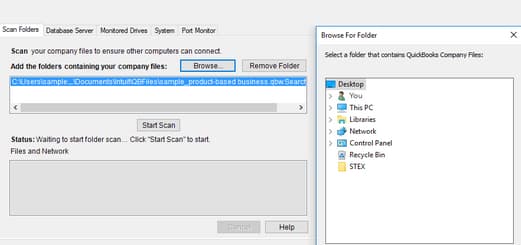
| Risk Explanation | Database Server Manager scan modifies network configuration. The scan creates new ND files. The process requires administrator rights. | Solution Explanation | Database Server Manager publishes company file locations to network. Scanning folders creates network data files enabling multi-user access. |
Steps to Implement Solution 2.3
Server opens the file fine, but workstations can’t?” — the most common real-world presentation of the network-configuration cause; currently unaddressed anywhere in the SERP, including Intuit’s own community thread.
These solutions require technical knowledge and carry higher risk. System-level changes can affect network operations and other programs. Contact professional support if you are uncomfortable with these procedures. Data backup is mandatory before attempting any Level 3 solution.
| Solution 3.1: Configure Windows Firewall Exceptions | |||
| Skill Level | Risk Level | Success Probability | Approximate Time Required |
| Advanced | Moderate to High | High | 30-45 minutes |
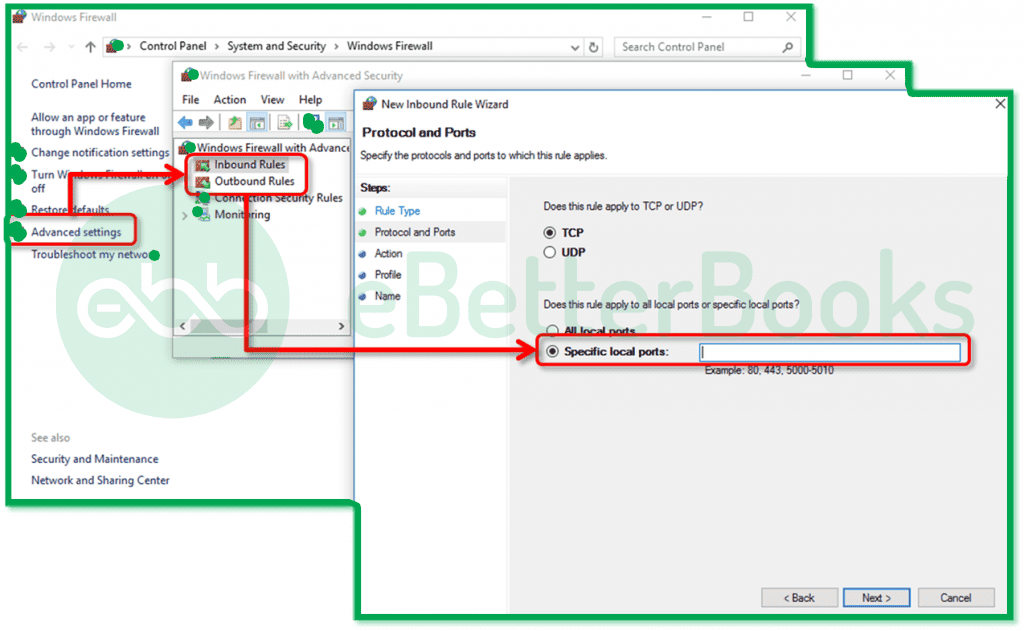
| Risk Explanation | Firewall modifications affect network security. Incorrect configurations may expose security risks. Professional assistance recommended for unfamiliar users. | Solution Explanation | Windows Firewall blocks QuickBooks network communication. Port 8019 enables Database Server Manager communication. Configuring firewall exceptions allows QuickBooks network traffic. |
Steps to Implement Solution 3.1
| Solution 3.2: Set Folder Permissions | |||
| Skill Level | Risk Level | Success Probability | Approximate Time Required |
| Advanced | Moderate | High | 20-30 minutes |
| Risk Explanation | Modifying folder permissions affects file access security. Changes apply to all files in the folder. Professional assistance recommended. | Solution Explanation | QuickBooks requires specific folder permissions for multi-user access. The QBDataServiceUser account needs full control. Incorrect permissions trigger Error 6144 82. |
Steps to Implement Solution 3.2
| Solution 3.3: Verify QBCFMonitorService Status | |||
| Skill Level | Risk Level | Success Probability | Approximate Time Required |
| Advanced | Moderate | High | 15-20 minutes |
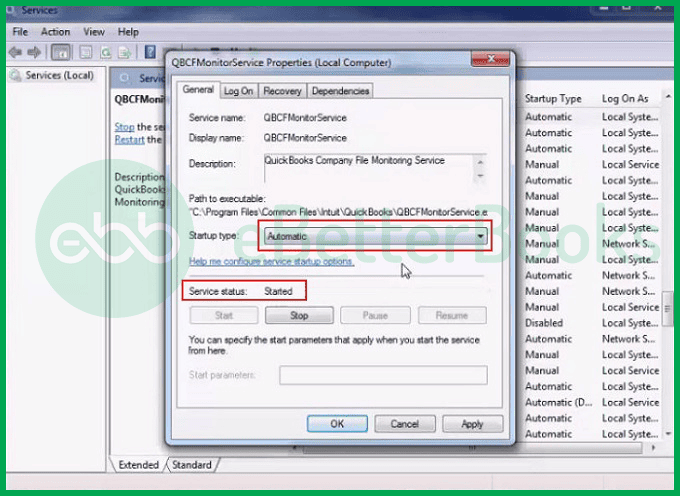
| Risk Explanation | Modifying Windows services affects system operations. Changes require administrator rights. Professional assistance recommended. | Solution Explanation | QBCFMonitorService runs in the background enabling multi-user access. Service failures trigger Error 6144 82. Starting service and setting automatic startup restores multi-user functionality. |
Steps to Implement Solution 3.3
Some situations require professional assistance. Attempting DIY repairs risks permanent data loss and network damage.
Stop if:
Preventing Error 6144 82 requires consistent maintenance practices. Regular maintenance reduces error frequency significantly.
If QuickBooks Error 6144 82 continues after following the tiered solutions above, do not keep experimenting with repeated repairs. Escalating corruption can increase the risk of permanent data damage and network configuration destruction. At this stage, a structured professional diagnosis is the safest path forward.
Get expert assistance to analyze your network configuration, secure your financial data, and restore multi-user access quickly. Acting early protects both your records and your business continuity. Professional support can diagnose complex network issues beyond the scope of standard troubleshooting procedures.
.ND file and the .TLG file, and why is renaming them effective?The .ND (Network Data) file is a configuration file that allows QuickBooks to access a company file over a network (multi-user mode). It stores necessary settings like server details and access permissions. The .TLG (Transaction Log) file is a running log that records all transactions made since the last backup.
Renaming them (e.g., to .ND.OLD and .TLG.OLD) is effective because when QuickBooks cannot find these files, it automatically recreates clean, uncorrupted versions the next time you open the company file. This bypasses any configuration errors or corruption that might have caused Error 6144 82.
If the QuickBooks Database Server Manager (QBDM) is running but the error persists, the issue is often related to permissions or the network path:
1. Firewall: Double-check your firewall settings to ensure the QBDM ports are fully open for both inbound and outbound traffic. Even if you added an exception previously, an update might have blocked it.
2. Folder Permissions: Verify that the user accounts (QBDataServiceUserXX) and the System have Full Control permissions for the folder containing the company file (.QBW).
3. Hosting Status: On the computer that hosts the company file, confirm that Hosting is set to Local Files Only in the QuickBooks Utilities menu for all other machines, and set to Host Multi-User Access only on the server.
No. These two solutions target deep system-level files (Windows Registry and protected Windows files) and drivers. They are designed to fix issues within the operating system that might be interfering with QuickBooks’ communication protocols.
Your QuickBooks company file (.QBW) data is stored separately and will not be directly affected or lost by running these system repair utilities. However, because a system-level failure during these processes could theoretically corrupt your entire machine, we always recommend making a backup of your company file and creating a System Restore Point beforehand.
QuickBooks, especially older versions, can sometimes struggle with path length limits enforced by the Windows operating system. If the combined length of your drive letter, folder names, and the actual company file name (e.g., C:\Users\Public\...longfoldername...\VeryLongCompanyName_2025.QBW) exceeds the limit (typically 256 characters), it can prevent the software from establishing a stable connection.
To fix this, shorten the company file name or move the file to a location closer to the root of your C: drive (e.g., C:\QBData\).
While Error 6144 82 is commonly associated with network/multi-user issues, it is fundamentally a Company File Access Error. If you see it in Single-User Mode, it indicates the problem is localized on your computer:
1. Damaged Local Files: The .ND or .TLG files on your local machine might still be corrupted.
2. Antivirus Blocking: Your local security software or firewall may be mistakenly blocking QuickBooks’ access to its own company file on your hard drive.
3. Local Hardware Failure: A rare but possible cause is a hardware issue (like a failing hard drive sector) where the company file is physically stored, making it unreadable by QuickBooks. Use the QuickBooks File Doctor to confirm the file’s integrity.


