



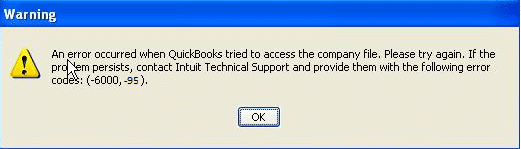
QuickBooks Error Code 6000, 95 is a company file access error that usually occurs when a user attempts to restore or open a QuickBooks company file stored on an external drive, but the software does not have the required permissions to access that location. As a result, QuickBooks is unable to establish the connection with the company file and displays a 6000-series error message.
This error generally indicates issues related to file access, hosting configuration, or network permissions. It can also be caused by damaged company files, improper folder permissions, or conflicts when restoring data from an external storage device. QuickBooks Error Code 6000, 95 is displayed along with an error message stating:
Warning: “An error occurred when QuickBooks tried to access the company file. Please try again.”
What Leads to QuickBooks Error 6000, 95?
QuickBooks Error 6000, 95 occurs due to file access restrictions, system misconfigurations, or data integrity issues that prevent QuickBooks from connecting to the company file. Below are the most common causes:
- Incorrect folder permissions: QuickBooks may not have full read/write access to the folder where the company file is stored.
- Network issues: The company file is located on a server or shared network that is not properly configured for multi-user access.
- Data corruption: The QuickBooks company file (.QBW) can be damaged or partially corrupted.
- Firewall or antivirus interference: Security software can block QuickBooks network communication or file access.
- Hosting configuration errors: When more than one system attempts to host the same company file, it can lead to hosting conflicts and disrupt file accessibility.
- File conversion issues: The error can occur while converting an Accountant’s Copy Transfer File into an Accountant’s Copy due to compatibility or file integrity issues.
- Corrupted Windows operating system files: Damaged or missing OS components can interrupt QuickBooks processes.
- Registry file errors: Invalid or corrupted Windows registry entries can affect QuickBooks file access.
- System hardware problems: Running several high-demand applications at the same time can overload system resources, potentially causing file corruption or access errors.
QuickBooks Error 6000, 95: Key Indicators
The following signs and symptoms can help you identify QuickBooks Error 6000, 95 quickly:
- QuickBooks fails to open the company file in multi-user mode.
- The application freezes or stops responding while accessing the company file.
- QuickBooks crashes repeatedly when performing the same task.
- The software responds slowly to commands or takes longer than usual to open files.
- The system performance becomes sluggish when QuickBooks is running.
- The company file opens in single-user mode but not in multi-user mode.
- A message indicates that the company file is located on another computer and cannot be accessed.
- Network-related errors appear when switching to multi-user mode.
- The system prevents you from running multiple programs simultaneously while QuickBooks is active.
Step-by-Step Guide to Troubleshoot QuickBooks Error 6000, 95
QuickBooks Error 6000, 95 often occurs due to company file access issues, network problems, or data corruption. The following step-by-step troubleshooting guide helps identify the root cause and apply the appropriate solutions to restore smooth access to your company file.
Method 1: Perform Windows System Restore
Recent system updates or configuration changes may interfere with QuickBooks network access and trigger Error 6000, 95. Windows System Restore reverts the system to a previously stable state, removing conflicts that prevent the company file from opening properly.
- In the Control Panel, choose Recovery > Open System Restore.
- Or, use the keyboard shortcut Windows+R, type rstrui.exe and click Enter.
- Click Next on the Restore system files and settings box.
- Select the restore point that you want to use in the list of results.
Note: If the desired restore point is not visible, choose the Show more restore points checkbox to view additional options.
- Choose Scan for affected programs (optionally).
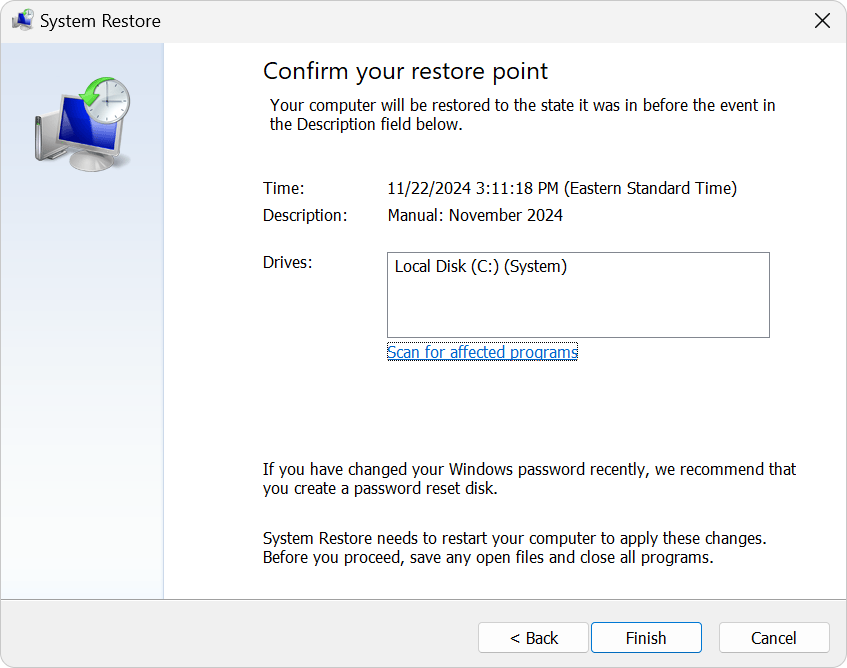
- Once you select the appropriate restore point, click Next > Finish.
- Windows will restart automatically when the restore point is applied.
Method 2: Close all the QuickBooks Processes
Background QuickBooks processes can lock the company file and interrupt communication between the workstation and server. Ending these processes removes file locks and clears temporary conflicts, allowing QuickBooks to reopen the file without Error 6000, 95.
- Log in as the Administrator on the server computer.
- Hold and press Ctrl+Shift+Esc to open the task manager.
- Show processes for all users. Choose Users.
- Select each QuickBooks process (QBW32.EXE, qbupdate.exe, and QBDBMgr.exe), and choose End Task.
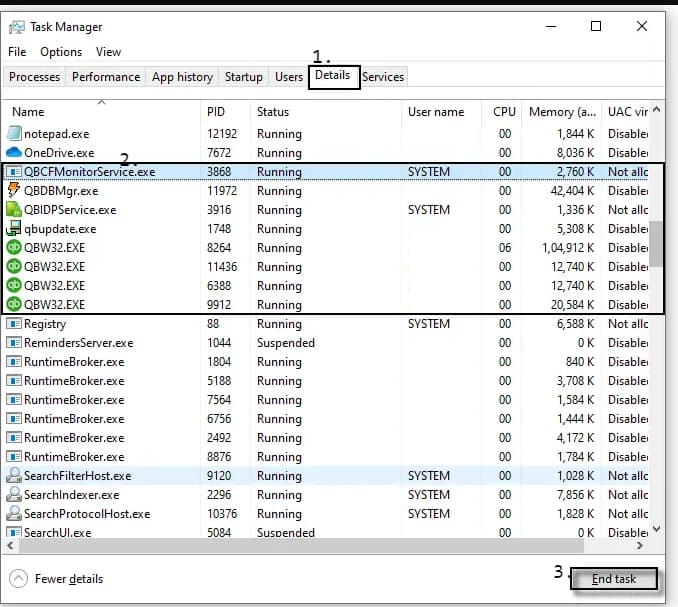
- Open the company file in multi-user mode.
Method 3: Run the QuickBooks Database Server Manager
Improper hosting setup, damaged network files, or firewall restrictions often cause Error 6000, 95. The Database Server Manager scans the company file folder, repairs firewall permissions, recreates the .ND file, and restores proper multi-user communication.
Step 1: Download and Install QuickBooks Tool Hub (If Not Installed)
- Close QuickBooks.
- Download the latest QuickBooks Tool Hub version from Intuit’s official website.
- Open the downloaded file and follow the on-screen instructions to install it.
- When installed, double-click the Tool Hub icon to open it.
Step 2: Open QuickBooks Database Server Manager
- Navigate to the Network Issues tab in QuickBooks Tool Hub.
- Select QuickBooks Database Server Manager.
- If prompted, click Start Scan (if your company folder is already listed).
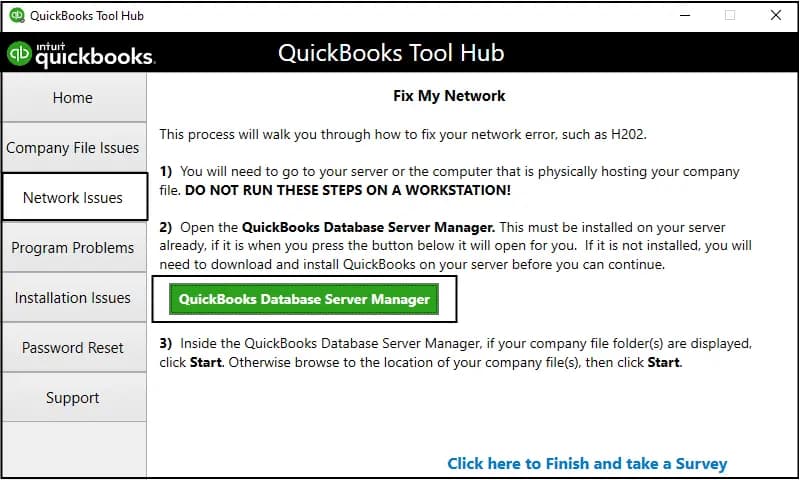
Step 3: Add and Scan the Company File Folder
- Select Browse if your company file folder is not listed.
- Choose the folder that contains your QuickBooks company file (.QBW).
- Click Start Scan.
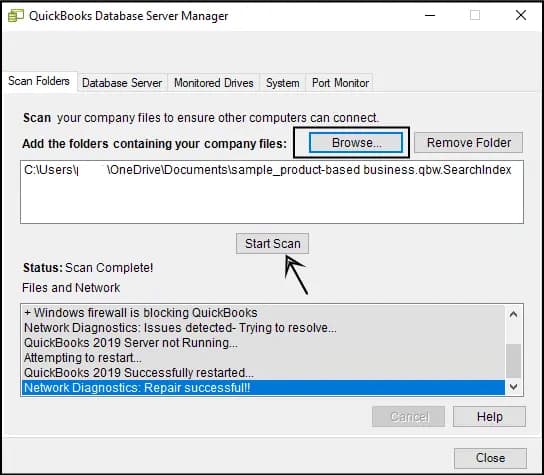
- Wait for the scan to complete.
Note: The scan repairs firewall permissions and recreates the .ND (Network Data) file automatically.
Step 4: Verify Hosting Settings
- Open QuickBooks on the server computer.
- Go to File > Utilities.
- If you see Host Multi-User Access, choose it.
- If you see Stop Hosting Multi-User Access, do not select it (hosting is already enabled).
Step 5: Open QuickBooks in Multi-User Mode
- Open QuickBooks on the workstation.
- Click File > Switch to Multi-User Mode.
- Try accessing the company file again.
Important:
- Run Database Server Manager only on the server computer where the company file is stored.
- Ensure that QuickBooks Desktop is properly installed on the server system.
Method 4: Rename the .ND and .TLG files
Corrupted or misconfigured .ND and .TLG files can block network access to the company file. Renaming these files forces QuickBooks to create fresh network configuration files, resolving corruption-related triggers of Error 6000, 95.
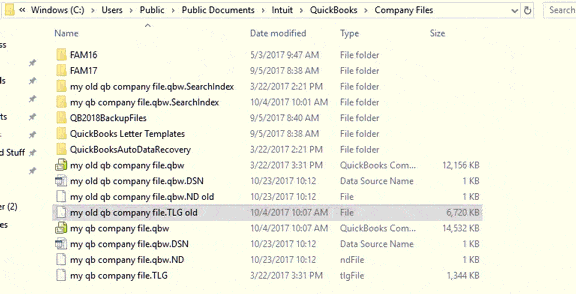
- Navigate to the folder where your QuickBooks company file is stored.
Default Location: C:\Users\Public\Public Documents\Intuit\QuickBooks\Company Files
- Locate the files with the same file name as your company file but with extensions .ND and .TLG.
Example: company_file.qbw.nd, company_file.qbw.tlg
- Hit right-click .nd/.tlg file and choose Rename. Add the word “.old” after the file extension and click enter.
Example: company_file.qbw.nd.OLD, company_file.qbw.tlg.OLD
Method 5: Set up Folder Permissions
Incorrect folder permissions can prevent QuickBooks from accessing the company file location on the server. Granting proper access rights ensures seamless read/write operations and restores stable multi-user performance, helping eliminate Error 6000, 95.
- Go to the Windows Start menu and open File Explorer.
- Right-click the folder that contains the company file. Then, choose Properties.
- Select Advanced on the Security tab.
- Choose QBDataServiceUserXX and click Edit.
- Ensure the following settings are set to Allowed:
- Traverse Folder/Execute File
- List Folder/Read Data
- Read Attributes
- Read Extended Attributes
- Create Files/Write Data
- Create Folders/Append Data
- Write Attributes
- Write Extended Attributes
- Read Permissions
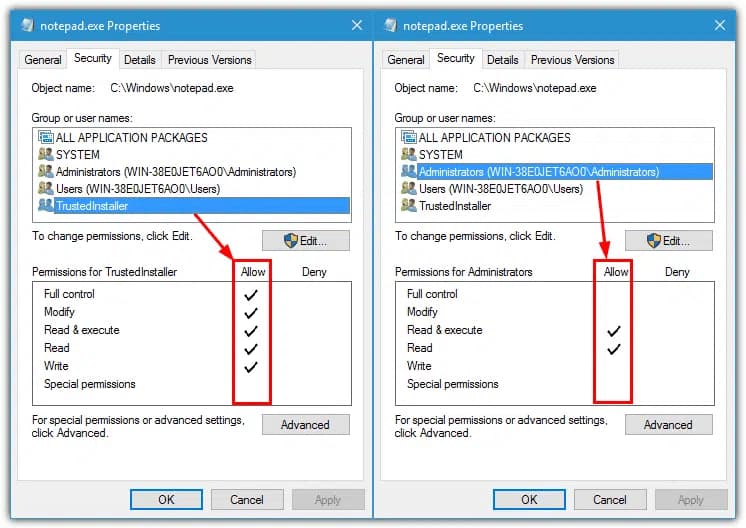
If your permissions aren’t set correctly:
- Right-click the folder that contains the company file and choose Properties.
- Select Security, and click Edit.
- Choose QBDataServiceUserXX and click Full Control, then select Allow.
- Click Apply, and OK.
Change folder permissions
If you need to adjust folder permissions:
- Go to the Windows Start menu and open File Explorer.
- Locate and right-click the folders listed below:
- C:\Program Data\Intuit\Entitlement Client\v8
- C:\Program Data\Intuit\Entitlement Client\v6.0
- C:\Program Data\Intuit\Entitlement Client\v5
- C:\Program Data\Intuit\Entitlement Client\v3
- C:\Program Data\Intuit\Entitlement Client
- C:\Program Data\Intuit\QuickBooks Enterprise Solutions X.0 (X = version) or C:\Program Data\Intuit\QuickBooks 20XX (XX = year)
- C:\Program Data\COMMON FILES\INTUIT
- C:\Program Data\COMMON FILES\INTUIT\QUICKBOOKS
- C:\Users\Public\Public Documents\Intuit\QuickBooks\FAMXX (XX = year)
- C:\Users\Public\Public Documents\Intuit\QuickBooks\Company Files
- C:\Users\Public\Public Documents\Intuit\QuickBooks\Sample Company Files\QuickBooks Enterprise Solutions X.0 (X = version) or C:\Users\Public\Public Documents\Intuit\QuickBooks\Sample Company Files\QuickBooks 20XX (XX = year)
Perform the steps for any of the folders listed below. Note that you may not see all of them, as some folders are specific to certain versions of QuickBooks Desktop.
- Right-click the folder and choose Properties.
- On the Security tab, click Everyone.
Note: If Everyone is not listed in the Group or User Name checkbox, choose Add and type in Everyone. Then, click OK.
- Select Full Control, then choose Apply and click OK.
Conclusion!
QuickBooks Error Code 6000, 95 usually occurs due to network connectivity issues, damaged company files, or incorrect hosting configuration. Although the error can restrict access to your company file, it can be resolved by carefully following the appropriate troubleshooting steps.
Checking network settings, verifying hosting configuration, running the QuickBooks Database Server Manager, and repairing the company file help restore proper communication between QuickBooks and the server. Timely resolution of the issue ensures uninterrupted access to your financial data and maintains smooth multi-user performance.
FAQ
What exactly are the
.NDand.TLGfiles, and is it safe to rename them?The
.ND(Network Data) and.TLG(Transaction Log) files are essential configuration files that sit next to your main QuickBooks company file (.QBW).1. The .ND file enables QuickBooks to access the company file in a network or multi-user environment. It stores necessary technical details like the IP address and port number of the server.
2. The .TLG file logs all changes made to the company file since the last full backup. It is crucial for data recovery and integrity.Yes, it is safe to rename these files (by adding
.OLDto the extension). QuickBooks is designed to automatically generate new, uncorrupted versions of these files the next time you open the company file. Renaming is preferred over deleting, as it preserves the old file as a backup in case the new file does not resolve the issue.Why is running the QuickBooks Database Server Manager often listed as a primary fix for Error 6000, 95?
The QuickBooks Database Server Manager (QDSM) is the dedicated tool responsible for managing multi-user access to your company files over a network. Error 6000, 95 frequently arises from issues with file permissions or network configuration.
Running the QDSM from the QuickBooks Tool Hub performs a scan that automatically configures firewall exceptions, verifies hosting settings, and ensures the correct database service user has the necessary permissions to access the company file folder. This single action addresses the two core causes of the error: insufficient permissions and network path damage.
If the error occurs in a multi-user environment, should I try the solutions on the server or the workstation?
You should always start with the server computer (the one hosting the company file).
The error is usually a result of the server’s inability to host the file correctly due to corrupted
.ND/.TLGfiles, incorrect hosting settings, or insufficient permissions on the server itself. Solutions such as renaming the.NDand.TLGfiles, closing QuickBooks processes, and running the Database Server Manager must be performed on the server. If the error persists after server-side fixes, then you can check hosting and firewall settings on the workstations.What is a recommended alternative to performing a full Windows System Restore (Solution 4) if I am uncomfortable using it?
If you are hesitant to use the Windows System Restore feature, the most effective alternative is to repair your QuickBooks installation.
You can do this by launching the QuickBooks Tool Hub, selecting Program Problems, and choosing QuickBooks Install Diagnostic Tool (often run by the File Doctor). If a Windows file corruption or a damaged QuickBooks installation is triggering the error, this method can often fix the underlying system components without needing to revert your entire operating system.
My company file path includes special characters, like a dollar sign ($) or an ampersand (&). Could this cause Error 6000, 95?
Yes, absolutely. QuickBooks strongly recommends against using any special characters in the name of your company file or the folder path leading to it.
Characters such as
$,!,>,<, and&can interfere with the way network protocols and the Database Server Manager read the file path, leading to permission and access errors, including the 6000-series codes. If your file path has special characters, the simple fix is to rename the folder or file to use only letters, numbers, and spaces.Does the location of my company file affect the chances of encountering a 6000-series error?
Yes, the file location is a critical factor. The article recommends moving the file to the local C: drive as a troubleshooting step because it verifies the file is accessible in a non-network environment.
Company files should only be opened from a local hard drive or a dedicated server. Opening or restoring files directly from a network folder, external flash drive, or cloud synchronization folder (like OneDrive or Dropbox) can cause permissions issues and data transfer delays, which frequently trigger Error 6000, 95. Always copy the file to a local drive first, then open it.
After I close all QuickBooks processes in Task Manager, which process do I need to look for to confirm the services are shut down?
When troubleshooting Error 6000, 95, the primary processes you should ensure are ended in the Task Manager are:
1. QBW32.EXE: This is the main QuickBooks application process.
2. QBDBMgr.exe or QBDBMgrN.exe: These are the QuickBooks Database Server Manager service processes.
3. QBCFMonitorService.exe: This is the QuickBooks Company File Monitoring Service.Ending these ensures that all components related to the application and the database connection are completely shut down, allowing the software to start with a fresh configuration.
Disclaimer: The information outlined above for “Fix “QuickBooks Error 6000 95” Due to Insufficient Permissions of Company File” is applicable to all supported versions, including QuickBooks Desktop Pro, Premier, Accountant, and Enterprise. It is designed to work with operating systems such as Windows 7, 10, and 11, as well as macOS.