Excerpt:
Fix QuickBooks Error 6000, 95 swiftly with these expert solutions. This error, often caused by system issues or corrupted files, can disrupt your QuickBooks experience. Learn how to resolve it by renaming .ND and .TLG files, managing QuickBooks processes, or using the QuickBooks Database Server Manager. Follow these steps to restore smooth performance and keep your company file accessible without delay.
 Add As A Preferred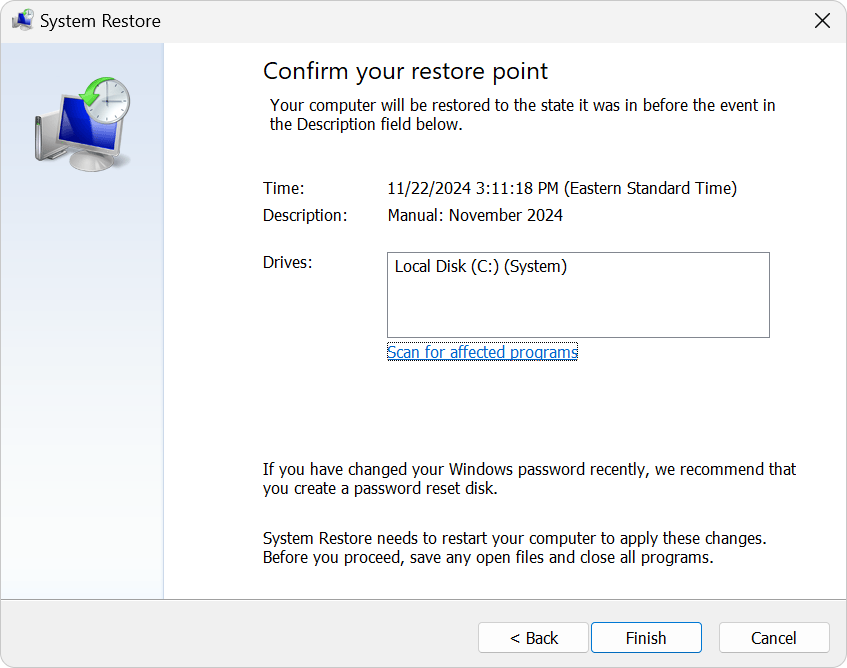
QuickBooks Error Code 6000, 95 is a company file access error that usually occurs when a user attempts to restore or open a QuickBooks company file stored on an external drive, but the software does not have the required permissions to access that location. As a result, QuickBooks is unable to establish the connection with the company file and displays a 6000-series error message.
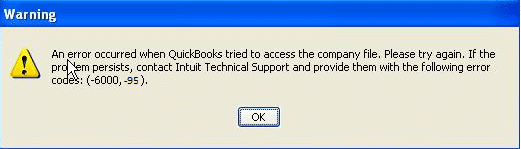
This error generally indicates issues related to file access, hosting configuration, or network permissions. It can also be caused by damaged company files, improper folder permissions, or conflicts when restoring data from an external storage device. QuickBooks Error Code 6000, 95 is displayed along with an error message stating:
Warning: “An error occurred when QuickBooks tried to access the company file. Please try again.”
QuickBooks Error 6000, 95 occurs due to file access restrictions, system misconfigurations, or data integrity issues that prevent QuickBooks from connecting to the company file. Below are the most common causes:
The following signs and symptoms can help you identify QuickBooks Error 6000, 95 quickly:
QuickBooks Error 6000, 95 often occurs due to company file access issues, network problems, or data corruption. The following step-by-step troubleshooting guide helps identify the root cause and apply the appropriate solutions to restore smooth access to your company file.
Recent system updates or configuration changes may interfere with QuickBooks network access and trigger Error 6000, 95. Windows System Restore reverts the system to a previously stable state, removing conflicts that prevent the company file from opening properly.
Note: If the desired restore point is not visible, choose the Show more restore points checkbox to view additional options.
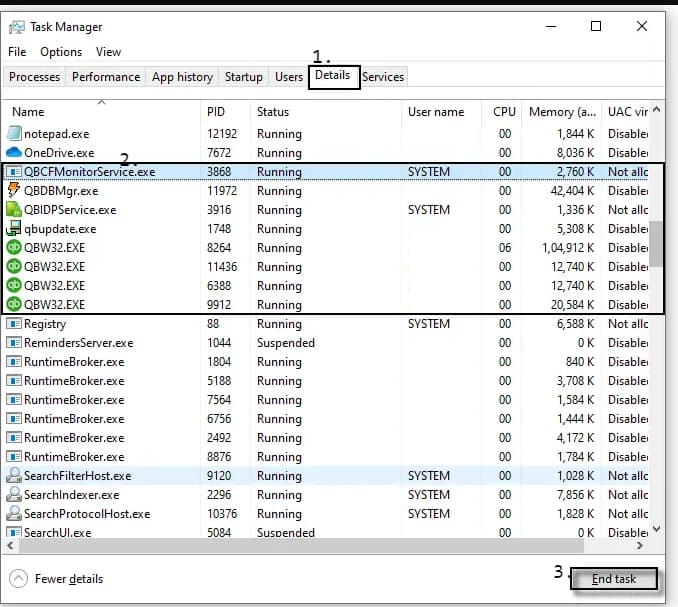
Background QuickBooks processes can lock the company file and interrupt communication between the workstation and server. Ending these processes removes file locks and clears temporary conflicts, allowing QuickBooks to reopen the file without Error 6000, 95.
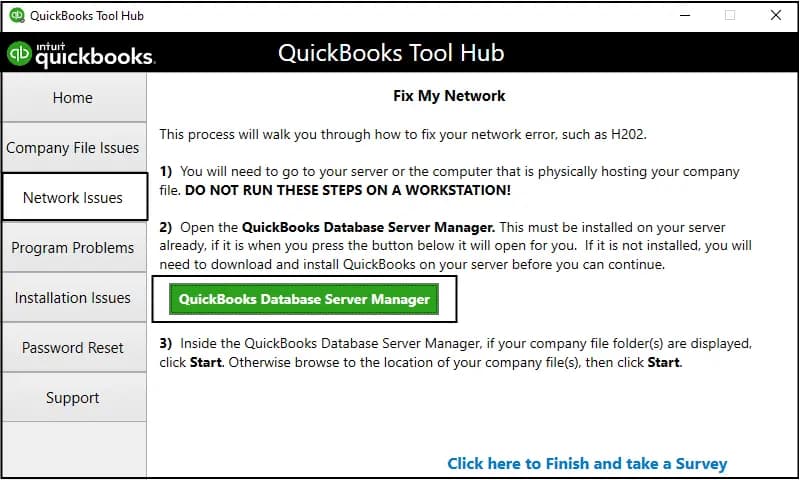
Improper hosting setup, damaged network files, or firewall restrictions often cause Error 6000, 95. The Database Server Manager scans the company file folder, repairs firewall permissions, recreates the .ND file, and restores proper multi-user communication.
Step 1: Download and Install QuickBooks Tool Hub (If Not Installed)
Step 2: Open QuickBooks Database Server Manager
Step 3: Add and Scan the Company File Folder
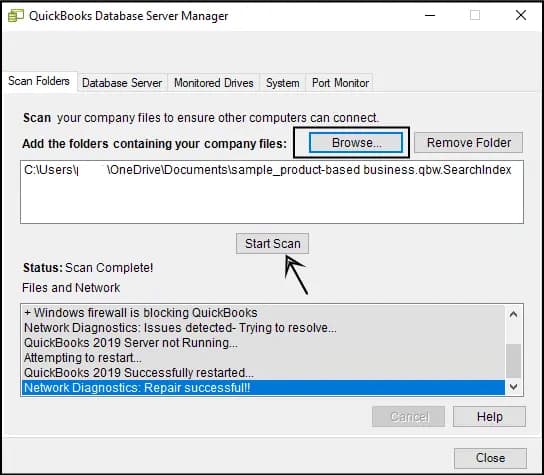
Note: The scan repairs firewall permissions and recreates the .ND (Network Data) file automatically.
Step 4: Verify Hosting Settings
Step 5: Open QuickBooks in Multi-User Mode
Important:
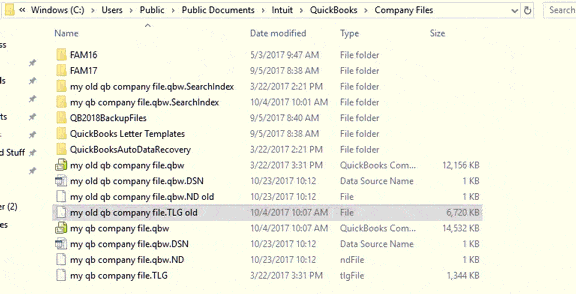
Corrupted or misconfigured .ND and .TLG files can block network access to the company file. Renaming these files forces QuickBooks to create fresh network configuration files, resolving corruption-related triggers of Error 6000, 95.
Default Location: C:\Users\Public\Public Documents\Intuit\QuickBooks\Company Files
Example: company_file.qbw.nd, company_file.qbw.tlg
Example: company_file.qbw.nd.OLD, company_file.qbw.tlg.OLD
Incorrect folder permissions can prevent QuickBooks from accessing the company file location on the server. Granting proper access rights ensures seamless read/write operations and restores stable multi-user performance, helping eliminate Error 6000, 95.
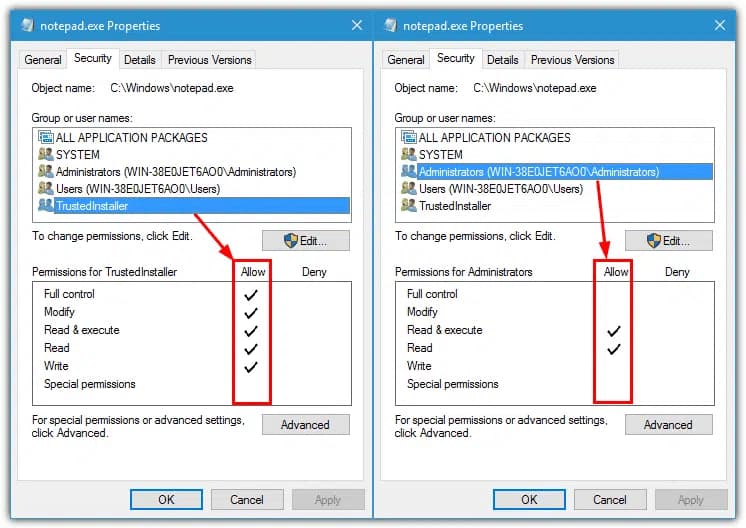
If your permissions aren’t set correctly:
Change folder permissions
If you need to adjust folder permissions:
Perform the steps for any of the folders listed below. Note that you may not see all of them, as some folders are specific to certain versions of QuickBooks Desktop.
Note: If Everyone is not listed in the Group or User Name checkbox, choose Add and type in Everyone. Then, click OK.
QuickBooks Error Code 6000, 95 usually occurs due to network connectivity issues, damaged company files, or incorrect hosting configuration. Although the error can restrict access to your company file, it can be resolved by carefully following the appropriate troubleshooting steps.
Checking network settings, verifying hosting configuration, running the QuickBooks Database Server Manager, and repairing the company file help restore proper communication between QuickBooks and the server. Timely resolution of the issue ensures uninterrupted access to your financial data and maintains smooth multi-user performance.
.ND and .TLG files, and is it safe to rename them?The .ND (Network Data) and .TLG (Transaction Log) files are essential configuration files that sit next to your main QuickBooks company file (.QBW).
1. The .ND file enables QuickBooks to access the company file in a network or multi-user environment. It stores necessary technical details like the IP address and port number of the server.
2. The .TLG file logs all changes made to the company file since the last full backup. It is crucial for data recovery and integrity.
Yes, it is safe to rename these files (by adding .OLD to the extension). QuickBooks is designed to automatically generate new, uncorrupted versions of these files the next time you open the company file. Renaming is preferred over deleting, as it preserves the old file as a backup in case the new file does not resolve the issue.
The QuickBooks Database Server Manager (QDSM) is the dedicated tool responsible for managing multi-user access to your company files over a network. Error 6000, 95 frequently arises from issues with file permissions or network configuration.
Running the QDSM from the QuickBooks Tool Hub performs a scan that automatically configures firewall exceptions, verifies hosting settings, and ensures the correct database service user has the necessary permissions to access the company file folder. This single action addresses the two core causes of the error: insufficient permissions and network path damage.
You should always start with the server computer (the one hosting the company file).
The error is usually a result of the server’s inability to host the file correctly due to corrupted .ND/.TLG files, incorrect hosting settings, or insufficient permissions on the server itself. Solutions such as renaming the .ND and .TLG files, closing QuickBooks processes, and running the Database Server Manager must be performed on the server. If the error persists after server-side fixes, then you can check hosting and firewall settings on the workstations.
If you are hesitant to use the Windows System Restore feature, the most effective alternative is to repair your QuickBooks installation.
You can do this by launching the QuickBooks Tool Hub, selecting Program Problems, and choosing QuickBooks Install Diagnostic Tool (often run by the File Doctor). If a Windows file corruption or a damaged QuickBooks installation is triggering the error, this method can often fix the underlying system components without needing to revert your entire operating system.
Yes, absolutely. QuickBooks strongly recommends against using any special characters in the name of your company file or the folder path leading to it.
Characters such as $, !, >, <, and & can interfere with the way network protocols and the Database Server Manager read the file path, leading to permission and access errors, including the 6000-series codes. If your file path has special characters, the simple fix is to rename the folder or file to use only letters, numbers, and spaces.
Yes, the file location is a critical factor. The article recommends moving the file to the local C: drive as a troubleshooting step because it verifies the file is accessible in a non-network environment.
Company files should only be opened from a local hard drive or a dedicated server. Opening or restoring files directly from a network folder, external flash drive, or cloud synchronization folder (like OneDrive or Dropbox) can cause permissions issues and data transfer delays, which frequently trigger Error 6000, 95. Always copy the file to a local drive first, then open it.
When troubleshooting Error 6000, 95, the primary processes you should ensure are ended in the Task Manager are:
1. QBW32.EXE: This is the main QuickBooks application process.
2. QBDBMgr.exe or QBDBMgrN.exe: These are the QuickBooks Database Server Manager service processes.
3. QBCFMonitorService.exe: This is the QuickBooks Company File Monitoring Service.
Ending these ensures that all components related to the application and the database connection are completely shut down, allowing the software to start with a fresh configuration.


