


Fix QuickBooks “Connection Has Been Lost” error by renaming ND and TLG files, disabling computer power saving mode, restarting Database Server Manager service, and verifying multi-user hosting settings to restore network access to your company file.
QuickBooks “Connection Has Been Lost” error appears when the network connection between a workstation and the server hosting the company file breaks during active use. This error blocks all network users from accessing the company file until the connection restores.
QuickBooks displays error “Connection Has Been Lost” when the Database Server Manager service stops responding, when network cables disconnect, when the computer enters sleep mode, or when the server shuts down unexpectedly.
Common “Connection Has Been Lost” messages: “The connection to the company file has been lost. QuickBooks must close immediately” or “Connection has been lost with the company data file. All unsaved data will be lost.”
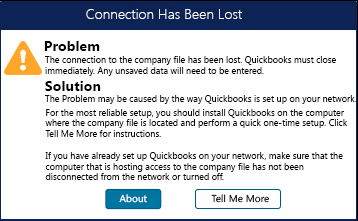
This article provides a diagnostic framework, risk assessment, and complete solution guide. Network connection failures require immediate attention because they disconnect all users simultaneously and may cause unsaved work to be lost. Repeated connection drops indicate deeper network infrastructure problems beyond QuickBooks.
Error Classification: Which Series Does Connection Lost Belong To?
“Connection Has Been Lost” does not belong to a numbered error series. This is a network state message rather than a processing error code. QuickBooks displays this message when the active network connection between Desktop and the server breaks during a session. The message indicates network communication failure, not company file corruption.
QuickBooks generates connection lost messages for physical network problems: disconnected cables, failed switches, server shutdowns, or WiFi dropouts.
The message also appears for system power events: computers entering sleep mode, monitors turning off, or servers hibernating. Database service failures produce the same message when the QBCFMonitorService stops running on the server.
QuickBooks organizes errors by type: numbered codes (6000 series for file access, H series for hosting), named errors (like “File in Use”), and state messages (like “Connection Lost”). Connection Lost is a state message describing current network status. Related messages include “Unable to connect to server” and “Company file not responding.”
Can Connection Lost Trigger Other Errors?
QuickBooks network failures create additional problems when the connection issue goes unresolved. One network break generates multiple symptoms across all connected computers.
| Cause of Connection Lost | Possible Triggered Errors |
| Computer sleep mode | H505 (hosting computer changed) |
| Database Server Manager stopped | Error 6175 (Database service not responding) |
| Damaged ND file | Error -6189, -816 (TLG file mismatch) |
| Server shutdown | H101, H303 (multi-user hosting conflict) |
- Computer sleep mode breaks the network connection to all workstations when the server enters power-saving states. QuickBooks displays Connection Lost immediately. After waking, workstations see Error H505 because the server’s network identity changed when it resumed from sleep. Disabling power saving on the server prevents both errors.
- Database Server Manager stopping removes the service that maintains multi-user connections. Connection Lost appears on all workstations when the service stops. Error 6175 appears when users try to reconnect because the Database service cannot restart. Verifying the service runs continuously prevents connection drops.
- Damaged ND files remove the network path workstations used to locate the server. Connection Lost appears when QuickBooks cannot find the server address in the ND file. Error -6189, -816 then appears when attempting to reopen because the TLG file no longer matches the lost connection. Renaming the ND file clears both issues.
- Server shutdown without proper QuickBooks closure leaves workstations connected to a non-existent host. Connection Lost appears immediately. H101 or H303 errors appear when workstations attempt reconnection because the hosting configuration is now invalid. Proper server shutdown procedures prevent connection failures.
The Root Cause For Connection Has Been Lost
Check whether all users lost connection simultaneously or only specific workstations. Network-wide failures point to server issues. Individual workstation failures point to local network or power problems.
| Possible Causes and QuickFix for Connection Lost | ||
| Error Event | Likely Cause | Recommended Fix (When to Perform) |
| Connection lost on all workstations simultaneously | Server entered sleep mode or Database service stopped | Immediately after connection drops, check server is awake and restart QBCFMonitorService from Windows Services |
| Connection lost on one workstation only | WiFi dropout or network cable loose | When single user loses connection, check physical network connections and switch to wired connection if using WiFi |
| Connection lost after period of inactivity | Power saving turning off network adapter | Before opening company file again, disable power saving for network adapter in Device Manager |
| Connection lost after server restart | Hosting not re-enabled on server | Right after server restarts and before workstations connect, open QuickBooks on server and enable Host Multi-User Access |
Data Safety Advisory Section For Connection Has Been Lost
Understanding network connection requirements prevents data loss.
- Unsaved Work is Lost: QuickBooks cannot save transactions in progress when the connection breaks. Any invoice, sales receipt, or payment being edited at the moment of disconnection is lost. Only completed and saved transactions survive connection failures. Save work frequently in multi-user environments to minimize potential losses.
- Database Server Manager Requirements: The QuickBooks Database Server Manager must run continuously on the server for workstations to maintain connections. This background service monitors all network connections. The service restarting causes brief connection drops. The service stopping causes permanent connection loss until manually restarted.
- Network Adapter Power Saving: Windows power saving settings turn off network adapters to conserve energy. This breaks the QuickBooks connection even though the computer remains on. The network adapter must stay active at all times on both server and workstations. Disabling power saving for network hardware prevents unexpected disconnections.
- ND File Network Paths: The ND file stores the exact network address workstations use to connect to the server. A changed server IP address or computer name invalidates the ND file. Connection Lost appears because workstations cannot locate the server at the old address. The ND file must be recreated whenever server network settings change.
Steps to Fix QuickBooks Connection Has Been Lost
Solutions organized by skill level, risk level, and success probability. Start with Level 1 and move higher only if lower solutions fail.
Level 1 – Beginner Safe Fixes
These solutions require no technical expertise. Risk of data loss is minimal.
| Solution 1.1: Verify Server is Awake and Restart Database Service | |||
| Skill Level | Risk Level | Success Probability | Approximate Time Required |
| Beginner | Low | High | 10-15 minutes |
| Risk Explanation | Restarting the service disconnects current users temporarily. No data is modified. Service restart clears connection state only. | Solution Explanation | The QBCFMonitorService maintains all network connections. This service stopping is the most common cause of Connection Lost errors. Restarting the service restores all workstation connections immediately. |
Steps to Implement Solution 1.1
- Go to the server computer. Check the monitor is on and the computer is not sleeping. Press a key to wake if needed. Press Windows + R. Type “services.msc”. Press Enter.
- Scroll to QuickBooksDB followed by two numbers matching your version. QuickBooks 2024 shows QuickBooksDB33. Check the Status column. If Stopped, right-click and select Start. If Running, right-click and select Restart.
- Wait for service to show Running status. Close Services window. All workstations can now reconnect. Open QuickBooks on the server and enable multi-user hosting if needed.
| Solution 1.2: Disable Power Saving on Network Adapter | |||
| Skill Level | Risk Level | Success Probability | Approximate Time Required |
| Beginner | Low | High | 10-15 minutes |
| Risk Explanation | Disabling power saving increases electricity use slightly. No system damage can occur. Settings can be re-enabled if needed. | Solution Explanation | Windows turns off network adapters during inactivity to save power. This breaks QuickBooks connections even though the computer appears on. Disabling power management keeps the network adapter active continuously. |
Steps to Implement Solution 1.2
- Right-click Start button. Select Device Manager. Click the arrow next to Network adapters to expand the list.
- Right-click your network adapter (usually contains “Ethernet” or the manufacturer name). Select Properties.
- Click the Power Management tab. Uncheck “Allow the computer to turn off this device to save power”. Click OK. Repeat for every network adapter in the list if multiple adapters exist.
- Repeat these exact steps on the server computer. Both server and workstations need power saving disabled. Restart both computers. Open QuickBooks and test connection stability.
| Solution 1.3: Rename ND and TLG Files | |||
| Skill Level | Risk Level | Success Probability | Approximate Time Required |
| Beginner | Low to Moderate | High | 15-20 minutes |
| Risk Explanation | Renaming does not delete transaction data. QuickBooks recreates both files automatically. Original files remain with .OLD extension. | Solution Explanation | Damaged ND files store incorrect server addresses. Damaged TLG files create connection lock conflicts. Renaming both forces QuickBooks to create fresh files with current correct network data. |
Steps to Implement Solution 1.3
- Close QuickBooks on all computers. Go to the server. Press Windows + E. Navigate to C:\Users\Public\Documents\Intuit\QuickBooks\Company Files. Click the View tab. Check the Hidden items box.
- Find .ND and .TLG files matching the company file name. Right-click .ND file. Select Rename. Add .OLD at the end. Press Enter. Repeat for .TLG file.
- Open QuickBooks on the server. Open company file. QuickBooks creates new ND and TLG files. Enable multi-user hosting. Workstations can now connect with fresh network data.
Level 2 – Intermediate Fixes
These modify network settings and hosting configuration. Create backup before Level 2 solutions.
| Solution 2.1: Verify Hosting Settings on All Computers | |||
| Skill Level | Risk Level | Success Probability | Approximate Time Required |
| Intermediate | Moderate | High | 15-20 minutes |
| Risk Explanation | Incorrect hosting blocks all network access. Follow steps exactly on every computer to avoid lockout. | Solution Explanation | Only the server should host the company file. Workstation hosting creates connection conflicts. Connection Lost appears when two computers compete for hosting roles. Proper hosting configuration prevents conflicts. |
Steps to Implement Solution 2.1
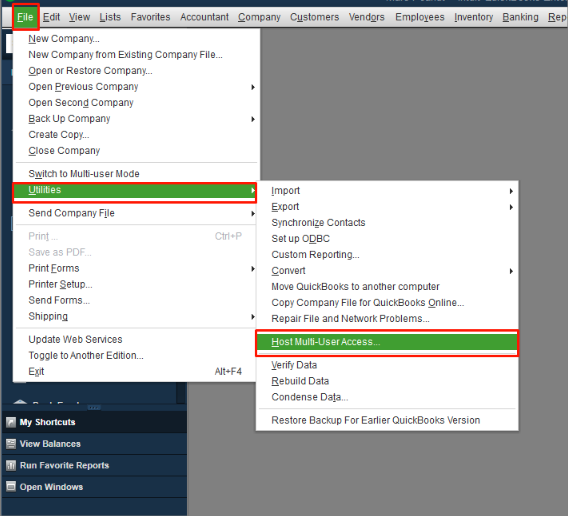
- Open QuickBooks on the first workstation without opening the file. Go to File > Utilities. If “Stop Hosting Multi-User Access” shows, select it to disable. If “Host Multi-User Access” shows, the workstation is correct.
- Repeat on every workstation. Disable hosting on all workstations. Go to the server. Open QuickBooks without a file. Go to File > Utilities. Select “Host Multi-User Access”.
- Open company file on server only. Workstations connect after the server enables hosting.
| Solution 2.2: Run Database Server Manager Scan | |||
| Skill Level | Risk Level | Success Probability | Approximate Time Required |
| Intermediate | Moderate | High | 20-30 minutes |
| Risk Explanation | Scanning creates new ND files and updates network configuration. Company data is not modified. | Solution Explanation | Database Server Manager publishes company file location to the network. Scanning recreates the ND file with the current server address. This resolves Connection Lost caused by outdated network paths. |
Steps to Implement Solution 2.2
- On the server, press Windows key. Type “Database”. Click QuickBooks Database Server Manager. Click the Scan Folders tab. Click Browse. Navigate to C:\Users\Public\Documents\Intuit\QuickBooks\Company Files. Select folder. Click OK.
- Click Start Scan. Wait 5-10 minutes. “Check successful” message appears. Close Database Server Manager.
- Open QuickBooks on the server. Enable multi-user hosting. Test workstation connections.
| Solution 2.3: Check Network Cable and Switch WiFi to Wired | |||
| Skill Level | Risk Level | Success Probability | Approximate Time Required |
| Intermediate | Low | Moderate to High | 10-20 minutes |
| Risk Explanation | Changing connection type requires network cable. Temporary internet disruption may occur during the switch. No data is lost. | Solution Explanation | WiFi connections drop during signal interference. Wired Ethernet provides stable uninterrupted connections. QuickBooks multi-user mode requires reliable network connections that WiFi cannot guarantee. |
Steps to Implement Solution 2.3
- Check network cable is plugged firmly into both computer and wall jack or switch. Replace cable if damaged. For WiFi users, obtain Ethernet cable. Plug one end into the computer Ethernet port. Plug the other end into the router or network switch.
- Windows automatically detects wired connection. WiFi disables when wired connection activates.
- Open QuickBooks. Connection Lost should not reappear on wired connection. Keep the server on a wired connection permanently.
Level 3 – Advanced / Professional Intervention
These require technical knowledge and affect system settings. Backup mandatory before Level 3.
| Solution 3.1: Configure Firewall Exceptions for QuickBooks | |||
| Skill Level | Risk Level | Success Probability | Approximate Time Required |
| Advanced | Moderate to High | High | 30-45 minutes |
| Risk Explanation | Firewall changes affect network security. Only add QuickBooks programs. Professional help recommended for unfamiliar users. | Solution Explanation | Firewalls block QuickBooks network communication causing connection drops. Database Server Manager requires specific ports open. Configuring exceptions allows continuous QuickBooks traffic. |
Steps to Implement Solution 3.1
- On the server, press Windows + R. Type “firewall.cpl”. Press Enter. Click Advanced settings. Click Inbound Rules. Click New Rule. Select Program. Click Next.
- Browse to C:\Program Files\Intuit\QuickBooks. Add QBDBMgrN.exe, QBCFMonitorService.exe, QBUpdate.exe. Allow connection. Check all networks. Create rules. Repeat for Outbound Rules.
- Restart server. Test workstation connections.
| Solution 3.2: Disable Antivirus Temporarily and Add Exclusions | |||
| Skill Level | Risk Level | Success Probability | Approximate Time Required |
| Advanced | Moderate | Moderate to High | 15-20 minutes |
| Risk Explanation | Disabling antivirus reduces protection temporarily. Re-enable immediately after testing. Add permanent exclusions for QuickBooks folders. | Solution Explanation | Antivirus blocks Database Server Manager treating it as a threat. This stops the service and breaks connections. Adding exclusions allows the service to run normally. |
Steps to Implement Solution 3.2
- Disable antivirus temporarily for testing. Right-click the antivirus icon in the system tray. Select disable for 15 minutes. Test if Connection Lost appears. If the connection stays stable, antivirus is the cause.
- Re-enable antivirus. Open antivirus settings. Find Exclusions section. Add C:\Program Files\Intuit. Add the company file folder. Save exclusions. Antivirus now permits QuickBooks processes. Test connection stability.
Scenarios Requiring Expert Support
Professional assistance needed if:
- Connection Lost appears every 5-10 minutes after all solutions.
- Network infrastructure has failing switches or routers beyond QuickBooks scope.
- Server hardware fails requiring replacement.
- Multiple error codes appear simultaneously.
- The company file becomes corrupted after connection failures.
Prevention Strategy
- Server Power Settings: Disable sleep mode completely on server. Control Panel > Power Options > Change plan settings > Never for sleep. Disable hard disk sleep. Disable monitor sleep. The server must run 24/7 during business hours.
- Network Infrastructure: Use wired Ethernet for all QuickBooks computers. WiFi is unreliable for database applications. Check network cables quarterly for damage. Replace aging network switches. Maintain a stable network during business hours.
- Database Service Monitoring: Verify QBCFMonitorService runs continuously. Check weekly in Windows Services. Set service to Automatic startup. Configure recovery to restart service on failure. Service must never stop during business operations.
- Hosting Verification: Check hosting settings monthly. Server only should host. Disable hosting on all workstations. Monthly checks prevent accidental workstation hosting after updates.
- Regular Scans: Run Database Server Manager scan monthly. Fresh scans update network paths. Monthly maintenance prevents ND file corruption. Regular scans catch network changes before connection problems appear.
Conclusion
If Connection Has Been Lost continues after completing solutions, professional network assessment is required. Connection stability depends on both QuickBooks configuration and network infrastructure quality. Expert assistance can diagnose hardware failures and network problems beyond software troubleshooting.
Disclaimer: The information outlined above for “QuickBooks Connection Has Been Lost (Company File Error): Diagnostic and Repair Framework” is applicable to all supported versions, including QuickBooks Desktop Pro, Premier, Accountant, and Enterprise. It is designed to work with operating systems such as Windows 7, 10, and 11, as well as macOS.