Excerpt:
This guide helps QuickBooks users prevent antivirus software from interfering with their accounting software. By configuring exclusions in popular antivirus programs like AVG, Bitdefender, Norton, and McAfee, users can avoid errors such as H-series issues and ensure smoother access to QuickBooks without disruptions. Following the steps to exclude QuickBooks files and folders will improve performance and prevent unnecessary scanning, offering a seamless and secure experience.
 Add As A Preferred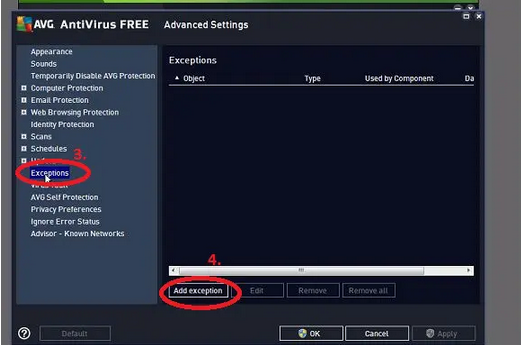
QuickBooks users frequently encounter connection errors, specifically the QuickBooks H-Series errors H202, H303, H505, when antivirus software improperly blocks QuickBooks’ essential network access needed for multi-user operation. This guide provides certified, step-by-step instructions to prevent these disruptions by configuring exclusions within the five most popular security programs: AVG Antivirus, Bitdefender Antivirus, Norton Antivirus, McAfee Antivirus, and Kaspersky Antivirus.
To ensure seamless accounting operations and avoid data corruption, users are advised to restore any QuickBooks files mistakenly quarantined by the security software and strategically exclude the main installation directory and core executable files (like qb.exe and qbdbmgrn.exe) from real-time and scheduled scans, a necessary measure to guarantee the application’s proper functioning without compromising overall system security.
Highlights (Key Facts and Solutions)
qb.exe, qbw32.exe, qbdbmgr.exe, and qbdbmgrn.exe.C:\Program Files\Intuit\QuickBooks..txt, .qbw).Antivirus software plays a vital role in defending your device against viruses, malware, and other undesirable programs. However, it’s important to note that at times, it may disrupt QuickBooks’ access to the Internet, which can be a concern in accounting.
Thus, it is necessary to include QuickBooks as an exception in your antivirus software to avoid such problems.
Popular antivirus programs where you can configure exclusions for QuickBooks include:
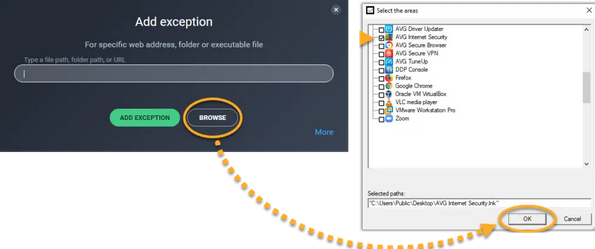
To prevent the QuickBooks directory from being scanned:
Note: Make sure the QuickBooks is installed on a different folder; add that folder path if needed.
Note: It is recommended to restore all QuickBooks files that are quarantined by AVG Antivirus to protect your data from getting corrupted or damaged.
To check if any of the QuickBooks files are quarantined:
Example: qb.exe, qbw32.exe, qbdbmgr.exe, qbdbmgrn.exe
To check for renamed files in the installation Directory, follow the steps below:
Example: QBDBMGRN_AVG_RESTORED
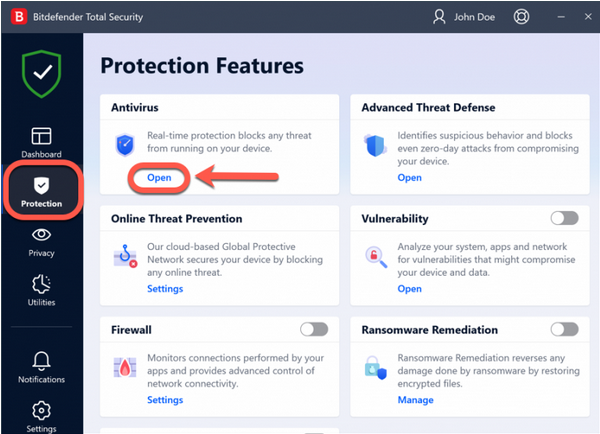
Bitdefender allows you to exclude specific files, folders, or file extensions through antivirus scans. To add any of them to the Exceptions list, follow the steps below.
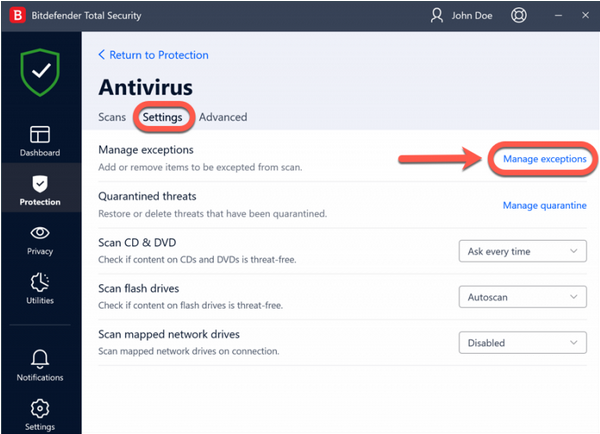
For this:
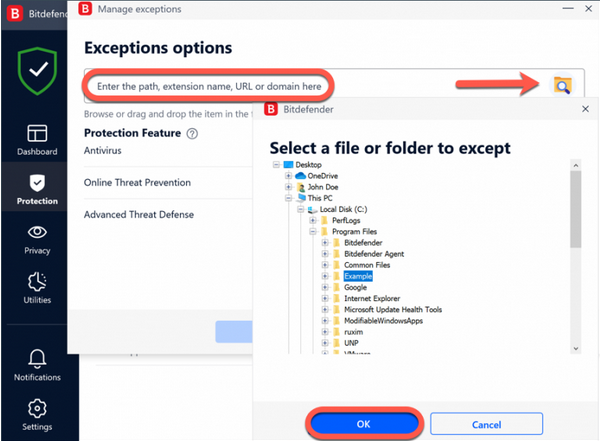
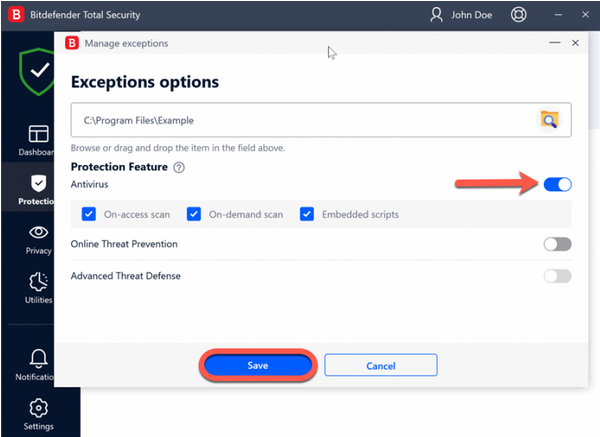
Exclude file extensions from the Bitdefender Antivirus scan
Delete or modify Antivirus scan exceptions
If you are no longer required to configure scan exceptions, you are suggested to delete them or disable scan exceptions.
For this, do the following:
Allow Internet access for a Blocked Program
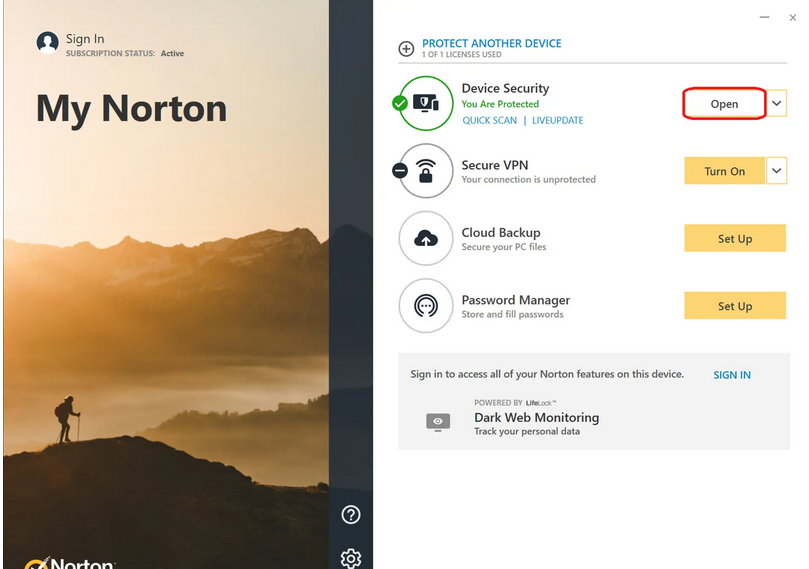
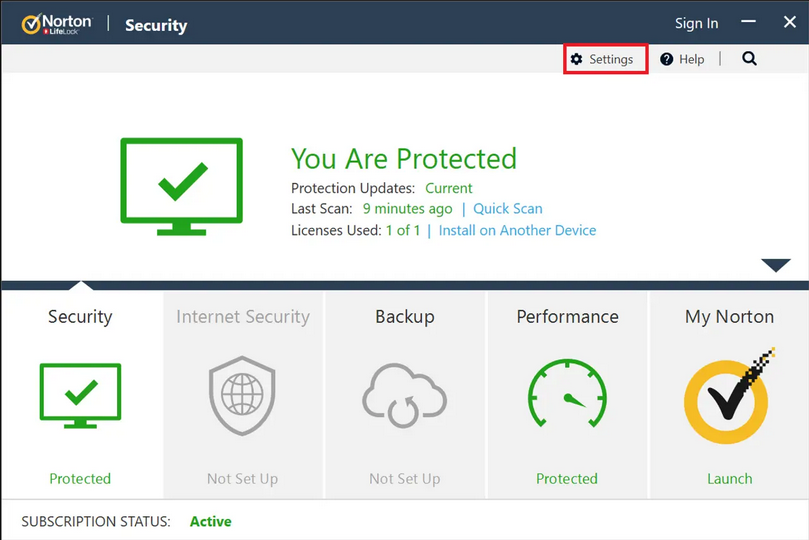
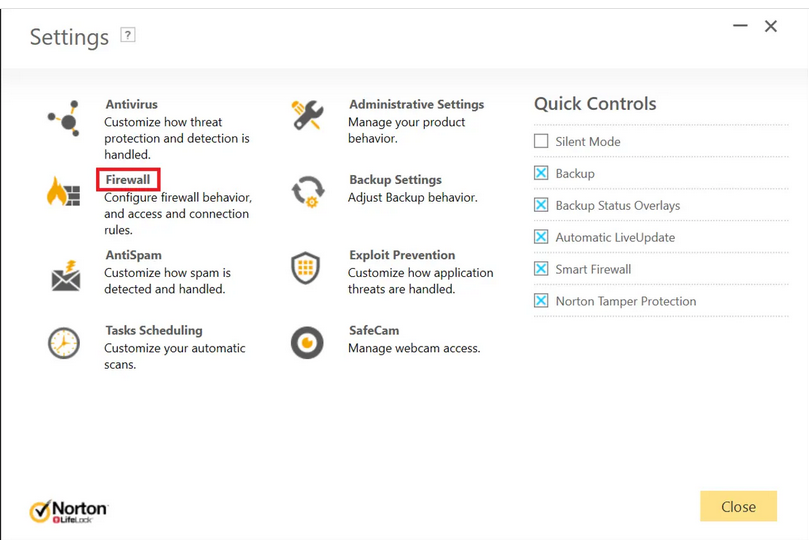
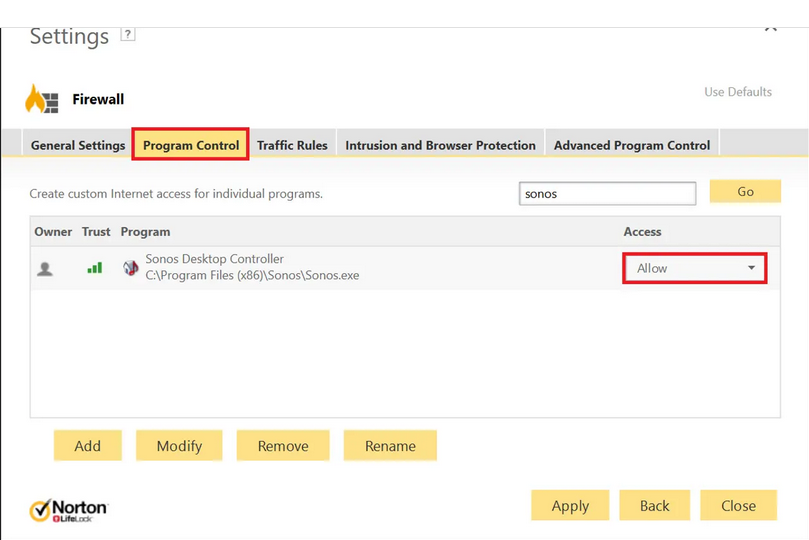
Turn off Automatic Program Control
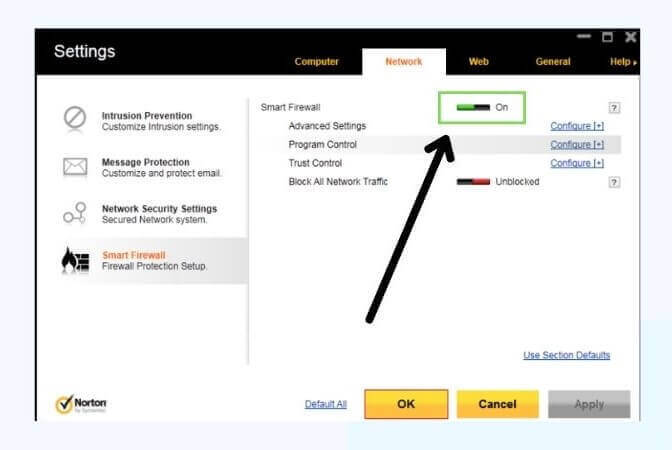
Configure the Internet Access Settings for a program
Exclude high-risk security threats from scanning
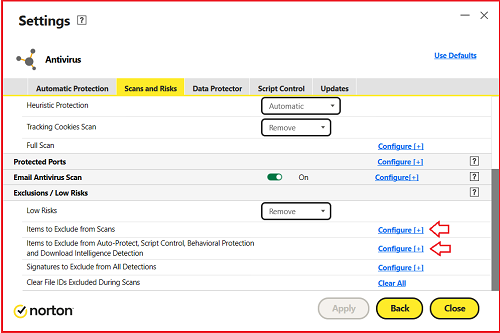
You can assign exclusions to local drives, folders, groups of files, single files, or network drives. However, if your Norton product doesn’t support exclusions for files on a network and you try to add a network drive to the exclusion list, be sure that the drive is connected to your computer.
To disable Norton from scanning your QuickBooks files, follow these simple steps:
This will prevent Norton from interfering with your QuickBooks files.
Exclude files or Folder from Virus Scans in McAfee Antivirus on Windows or mac OS.
For a new Windows user interface
Note: The files you exclude in this menu must also be excluded from On-Demand, Scheduled, and Command-line scanning.
For the legacy Windows user interface
Note: The files you exclude under this menu will be excluded from On-Demand, Scheduled, and Command-line scanning.
Note: For files to be excluded from all scan types, ensure that you have version 16.0.37 or later. If you’re using an older version of McAfee software, the exclusions will only apply to Real-Time Scanning.
For a Mac software
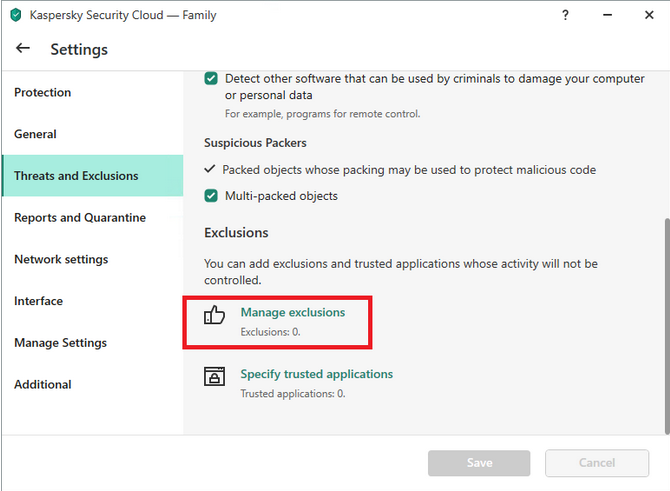
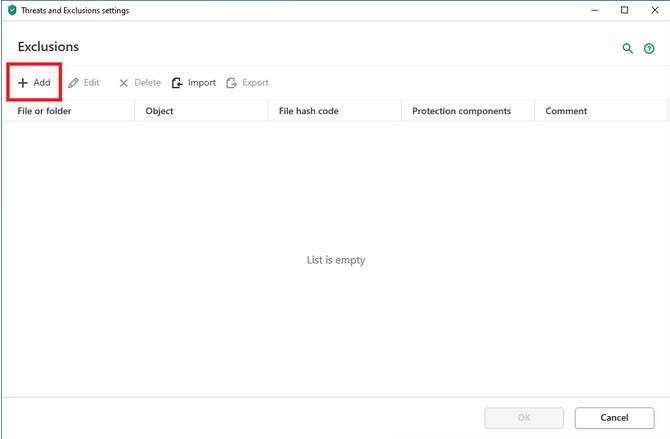
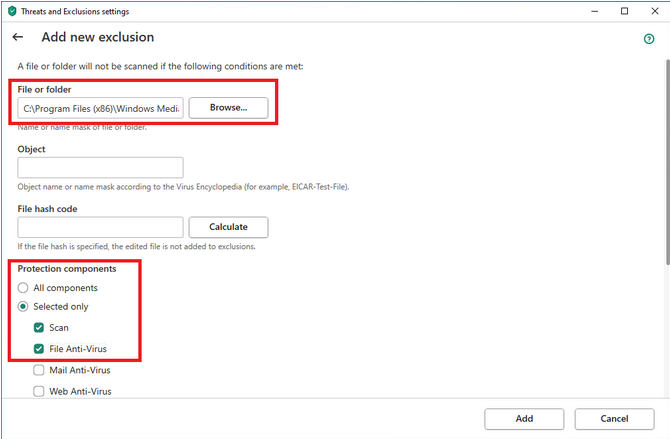
Add an application to exclusions in Kaspersky Internet Security
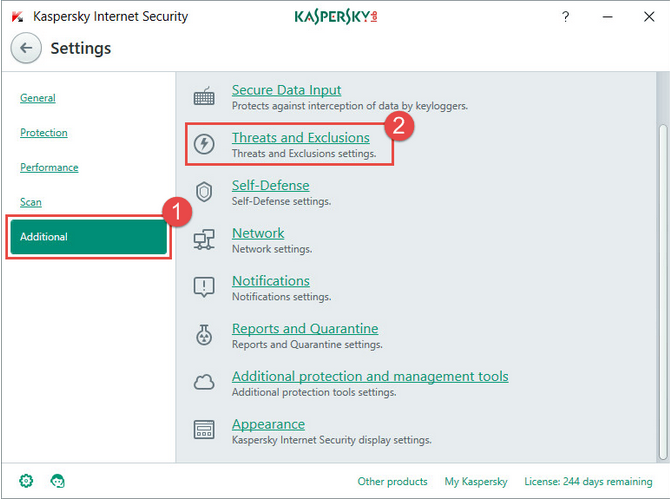
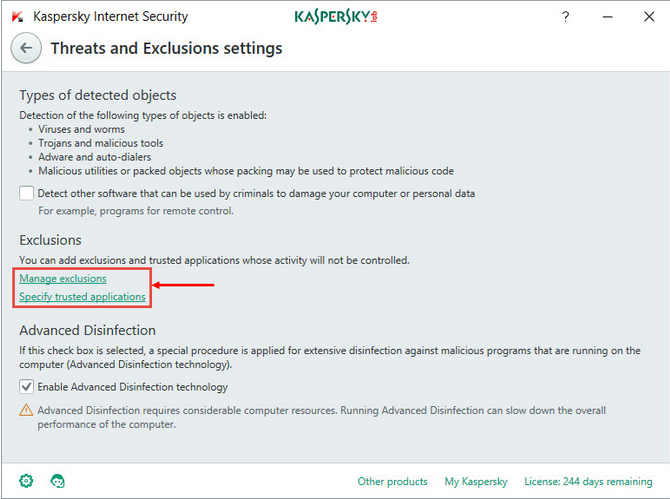
Note: To identify the protection component that should not scan the application, learn more about setting up exclusions in Kaspersky Internet Security under the Knowledge Base.
Exclude a link from the scan scope in Kaspersky Internet Security
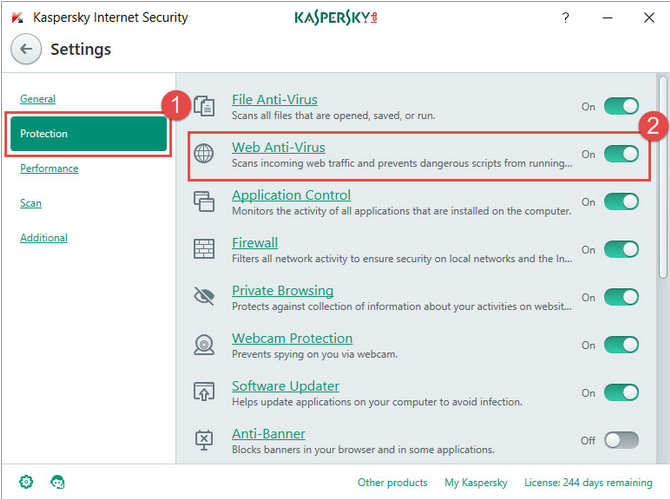
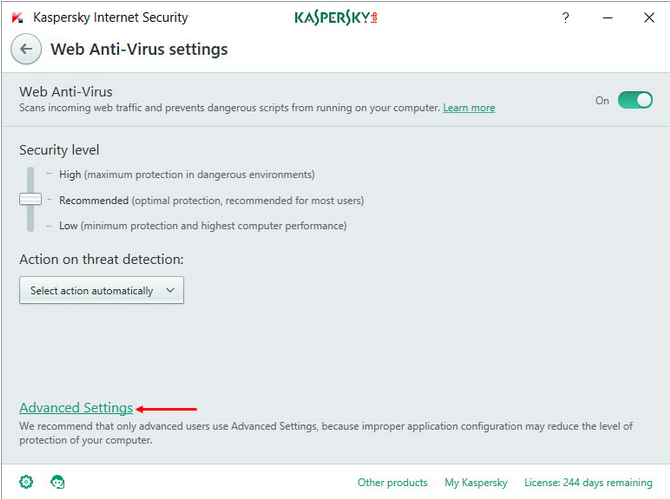
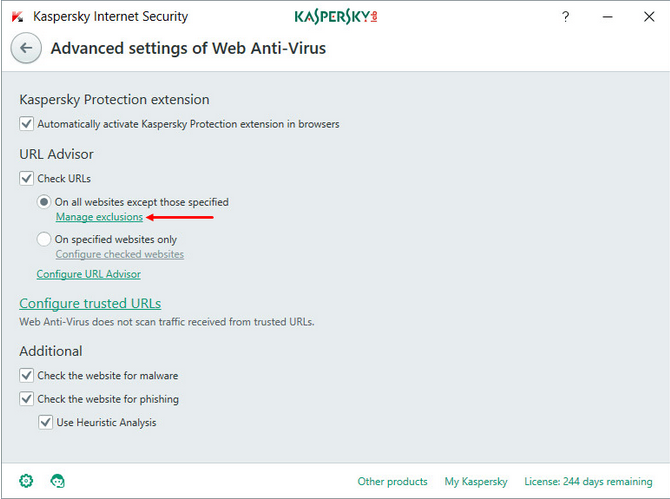
Antivirus app blocks a QuickBooks Program
Kaspersky Antivirus interrupts each file access and scans the file or folder for known viruses and other malware. If you’re completely sure an app is safe and secure, use exclusions settings to add it to the trusted list:
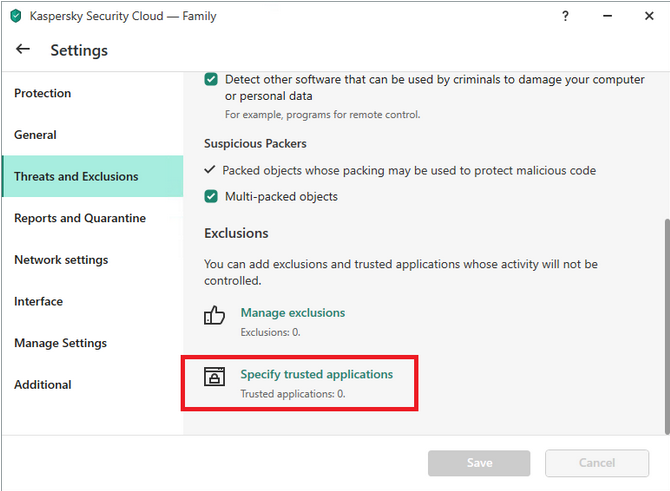
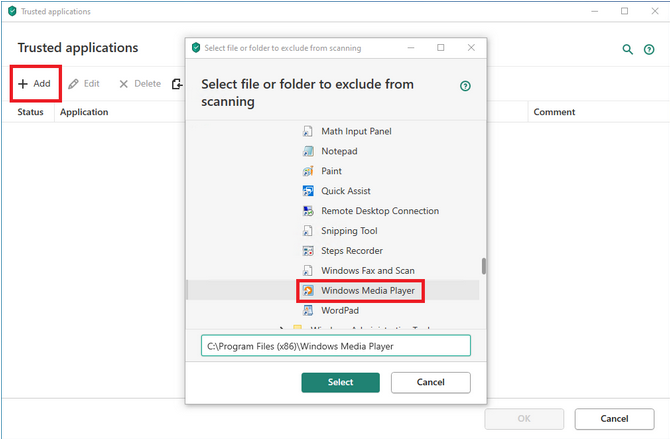
Note: You are recommended to enable and disable the following three:
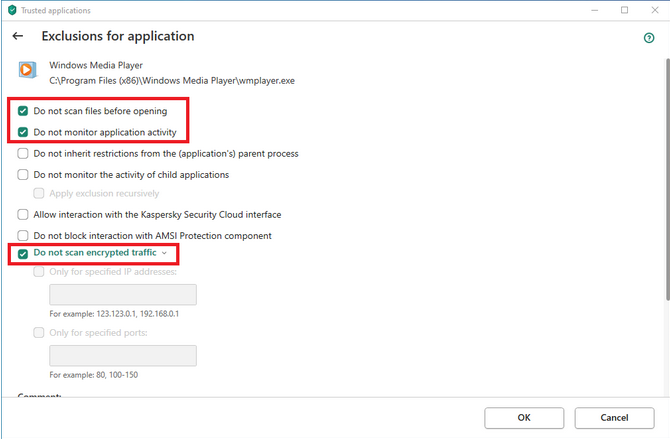
Antivirus app flags a QB Program during scan
If a program asks questions from the Antivirus while scanning, or you added it to the trusted list, but this didn’t help, you can try creating a scan exclusion. Let’s see how:
Modifying security settings can introduce risk. Adding exclusions to your antivirus software is a standard troubleshooting step recommended by Intuit (QuickBooks) to resolve connection issues like H202, H303, and H505.
Only exclude the specific files and folders recommended by this guide and official QuickBooks support. Excluding entire drives or unnecessary folders can compromise your computer’s security. If you are unsure about any steps, consult a certified IT professional or your company’s security administrator.
You must exclude both the QuickBooks installation folder and the folder containing your company files.
1. Installation Folder: Typically C:\Program Files\Intuit\QuickBooks (year).
2. Company File Folder: The location of your .QBW file (often in a default folder like Public Documents or a shared server path).
3. Key Executables: The most critical files to exclude are the database manager and main executable files, such as: qb.exe, qbw32.exe, qbdbmgr.exe, and qbdbmgrn.exe.
While any antivirus exclusion carries a minimal inherent risk, excluding the specific QuickBooks files and folders is generally considered safe and necessary for the application to function correctly. You are telling your security program that you trust Intuit’s official files.
To minimize risk, do not exclude your entire C: drive or entire program folders. Only exclude the specific paths and files officially recommended by QuickBooks support and your antivirus vendor.
If a QuickBooks file, such as qbdbmgrn.exe, has been quarantined or renamed (e.g., to QBDBMGRN_AVG_RESTORED), you must perform two steps:
1. Restore the file from the antivirus’s quarantine or “Virus Vault” back to its original location.
2. Rename the file back to its original name (e.g., qbdbmgrn.exe) if the antivirus renamed it during the restoration process.
3. Immediately add the file/folder to the exclusion list to prevent the antivirus from quarantining it again.
While the interface differs, the underlying process is the same for nearly all security programs, including Windows Defender/Security:
1. Open your Antivirus/Security Center.
2. Look for a section related to Settings, Protection, Virus & Threat Protection, or Exceptions/Exclusions.
3. Select the option to add a file or folder exclusion.
4. Browse to and select the QuickBooks installation folder and the company file folder.
Yes, absolutely. You must configure exclusions on every computer that hosts or accesses the QuickBooks company file.
1. Server/Host: This is the most critical location, as the database manager service (which the antivirus often blocks) runs here.
2. Workstations: Each workstation accessing the company file in multi-user mode also needs exclusions to ensure its individual processes can communicate with the server.
If antivirus exclusions don’t resolve the error, the issue is likely related to firewall settings or network configuration, not just the antivirus scan itself.
Next Step: Use the QuickBooks Database Server Manager tool to scan your company file and ensure all necessary services and ports are running correctly. You may need to manually add specific QuickBooks ports to your firewall exceptions.
H-Series errors (like H202, H303, and H505) are connection issues that occur when QuickBooks Desktop cannot communicate with its own company file or the server hosting it. They specifically indicate a problem with multi-user mode access.
Antivirus Software’s Role: Antivirus and firewall programs often mistake QuickBooks’ legitimate network activity (the processes needed for multi-user access) as a threat, blocking the connection and triggering these errors. Adding the QuickBooks executable files to the exclusion list resolves this communication block.


