+1-802-778-9005
Home>>QuickBooks Desktop Errors & Their Support How to Fix QuickBooks Error H101 When Opening Company File?

The QuickBooks Error Code H101 is a network-related issue that prevents workstations from accessing a company file stored on the server in multi-user mode. It typically signals a misconfiguration in hosting or connectivity settings.

The error arises when one or more workstations are incorrectly set to host the company file, when required QuickBooks services are not running, or when firewall and network permissions block communication with the server.

The error usually encounters H101 while trying to switch QuickBooks into multi-user mode, or when a workstation attempts to open a company file located on the server but fails to establish a proper connection.

Users often see a pop-up stating:

“This company file is on another computer, and QuickBooks needs some help connecting.”  

Note: It may also reference Error Code H101 along with instructions to check hosting or network setup.

Preventing H101 is critical because repeated disruptions can slow down payroll processing, reporting, and team collaboration. By ensuring correct hosting, stable network communication, and proper permissions, businesses avoid downtime and maintain smooth workflow across multiple users.

Prerequisites to Fix QuickBooks Desktop Network Error H101

Before starting troubleshooting, ensure the following are in place:

  • Stable Network Connection: Verify that all workstations and the server are connected to the same network.
  • Updated QuickBooks Version: Install the latest QuickBooks Desktop updates to avoid compatibility issues.
  • Admin Access: Log in with administrator rights on both the server and workstations.
  • Firewall & Antivirus Settings: Confirm QuickBooks is allowed through Windows Firewall and any third-party security software.
  • Company File Backup: Always create a backup of your company file before making changes to hosting or configuration.

How to Identify QuickBooks Desktop Network Error H101

QuickBooks Error H101 can be recognized by:

  • Error Code Pop-Up: A message appears stating “This company file is on another computer, and QuickBooks needs some help connecting.”
  • Multi-User Mode Failure: The error typically occurs when switching QuickBooks into multi-user mode.
  • Workstation Access Issues: Workstations fail to open the company file stored on the server.
  • Network Disruption Signs: Ping tests or service checks show failed communication between server and workstations.

Quick Overview of Troubleshooting Guidelines

LevelActionVerificationExpected ResultEstimated TimeEscalation Path
BeginnerStop Hosting on WorkstationsFile > Utilities → Stop Hosting Multi-User AccessOnly server hosts company file2–3 minutes per workstationIf error persists, go to Step 2
Configure Server HostingFile > Utilities → Host Multi-User AccessServer is sole host2–3 minutesIf error persists, go to Step 3
Run QuickBooks Tool HubInstall → Network Issues → Database Server ManagerCompany file scanned successfully5–7 minutesIf error persists, go to Step 4
Run File DoctorTool Hub → Company File Issues → File DoctorFile repaired, workstations connect8–10 minutesIf error persists, escalate to Intermediate
IntermediateVerify QuickBooks Servicesservices.msc → QuickBooksDBXX & QBCF Monitor ServiceStartup Type = Automatic, Status = Running5 minutesIf services fail, configure Recovery tab
Ping ServerCMD → ipconfig/all → ping [server name]Successful ping response3–5 minutesIf ping fails, check network setup
Adjust Firewall SettingsControl Panel → Firewall → Allow QuickBooksQuickBooks allowed through firewall5–7 minutesIf blocked, configure inbound rules
Configure PortsFirewall → Advanced Settings → TCP Port 8019Port open and accessible7–10 minutesIf blocked, escalate to Advanced
AdvancedRelocate Company FileCopy .QBW file to new folder → Open via QuickBooksFile opens from new location5 minutesIf error persists, continue
Set Folder SharingProperties → Sharing → Add QBDataServiceUserXXUser has Full Control5–7 minutesIf permissions fail, check Security tab
Verify Security PermissionsProperties → Security → QBDataServiceUserXXFull Control enabled5 minutesIf still failing, continue
Edit Hosts FileC:\Windows\System32\Drivers\etc → HostsServer IP & hostname added7–10 minutesWorkstations connect successfully

QuickBooks Error H101 – A Detailed Troubleshooting Guide

Beginner Level (Basic Checks)

Designed for users with minimal technical background. Focuses on simple menu options and basic connectivity.

  1. Check Hosting Settings
    • On each workstation:
      • Open QuickBooks (without loading the company file).
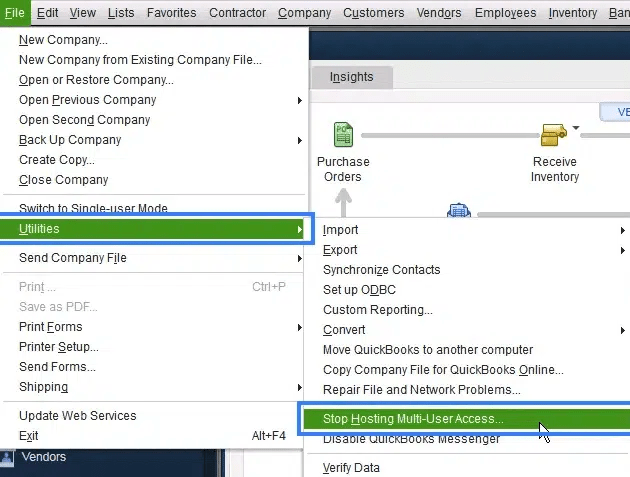
      • Go to File > Utilities.
      • If Stop Hosting Multi-User Access is visible, select it.
Stop Hosting Multi-User Access
  • On the server:
    • Open QuickBooks → File > Utilities.
    • If Host Multi-User Access is available, enable it.
  1. Run QuickBooks Tool Hub

Goal: Ensure only the server hosts multi-user access and run automated repair tools.

Intermediate Level (System & Network Checks)

For users comfortable with Windows services and basic networking.
  1. Verify QuickBooks Services
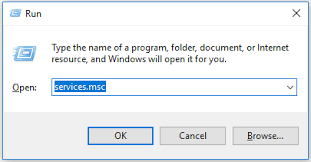
    • Press Windows + R → services.msc.
    • Locate QuickBooksDBXX and QBCF Monitor Service.
QuickBooksDBXX and QBCF Monitor Service
  • Set Startup Type = Automatic and ensure both are Running.
  • Configure Recovery tab to restart services if they fail.
  1. Ping the Server
    • On the server: run CMD → ipconfig/all to note hostname.
    • On each workstation: run CMD → ping [server name].
    • If ping fails, troubleshoot network connectivity.
  2. Firewall Adjustments
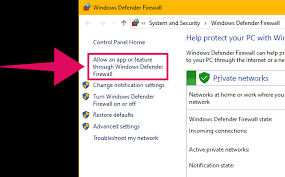
    • Go to Control Panel → Windows Defender Firewall → Allow an App.
    • Ensure QuickBooks is allowed.
Ensure QuickBooks is allowed
  • Configure inbound rules for TCP port 8019 (and other QuickBooks-required ports).

Goal: Confirm services are running, workstations can reach the server, and the firewall isn’t blocking QuickBooks.

Advanced Level (File & Configuration Fixes)

For IT admins or advanced users. Focuses on permissions, file paths, and manual configuration.

  1. Test File Location
    • Copy the company file (.QBW) into a new folder (e.g., Desktop\Test).
    • Open via File > Open or Restore Company.
  2. Folder Permissions
    • Right-click company file folder → Properties → Sharing.
    • Add QBDataServiceUserXX with Full Control.
    • In Properties → Security, verify Full Control for QBDataServiceUserXX.
  3. Edit Windows Hosts File
    • Navigate to C:\Windows\System32\Drivers\etc.
    • Open Hosts file in Notepad.
    • Add server’s IP address and hostname.
    • Save and retry QuickBooks access.

Goal: Ensure file paths are valid, permissions are correct, and the host file allows proper communication.

Why is QuickBooks Error H101 Is Desktop-Only?

It is desktop error because:

  • QuickBooks Desktop vs. Online:
    • Desktop: Uses a local company file stored on a server or workstation. Multi-user mode depends on proper hosting, firewall permissions, and network connectivity. Errors like H101, H202, H505 are specific to this environment.
    • Online: Company files are stored in Intuit’s cloud servers. Users access them through a browser or app, so there’s no local hosting or server-to-workstation communication.
  • Why H101 doesn’t apply online:
    • H101 is triggered when a workstation tries to host or connect to a company file incorrectly.
    • QuickBooks Online doesn’t rely on local hosting  all access is managed through Intuit’s servers.
    • Therefore, the conditions that cause H101 simply don’t exist in QuickBooks Online.

How to Prevent QuickBooks Error H101

Preventive measures reduce the chance of recurring disruptions:

  • Correct Hosting Setup: Ensure only the server hosts multi-user access, while workstations remain in non-hosting mode.
  • Regular Service Checks: Keep QuickBooksDBXX and QBCF Monitor Service running and set to automatic startup.
  • Firewall Configuration: Allow QuickBooks through Windows Firewall and configure required ports (e.g., TCP 8019).
  • Consistent Network Monitoring: Periodically test workstation-to-server connectivity using ping commands.
  • File Management Practices: Store company files in stable, shared folders with proper permissions for QBDataServiceUserXX.
  • System Maintenance: Update QuickBooks Desktop and Windows regularly to maintain compatibility and security.

Conclusion

QuickBooks Desktop Network Error H101 is a desktop-only issue that arises when workstations attempt to host or connect to a company file incorrectly. It is triggered by misconfigured hosting, inactive QuickBooks services, firewall restrictions, or network connectivity problems.

By following a tiered troubleshooting approach starting with basic hosting checks, moving through service and firewall verification, and finally addressing file permissions and host file configuration users can systematically resolve the error.In short, H101 is a reminder that QuickBooks Desktop relies heavily on correct network setup and permissions, and with proper configuration, businesses can avoid recurring disruptions and maintain smooth multi-user collaboration.

FAQ

What are the specific port numbers the Windows Firewall must allow for QuickBooks Multi-User Access to function correctly?

The Windows Firewall needs specific port exceptions to allow network traffic between the server and workstations. QuickBooks Desktop uses different ports based on the version you are running.

  • QuickBooks Desktop 2022 and newer: Uses dynamic ports. The most common static port is 8019, but the version-specific dynamic ports are now typically within the 553xx range. For example:
    • QuickBooks 2024: Ports 8019, 56728, 55378–55382.
    • QuickBooks 2023: Ports 8019, 56727, 55373–55377.
  • QuickBooks Desktop 2021 and older: Uses static ports (e.g., 8019, 56721), with the specific four-digit number decreasing each year.

The most reliable method is to use the QuickBooks Database Server Manager (DBSM) to scan your folder, as it automates the creation of the correct firewall rules for your specific QuickBooks version.

After using the QuickBooks Database Server Manager, how can I confirm the scan successfully fixed the error, and what are the next steps?

When the QuickBooks Database Server Manager (DBSM) finishes scanning the folder containing your company file, it performs two essential actions:

  • Firewall Repair: It attempts to automatically repair and set the necessary inbound and outbound firewall permissions.
  • File Creation: It ensures the Network Data (*.ND) file is properly created or updated for multi-user access.

Confirmation and Next Steps:

  1. The DBSM window will indicate the scan is complete.
  2. Server Check: On the server machine, open QuickBooks and go to the File menu, then select Switch to Multi-user Mode (if it is not already in multi-user mode).
  3. Workstation Check: Attempt to open the company file from a workstation. If the file opens without the H101 error, the issue is resolved.

Why is it important that “Host Multi-User Access” only be enabled on the server computer, and what happens if it is enabled on a workstation?

The Host Multi-User Access feature designates a computer to serve the company file and manage the database connection for the entire network.

  • Server-Only Rule: Hosting must be enabled only on the computer where the company file is physically stored (the server) and where the QuickBooks Database Server Manager is running.
  • Workstation Conflict: If a workstation has hosting enabled, it creates a conflict on the network, as more than one computer is trying to act as the primary host. This confusion prevents the server from properly establishing its dedicated role and is a direct cause of H-series errors, including H101, H202, H303, and H505.

What is the role of the QBDBMgrN and QBCFMonitorService services, and what should I check if restarting them does not resolve Error H101?

These two services are the backbone of QuickBooks Desktop’s network connectivity:

  • QBDBMgrN (QuickBooks Database Manager Service): This service runs on the host computer and is the process that allows remote workstations to access the QuickBooks database.
  • QBCFMonitorService (QuickBooks Client Framework Monitor Service): This service monitors the data flow between the QuickBooks program and the shared file.

If restarting both services (via services.msc) does not fix Error H101, you must check the following settings on the server:

  • Startup Type: Confirm both services are set to Automatic.
  • Recovery Settings: Confirm the recovery tab for both services is set to Restart the Service for the first, second, and subsequent failures.
  • Folder Permissions: Verify the Windows user account responsible for running the services (typically QBDataServiceUserXX) has Full Control permissions to the folder containing the company file.

Why do I need to create a new folder and copy the company file (*.QBW) as a troubleshooting step, and how does this fix H101?

Creating a new folder and moving the company file is a crucial step that helps eliminate hidden issues related to Windows path or security restrictions.

  • Permissions Reset: The original folder may have hidden or legacy Windows security permissions, network sharing rules, or path restrictions that prevent multi-user access. Moving the file to a brand new folder forces the operating system to re-establish clean, inherited permissions.
  • Path Simplification: Complex, overly long, or corrupt file paths can be a hidden cause of network errors. Moving the file to a simple root-level folder (e.g., C:\NewQBFolder) eliminates this potential conflict.

What information is contained in the Network Data (*.ND) file, and why is regenerating it recommended when troubleshooting network errors?

The Network Data (*.ND) file is a small configuration file automatically created by the QuickBooks Database Server Manager.

  • Content: The *.ND file acts as a map for network access, containing essential parameters that tell QuickBooks how to connect to the company file from a remote machine, including the server’s IP address, port number, and the version of QuickBooks currently hosting the file.
  • Regeneration Fix: If network settings change (e.g., the server gets a new IP address), the *.ND file can become outdated or corrupted. Renaming the file (e.g., from MyFile.nd to MyFile.nd.old) forces QuickBooks to automatically regenerate a fresh, accurate version when the server next opens the file, eliminating configuration conflicts.

Which tool should I use first Quick Fix my File or QuickBooks File Doctor—when encountering the H101 error, and why?

Always start with Quick Fix my File as the first automated step within the QuickBooks Tool Hub.

  • Quick Fix my File (Initial Step): This tool is faster and addresses common, low-level program and file access issues, including simple repair of file paths and minor component damage. It serves as an excellent initial diagnostic and repair step.
  • QuickBooks File Doctor (Deeper Step): If the quick fix fails, the File Doctor is the next step. It is the more powerful tool specifically designed to address:
    • Data Damage: Internal corruption within the *.QBW file.
    • Network Connectivity: Comprehensive diagnosis and repair of hosting settings, firewall configurations, and underlying network problems that cause H-series errors like H101.

Using the Quick Fix first allows for a rapid, lightweight resolution before escalating to the more time-consuming, deep-scan process of the File Doctor.